

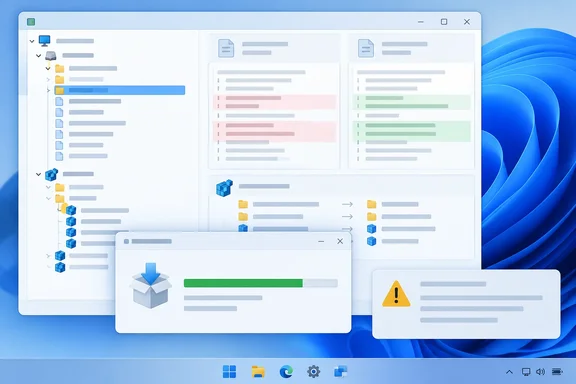
XDA Developers' Yash Patel recently described using SoftDetective to watch app installations and removals. He liked how simple it was: pick a program, start monitoring, install as usual, then read a report of the files, folders and Registry entries involved. That matches WinAbility's documentation. The vendor's guide also spells out limits that any serious Windows user or IT admin should understand before treating the report as the whole truth.
What SoftDetective actually does
In WinAbility's words, SoftDetective lets you monitor the installations of other programs, to see which files they are installing on your computer, and what kind of changes they make to the registry settings. It works in the other direction too: it can also observe the changes made during the removal of other programs, letting you see whether the uninstall procedure removes all its files properly or leaves something behind.
The main features:
- File and folder tracking: you can see the files and folders that are created, modified, renamed, or deleted by a specific program, along with the differences in their sizes, the time stamps, the file names, and even the portions of the text files that were modified.
- Registry tracking: it shows which registry keys it's added, deleted, or updated, and see exactly what has changed.
- Three ways to monitor: you can launch the programs to monitor them from the very beginning, or observe the already running processes, and you can also monitor an uninstall.
- Safety copies: if a program being monitored deletes a file, SoftDetective saves the original copy in a temporary folder, letting you examine that copy or restore it back. For modified text files, it keeps the original so you can compare both versions, including with a third-party diff viewer.
- Export: reports can be viewed on screen or exported into the text or HTML files and printed out.
On licensing, WinAbility's product page says plainly that SoftDetective is free software, you don't need to pay anything to download or use it. Long-time users may remember it differently. An older WinAbility blog post noted that the trial version of SoftDetective comes with a free license for 30 days of use, so it was once trialware before becoming freeware.
Section summary: SoftDetective is a per-program change monitor. You point it at one program and it records the file and Registry activity it can see from that program.
Compatibility and version
WinAbility's user guide lists version 22.7 as the current release and describes it as minor changes to work better with Windows 11. The vendor says SoftDetective is fully compatible with Windows 11 and 10, as well as with Windows 8, and 7, with both the 32- and 64-bit version of Windows supported. The guide says the setup program picks the 32- or 64-bit files automatically, and that the tool does not run on Windows 2000 or anything older.
Softpedia lists version 22.7 as freeware: a 1.3 MB download named SoftDetective.exe, with a catalog update date of February 25, 2023. That date comes from Softpedia, not from a WinAbility release note. The available evidence doesn't show whether anything newer than 22.7 exists.
WinAbility's guide also says to install while signed in as an administrator or power user, because regular or limited accounts may not be able to install or use it. The optional update check never downloads or installs anything without asking you first.
How to monitor an installation, step by step
This procedure comes from WinAbility's guide and matches what Patel describes:
- Open the Monitor page. Enter the path to the program you want to monitor in the first box on this page. You can also click on the [...] button next to the box and choose the Browse for file command from the menu to locate the file.
- Add command-line parameters only if you know them. If you don't know which command line parameters to enter, leave the box empty.
- Decide on Run as Administrator. The guide says most installers and uninstallers need this checked, but some need it cleared. If the target won't start or monitoring misbehaves, switch it and try again.
- Name the report (optional). If you leave the name blank, SoftDetective uses the program or task name and adds the date and time.
- Press Start. SoftDetective launches the target, hides its own window and shows an icon in the notification area next to the clock. Go through the installer as you normally would.
- Stop monitoring. When the installer finishes, double-click the tray icon, or right-click it and choose Stop monitoring. The report may take a few seconds to finalize.
- Review the results. You can review the monitoring results on the Reports page of the SoftDetective window.
To monitor an uninstall: click the [...] button and choose the second menu command, which opens the Windows Uninstall list. Pick the program and SoftDetective fills in both the path and the command-line parameters. Patel's write-up mentions the path being filled in, and the vendor guide confirms the parameters are too.
Useful trick: you can add to an earlier report instead of starting a new one. WinAbility suggests this if you want to see the results of installing and then uninstalling a program in one single report. Putting both sessions side by side is the quickest way to spot leftovers.
Caveat on history: SoftDetective keeps track of the programs you were monitoring in the past, and you can select them for repeat monitoring from the drop-down list. The guide warns that picking one this way restores only the path, not the command-line parameters you used last time.
Reading the report without drowning
Reports show up as an expandable tree. Selecting an event shows details such as full paths, file times, version information and Registry key data. The View menu has several options:
- Show full path in tree: groups events by full file or Registry path. Expand All and Collapse All help with navigation.
- Hide empty branches: removes clutter.
- Include temporary events: shows or hides items SoftDetective thinks were temporary, such as a file created and then deleted in the same session.
- Search: WinAbility notes that large reports can hold hundreds or thousands of events, so searching for a known name or value saves time.
On the Options page you can choose where reports are stored, which file extensions count as text (so SoftDetective tries to track changes inside them), and which text and diff viewers to use. If you move the report folder, only reports in the new folder appear unless you move the old ones yourself. Deleted reports can't be recovered.
Where the "reveals everything" pitch falls short
This is the part a headline can't cover. WinAbility says openly that there are a lot of things in the report, but its own troubleshooting section lists situations that are "tricky or impossible to monitor":
- Multi-process installers: if the program you picked hands the real work to another module or process, SoftDetective may miss that activity.
- Compressed packages: point it at a ZIP file and you may only record the extraction. Unpack it first and monitor the actual installer.
- Self-extracting installers: activity from secondary processes they launch may or may not be captured.
- Services, drivers, ActiveX and .NET components: activity these produce during installation may not be recorded. WinAbility's only suggested fallback is to capture all system activity with Process Monitor and analyze it by hand.
- Client-server designs: SoftDetective may see only one side.
- Overly noisy programs: the guide mentions system cleaners that request write access to huge numbers of files. This can fill SoftDetective's temporary folder with gigabytes of copies and make analysis painfully slow.
- MSI installations: the split between temporary and permanent events is, in WinAbility's words, a suggestion at best, because MSI installers often reuse temporary file names during complex sequences.
So is a clean SoftDetective report proof that an installer did nothing sneaky? No. It's a record of what the tool detected from the process you chose. It isn't a full audit of the system.
A security note: monitoring means running the program
SoftDetective doesn't sandbox anything. It launches the program you choose and watches it. Softpedia's review says so directly: monitoring an app means that app actually runs, so users should make sure it's safe or use a secured, sandboxed environment. If you're investigating a suspicious installer, run it inside a virtual machine or Windows Sandbox (on Windows editions that include it), not on your main PC. Keep Microsoft Defender or your usual antivirus active. SoftDetective is a way to see what a program changed, not something that protects you from it.
The verdict
In our view, SoftDetective fills a useful gap between "just trust the installer" and a full Process Monitor capture. It's a good fit for:
- Power users who want to know what an app adds to startup, AppData or the Registry
- IT admins and packagers checking an installer's footprint before deployment, or confirming an uninstaller actually cleans up
- Developers testing their own installers for leftover files and keys
For a free tool, you get a clear per-program report of file and Registry changes, with before-and-after copies of deleted and edited files. Just read that report as the tool's observations, not a sworn statement. For complex MSI packages, driver installs or anything genuinely suspicious, run SoftDetective inside a sandbox and back it up with Process Monitor.
References
- This free Windows tool monitors app installations and reveals changes you never see XDA · 2026-09-27T14:30:16+00:00
- SoftDetective - Download - Softpedia softpedia.com
- SoftDetective User's Guide winability.com