

Submarine Folds PuTTY, WinSCP and SSH Tunnels Into One Saved-Server Workspace
The problem Submarine targets is a familiar one. MakeUseOf's Oluwademilade Afolabi had no complaint about PuTTY or WinSCP taken one at a time. The friction started when he was already in an SSH session, needed a file, opened a second app with the same server details, and then went looking for a separate port-forwarding command. Submarine's own README puts it plainly: "PuTTY and WinSCP are two separate apps you alt-tab between."
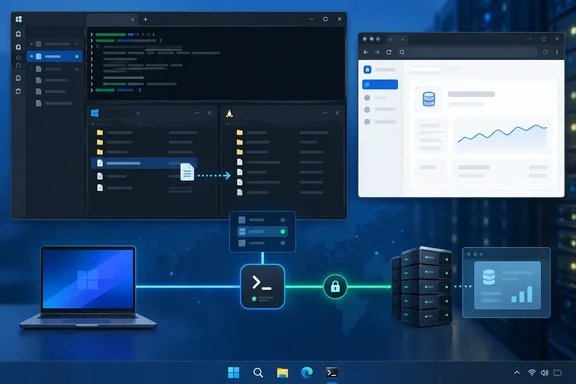
The project describes itself as built with Rust + Tauri and MIT-licensed. Its layout is one window, many tools per server — terminal, SFTP, tunnels, folder mirror, Docker, live server info, and a per-server command library, all as tabs around the same session. The developer also compares it with the obvious all-in-one alternative. The README says MobaXterm bundles them but feels dated and is Windows-only, while Submarine puts terminal, SFTP, tunnels, and folder mirror in one modern tabbed window per server and runs natively on Windows, macOS, and Linux. That's the developer's positioning, not an independent comparison, but it tells you which tools Submarine wants to replace.
The project also makes performance claims. It says Submarine boots in under a second, uses around 80 MB of RAM with several sessions open, and quotes an installer of around 10 MB vs ~100 MB for an Electron equivalent. MakeUseOf didn't publish measurements of its own, so treat those figures as the developer's claims.
Afolabi tested it against an Ubuntu machine. He opened several shells to the same host, switched between them in tabs, disconnected, and came back later without rebuilding the connection. The SFTP and Ports panels sit at the top of the same server workspace. If you need a file or a tunnel in the middle of a shell session, you're still working with the same saved server.
His honest scoping is worth repeating. If you only SSH into a Raspberry Pi now and then, he says PuTTY is still "a perfectly good small hammer." Submarine pays off when opening the terminal is only the first step of the job.
Setting Up Submarine on Windows 11 Means Clicking Past SmartScreen
On Windows, Submarine comes as an EXE or MSI installer. According to the project's documentation, Linux users get DEB, RPM, Arch and AppImage packages. Android users sideload an APK, with Android 8.0 (API 26) or later listed as supported. The builds are unsigned. When Afolabi ran the installer, Windows 11 showed a Microsoft Defender SmartScreen warning before it would continue. The repository warns about exactly that, so the prompt was expected. It still tells you something about how young the project is.
On first launch, Submarine asks you to create a password-protected profile. That profile is an encrypted vault for saved servers and credentials. Adding a server then works like any other SSH client: hostname, port, username, and either a password or key authentication. The README says key support covers file-based keys and pasted PEM/OpenSSH keys, with or without passphrase. The project also documents importing PuTTY registry exports, MobaXterm session files and OpenSSH configuration. That could make moving an existing server list much easier. MakeUseOf didn't test the importers, so check the result against your own configuration before you rely on it.
Host-key handling works the way it should. On the first connection, Afolabi got an ED25519 host fingerprint prompt, and the fingerprint matched the one Windows OpenSSH had shown him earlier for the same machine. After he accepted it, Submarine remembered the host and didn't ask again. The project calls this pinned host keys on a trust-on-first-use (TOFU) basis. TOFU is only as safe as that first check. Compare the fingerprint with one you got through a trusted channel, as Afolabi did with OpenSSH, before you click accept.
Submarine's SFTP Browser Covers Everyday WinSCP Work, Not All of It
MakeUseOf says the SFTP panel saved the most back-and-forth. Its split view shows local Windows files and the remote filesystem side by side, with the SSH terminal still open next to them. Afolabi uploaded and downloaded files in both directions, and transfer progress appeared inside the panel. He dragged a file from Windows into an Ubuntu directory and checked it straight away from the terminal beside it.
The file controls go beyond copying. You can rename, move and delete files, create folders and inspect file properties. Afolabi changed a remote server.conf from 664 permissions to 600 in the graphical permissions editor, then ran stat in the terminal to confirm the server had applied it. In plain terms, 664 lets the owner and group read and write the file and lets everyone else read it. 600 limits reading and writing to the owner. That's the kind of permission you'd set on a config file that holds secrets.
He liked remote editing best. Submarine's Edit (auto-upload) option opened a temporary copy of the config file in his normal Windows editor. When he saved, Submarine uploaded the changed file, and cat in the adjacent shell showed the new contents already on Ubuntu. That's one editor, one file and one server. It isn't a guarantee for every editor or permission setup, but it's the workflow most people want from a WinSCP replacement. The project also documents overwrite confirmations for uploads and downloads.
Afolabi says openly where the replacement stops. He writes that WinSCP "has far more depth," particularly for advanced synchronization or automation. Submarine does have Folder Mirror, which keeps a local and a remote directory in step. It's more involved than drag and drop, and the documentation lays out how it works:
- The first comparison between local and remote contents uses file size and hash.
- After that, it watches for local changes, and each mirror gets its own conflict policy: local wins, remote wins, or newer wins.
- Files removed from the remote side are moved to a
.submarine-trash/folder, not deleted outright. - The project warns that edits made during a sync can be lost. It recommends reviewing the dry-run overwrite preview and saving or closing files first.
The README describes this as an rsync GUI / Syncthing-lite that mirrors a local folder to a remote SSH host with conflict resolution. MakeUseOf didn't need Folder Mirror for its routine and didn't test it. Anyone thinking of pointing it at important directories should take that data-loss warning seriously.
Port Forwarding in Submarine Replaces ssh -L With a Saved Rule
The tunnel test is the most useful part of the hands-on, because it checked that the forward actually carried traffic. Afolabi started a small Python web server on Ubuntu and bound it to 127.0.0.1:8765. Binding to the loopback address means the service answers only on the machine itself, not on its normal network address. In Submarine's Ports panel, he created a local forward listening on Windows port 8080 that sent traffic through SSH to 127.0.0.1:8765 on the Ubuntu side. The panel showed the tunnel listening and logged the forwarding path. Opening localhost:8080 in Chrome on Windows loaded the page served from inside Ubuntu.
That's the job an ssh -L 8080:127.0.0.1:8765 user@host command does, or a saved tunnel in PuTTY's configuration tree. The setup is the whole point. You can reach a service that never listens publicly: a database admin page, a monitoring dashboard, a development server or a NAS interface. The only way in is an authenticated SSH session.
Submarine also supports remote forwarding (the ssh -R equivalent) and dynamic forwarding (ssh -D). The project lists SOCKS and HTTP proxy modes for dynamic forwarding. MakeUseOf tested only the local case, so for remote and dynamic tunnels you have the documentation, not observed results. Tunnel rules are saved under the server profile and can be started or stopped one at a time. Afolabi's comparison is fair: that beats digging through shell history for the forwarding command you used last month.
Beyond the three jobs it set out to replace, Submarine has more panels. The Info panel shows CPU, memory, storage, network, listening ports and services. The Docker panel handles containers, logs, resource stats and interactive shells. There are also saved commands and per-server notes. They're documented features, and MakeUseOf mentions them. They aren't why you'd switch.
Submarine's Encrypted Vault and v0.x Status Set the Trust Terms
An SSH client holds the keys to your servers, so its credential storage matters more than its interface. The project says profiles are encrypted locally with a key derived using Argon2id, then protected with AES-256-GCM. The README says cloud sync is opt-in, and all profiles, mirrors, and tunnels live locally and are encrypted at rest. If you do turn on sync, the project says only encrypted profile data is uploaded and your master password is never sent to the sync service. The cross-device pitch is that you enable sync on one machine, unlock on another with the same master password, including an Android phone. Two consequences follow. There is no password-recovery flow, so a forgotten master password means your saved vault is gone. And all of this is the developer's description of their own design, not the result of an external audit.
The project also lists hardening in the app itself: Strict Content Security Policy, minimal Tauri permission ACL, no shell or filesystem plugins exposed to the UI. These are sensible choices for an app that renders its interface in a webview, and anyone can inspect them because the code is public under the MIT license.
The size of the project is the other half of the trust question. When the evidence for this piece was gathered, the GitHub repository showed about 165 commits, 16 stars and 4 forks. MakeUseOf notes the software is still at v0.x. Small isn't the same as untrustworthy. It does mean few other people have been through the code, and it means the unsigned installer is the only artifact you get.
One more reason to be careful where you download from: a separately named repository, SSHClientX, carries almost identical description text. It too presents itself as a Rust and Tauri client that replaces the typical PuTTY + WinSCP + tunnel-manager stack with one tabbed window per server. Nothing here shows how the two projects are related. When the installer is unsigned, though, the repository you download from is your only proof of where it came from. The build MakeUseOf tested is Submarine, published under the SinaXhpm account on GitHub.
What this means for you
Whether to switch comes down to how often a shell session turns into a file transfer or a tunnel. If that's most of your SSH work on a personal or homelab machine, Submarine is worth installing now. If you use PuTTY now and then, or rely on scripted WinSCP transfers, there's no reason to move yet. Managed enterprise desktops are a separate case. An unsigned v0.x installer that triggers SmartScreen will usually need approval under your organization's software policy. Submarine's documentation doesn't describe any enterprise deployment tooling, so plan for it to go through the same review as any other unsigned third-party binary.
- Download Submarine only from the official SinaXhpm GitHub releases, and expect a SmartScreen prompt on Windows 11, because the EXE and MSI builds are unsigned.
- Compare the first-connection host fingerprint with one from a trusted source, such as Windows OpenSSH or the server console, before accepting it, because Submarine pins whatever key you approve.
- Choose a master password you won't forget and keep a separate record of your server details, because the project says the encrypted vault has no password-recovery flow.
- Treat local forwarding as tested and remote, dynamic, SOCKS and HTTP proxy tunnels as documented but not independently exercised.
- Keep WinSCP if you depend on its advanced synchronization or automation, and use Submarine's Folder Mirror only after reviewing its dry-run preview and closing any open files.
- Leave cloud sync off unless you need your server list on more than one device, since the project says the core client works entirely locally.
Submarine gives you nothing that ssh, PuTTY and WinSCP can't already do. What it does, as MakeUseOf's Ubuntu test showed, is let you work each saved server as one place, which three separate programs never could. Signed installers, an outside security review and a 1.0 release would decide whether it belongs on work machines. For now, the practical place to try it is a homelab box or a personal VPS.
References
- I replaced PuTTY, WinSCP, and my SSH tunnel setup with one open-source app - MakeUseOf MakeUseOf · 2026-09-25T13:00:14+00:00
- GitHub - SinaXhpm/Submarine: Modern SSH & SFTP client — terminal, SFTP, port forwarding, folder mirror, encrypted sync. Windows · macOS · Linux · Android. github.com
- GitHub - InDieStack-v2/SSHClientX: Modern SSH & SFTP client — terminal, SFTP, port forwarding, folder mirror, encrypted sync. Windows · macOS · Linux · Android. github.com