

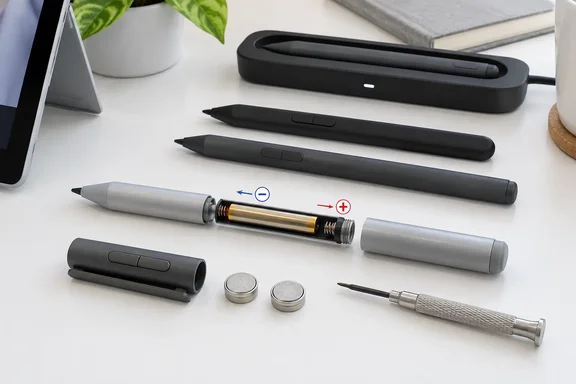
Some of these pens have been around long enough that owners and IT staff may not know which one is in the drawer. The page is listed as published December 18, 2025. It gives separate steps for each pen design, and those steps are not interchangeable.
Surface Slim Pen and Slim Pen 2 Owners Should Stop Before Opening Anything
The first rule is about what not to do. Microsoft says "some Surface Pens" need battery replacement, and it states that the Surface Slim Pen and Slim Pen 2 do not have replaceable batteries. For those two pens, the only power fix is charging. Microsoft keeps a separate troubleshooting page for Slim Pens that won't charge.
Microsoft also lists the Surface Pro Pen as having no battery at all, so it never needs charging or new cells. If you aren't sure which pen you have, Microsoft points you to its "Identify your Surface Pen and features" guide before you try any of the steps below.
For IT departments with mixed pen fleets, this is the step to settle first. A Slim Pen that stops writing is a charging or hardware problem. A clip-style pen with side buttons may just have a flat AAAA cell.
Three Surface Pen Housings, Two Opposite AAAA Polarity Rules
Microsoft sorts the replaceable-battery pens into three physical designs. Each one opens differently, and the third puts the battery in the opposite way from the first two.
| Pen design | How it opens | AAAA orientation |
|---|---|---|
| Surface Pen with no clip | Pull the top end straight out from the bottom | Positive (+) end toward the tail |
| Surface Pen with a single button on the flat edge | Twist the eraser-end cap counter-clockwise about 30 degrees until it clicks, then pull it straight out | Positive (+) end toward the tail |
| Surface Pens with two side buttons | Unscrew the top from the bottom | Positive (+) end toward the writing tip |
Microsoft's two-side-button group covers four products: the Microsoft Business Pen, Microsoft Classroom Pen 1, Microsoft Classroom Pen 2, and the Surface Pen with two side buttons and a clip. For all of these, Microsoft says to replace the AAAA battery with the positive (+) end of the battery pointing toward the writing tip. Screw the top back on.
Closing the no-clip and single-button pens
Closing these two designs takes a little care. On the no-clip pen, line up the flat sides of the two halves before you push them together.
On the single-button pen, line up the metal guide bump on the cap with the half-circle cutaway in the pen body. Slide the cap back on, then turn it slightly until the flat edges line up. If you can't get the cap to seat, check that bump before you push harder.
"Insert positive end first" is not a safe rule of thumb. On two designs positive faces the tail, and on the third it faces the tip. Look for your pen in the table before you put the new battery in.
The Two-Button Surface Pen Keeps a Second Power Supply in Its Cap
The Surface Pen with two side buttons has a second set of batteries. After the AAAA step, Microsoft notes that there are also two button-cell batteries in the pen cap that may need to be changed. It calls these the pen's Bluetooth batteries. They power the top button, which talks to Windows over Bluetooth, separately from the writing tip.
This two-battery design goes back a long way. Wikipedia's history of the Surface Pen says the Surface Pro 3 pen needed one AAAA battery for stylus operation, and two size 319 coin cell batteries for the top button.
Because the two halves have separate power, a pen can partly fail. In a Windows Central forum thread, one user explained that the two parts are independent. They wrote that you only replace batteries in the part that needs it. So if the pen input stops working, but the eraser button continues to work, just replace the AAAA battery. That comes from community experience, not from Microsoft. Still, it fits Microsoft's own wording, which says the cap cells "may" need changing, not that they always do.
The cap procedure does not apply to every pen in the two-button group. Microsoft's Surface Pen troubleshooting page says the Microsoft Classroom Pen 1 and Classroom Pen 2 do not support Bluetooth or pen-cap features. Those classroom pens take a AAAA cell in the same direction as the others, but there is no Bluetooth cap to service. The coin-cell steps below are for the Surface Pen with two side buttons and a clip.
Replacing the 319 Coin Cells in a Surface Pen Cap Without Flipping Them
For the cap, you'll need two new size 319 coin cell batteries and a jeweler's Phillips screwdriver. A small flathead screwdriver also works, using the alternative method in step 2. Microsoft gives this order:
- Unscrew the top of the pen from the bottom. Leave the paper label inside the top where it is.
- Remove the battery case. Microsoft's recommended method: insert a jeweler's Phillips screwdriver into the battery case, through the middle of the spring, and unscrew the battery case. The alternative is to put a flathead blade into one of the notches on the side of the case and twist. You have to press down on the spring to fit the blade into the larger notches.
- Take the case out and remove the old coin cells.
- Put the new cells into the case with the negative (–) side facing the pen tip. This is the opposite of the AAAA rule for the same pen, where positive faces the tip.
- Slide the top of the pen down over the battery case. Tighten the case only until you feel resistance. Microsoft specifically says not to overtighten it.
- Screw the two halves of the pen back together.
Microsoft's one explicit caution is about how you hold the parts during step 5. If you hold the pen top sideways and slide the battery case in, the coin cell batteries may flip over before they're secure and in their proper position. Keep the pen top upright while you seat the case, and the cells will stay in place.
When you're done, Microsoft warns that you may need to pair the pen with your Surface again after you change the batteries. That doesn't always happen, but it's worth expecting if the top button stops working after the swap.
Checking a Dead Surface Pen Before Buying Batteries
Before you buy AAAA or 319 cells, check what the pen and Windows can tell you. Microsoft's troubleshooting page says the Surface app shows the battery level of connected accessories along the bottom of the app. The pen has to be paired for its level to appear. On pens with an LED, press the top button: an amber or red light means low power. Depending on the model, the fix is either charging (Slim Pens) or new batteries (the other pens).
If the pen won't show up in the Surface app, Microsoft's pairing steps are:
- Press and hold the top button for about 5–7 seconds until the LED flashes continuously.
- Open Bluetooth settings. On Windows 11 that's Start > Settings > Bluetooth & devices. On Windows 10 it's Start > Settings > Devices > Bluetooth & other devices.
- Select Add device and choose Surface Pen.
The LED pattern tells you what's wrong. If it blinks for only 2–3 seconds, the pen is already paired to another Surface nearby, and you need to remove it from that device's Bluetooth list first. If there's no light at all, even after new batteries or a charge, Microsoft says it may be time to replace the pen. You can request a replacement through the Microsoft account device-service portal by choosing the Accessory category. Organization-owned devices go through Microsoft's business and education service options instead.
These LED and pairing checks only apply to pens that have Bluetooth. A Classroom Pen has no Bluetooth to pair. With those, if a fresh AAAA cell in the right direction doesn't fix writing, batteries aren't the problem.
What this means for you
First work out whether your pen has replaceable cells at all. Then match it to one of Microsoft's three designs before you open it. On the two-button Surface Pen, you'll probably only need to replace whichever battery is actually flat.
- Surface Slim Pen and Slim Pen 2 owners should charge the pen and never try to open it. Microsoft says their batteries aren't replaceable.
- On the no-clip pen and the single-button pen, the AAAA battery's positive end faces the tail. On the Business Pen, Classroom Pens, and the two-button clip pen, it faces the writing tip.
- Only the Surface Pen with two side buttons and a clip needs the cap service kit: two 319 coin cells and a jeweler's Phillips screwdriver. The coin cells go in negative side toward the tip.
- Hold the pen top upright when you reseat the coin-cell case, and tighten only until you feel resistance. Held sideways, the cells can flip. Overtightening is something Microsoft specifically warns against.
- If the top button stops working after a battery change, pair the pen again through Bluetooth settings in Windows 10 or Windows 11 before assuming something is broken.
- Check the Surface app or the LED before buying batteries. A pen with no light after fresh batteries is a replacement case, not a battery case.
Microsoft's newer pens have sealed rechargeable batteries, so this guide mostly serves the older pens still in use in classrooms and offices. For anyone still using those pens, one swap is simple and the other is fiddly: the AAAA cell takes seconds, while the coin cells need a jeweler's screwdriver and care. Getting the battery direction and the upright case right is what keeps a working pen in service instead of sending it off as a replacement claim.