

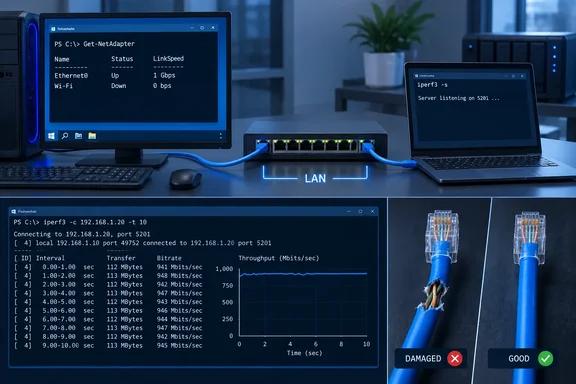
That is the useful distinction in How-To Geek’s September 19 guide: test the negotiated Ethernet link first, then measure traffic inside the local network. Microsoft’s PowerShell networking tools and ESnet’s iPerf3 utility provide a practical way to do both without treating an internet speed-test result as a cable diagnosis.
Start with the Ethernet link speed
An Ethernet connection has a negotiated rate between the PC’s network adapter and the switch, router, dock, or wall jack on the other end. This is separate from internet service speed.
On Windows, open PowerShell and run:
Get-NetAdapter -Physical | Format-Table Name, Status, LinkSpeed, InterfaceDescription
Microsoft documents Get-NetAdapter as the built-in cmdlet for retrieving physical adapter properties. Find the adapter actually in use—normally named Ethernet—and look at Status and LinkSpeed.
For a PC, dock, and switch port that all support Gigabit Ethernet, the expected result is typically 1 Gbps. If it reports 100 Mbps, do not assume the cable alone is at fault, but do treat the result as a meaningful clue:
- The patch cable could have a damaged conductor, poor termination, crushed section, or bent plug.
- A wall jack, patch panel, coupler, USB Ethernet adapter, dock, router, or switch port may only support 100 Mbps.
- The adapter or switch port may have been manually configured for a lower speed rather than left on auto-negotiation.
- A network managed by an employer, school, or service provider may intentionally restrict a port.
The distinction is important because 1000BASE-T uses all four twisted pairs in a conventional eight-conductor Ethernet cable. HPE’s cabling guidance notes that 100BASE-TX can work with cabling that is insufficient for Gigabit Ethernet, whereas 1000BASE-T requires all four pairs to be connected and meet more demanding signal-quality requirements. A cable fault can therefore produce a stable but much slower connection rather than a complete disconnect.
A 100 Mbps link is also enough to make many consumer internet speed tests look normal. A household with a 50 Mbps or 90 Mbps service tier could see the expected WAN result while file transfers to a NAS, game downloads from a local cache, PC backups, and other LAN traffic remain capped well below what the hardware should support.
Use iPerf3 to test the local path
Once the link rate looks plausible, iPerf3 can test actual throughput between two devices on the same network. ESnet, which develops iPerf3, describes it as an active measurement tool for maximum achievable IP-network bandwidth; it reports measured throughput and other test information. Microsoft also uses iPerf in its own throughput-validation guidance and recommends testing in both directions.
This test needs two devices connected by Ethernet: for example, a Windows desktop and a laptop, a NAS that supports iPerf3, or two PCs. To isolate the cable under suspicion, keep the test path short and controlled where possible. Ideally, both systems connect to the same switch, and the test PC uses the cable being investigated.
On the first device, launch iPerf3 in server mode:
iperf3 -s
Find that system’s LAN IPv4 address with:
ipconfig
On the second system, run a 30-second TCP test, replacing the address with the server’s address:
iperf3 -c 192.168.1.50 -t 30
Then repeat in the other direction:
iperf3 -c 192.168.1.50 -t 30 -R
The -R option reverses the sending direction. This is worth doing because a problem can affect one direction differently from the other, and the two PCs may have different CPUs, adapters, drivers, or docks.
If Windows Firewall blocks the test, permit iPerf3 only on the trusted private network needed for the diagnostic. Do not expose an iPerf server to the public internet or broadly open an inbound rule on an unmanaged network. Microsoft’s iPerf walkthrough likewise calls for a firewall exception between the test endpoints.
Interpreting the result without overdiagnosing
A direct Gigabit Ethernet path commonly produces throughput in the high hundreds of megabits per second after normal TCP and Ethernet overhead. It will not normally display a literal 1,000 Mbps payload rate. If the adapter has negotiated at 1 Gbps but iPerf3 stays near 90–95 Mbps, something in the test path is still operating at Fast Ethernet speed.
However, iPerf3 is a path test, not a magical cable-only test. A disappointing result can be caused by the following:
- One endpoint may use a 100 Mbps Ethernet port, an older USB adapter, or a limited dock.
- The switch port, wall run, patch panel, or another cable in the route may be the weak link.
- A single TCP stream can be limited by endpoint processing or software conditions, especially on very fast multi-gigabit networks.
- Security software, VPN software, virtual network adapters, or active background transfers can change the result.
- A wireless endpoint is unsuitable for establishing whether a specific Ethernet cable can sustain its expected rate.
The best confirmation remains a controlled substitution: replace the suspect patch cable with a short cable known to work, without changing the PC, port, or switch. Re-run Get-NetAdapter and the same iPerf3 commands. A jump from 100 Mbps to 1 Gbps link speed, followed by a major rise in local throughput, is strong evidence that the removed cable was the problem.
Cable testers help, but have limits
A low-cost continuity tester can quickly identify an open conductor, short, crossed pair, or incorrect pin order. That makes it useful when a cable is visibly damaged or a hand-terminated cable is suspected.
It does not certify that a cable meets Gigabit Ethernet requirements. HPE’s guidance highlights signal characteristics including attenuation, near-end and far-end crosstalk, equal-level far-end crosstalk, and return loss. Cheap testers generally do not measure those. A cable can pass a simple pin-to-pin test yet remain unreliable or fail to negotiate at the desired speed.
For a home or small-office patch lead, replacement is usually faster and cheaper than deeper analysis after a controlled swap confirms the fault. Cat5e remains capable of Gigabit Ethernet when correctly made and undamaged; Cat6 is a sensible purchase for new patch cables, but replacing every working cable with Cat8 will not improve a 1 Gbps connection.
The practical order is straightforward: check negotiated speed, run a local throughput test, swap one known-good cable, then investigate ports and permanent cabling if the problem remains. An internet speed test still has value for checking the ISP-facing side of a connection. It simply answers a different question from whether the Ethernet link inside a Windows setup is performing as it should.