

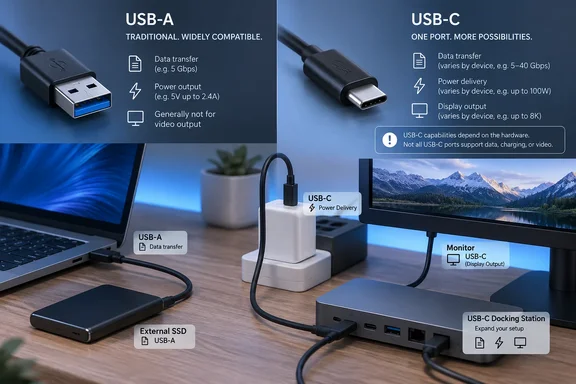
Engadget’s USB-A explainer describes the older connector’s continuing role on computers, peripherals and chargers. Anker’s comparison confirms the physical distinction between rectangular USB-A and reversible USB-C; Microsoft’s hardware documentation explains why USB-C’s additional capabilities depend on the hardware behind the socket.
The useful comparison is therefore about both the plug and the connection it enables. USB-C can handle more kinds of work through one connector, but two USB-C ports need not support the same features.
The physical difference—and why USB-A remains useful
USB-A has a keyed rectangular design: the plug must be oriented correctly before it will enter the socket. USB-C has a symmetrical design that lets you flip the plug over and still connect it. Anker describes those differences in its cable comparison.
The traditional USB arrangement also gave the connectors different jobs. Microsoft explains that USB-A connected to the host, usually a computer, while USB-B connected to the peripheral. The host controlled the USB connection and supplied power; the peripheral consumed it.
That helps explain the familiar printer cable with a USB-A plug at the computer end and a USB-B plug at the printer end. Smaller peripheral-side connectors, including Mini-B and Micro-B, served devices that could not accommodate a full-size socket.
USB-C allows the same connector design at both ends and supports more flexible arrangements. Microsoft documents hardware capable of switching between host and peripheral roles, as well as switching between supplying and receiving power. Those are capabilities a manufacturer can implement, not a promise that every USB-C device can perform every role.
| What you are comparing | USB-A | USB-C |
|---|---|---|
| Physical connection | Rectangular and keyed to one orientation. | Smaller, symmetrical and reversible. |
| Traditional role | The host-side connector in an A-to-B connection. | Can serve host or peripheral hardware, depending on implementation. |
| Data capability | Determined by the USB hardware and cable. | Also determined by the hardware and cable; the shape does not establish speed. |
| Charging and displays | Useful for conventional USB power and peripherals. | Can additionally support USB Power Delivery and display connections where implemented. |
USB-A’s practical strength is compatibility with equipment already in use. Engadget identifies it on desktops, laptops, routers, consoles, vehicles and chargers. There is no reason to replace a working peripheral solely because its connector is USB-A; the relevant question is whether your computer can accommodate it and whether the connection meets the device’s needs.
USB-C does not automatically mean faster USB
USB-A and USB-C identify connectors. USB data standards describe a different part of the connection: how devices communicate and the capabilities available to them.
Microsoft’s USB-C documentation explicitly describes the connector as supporting multiple USB speed classes, including older modes and SuperSpeed. Consequently, seeing a USB-C socket does not establish that a device supports USB4, Thunderbolt or even a faster data connection than a particular USB-A device.
For a storage purchase, the useful specifications are the supported data standard and rated transfer capability of the PC port, storage device and connecting cable. A connector photograph cannot answer those questions.
This distinction also changes how to read cable listings. A prominent charging-power rating answers a power question. It does not, by itself, establish the cable’s data capability. Likewise, a fast-data claim does not establish that a cable supports the charging requirement of your laptop.
A practical purchasing approach is to match the capability to the job:
- For an existing peripheral, establish which connector and USB connection it requires before replacing cables or adding adapters.
- For external storage, compare the data specifications of the PC port, drive and cable rather than assuming USB-C is the faster option.
- For a laptop charger, establish the laptop’s supported charging input and the charger and cable’s power capabilities.
- For a display or dock, establish the required display protocol separately from the connector shape.
These checks separate four things that are often bundled together in advertising: the connector, data connection, power delivery and video support.
Charging: USB Power Delivery is a separate capability
USB-C can carry power, but USB-C does not guarantee that a port can charge a laptop. A computer may have a USB-C port intended for peripherals without accepting charging through that port.
Microsoft’s documentation describes USB Power Delivery, or USB PD, as an optional capability. It enables more flexible power arrangements, including a device receiving power while performing a different role in the data connection.
The USB Implementers Forum, which maintains the specifications, says USB PD Revision 3.1 introduced support for up to 240 watts in 2021. Before that revision, USB PD’s maximum was 100 watts using a 20-volt supply and a cable rated for 5 amps.
The 240-watt figure is a specification ceiling, not a normal output you should expect from every USB-C charger. Reaching it requires compatible equipment and an appropriate cable. USB-IF also explains that Power Delivery allows devices to negotiate the power they require; the charger’s maximum rating is not a fixed amount forced into every connected device.
There is an important documentation wrinkle here. Microsoft’s older USB-C explanations describe power delivery up to 100 watts. USB-IF’s PD 3.1 record establishes the later 240-watt maximum. That newer specification does not upgrade an older computer, charger or cable.
For laptop charging, identify three things before buying:
- Confirm that the particular laptop port accepts USB-C charging.
- Establish the laptop’s required power input and the charger’s compatible output.
- Select a cable rated for the required power.
A reversible plug solves the orientation problem. It does not solve a mismatch between a laptop’s power requirements and a charger’s capabilities.
Displays and docks need more than the right plug
USB-C can also carry protocols other than ordinary USB data. Microsoft describes this through alternate modes, including DisplayPort, which can carry audio and video to an external display.
The PC, adapter or dock, and cable must support the required connection. A USB-C socket that handles a USB peripheral may lack the display capability needed by a USB-C video adapter.
USB Power Delivery adds another useful possibility: a monitor connected to wall power can charge a laptop while displaying its video output. USB-IF lists this as a supported use case. Whether a specific monitor-and-laptop pairing can do it depends on their implemented capabilities.
For a one-cable desk setup, verify the display connection and laptop charging independently. A dock’s ability to connect peripherals does not alone prove it can drive your monitor or supply the laptop’s required power.
Microsoft’s Windows 10 USB-C documentation also describes notifications that can help distinguish these mismatches. A “Device is charging slowly” message can indicate an insufficient or incompatible charger, or use of a non-charging port. An unsupported alternate-mode adapter can expose a USB Billboard device, which provides information Windows can use to report the incompatibility.
Those messages identify connection limitations; they do not imply that every failure is a driver fault. Where the hardware lacks the required display mode or charging input, changing the plug orientation or using another physically matching cable will not create that capability.
The best choice is the connection that supports the task. Keep USB-A for compatible equipment that already works. Choose USB-C for its reversible design and the additional functions your hardware actually supports—and buy cables by their documented data, power and display capabilities, not simply by the shape of their ends.
References
- Windows Support for USB Type-C Connectors - Windows drivers | Microsoft Learn learn.microsoft.com
- FAQ - USB Type-C connector on a Windows system - Windows drivers | Microsoft Learn learn.microsoft.com
- USB Charger (USB Power Delivery) | USB-IF usb.org