

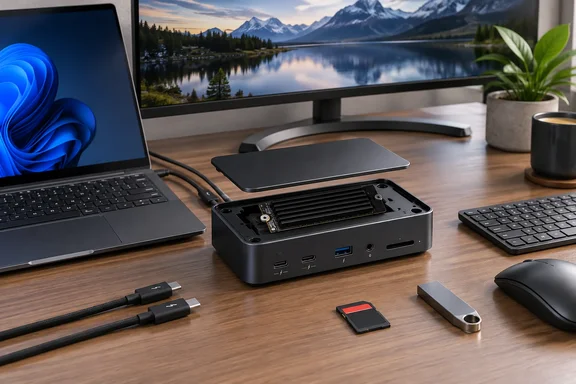
In short, it does that well, as long as you can live with two drawbacks: there are no HDMI or DisplayPort outputs, and getting to the SSD slot takes more effort than it should.
The review in brief
João Carrasqueira at XDA gave the V-Core 8.5/10 and called it a strong value pick. He said it "provides a fast connection for the external SSD that even outclasses the Mac Mini itself, plus its port selection handled everything I threw at it with no issues."
He also disclosed how he got the unit: VectoTech sent the dock for review, and the company had no input on, or early preview of, the content. Most peripheral reviews work this way, and the disclosure is worth keeping in mind.
On price, XDA says the dock sells at retailers such as Amazon for $349, which makes it one of the cheaper Thunderbolt 5 docks, and notes that the price has changed from time to time. Prices vary between sources. Gear Diary's review from earlier in September listed a $379 list price and a lower $299 Amazon price when it was written. Check the price on the day you buy.
Summary: XDA rates it a well-priced Thunderbolt 5 dock with built-in storage. The review unit came from VectoTech, and the price moves around.
Ports, power and specs
XDA lists this port layout:
| Location | Ports |
|---|---|
| Front | 1x Thunderbolt 5 (to host), 1x Thunderbolt 5 downstream, 1x USB-A (10Gbps), SD card reader |
| Rear | 2x Thunderbolt 5 downstream, 2x USB-A (10Gbps), 1x USB-A (5Gbps), 2.5Gbps Ethernet |
Other specs from XDA:
- Power delivery: up to 140W to the host and up to 60W on the downstream ports
- Power supply: 180W, included
- Internal SSD: drives up to 8TB
- Display outputs: no HDMI or DisplayPort; all video goes over USB-C/Thunderbolt
VectoTech's Amazon listing adds detail on storage. It describes an integrated PCIe Gen4×4 M.2 NVMe SSD slot supporting up to 8TB of storage, with the SSD not included. You have to buy the drive separately. Gear Diary also says M.2 SATA drives aren't supported, so if you have an old SATA M.2 drive in a drawer, it won't work here.
Gear Diary says the box includes the dock, a 1m Intel-certified Thunderbolt 5 cable, a 180W power adapter, a 6 ft AC cord, a Phillips screwdriver for SSD installation, and a user manual. The included cable matters. Gear Diary points out that the wrong cable is the single most common reason a dock underperforms.
A few spec discrepancies
The published specs don't all match:
- USB-A speeds: XDA lists three 10Gbps ports and one 5Gbps port. Gear Diary lists four ports, all at 10Gbps.
- Audio: Gear Diary lists a 3.5mm audio jack. XDA's spec table doesn't include one.
- Displays: XDA lists single-display output up to 8K at 60Hz. VectoTech's listing says the dock can drive up to three 4K displays at 144Hz using three Thunderbolt / USB-C downstream ports, or connect two 8K displays at 60Hz.
These may come from different wording or different product revisions. Check the manufacturer's current spec sheet before buying if any of these matter to you.
Summary: The dock has three downstream Thunderbolt 5 ports, four USB-A ports, 2.5GbE, an SD reader, 140W host charging and an empty NVMe slot. Sources disagree on some port speeds and on the audio jack.
What Windows users should know about display support
VectoTech's Amazon title says "Triple 4K Displays at 144Hz on TB5 PC" and "up to Dual 6K Monitor on Mac," so the best multi-monitor results are for Windows machines with Thunderbolt 5. Gear Diary's reading matches: on a Thunderbolt 5 Windows machine, you can run three 4K displays at 144Hz or two 8K displays at 60Hz.
The limit is your host PC, not the dock. Gear Diary notes the V-Core supports backward compatibility with Thunderbolt 4 and USB4 hosts, with the expected caveat that an older host limits what you get out of it. A Thunderbolt 4 laptop won't get Thunderbolt 5 bandwidth just because the dock supports it. Gear Diary also lists Windows 11 or later and macOS 13 Ventura or later as supported, and says Intel-based Macs aren't supported.
For context, Thunderbolt 5 offers up to 80Gbps bidirectional, and up to 120Gbps of transmit bandwidth when Bandwidth Boost kicks in for display-heavy workloads.
Summary: You get the headline multi-display setups only with a Thunderbolt 5 Windows host. Older Thunderbolt 4 or USB4 hosts still work, but with less.
How it performed
SSD speed, tested over Thunderbolt 4
XDA's testing has one big caveat. The reviewer doesn't have a Thunderbolt 5 PC, so the dock was connected to a Mac Mini over Thunderbolt 4. These are not Thunderbolt 5 benchmarks.
In Blackmagic's disk speed test, XDA saw just over 1,600MB/s writes and over 3,000MB/s on the second measurement. The review text labels both numbers as writes, which looks like a typo, and 3,000MB/s is most likely the read speed. XDA says that beat both the Mac Mini's built-in 256GB SSD and the Satechi Thunderbolt 5 CubeDock it tested earlier, while admitting the margin over the Satechi isn't big enough to call the V-Core clearly better.
These results depend on the SSD installed, the host and the Thunderbolt 4 link. Other drives and other hosts will give different numbers. VectoTech and Gear Diary quote read speeds up to 6,200MB/s for the slot, depending on the drive. That figure fits a PCIe Gen 4 x4 slot, but XDA's Thunderbolt 4 setup couldn't test it.
Fan noise: the reviews disagree
XDA called the V-Core the quietest of the recent SSD docks it tested. The reviewer thinks the large heatsink over the SSD lets the fan run less, and admits he doesn't use the drive heavily.
Gear Diary heard more. It said the fan is audible under load, and that's the only real criticism. Both can be true: light use keeps the fan quiet, and long, heavy transfers wake it up. If your desk is in a silent room, expect to hear it during large transfers.
Everyday desk use
As a daily hub, the dock handled everything XDA connected: mouse, keyboard, webcam, frequent SD card photo transfers, an occasional wireless microphone, and a 5120x1440 ultrawide monitor at 144Hz. The reviewer reported no connection or bandwidth problems. It also ran fine with a capture card added during streaming, while the monitor was split between the PC and a Nintendo Switch 2.
That's one person's setup rather than a formal stress test, but it covers the kind of mixed use most people will actually put a dock through.
Summary: The SSD was fast even over Thunderbolt 4, peripherals ran without trouble, and the noise verdict depends on who you ask and how hard you work the drive.
The drawbacks
No HDMI or DisplayPort
XDA found the lack of standard video outputs strange, since the dock is aimed at laptops that often lack them too. The reviewer went easy on this because he owns a USB-C monitor and has long argued that every monitor should have USB-C. If your monitors only accept HDMI or DisplayPort, budget for suitable USB-C adapters, or look at docks such as StarTech's Thunderbolt 5 model, which Forbes described as including DisplayPort and HDMI outputs.
Installing the SSD takes some work
Based on XDA's description, you get to the drive like this:
- Remove the top cover. XDA's reviewer worried at first that he might break it, so go slowly.
- Remove the heatsink, which is held by two screws. Gear Diary says a Phillips screwdriver is in the box.
- Insert the M.2 2280 NVMe drive and secure it with the tool-free latch instead of a screw.
- Refit the heatsink and cover.
The latch makes the last step easier, but XDA found the overall access more awkward than the Satechi CubeDock or a Wavlink dock, whose thumbscrews could be turned by hand. This matters if you plan to swap drives often. If you install one drive and leave it, it's a one-time job.
A general tip, not from either review: a new NVMe drive usually has to be initialized and formatted before Windows shows it in File Explorer. You can do this in Disk Management.
Plastic build
The shell is all plastic. XDA called it one of the best-feeling plastics it has seen on a dock, but it still doesn't feel as premium as the metal Satechi.
Summary: The main costs are the lack of HDMI/DisplayPort and a clumsy SSD installation. The plastic build is a smaller point.
How it compares
Gear Diary also compared the V-Core with OWC's Thunderbolt 5 dock, which sits in a similar price range. It found the V-Core has more USB-A, four at 10Gb/s against OWC's two at 10Gb/s plus one at 5Gb/s, and one more downstream Thunderbolt port, while OWC counters with SD 4.0 UHS-II and microSD readers versus the V-Core's single SD slot. Both have 2.5GbE and 140W charging from a 180W power brick. The difference is the V-Core's internal SSD slot.
Against the Satechi CubeDock, XDA's view is that the Satechi is technically a bit better, but the V-Core's lower price makes it the better buy for most people.
Should you buy one?
The V-Core makes sense if you:
- Were going to buy a Thunderbolt 5 dock and an external SSD anyway
- Use a storage-limited machine, such as a base-model mini PC or a laptop with a small SSD
- Have a Thunderbolt 5 Windows PC and want room for high-refresh multi-monitor setups
- Want Thunderbolt 5 without paying premium-dock prices
Look elsewhere if you:
- Need native HDMI or DisplayPort
- Plan to swap SSDs often
- Want a metal case
- Work in a very quiet room and do long, heavy transfers
- Don't want internal storage, since you'd be paying for a feature you won't use
Bottom line
The V-Core puts a dock and an NVMe enclosure in one box for a mid-range Thunderbolt 5 price. It frees up a port and removes a cable, and XDA's testing, even over Thunderbolt 4, suggests the storage is fast. You'll need adapters if your monitors lack USB-C, the SSD cover takes some patience, and the specs differ slightly between sources. If you're shopping for a Thunderbolt 5 dock and also need more storage, it's a strong option at this price.