

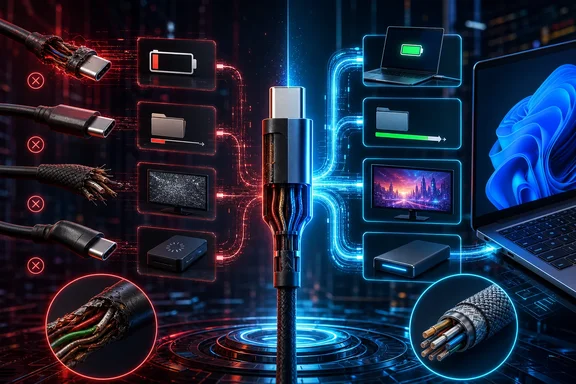
That distinction matters when diagnosing a PC problem. A cable may be perfectly legitimate for charging and ordinary USB 2.0 data while being unsuitable for a high-speed drive, USB4 dock, or display connection. Conversely, buying a cable advertised with an impressive speed or wattage will not add missing capabilities to the laptop, display, dock, charger, or peripheral at either end.
USB-C is a connector, not a guaranteed feature set
It is tempting to read the oval USB-C connector as shorthand for “fast USB,” video output, and high-wattage charging. That is too broad. USB Type-C defines connector and cable requirements, but a manufacturer does not have to implement USB 3.2, USB4, USB Power Delivery, or alternate-mode support in every product that uses the connector.
This produces several common but very different real-world cable types:
- USB 2.0 Type-C cables support USB 2.0 data operation and can support USB Power Delivery. They do not implement USB 3.2, USB4, or alternate-mode capability.
- Full-featured cables are built for the additional signaling required by higher-speed USB operation and alternate modes.
- Higher-current cables are designed to carry more than 3 A, subject to what the connected charger and device support.
- USB4 cables can support far greater throughput than basic cables, but the usable result still depends on the products connected to them. USB4 is not simply a 40 Gbps category; it can support up to 80 Gbps operation when used with certified 80 Gbps cables.
None of those descriptions can be reliably inferred from plug shape alone. A cable bundled with a low-power accessory may be entirely appropriate for that product but become the limiting component when moved to an external SSD or a monitor setup.
This also explains a frequent Windows PC symptom: a drive appears normally in File Explorer and copies files, but performance is unexpectedly poor. The cable has not necessarily “failed.” It may have established a USB 2.0 connection because that is all the cable, an intermediate hub, or a particular port path supports.
Why charging can work while data and video do not
Charging, conventional USB data, and display output are separate questions.
A USB 2.0 Type-C-to-Type-C cable can carry power and ordinary data despite lacking the capabilities needed for USB 3.2, USB4, and alternate modes. That means a phone may charge, a keyboard may function, and a basic peripheral may be detected even as an external SSD runs far below expectations or a USB-C display remains blank.
Video is especially prone to misunderstanding. Alternate modes allow non-USB protocols to run over a USB-C cable. For a display connection to work, the PC or tablet needs relevant endpoint support, the dock or adapter must support the intended path, the display must accept it, and the cable must be suitable. A cable with appropriate capability is necessary in many setups, but it cannot make an unsupported computer output video or force an incompatible dock and display to interoperate.
That is why replacing a cable can solve a display problem in one case but do nothing in another. If the original cable is USB 2.0-only, replacement with a properly specified full-featured cable is a sensible test. If the PC lacks support for the required alternate mode, however, the problem is not remedied by an even more expensive cable.
What an e-marker does—and does not—mean
An electronically marked USB-C cable, commonly called an e-marked cable, contains electronics that report cable information through USB Power Delivery Discover Identity messaging. Under the current Type-C cable specification, every full-featured cable and every cable rated above 3 A is electronically marked.
That rule is useful because it ties electronic marking to cable classes where the connected equipment needs to know more about what it is using. But the e-marker is not a magic performance chip. It reports the cable’s identity and capability information; it does not add high-speed conductors or video signaling paths to a cable that was physically built as USB 2.0-only.
The practical correction is important: it is inaccurate to say that a cable cannot carry high-speed data or video merely because it lacks an e-marker. In the compliant USB-C cable categories described by the specification, a basic USB 2.0 cable lacks both the marker and the USB 3.2/USB4 and alternate-mode capability. The missing functionality stems from the cable class and underlying construction, not from the absence of the identification chip alone.
There is another limit to keep in mind. Standards requirements do not establish a universal behavior for every non-compliant cable or every host implementation. A cable with unusual construction or missing required marking may behave differently across devices. The safe conclusion is that it should not be treated as a dependable substitute for a properly specified cable.
The three capability checks that prevent bad purchases
When replacing a cable for a Windows PC, look past broad phrases such as “USB-C compatible.” Match the purchase to the task.
First, check power requirements. If the goal is laptop charging, select a cable whose stated current or power capability is appropriate for the charger and computer. A cable alone does not make a low-power charger deliver more power, and the PC still determines what it will accept.
Second, check the data requirement. A backup drive, high-performance external SSD, and USB4 dock do not have the same needs. Select a cable that explicitly states a data rate appropriate to the equipment rather than assuming that charging wattage indicates transfer speed. A cable can be excellent for power delivery without being the right choice for high-speed storage.
Third, check the complete display chain. For a monitor, verify the computer’s USB-C video capability, the dock or adapter’s supported protocol, the display input, and the cable specification. Treat the connection as a chain: its result is constrained by the least capable relevant part.
USB-IF certification and capability logos are worthwhile purchase signals where available. They give buyers more than a seller’s vague compatibility claim. Still, certification does not eliminate the need for compatible connected products and does not upgrade the PC, charger, dock, display, or peripheral. It is assurance about the cable or product’s stated compliance, not a guarantee that every combination of devices will perform at its theoretical maximum.
For many people, keeping cables labeled by purpose is more effective than trying to identify them by appearance later. A clearly marked basic charge-and-sync cable should not be the cable you reach for when troubleshooting a dock or high-speed SSD. Likewise, preserving the cable supplied with a proven device can make later comparisons much easier.
A disciplined way to troubleshoot on Windows
The fastest route to an answer is to change one variable at a time. Avoid swapping the cable, port, hub, charger, and peripheral all at once; doing so may restore function without revealing which component caused the issue.
Start with a direct connection. Disconnect nonessential adapters and hubs, then connect the peripheral to a known-capable port on the PC with a cable whose specifications fit the task. If the device works directly but not through a dock, the dock or its upstream connection becomes the primary suspect. If it remains slow or unreliable, test the cable and then a different suitable PC port.
This matters because a USB 2.0 element in the path can force a SuperSpeed-capable device to operate at high speed instead. Microsoft specifically identifies both a USB 2.0 hub and a USB 2.0 cable as causes of this kind of fallback. In practice, one overlooked older hub or short bundled cable can be enough to make a modern storage device look disappointing.
USBView can help technically inclined Windows users inspect USB controllers, hubs, and attached-device topology. Windows also exposes connection information that can distinguish SuperSpeed and SuperSpeedPlus operation and indicate whether a USB 3 device is capable of higher operation. Those clues can help establish that a device has fallen back to a broad lower-speed state.
However, do not treat USBView as a universal, exact bandwidth meter for every current USB-C, USB4, or Thunderbolt path. Microsoft notes that USBView is an older application and may not display newer USB information. It is useful evidence in a wider diagnosis, not final proof of the exact rate negotiated by every modern connection.
For a display problem, observe the sequence separately: does the PC detect a new device, does the display wake, and does Windows offer an additional screen in display settings? A charge-only outcome points toward a capability mismatch somewhere in the chain. Detection without an image may instead indicate an unsupported mode or an issue involving the adapter, dock, display, or PC support. These observations narrow the search without pretending that one symptom establishes one certain cause.
Why a continuity tester cannot certify a fast cable
A USB-C continuity tester has a legitimate role. It can reveal missing or incorrectly connected conductors, and some tools can read the identity information declared by an e-marker. That may expose obvious faults or misrepresented cable claims.
But continuity is not a high-speed performance test. A cable can show electrical continuity and still fail to carry USB 3.x or USB4 signals reliably at the required rate. Compliance validation requires high-frequency signal-integrity work, including S-parameter measurements, rather than merely confirming that conductors connect end to end.
For a home user, that means a continuity result should be read narrowly: it can find certain physical defects, but it cannot prove that a cable will sustain a demanding USB4 link or work correctly with a particular display setup. The most practical functional test remains substitution with a known-good, appropriately specified cable and a simplified device path.
The useful mental model: capability is negotiated, not inherited
USB-C works best when considered as a negotiated connection between several components rather than a property inherited from the connector. The cable contributes its construction, declared capability, and signal quality. The PC contributes its ports and protocol support. Chargers negotiate power; docks and adapters introduce their own constraints; displays and peripherals must support the relevant functions.
That model turns a vague complaint—“this USB-C cable doesn’t work”—into answerable questions. Does it charge? Does it transfer ordinary data? Is it limited to USB 2.0? Is a hub imposing the fallback? Does the PC support the required display mode? Is the cable rated and certified for the workload? Once those questions are separated, most USB-C failures become less mysterious, and replacement purchases become much less wasteful.
References
- FAQ - USB Type-C connector on a Windows system Microsoft Learn
- USB Type-C® and USB 2.0 Type-C™ Cable and Connector Language, Product and Packaging Guidelines USB Implementers Forum