

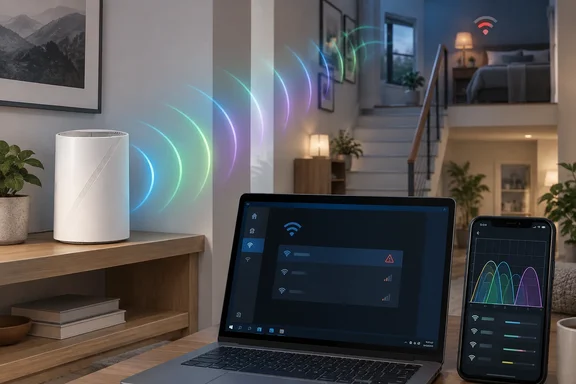
Everything below comes from one home. None of it is a lab test, and none of it shows a defect in every BE65. The problems are still worth walking through, because many people upgrading their home network will hit the same three.
Problem one: 6 GHz doesn't reach far
The main reason Phillips upgraded was the 6 GHz band, plus Wi-Fi 7's Multi-Link Operation (MLO). He found that 6 GHz fades quickly indoors.
His numbers:
- Right next to the router: 98% signal on 6 GHz and a 3,800 Mbps link rate. He points out that this is the negotiated maximum between the two devices, not actual throughput.
- At the kitchen table, about 3–4 meters away: roughly 65% signal.
- On his Motorola Razr Fold: 6 GHz sometimes stopped working altogether.
- Upstairs: 6 GHz dropped off faster than he expected, even though the router is about as central as his house allows.
None of this is surprising in principle. Higher frequencies lose more strength going through walls and floors. Phillips also gives rough indoor and outdoor range figures, but he doesn't say how they were measured. Treat them as ballpark numbers. Building materials, where the router sits and the client's antennas can all change the result.
Link rate is not speed
Windows users should keep this in mind: a big link-rate number close to the router says nothing about performance two rooms away. Windows can make it more confusing. PCWorld notes that the "aggregated connection speed" label sounds like it only applies to Wi-Fi 7 and MLO, but in Windows 11 24H2, this information is used for all network connections, including Ethernet. PCWorld adds that whether the number really adds two links together depends on the MLO mode, and in most cases, devices with MLO use the so-called multi-link single radio (MLSR).
That also changes how MLO should be understood. Phillips describes it as letting a device send data across all three bands as though they were one. Microsoft's own description is more careful: Multi-Link Operation (MLO) allows devices to use multiple bands (2.4 GHz, 5 GHz, and/or 6 GHz) simultaneously to avoid network congestion. The Wi-Fi Alliance's January 2024 announcement described it as sending and receiving over multiple links at once. In real homes, what you get depends on the router and on the client's chipset and driver.
Section summary: 6 GHz is fast but short-range. Check signal where you actually use your devices, and don't read link rate as throughput.
Problem two: weaker 5 GHz and dropped connections
The second issue matters more for a family. Phillips says the BE65, used as a single access point, didn't reach corners of the house that his old router covered on 5 GHz. He wonders whether the Deco is effectively pushing him toward a mesh system. TP-Link does sell Deco as a whole-home mesh product, but his experience doesn't prove the BE65 needs extra nodes.
On top of the coverage gaps, devices kept dropping. Phillips, his wife and his daughters all noticed devices being kicked off one band and not reconnecting on the next. He suspects band steering, where the router moves a device to the band it thinks is better. He says that process briefly deauthenticates the device before letting it back on.
His usual fix would be a separate network name (SSID) for each band. He found the BE65 didn't give him that option for every band. Splitting off 6 GHz helped somewhat, but his 5 GHz and 2.4 GHz devices still dropped. He mentions mixed WPA2/WPA3 security as a possible cause, then admits it may not be, since mixed mode has been around a long time.
That's a guess, not a diagnosis, and it should stay that way.
What separate SSIDs cost you
Splitting bands is an old and reliable troubleshooting trick. On Wi-Fi 7, it has a price. PCWorld explains that for MLO to be active, it must use the same SSID and password for each frequency. Give 6 GHz its own network name and you may fix a steering problem while switching off MLO, one of the main reasons to buy a Wi-Fi 7 router.
The trade-off is worth making for troubleshooting. Just know you're making it, and switch the bands back once you've found the cause.
Firmware history
TP-Link's US download page for the Deco BE65 lists firmware for hardware version V1.6. The newest entry is 1.0.8 (build 20240723, published August 5, 2024), and its only listed change is security fixes. The release before that, 1.0.7 from April 2024, lists improved stability and a fix for a bug where MLO Wi-Fi could crash or reboot the Deco under some settings.
Those notes don't explain Phillips's dropouts. They do show that MLO behaviour on this model has changed through firmware updates. TP-Link also warns that models and hardware versions vary by region, so check your unit's revision and your local support page before you flash anything. TP-Link's support page for this model also links guides on Deco disconnects, on why MLO performance varies, and on a Deco Wi-Fi heatmap tool.
Section summary: coverage gaps and dropouts can come from placement, steering, security settings, firmware or the clients themselves. Separate SSIDs help you find the cause, but they cost you MLO.
Problem three: automatic channel selection
The third complaint is the one most readers can fix. Phillips found that the BE65's automatic channel choice didn't seem to avoid his neighbours:
| Band | What his scan showed |
|---|---|
| 2.4 GHz | On channel 11, with four other networks |
| 5 GHz | Two other networks on the chosen channel |
| 6 GHz | One other network on the chosen channel |
He finds this surprising because he lives in a fairly quiet village. He scanned with a Wi-Fi Analyzer app and then set channels by hand to get away from the neighbours.
A caution: counting nearby networks is a rough measure. A weak neighbour that's rarely busy may matter much less than one strong, busy network. Channel width, overlap and local regulations also affect which channel is really best. A router's auto-select may be weighing things a quick scan can't see, or it may just be wrong. One scan can't tell those apart.
How to set Deco channels manually
TP-Link has a guide, updated June 10, 2026, for changing channel and channel width on 2.4 GHz and 5 GHz in the Deco app. It uses the Deco BE85 as the example and warns that app features differ by model and software version. The steps:
- Connect your phone to the Deco's Wi-Fi and open the Deco app.
- Go to More > Wi-Fi Settings > 2.4G & 5G Wireless Network > Advanced.
- Tap 2.4GHz Network or 5GHz Network, pick a channel and width, then tap Apply.
- Go back to the Advanced page and check the channel and width now in use.
TP-Link says wider channels such as 40 or 80 MHz can be faster, while 20 MHz cuts interference in crowded areas. The guide only covers 2.4 and 5 GHz. It doesn't show whether a particular BE65 lets you set 6 GHz channels manually, so check your own app.
Section summary: manual channels can help. Change one band at a time, then test from the rooms where you had problems.
Checking Wi-Fi 7 on your Windows PC
If your laptop is part of the upgrade, make sure Windows is actually using Wi-Fi 7 before you blame the router:
- Windows version: Microsoft says Windows 11 has already supported Wi-Fi 7 for consumer access points since 2024, which in practice means version 24H2 or later.
- Drivers: PCWorld points out that Windows only handles the basics. The driver tells the system which features the adapter supports, including which frequencies and channels it uses or in which form it supports the Wi-Fi 7 function Multi-Link Operation (MLO). Get the current driver from your PC maker or chipset vendor.
- MLO status: open Settings > Network & internet > Wi-Fi and look at the connection's properties. Windows Latest, citing Microsoft's documentation, says if you see support for more than one band under the properties tab of the connected wireless network, you can use the MLO feature.
- Adapter support: running
netsh wlan show driversin Terminal lists the radio types your adapter supports. Look for 802.11be.
If Windows shows only one band while your router says MLO is on, check whether you split the SSIDs while troubleshooting. That's exactly the setup that turns MLO off.
How to troubleshoot this at home
Phillips's experience suggests an order to work in:
- Work out what's actually wrong. Weak signal, slow internet and dropped connections have different causes. Note which device dropped, on which band, in which room and at what time.
- Test the whole house. Measure where people really sit, not just beside the router.
- Deal with placement before settings. If one unit can't cover the house, look at moving it, a wired backhaul or another mesh node before assuming the standard is to blame.
- Update firmware and client drivers. Check your router's hardware revision first.
- Change one setting at a time. Split SSIDs, security mode and channels are each a single test. Change several at once and you won't know which one helped.
- Keep WPA3 where you can. Don't weaken security as a default fix. Wi-Fi 7 on 6 GHz relies on WPA3.
- Undo temporary workarounds. Once you've found the cause, bring the bands back under one SSID so MLO can work.
The takeaway
Phillips still calls Wi-Fi 7 a great upgrade. He expects firmware updates and his own growing familiarity with the standard to smooth things out. He also notes that Wi-Fi 7 launched in 2024 and still isn't widely adopted in the second half of 2026.
That seems fair. Wi-Fi 7 raises the maximum speed, but it doesn't solve coverage problems or roaming. The 6 GHz band is short-range, band steering is still unreliable in some homes, and auto-channel isn't perfect. Setting up a Wi-Fi 7 network properly takes more work than past upgrades, and that's worth knowing before you plug in the new router and tell everyone the Wi-Fi is now fixed.
Update: Separating 6 GHz reportedly improved older-device stability (September 30, 2026)
In a September 30 follow-up, MakeUseOf’s Gavin Phillips reports that giving the Deco BE65’s 6 GHz band its own network substantially improved connection stability for his family’s older devices. The earlier account described only partial relief; the follow-up presents the change as a successful workaround, although Phillips says some dropouts and coverage dead zones remain.
According to MakeUseOf, Phillips also encountered a more severe incident before making the change: his smartphone repeatedly connected and disconnected near the router, then displayed an “Access point is temporarily full” message as every device on the network lost connectivity. The report does not establish what caused that network-wide interruption.
Phillips now suspects interactions between WPA2/WPA3 security and Protected Management Frames, but that remains his explanation rather than a confirmed diagnosis from TP-Link. The practical development is narrower: separating 6 GHz reportedly helped this household’s older devices without requiring separate 2.4 GHz and 5 GHz networks.
For readers experiencing similar symptoms, this adds a reported troubleshooting success—not evidence of a universal BE65 fix. The previously noted MLO trade-off still applies, and the change did not resolve Phillips’s coverage problems.
References
- Wi-Fi 7 is great, but I'm still battling these 3 network problems MakeUseOf · 2026-09-27T15:00:14+00:00
- I changed one Wi-Fi 7 setting and my older devices stopped disconnecting MakeUseOf · 2026-09-30T15:00:17+00:00
- How to unlock Wi-Fi 7's full, blistering speed in Windows 11 | PCWorld pcworld.com