

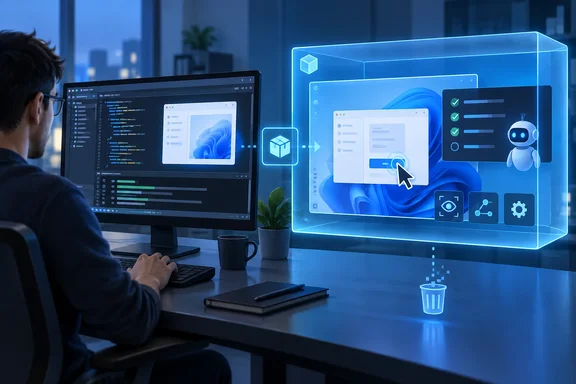
--on sandbox flag, developers can build an app on their own machine and then deploy, launch and UI-automate it inside Windows Sandbox, so it is never installed on the host. The release also adds one-command Native AOT launches, packaging straight from a project file, and package identity for single-file .NET 10 apps. The tool is still in public preview. The main change in v0.7.0 is where the testing loop happens: identity-dependent Windows testing that used to need a registered package on the developer's own PC can now run in a disposable virtual machine, and AI coding agents can drive it with scripts.
WinAppCLI v0.7.0 Moves App Testing Into Windows Sandbox
A quick recap for readers who haven't used the tool. The GitHub project describes winapp as a single command-line interface for managing Windows SDKs, packaging, generating app identity, manifests, certificates, and using build tools with any app framework. In earlier releases, running an app with package identity meant packaging and registering it on the developer's own machine. Package identity is the registration Windows gives packaged apps, and some APIs only work when an app has it. Version 0.3.0 introduced the winapp run command allowing developers to pack a folder and run their application as a packaged app. The same release added a UI automation command group that uses Microsoft UI Automation (UIA).
Version 0.7.0 keeps the build on the host and moves everything after it into Windows Sandbox. Microsoft's release announcement, written by Software Engineer Zachary Teutsch, says the new --on sandbox option runs the app in a persistent Sandbox instead of on the desktop. WinApp handles deployment, registration, launch and UI automation inside the guest.
Two design choices stand out. The first is that nothing falls back to the host without telling you. Microsoft says a command that asks for the Sandbox either runs there or fails, so a misconfigured machine won't quietly register a test build on your own desktop. The second is that the Sandbox is persistent. It stays running between commands and rebuilds, so you don't pay the VM boot cost on every inspect-act-verify cycle. The announcement shows this basic loop:
winapp run . --on sandbox --detach
winapp ui inspect --on sandbox -a MyApp
winapp ui invoke SubmitButton --on sandbox -a MyApp
--detach returns control as soon as the app launches, so the next command can inspect it. Every winapp ui verb accepts --on sandbox. App names, process IDs, window handles and selectors are all resolved inside the guest, not on the host.
WinApp also installs what the guest needs. According to Microsoft, it reads the app's package dependencies, its Windows App SDK requirements and its *.runtimeconfig.json file. It then installs any missing supported runtimes in the guest, pulling from host caches where it can. Your own machine's runtime set stays as it is.
Windows Sandbox prerequisites still apply
WinAppCLI can only target the Sandbox if the machine can run Windows Sandbox in the first place, and those requirements are unchanged. Microsoft's Sandbox installation documentation requires Windows 10 version 1903 or later or Windows 11. The machine needs AMD64 architecture, or Arm64 on Windows 11 version 22H2 and later, with virtualization enabled in firmware. It also needs at least 4 GB of RAM (8 GB recommended), 1 GB of free disk space and two CPU cores. Microsoft's Sandbox documentation lists Pro, Enterprise and Education as the supported editions; Home is not supported.
You turn the feature on under Turn Windows features on or off, or from an elevated PowerShell prompt with Enable-WindowsOptionalFeature -FeatureName "Containers-DisposableClientVM" -All -Online. If your development box is itself a Hyper-V VM, the host needs nested virtualization. Microsoft documents Set-VMProcessor -VMName <VMName> -ExposeVirtualizationExtensions $true for that. The same documentation notes that from Windows 11 24H2, inbox Store apps such as Notepad, Photos and Terminal are not available inside Sandbox. That doesn't block your own packaged app, but it limits what else you can open in the guest.
The winapp target Commands Turn the Sandbox Into a Scriptable Test Rig
Launching an app is only one part of driving a guest machine. For the rest, v0.7.0 adds a winapp target command family, which Microsoft's announcement describes as covering inspection, file transfer, setup commands and whole-desktop capture:
| Command | What it does |
|---|---|
winapp target snapshot sandbox --json | Reports guest readiness, deployments and windows without starting a VM |
winapp target exec sandbox -- dotnet --info | Runs setup or diagnostic commands as the guest user |
winapp target push sandbox .\setup.ps1 Setup\setup.ps1 | Copies a file into the guest (paths are relative to the guest work root) |
winapp target pull sandbox Results .\results | Copies results back to the host |
winapp target screenshot sandbox -o .\sandbox.png | Captures the entire guest desktop, not just one window |
winapp target record sandbox --duration-sec 20 --frames -o .\sandbox.mp4 | Records the guest desktop to video |
Some of the details are designed for automation. Screenshots and recordings always land on the host, even if you leave out -o. Target screenshots are unscaled, so a pixel coordinate read from an image maps directly to coordinate-based input verbs such as ui drag and ui touch --at. For an agent that reads screenshots to decide where to click, that removes a common source of misclicks. We infer this from the design; Microsoft's announcement does not quantify it.
For several agents or scripts driving the guest at once, Microsoft says to set the WINAPP_UI_WORKFLOW_ID environment variable to the same value across the cooperating commands so they share a UI turn. It is a simple coordination mechanism. It also shows who the Sandbox mode is for: automated, often parallel test runs as well as a developer at a keyboard.
Native AOT, winapp pack and Single-File .cs Apps Collapse the .NET Identity Loop
Three changes in v0.7.0 target the same pain point: the steps between writing .NET code and running it with package identity.
The first is Native AOT. winapp run can now build and launch a Native AOT app, which is compiled ahead of time to native code, directly from the project. You set <PublishAot>true</PublishAot> in the project file and pass --aot. WinApp then runs dotnet publish with your AOT configuration and launches the output with package identity. Microsoft's examples are winapp run . --aot and winapp run . --aot -c Release, with -p PublishAot=true for a one-time override that doesn't touch the project file. x64 and ARM64 projects are supported. Before this, you ran a separate publish step and then pointed the tool at the output folder.
The second is packaging. winapp pack now accepts a .csproj directly and builds, packages and signs in one step. Signing only happens when you supply --cert. Microsoft's example produces a signed ARM64 Release package:
winapp pack .\MyApp.csproj -c Release --arch arm64 --cert .\devcert.pfx
This mirrors the project mode run already had, and it removes the separate dotnet build and the hunt for the output folder. You still need a valid signing certificate if you want a signed package.
The third is single-file apps. .NET 10 can run a single .cs file with no project file, and winapp now gives such a file package identity. Point winapp run at the file and WinApp builds it, generates a manifest from its #:property directives, and launches it with identity. Microsoft's example header declares OutputType=WinExe, TargetFramework=net10.0-windows10.0.22621.0, UseWinUI=true, WinAppPackageName=com.contoso.counter and WinAppDisplayName=Contoso Counter. With identity in place, Microsoft says Package.Current, app notifications, ApplicationData and on-device AI APIs all work. Arguments pass through to the app the same way they do with dotnet run.
The single-file path makes identity-gated APIs much easier to try out. Testing a toast notification or an on-device AI call used to mean setting up a project, a manifest and a packaging step. Now it takes one file and one command.
winapp find-api and Scoped UI Queries Aim at AI Coding Agents
Much of v0.7.0 is built for AI coding agents as well as people, and Microsoft says so openly. The new winapp find-api searches the types, members and enums that a project actually references. It builds a local index from the project's restored NuGet and SDK packages. Microsoft's pitch is that answers reflect the API you can compile against rather than a model's recollection of it. It outputs JSON with --json and returns non-zero exit codes for missing symbols, so an agent can check that a property exists before it generates code that uses it.
The documented examples cover the main uses:
winapp find-api "language model"
winapp find-api members Microsoft.UI.Xaml.Controls.NavigationView
winapp find-api check-property InfoBar Severity IsOpen Message Title
winapp find-api "acrylic brush" --project sdk
The index is built on first use and refreshed automatically when the project is restored, so run winapp restore or dotnet restore first. Outside a project or solution folder, find-api searches the machine-wide Windows SDK, so you can explore APIs offline before scaffolding anything. When the index is incomplete, negative answers are flagged as such, so an agent won't read "not indexed" as "does not exist." That matters because a tool that confidently reports a real API as missing would push agents into inventing workarounds.
The older find-ui command, which searches WinUI samples, also got more capable. The GitHub release notes list a change titled "find-ui works offline ??? bake the corpus into the binary, refresh cache every 24h". Microsoft's announcement puts it as working offline "with real Gallery samples."
The UI automation engine got more precise as well. Queries now take a subtree root, a control type and a class name, so you no longer have to walk the whole element tree:
winapp ui search "Welcome to MyApp" -a myapp --root MailRow --type Text --class-name TextBlock
winapp ui get-property Subject -a myapp --root MailRow --property Value
Microsoft says this makes agent-generated selectors deterministic and repeatable. The release also adds typed geometry context for element bounds and exposes whole-document TextPattern formatting through get-property. Explicit invoke actions now run the specified action instead of guessing a control's default. All of this lives in the shared engine, so it works the same on the local desktop and in a Sandbox guest.
Reactor Templates and Standalone NuGet Packages Extend WinApp Beyond the CLI
winapp new can now scaffold Reactor templates. These build WinUI apps in pure C# using the Model-View-Update (MVU) pattern, instead of the XAML-markup-plus-code-behind approach of the existing templates. There are four: reactor, reactor-mvu, reactor-navview and reactor-tabview. The list is read live from the installed template pack, so winapp new --list shows what's actually available.
These templates are explicitly experimental. They reference the prerelease Microsoft.UI.Reactor packages, whose APIs can change or be removed, and they require the .NET 10 SDK or newer. The CLI labels them "(Experimental)" in the list and the interactive picker, sets "Experimental": true in JSON output, and never picks one as the default. On an older SDK, it fails up front and names the version you need instead of scaffolding a project that won't build. To search Reactor sample code, use find-ui --source reactor.
The bigger structural change is that parts of WinApp now ship on their own. The UI Automation engine is available as NuGet packages, which the GitHub changelog lists as "Ship the UI Automation engine as its own NuGet packages". There are two:
Microsoft.Windows.SDK.BuildTools.WinApp.UIAutomationprovides element-tree inspection, semantic selectors, UIA pattern interaction, keyboard, mouse, touch and pen input injection, and window capture.Microsoft.Windows.SDK.BuildTools.WinApp.UIAutomation.Recordingrecords a window or element region at a fixed cadence to H.264 MP4 through Media Foundation, with optional timestamped JPEG frame bundles. It is split out so projects that only inspect and drive UI don't take on a SkiaSharp dependency.
Microsoft says the engine works with WinUI 3, WPF, WinForms and Win32 apps. That lets teams call it from their own test code instead of shelling out to the CLI.
The WinUI 3 Roslyn analyzer the CLI relies on is now separately available as Microsoft.Windows.SDK.BuildTools.WinUIAnalyzer. It runs at build time in the editor and in CI, whether or not you use the rest of WinApp. Microsoft lists checks for UWP-to-WinUI 3 API compatibility, migration suggestions, XAML and runtime layout pitfalls such as incorrect x:Bind usage, MVVM and Community Toolkit regressions, and interop bugs involving WebView2, COM and AI. To keep false positives down, the rules resolve symbols through the semantic model and check the containing namespace instead of matching identifier names. No rule ships as an error by default. Teams opt in to build-breaking enforcement one rule at a time in .editorconfig, for example dotnet_diagnostic.WUI0001.severity = error.
Fixes, Signing Checks and the libexpat Upgrade in v0.7.0
The smaller changes in v0.7.0 affect day-to-day use. A failed package registration now explains error 0x80073CF9 in plain language instead of showing a bare HRESULT. The WinApp agent plugin now conforms to the Agent Plugins 1.0 specification. A new consolidated page collects developer-facing security guidance.
The certificate fixes are worth knowing if you script signing:
cert installnow accepts a public.cerfile.cert generatenow rejects malformed or empty publisher distinguished names instead of silently falling back to your user name.cert generatenow reports the public default password in--jsonoutput.
The user-name fallback could previously produce certificates whose publisher didn't match what a manifest expected. UI fixes address composite screenshots ignoring --quiet, wrong screenshot host-path reporting, incomplete UIA descendant searches, and empty UI values falling through to accessibility labels. The analyzer no longer emits incorrect x:Bind diagnostics, and the tool no longer ships IntelliSense XML the CLI couldn't read.
On supply chain, Microsoft says build tools are now verified as Microsoft-signed before they run, and the build fails if any shipped binary is unsigned. A OneFuzz fuzzing harness for the ZIP range extractor found a bounds gap, which has been fixed. SkiaSharp and Svg.Skia were upgraded past a libexpat CVE. The announcement does not give the CVE number or the affected versions.
One entry in the GitHub changelog that the blog post doesn't mention may interest administrators: a change titled "Add bounded project context telemetry". The changelog entry doesn't say what data is collected or how to opt out. Organizations with telemetry policies for developer tools should check the repository documentation before rolling v0.7.0 out widely.
What this means for you
Adopt v0.7.0 now if you build packaged Windows apps and want isolated, repeatable UI tests. Wait if your Windows edition can't run Sandbox, or if you need a stable, generally available tool. Installing takes winget install Microsoft.WinAppCLI or, for JavaScript toolchains, npm install --save-dev @microsoft/winappcli. The WinGet manifest update was submitted as "New version: Microsoft.WinAppCli version 0.7.0". The GitHub release is tagged as version 0.7.0 at commit 2fdd020c5b7db093e8b3e317b22bdd8135a47e89, and the maintainers have already bumped the development version to 0.7.1 in a follow-up pull request. Third-party tooling is catching up too: Alvin Ashcraft's WinDev Helper VS Code extension version 4.3.0 aligns the extension with winapp CLI v0.7.0 and Microsoft Store CLI v0.4.3, adding project packaging and Windows API discovery.
- Confirm Windows Sandbox is enabled and working before using
--on sandbox. The flag fails rather than falling back to the host, and Home editions can't run Sandbox. - Run
winapp restoreordotnet restorebefore relying onwinapp find-apianswers, and treat its qualified negative results as "not indexed," not "missing." - Use
winapp pack .\MyApp.csproj --cert <pfx>to replace separate build, publish and sign steps. Keep in mind that signing still requires a certificate you supply. - Keep Reactor templates out of production projects for now. They depend on prerelease
Microsoft.UI.Reactorpackages and need the .NET 10 SDK. - Add
Microsoft.Windows.SDK.BuildTools.WinUIAnalyzerto WinUI 3 projects as a low-risk CI check. It won't break builds until you raise specific rules to errors in.editorconfig. - Review the new telemetry entry and the default-password behavior of
cert generatebefore standardizing v0.7.0 across a team.
Version 0.7.0 ties WinAppCLI to Windows Sandbox and gives developers and agents a disposable guest to install, poke and record apps in, without touching the host. The Native AOT, one-step packaging and single-file changes shorten the path to package identity. The standalone NuGet packages mean the automation engine and analyzer no longer depend on the CLI at all. The tool is still in public preview, and Microsoft says it shapes each release around GitHub issues, so the 0.7.1 development cycle already under way is where Sandbox mode's rough edges will show up and get fixed.
References
- WinAppCLI v0.7.0 – Windows Sandbox automation, Native AOT support, single-file applications, and more #ifdef Windows · 2026-09-25T17:44:00+00:00
- Install Windows Sandbox | Microsoft Learn learn.microsoft.com