

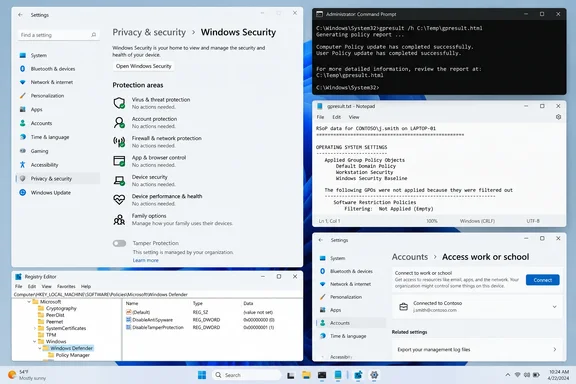
gpresult command can often tell you why. Run from an elevated prompt, it lists the Group Policy settings in force on the machine and the policy objects that applied them. The report is incomplete, though. It covers Group Policy only, so Intune enrollment, and software that writes policy values straight into the registry, need separate checks. That makes gpresult a good first step and a poor last one, and knowing where its coverage ends matters as much as knowing how to run it.The approach was set out in a TweakTown guide published September 23, 2026. Its author describes a toggle on a personal PC that greyed out with an organization message that named no policy, value or source. The command syntax, output options and diagnostic paths in that guide can be checked against Microsoft's own documentation, and nearly all of them hold up. The exceptions are noted below.
Windows 11's "Managed by Your Organization" Message Traces Back to the Policies Registry Keys
Windows has an administrative layer built for corporate IT, and it applies that layer whether or not a company is involved. Microsoft's developer guidance on registry-based policy names HKEY_CURRENT_USER\Software\Policies and HKEY_LOCAL_MACHINE\Software\Policies as the preferred locations for policy values. It also lists two older paths under Software\Microsoft\Windows\CurrentVersion\Policies. TweakTown's focus on the first pair is a reasonable place to start, but those two keys are not the only ones that can hold policy.
The same Microsoft guidance explains why the settings grey out. Applications are told that policy keys always take priority over ordinary preference keys, and that the user interface must show that a policy has removed or disabled a feature. Windows is working as designed when it greys out a toggle: something wrote a value where policy lives, and the value was obeyed.
Microsoft's design also explains why deleting a value can undo a setting. Under its recommendations, an Enabled or Disabled policy leaves a registry value behind, while a Not Configured policy writes nothing. A leftover value is therefore an active instruction. Nobody has to be managing the PC for it to keep working.
Plenty of software on a personal PC can write to these keys. TweakTown lists debloat scripts from GitHub, privacy-hardening utilities, third-party antivirus suites that set Defender and firewall policies and don't always remove them on uninstall, update blockers, OEM preload software, hand-edited registry tweaks, and work or school accounts added once and then forgotten. The organization message names none of these.
gpresult /z Turns the Resultant Set of Policy Into a Searchable Text File
Microsoft describes gpresult as a tool that displays the Resultant Set of Policy (RSoP) information for a remote user and computer, and it works just as well on the local machine. RSoP is the merged result of every policy that applies. Because you can apply overlapping policy settings to any computer or user, the Group Policy feature generates a resulting set of policy settings when the user signs in. The command shows the resulting set of policy settings that were enforced on the computer for the specified user when the user signed in. That timing matters: the report is a snapshot from sign-in, not a live scan of every configuration source.
The command won't run bare. Except when using /?, you must include an output option, /r, /v, /z, /x, or /h. The three text options give different levels of detail:
| Switch | What Microsoft says it shows |
|---|---|
/r | Summary RSoP data |
/v | Verbose policy information, including settings that won with precedence 1 |
/z | All available Group Policy information, including settings at precedence 1 and higher |
TweakTown starts with /z because it is the only option that also shows the settings the winning policy overrode. Microsoft agrees that /v and /z produce a lot of output and suggests saving it to a file: because /v and /z produce much information, it's useful to redirect output to a text file (for example, gpresult/z >policy.txt).
Running the report
- Click Start, type
cmd, right-click Command Prompt and choose Run as administrator, then accept the UAC prompt. - Run
gpresult /z > "%USERPROFILE%\Desktop\policy.txt"and wait a few seconds. - Open
policy.txtfrom your desktop in Notepad or another text editor and search from there.
Elevation is the one step to handle carefully. TweakTown says that without it you usually get only the user-scoped settings, and the computer half of the report is missing. Microsoft's reference confirms that user and computer are separate report scopes, but it does not describe how elevation affects the output. Running as administrator is still sensible, and other guides make a similar point: one troubleshooting walkthrough advises that if you get "Access Denied," you need to run this command as Administrator. You can narrow the output with the documented scope switch. [/scope {user | computer}] limits the report to one half, so gpresult /scope computer /z returns only machine policy.
For a formatted report, Windows Pro users can try gpresult /h "%USERPROFILE%\Desktop\gpreport.html" and open the file in a browser. Microsoft's reference notes that /h and /x cannot be combined with /r, /v or /z, and adds an ARM64 caveat: on ARM64 versions of Windows, only the gpresult in SysWow64 works with the /h parameter. On a Snapdragon laptop, that means running C:\Windows\SysWOW64\gpresult.exe with the full path.
Applied GPOs, Administrative Templates and Extra Registry Settings Hold the Answer
According to TweakTown, most of the text file can be skipped. Three blocks matter. The labels below come from that guide, and Microsoft's reference doesn't describe the output headings, so treat them as things to search for in the file rather than a complete taxonomy.
Applied Group Policy Objects comes first, once for the computer and once for the user. On a PC with nothing configured, this section is often empty, and an empty local policy appears further down as Local Group Policy with a note that filtering was not applied because the object is empty. A domain name or a policy object you don't recognise is enough to explain the situation on its own: the PC, or an account on it, is receiving policy from outside.
Under Administrative Templates, the registry-settings block lists named policies in plain language, each tagged with the object that set it. They are readable because a template file exists to describe them. Windows Update settings appear here often, because bandwidth and deferral options are backed by policy.
Extra Registry Settings is the block TweakTown checks first. It collects values that reached the registry through Group Policy but have no matching template, so each entry is a bare key path with no friendly name. Legitimate settings land here too. Treat it as a list of things to investigate, not a list of mistakes, and paste each path into Registry Editor to see what it controls.
Microsoft's documentation on the policy file format explains the mechanics behind this. The Group Policy Object Editor stores its registry-based settings in two Registry.pol files under C:\Windows\System32\GroupPolicy\, one for computer settings and one for user settings. A value that came through that pipeline has a policy object attached to it. A value some other tool dropped into the same key does not.
Generating the report doesn't change anything, because it only reads the system. It does gather account, domain and policy details, so check the file before pasting any of it into a forum thread.
Direct Registry Writes, Intune MDM and Edge Fall Outside gpresult
The first blind spot is the one most likely to catch enthusiasts. Software that writes directly into the Policies keys never goes through the Group Policy engine, so no policy object exists and gpresult has nothing to report. The toggle stays greyed out regardless. A value sitting in a policy location does not mean a Group Policy object put it there or manages it now. An empty or unhelpful report does not mean nothing is enforcing the setting. The fix is to search both Software\Policies hives by hand in Registry Editor, and to check the CurrentVersion\Policies paths Microsoft also lists.
The second gap is mobile device management (MDM), which Intune uses. Group Policy and MDM report through separate channels, so a PC enrolled through a work or school account needs its own check. Microsoft's MDM log documentation, which applies to Windows 10 and Windows 11, gives the procedure:
- Open Settings > Accounts > Access work or school.
- Select the work or school account, then select Info.
- At the bottom of the page, select Create report, then Export in the window that opens.
- In File Explorer, go to
C:\Users\Public\Documents\MDMDiagnostics.
Microsoft describes MDMDiagHtmlReport.html as a summary snapshot of MDM configurations and policies, including the management URL, MDM server device ID, certificates and policies. If the Access work or school page shows no connected account, this route doesn't apply. If it shows an account you forgot about, that account may well be your "organization".
Microsoft Edge has its own policy view. TweakTown points readers to edge://policy in the address bar to see what the browser has locked.
Windows Home Can Read the gpresult Report but Has No Editor to Undo It
Windows Home runs gpresult and produces the text report without trouble. The limits come afterwards. TweakTown reports that Home rejects the /h HTML report because it relies on Group Policy management components the edition lacks, and that gpedit.msc and rsop.msc are missing as well. Microsoft's command reference doesn't list edition-specific restrictions for /h. The lack of the Group Policy Editor on Home is widely reported, though mostly in community answers rather than a formal Microsoft specification.
rsop.msc wouldn't solve the problem even on Pro. It does not show all Microsoft Group Policy settings, and it only displays settings that were applied through client-side extensions that support RSoP logging, and one administrator's guide notes that when running rsop.msc on Windows 10 and 11, there was a warning that you should use gpresult to get a full GPO report. Either way, gpresult is the tool to use.
On Home, Registry Editor is the only way to remove a stray value. Back up first. In Registry Editor, click File > Export, set Export range to All, and save the .reg file somewhere other than the system drive. Deleting a value without thinking it through can take a Defender or Windows Update setting with it. That can weaken the PC's security or change how updates arrive, so remove only values you can trace to a tool you know you ran.
What this means for you
If a greyed-out setting is bothering you, run the report before you touch the registry. Most people can stop once the report and the Access work or school page have identified the source. You only need to go into the registry if the report shows nothing and there is no MDM account. Domain-joined and Intune-managed work PCs are a different case. There the organization message is accurate, and removing policy values yourself can break compliance with your employer's management.
- Run
gpresult /z > "%USERPROFILE%\Desktop\policy.txt"from an administrator Command Prompt as the first diagnostic. It is read-only and works on every Windows client edition. - Check the Applied Group Policy Objects entries for any domain or object name you don't recognise, then work through Extra Registry Settings one key path at a time.
- Open Settings > Accounts > Access work or school, and if an account is listed, create the MDM report in
C:\Users\Public\Documents\MDMDiagnostics. - Search both
Software\Policieshives manually whengpresultcomes back empty, because values written directly by scripts and utilities never appear in the report. - Export a full registry backup to a drive other than C: before deleting anything under a Policies key.
- Review
policy.txtfor account and domain details before sharing it online.
TweakTown's author reruns the report after any script or tool that promises to tidy up Windows, and keeps an early copy of policy.txt as a baseline so the comparison takes seconds. That's the most practical habit here. A saved report from a clean system shows exactly which policies each tweak left behind, and the vague "managed by your organization" message becomes a specific setting you can trace and remove.
References
- Your Windows PC is enforcing policies you never set, and one command lists them - tweaktown.com tweaktown.com · 2026-09-23T03:40:13+00:00
- Implementing Registry-based Policy | Microsoft Learn learn.microsoft.com
- gpresult | Microsoft Learn learn.microsoft.com