

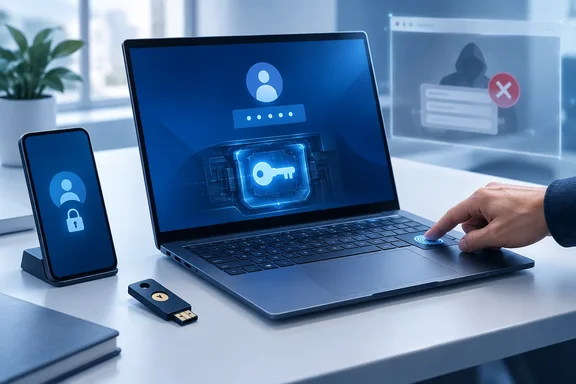
His conclusion holds up, but some of it needs qualifying. Passkeys fix real weaknesses of passwords, especially phishing and reuse. Whether you can recover from a lost laptop, though, depends on where the passkey is stored and what backup sign-in methods your account has. Here's what the PIN actually does, how to set passkeys up on Windows, and where things usually go wrong.
What that Windows PIN is actually doing
When you create a passkey, your device or passkey provider generates a pair of linked keys. Microsoft's Windows documentation explains it this way: the private key stays on your device and the public key is registered with the website. To sign in, the device proves it holds the private key by signing a challenge. That private key only becomes usable after you unlock it with a Windows Hello factor, which means a PIN, fingerprint or face.
Two things follow from that:
- Your PIN never goes to the website. It's a local check that confirms you're the person at the keyboard. Microsoft also says biometric data stays on the device and isn't sent over the network.
- The site never holds a secret that can be stolen. It only stores a public key. The FIDO Alliance, the standards group behind passkeys, points out that a leaked password database is much less useful to attackers when there are no passwords in it.
The phishing protection doesn't rely on you spotting a fake page. Microsoft says the browser or operating system only lets a passkey be used for the service it belongs to. A convincing fake Gmail login page on the wrong domain gets nothing. The FIDO Alliance says this protection applies whether the passkey is synced across devices or tied to one piece of hardware.
A caveat: some coverage describes passkeys as impossible to steal. They aren't. They remove the password-phishing and password-reuse problems. Your account still depends on how secure the device is, how secure your passkey provider account is, and what recovery options the service leaves open.
Section summary: The PIN unlocks a private key that stays on your device. The website only ever sees a signed response and a public key, never anything reusable.
Setting up passkeys on Windows 10 and 11
Microsoft says passkeys work on Windows 10 and Windows 11. Windows 11 version 22H2 with KB5030310 added a built-in passkey management page. Here's the setup:
- Turn on Windows Hello. If you already unlock your PC with a PIN, fingerprint or face, it's probably on. If not, go to Settings > Accounts > Sign-in options and set one up.
- Create the passkey. Many sites offer one right after you sign in with your password. If a site doesn't, look in its account security settings.
- Pick where to save it. Microsoft's prompts let you accept the suggested location or choose Change or Save another way. The options include Microsoft Password Manager or another synced manager, a phone or tablet, a physical security key, or "Windows device / Windows Hello," which saves the passkey on that PC only.
- Confirm with your PIN or biometric.
To check what's saved, Microsoft's documentation says to go to Settings > Accounts > Passkeys. Starting in Windows 11, version 22H2 with KB5030310, you can use the Settings app to view and manage passkeys saved for apps or websites. Go to Settings > Accounts > Passkeys. The page lists your saved passkeys, and you can delete one from the three-dot menu next to it.
If you'd rather use 1Password or Bitwarden, Windows can use a third-party passkey manager too. Eleven Forum reports that you can turn this on via Settings > Accounts > Passkeys > Advanced options.
On Windows 11 version 24H2, Microsoft says apps must ask for your consent before they can use passkeys. If you declined that prompt at some point, passkey creation and sign-in won't work in that app. You can fix it under Settings > Privacy & security > Passkey access.
Microsoft personal account
Microsoft's current support steps:
- Sign in to Advanced Security Options at account.live.com/proofs/manage.
- Choose Add a new way to sign in or verify.
- Select Face, Fingerprint, PIN, or Security Key.
- Follow the prompts, then keep the suggested save location or pick another.
Microsoft adds that the Windows Hello option may not appear if you've already saved a passkey for the account to a synced manager such as Microsoft Password Manager.
Microsoft work or school account
Start at mysignins.microsoft.com/security-info and choose Add sign-in method, then Passkey. Microsoft notes you can only do this if your organization allows it, and your IT admin may limit where passkeys can be saved.
Google account
Google's help page says passkeys work on computers running Windows 10 or later with Edge 109+, Chrome 109+ or Firefox 122+. Go to myaccount.google.com/signinoptions/passkeys, click Create a passkey, and unlock your device. Google also notes that a new passkey can take up to seven days to show up at sign-in.
Section summary: Turn on Windows Hello, add passkeys from each account's security page, and decide on purpose whether each passkey lives on the PC only or in a synced manager.
Where the passkey lives matters more than anything else
This is the key difference between the two storage options:
| Storage choice | What happens if you lose the PC |
|---|---|
| Windows Hello (on this PC only) | The passkey doesn't move to a new machine. You need another passkey, a security key or a recovery method. |
| Synced manager (Microsoft Password Manager, Google Password Manager, iCloud Keychain, 1Password, etc.) | The FIDO Alliance says a synced passkey shows up on a new device once you sign in to the same provider. |
| Hardware security key | Works wherever you plug it in. FIDO says it can also serve as a recovery credential. |
Shareef says losing a device won't lock you out, because each device has its own passkey or you can fall back to your password. That's true if you set up those backups. If your only passkey is on one laptop and you've removed or forgotten your other sign-in methods, you'll be going through the service's account recovery process instead.
Practical advice:
- Enroll at least two authenticators for important accounts. For example, a passkey on your PC plus one on your phone or a security key.
- Keep recovery details current before you start relying on passkeys.
- Revoke passkeys for lost devices. Google says to remove them from your account security page using another device you can still access.
- After you replace a PC, Microsoft recommends setting up the new passkeys first, then deleting the old ones.
The Google and Workspace fine print
Google's rules add some limits to the idea of going fully passwordless:
- Adding a passkey doesn't remove any existing sign-in or recovery methods.
- Creating one switches the account to passkey-first sign-in by default. You can still use your password, and you can turn off Skip password when possible under Security & sign-in if you'd rather type it.
- On accounts with 2-Step Verification, Google treats a passkey sign-in as covering the second step. That's Google's policy, not a rule every service follows.
- Google Workspace users may not be able to sign in with a passkey alone. Admins control this. The passkey can still act as a second factor, a recovery option or a way to confirm sensitive changes.
Shareef says he uses a passkey for Google Workspace. That works if his admin allows it, which isn't true of every organization.
Google also warns that anyone who can unlock your device can get into your Google Account through a passkey, even if you've signed out. So don't create passkeys on shared or family PCs.
Troubleshooting common passkey failures
Microsoft's troubleshooting page covers the usual problems:
- "No passkeys available": Your device's screen lock must be on. Passkeys won't work without a PIN, face or fingerprint set up.
- No QR code for signing in with your phone: Bluetooth has to be on for both devices, they need to be close to each other, and both need internet access. They don't have to be on the same network. Some organizations block Bluetooth-based sign-in.
- "This passkey can no longer be used": The passkey may have been deleted, or you changed your PIN or biometric setup. Create a new one.
- "Something went wrong": Often a timeout, or you tried to save a second passkey for the same site in a synced manager. Microsoft says these managers hold only one passkey per site.
- Older systems: Outdated versions of Windows, browsers or phone operating systems may not fully support passkeys.
The enterprise angle: passkeys become the default
For organizations, the timeline is concrete. Microsoft Learn says that starting September 1, 2026, passkeys are the default sign-in experience in Microsoft Entra ID. Users who have SMS or voice enabled for multi-factor sign-in are automatically enabled for passkeys and prompted to register one. Microsoft stops providing SMS and voice codes itself from February 1, 2027 for most users, and from July 1, 2027 for Global Administrators and external users. Organizations that still need text or voice codes will have to contract a telephony provider.
That applies to work and school accounts in Entra, not personal Microsoft accounts. It still shows the direction Microsoft is heading, and admins should be running their passkey registration campaigns now.
Verdict
Shareef's everyday experience is realistic. Where passkeys are supported, signing in is faster and a fake login page can't capture them. The more important part comes before you rely on them: decide whether each passkey stays on one PC or syncs, set up a second authenticator, and keep your recovery details current. Passwords will stick around for new accounts, recovery and services that don't support passkeys yet. For your most important accounts, the PIN on your PC is now the better way in.
References
- Passkeys by default and retirement of Microsoft-provided SMS and voice authentication - Microsoft Entra ID | Microsoft Learn learn.microsoft.com
- Support for Passkeys in Windows | Microsoft Learn learn.microsoft.com
- Create and save a passkey | Microsoft Support support.microsoft.com