

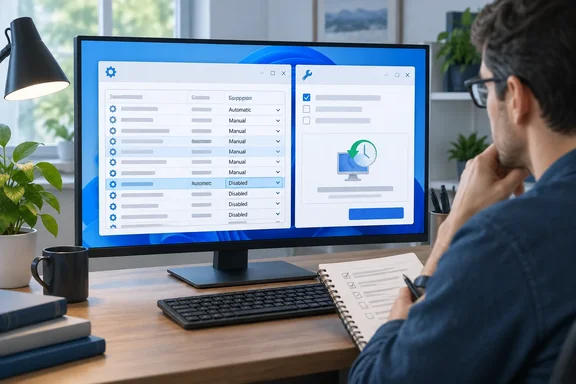
Some of that advice is sound, some needs qualifying, and one piece uses a troubleshooting tool for something it wasn't designed to do. Here is what the built-in tools actually do, what Microsoft's documentation says, and how to change services without breaking your PC.
What XDA recommends
The article makes these main points:
- Over 100 services is normal. XDA says the Services utility usually lists about 100 or more entries. Some show "Running" in the Status column and the rest are blank. You can also see active services and their resource use in Task Manager under "Windows processes."
- Some services are candidates for disabling. XDA names Connected User Experiences and Telemetry (for performance and privacy), Delivery Optimization, Windows Search, SysMain, Xbox-related services if you don't game, and printer services if you have no printer.
- The Services procedure. Open Services, double-click a service, set Startup type to Disabled, click Stop under Service status, then Apply and OK. XDA stresses choosing Disabled, otherwise Windows starts the service again after a reboot.
- A shortcut for third-party services. Open System Configuration (
msconfig), go to the Services tab, tick Hide all Microsoft services, untick what you don't want, and save. - Two caveats. Don't disable everything: Windows Update, for example, uses a lot of resources while it downloads updates, and that's normal. And don't expect a big speed boost, because most services use little.
The article then says that disabling non-critical services causes no harm, nothing stops working, and the PC stays perfectly healthy. Microsoft's documentation doesn't support that.
Summary: XDA is right that services can be managed with built-in tools and right to lower expectations about speed. Its promise that nothing will break is too broad.
What msconfig is actually for
The "Hide all Microsoft services" checkbox is real and useful, but Microsoft documents it as part of a clean boot, which is a diagnostic procedure. Microsoft's support page says a clean boot starts Windows with only essential drivers and startup programs, making it easier to identify and troubleshoot background software conflicts affecting apps or games.
Microsoft's warnings about the tool are blunt. If the computer is connected to a network, network policy settings might prevent you from following these steps. Microsoft adds that using the System Configuration utility might make the computer unusable. Its overview page on System Configuration also calls it a powerful tool and recommends backing up the system before using it.
The clean-boot page also says your PC may temporarily lose some functionality while in a clean boot, and it includes steps to restore normal startup afterwards. A tool that comes with its own undo instructions is meant for testing, not for permanent tuning.
The two tools behave differently:
Services console (services.msc) | System Configuration (msconfig) | |
|---|---|---|
| Microsoft's intended use | Inspecting and configuring individual services | Troubleshooting startup problems and software conflicts |
| What you change | Startup type and current status, one service at a time | Which services load at boot, as a selective-startup set |
| Third-party filter | No | Yes ("Hide all Microsoft services") |
| Documented undo | Set the startup type back | Normal startup, then "Enable all" |
| Best for | Deliberate changes to a service you've researched | Finding out whether something in the background is causing a problem |
Summary: msconfig is a good way to find which service is causing trouble. It is not a list of services Microsoft considers safe to switch off.
Disabled versus Manual
Every service has a status (running or stopped) and a startup type. Microsoft's sc.exe config documentation describes the startup options:
- auto: starts at every boot, even if nobody signs in.
- delayed-auto: starts automatically shortly after the other automatic services.
- demand: the command-line name for Manual. The service starts when something requests it.
- disabled: the service can't start at all until you change its startup type.
That last one matters. Disabled doesn't mean "not running right now." It means the service is blocked, even if Windows or an app needs it later. PowerShell's documentation says the same: a disabled service won't start until its startup type is changed.
Many services that look idle aren't using anything. Microsoft's service development guidance describes trigger-start services, which start only in response to an event and use no resources until then. A stopped service set to Manual is often costing you nothing, so disabling it gains nothing and only removes the chance for Windows to call it when needed.
My view, based on general admin experience: if you're unsure about a service, set it to Manual rather than Disabled. If nothing complains for a few weeks, you can decide whether to go further.
Why "safe for everyone" lists don't work
Windows service lists vary between PCs, which is why advice lists don't transfer cleanly. Microsoft's documentation on per-user services explains part of the reason. Windows creates some services when you sign in and removes them when you sign out. They appear with a unique suffix after the name, so the same service looks different on every machine and for every account. Microsoft also notes that other versions of Windows 10 and 11 may not have the same services.
Microsoft is direct about the risk. Before reconfiguring per-user services, it advises understanding the consequences, because disabling one can leave dependent apps that don't work correctly. Its examples from that list:
- Sync Host: mail and other apps that depend on it stop working properly when it's stopped.
- Contact Data: contacts may disappear from search results.
- Print Workflow: some printing functions may fail if it's turned off.
- Connected Devices Platform User Service: handles connections to phones, Xbox consoles, HoloLens and smart devices.
Services also depend on each other. Windows' service manager tracks which services need another one running before they can start. Disabling one can quietly stop others.
XDA's suggested services, checked
Here is each suggestion with the context it needs.
Connected User Experiences and Telemetry
XDA says you're better off without it. Microsoft's documentation describes it as the component that handles diagnostic-data events and provides supported controls for the amount of data collected. Since Windows 10 version 1903, the default level is Required diagnostic data, the minimum Microsoft says is needed to keep a device secure, up to date and working properly.
If privacy is your concern, check your diagnostic data level in Settings first. It's the supported control and won't disrupt anything else.
Delivery Optimization
XDA thinks most average users are better off without it. Microsoft calls Delivery Optimization the downloader for Windows updates, Microsoft Store apps, Office and other Microsoft content. It also says Windows 10 and 11 PCs by default use it to share updates only with PCs on your local network, not the whole internet.
If you don't want peer-to-peer sharing, turn it off on the Delivery Optimization page in Windows Update settings. Disabling the downloader your updates run through is a heavy-handed fix.
Windows Search and SysMain
XDA calls these two of the more resource-intensive services. That's plausible on a slow hard drive. The trade-off is that disabling Windows Search affects search in the Start menu and File Explorer. Test before you commit, preferably with Manual first.
Xbox and printer services
These are reasonable if they truly don't apply to you. But "I don't game" doesn't always mean you don't use Xbox features, since things like Game Bar capture rely on them. Printer services also cover virtual printers such as print-to-PDF. If you decide to switch them off, use Manual first.
Summary: for telemetry and Delivery Optimization, Microsoft provides proper settings that are better than disabling the service. For the rest, it depends on what you use, so test with Manual before choosing Disabled.
A safer procedure for Windows 10 and Windows 11
Before you start
- Check whether it's your PC. On work or school machines, policies may block these changes and IT may undo them. Ask your IT department first.
- Create a restore point. How-To Geek's clean-boot guide recommends this, noting you may want to set up a System Restore Point or back up your computer just in case anything goes wrong during the process.
- Write down the original settings. Note each service's startup type before you change it. Microsoft's clean-boot guide also tells you to keep track of what you disable. A screenshot works fine.
To find what's slowing down startup (clean boot)
- Select Search, type msconfig, and then select System Configuration from the list of results.
- On the Services tab, tick Hide all Microsoft services, then select Disable all and Apply.
- On the Startup tab, select Open Task Manager. Disable each enabled startup app and note which ones you changed.
- Close Task Manager, select OK in System Configuration, and restart.
- If the problem is gone, narrow it down. Microsoft recommends testing half the services at a time rather than one at a time, which removes half the suspects with each restart.
- Once you've found the cause, contact that software's maker or leave only that item disabled.
To restore normal startup
- In
msconfig, on the General tab, select Normal startup. - On the Services tab, clear Hide all Microsoft services, select Enable all, then Apply.
- In Task Manager, re-enable the startup apps you turned off, then restart.
If the Windows Installer stops working
If you cleared Load system services and an install fails with "The Windows Installer service could not be accessed," that's expected. The Windows Installer service doesn't start if you clear the Load system services check box in the System Configuration utility. To fix it, open Computer Management, expand Services and Applications, and then select Services, then right-click Windows Installer, and then select Start.
To change a single service permanently
- Open Services (
services.msc) and double-click the service. - Read its description and check its Dependencies tab for services that rely on it.
- Prefer Manual. Choose Disabled only when you're sure you'll never need the feature.
- Click Apply and use the PC normally for a while. If something stops working, check the services you changed first.
Success looks like this: the PC boots normally, the features you use still work, and you have a written list of every change so you can undo them.
Is it worth doing?
XDA admits that disabling a few services won't make your PC much faster. That's the most important point in the piece. Freeing a little memory on an old 4 GB laptop can make a small difference. On a modern machine with an SSD and 16 GB of RAM, you're unlikely to notice anything.
Other changes usually do more:
- Trimming startup apps in Task Manager.
- Uninstalling unused software, which removes its services as well.
- Adding RAM or swapping a hard drive for an SSD.
The real strength of these tools is troubleshooting. When an app crashes or startup takes forever, a clean boot is one of the most reliable ways to find the culprit.
So yes, Windows runs a lot of services, and yes, you can control them. Just treat msconfig as a diagnostic tool rather than a speed booster, and set uncertain services to Manual rather than Disabled.
References
- Windows has 100+ services running right now, and this built-in tool lets you safely disable many of them XDA · 2026-10-01T13:00:21+00:00
- How to perform a clean boot in Windows | Microsoft Support support.microsoft.com
- Per-user services | Microsoft Learn learn.microsoft.com