

Microsoft's nine-step fix for Bluetooth connected but no sound in Windows 11 and Windows 10
The support page covers three related symptoms. If your Bluetooth device connects to Windows but you hear no sound, experience low audio quality, or face frequent disconnections, it can disrupt your audio experience. This issue often arises due to incorrect settings, outdated drivers, or compatibility limitations. Microsoft calls these likely causes. It does not claim they explain every case, and it gives no way to tell which one you have.
The steps are the same on both versions, but the menu paths differ. That matters now, because Microsoft's broader Bluetooth troubleshooting page notes that Windows 10 support ended on October 14, 2025. Windows 10 no longer gets free Windows Update fixes, technical help, or security updates. Microsoft still publishes the Windows 10 steps for this problem, and they work as written, but "keep Windows up to date" means less on an unsupported system.
Here is the sequence, with the paths for each version:
| Step | Windows 11 | Windows 10 |
|---|---|---|
| 1. Automated troubleshooter | Get Help app | Get Help app |
| 2. Output device | Taskbar Sound icon; Settings > System > Sound > Output | Taskbar Sound icon; Settings > System > Sound > Choose your output device |
| 3. Audio format | Settings > Bluetooth & devices > Devices > [device] > Advanced sound properties | Taskbar Sound icon (right-click) > Sounds > Playback > [device] > Properties > Advanced |
| 4. Re-pair | Settings > Bluetooth & devices > More options (…) > Remove device, then Add device | Settings > Devices > Bluetooth & other devices > Remove device, then Add Bluetooth or other device |
| 5. Toggle Bluetooth | Off, wait 10 seconds, on | Same, under Devices > Bluetooth & other devices |
| 6. Driver | Device Manager > Bluetooth > adapter > Update driver | Same |
| 7. A2DP support | Check the accessory's documentation | Same |
| 8. Windows Update | Settings > Windows Update > Check for updates | Settings > Update & Security > Windows Update |
| 9. Restart | Start > Power > Restart | Same |
Why Windows routes sound away from a "connected" headset
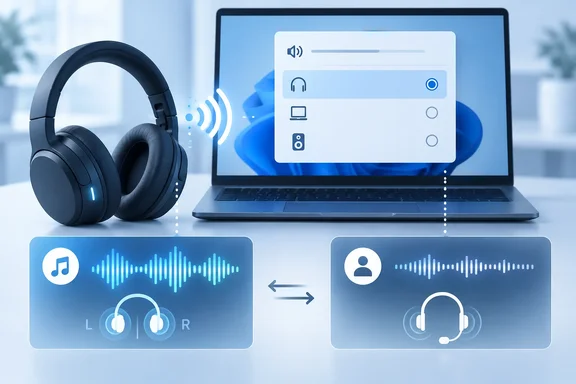
Step 2 is the first manual check, and it comes first for good reason. A Bluetooth device can be paired and connected while Windows keeps sending audio to the laptop speakers or another output. On Windows 11, click the Sound icon on the taskbar and make sure the Bluetooth device is the selected output, then confirm it under Settings > System > Sound > Output. On Windows 10, the second check is the Choose your output device list on the same Sound settings page.
Third-party guides agree this is the usual culprit. Technobezz, in a guide updated in July 2026, calls it "the single most common reason a connected Bluetooth device stays silent". Microsoft doesn't rank the causes, but the routing check costs nothing and rules out the simplest explanation before you touch drivers.
On Windows 10 there is a catch, and it explains why picking "the Bluetooth device" can still go wrong. Microsoft's hardware documentation says pairing a Bluetooth Classic headset on Windows 10 can create up to three audio endpoints. An A2DP output named "{Device Name} Stereo", plus an HFP output and input both named "{Device Name} Hands-Free". So one physical headset can show up twice in the output list. A 2022 answer on Microsoft's own Q&A forum describes the same thing: users should find it 2 devices, Headphones and Headset, and should set the Headphones entry as the default for playback.
A2DP and HFP: the profile switch behind silent audio and muddy calls
Step 7 asks you to make sure your Bluetooth device supports the A2DP protocol for higher-quality audio streaming. The support page doesn't say why. Microsoft's Bluetooth Classic audio documentation on Microsoft Learn does, and it covers all three of the guide's symptoms.
Bluetooth Classic audio uses two profiles. The Advanced Audio Distribution Profile (A2DP) carries high-quality stereo playback for music and video, but it only sends audio one way, from PC to headset. The Hands-Free Profile (HFP) carries mono playback and mono microphone capture together. Whenever an app needs the headset microphone, Windows has to use HFP.
Here is how each version handles that:
- On Windows 10, when audio goes to the Hands-Free output or an app opens the Hands-Free microphone, the device switches to HFP. Microsoft says any audio going to the Stereo output at that point is discarded. So a voice app sitting in the background with the mic open can make the Stereo endpoint go completely silent.
- On Windows 11, the A2DP and HFP endpoints are merged into a single output and a single input. Windows picks HFP when an app opens the microphone or creates a playback stream in the Communications category. All other playback uses A2DP.
- On Windows 11, Windows resamples audio automatically to fit the current profile. Music playing during a VoIP call is converted down to HFP's 8 kHz or 16 kHz. When the microphone closes, the device switches back to A2DP.
That explains a common complaint: music sounds fine, then turns thin and phone-like once a meeting app starts. It's HFP doing its job. HFP itself has two modes. Wideband runs at 16 kHz (from Windows 10 version 1703 and Windows 11 version 21H2, with compatibility improved in 22H2). Narrowband runs at 8 kHz. Microsoft also notes that some wideband-capable headsets don't work with the Bluetooth radio in certain Windows PCs and fall back to narrowband.
A reasonable inference from this documentation: if a headset goes silent or loses quality only while Teams, Discord or another voice app is running, look at which microphone that app is using before you reinstall drivers. Microsoft's guidance for Windows 10 is that apps capturing from the headset microphone should be set to use the Hands-Free endpoints. Treat that as one possible explanation, not the answer to every silent headset.
What the 48 kHz "DVD Quality" format setting does and doesn't do
Step 3 has you set the output format to 2 channels, 16 bit, 48000 Hz (DVD Quality). On Windows 11, that option lives under Advanced sound properties for the device. Microsoft notes you only see Advanced sound properties while the device is connected, so turn on and connect the headset first. On Windows 10, the same setting is under Default Format on the Advanced tab of the Playback device's Properties dialog. Click Apply, then OK.
Microsoft calls this "highest quality," but the setting controls the format Windows uses for that output endpoint. It doesn't pick the Bluetooth profile or the codec. Setting 48 kHz won't turn on A2DP for a headset that has dropped into HFP, and it can't add codecs the headset doesn't support.
Codecs are negotiated separately. Microsoft's documentation says Windows goes down a priority list and uses the first codec that both the PC and the headset support:
| A2DP codec | Windows 10 | Windows 11 |
|---|---|---|
| aptX Adaptive (lossless) | Not supported | Version 24H2, select PCs with compatible Qualcomm radios only |
| AAC | Not supported | Version 21H2 |
| aptX Classic | Version 1507 | Version 21H2 |
| SBC | Version 1507 | Version 21H2 |
SBC is required on both ends for A2DP, so every A2DP headset has a baseline to fall back on. For users choosing between versions, AAC support is a real difference: AAC headsets on Windows 10 fall back to aptX Classic or SBC. Microsoft doesn't say the codec causes silence, so this table is a quality question, not a no-sound fix.
Bluetooth LE Audio is covered by separate guidance with its own requirements. Microsoft's LE Audio documentation says stereo playback with the microphone active needs Windows 11 version 24H2 or later, Bluetooth LE support built in at the factory, the right manufacturer drivers, and a compatible LE Audio accessory. If that format control doesn't appear, the system doesn't support stereo while the mic is active. Don't apply the Classic-audio steps above to an LE Audio problem, or the reverse.
Re-pairing and Bluetooth drivers: when the problem is the connection itself
Steps 4 through 6 deal with the link, not the sound settings. Microsoft frames step 4 narrowly: if the device appears in the Bluetooth list but won't connect, remove it and add it again. That's a different problem from a headset that connects fine but sends sound to the wrong place. If routing is the issue, step 2 fixes it and re-pairing only adds work. Community reports, including an earlier WindowsForum guide, say re-pairing often restores proper A2DP and HFP negotiation. That's anecdotal, not Microsoft's claim.
Step 5 is a radio reset. Turn Bluetooth off in Settings, wait 10 seconds, turn it back on, and pair again.
Step 6 targets driver incompatibility. Microsoft mentions this especially after upgrading to a new Windows version or installing updates, not as the cause in every case. Open Device Manager, expand Bluetooth, and find the adapter, which may have "radio" in its name. Press and hold or right-click it, select Update driver > Search automatically for updated driver software, and follow the prompts. After installing the updated driver, select Start > Power > Restart if you're prompted to restart, and then check whether that fixes the connection issue.
Microsoft's broader Bluetooth page adds a fallback the no-sound guide leaves out. If Windows can't find a new driver, download the latest Bluetooth driver from your PC manufacturer's website. An .exe package installs by running it. If the download is loose files including an .inf and a .sys, use Update driver > Browse my computer for drivers in Device Manager and point it at the folder. The same page covers uninstalling the adapter and letting Windows reinstall it after a full shutdown, or using Action > Scan for hardware changes if it doesn't come back. Microsoft offers that for a missing Bluetooth icon, not for silent audio, so save it for the case it was written for.
For frequent disconnections, the broader page also mentions interference. If a Bluetooth device is unresponsive or sluggish, keep it away from USB devices plugged into USB 3.0 ports, because unshielded USB devices can interfere with Bluetooth.
Get Help, Windows Update and a restart: the automated bookends
Microsoft starts with the automated Bluetooth troubleshooter in the Get Help app on both versions. It runs diagnostics and tries a fix, but Microsoft doesn't promise it will work. On Windows 11 there's another way to reach a Bluetooth troubleshooter, per Microsoft's general Bluetooth page: Settings > System > Troubleshoot > Other troubleshooters, then Run next to Bluetooth. On Windows 10 it's under Settings > Update & Security > Troubleshoot. Because a silent headset may be a playback problem rather than a Bluetooth one, Technobezz suggests running the audio troubleshooter next. To start it manually on Windows 11, go to Start > Settings > System > Troubleshoot > Other troubleshooters, then next to Audio select Run.
The last two steps are simple. Step 8: Make sure your PC supports Bluetooth and that Windows is up to date. On Windows 11, go to Settings > Windows Update > Check for updates and let everything available install. On Windows 10 the path is Settings > Update & Security > Windows Update, keeping in mind Windows 10 support has ended. Step 9 is a restart from Start > Power > Restart, which Microsoft says helps resolve temporary system issues affecting Bluetooth.
What this means for you
Figure out which symptom you actually have before you work through the list in order. For silence with a connected headset, check routing first, then look for an app holding the microphone. Poor quality that starts during calls usually means the HFP switch, not a driver fault. A device that shows in the list but won't connect is the case Microsoft's re-pair and driver steps were written for. Windows 10 users should know that separate Stereo and Hands-Free entries make routing mistakes easier. Windows 11's merged endpoint removes that trap but keeps the automatic switch to HFP.
- On Windows 11 and Windows 10, confirm the Bluetooth headset is the selected output in the taskbar Sound menu and in Settings > System > Sound before changing anything else.
- On Windows 10, send playback to the "Stereo" or "Headphones" entry, not "Hands-Free" or "Headset", and close voice apps that hold the headset microphone if music cuts out.
- Setting the format to 2 channels, 16 bit, 48000 Hz (DVD Quality) changes the endpoint's format only. It won't switch a headset from HFP back to A2DP or add codecs such as AAC.
- Save Remove device and re-pairing for devices that show in the Bluetooth list but won't connect, and get the driver from the PC maker's website if Device Manager's automatic search finds nothing.
- Check the accessory's documentation for A2DP support. Without A2DP, Windows can only use mono HFP audio.
- Because Windows 10 support ended on October 14, 2025, Windows Update may not deliver future Bluetooth fixes there, so moving to Windows 11 is the long-term answer.
Microsoft's nine steps work as a checklist, but the Bluetooth Classic audio documentation is what makes them diagnostic. Once you know Windows moves a headset from A2DP to HFP whenever an app opens its microphone, and that Windows 10 drops Stereo audio when that happens, most connected-but-silent cases become a routing or app-configuration question you can answer in Settings. Driver reinstalls and re-pairing are for the smaller set of cases where the link itself is failing. With Windows 10 past end of support, the Windows 11 merged endpoint, its broader codec support, and LE Audio on 24H2 hardware are where Microsoft's Bluetooth audio work is headed.