

Microsoft's Bluetooth Not Connecting Guide Starts With a Healthy Adapter
The guide begins with a specific condition. It applies when Bluetooth appears in Device Manager but you cannot pair or connect to a Bluetooth device. In that case, Microsoft says Windows may have a configuration, driver, or device-level issue that prevents successful communication. It lists the likely causes: these issues can occur when Bluetooth is turned on but the device is not in pairing mode, is out of range, has a low battery, or is experiencing driver, service, or update-related problems.
This condition sets the scope. If the Bluetooth toggle is missing or greyed out, you have a different problem. Microsoft's companion page on Bluetooth disappearing says the Bluetooth icon or toggle may be missing or appear grayed out in Settings or Action Center if Windows cannot detect or enable the Bluetooth hardware. That page points to drivers and firmware and suggests contacting the PC maker. The not-connecting guide assumes the adapter is present and working, so it spends most of its time on the peripheral.
PCWorld treated this page as one of several free Bluetooth instructions for Windows 10 and Windows 11 that Microsoft has published, each covering a separate symptom. Microsoft's main "Fix Bluetooth problems in Windows" hub links to the same set: disappeared Bluetooth, not connecting, file transfers, connected but no sound, repeated disconnects, driver updates, and audio playing in only one channel. Before you start, pick the page that matches your symptom. Otherwise you can spend time on steps that can't fix the fault you actually have.
Seven Steps, Two Settings Paths: Windows 11 and Windows 10 Split at the Menus
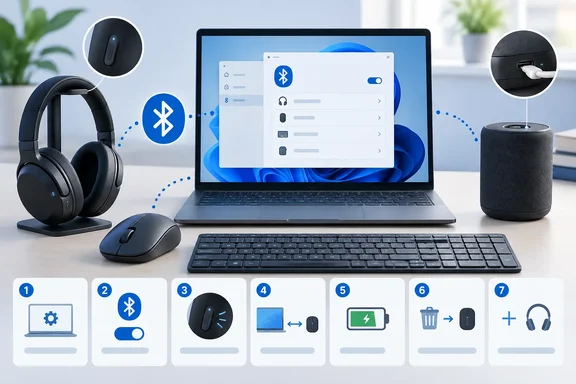
The seven steps are the same on both versions of Windows. The menus are different. On Windows 11, Bluetooth lives under Start > Settings > Bluetooth & devices. On Windows 10, the path is Start > Settings > Devices > Bluetooth & other devices. Windows Update also moves: on Windows 10 it sits under Start > Settings > Update & Security >Windows Update.
Windows 11 sequence
- Run the automated Bluetooth troubleshooter in the Get Help app. Microsoft says it will automatically run diagnostics and attempt to fix this Bluetooth problem.
- Go to Start > Settings > Bluetooth & devices and turn on the Bluetooth toggle. Put the peripheral in pairing mode and move it closer to the PC.
- If the device is listed but won't connect, select More options (…) > Remove device. Then choose Add device and pick it from the list.
- Check the battery. Charge the device fully, turn it off and back on, and try pairing again.
- Turn Bluetooth off in Settings, wait 10 seconds, turn it back on, and try pairing again.
- Confirm the PC supports Bluetooth. Then go to Start > Settings > Windows Update, select Check for updates, and let any updates install.
- Restart the PC with Start > Power > Restart.
Windows 10 sequence
- Run the automated Bluetooth troubleshooter in the Get Help app.
- Go to Start > Settings > Devices > Bluetooth & other devices, turn on Bluetooth, and make sure the peripheral is in pairing mode and in range.
- To remove the device, select it under Audio, Mouse, keyboard, & pen, or Other devices, then choose Remove device. Next, select Add Bluetooth or other device, choose Bluetooth, and pick the device when it appears.
- Charge the peripheral fully, turn it off and on, and try pairing again.
- Turn Bluetooth off in the same Settings page, wait 10 seconds, and turn it back on.
- Go to Start > Settings > Update & Security > Windows Update and select Check for updates.
- Restart through Start > Power > Restart.
In some reproductions of Microsoft's page, the Windows Update instructions run into the Bluetooth-toggle section and "Solution 6" disappears. On the live page, the update check is Step 6 and the restart is Step 7.
Pairing Mode, Range and Battery Account for Most of the List
Steps 2, 3 and 4 all check the peripheral. Microsoft says plainly that your Bluetooth device must be in pairing mode and within range of your PC. Pairing mode is the state in which a peripheral advertises itself to new hosts. How you enter it depends on the device. Some headphones need a long press on the power button, while some mice have a dedicated pairing button. Microsoft's page doesn't list per-device methods, and you won't find a universal one. If you don't know how to put your device into pairing mode, check the manufacturer's instructions before anything else.
Battery gets its own step because a low battery can cause two different failures. Microsoft notes that some Bluetooth devices do not enter pairing mode or maintain a connection when the battery is low. A device with a low battery might never show up in the Add device list. Or it might pair and then drop the link straight away, which looks like a Windows fault. The guide adds a practical tip: for rechargeable headphones or speakers, leave the device connected to power during pairing.
Microsoft's broader troubleshooting hub adds two physical checks that aren't in the seven-step list. First, if a Bluetooth device is sluggish or unresponsive, make sure it isn't too close to another device plugged into a USB 3.0 port, because unshielded USB devices can interfere with Bluetooth connections. Second, on Windows 11, if a device never appears in the list, change the discovery setting under Settings > Bluetooth & devices > Devices > Device settings > Bluetooth devices discovery from Default to Advanced. Default shows only common Bluetooth devices, while Advanced shows all types.
Remove Device Resets the Pairing Record, Not the Adapter Driver
Step 3 is the one people most often confuse with something else. Removing a paired device in Settings deletes the pairing record Windows keeps for that one peripheral. Pairing again creates a fresh record. This is the right step when a device shows in the list, perhaps as paired, but won't connect. It doesn't affect the PC's Bluetooth adapter or its driver.
Uninstalling the adapter is a separate and more serious step, found in Microsoft's broader "Fix Bluetooth problems in Windows" guide. Its intended use is narrower. Microsoft suggests it when the Bluetooth icon is missing but Bluetooth still appears in Device Manager. The procedure goes like this: in Device Manager, expand Bluetooth, right-click the adapter (its name may include the word "radio"), and select Uninstall device. Then shut down the PC, wait a few seconds, and turn it back on so Windows can try to reinstall the driver. If the driver doesn't come back on its own, open Device Manager and select Action > Scan for hardware changes. Save this for after the seven basic steps have failed. It isn't another way of doing Step 3.
Step 5, turning Bluetooth off and on, has a stated purpose on the Windows 10 page: restarting Bluetooth helps resolve temporary radio or service issues. The Windows 11 page leaves out that explanation. The instruction itself, including the 10-second wait, is the same on both.
Driver and Service Fixes Sit in Microsoft's Neighbouring Bluetooth Guides
The not-connecting page lists drivers as a possible cause, but none of its seven steps covers driver work beyond Windows Update. That work is in Microsoft's broader guide, which says an outdated or incompatible driver is one of the most common causes of Bluetooth connection problems. The procedure is the same on both versions:
- Open Device Manager from taskbar search and expand Bluetooth.
- Right-click the Bluetooth adapter and select Update driver > Search automatically for updated driver software.
- Restart if prompted, then try the connection again.
- If Windows finds no new driver, download the latest Bluetooth driver from the PC manufacturer's website. An .exe package installs when you double-click it. Loose .inf and .sys files are installed through Update driver > Browse my computer for drivers.
Microsoft explains why drivers matter after an upgrade: if you recently moved to Windows 11 or installed updates, the current driver may have been designed for an earlier version of Windows. Its guide also describes rolling back a driver, if that option is available, when Bluetooth stopped working after a recent driver or Windows update.
The Bluetooth Support Service shows up in a neighbouring Microsoft guide aimed at a different symptom. The "Bluetooth keeps disconnecting in Windows" page says to select Windows key + R and type services.msc and then click Ok. Scroll down to Bluetooth Support Service, right-click, and select Restart. The same page suggests opening the Bluetooth device in Device Manager, going to the Power Management tab, and unchecking Allow the computer to turn off this device to save power. On Windows 11, it also suggests checking whether Energy Saver is on and turning it off so won't interfere with Bluetooth connectivity. These steps are written for connections that drop, not for devices that never pair. They're reasonable to try next if a device pairs and then won't stay connected.
Windows 10 Readers Get the Same Steps but a Shrinking Safety Net
Microsoft still gives full Windows 10 instructions, including the Get Help troubleshooter. The Settings paths match the Windows 10 layout. However, Microsoft's broader Bluetooth guide notes that Windows 10 support ended on October 14, 2025. After that date, Microsoft no longer provides free software updates from Windows Update, technical assistance, or security fixes. The PC still works.
This affects Step 6 in particular. On an unsupported Windows 10 PC, checking for updates may bring in nothing new, so the driver route becomes more important. That means Device Manager or the PC maker's download page. Whether a manufacturer still publishes Windows 10 Bluetooth drivers for a given model depends on the manufacturer, and Microsoft's pages don't cover it.
The older Windows 10 troubleshooter path still appears in community answers: Settings > Update & Security > Troubleshoot > Additional troubleshooters, then Bluetooth. Microsoft's current guidance for both versions sends users to the Get Help app first.
What this means for you
Work through the seven steps in order and only move on to driver or adapter work when they fail. The first four steps take a few minutes and don't touch system components. Steps 5 to 7 are only slightly more disruptive. Uninstalling the adapter and replacing drivers are the steps that can leave a PC without Bluetooth for a while. Save those until the peripheral itself is ruled out.
- Confirm the adapter appears in Device Manager before using this guide. If the Bluetooth toggle is missing or greyed out, follow Microsoft's "Bluetooth disappeared" guidance instead.
- Charge the peripheral and keep rechargeable headphones or speakers plugged in while pairing, because a low battery can stop a device entering pairing mode or holding a connection.
- Use Remove device and then Add device when a listed peripheral won't connect. This resets the pairing record without touching the PC's Bluetooth adapter.
- On Windows 11, set Bluetooth devices discovery to Advanced if the peripheral never appears in the Add device list.
- If basic steps fail, update the adapter driver through Device Manager or the PC maker's site, and roll back a recent driver if Bluetooth broke after an update.
- If a device pairs but keeps dropping, move to Microsoft's disconnection steps: restart the Bluetooth Support Service and turn off the adapter's power-saving option.
Most failures in this guide's scope come down to a device in the wrong state or a stale pairing record, and the seven-step list is built to clear those quickly. When it doesn't work, the adapter driver is the next thing to check. That's where Windows 10 owners will notice support has ended, because Windows Update no longer supplies fixes and the PC maker's download page becomes the main source for a working driver.