

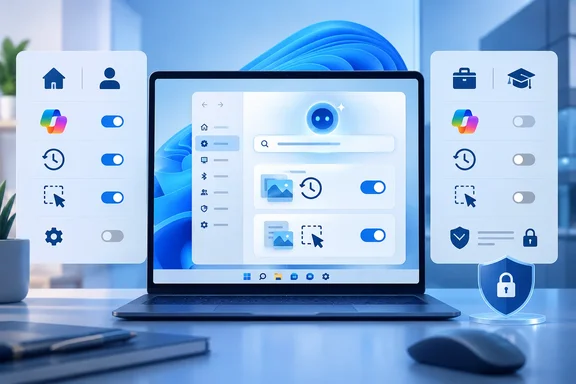
Below is what Microsoft's own documentation says, where it differs from what people assume, and what you can actually do on each edition.
What 26H2 actually is
Microsoft announced the Windows 11 2026 Update (version 26H2) on September 29, 2026. In its Windows Experience Blog post, Microsoft calls it an enablement package for eligible devices running versions 24H2 and 25H2. Those three versions share a servicing branch and codebase, so most of the code is already on your PC from earlier monthly updates. The package switches the new features on, and you restart once.
Some details that matter for this story:
- It's a staged rollout. Microsoft is releasing 26H2 gradually and may block devices with known compatibility problems. To get it sooner, go to Settings > Windows Update and turn on Get the latest updates as soon as they're available.
- Some defaults change. Microsoft says certain features that shipped turned off in 25H2 will be turned on by default in 26H2. The announcement doesn't name them, so we can't say which AI features are affected. It's still a good reason to recheck your settings after you update.
- Your support clock resets. Installing 26H2 gives Home and Pro 24 months of support and Enterprise and Education 36 months.
- Businesses can deploy it now through Windows Autopatch and the Microsoft 365 admin center, among other tools.
Neowin is right that most of the AI features predate 26H2. The upgrade simply brings the question of AI controls back to the front.
Section summary: 26H2 is a small activation update, not a full reinstall. It may still turn on features that were off before.
Who gets these AI features
Most of the newer on-device AI features are limited to Copilot+ PCs. According to Microsoft's Windows 11 specifications page, a Copilot+ PC needs:
| Requirement | Microsoft's minimum |
|---|---|
| Processor | Compatible CPU/SoC with an NPU capable of 40+ TOPS |
| Supported chip families | AMD Ryzen AI 300 and 400 series, Intel Core Ultra 200V and 300V series, Snapdragon X series |
| Memory | 16 GB DDR5/LPDDR5 |
| Storage | 256 GB SSD/UFS |
A powerful GPU doesn't count. Neither does a fast NPU on its own. Microsoft says a PC with a 40+ TOPS NPU but less than 16 GB of RAM, or too little storage, can still run local AI workloads in compatible apps. It won't get Copilot+ features such as Click to Do or the agent in Settings.
The Settings agent has extra requirements. Microsoft Learn lists:
- Windows 11 24H2 with KB5062660 or later
- A Copilot+ PC
- The temporary enterprise feature control policy setting turned on
- One of the supported languages: English, French, German, Hindi, Italian, Japanese, Korean, Portuguese, Spanish or Simplified Chinese
- Any country except China
So many Windows 11 PCs will never see the Settings agent. For those that do, the question is how to switch it off.
Section summary: Copilot+ features need specific NPU, memory and storage specs. The Settings agent also needs a minimum update and a supported language and region.
How the Settings agent works
The agent runs on a small local model Microsoft calls Settings Mu. The model runs locally on the device, analyzing a user's query to match with relevant settings already available in Settings. If the model can't confidently classify a query to a specific setting, standard search results are displayed instead.
Microsoft also says the agent only suggests settings; it doesn't make any changes automatically. The user must explicitly request the agent to make a change. If needed, the user can easily undo the change.
It doesn't act on its own, then. Users who want the old keyword search back, though, have few options.
The policy exists, but not for Pro
Microsoft does document an off switch. On its configuration page, when the policy setting is enabled, the agent experience isn't available, and search results are limited to statically indexed searches and semantic searches. Administrators can set it in three ways:
- Intune: create a Settings catalog policy, go to the Windows AI category and set Disable Settings Agent.
- Policy CSP: OMA-URI
./Vendor/MSFT/Policy/Config/WindowsAI/DisableSettingsAgent, Integer. 0 (default): the agent search experience in Settings is enabled - 1: the agent search experience in Settings is disabled - Group Policy: Computer Configuration > Administrative Templates > Windows Components > Windows AI > Disable Settings Agent.
The edition restriction is in the WindowsAI Policy CSP reference. That page marks DisableSettingsAgent as device-scoped and lists ❌ Pro ✅ Enterprise ✅ Education ✅ IoT Enterprise / IoT Enterprise LTSC | ✅ Windows Insider Preview. The same entry maps the policy to the registry value DisableSettingsAgent under SOFTWARE\Policies\Microsoft\Windows\WindowsAI, from the template file WindowsCopilot.admx.
Microsoft's own documents don't fully agree on this. A third-party ADMX viewer that shows the template's metadata lists the policy's "Supported On" string as at least Windows 11 Pro, Enterprise, or Education with Windows Sandbox. That label is generic and seems to be shared across the template file, so treat it with caution. The CSP edition table is Microsoft's more specific statement, and it marks Pro as unsupported. Pro users will see the setting in gpedit.msc. That doesn't mean Microsoft supports it there.
The CSP also labels the policy as applying to Windows Insider Preview. Microsoft's list of preview policies includes DisableSettingsAgent and says these settings are subject to change and may have dependencies on other features or services in preview. The edition list could change before the policy is final, in either direction.
Section summary: Microsoft documents a way to disable the Settings agent, but its CSP reference excludes Pro and labels the policy as preview. The ADMX metadata shows a looser "Supported On" string, so the documentation isn't fully consistent.
Feature-by-feature: who can turn off what
This table combines Neowin's breakdown with Microsoft's WindowsAI CSP entries. "Pro" means a policy Microsoft lists as supported on Pro. Separate on/off switches inside Settings or individual apps are a different thing.
| Feature | Policy | Pro supported? | Notes |
|---|---|---|---|
| Settings agent | DisableSettingsAgent | No | Enterprise, Education, IoT Enterprise only; labeled Insider Preview |
| Click to Do | DisableClickToDo | Yes | CSP marks applicability as Insider Preview |
| Recall snapshot saving | DisableAIDataAnalysis | Yes | 24H2 with KB5055627 (build 26100.3915) or later; turning it on stops snapshot saving and deletes existing snapshots |
| Recall availability | AllowRecallEnablement | Yes | Disabling it removes Recall's files and deletes snapshots after a restart |
| Paint Cocreator / Generative Fill / Image Creator | DisableCocreator, DisableGenerativeFill, DisableImageCreator | Yes | 22H2 build 22621.4870+ and 24H2 build 26100.3360+ |
| Agent Connectors (on/off) | ConfigureAgentConnectors | No | Enterprise, Education, IoT Enterprise; preview |
| Allowed MCP server/host connections | AgentConnectorAccessPolicy | No | Enterprise, Education, IoT Enterprise; preview |
| Agent consent duration | AgentConsentDuration | No | Default 720 hours (30 days); range 1–8,760 hours |
| Advanced Recall controls (app/site filtering, etc.) | Various | Mostly no | Microsoft's Copilot+ page says an Enterprise license is needed for some policy-based Recall controls |
The Copilot app isn't in the table because, as Neowin notes, you can uninstall it like any other app.
The pattern is that the older consumer features (Recall, Click to Do, the Paint AI tools) have policies that work on Pro. The newer agent controls are mostly limited to Enterprise and Education, and so is the Settings agent switch.
Section summary: Recall, Click to Do and Paint AI can be turned off on Pro. The Settings agent and the Agent Connector controls can't, at least for now.
Agent Connectors and the MCP question
This is the part businesses should watch most closely. Agent Connectors are Windows' own Model Context Protocol (MCP) connectors, which let AI agents reach parts of the operating system. Neowin's example is a File Explorer connector that could let agents read, create, move, rename and modify local files, with the user's permission. Microsoft's policy documentation confirms the controls over MCP server and host access. We couldn't confirm File Explorer's exact list of capabilities from Microsoft's documentation, so treat those details as Neowin's.
Pro users still get per-request permission prompts, so an agent can't simply take over your Documents folder. What Pro doesn't get is central control. An admin can't turn connectors off across all devices, can't limit which MCP connections are allowed, and can't change how long a user's consent lasts. The default is 30 days. A security team might reasonably want that shorter. On Pro, it isn't their decision.
Small businesses running Pro without Enterprise licensing are the most affected group. A sole trader can manage with permission prompts. A 40-person firm on Pro and Intune has no supported way to enforce "no agents touching files" across its PCs.
Can you just edit the registry?
Plenty of people are trying. Community guides from sites such as AskVG and ElevenForum, along with scripts on GitHub, write these WindowsAI values straight into the registry. One script claims the values work on Home and Pro too. One open-source project that added DisableSettingsAgent and related values says plainly that it has not tested: applying these on a live 24H2/25H2 Copilot+ machine and confirming the features are actually suppressed.
Neowin reports that creating the DisableSettingsAgent value by hand doesn't get around the edition restriction. We haven't tested this ourselves. Here's a safe way to look at it:
- Writing a policy value and Windows honoring it are separate things. On an edition Microsoft lists as unsupported, Windows may ignore the value, partly respect it, or stop respecting it after an update.
- If you experiment anyway, create a restore point first. Note which values you add under
HKLM\SOFTWARE\Policies\Microsoft\Windows\WindowsAI, and recheck after every feature update, including 26H2. - Check what happens, not just what the script reports. Open Settings and type a plain-language question in the search box. If the agent still answers, the value isn't working.
- Don't run all-in-one debloat scripts on work machines. They often change many settings at once, which makes problems hard to trace.
Home users are worse off. Windows 11 Home doesn't include the Local Group Policy Editor, so they rely on whatever switches Microsoft puts in Settings or in individual apps, plus registry edits that may not be honored.
Section summary: Registry tricks are popular, but there's little proof they work on unsupported editions, and Microsoft doesn't support them. Test the result yourself instead of trusting the script.
What to do now, by edition
Home users
- After 26H2 arrives, go through the AI toggles in Settings and in apps (Recall, Click to Do, Paint, Photos). Defaults may have changed.
- Uninstall the Copilot app if you don't want it.
- Expect the Settings agent to stay if your PC meets its requirements.
Pro users
- In gpedit.msc, go to Computer Configuration > Administrative Templates > Windows Components > Windows AI.
- Set the Recall, Click to Do and snapshot policies as you want them. These are documented as supported on Pro.
- Remember that turning off AllowRecallEnablement removes Recall's files and deletes existing snapshots after a restart. Back up anything you need first.
- The Disable Settings Agent policy will appear in the list, but Microsoft doesn't support it on Pro.
Enterprise and Education admins
- Set up a Settings catalog profile in Intune with Disable Settings Agent and the Recall policies.
- Test the agent-connector policies on a pilot group. They're marked preview and may change.
- Microsoft advises targeted 26H2 deployments first so you can check apps and workflows. Include an audit of AI defaults in that check.
Is this an upsell or just a staged rollout?
There are two fair readings.
The skeptical view: As Windows adds more agent features, the controls that would let users or small IT shops limit them are going to the more expensive editions. Neowin compares this with the new context menu and Windows Search, which users can customize far more freely. The impression is that AI features get pushed on people while Enterprise gets the off switch.
The more generous view: Many of these policies are still labeled Insider Preview. Enterprise and Education often get management controls first because large organizations ask for them and test them. The Settings agent only suggests changes and needs explicit approval before it does anything. Recall, the feature people objected to most, has controls that work on Pro. Microsoft made it opt-in after the backlash over its original design, and it now needs Windows Hello Enhanced Sign-in Security, according to Microsoft's Copilot+ feature page.
Both views can be true. What's clear from the documentation is narrower than the headline: it's not that most users can't disable any AI. The Settings agent policy excludes Pro, the agent-connector controls are Enterprise-only, and Home users depend on whatever switches each feature includes. Neowin itself says it found no reliable figures on how many people use each edition. "Most users" is a reasonable guess, not a measured number.
Bottom line
Microsoft has built a policy for almost every AI feature in Windows 11. The question is who's allowed to use them. Pro gets the Recall, Click to Do and Paint controls. Enterprise also gets control over the Settings agent and the agent-connector system. Home gets in-app switches and registry edits that may not work.
The agent features are the most likely to keep growing, so this split will matter more over time. Microsoft could fix much of it by adding a simple toggle in Settings to switch the Settings agent off. Until that happens, update to 26H2, recheck your AI settings afterward, and make sure your "off" settings are actually working.
References
- Microsoft keeps adding AI to Windows 11, and most users can't fully disable it - Neowin Neowin · 2026-10-01T00:50:01+00:00
- Cover Click to Do, Settings agent and Paint AI in the extended AI purge by BiosSystem · Pull Request #71 · BiosSystem/Winnow github.com
- GitHub - toshithh/Disable-WindowsAI: Script to disable all windows 11 Bloatware, AI features · GitHub github.com