

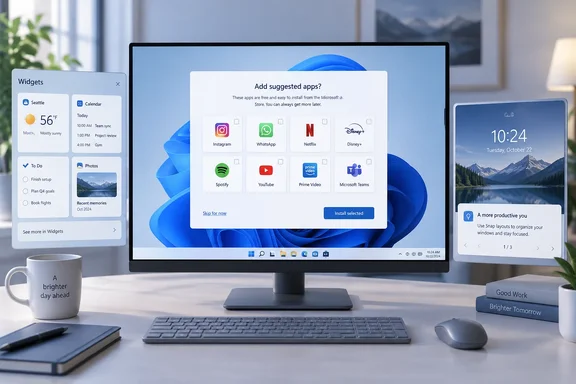
A new Tips widget is also coming to the Widgets board and lock screen, and Microsoft has documented it officially. The two features show up together in coverage, but they come through different channels, and it helps to keep them apart.
What Assisted Setup is, and who can see it
According to Windows Latest, Microsoft calls it Assisted Setup, and it started rolling out gradually to Insiders in the Experimental channel with Build 26340.9354, released on September 8.
The Windows Insider Blog post for September 8, 2026 confirms that Build 26340.9354 went to the Experimental channel that day. However, that post doesn't mention Assisted Setup. It highlights cross-device Resume improvements, math reading in Narrator and per-display zoom in Magnifier. So the details of the setup flow below come from Windows Latest's own testing, not from Microsoft's release notes. The outlet also says the experience is being turned on server-side. Having the right build doesn't guarantee you'll see it.
Here's how Windows Latest describes the flow:
- The last OOBE screen, "Your PC is ready," now has two buttons.
- "Show optional setup" says it will install apps and pin sites to your taskbar.
- "Go to desktop" skips the flow and notes that the steps stay available in Get Started for later.
- Both options take you to the desktop, but only the first one opens Get Started automatically. Get Started opens automatically after Assisted Setup and greets you by name.
Windows Latest also says Microsoft refreshed the app's artwork so the laptop graphic shows a more recent Windows 11 desktop.
Section summary: Assisted Setup is an optional, server-side Insider test in the Experimental channel. It appears at the end of OOBE, and if you skip it, you can still open it later from Get Started.
The app page: TikTok, Netflix and friends, installed without opening the Store
The first page is where the headlines come from. The first page, "Add popular apps to your device," lists WhatsApp, Duolingo, TikTok, Netflix, LinkedIn and Spotify, with a link to browse the Microsoft Store for anything else.
Windows Latest tested it: "I ticked TikTok, Netflix and Spotify to see how it works, and all three downloaded inside Get Started, each switching to an "Installed" label once done."
That is faster than the usual routine on a fresh PC: open the Store, search, click Install, and repeat three times. The outlet points out that Microsoft doesn't explain why these six apps count as "popular picks." It's also a single hands-on report, so it doesn't tell us:
- whether the app list is the same in every region
- whether any of the listed services require an account or subscription once installed
- what data, if any, flows between Get Started and the app publishers
Windows Latest also reports that these Get Started pages first appeared in August with Build 26340.9212. It adds that the refreshed Get Started app reached Windows 11 24H2 and 25H2 with the September 2026 Patch Tuesday update. What Assisted Setup adds is Windows opening Get Started for you when setup ends.
Website pinning is regional, and you can't add your own site
The next page offers ten websites to pin to the taskbar. Windows Latest's test PC was set up for the UK and showed BBC, Amazon UK, eBay UK and the Daily Mail alongside YouTube, Reddit, Facebook, Instagram, X and Wikipedia. When the reviewer picked Wikipedia, its icon appeared on the taskbar right away.
The obvious gap is that there's no box to type in your own site. If your daily sites are your bank, your school's portal or a niche forum (hello), you'll pin them the usual way.
Theme, updates and the ending
The remaining pages mostly send you somewhere else:
- "Change your look" covers light and dark modes and accent colours. Its button opens the Personalization page in Settings.
- The update page says some features on your PC "need to be updated before they're ready to go" and offers a Check for updates button.
- "You're all set" points to aka.ms/windows-tips and offers to open it in your browser. You can just close the window.
The update page cuts against something Microsoft did recently. Windows Latest notes that Microsoft added an option in April to skip updates during setup so people could reach the desktop faster, and now the post-setup flow asks you to go back and install them. To be fair, this is a prompt, not a gate. Nothing in the report suggests you have to update to finish onboarding. Deferring updates until you're at the desktop is arguably the better design anyway, because a new user sees a working PC first.
Section summary: Most of the flow is shortcuts to existing Settings pages. The new part is that apps install from inside Get Started and websites pin to the taskbar in one click.
The Tips widget is separate and officially documented
The Tips widget is a separate change. Windows Latest notes that Microsoft deprecated the Tips app in 2023 and removed it from Windows 11 24H2. Tips are now coming back as a widget.
Microsoft's own support page confirms this. The KB5124010 release notes, published as the September 22, 2026 non-security preview update (OS Builds 26300.9550, 26200.9550 and 26100.9550), describe a Tips widget that provides "short, helpful guidance about Windows features." Microsoft documents two ways to add it:
- Widgets board: Open the board, select Add widgets, then choose Tips.
- Lock screen: Go to Settings > Personalization > Lock screen and add Tips to your lock screen widgets.
Some details from the KB page that are easy to miss:
- Version scope: KB5124010 now lists Windows 11 26H2, 25H2 and 24H2. According to the change log, 26H2 was added on September 29.
- Gradual rollout: The Tips widget is in the gradual-rollout section, and Microsoft notes that feature availability depends on your device and market. Installing the update doesn't guarantee you'll see the widget straight away.
- 24H2 is ending: Microsoft calls KB5124010 the final non-security preview update for 24H2. It lists October 13, 2026 as the end-of-updates date for 24H2 Home and Pro, while Enterprise and Education stay supported until October 12, 2027.
What the widget actually showed, per Windows Latest:
- The preview in the widget picker suggested the emoji panel shortcut (Windows key + period).
- The lock screen widget explained clipboard history (Windows key + V).
- Clicking "More productivity tips" opened Microsoft's productivity tips page in Edge. Other tips can launch the relevant feature directly.
Treat those as examples, not a fixed list. Microsoft's page doesn't say which tips will rotate through. The emoji shortcut is well timed, though: the same KB adds Emoji 17.0 support, which you reach with Windows + period.
Windows Latest expects most PCs to get the widget with the October 13 Patch Tuesday update, since KB5124010 is optional. That's a reasonable reading of how preview features usually graduate, but Microsoft hasn't committed to that date for Tips. The outlet also notes that Microsoft recently trimmed the lock screen to show only Weather by default. Because Tips is opt-in, it doesn't undo that.
Section summary: Microsoft officially documents the Tips widget in KB5124010 for 24H2, 25H2 and 26H2. It rolls out gradually, and you add it yourself from Widgets or lock screen settings.
Helpful onboarding or ads with a friendlier face?
This is the tension in the story. Windows Latest points out that Windows 11 setup already pushes Microsoft 365, Xbox Game Pass, OneDrive, and Phone Link on promotional cards, and Microsoft promised in March that setup would become "quieter and more streamlined, with fewer pages and reboots."
Here's the case for Assisted Setup:
- It's opt-in at the final screen, and skipping it is one click.
- It moves suggestions out of OOBE. As Windows Latest puts it, Assisted Setup holds its app suggestions until setup is over and puts them in an optional flow on the desktop, which is a fair compromise.
- For a first-time or less confident user, a guided checklist of apps, pins, theme and updates could replace a phone call to the family IT person.
Here's the case against it:
- After promising a calmer Windows, one of the first things the new PC suggests is TikTok and Netflix, and Microsoft hasn't explained how those apps were chosen.
- The website list is fixed and regional, with no way to add your own site.
- The update page nudges users back toward the updates Microsoft only recently made skippable during setup.
My view, based on how these rollouts usually go and not on anything Microsoft has said: whether this reads as help or as ads depends on transparency. If Microsoft explained how the "popular apps" are chosen, and whether any of those slots are paid placements, most of the criticism would go away. Until then, people will reasonably wonder.
What to do on your own PC right now
- Setting up a new PC and don't want the flow? On the "Your PC is ready" screen, choose Go to desktop. You can open Get Started later if you change your mind.
- Setting up a PC for a relative? Choosing Show optional setup may be the fastest way to install common apps and pin familiar sites. Check each box on purpose rather than accepting everything.
- Want the Tips widget? Install KB5124010 from Settings > Windows Update > Advanced options > Optional updates, or wait for the regular monthly update. Then add Tips from Add widgets or Settings > Personalization > Lock screen. It may not appear immediately because of the gradual rollout.
- Running 24H2 Home or Pro? The more important news is in the same KB: October 13, 2026 is the end-of-updates date for those editions. Plan your move to a newer version.
Assisted Setup is still an Experimental-channel test, and Microsoft hasn't formally announced it, so the app list, layout or entire flow could change before it reaches the wider public. The Tips widget, on the other hand, is documented and on its way to regular PCs.
References
- September 22, 2026—KB5124010 (OS Builds 26300.9550, 26200.9550, and 26100.9550) Preview | Microsoft Support support.microsoft.com
- Windows 11 setup now prompts you to install TikTok and Netflix apps during first boot - Club386 Club386 · 2026-09-30T14:15:42+00:00
- Announcing new builds for 8 September 2026 | Windows Insider Blog blogs.windows.com