

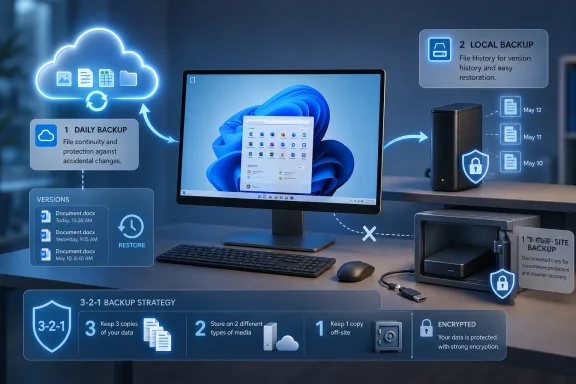
Set it up in this order:
- Open Start > Windows Backup and sign in with a personal Microsoft account. Choose the user folders and settings you want Windows Backup to remember, then complete the OneDrive setup.
- Click the OneDrive cloud icon in the notification area, open Settings, select Manage backup, and confirm that Desktop, Documents, and Pictures are protected only if they fit your storage plan and workflow.
- Connect an external drive, then open Control Panel > System and Security > File History. Select the drive or a network location, then turn File History on.
- After the first backup finishes, disconnect the external drive. Reconnect it on a regular schedule, let File History update, and disconnect it again.
- Keep another copy off-site: rotate a second external drive to another safe location, or use a separate remote backup arrangement. Test a restore before you need one.
Microsoft positions Windows Backup and OneDrive as a practical way to carry folders, settings, Wi-Fi information, and installed-app listings to a replacement PC. That is useful, but it is not the whole backup plan. The U.S. Cybersecurity and Infrastructure Security Agency continues to recommend the 3-2-1 model: three copies of important data, on two media types, with one copy off-site—and it specifically emphasizes offline backups and restore testing.
Why OneDrive alone is not a ransomware plan
OneDrive is excellent for continuity. A failed laptop, a new Windows 11 PC, or an accidental local deletion is far less disruptive when the working copies of your files are already in the cloud. Windows Backup makes the transition less tedious by retaining selected folders and a record of settings and installed apps.
But sync is not the same as an isolated backup. If a file is deleted, overwritten, or encrypted while it is inside a synchronized folder, that change can propagate. The point is not that OneDrive has no recovery value; it is that a synchronized copy shares enough of the same workflow that it should not be the only recovery plan.
Microsoft’s free OneDrive allocation is 5 GB. That makes it suitable for a small, selective set of essential documents, but it will often be inadequate for full Desktop, Documents, and Pictures protection. Before turning on folder backup, check the actual size of those folders. A Desktop stuffed with virtual machines, game captures, camera archives, ISO files, or Downloads-adjacent projects can exhaust cloud space quickly.
For many home users, the smart compromise is to put active documents and irreplaceable personal files in OneDrive while leaving bulky, replaceable, or archival data to the local backup layers. That is a storage decision, not a security shortcut.
How File History supplies the recovery OneDrive cannot guarantee
File History is the Windows tool that makes ordinary mistakes survivable. Microsoft says it saves successive versions of personal files to an external drive or network location, allowing restoration after an accidental edit, deletion, or damaged file.
The setup is deliberately old-school, but that is not a flaw. Connect an external drive with enough capacity for the files you intend to retain. In Control Panel > System and Security > File History, choose the drive and turn the feature on. If the drive is not always connected, File History will update when it is available; the important operational step is to leave it disconnected when the backup is not running.
To recover something, reconnect the backup drive, return to Control Panel > System and Security > File History, and choose the option to restore personal files. Browse the saved versions, select the file or folder, and restore it. Do this once now with a harmless test document. A backup that has never produced a successful restore is only an assumption.
File History is particularly valuable for:
- Writers, students, and office users who need an earlier version of a document after a bad edit.
- Photographers and families whose Pictures folder changes steadily and contains files that cannot be recreated.
- PC enthusiasts keeping configuration files, scripts, mods, source code, and project folders outside a cloud-first workflow.
- Small offices that need a straightforward local copy without assuming cloud sync is a complete ransomware defense.
A network destination can make sense where there is a properly managed storage device, but it should not be treated as automatically safe merely because it is elsewhere on the network. If malware can reach the location with the same credentials and permissions as the PC, it may be able to damage the backup too. That is why the disconnected external drive remains such a powerful, low-cost layer.
Which 3-2-1 setup fits your Windows 11 PC?
The right plan depends less on which backup feature sounds best and more on how much data matters, how much downtime is acceptable, and whether the PC holds files no one else can replace.
For a typical personal PC, use Windows Backup with OneDrive for the folders that matter daily, plus File History on an external drive. Add a second external drive that stays off-site or disconnected except during updates. This is the simplest arrangement that covers device loss, everyday file mistakes, and a large share of ransomware scenarios.
For a budget-conscious system, do not chase a perfect all-cloud design. Use the free OneDrive space selectively for critical documents, keep File History on one external drive, and make a manual second copy of the most irreplaceable folders to another drive. The key is to prevent all copies from living in the same PC, the same room, or the same always-connected storage path.
For a workstation with substantial photo, video, development, or business data, plan storage before enabling everything. File History needs room for multiple versions, and an off-site copy needs enough capacity for the material that would genuinely stop work if lost. Decide which folders are active, which are archive, and which can be downloaded or recreated. Backup costs rise sharply when “everything” includes disposable installers and media caches.
For people who cannot tolerate a lengthy rebuild after a drive failure, add a separate disk-image workflow. A file backup gets documents back; an image is aimed at restoring a whole working environment more quickly. Do not let an image replace the versioned file layer, however. A damaged or encrypted file can be faithfully preserved inside an image, which is exactly why retained file versions and disconnected copies still matter.
Windows Backup is primarily a consumer-oriented feature tied to a personal Microsoft account. Administrators managing business devices should not assume that its convenience equals an organizational backup policy. Microsoft’s own documentation distinguishes Windows Backup for Organizations from user-data protection, directing user data toward OneDrive while focusing the organizational feature on settings and installed Microsoft Store app listings.
The backup schedule matters more than the brand name
The most common backup failure is not a broken disk. It is a backup that was never run, a drive that stayed permanently connected, or a restore path nobody tested.
Treat the disconnected copy as a routine. Update it after meaningful work, then unplug it. Keep the off-site copy physically away from the PC’s normal location. If the drive contains sensitive material, use encryption appropriate to the backup method; CISA specifically recommends maintaining offline, encrypted backups of critical data.
Retention also deserves a decision. A backup with only the newest copy may not help if corruption or encryption went unnoticed for days. File History’s successive versions are useful because they create recovery points over time. The practical question is not “Do I have a backup?” but “Can I retrieve the version from before the problem began?”
WindowsForum users weighing system images against File History are asking the right question, but the answer is not an either-or choice. File History is the practical answer to lost and altered personal files. A disk image is a recovery-speed tool for the Windows installation. OneDrive is the continuity layer. The disconnected copy is what keeps a local disaster from becoming a permanent loss.
Frequently Asked Questions
Is Windows Backup enough for Windows 11?
No. Windows Backup and OneDrive are useful for personal folders, settings, and moving to another PC, but add File History and an offline or off-site copy for stronger recovery coverage.
Should I use File History or a system image?
Use File History for versioned personal-file recovery. Consider a system image separately if rebuilding Windows, applications, and configuration quickly matters to you.
How often should I test my backups?
Test after setup and regularly afterward. Restore a non-critical file to a different folder, open it, and confirm that the version is the one you expected.
Should my external backup drive stay connected?
Usually, no. Disconnecting it after backup updates reduces the chance that ransomware or a PC failure can affect both the original files and the backup.