

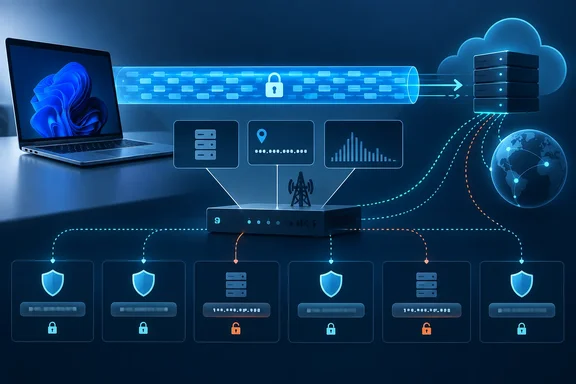
This matters to Windows users because Windows 11 has encrypted DNS built into its network settings, and Edge, Chrome and Firefox each have their own secure DNS options. It helps to know what each setting covers before you assume the problem is solved.
What your ISP can still see
Every connection from your PC goes through your ISP, and mobile carriers count as ISPs too. Phillips lists three places where information still gets out.
1. DNS lookups. With ordinary unencrypted DNS, every domain name your PC looks up crosses the network in plaintext. Your ISP can read that list easily. Encrypted DNS, such as DNS over HTTPS (DoH), fixes that part, but it moves the visibility rather than removing it. The resolver you choose, whether Cloudflare, Quad9 or someone else, now receives every query.
2. The TLS handshake (SNI). An HTTPS connection starts with a "ClientHello" message. Traditionally that message includes the Server Name Indication (SNI) field, which names the site in plaintext so the server knows which certificate to send back. EFF's Surveillance Self-Defense guide puts the result plainly: when you visit HTTPS sites, your Internet Service Provider (ISP) might be collecting information about what you do on the Internet. Mozilla also warns that ISPs may use invasive techniques such as deep packet inspection.
3. The destination IP address. Your packets have to be addressed to a server, and your ISP carries them there. Shared hosting and CDNs can blur this, because many domains can sit behind one address. A dedicated IP address, however, can point straight at a single service.
EFF adds a detail that is easy to miss. HTTPS hides which pages you view on a site, your login and your messages. It does not hide the sizes of the pages you load or of the files you download and upload. Traffic size and timing are signals an ISP can analyse too.
The 95% fingerprinting figure, in context
Phillips cites a 2023 paper, "Lightweight and Effective Website Fingerprinting over Encrypted DNS", by Yong Shao, Kenneth Hernandez, Kia Yang, Eric Chan-Tin and Mohammed Abuhamad of Loyola University Chicago. It was published by IEEE at the 2023 Silicon Valley Cybersecurity Conference. The researchers looked at whether an observer could work out which websites someone visited just by examining the pattern of their encrypted DoH traffic.
Their model identified one site out of 10,000 with 95% accuracy using the first 50 DoH packets. In an "open-world" test covering 100,000 websites it scored an F1 of 93%.
That result is worth taking seriously, but it has limits. It comes from a controlled experiment with a specific model and dataset. It does not show that your ISP is currently identifying 95% of your browsing. What it does show is that encrypted traffic still has a recognisable shape, and a well-resourced observer could learn things from it.
Section summary: Encrypted DNS hides the content of your lookups from the ISP, not the fact that you made them. Without further protection, the SNI field and destination IP addresses still point at the sites you visit.
Encrypted Client Hello: the SNI fix, with conditions
The IETF published the fix for SNI leakage as RFC 9849, "TLS Encrypted Client Hello", in March 2026. Encrypted Client Hello (ECH) splits the handshake in two:
- An inner ClientHello, which contains the real hostname and other sensitive fields, is encrypted with a public key belonging to the server that receives the connection.
- An outer ClientHello travels in the clear and carries a shared public name, often the CDN's.
Phillips calls the outer message a "decoy". That is a fair everyday description, but it is a defined part of the protocol, and a server can fall back to the outer message if it rejects ECH.
Several caveats get lost in the enthusiasm:
- ECH does not hide the destination IP address. The RFC says outright that ECH on its own is not enough to protect a server's identity, because the domain can still show up in plaintext DNS or in visible server IP addresses.
- The site has to support it. Mozilla's FAQ says many websites won't support ECH right away, which means connections to those sites won't benefit from the additional privacy ECH offers. Its privacy works best when multiple websites are hosted by a single web server, which is why CDNs such as Cloudflare are central to adoption. Cloudflare says it has enabled ECH for all free zones already.
- It depends on encrypted DNS. Browsers get a site's ECH configuration from DNS. The Mozilla wiki describes ECH as encrypting the Client Hello with a public key fetched over DNS. Turn off secure DNS and, in practice, you lose ECH as well.
- It can be switched off by design. Mozilla says ECH can also be disabled via Enterprise policy or if family safety settings are enabled in the operating system. It is also automatically disabled when proxies or middleboxes which are trusted by the browser are detected. The RFC mentions disabling ECH through group policy in managed enterprise environments.
On browser support, Mozilla says Firefox version 118 introduced a significant security enhancement called Encrypted Client Hello (ECH), which is enabled by default in Firefox 119 and above. The Center for Internet Security reported in late 2023 that ECH has now been enabled in the Chrome browser. Edge is built on Chromium, so it generally follows Chromium's behaviour, although Microsoft's own support page for secure browsing in Edge does not mention ECH.
Phillips is right that most people have no ECH toggle to flip. He goes too far in suggesting it now protects nearly every connection. Whether it applies depends on your browser, your DNS setup, the site and your network policy.
Section summary: ECH closes the SNI leak when your browser, DNS configuration and the site all support it. It does nothing about destination IP addresses, and managed or family-safety setups can turn it off.
Windows 11: turning on encrypted DNS properly
Microsoft documents DoH in the Windows 11 network settings. This setting does not exist in Windows 10, according to Microsoft's own documentation. Microsoft's steps are:
- Open Start > Settings > Network & internet.
- For Wi-Fi, choose Wi-Fi > Manage known networks and pick the network. For wired connections, choose Ethernet and select the connection.
- Next to IP assignment, select Edit, then choose Manual.
- Turn on IPv4 (and IPv6 if you use it). Enter your resolver's addresses in Preferred DNS and Alternate DNS.
- Under DNS over HTTPS, choose one of:
- Off: queries are sent unencrypted in plaintext.
- On (automatic template): queries are encrypted using default template settings, or settings Windows discovers automatically.
- On (manual template): queries are encrypted using a template you type in yourself.
- Set Fallback to plaintext. When it is on, a query that can't go over HTTPS is sent unencrypted. When it is off, that query isn't sent at all.
- Select Save.
The fallback setting matters most for privacy. If fallback is on and the encrypted route fails, your lookups go back to plaintext without any warning. Turning it off is stricter, but it can cause failed lookups, and sites that won't resolve, if the DoH connection has problems. Test your connection after changing it. On a laptop that moves between networks, also keep in mind that these settings belong to one specific network profile.
Browsers have their own setting
Edge has a separate option. Microsoft's steps are: open Settings and more, go to Privacy, search, and services, then under Security turn on Use secure DNS. The browser setting and the Windows system resolver can be configured differently, so check the one you actually rely on. Browser-level DoH protects that browser's lookups. The Windows setting covers the system resolver that other apps use.
HTTPS-only mode
Phillips recommends forcing HTTPS, and he is right to. Each browser names the feature differently. It encrypts your connection to the site, but it does not hide your DNS lookups, destination IP addresses or handshake metadata.
Section summary: On Windows 11, set DoH per network, decide deliberately whether to allow plaintext fallback, and check your browser's secure DNS setting separately.
VPNs: a different trust point, not invisibility
Phillips's final recommendation is a VPN "for everything". He names Mullvad as vital. We are not endorsing any provider here, and nothing in the evidence supports calling a particular one essential.
The technical claim is sound. A VPN sends your DNS, SNI and destination traffic through an encrypted tunnel, so your ISP sees mainly the VPN connection itself, your real IP address and how much data you send and receive. EFF confirms that a VPN hides outgoing traffic from your ISP and the local network owner. It also warns that your browsing data then becomes all visible to the VPN provider, and that the provider could sell it just as an ISP could. EFF says a VPN is not an anonymity tool. It suggests Tor for people who need stronger anonymity, and says to read a provider's privacy policy and transparency reports before trusting it.
So the practical question is not whether to hide from everyone. It is which intermediary you trust more with your metadata: your ISP or the VPN company.
The WindowsForum takeaway
Phillips has the main point right: no single toggle hides your browsing from your ISP. The stronger claims need some qualification:
- Encrypted DNS hides your lookups from the ISP and hands them to your chosen resolver. On Windows 11, consider turning off plaintext fallback.
- ECH hides the SNI field, but only when your browser, your DNS setup and the site all support it.
- The fingerprinting research shows traffic patterns can be analysed. It does not show that your ISP routinely reconstructs your browsing history.
- A VPN moves your trust to a different company. Choose one after checking its policies, not because an article called it vital.
Use all of these together. Just don't treat any of them as making you invisible.
References
- I did everything to hide my browsing from my ISP, and it could still see most of where I went MakeUseOf · 2026-09-27T18:30:14+00:00
- Encrypted Client Hello (ECH) - Frequently asked questions | Firefox Help support.mozilla.org
- Understand Encrypted Client Hello (ECH) | Firefox Help support.mozilla.org