

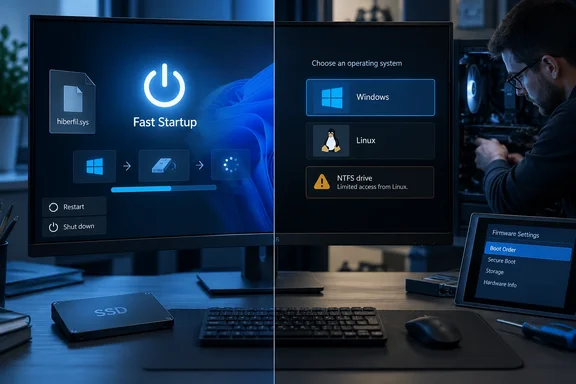
hiberfil.sys, then restores that state at the next power-on instead of rebuilding it from scratch.That design can shave time from the shutdown-to-power-on path, but it also means the Start menu’s Shut down command is not always the full reset many users assume it is. Microsoft’s own documentation is explicit on the important exception: Restart is not affected by Fast Startup. A restart performs a full boot cycle, which is why it remains the right first step after installing drivers, applying most Windows updates, or troubleshooting a flaky device.
The distinction is missing from much advice around this setting. Disabling Fast Startup is a sensible, low-risk choice for certain configurations, but it is not a universal cure for slow starts, firmware-update concerns, or new-hardware detection problems.
What Fast Startup Actually Saves
As MakeUseOf describes, Fast Startup logs off users and closes their applications, but it does not fully discard the Windows kernel session. Windows writes the kernel, loaded drivers, and related system information to the hibernation file, hiberfil.sys. On the next power-on, Windows resumes from that reduced hibernation image.
This is neither ordinary hibernation nor sleep. Standard hibernation can preserve a logged-in user’s applications and documents; Fast Startup does not. Windows instead creates a smaller hibernation image intended only to speed the next startup after shutdown. Microsoft calls this a “hybrid” shutdown internally.
The practical result is a split personality in Windows power controls:
- Selecting Shut down normally uses Fast Startup when the feature is available and enabled.
- Selecting Restart forces Windows through a full shutdown and boot sequence.
- Holding Shift while choosing Shut down is also commonly used to request a full shutdown, though a normal Restart is the clearer choice when the goal is to refresh Windows.
This is why an administrator should not tell a user to “shut down and turn it back on” after a driver repair or system change. The reliable instruction is to restart the PC. That wording has mattered since Windows 8 introduced Fast Startup, and it still matters on Windows 10 and Windows 11.
The Dual-Boot Problem Is Real
MakeUseOf correctly identifies dual booting as the clearest reason to disable Fast Startup. If Windows has shut down into its hybrid-hibernated state, its NTFS volumes may be left in a state that Linux should not mount read-write. The Arch Linux project warns that modifying a shared filesystem from another operating system while one system has hibernated can produce stale or inconsistent data when the first system resumes.
Linux distributions and NTFS drivers have become better at detecting this condition. In many cases, the Linux side will refuse to mount the Windows partition for writing rather than risk damage. That safety check is helpful, but it does not make the setup convenient. A shared data partition becomes unavailable precisely when a dual-boot user expects it to be accessible.
For people who alternate between Windows and Linux, Fast Startup should generally be disabled if both operating systems need read-write access to an NTFS partition. The alternative is disciplined use of Restart or a full-shutdown command every time before booting Linux, but a power setting that depends on perfect user habits is not a robust configuration.
The concern is broader than Linux enthusiasts. Technicians booting recovery environments, imaging systems offline, or accessing a Windows disk from another operating system face the same issue. A volume that Windows considers part of a preserved session is not a volume another OS should casually modify.
SSDs Change the Trade-Off, but Do Not Erase It
The MakeUseOf writer measured a roughly two-second difference on an SSD laptop. That result is entirely plausible, but it is a personal measurement rather than a universal benchmark. Fast Startup’s benefit depends on the PC’s processor, storage, firmware initialization time, driver load, startup software, encryption configuration, and the definition of “boot complete.”
On a hard-disk PC, avoiding a full kernel and driver initialization was a meaningful improvement. On a modern NVMe SSD system, the storage portion of a cold boot is often short enough that the feature’s gain may be difficult to notice. Yet an SSD alone does not prove Fast Startup is useless. Slow firmware POST time, vendor background services, security software, and a crowded startup list can still dominate the wait before a usable desktop appears.
Microsoft’s engineering guidance identifies OEM preload software, services, antivirus activity, and startup applications as common sources of poor startup behavior. That points to a more useful diagnostic order than immediately disabling Fast Startup:
- Check Task Manager’s Startup apps list and disable nonessential items with a high startup impact.
- Measure whether the delay occurs before the Windows logo, at the sign-in screen, or after the desktop appears.
- Update firmware and drivers from the PC or motherboard manufacturer when the delay is in the pre-Windows stage.
- Use Restart to determine whether the problem is tied to a full Windows boot rather than an application loading after sign-in.
A machine that spends 20 seconds in the manufacturer logo screen will not be transformed by a Windows power setting. Conversely, a PC that reaches the desktop quickly but remains unresponsive while tray utilities, cloud clients, and OEM helpers launch needs startup cleanup, not hibernation tuning.
Firmware Updates Are Not a Reason to Fear the Setting
The weakest part of the MakeUseOf argument is the claim that Fast Startup can prevent BIOS or system updates from installing properly because they require a complete shutdown. Windows’ update machinery is built around restarts, and Microsoft documents that UEFI firmware updates delivered through Windows use a reboot to hand the firmware payload to the platform during the next boot.
Since Restart bypasses Fast Startup, the setting does not ordinarily block Windows Update, driver installers, or Windows-delivered firmware packages from performing the reboot they request. If an update says “Restart required,” use Restart. Do not substitute a shutdown followed by a manual power-on and then blame Fast Startup when the workflow is unclear.
There is a narrower, legitimate firmware-related case. Fast Startup can be inconvenient for users attempting to enter UEFI setup by repeatedly tapping a key during power-on, because the hybrid resume path can make the window less predictable on some systems. Windows provides more dependable routes: hold Shift while choosing Restart, then select the UEFI firmware option from Advanced startup when the device supports it; or use the appropriate vendor method.
The same caution applies to the assertion that Fast Startup broadly causes Windows to miss new RAM or a newly installed drive. Hardware discovery failures can happen, particularly with a driver or firmware fault in the mix, but Microsoft does not present Fast Startup as a standard explanation for ordinary Plug and Play detection problems. A full Restart is the first clean test. If the hardware remains absent after that, look at UEFI detection, cabling, seating, Device Manager, disk initialization, storage drivers, and firmware before treating the power setting as the cause.
The Cost of Disabling It
Turning off Fast Startup in Control Panel is reversible and usually harmless. Go to Control Panel > Power Options > Choose what the power buttons do, select Change settings that are currently unavailable, clear Turn on fast startup, and save the change. The checkbox may not appear when hibernation is unavailable or disabled, because Fast Startup depends on the hibernation infrastructure and hiberfil.sys.
For a personal desktop or laptop with no shared NTFS volume, no recovery-environment workflow, and no shutdown-related bug, there is little evidence that every user needs to turn it off. Microsoft still enables Fast Startup by default where supported and does not recommend disabling it as a blanket practice. The feature exists because the shutdown-to-next-boot delay was, and sometimes still is, a real annoyance.
But Fast Startup is also not a sacred performance setting. Dual-boot users should treat it as a compatibility risk. IT pros troubleshooting unreliable shutdowns, drivers that survive power cycles in a bad state, or systems that need deterministic cold-boot testing may reasonably disable it for consistency. And anyone who simply prefers a genuine shutdown over saving a few seconds has a valid reason to change it.
The larger lesson is simpler than the boot-time obsession MakeUseOf describes: use Restart whenever Windows needs a clean reset, and reserve Fast Startup decisions for the machines whose workflow actually makes the trade-off matter.
References
- I stopped chasing faster boot times and disabled this default Windows feature - MakeUseOf MakeUseOf · 2026-09-20T12:00:15+00:00