

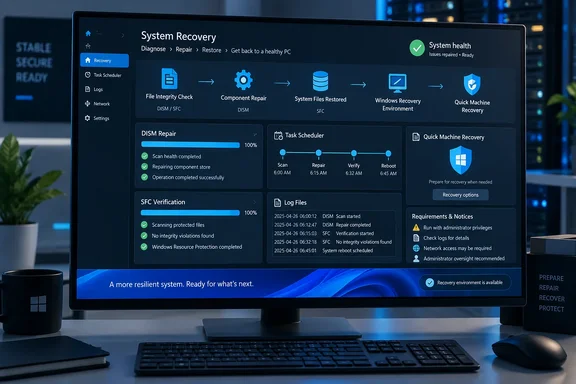
Microsoft’s own documentation supports the core sequence: run DISM first to repair the Windows component store, then use sfc /scannow to validate and replace protected files. The significant caveat is that Microsoft documents those commands as troubleshooting and servicing tools, not as a blanket recommendation for routine weekly repair jobs on healthy endpoints.
That distinction matters for anyone considering deploying this idea beyond one home PC. A scheduled repair command running with SYSTEM rights can be useful, but it also makes repair activity opaque unless the task writes its output somewhere an administrator will actually review. An unattended task that merely reports “completed successfully” can conceal the more important fact: Windows found repeated corruption, DISM could not reach a repair source, or SFC could not replace a protected file.
Task Scheduler is the automation layer — and the risk boundary
Task Scheduler is the correct built-in mechanism for automating a maintenance script. It can run on a calendar, at startup, on idle, after a missed schedule, or in response to an Event Viewer event. How-To Geek is also right that repair commands need administrative privileges, and Microsoft’s Task Scheduler documentation confirms that tasks whose actions need elevation must use the highest available privilege level.
Running a task as Local System avoids leaving a user password in the task definition and separates the job from a departing employee’s profile. But that is precisely why the task needs to be treated as privileged infrastructure. Local System has broad access to the local machine, and a writable script path, loosely protected task definition, or unreviewed command-line change becomes a persistence opportunity rather than merely a maintenance convenience.
For a personal Windows 11 device, create the script in a directory that standard users cannot modify, such as a tightly permissioned folder beneath C:\ProgramData, and configure the task to write a timestamped log. In managed environments, the better path is to deploy and control the task through Intune, Group Policy, or another endpoint-management system rather than hand-configuring it in taskschd.msc.
The most useful schedule is conservative. A monthly integrity check, or an on-demand task triggered after a failed cumulative update, supplies a clearer operational signal than a weekly full repair. If a machine is repeatedly discovering damaged components, the correct response is investigation: disk health, storage-controller issues, unexpected shutdowns, security software interference, failed updates, or a bad image may be the actual cause.
A task can be set to wake the PC, run while idle, and retry after a missed start, but laptops require another decision. Restricting maintenance to AC power prevents an extended DISM or SFC job from consuming a battery; it also means a mostly mobile machine may rarely meet the condition. Logging the skipped runs is more valuable than assuming they happened.
DISM repairs the source SFC depends on
DISM’s role in the stack is often described too casually. The command DISM /Online /Cleanup-Image /RestoreHealth works on the running Windows installation’s servicing image and component store—the local reserve of Windows components used during servicing and repair. Microsoft says DISM uses Windows Update as its default repair source unless an administrator specifies another source.
That is why DISM belongs before SFC. Microsoft’s System File Checker guidance explicitly instructs users to run DISM first, because SFC relies on healthy replacement material when it finds damaged protected system files. The order is not superstition: if the component store is unhealthy, an SFC pass may report files that it cannot repair.
A scheduled script should not run all three DISM health switches simply because they exist. CheckHealth is a quick assessment of corruption already recorded in the image; ScanHealth performs a fuller scan; RestoreHealth scans and repairs. For an occasional maintenance job intended to make repairs, RestoreHealth is the meaningful command. Running preliminary checks first can lengthen the job without changing the decision to repair.
The limitation becomes obvious on managed or disconnected devices. A RestoreHealth run may require Windows Update connectivity, and enterprise Windows Update policies, a broken update client, metered connections, proxy controls, or a device that is offline can prevent it from retrieving the necessary payload. Microsoft supports supplying a repair source and using /LimitAccess, but that source must contain the correct files for the installed Windows version and servicing level. An old ISO is not automatically a safe repair source simply because it says Windows 11 on the label.
This is where the popular “self-healing” framing leaves out administrative work. If a device fleet uses WSUS, Windows Update for Business, or restricted internet access, the repair-source policy needs to be tested before a scheduled DISM task is rolled out. Otherwise, the automation will mostly generate failed repair attempts after the machine is already experiencing trouble.
DISM also produces evidence that should not be discarded. Its primary log is C:\Windows\Logs\DISM\dism.log; SFC details are recorded in the Component-Based Servicing log and can be filtered for [SR] entries. A task history that says a PowerShell script exited with code zero is not an adequate health report if the organization cannot answer what Windows repaired and why.
SFC is a targeted integrity check, not a general tune-up
System File Checker remains valuable because it checks Windows Resource Protection files, including core system files and related protected resources. When it detects a mismatch, it attempts replacement from the component store. Microsoft’s published procedure still uses the familiar sfc /scannow command after DISM completes.
What SFC does not do is validate every application problem, driver crash, profile corruption, disk error, or performance complaint. A clean SFC result does not prove a PC is healthy. Conversely, a repaired SFC result does not establish what damaged the file in the first place. Treat it as a narrow integrity result with a useful remediation path, rather than as a broad health score.
The right response to an unsuccessful scan is also more specific than rerunning the same scheduled job indefinitely. Microsoft advises using Safe Mode where Windows Resource Protection cannot perform the requested operation, and SFC can be directed at an offline Windows installation from Windows Recovery Environment. If SFC repeatedly cannot repair the same components after DISM reports success, investigate the CBS and DISM logs, confirm the system drive is reliable, and assess whether an in-place repair install or a device rebuild is more appropriate.
For an individual PC, a scheduled SFC scan is a reasonable low-cost safeguard if it logs exceptions and does not interrupt work. For IT departments, periodic scans are less important than knowing whether the endpoint is patched, supported, encrypted, backed up, and capable of recovery. Windows 10 reached end of support on October 14, 2025, so an automated SFC job is especially poor compensation for leaving a Windows 10 endpoint without security servicing.
Quick Machine Recovery is for mass boot failures
Quick Machine Recovery is the part of this set that addresses a genuine gap. Task Scheduler, DISM, and SFC all require a functioning Windows session or a deliberate recovery workflow. QMR operates from Windows Recovery Environment after repeated boot failures, connects to Microsoft through Ethernet or supported Wi-Fi, and looks for a Microsoft-provided remediation for a known widespread problem.
Microsoft’s current documentation places the feature on Windows 11 version 24H2 build 26100.4700 or later. On unmanaged Windows 11 Home devices and unmanaged Windows 11 Pro devices, cloud remediation is enabled by default with one-time automatic scanning. It is disabled by default on enterprise-managed devices, including Enterprise and Education, plus Pro systems that are domain joined or enrolled in organizational management.
That default split is more consequential than the consumer-facing description suggests. A company that enables QMR is authorizing recovery-environment connectivity and deciding how Microsoft-supplied remediations are approved and applied. Microsoft’s Autopatch documentation says administrators can use quality update policy controls to require approval of QMR remediations or approve them automatically. Those controls should be part of the incident-recovery design, not an afterthought once devices have already entered a boot loop.
QMR is also narrower than Startup Repair with a cloud connection bolted on. Microsoft describes it as a response to known, widespread boot issues. If a remediation is unavailable, the machine falls back to the normal Windows recovery options. It will not diagnose a one-off corrupt profile, recover a failed SSD, bypass BitLocker requirements, or repair a device that cannot access a supported network from WinRE.
The important operational step is testing the recovery path before it becomes urgent. Confirm that WinRE is enabled, that the device’s network hardware is supported in recovery, that recovery credentials and BitLocker keys are available, and that a managed endpoint receives the intended QMR policy. A feature that depends on an online recovery environment is only useful if the machine can actually reach it while Windows is down.
Build a recovery routine, not an unattended repair loop
The four tools form a sensible layered model: Scheduler invokes maintenance, DISM repairs the servicing source, SFC checks protected files, and QMR provides an escape route when Windows cannot start. How-To Geek correctly identifies each layer. The better conclusion is that automation should produce evidence as well as repair attempts.
A practical implementation records DISM and SFC output, alerts on nonzero exit codes or repaired files, runs infrequently enough to avoid competing with updates and normal work, and is protected like any other task that runs with SYSTEM-level access. QMR should remain enabled on eligible unmanaged Windows 11 devices, while administrators should explicitly configure and test it on managed fleets.
Windows can repair several classes of damage without third-party utilities. It cannot, by itself, decide whether recurring corruption is harmless, whether an offline repair source matches the machine, or whether an enterprise should accept a cloud-delivered boot remediation automatically. Those are still administrative decisions—and they are the difference between a useful self-recovery plan and a scheduled script nobody notices until it fails.
References
- These 4 built-in Windows tools helped me build a self-healing PC How-To Geek · 2026-09-17T20:30:13+00:00