

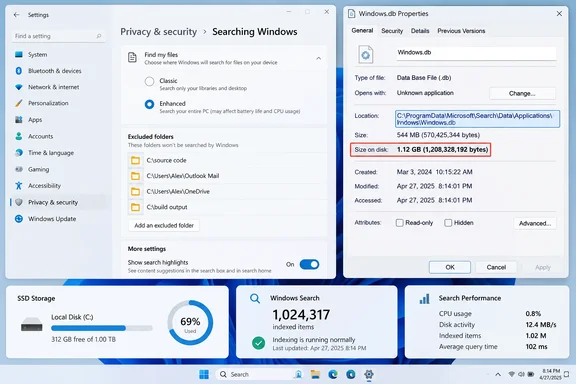
Windows.db database and toward Windows’ built-in index rebuild controls. The larger claim—that the default indexing mode may be writing gigabytes to an SSD every day for a feature “almost nobody uses”—does not follow from the reported database sizes.Microsoft’s current Windows Search documentation confirms that the index is updated when indexed files change, and that it can catalog file names, paths, metadata, and text content. It also acknowledges that indexing can create performance problems above 400,000 items and may fail or consume excessive CPU, memory, or disk resources at around one million items. For a workstation with source trees, offline Outlook mail, document archives, or a folder full of tiny generated files, checking the index is sensible administration.
But a large Windows.db file shows disk space occupied by the current Search catalog, not a measurement of daily SSD writes. To establish the latter would require observing write activity over time—using tools such as Resource Monitor, Performance Monitor, Windows Performance Recorder, or storage telemetry—not comparing a database’s before-and-after size.
The measurement in the report misses Microsoft’s own warning
The most useful part of the XDA Developers report is its identification of the Windows 11 Search database at:
C:\ProgramData\Microsoft\Search\Data\Applications\Windows\Windows.db
That path is correct. The report’s suggested PowerShell command, however, reads the file’s Length property, which is precisely the kind of measurement Microsoft says administrators should not rely on when judging the storage cost of the index.
Microsoft’s Windows Search performance guidance tells users to check “Size on disk” in the file’s Properties dialog for Windows.db, rather than its ordinary file size shown in Explorer or returned as a simple file length. The distinction exists because Windows Search uses a compressed sparse database on NTFS. A displayed logical size can differ from the space actually allocated on the drive, and previously allocated database space can remain associated with the file even after indexed content changes.
That makes the headline’s storage claim less solid than it appears. A machine can have a large logical Windows.db file without consuming the same amount of SSD capacity. Conversely, a smaller-looking file can have meaningful allocated space. Before deleting folders, disabling Search, or treating the index as an SSD endurance emergency, check the right number: right-click Windows.db, choose Properties, and look at Size on disk.
The XDA report also cites forum and Reddit accounts of databases exceeding 100GB and potentially reaching 200GB, but it does not identify the indexed-item counts, whether Outlook data was included, which folders had been added manually, whether Enhanced indexing was enabled, or whether the numbers were file size rather than size on disk. Those missing details are the difference between a reproducible Windows Search issue and a collection of alarming screenshots.
Classic mode is narrower, but it can still catch developer and sync folders
Windows 11 has two main choices under Settings > Privacy & security > Searching Windows > Find my files. Classic is the default mode and indexes the Desktop plus the Documents, Pictures, and Music folders. Enhanced indexes the PC broadly, including user folders and files beyond those default locations.
The practical trap is that Classic is defined by where files live, not by whether they are reasonable candidates for full-text search. A project checkout placed under Documents can contain hundreds of thousands of source files, package-cache entries, build products, and metadata files. A cloud-sync client that mirrors a large archive to the Desktop or Documents folder can place an equally large body of content inside the default scope. So can virtual machine assets, database exports, photo catalogs, and locally cached mail.
Microsoft specifically says the index can grow disproportionately when it contains many files smaller than 4KB or computer code. That is a warning developers and IT administrators should take more seriously than a generic “Windows writes too much” claim. A 50GB virtual disk image may be one indexed item; a JavaScript workspace with hundreds of thousands of small files is a far more likely index-growth problem.
Outlook is another easily overlooked contributor. Microsoft says locally available Outlook mailboxes are indexed by default, and warns that Search performance can degrade if a mailbox contains more than six million items. On managed devices, an apparently oversized search catalog may therefore be a mail retention or synchronization-scope issue, not a Windows 11 defect and not a consequence of the user’s normal file folders.
Microsoft’s rough rule is that the index should remain below 10 percent of the content it indexes, although it cautions that small files and code can skew that ratio substantially. The number is not a health guarantee, but it is a better starting point than assuming a few gigabytes means corruption.
Search is used more widely than the Start menu
XDA Developers frames the index as machinery for immediate Start menu results. That is part of the story, but it leaves out several Windows features that rely on the same data. Microsoft says File Explorer uses the index to find and track files; Outlook uses it for searches against locally available mail; and Microsoft Edge can use indexed browser history for address-bar results.
That does not mean every user needs full-content indexing across every folder. It means disabling Windows Search outright is an unnecessarily blunt response to a capacity issue. On an enthusiast PC, the trade-off may be acceptable. On a work machine, it can translate into slower Explorer searches, incomplete results during a rebuild, degraded Outlook search, and a poorer experience for applications that query the Windows Search catalog.
Windows Search also has built-in limits intended to protect interactive use. Microsoft says the service slows or pauses work when the machine is busy with high CPU use, disk I/O, low memory, low battery, or low free disk space. Those safeguards reduce foreground disruption; they do not eliminate the indexing burden when a constantly changing directory remains in scope.
The relevant question is therefore not whether Windows Search is used at all. It is whether the folders consuming indexing work produce useful search results for the people using that PC.
Start with item count and indexed locations
Windows exposes the current indexed-item count in Settings > Privacy & security > Searching Windows. Microsoft characterizes fewer than 30,000 items as typical, up to 300,000 as plausible for a power user, and more than 400,000 as the point at which performance problems may start to appear. An unusually high item count is more actionable than a database-size figure by itself.
For a PC with a large index or recurring Search Indexer activity, the safer order of operations is:
- Check
Windows.db’s Size on disk and compare it with the indexed-item count shown in Searching Windows. - Review the locations selected in Advanced indexing options and remove folders whose contents are not worth searching.
- Add exclusions for churn-heavy directories, especially package caches, generated build output, temporary exports, virtual-machine working folders, and cloud-synced archives that do not need file-content search.
- Review the File Types tab if content search inside a particular document or code format is unnecessary; Windows permits properties-only indexing for selected file types.
- Rebuild the index only after reducing scope or changing file-type behavior, because rebuilding recreates the catalog but does not prevent the same oversized scope from inflating it again.
The supported rebuild route in Windows 11 is Settings > Privacy & security > Searching Windows > Advanced indexing options > Advanced > Rebuild. Windows warns that results may be incomplete while the replacement catalog is built. Microsoft advises allowing up to 24 hours for the process, which is a more realistic expectation than the twenty minutes XDA Developers observed on one system.
A rebuild is remediation, not a diagnosis
Rebuilding can reclaim space from an unhealthy or bloated catalog and can resolve missing or inconsistent results. It is not proof that Windows Search was persistently generating unreasonable SSD writes. If the original trigger is a massive active repository in Documents, an Outlook cache with years of mail, or Enhanced indexing across multiple storage volumes, the new database will again reflect that workload.
The report is also right that Windows does a poor job surfacing the catalog’s storage footprint in its ordinary Storage settings. Users should not have to discover a system database through an obscure file path before they can investigate a multi-gigabyte allocation. Yet the evidence supports a narrower conclusion: Windows Search needs scope management on unusually file-dense PCs, especially developer systems and machines with large local mail or sync caches.
For everyone else, a sub-gigabyte or low-single-digit-gigabyte Windows.db file is not evidence of an SSD problem. Check the allocated size, inspect the indexed locations, and exclude the folders that create churn without delivering useful search results.