

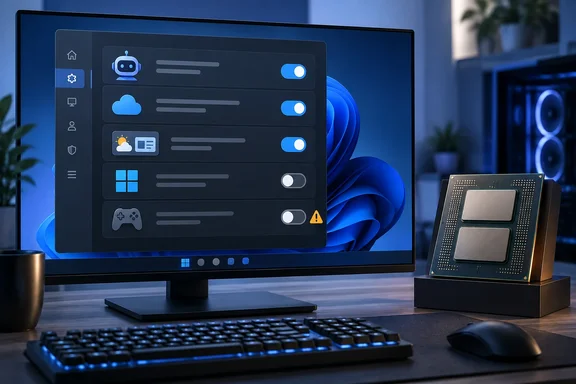
The piece is a personal checklist, not a benchmark. That's fine, as long as nobody treats it as a speed guide. Some of the steps match Microsoft's own documentation. Others need caveats, and one of them could backfire on a certain class of high-end gaming PC.
Here is each item, what the author suggests, and what Microsoft's documentation and outside reporting actually support.
1. Web results in Start search
The complaint: You type "Notepad" into Start and get the app, plus a stack of Bing suggestions underneath. The author says this turns the Start menu into a web portal.
The suggested fix: A registry tweak:
- Open Registry Editor as administrator.
- Go to
HKEY_CURRENT_USER\Software\Policies\Microsoft\Windows\ - Create a key named
Explorerif it isn't there. - Add a DWORD (32-bit) value named
DisableSearchBoxSuggestionsand set it to1. - Restart.
The catch: This tweak circulates widely in help forums, but Microsoft's policy documentation describes it differently. Microsoft's ADMX_WindowsExplorer policy reference says DisableSearchBoxSuggestions stops the search box from suggesting recent queries and stops search entries being saved in the registry. That describes File Explorer's search box. It says nothing about removing Bing results from Start.
- The tweak may work on some builds, but Microsoft does not document it as a Start-menu web-search switch.
- Export the key before you change it, and check the result on your own build.
- If it doesn't work, the author's other suggestion still stands: a third-party launcher such as Listary skips the problem entirely.
Bottom line: Treat this as a community tweak, not an official off switch.
2. Copilot
The author uses Claude when he wants an AI tool, so he doesn't want Copilot starting with Windows. He offers three options, from lightest to heaviest.
Option A: stop it launching at startup
- Task Manager → Startup apps → right-click Copilot → Disable.
- Microsoft also lets you manage startup apps under Settings > Apps > Startup.
Option B: uninstall it
- Microsoft's Copilot support page says the app comes installed by default on new Windows 11 PCs.
- To remove it: Settings > Apps > Installed apps, search for Copilot, open the … menu and choose Uninstall.
- The author warns that a future Windows Update might reinstall it.
Option C: Group Policy (Pro and above)
- The author suggests enabling Turn off Windows Copilot under User Configuration > Administrative Templates > Windows Components > Windows Copilot.
- This needs a caveat. Microsoft's WindowsAI Policy CSP documentation says the policy is deprecated and may be removed in a future release.
- Microsoft also says the policy does not cover the newer Copilot app experience being rolled out to Windows 10 and 11.
- For managed fleets, Microsoft points admins to AppLocker. There is also a newer
RemoveMicrosoftCopilotApppolicy, which only removes the app when certain conditions are met: Microsoft 365 Copilot is also installed, the user didn't install Copilot themselves, and it hasn't been opened in 28 days. Users can reinstall it.
Bottom line: Uninstalling is the simple and supported route. The old policy is not a permanent block.
3. OneDrive sync
The author says OneDrive is on by default, redirects Desktop, Documents and Pictures into its sync folder, and nags you about upgrades once the free 5 GB fills up.
To stop syncing without removing OneDrive:
- Click the OneDrive cloud icon in the notification area.
- Open Help & Settings > Settings.
- Go to the Account tab and choose Unlink this PC, then Unlink account.
- Turn OneDrive off under Settings > Apps > Startup so it doesn't start at the next boot.
To remove it completely: Settings > Apps > Installed apps → Microsoft OneDrive → Uninstall.
What happens to your files: The author says your local files stay on the PC. Microsoft is a bit more careful:
- Unlinking does not delete data. Your local folders are simply disconnected from the cloud.
- Files that were online-only placeholders were never downloaded to the PC. They stay in the cloud and you can reach them through the OneDrive website.
- Before you unlink, make sure the files you need are fully downloaded, not just shown as cloud placeholders.
Don't forget Windows Backup: The author notes that Windows Backup can keep sending data to OneDrive. Microsoft's documentation backs this up:
- Windows Backup can sync your Desktop, Documents, Pictures, Videos and Music folders to OneDrive.
- It also backs up settings and your list of installed apps.
- Check it at Settings > Accounts > Windows backup.
- Microsoft says the Windows Backup app currently only works with personal Microsoft accounts, not work or school accounts.
Bottom line: Unlinking stops OneDrive syncing. It doesn't necessarily stop every other feature that sends data to OneDrive.
4. Widgets
This is the weather icon on the taskbar. If you hover over it by accident, a panel of headlines and stock prices opens.
Turning off the news feed: The author says you can turn the feed off in the Widgets settings. Microsoft's current support page calls it the Discover dashboard:
- Open Widgets → click the settings button in the navigation bar → under Dashboards, set Discover to Off.
- In the same settings you can turn Open Widgets board on hover on or off.
Hiding the taskbar icon:
- Right-click the taskbar → Taskbar settings → under Taskbar items, turn off Widgets.
- Microsoft confirms that the board still opens with Windows key + W or a swipe from the edge of the screen. The author makes the same point.
Full removal: The author gives this PowerShell command, run in an admin terminal:
Get-AppxPackage -AllUsers | Where-Object {$_.Name -like "*WebExperience*"} | Remove-AppxPackage -AllUsers -ErrorAction SilentlyContinue
Caution: Microsoft does not document this command as a supported way to remove Widgets.
- Microsoft says Widgets and Discover depend on the Windows Web Experience Pack and the Start Experiences app.
- The command removes a system component for every user on the PC.
-ErrorAction SilentlyContinuehides any errors, so you may not see it when something goes wrong.
Bottom line: Hiding the icon and turning off the feed are the safe choices. Only use the PowerShell route if you accept the risk.
5. Start menu cleanup
The author's complaint is familiar: the Recommended section fills up with recent files and Microsoft suggestions, and the full app list sits behind an extra click.
Built-in cleanup:
- Go to Settings > Personalization > Start and turn off the toggles for recommended files, recent items, tips and new app suggestions.
- Right-click apps you don't use and choose Unpin from Start.
- Drag the apps you use most to the top.
- Drag one pinned app onto another to create a folder.
Microsoft's Start menu support page confirms the unpinning, dragging and folder steps. It also says that if you turn off every Recommended provider, that section collapses and disappears. The exact toggle names can vary between builds.
About 25H2: The author says the 25H2 update put all apps in the main menu and made it possible to turn off Recommended entirely. Microsoft's current support page does describe an All section with Category, Grid and List views. It doesn't tie that change to a specific version, so don't assume every PC has it.
Third-party options: The author names ExplorerPatcher (free) and the paid tools Stardock Start11 and StartAllBack for anyone who wants the Windows 10 layout back. These are the author's suggestions. Tools that patch the Windows shell can break after major updates, so check compatibility before a feature update.
6. Xbox Game Bar and Game DVR
The author records with the Nvidia app's ShadowPlay, so he turns off Game Bar: Settings > Gaming > Xbox Game Bar → toggle Off. He says this also disables Game DVR.
The background-recording claim needs a correction. The author says Game DVR records gameplay in the background all the time, keeping a rolling buffer. Microsoft's Xbox Wire has described background recording as opt-in. It uses hardware encoding, and Microsoft recommended making sure it's off when investigating performance problems.
- If performance is your concern, check the background recording setting directly rather than assuming the main Game Bar toggle covers everything.
- Nvidia's own instant replay feature keeps a rolling buffer too, so switching recorders doesn't automatically free up resources.
The warning that matters most: dual-CCD Ryzen X3D chips
The author includes a caveat that deserves more attention. On some AMD Ryzen X3D processors with two CCDs (the chiplets that hold the CPU cores), Windows uses Game Bar to detect games and send them to the right cores. Turning it off could hurt performance.
Outside reporting supports this:
- In its Ryzen 9 9950X3D review, Notebookcheck explained that the CPU lacks a direct method to identify whether a program should be classified as a game and, therefore, assigned to the X3D CCD.
- Notebookcheck added that AMD's drivers rely on Microsoft's logic of offering Game Bar functionality upon detecting a game, using this cue to appropriately park the cores.
- A post on AMD's community forums repeats that AMD recommends the Game Bar be enabled and updated to the latest version.
- The affected chips include the 7900X3D and 7950X3D, plus the newer 9950X3D. Single-CCD parts such as the 7800X3D do not require the same setup steps.
How to check core parking is working (from Hardware Busters):
- Open Resource Monitor and go to the CPU tab.
- Press Win + G, open Settings, and on the General tab tick "Remember this is a game."
- Restart or minimize and restore Resource Monitor. The driver will see the Resource Monitor as a game, so the second CCD cores must be parked.
If you own one of these processors, leave Game Bar on. You can still record with another app.
What to make of the list
Every item here is a reasonable preference, and the author says as much: most of these features aren't broken, they just aren't for him. None of the six changes is proven to make games run faster.
The tweaks carry different levels of risk:
| Tweak | Supported by Microsoft? | Risk |
|---|---|---|
| Disable Copilot at startup / uninstall | Yes | Low; may come back after updates |
| Unlink or uninstall OneDrive | Yes | Low if files are fully downloaded; check Windows Backup |
| Hide Widgets / turn off Discover | Yes | Very low |
| Start menu toggles and pins | Yes | Very low |
| Game Bar toggle | Yes | Can reduce performance on dual-CCD X3D chips |
| Search registry value | Documented for File Explorer search, not Start web results | Low, but may not do what's claimed |
| Legacy Copilot Group Policy | Deprecated | Doesn't cover the newer Copilot app |
| Widgets PowerShell removal | Not documented by Microsoft | Moderate; removes a system component for all users |
Practical advice:
- Do the reversible Settings changes first.
- Export registry keys before editing them.
- Check what's online-only in OneDrive before unlinking.
- If you have a dual-CCD X3D processor, leave Game Bar alone.
Windows 11 can feel lighter with less switched on, but only if what you switch off wasn't doing a job you needed.
References
- Windows 11 gets better every time I turn one of these Microsoft features off MakeUseOf · 2026-09-30T17:00:16+00:00
- Notebookcheck Logo notebookcheck.net
- community.amd.com community.amd.com:443