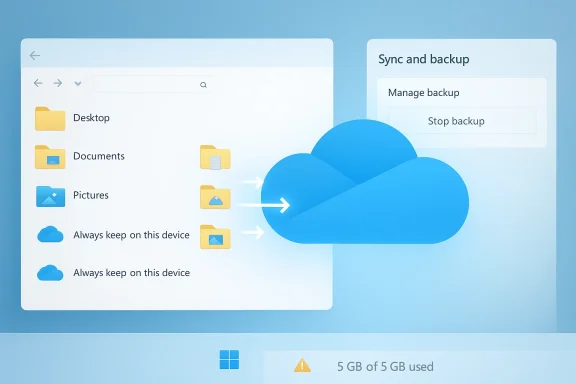
PCMag UK’s round‑up of “10 Simple File Explorer Tweaks” is a timely reminder that the files and folders on your PC deserve the same attention as the apps you use to open them — and that a few small changes in File Explorer can dramatically reduce friction. The list — from pinning folders in Quick Access to asking Copilot questions about a file — covers both long‑standing, low‑risk usability settings and newer, more powerful features Microsoft is rolling into Windows 11. In this feature I verify the key steps, explain what changed between Windows 10 and Windows 11, cross‑check claims with multiple sources, and surface the trade‑offs you should weigh before making larger changes (like registry edits or enabling on‑device AI access). rview
File Explorer remains the primary interface millions use every day to move, preview, compress, and share files. Over the last few Windows releases Microsoft has reshaped the app: it added tighter OneDrive integration, a condensed modern context menu, new panes and preview tools, Ask Copilot and other AI‑driven actions, and native support for more archive formats. Those changes can make File Explorer more powerful — but also introduce new complexity and, in a few cases, reliability or privacy concerns. I verified the step‑by‑step tips you’ll read below against Microsoft documentation and recent coverage from trusted Windows outlets to ensure accuracy.
Quick Access (Windows 10) and File Explorer Home (Windows 11) give you one‑click access to frequently used and pinned folders. It’s the fastest way to jump to the folders you use daily.
Practical tip: pin network folders and cloud folders you access daily so they behave like local favourites — but remember network paths require the network to be available before File Explorer can open them.
Caveat: hiding extensions will not stop malware, but it does remove a basic layer of user awareness. For admins, enforcing visible extensions via policy is a simple, high‑value control.
Tip: If you use cloud sync (OneDrive), include the synced folder in a library to see local and cloud copies together.
Important behaviour to understand:
Practicalities:
What Copilot can do:
Source: PCMag UK 10 Simple File Explorer Tweaks for a More Organized Windows PC
File Explorer remains the primary interface millions use every day to move, preview, compress, and share files. Over the last few Windows releases Microsoft has reshaped the app: it added tighter OneDrive integration, a condensed modern context menu, new panes and preview tools, Ask Copilot and other AI‑driven actions, and native support for more archive formats. Those changes can make File Explorer more powerful — but also introduce new complexity and, in a few cases, reliability or privacy concerns. I verified the step‑by‑step tips you’ll read below against Microsoft documentation and recent coverage from trusted Windows outlets to ensure accuracy.
 1. Customize Quick Access / File Explorer Home
Quick Access (Windows 10) and File Explorer Home (Windows 11) give you one‑click access to frequently used and pinned folders. It’s the fastest way to jump to the folders you use daily.- How to pin: Right‑click any folder and choose Pin to Quick Access (or drag it into the Quick Access area). This works for local folders, network locations, and many cloud‑synced folders.
- Stop automatic clutter: File Explorer shows recent files and frequently used folders by default. To stop the automatic population, open File Explorer Options (See More / Options on Windows 11; View → Options in Windows 10) and uncheck Show recently used files and Show frequently used folders. You can also change the default open view from Quick Access to This PC.
Practical tip: pin network folders and cloud folders you access daily so they behave like local favourites — but remember network paths require the network to be available before File Explorer can open them.
2. Show or Hide File Extensions — why it isn’t just cosmetic
File extensions (.docx, .jpg, .pdf) reveal file type and help you spot disguised malware (for example "earnings.pdf.exe" disguised as a PDF). By default Windows hides known extensions, but you can turn them on in seconds.- In Windows 11: open File Explorer → View → Show → check File name extensions.
- In Windows 10: View → check File name extensions in the ribbon.
Caveat: hiding extensions will not stop malware, but it does remove a basic layer of user awareness. For admins, enforcing visible extensions via policy is a simple, high‑value control.
3. Display and use Libraries
Libraries let you virtually gather related folders (Documents, Pictures, Music) into a single view without moving files. They’re disabled from view by default in newer Windows 11 releases but can be re‑enabled.- To show Libraries in Windows 11: open File Explorer → See More (ellipsis) → Options → View tab → check Show libraries. In Windows 10 the Navigation pane menu has Show libraries.
Tip: If you use cloud sync (OneDrive), include the synced folder in a library to see local and cloud copies together.
4. Use the Preview and Details Panes effectively
File Explorer offers three main panes: Navigation (left), Preview, and Details. The Preview pane shows the content (images, PDFs, Office files) without opening the full app; the Details pane exposes metadata (size, modified date, tags, sharing status).- Toggle the panes from File Explorer → View → Show → Preview pane or Details pane (they’re mutually exclusive). In Windows 11, the behavior and availability can vary slightly by build and update channel.
- The Preview pane accelerates triage when cleaning folders — but not all file types preview reliably (PDFs and some proprietary formats may need apps or preview handlers installed).
- The Details pane in modern File Explorer can show collaboration status and share info for cloud files, which is useful for teams.
5. The modern context menu and the classic menu registry hack
The right‑click (context) menu changed considerably in Windows 11: Microsoft condensed the menu into a modern, icon‑driven layout and pushed some commands under “Show more options.” That reduces visual clutter but makes advanced actions less discoverable. Many users prefer the classic (Windows 10 style) menu and a widely circulated Registry tweak recreates it.- The registry trick: create HKEY_CURRENT_USER\SOFTWARE\CLASSES\CLSID{86ca1aa0-34aa-4e8b-a509-50c905bae2a2}\InprocServer32 with an empty Default value and then restart Explorer or the machine. That restores the legacy menu for many users. Multiple community guides document this exact key.
- This is an unsupported system modification. Some users have reported Explorer instability or inability to revert the change on certain versions (reports differ across builds and updates). Proceed only after creating a System Restore point and backing up the registry. Community threads show both success stories and failure modes; results depend on the Windows 11 build and installed shell extensions.
- Instead of a registry hack, try third‑party utilities that selectively restore classic menus (they’re easier to undo and often sandbox their changes).
- For occasional access to the extended menu, remember Shift+Right‑click or Show more options in the modern context menu.
6. Compress and uncompress files — native support has expanded
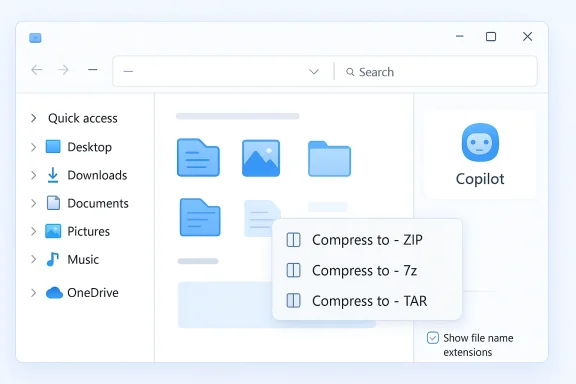
Historically Windows supported only ZIP archives natively, forcing users to install tools like 7‑Zip, WinRAR or PeaZip for other formats. Recent Windows 11 updates have added native creation and extraction for additional formats such as 7z and TAR.- In modern File Explorer builds you’ll see a Compress to submenu in the modern context menu with choices such as ZIP, 7z, and TAR, plus an Additional options wizard in some builds. This feature appeared in preview and beta builds and has propagated into mainstream updates for many users.
- Native 7z/TAR support reduces the need for third‑party archivers for basic compression/extraction tasks.
- The File Explorer compress UI integrates with the rest of Explorer flows (drag and drop, right‑click, ribbon).
- Native extraction is convenient but not always as thread‑optimized or feature‑rich as dedicated tools. For advanced compression settings (passwords, recovery records, high compression tuning), continue to use 7‑Zip or WinRAR.
- Compression format choice matters for recipients: 7z gives better compression ratios but may not be readable by older OSes without third‑party tools; ZIP remains the broadest supported format.
7. Share folders and files from File Explorer
Sharing from File Explorer uses the modern Share UI and integrates with OneDrive when files are in your cloud folders. The native Share command provides a list of apps and people you can share to — and when a file is stored in OneDrive, the Share flow may default to a cloud link rather than sending the file itself.Important behaviour to understand:
- Files that live in OneDrive will often be shared as cloud links (which preserves storage and enables access controls). This is expected, but it changes the semantics compared with attaching a local file to an e‑mail. Some apps listed in the Share UI depend on the file type and installed apps on your machine.
- When sharing sensitive files, confirm whether the Share flow sends the file itself, creates a view‑only link, or grants edit access. Use OneDrive’s link settings to enforce expiration or restrict access to specified users.
- If you rely on Nearby Share or local network shares, remember those options appear in the same Share UI but require device and network readiness.
8. Manage photos and images without leaving Explorer
File Explorer includes quick photo tasks in the right‑click menu: rotate images, set as desktop background, and in modern builds, route image edits into built‑in apps (Photos, Paint) for actions like blur background or erase objects via AI‑powered commands. These are surfaced under AI Actions and the new Manage file submenu in some builds.Practicalities:
- For quick orientation fixes (Rotate left/right) and to set a wallpaper, the built‑in commands are fine and fast.
- For object removal, background erasure or advanced retouching, use dedicated photo editors — AI Actions act as convenient shortcuts but will often open the Photos or Paint app to perform the work.
9. Search for files and documents — faster and more precise
File Explorer’s search box accepts wildcards (*, ?) and supports filters for kind, size, and date modified. A few practical search techniques:- Name search: type a filename fragment and press Enter.
- Extension search: type .png or .docx to list all files of that type.
- Advanced filters: use the Search ribbon (or Search menu in modern File Explorer) to refine by Kind, Size, Date modified, and other properties.
10. Ask Copilot for help — power and precautions
Microsoft has been integrating Copilot deeper into Windows. The right‑click command Ask Copilot opens the Copilot window and lets you ask questions about selected files (summarize a PDF, describe an image, extract key points from a document). Microsoft’s documentation describes using Copilot from the File Explorer context menu or the Copilot button for up to five selected files.What Copilot can do:
- Summarize documents or extract action items.
- Describe images and perform image‑based queries (Copilot Vision).
- Trigger AI Actions (e.g., send a photo to Photos for object removal).
- Copilot may process file contents locally or via cloud services depending on your settings and the specific Copilot feature. If you’re handling sensitive corporate or regulated data, consult your organization’s policy before using Copilot on those files. Microsoft provides tenant‑level controls for Copilot features in managed environments.
- If you don’t want Copilot in your context menu, Windows provides ways to disable it or remove the Ask Copilot entry — either through settings or, in some builds, via the registry. Community reports show that admins have used Group Policy or registry edits to suppress the feature in enterprise deployments.
Critical analysis — strengths, blind spots, and practical safeguards
Strengths- Microsoft is bringing genuine productivity improvements into File Explorer: native 7z/TAR compression, AI‑assisted image edits, and Copilot integration reduce the number of context switches between small tasks and full apps. The consolidated Manage file menu and Preview/Details panes improve discoverability for many workflows.
- Many changes preserve familiar flows (right‑click → task) while modernizing the plumbing; casual users get convenience, and power users keep heavier tools.
- Registry tweaks (classic context menu) can create instability on some Windows 11 builds. Community reports show mixed outcomes; always create a System Restore point and export the registry key before editing.
- AI features can surface privacy and compliance concerns. Copilot’s convenience comes with the need to verify where models run (local vs cloud) and how data is handled. Enterprises should assess Copilot on a per‑policy basis.
- Native compression is useful but not a full replacement for third‑party archivers in e advanced encryption, splitting, or recovery records. Test cross‑platform compatibility before switching to 7z by default.
- Quick Access’s recent files can expose sensitive filenames. If you share a machine, disable the recent files list and pin only the folders you want available.
- Export the registry and create a System Restore point before making registry changes.
- For sensitive data, disable Copilot or restrict its use until you confirm data handling policies.
- Keep backup copies when compressing or batch‑renaming large sets of files.
- Use dedicated tools (7‑Zip, Adobe, dedicated photo editors) when you need advanced features not yet supported natively.
Recommended workflow for a safer, faster File Explorer
- Enable File name extensions for transparency.
- Pin your top 8–10 folders to Quick Access / Home and disable automatic recent files.
- Use the Preview pane for quick triage; disable it if Explorer becomes sluggish.
- If you want the classic context menu, test the registry hack on a disposable machine or virtual machine first. Export the key and snapshot the system.
- Try the native Compress to options for everyday archives, but keep 7‑Zip or WinRAR for advanced tasks. Confirm recipients can open 7z/TAR files before making them your default.
- Test Ask Copilot with non‑sensitive files to evaluate its usefulness and data handling in your environment. Use admin controls in organizational deployments.
Final verdict
PCMag UK’s tips are solid, practical beats for most users — they cover immediate wins (show extensions, pin Quick Access), medium‑risk customization (enable libraries, toggle panes), and higher‑impact options that deserve caution (registry restores, Copilot). The most meaningful improvements Microsoft has shipped are the deeper File Explorer integration with OneDrive and Copilot, and the addition of multiple native archive formats; these reduce friction for everyday tasks. But convenience should not trump caution. For power users and IT pros the payoff is real, provided you pair tweaks with standard safeguards: backups, system restore, and a policy review for AI features in managed environments. If you follow a careful, staged approach, File Explorer can be transformed from a basic file browser into a fast, contextual workbench that truly speeds the way you work with files.Source: PCMag UK 10 Simple File Explorer Tweaks for a More Organized Windows PC