

Modern antivirus tools have made PC infections uncommon, but when a virus does slip past defenses the fix is usually straightforward — and often free — if you follow a short, methodical checklist that prioritizes containment, targeted scanning, and clean-up before you consider wiping and reinstalling Windows.
The risk picture for Windows users has shifted in the last decade. Built‑in protection such as Microsoft Defender plus cloud‑assisted engines from major AV vendors mean that most commodity malware is stopped automatically, often before you even notice it. Independent labs show that modern endpoint protection catches the vast majority of live threats in real‑world tests, though detection percentages vary between vendors and test scenarios. At the same time, cybercriminals haven’t given up. The most dangerous threats now are stealthy — living in memory, abusing signed processes, or hiding in firmware and system‑level boot sectors — and they’re designed to avoid noisy behaviors that trigger detection. That’s why the right removal approach mixes quick triage, multiple scanning techniques, and a plan to restore system integrity if remediation fails.
This is low effort and high reward: many modern threats attempt to phone home or scan the local network; cutting the connection prevents additional payloads from downloading and stops the infected device from re‑infecting others.
Key behaviors that commonly indicate compromise include:
Also run an inventory of installed programs (Settings > Apps > Installed apps) and uninstall anything unfamiliar. After uninstalling, search for leftover files in the program folders and run a targeted scan on those folders.
If you can’t make progress with tools, consider imaging the disk (for forensic analysis or safe data recovery) and then performing a clean reinstall.
The free toolkit outlined here gives you a practical, professional‑grade sequence you can run this afternoon. The single most important takeaway is to act deliberately: isolate the machine, gather evidence, run layered scans, and only wipe the system when remediation efforts fail or when you need to guarantee a clean baseline.
If a clean reinstall becomes necessary, use Microsoft’s Reset or fresh installation options to restore system integrity, reinstall only trusted apps, and restore personal files from verified backups — never from unknown installers or driver packages.
A calm, methodical approach is the attacker’s worst enemy: disconnect, inspect, scan with multiple tools, and when in doubt, preserve data and reinstall. These free steps will cover most scenarios and reestablish a secure, usable PC without unnecessary expense.
Source: ZDNET 12 free ways to find and remove viruses on your PC - that actually work
 Background
The risk picture for Windows users has shifted in the last decade. Built‑in protection such as Microsoft Defender plus cloud‑assisted engines from major AV vendors mean that most commodity malware is stopped automatically, often before you even notice it. Independent labs show that modern endpoint protection catches the vast majority of live threats in real‑world tests, though detection percentages vary between vendors and test scenarios. At the same time, cybercriminals haven’t given up. The most dangerous threats now are stealthy — living in memory, abusing signed processes, or hiding in firmware and system‑level boot sectors — and they’re designed to avoid noisy behaviors that trigger detection. That’s why the right removal approach mixes quick triage, multiple scanning techniques, and a plan to restore system integrity if remediation fails.Overview: the 12 reliable, free tactics that work
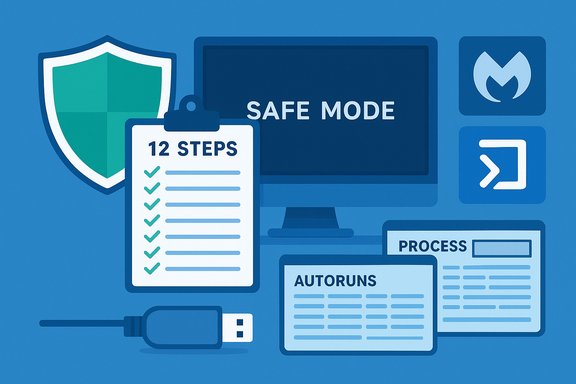
This feature expands on a practical, free toolkit you can run today. The core pattern is always the same:- Contain (disconnect, isolate machine)
- Detect (Task Manager, autoruns, specialized scanners)
- Remove (full scans, offline scans, secondary engines)
- Repair and harden (clean temp files, reset browsers, reinstall only if necessary)
- Disconnect and isolate the PC immediately
- Check Task Manager and running processes
- Boot into Safe Mode (or Recovery) for safer scanning
- Run Windows Security (Microsoft Defender) full scan
- Run Microsoft Defender Offline (boot‑time) scan
- Scan with a second‑opinion free tool such as Malwarebytes
- Upload suspicious files or executables to VirusTotal
- Scan external drives and removable media
- Remove suspicious apps and browser extensions; reset browser settings
- Clean temporary files and check startup entries (Autoruns / msconfig)
- Use rescue media or offline scanners if Windows won’t boot
- Back up data and consider a clean Windows reinstall when remediation stalls
1. Disconnect and isolate: stop damage in its tracks
The first rule of outbreak containment is to limit lateral movement and data exfiltration. Unplug wired Ethernet, turn off Wi‑Fi, and if the PC is on a corporate network, notify IT and remove it from the domain immediately.This is low effort and high reward: many modern threats attempt to phone home or scan the local network; cutting the connection prevents additional payloads from downloading and stops the infected device from re‑infecting others.
2. Quick triage: Task Manager and obvious signs
Before you start removing things, gather evidence. Open Task Manager (Ctrl+Shift+Esc) and scan the Processes tab for unfamiliar executables consuming CPU, disk, or network. Right‑click and choose Open file location — signed Microsoft files live in System32; anything running from a user Downloads folder or an odd AppData subfolder is suspect.Key behaviors that commonly indicate compromise include:
- Unknown programs installed without your consent
- Disabled security software or tampered firewall settings
- Sudden disappearance or corruption of files
- Repeated popups, strange redirects, or browser hijacks
3. Boot into Safe Mode — why and how
Safe Mode loads Windows with a minimal driver set and disables many third‑party services, which makes it easier to remove stubborn malware that blocks tools from running in normal mode. The recommended route for Windows 10/11 is:- Hold Shift while clicking Restart from the Start menu (Power > Restart).
- Choose Troubleshoot > Advanced options > Startup Settings > Restart.
- After reboot, pick 4 (Enable Safe Mode) or 5 (Safe Mode with Networking) via the number keys.
4. Run Windows Security (Microsoft Defender) — the first, built‑in pass
Windows ships with Microsoft Defender, a robust baseline engine that provides real‑time scanning, scheduled scans, and multiple scan types. From the Windows Security app, go to Virus & threat protection > Scan options and run a Full scan for a deep file‑system check. Full scans can take a long time (often an hour or more depending on disk size), but they are an essential first line of action. Independent lab results show Defender performs strongly across multiple test suites, which is why it’s a sensible first stop. Practical tip: run the full scan while in Safe Mode where possible to reduce interference from running malware.5. Run Microsoft Defender Offline (boot‑time scan)
Some malware hides at runtime or injects itself into signed processes; boot‑time scans run outside the normal OS environment and are specifically designed to catch these stealthy threats. Microsoft documents that Microsoft Defender Offline takes roughly 15 minutes to perform and restarts your PC as part of the process. Use the Windows Security app to start an offline scan when a regular full scan finds suspicious files or when you suspect persistent infections. Caveat: offline scan times and effectiveness depend on system speed and sample complexity — 15 minutes is an average estimate for the scan routine itself.6. Second opinion: Malwarebytes and other free scanners
No single AV engine catches everything. Running a reputable second‑opinion scanner adds another layer of scrutiny. Malwarebytes offers a free on‑demand scanner (and often finds adware, PUPs, and spyware that other products miss); it supports Threat Scans, Custom scans, and scanning of external drives. The free Malwarebytes desktop scanner is suitable for one‑off cleanups; configuration and scan types are documented by the vendor. Important: don’t install multiple resident AV suites that run in real time at the same time — that can cause conflicts. Use on‑demand tools sequentially, or temporarily disable real‑time shields while you run an alternate scanner.7. Verify suspicious files with VirusTotal (upload for crowdsourced analysis)
If you find an untrusted executable or archive, upload it to VirusTotal for a rapid multi‑engine scan. VirusTotal aggregates results from dozens of antivirus engines and various sandboxing/behavioral analysis tools, displaying each vendor’s verdict so you can spot consensus or disagreement. Use the web uploader or the VirusTotal Uploader desktop tool to submit files or running process executables. The service will show a green “no detections” result if most engines clear the file, or a red/warning score if multiple engines flag it. Warning: VirusTotal can produce false positives and false negatives. A single engine’s flag doesn’t necessarily mean guilt, and conversely a clean report isn’t a guarantee. Treat VirusTotal as evidence, not proof, and combine it with behavioral signals (network connections, persistence mechanisms) before taking irreversible steps.8. Scan external drives and removable media
Malware often spreads via USB sticks and external disks. Always scan external drives while they’re plugged in — Windows Security and third‑party scanners provide context‑menu options (“Scan with Microsoft Defender” or “Scan with Malwarebytes”) for quick checks. If you plan to copy backups back to a cleaned PC, rescan those external devices and consider wiping and restoring critical documents only from known‑good backups.9. Remove suspicious apps and browser extensions, reset browsers
Malicious browser extensions and bundled apps are a very common infection vector. Remove unknown extensions from Chrome, Edge, or Firefox and then reset the browser settings to defaults to eliminate hidden redirects and startup pages. Clearing browser cookies, cached files, and site data removes persistent trackers and reduces the chance of re‑infection. The browser reset option is found in Settings > Reset settings in Chromium‑based browsers.Also run an inventory of installed programs (Settings > Apps > Installed apps) and uninstall anything unfamiliar. After uninstalling, search for leftover files in the program folders and run a targeted scan on those folders.
10. Clean temporary files and inspect startup entries
Cleaning temporary files reduces clutter and sometimes removes malicious launchers that live in temp directories. Use Settings > Storage > Temporary files to clear Windows temp files. For startup items, Autoruns (Sysinternals) is the definitive free tool: it lists services, scheduled tasks, browser helper objects, and more. Look for unsigned entries or executables with odd paths; use Autoruns to disable suspicious auto‑start entries. Process Explorer (Sysinternals) is another invaluable free tool to inspect process trees, check digital signatures, and verify parent/child relationships for suspicious processes. These are essential utilities for advanced troubleshooting and are completely free.11. Rescue media and offline toolkits when Windows won’t boot
If malware prevents Windows from booting or from running your tools, use rescue media: a second PC can create a bootable USB with a free AV rescue ISO (many vendors offer rescue disks) or with Windows recovery tools. Booting into a clean environment lets you run offline scanners that operate without the infected OS active. For deep infections (bootkits/rootkits), vendor rescue images combined with rootkit scanning tools are often the only way to reliably remove entrenched threats.If you can’t make progress with tools, consider imaging the disk (for forensic analysis or safe data recovery) and then performing a clean reinstall.
12. When to back up and opt for a clean Windows reinstall
If multiple engines disagree, or malware persists despite Safe Mode, full scans, and offline scans, the pragmatic, secure choice is a clean reinstall of Windows — either a Reset (Remove everything) or a full clean install from official installation media. Before doing this, back up personal files (documents, photos) but do not copy back executables, installers, or drivers that might reintroduce infection. Microsoft’s Reset options include a Cloud download that fetches the latest Windows image or a local reinstall option; both are documented by Microsoft. A reinstall is the only guaranteed way to remove firmware or deeply persistent threats if those threats have modified low‑level system components or hidden partitions. If you choose this route, plan at least a few hours for backup, reinstall, driver updates, and software reinstallation.Putting it together: a practical, ordered checklist
- Unplug the network connection (Ethernet and Wi‑Fi).
- Gather evidence: Task Manager, check network activity, record suspicious filenames.
- Reboot into Safe Mode (Shift + Restart → Troubleshoot → Advanced options → Startup Settings → Restart → F4).
- Run Windows Security full scan.
- Run Microsoft Defender Offline (boot‑time) scan (takes about 15 minutes).
- Install and run Malwarebytes Threat/Custom scan for a second opinion.
- Upload any suspicious binaries to VirusTotal and evaluate consensus.
- Remove suspicious apps/extensions and reset browsers.
- Clean temporary files and inspect startup entries with Autoruns and Process Explorer.
- If Windows won’t boot or malware persists, boot from rescue media and run offline scanners.
- Back up personal data (documents, photos), but don’t back up or reuse executables or drivers.
- If problems persist, perform Reset or clean install of Windows and restore only verified personal files.
Why these work: the technical rationale
- Boot‑time/offline scans inspect files before they can execute or hide.
- Multiple engines and behavioral sandboxes compensate for single‑engine blind spots.
- Safe Mode reduces the attack surface so removal tools can operate without being blocked.
- Autoruns and Process Explorer expose persistence mechanisms that typical scans can miss.
- Rescue media restores a known‑good scanning environment to remove rootkits that live under the OS.
Strengths and caveats: critical analysis
Strengths- Many of these methods are free and require only basic technical proficiency.
- Using the built‑in Microsoft tools (Defender, Offline scan, Reset) minimizes compatibility issues and leverages an engine that scores well in independent tests.
- Second‑opinion tools (Malwarebytes, VirusTotal) provide differing perspectives and increase the chance of finding stealthy or niche threats.
- False positives: multi‑engine aggregators and even reputable scanners can flag benign files. Don’t delete a file solely because one engine reports it — quarantine and investigate first.
- Conflicting AV products: installing multiple real‑time engines can cause system instability. Use on‑demand tools sequentially instead.
- Time and complexity: a full forensic clean can take hours; inexperienced users risk deleting legitimate system files. If in doubt, preserve a disk image before making destructive changes.
- Firmware/bootkits: some advanced threats live outside the Windows file system. These sometimes require specialized tools or a full drive/firmware replacement, and in worst cases a fresh hardware purchase.
- Human factor: social engineering (phishing, malicious attachments) remains the most common infection vector. Scanners help, but user behavior is still the weak link.
- Exact detection rates vary by lab, date, and test type. While independent testing shows Microsoft Defender and other top engines catching the majority of threats, performance is not static — test results evolve with new updates and threat sets. Always consult the latest independent test reports for vendor comparisons.
Practical tips to harden your PC after cleanup
- Turn on automatic Windows Update and enable Controlled Folder Access for ransomware protection.
- Use a password manager and enable two‑factor authentication where possible.
- Keep a small, routine backup habit: at least one offsite/cloud backup plus a local external drive that’s disconnected when not in use.
- Restrict admin privileges on daily accounts — run as a standard user for everyday browsing.
- Regularly review browser extensions and remove those you don’t use.
- Use a lightweight, well‑rated free AV for always‑on protection and reserve specialist tools for on‑demand scans.
Final verdict: why the free path still beats panic
For most home users, the combination of Microsoft Defender, a Safe Mode/Offline scan, a trusted second‑opinion scan (Malwarebytes), and selective use of VirusTotal will detect and remove the vast majority of threats without spending money or performing a full reinstall. That said, when malware persists despite methodical cleanup, a disciplined reinstall — after careful backups — is the safest option.The free toolkit outlined here gives you a practical, professional‑grade sequence you can run this afternoon. The single most important takeaway is to act deliberately: isolate the machine, gather evidence, run layered scans, and only wipe the system when remediation efforts fail or when you need to guarantee a clean baseline.
If a clean reinstall becomes necessary, use Microsoft’s Reset or fresh installation options to restore system integrity, reinstall only trusted apps, and restore personal files from verified backups — never from unknown installers or driver packages.
A calm, methodical approach is the attacker’s worst enemy: disconnect, inspect, scan with multiple tools, and when in doubt, preserve data and reinstall. These free steps will cover most scenarios and reestablish a secure, usable PC without unnecessary expense.
Source: ZDNET 12 free ways to find and remove viruses on your PC - that actually work
