

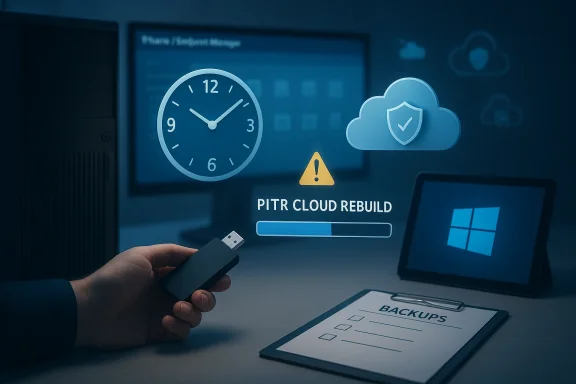
 Final warning: what the “12‑hour validation test” report means — and how to avoid data loss
Short version (TL;DR)- Neowin reports that Microsoft triggered a 12‑hour “validation test” related to Windows recovery/remediation flows. If the report is accurate and such a test invoked an automated recovery/rebuild path, devices that did not have their local files backed up or synchronized (OneDrive/Windows Backup/File History) risk losing unsynced local data.
- This is most likely to affect enterprise-managed devices that are enrolled in Microsoft Endpoint Manager / Intune and that have remote recovery workflows (PITR/Cloud Rebuild/Quick‑Mitigation Remediation) enabled. Consumer PCs without remote management are less likely to be impacted, but unsynced local files are always at risk from any automated reinstall or rebuild.
- Don’t panic. There are concrete checks and immediate mitigations you can do right now — from making local backups to auditing Intune policies and disabling any automatic rebuild/triggers until you’ve verified how the feature behaves in your environment.
Why this is worrying (plain language)
- Modern recovery tools aim to reduce downtime by automating heavy operations (rollback, point‑in‑time restore, or a remote “cloud rebuild” that reinstalls Windows and rehydrates apps/data). Those tools are extremely useful — but when automation is too aggressive or mis‑triggered, they can remove or overwrite local files that weren’t backed up or synchronized first.
- If a validation test or automated test triggers a remote reinstall/rebuild flow without proper checks/approval, the result can be a destructive action — effectively wiping local data written after the restore point or not present in the cloud backup. That’s the data‑loss vector everyone fears.
- The phrase “12‑hour validation test” suggests some automated cadence or window used by Microsoft to validate recovery flows. If that cadence is tied to automated remediation, a misconfigured or unexpected test could escalate into a destructive action for devices that meet the test’s trigger conditions.
Key technical concepts (short)
- Point‑in‑Time Restore (PITR): local/system snapshot rollback to a previous timestamp. Restores system state and can remove data written after the snapshot.
- Cloud Rebuild / Remote Reinstall: management‑driven full reinstall that reprovisions a device from the cloud (Autopilot/Intune). If local files weren’t synced/backed up, they may be lost.
- Quick Mitigation / Remediation: automated remediation packages delivered from Microsoft Update/Windows Update to fix issues; sometimes combined with recovery workflows.
- Intune / Microsoft Endpoint Manager: the management plane through which admins can trigger remote recovery/rebuilds and configure approvals.
Who’s most likely affected
- Enterprise/Managed Devices: devices enrolled in Intune/Autopilot and that have recovery automation enabled (PITR, Cloud Rebuild, QMR) are the highest risk because remote rebuilds are triggered from a central console.
- Lab / Insider Devices: devices in preview flighting or test rings that have new recovery automation enabled.
- Unmanaged/Home Devices: less likely to be automatically rebuilt by Microsoft; however, any user who accepts a reset/reinstall (or uses a “cloud reinstall” rescue option) without checking backups can lose unsynced files.
Immediate actions — if you’re a home/personal user (do these now)
- Pause and back up
- If you have any important unsaved files open, save them now. Don’t rely on autosave alone.
- Create a quick backup: copy Documents, Desktop, and Pictures to an external drive or another cloud account.
- Ensure OneDrive/Windows Backup is healthy
- Check OneDrive icon in the system tray → Settings → Backup → Manage Backup. Confirm Desktop/Documents/Pictures are backed up and show “Up to date.”
- If OneDrive is not signed in or syncing, sign in and let it finish syncing. If sync errors exist, resolve them before making changes.
- Create an immediate local image / backup
- Options: Windows’ “Backup and Restore (Windows 7)” (Control Panel → Backup and Restore) or third‑party imaging tool (Macrium Reflect, Acronis). A full system image prevents total loss if a rebuild happens.
- For quick file backup, copy critical folders to an external USB drive.
- Check Windows Backup / File History
- Settings → Accounts (or System → Storage → Advanced) → Backup or Settings → Update & Security → Backup to confirm whether File History or Windows Backup is enabled. If not, turn on File History or use an external backup tool.
- Disable any automatic cloud reinstall options you control
- If you previously enabled a “cloud reinstall” option in your Microsoft account settings or OEM recovery, set it to manual or ensure it requires confirmation.
- Create a recovery key for BitLocker
- If BitLocker is enabled, make sure your recovery key is saved to a secure place (Microsoft account, USB, AD/MDM). Command: manage-bde -protectors -get C:.
Immediate actions — if you’re an IT admin / endpoint manager (do these now)
- Pause destructive automation
- In Microsoft Endpoint Manager / Intune, locate any automated recovery pipelines (Cloud Rebuild, Quick Mitigation, PITR automation) and disable automatic triggers or put them into “test” mode. Require manual approval for destructive actions. If your tenant has a global “auto‑recovery” toggle, flip it off until you’ve validated behavior.
- Audit recovery triggers and logs
- Query device action logs for any remotely triggered “reinstall,” “rebuild,” or “restore” operations in the last 48 hours. Identify devices affected by the Neowin timeframe. Export and preserve those logs for forensics.
- Verify backup hydration points
- Confirm Windows Backup / OneDrive / Windows Backup for Business coverage across endpoints. For any device that uses Cloud Rebuild, verify the rehydration sources (OneDrive or enterprise backup) are present and healthy for all user data.
- Notify users and stakeholders
- Send a short advisory to impacted groups: do not accept prompts that initiate a reinstall/rebuild, ensure critical data is backed up, and contact IT immediately if a device automatically begins a rebuild flow.
- Validate approvals and RBAC
- Ensure that only authorized operators can issue destructive recovery commands. Remove any unnecessary admin privileges and require multi‑person signoff / approval workflows for mass rebuilds.
- Test in a safe lab
- Reproduce the validation/test flow on a controlled lab device. Confirm retention windows, what is preserved, and what is lost (local-only files, unsynced app data). Document exact behavior.
- Revisit your recovery SLA and runbook
- Update runbooks to include: pre‑rebuild backup verification, user notification, and post‑rebuild validation. Include explicit checks for local file synchronization status.
- Communicate with Microsoft support/account team
- Open a support case with Microsoft (if your tenant is enterprise) to confirm whether Microsoft ran any validation tests and to collect telemetry / timelines. Ask for a written timeline and remediation steps if any devices were affected.
Scenarios that cause the most data loss (what to watch for)
- Automated rebuild invoked while local files were unsynced: files created after last snapshot/backups and not synchronized to OneDrive will be lost.
- PITR rollback to an earlier snapshot: any files written after the snapshot are removed from the restored system.
- Corrupt rehydration: if Cloud Rebuild completes but OneDrive rehydration fails, user files may not be restored even though the reinstall finished.
- Device offline during rehydration: if the device cannot reach backup endpoints during rehydration, the process might finish without user data.
How to recover if data was lost (practical tips)
- Check OneDrive online Recycle Bin and OneDrive “Deleted Files” (one‑time restore may be available).
- Look for Windows.old or other temporary folders after a reinstall (sometimes contains user profiles if the reinstall was an in‑place upgrade).
- Use File History/Windows Backup to restore files if those were enabled.
- Restore from local system images (if you created one before the event).
- If you rely on enterprise backups, open a restore request with your backup vendor or IT backup team.
Policy and governance recommendations (longer term)
- Do not enable automatic destructive recovery without conservative gating: require admin approval and an explicit preflight backup check.
- Require “backup health” preconditions: Intune policy that verifies OneDrive sync/Windows Backup success before allowing remote rebuilds.
- Implement multi‑person authorization for mass or destructive operations.
- Keep a separate, air‑gapped backup for high‑value data and critical endpoints to protect against bad automation or supply chain errors.
- Use pilot rings for any automated remediation features; test in a small group and verify behavior before expanding.
- Log and alert on any automated rebuild/reinstall events; correlate with change control tickets.
How to test this safely in your environment
- Create a non‑production pilot group with representative hardware and software.
- Simulate the recovery/test flow in a controlled lab. Verify: (a) what gets backed up automatically, (b) whether the action requires approvals, (c) what happens if device is offline during rehydration, and (d) how long rehydration takes.
- Document expected user impact for each workflow and update your communication templates.
FAQ (quick)
Q — Will this affect home users?
A — Unmanaged home PCs are unlikely to be remotely rebuilt by Microsoft itself. The main risk for home users is accepting a reinstall/reset prompt or using an OEM recovery feature without verifying backups. Still, follow the immediate steps above to protect your files.
Q — Can I disable PITR / Cloud Rebuild globally?
A — These features are controlled via management plane (Intune/Microsoft Endpoint Manager) or local settings; enterprise admins can restrict or disable them. For consumers, there may be OEM‑specific or Windows settings; consult your device vendor or Microsoft account settings.
Q — What if a rebuild already started?
A — If you can interrupt it quickly (cancel in the management console or power off before the destructive phase), do so and contact IT/support immediately. Then follow recovery paths (OneDrive, backups, Windows.old).
Source: Neowin https://www.neowin.net/news/final-w...validation-test-that-could-lead-to-data-loss/
