

Dual Boot Is Still Useful, but It Is No Longer Casual
Dual boot used to be sold as the brave beginner’s path into Linux: defragment, resize, install, reboot, and marvel at a GRUB menu. That version of the story is outdated. The basic idea is unchanged, but the surrounding Windows platform has become more security-conscious, more firmware-dependent, and less forgiving of casual partition surgery.
That does not make dual boot obsolete. If anything, the case for it is clearer in 2026 because Windows and Linux have become more specialized tools in the same user’s kit. Windows remains the default home for Microsoft Office workflows, Adobe apps, many commercial utilities, device vendor tools, anti-cheat-heavy games, and business software. Linux remains the native habitat for package managers, server tooling, scripting, containers, security labs, open-source development, and deep system customization.
The catch is that dual boot is not a way to “try Linux” with no consequences. A live USB, Windows Subsystem for Linux, or a virtual machine can do that with far less risk. Dual boot is for users who want Linux to run directly on the hardware, with real access to the GPU, Wi-Fi card, battery behavior, file systems, bootloader, and kernel.
That directness is the whole point. It is also why the process deserves respect.
The Right Order Still Starts With Windows
The safest mainstream setup is still Windows first, Linux second. Windows expects to be treated as the primary tenant on consumer PCs, and most machines arrive with Windows already installed. Linux installers, particularly those from beginner-friendly distributions such as Ubuntu and Linux Mint, are generally better at detecting an existing Windows installation than Windows is at politely accommodating Linux after the fact.
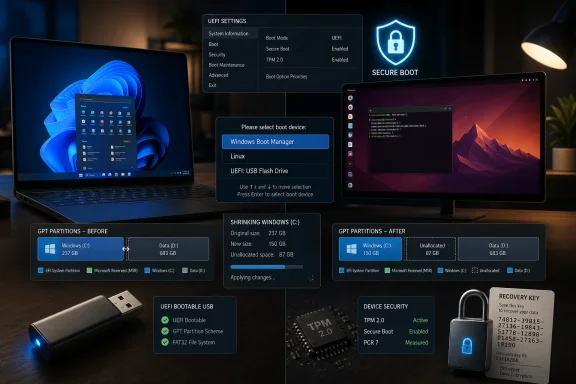
That order matters because the installer is not merely copying files. It is modifying the storage layout and adding boot entries to firmware-managed startup options. On a modern UEFI system, Windows Boot Manager and the Linux bootloader usually coexist through entries stored in the EFI System Partition, with the firmware deciding which one appears first.
A dual boot installation should therefore begin with reconnaissance, not downloading an ISO. The user needs to know whether Windows is installed in UEFI mode, whether the disk uses GPT, whether encryption is active, and whether the storage controller is set to a mode Linux can see. Those details determine whether the friendly “Install alongside Windows Boot Manager” option appears or whether the installer looks worryingly blank.
The good news is that modern Windows 11 PCs tend to be closer to the desired state out of the box. Windows 11’s hardware requirements pushed the ecosystem toward UEFI, Secure Boot capability, and TPM 2.0. The bad news is that those same security expectations can punish sloppy boot changes with BitLocker recovery prompts or boot-order surprises.
The Backup Is Not a Formality
Every dual boot guide says “back up your files.” Most users read that as boilerplate. It is not.
Partitioning mistakes are binary events. If the wrong partition is formatted, the machine will not care that the user meant to click the other one. If the Linux installer is pointed at the whole disk instead of unallocated space, Windows can disappear in minutes. If a storage-mode change breaks Windows boot, the user will need recovery tools, not optimism.
At minimum, users should copy documents, photos, downloads, desktop files, project folders, browser exports, password manager backups, license keys, and any work that cannot be casually replaced. A full disk image is better because it preserves the exact Windows environment, including installed applications and configuration. For students, developers, and small-business users, the time saved by skipping a proper backup is trivial compared with the cost of reconstructing a machine under pressure.
Creating Windows recovery media belongs in the same category. It is not something to do after the bootloader has already gone sideways. A separate Windows recovery USB gives the user a path back to Startup Repair, command-line recovery, restore tools, and firmware repair options if the Linux installation does not return a clean boot menu.
The central rule is simple: if losing the Windows installation would ruin the day, do not start the dual boot process until recovery has been planned.
UEFI and GPT Are the Modern Baseline
A 2026 dual boot guide should assume UEFI and GPT unless there is a very specific reason not to. Legacy BIOS and MBR setups still exist on older hardware, but mixing boot modes is one of the easiest ways to create confusion. If Windows was installed in UEFI mode, the Linux USB should be booted in UEFI mode too.
Windows makes this check relatively painless. The System Information utility shows “BIOS Mode,” and Disk Management can show whether the main disk uses GUID Partition Table. If both UEFI and GPT are present, the machine is following the modern pattern Linux installers expect.
The boot menu is where beginners often make the first subtle mistake. Many firmware menus show the same USB stick twice: once as a UEFI device and once as a legacy device. Choosing the legacy entry can cause the Linux installer to start in the wrong mode, which may prevent it from seeing the Windows installation as a suitable dual boot target.
That is why the words “UEFI: USB Drive” matter. They are not decoration. They are the difference between installing into the same boot universe as Windows and creating a parallel boot setup the firmware may not present cleanly.
BitLocker Has Become the Hidden Gatekeeper
The most unnerving dual boot problem for Windows users is not a Linux error message. It is a BitLocker recovery screen asking for a 48-digit key the user did not realize they needed.
BitLocker and Device Encryption are doing their job when they react to boot changes. Encryption systems rely on measured startup conditions, and changes to boot order, firmware settings, TPM state, Secure Boot state, or bootloader behavior can look suspicious. That does not mean Linux broke Windows. It means Windows detected that the machine’s startup environment changed.
The practical answer is not to disable security blindly. It is to save the recovery key before touching partitions or firmware. Users should check whether BitLocker or Device Encryption is active and store the recovery key somewhere accessible even when the PC cannot boot: a Microsoft account, printed copy, password manager, secure offline note, or separate device.
This is especially important for Windows 11 Home users who may not think they have BitLocker because the interface says Device Encryption instead. The branding differs, but the consequence can be the same: a recovery prompt after boot-related changes. Dual booting without that key is not bravery; it is gambling.
Fast Startup Is a Small Switch With Outsized Consequences
Windows Fast Startup exists to make shutdown and startup feel quicker by preserving parts of the system state. In a dual boot context, that convenience becomes a liability. If Windows has not fully released its file systems, Linux may see NTFS volumes in a hibernated or unsafe state.
The fix is ordinary but important: turn off Fast Startup before installing Linux and before routinely accessing Windows partitions from Linux. This reduces the chance of file-system complaints and protects shared NTFS data from being touched while Windows believes it still owns the previous session.
Users should also avoid hibernating Windows before booting into Linux. A full shutdown is cleaner. The more a dual boot setup treats each operating system as a complete owner of the hardware during its session, the fewer strange edge cases appear.
This is one of those steps that feels minor until it prevents a major headache. Dual boot stability often comes from boring discipline.
Intel RST Is Where Many Installers Go Blind
One of the least beginner-friendly obstacles is Intel Rapid Storage Technology, often exposed in firmware as RAID, RST, or sometimes tied historically to Optane settings. On some laptops, Linux installers may not see the internal SSD properly while the storage controller is in this mode.
That is the point where bad advice becomes dangerous. Randomly switching storage mode from RAID or RST to AHCI can stop Windows from booting if Windows was not prepared for the change. A user trying to fix Linux detection can accidentally create a Windows recovery problem.
The right response is patience. If the Linux installer does not show the SSD or does not offer “Install alongside Windows Boot Manager,” stop and investigate. Check the vendor model, firmware storage mode, Linux distribution documentation, and Windows recovery readiness before changing anything.
This is also where a second SSD can make life easier. On desktops and higher-end laptops with multiple drive bays or M.2 slots, installing Linux to a separate disk reduces partition risk and can make removal cleaner later. Most laptops still require same-drive dual booting, but where separate storage is available, it is often worth using.
Shrinking Windows Should Happen From Windows
When it is time to make space for Linux, use Windows Disk Management to shrink the Windows partition. Windows understands its own NTFS layout, recovery partitions, and file placement better than a Linux installer guessing from the outside. The goal is to create unallocated space, not to create a new Windows-formatted Linux partition.
That distinction matters. The Linux installer wants free, unallocated space where it can create its own partitions. Formatting that space as NTFS in Windows is unnecessary and can confuse beginners later. Leave it blank.
The amount of space depends on intent. A quick Linux test might survive in 40GB, but a serious development environment can consume 100GB quickly once SDKs, containers, package caches, virtual environments, and source trees accumulate. Linux gaming or container-heavy workflows can justify 150GB or more.
Disk planning is not glamorous, but it prevents one of the most common post-install regrets: a technically successful dual boot where Linux immediately feels cramped.
The ISO Is Software Supply Chain, Not Just a Download
Downloading Linux should be boring, official, and verifiable. The distribution ISO should come from the project’s own website or a trusted mirror linked from it. For mainstream beginners, Ubuntu, Linux Mint, Fedora, Zorin OS, Debian, and Pop!_OS are common choices, with Ubuntu and Mint still the most approachable for users coming from Windows.
Verification is the step many consumer guides skip. Checking the SHA256 hash of the ISO confirms that the download is complete and matches what the project published. For ordinary users, this may feel like overkill. For cybersecurity students, developers, sysadmins, and anyone installing an operating system that will receive credentials and source code, it is basic hygiene.
Creating the USB installer is another place where the wording matters. Copying an ISO file onto a USB drive is not the same as writing bootable installation media. Tools such as Rufus, balenaEtcher, Fedora Media Writer, and Ventoy exist because the USB needs to be made bootable in a way the firmware understands.
For a Windows 11-era machine, the USB should be created and booted in UEFI-compatible mode. If Secure Boot is enabled, start by leaving it enabled when using mainstream distributions that support it. Disable it only if the distribution or a required driver truly demands that change.
The Live Session Is the Dress Rehearsal
Before installing, boot the Linux USB and try the live environment. This step is not just a preview of the wallpaper. It is a hardware test.
Wi-Fi, Bluetooth, keyboard, touchpad, display brightness, sound, webcam, external monitor output, suspend behavior, and GPU handling are all worth checking. If the machine uses NVIDIA graphics, unusual Wi-Fi hardware, or a very new laptop platform, the live session may reveal whether extra drivers will be needed after installation.
A successful live session is not a guarantee, but it is a useful confidence signal. A broken live session is not always fatal, but it tells the user to research before committing disk changes. The installer may be friendly; the hardware ecosystem is not always equally friendly.
This is another reason Ubuntu-based distributions remain popular for first dual boot attempts. Their hardware documentation, community troubleshooting history, and installer behavior are broadly understood. Fedora, Debian, Arch-derived systems, and other distributions are excellent in the right hands, but the first-time dual booter benefits from the largest pool of solved problems.
The Installer Screen That Matters Most
The single most important moment in the process is the installation type screen. If the installer offers “Install alongside Windows Boot Manager,” that is the beginner-friendly route. It means the installer has detected Windows and is prepared to create a dual boot configuration without wiping it.
The option that must be treated as radioactive is “Erase disk and install Linux.” That is not a dual boot option. It is a replacement option. If Windows should survive, do not choose it.
Manual partitioning can be appropriate, but it should not be the default for beginners. A simple manual layout might include a root partition, a home partition, and swap, while reusing the existing EFI System Partition without formatting it. But the phrase “without formatting it” is doing a great deal of work. Formatting the EFI partition can remove boot files Windows needs.
If the installer does not detect Windows, the answer is not to improvise. Reboot into Windows and re-check Fast Startup, BitLocker, unallocated space, UEFI USB boot mode, storage controller mode, and whether Windows was fully shut down. Missing Windows detection is a warning sign, not a puzzle to click through.
GRUB Is Not the Enemy, but Boot Order Can Be
After installation, most beginner-friendly distributions install GRUB or a similar boot manager and add a UEFI boot entry. On restart, the user should see a menu offering Linux and Windows Boot Manager. If that happens, the hard part is over.
If the PC boots directly into Windows, it does not necessarily mean Linux failed. Firmware boot order may still put Windows Boot Manager first. Entering UEFI settings and moving the Linux entry above Windows Boot Manager often restores the expected menu.
Major Windows updates can occasionally alter boot behavior or place Windows first again. That is annoying, but usually not catastrophic. The user should know how to open the firmware boot menu and how to change boot order before they need to do it under stress.
The EFI System Partition deserves special caution after installation. It may be small, oddly named, and invisible during normal use, but it is central to startup. Do not delete it during cleanup. Do not format it because it “looks unused.” Modern boot problems are often caused by users tidying up partitions they did not understand.
Secure Boot Is a Policy Decision, Not a Superstition
Secure Boot often gets treated as a simple on/off obstacle to Linux. That framing is outdated. Mainstream Linux distributions have long supported Secure Boot in common configurations, and many users can leave it enabled.
The complications arise with custom kernels, unsigned third-party kernel modules, proprietary drivers, older distributions, or niche bootloaders. NVIDIA drivers and specialized security tools can add friction depending on the distribution and signing process. But the first move should not be to disable Secure Boot reflexively.
For Windows 11 users, Secure Boot capability is part of the modern security baseline, even if a particular machine’s setting can be changed. Turning it off may have consequences for device posture, game anti-cheat systems, corporate compliance, or BitLocker measurements. Users should make the change only when they understand why they need it.
This is the broader theme of 2026 dual booting: firmware settings are no longer harmless toggles. They are part of the trust model.
WSL and Virtual Machines Have Raised the Bar for Dual Boot
Dual boot used to be the obvious way to get Linux on a Windows PC. That is no longer true. WSL and virtual machines have become good enough that many users should choose them instead.
Windows Subsystem for Linux is excellent for developers who need Linux command-line tools, package managers, shells, scripting environments, and server-adjacent workflows without leaving Windows. It is not the same as running a full Linux desktop directly on the hardware, but for many coding tasks, it is simpler and safer.
Virtual machines are better for experimentation. If the goal is to learn Linux basics, test distributions, practice package management, or explore system administration concepts without modifying partitions, a VM is the responsible choice. Snapshots and easy deletion are powerful safety features.
Dual boot is justified when hardware matters. Gaming on Linux, GPU testing, battery behavior, kernel work, Wi-Fi driver validation, privacy-focused separation, and full desktop immersion all benefit from a real installation. The user should choose dual boot because they need that directness, not because an old guide implied it is the default rite of passage.
Shared Storage Is Convenient Until Windows Cheats Shutdown
Many dual boot users eventually want a shared data area accessible from both operating systems. NTFS is usually the practical choice for an internal shared partition because Windows supports it natively and Linux can read and write it with mature tooling. exFAT is useful for external drives and simpler interchange, while ext4 is best left to Linux unless Windows access is deliberately configured.
The danger is not the shared partition itself. The danger is Windows leaving a volume in a hibernated or fast-startup state and Linux modifying it anyway. That is how convenience becomes corruption risk.
A cleaner pattern is to keep operating system partitions separate and use a dedicated shared data partition for files that truly need to move between environments. Cloud storage, Git repositories, NAS shares, and external SSDs can also reduce the temptation to mount the Windows system partition from Linux.
The more intentional the file-sharing plan, the less likely the user is to treat C: as a communal dumping ground.
Removing Linux Requires the Same Care as Installing It
A complete dual boot plan includes an exit strategy. Some users will try Linux, learn what they need, and return to Windows-only. That should be uneventful if the installation was done cleanly.
The safe route is to back up Linux files, boot into Windows, identify Linux partitions carefully in Disk Management, delete only those partitions, and extend Windows into the freed space if the layout permits it. Then set Windows Boot Manager first in UEFI settings.
The EFI System Partition is again the trap. Removing Linux does not mean deleting the EFI partition. It may contain Windows boot files as well as Linux boot files. If leftover Linux boot entries remain in firmware, they can usually be ignored or cleaned up deliberately later, but deleting the wrong partition is a much bigger problem than an untidy boot menu.
Dual boot is reversible. It is not automatically self-cleaning.
The Sensible 2026 Dual Boot Playbook
The safest dual boot setup is not complicated, but it is sequential. Each step reduces a class of risk before the next one introduces a new one.
- Back up Windows files and create recovery media before changing partitions or firmware settings.
- Confirm that Windows is installed in UEFI mode on a GPT disk, and boot the Linux USB in UEFI mode as well.
- Save the BitLocker or Device Encryption recovery key before modifying boot order, Secure Boot, TPM-related settings, or partitions.
- Disable Windows Fast Startup and fully shut down Windows before installing Linux or accessing Windows partitions from Linux.
- Shrink the Windows partition from inside Windows and leave the new space unallocated for the Linux installer.
- Choose “Install alongside Windows Boot Manager” when available, and stop troubleshooting if the installer cannot detect Windows rather than selecting an erase option.
Those points are not ceremonial. They are the difference between dual boot as a controlled installation and dual boot as a recovery exercise.
Dual boot remains worth learning in 2026 precisely because it forces users to understand the machine beneath the desktop. Windows and Linux can coexist cleanly, but only when firmware, encryption, partitions, and bootloaders are treated as part of one system rather than separate chores. For users who only need Linux commands, WSL will often be enough; for cautious experimenters, a virtual machine is safer. But for developers, security learners, gamers, tinkerers, and power users who want both Windows compatibility and Linux running directly on the hardware, a careful dual boot setup still delivers the best of both worlds — as long as the first instinct is preparation, not clicking Next.