

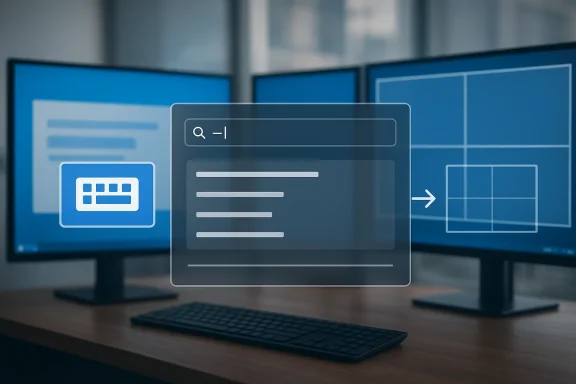
These three free apps do not turn Windows into macOS or Linux, but they do change the way the operating system feels in daily use. Microsoft’s own PowerToys gives power users a set of system-level fixes, including Keyboard Manager for remapping keys and shortcuts and PowerToys Run for faster launching and searching. Flow Launcher replaces the default Windows search-and-launch flow with a keyboard-first command palette, while GlazeWM swaps traditional window dragging for a tiled, keyboard-driven layout inspired by i3wm.
Windows has always been a compromise between broad compatibility and a polished, opinionated workflow. That compromise is part of its strength, but it also explains why so many users eventually start layering utilities on top of it. The operating system is flexible enough to support everything from gaming rigs to enterprise desktops, yet it often leaves the small, repetitive tasks of everyday computing feeling oddly unfinished.
That gap is where the best productivity tools tend to thrive. When search feels inconsistent, when shortcuts do not match muscle memory, or when windows do not behave the way you want, the friction is not dramatic, but it is constant. Over the course of a workday, those tiny interruptions compound into a meaningful loss of speed and focus.
Microsoft has increasingly acknowledged this by investing in PowerToys, a suite explicitly framed as a set of utilities for power users. Keyboard Manager lets users remap keys and shortcuts globally, and PowerToys Run offers a fast launcher with shortcut-driven access to apps and commands. That matters because it signals an important shift: some of the best Windows tweaks are no longer third-party hacks, but supported first-party utilities.
At the same time, the open-source ecosystem around Windows has matured into a parallel layer of customization. Flow Launcher and GlazeWM are good examples of that trend. Flow Launcher focuses on replacing search with a more responsive, extensible launcher, while GlazeWM rethinks windows as a tiling layout rather than a stack of overlapping rectangles.
The broader appeal of these apps is not that they make Windows objectively faster in a benchmark sense. They make it feel less obstructive. That distinction matters because most frustration on Windows is not caused by performance bottlenecks alone, but by the repeated overhead of doing ordinary things the hard way.
The bigger value is consistency. If you remap a key or a shortcut globally, it becomes a predictable part of your environment rather than an app-by-app workaround. Microsoft also notes that some OS-reserved combinations cannot be remapped, which is a reminder that this is a practical utility, not a total override of Windows behavior.
That matters because file cleanup is not glamorous, but it is constant. Photo imports, podcast assets, project folders, downloads, and archives all tend to accumulate naming problems. A tool that makes mass renaming feel routine removes a lot of the microscopic resentment that builds up around file management.
The real significance here is that PowerToys Run normalizes the idea that launching and querying your PC should be keyboard-driven. That idea becomes much more powerful once you realize there are third-party tools that can take it further.
That shift changes the mental model. Instead of expecting the Start menu to guess what you mean, you build a workflow around a single shortcut and a consistent result path. In practice, that often feels less like searching and more like issuing commands to your computer.
Flow Launcher’s official site describes it as a free and open-source quick file search and app launcher, and its plugin ecosystem is part of the appeal. The result is not just a replacement for search, but a platform for small, repeated tasks.
This is where Flow Launcher starts to compete with the idea of a desktop shell itself. If launching apps, jumping to files, and running small tasks all happen from one place, the operating system feels less like a maze of menus and more like a system you control directly. That may sound like a small difference, but user perception changes quickly when the path from intent to action gets shorter.
That does not make Flow Launcher universally better than Windows search. It makes it better for people who want intent-driven access rather than system-wide discovery. In other words, it is not trying to be everything, and that restraint is a strength.
That predictability is the key benefit. Instead of wasting attention on placement, you spend your mental energy on the task itself. The trade-off is that tiling demands a new workflow, and that makes it less immediately approachable than PowerToys or Flow Launcher.
GlazeWM supports multi-monitor setups, customizable rules, and YAML-based configuration, which makes it particularly attractive to users who like to define a system once and then leave it alone. That kind of setup appeals to technical users who prefer environment design over constant manual adjustment.
Once the model clicks, window management stops being a visual chore. You are not thinking in terms of pixel nudging or overlapping panes; you are thinking in terms of workspaces, focus, and structure. That is a distinctly different computing style, and it is one reason tiling remains so sticky in Linux communities.
This matters because it shows how customizable Windows really is when users are willing to step outside the default interface. The operating system may not ship with a tiling philosophy, but it can absolutely host one.
That layering is important because it keeps the tools from overlapping too much. You do not need to use every feature in PowerToys to benefit from it, and you do not need to fully adopt tiling to appreciate Flow Launcher. Each tool can be introduced gradually, which makes the overall package less intimidating.
A less technical user may get real value out of remapped shortcuts and a better launcher without ever touching a tiling manager. Someone who lives in file-heavy workflows may find PowerRename alone worth installing. The point is not to chase maximalism; it is to remove recurring pain points one by one.
Consumers are also more willing to tinker. They will tolerate a learning curve if the payoff is immediate and visible. That is why open-source utilities often thrive in this space; they reward curiosity with tangible daily gains.
That does not mean these apps have no enterprise value. It means they are best deployed selectively, perhaps for power users, developers, or specialized teams. PowerToys is the most likely candidate for wider acceptance because it is first-party and broadly framed as productivity tooling.
Still, there is a reason these tools keep gaining followers. When software removes friction in high-frequency tasks, users notice immediately. In personal workflows especially, that can matter more than polished marketing or cosmetic interface changes.
There is also the matter of scope. PowerToys is excellent because it knows what it is and does not try to reinvent everything. By contrast, users who attempt to transform their whole desktop at once can end up with a fragile setup that is hard to explain, replicate, or troubleshoot.
It also reflects a broader trend in computing: users increasingly expect the interface to adapt to them, not the other way around. The best tools in this space are the ones that disappear into habit after a short adjustment period.
What they offer is not a new operating system, but a new relationship with the one you already have. And for a lot of users, that is enough to make Windows feel almost unrecognizable—in the best possible way.
Source: How-To Geek These 3 apps make Windows feel like a completely different OS (and they're free)
 Background
Windows has always been a compromise between broad compatibility and a polished, opinionated workflow. That compromise is part of its strength, but it also explains why so many users eventually start layering utilities on top of it. The operating system is flexible enough to support everything from gaming rigs to enterprise desktops, yet it often leaves the small, repetitive tasks of everyday computing feeling oddly unfinished.That gap is where the best productivity tools tend to thrive. When search feels inconsistent, when shortcuts do not match muscle memory, or when windows do not behave the way you want, the friction is not dramatic, but it is constant. Over the course of a workday, those tiny interruptions compound into a meaningful loss of speed and focus.
Microsoft has increasingly acknowledged this by investing in PowerToys, a suite explicitly framed as a set of utilities for power users. Keyboard Manager lets users remap keys and shortcuts globally, and PowerToys Run offers a fast launcher with shortcut-driven access to apps and commands. That matters because it signals an important shift: some of the best Windows tweaks are no longer third-party hacks, but supported first-party utilities.
At the same time, the open-source ecosystem around Windows has matured into a parallel layer of customization. Flow Launcher and GlazeWM are good examples of that trend. Flow Launcher focuses on replacing search with a more responsive, extensible launcher, while GlazeWM rethinks windows as a tiling layout rather than a stack of overlapping rectangles.
The broader appeal of these apps is not that they make Windows objectively faster in a benchmark sense. They make it feel less obstructive. That distinction matters because most frustration on Windows is not caused by performance bottlenecks alone, but by the repeated overhead of doing ordinary things the hard way.
PowerToys as the Foundation
PowerToys is the most important of the three because it solves the most everyday problems with the least conceptual overhead. Microsoft’s documentation presents Keyboard Manager as a way to remap keys, remap shortcuts, and even assign text sequences, which immediately makes it more useful than the built-in Windows options most users have ever touched. That makes it a foundation tool rather than a niche power-user toy.Why Keyboard Manager matters
Keyboard customization is one of those things people ignore until they realize how much their work style depends on it. If you spend all day in editors, browsers, or creative tools, a mismatched shortcut can interrupt flow more often than a slow app launch. PowerToys’ Keyboard Manager helps solve that by translating the keyboard to match the user instead of forcing the user to adapt to the keyboard.The bigger value is consistency. If you remap a key or a shortcut globally, it becomes a predictable part of your environment rather than an app-by-app workaround. Microsoft also notes that some OS-reserved combinations cannot be remapped, which is a reminder that this is a practical utility, not a total override of Windows behavior.
- Custom shortcut logic can match your habits instead of Windows defaults.
- Global remaps reduce context switching across apps.
- Text injection can replace repetitive typing with a single shortcut.
- Reserved keys remain protected, so the tool is powerful but not unlimited.
PowerRename and file cleanup
PowerRename is another example of PowerToys solving an irritating but common problem: batch renaming. Windows can do it, technically, but the built-in experience is still clumsy enough that many users avoid it until they have to. PowerRename adds pattern-based rename workflows directly to the right-click menu, which is exactly where this kind of action belongs.That matters because file cleanup is not glamorous, but it is constant. Photo imports, podcast assets, project folders, downloads, and archives all tend to accumulate naming problems. A tool that makes mass renaming feel routine removes a lot of the microscopic resentment that builds up around file management.
PowerToys Run as a transitional search layer
PowerToys Run sits between system utility and launcher replacement. Microsoft positions it as a quick launcher with configurable shortcut activation and plugin support, which gives it a cleaner feel than the classic Start menu search flow. It is not a total replacement for all search use cases, but it is good enough to reshape habits.The real significance here is that PowerToys Run normalizes the idea that launching and querying your PC should be keyboard-driven. That idea becomes much more powerful once you realize there are third-party tools that can take it further.
Flow Launcher and the Search Problem
Flow Launcher is compelling because it attacks one of Windows’ most visible weak points: search. Microsoft has improved Windows search over the years, but it still frustrates users with inconsistency, irrelevant results, and occasional slowness. Flow Launcher strips that experience down to a fast launcher with plugin-based extensibility and a keyboard-first interface.A launcher, not a search box
The difference between a search box and a launcher sounds subtle until you live with both. A search box asks Windows to interpret your intent across apps, files, settings, and the web. A launcher assumes you want a command surface, then gets out of the way.That shift changes the mental model. Instead of expecting the Start menu to guess what you mean, you build a workflow around a single shortcut and a consistent result path. In practice, that often feels less like searching and more like issuing commands to your computer.
Flow Launcher’s official site describes it as a free and open-source quick file search and app launcher, and its plugin ecosystem is part of the appeal. The result is not just a replacement for search, but a platform for small, repeated tasks.
Plugins turn a launcher into a control center
A basic launcher is helpful. A launcher with plugins becomes useful in a much broader sense. Flow Launcher’s ecosystem includes actions that can open URLs, perform calculations, handle quick commands, and integrate with other services. That flexibility makes it feel closer to a command palette than a classic desktop tool.This is where Flow Launcher starts to compete with the idea of a desktop shell itself. If launching apps, jumping to files, and running small tasks all happen from one place, the operating system feels less like a maze of menus and more like a system you control directly. That may sound like a small difference, but user perception changes quickly when the path from intent to action gets shorter.
- Fewer clicks for common tasks.
- More predictable results than Windows search.
- Keyboard-centric control that rewards memory and speed.
- Plugin extensibility that keeps the launcher useful as needs change.
Why it beats the default experience
The biggest complaint about Windows search is not that it is unusable. It is that it is unreliable in small ways that matter constantly. If you use search dozens of times a day, even modest inconsistency becomes exhausting. A separate launcher like Flow Launcher creates a parallel lane that is often more dependable than the built-in route.That does not make Flow Launcher universally better than Windows search. It makes it better for people who want intent-driven access rather than system-wide discovery. In other words, it is not trying to be everything, and that restraint is a strength.
GlazeWM and the Tiling Mindset
GlazeWM is the most radical of the three apps because it changes how windows are arranged, not just how they are launched or manipulated. The project describes itself as a tiling window manager for Windows inspired by i3wm, with keyboard-driven commands and configurable rules for organizing windows. For users who can adapt to it, that is a big philosophical shift.Tiling changes the feel of the desktop
Traditional Windows window management is fundamentally manual. You open a window, drag it somewhere, resize it, and repeat. Tiling managers replace much of that effort with structure, automatically arranging windows into a layout that is more predictable and often more efficient.That predictability is the key benefit. Instead of wasting attention on placement, you spend your mental energy on the task itself. The trade-off is that tiling demands a new workflow, and that makes it less immediately approachable than PowerToys or Flow Launcher.
GlazeWM supports multi-monitor setups, customizable rules, and YAML-based configuration, which makes it particularly attractive to users who like to define a system once and then leave it alone. That kind of setup appeals to technical users who prefer environment design over constant manual adjustment.
Learning curve versus payoff
There is no honest way to describe GlazeWM as effortless. It has a real learning curve, and users coming from standard Windows behavior need time to internalize keyboard movement, layout logic, and configuration patterns. But that curve is also why the payoff can feel so dramatic.Once the model clicks, window management stops being a visual chore. You are not thinking in terms of pixel nudging or overlapping panes; you are thinking in terms of workspaces, focus, and structure. That is a distinctly different computing style, and it is one reason tiling remains so sticky in Linux communities.
Why this matters on Windows
Windows has historically been less hospitable to tiling workflows than Linux, even though the underlying need is universal. Tools like FancyZones helped fill part of that gap, but GlazeWM goes further by embracing a fully keyboard-oriented paradigm.This matters because it shows how customizable Windows really is when users are willing to step outside the default interface. The operating system may not ship with a tiling philosophy, but it can absolutely host one.
- Keyboard-driven window control reduces mouse dependence.
- Automatic layout logic cuts down on manual resizing.
- Configurable rules help different apps behave differently.
- Multi-monitor support makes it viable for serious desktop setups.
How the Three Apps Work Together
What makes these tools interesting as a group is not just that they are free. It is that each one removes a different kind of friction, and those frictions reinforce one another when left alone. PowerToys fixes the small annoyances, Flow Launcher fixes the search-and-launch loop, and GlazeWM redefines how windows occupy the screen.A layered productivity stack
If you think of Windows as a stack, these apps occupy different layers. PowerToys sits close to the system and improves input and file operations. Flow Launcher sits in the interaction layer and accelerates access to programs and actions. GlazeWM sits in the workspace layer and changes how the desktop itself behaves.That layering is important because it keeps the tools from overlapping too much. You do not need to use every feature in PowerToys to benefit from it, and you do not need to fully adopt tiling to appreciate Flow Launcher. Each tool can be introduced gradually, which makes the overall package less intimidating.
Who gets the most value
The biggest winners are people whose work is repetitive, keyboard-heavy, and context-switch intensive. Developers, writers, analysts, designers, and systems-minded users often feel the gains fastest because they spend so much time interacting with the desktop rather than just consuming content on it. That said, the benefits are not limited to technical users.A less technical user may get real value out of remapped shortcuts and a better launcher without ever touching a tiling manager. Someone who lives in file-heavy workflows may find PowerRename alone worth installing. The point is not to chase maximalism; it is to remove recurring pain points one by one.
Why “free” matters less than “low friction”
These apps are free, but the more important issue is that they lower the cost of experimentation. Because they do not require a major purchase or lock-in, users can test them without much risk. That invites customization in a way paid software often does not.- PowerToys is the easiest entry point.
- Flow Launcher offers the quickest visibility into benefits.
- GlazeWM demands the most commitment but can yield the biggest workflow change.
- Together, they form a modular alternative to accepting Windows defaults.
Enterprise Versus Consumer Impact
At first glance, these are enthusiast tools, but the distinction between consumer and enterprise impact is more interesting than it looks. Consumers care about convenience and speed, while enterprises care about consistency, supportability, and policy. The same app can look like a joy to one audience and a liability to another.Consumer users want fluidity
For consumers, the appeal is straightforward. A launcher that responds instantly, a window manager that reduces drag-and-drop labor, and keyboard tools that fit personal habits all make the PC feel more responsive. The goal is subjective but real: make Windows feel like it is cooperating instead of resisting.Consumers are also more willing to tinker. They will tolerate a learning curve if the payoff is immediate and visible. That is why open-source utilities often thrive in this space; they reward curiosity with tangible daily gains.
Enterprise environments value standardization
In a business context, the same customization can create support complexity. A help desk does not want to troubleshoot every employee’s bespoke shortcut map or tiling layout. Enterprises tend to prefer a known baseline, and the more a tool alters user interaction, the more planning it requires.That does not mean these apps have no enterprise value. It means they are best deployed selectively, perhaps for power users, developers, or specialized teams. PowerToys is the most likely candidate for wider acceptance because it is first-party and broadly framed as productivity tooling.
The productivity paradox
There is a subtle paradox here: the tools most likely to improve individual efficiency can also make shared environments less uniform. That is not a flaw in the apps themselves, but it is a real deployment consideration. In large organizations, personalization at scale can become a governance problem.Still, there is a reason these tools keep gaining followers. When software removes friction in high-frequency tasks, users notice immediately. In personal workflows especially, that can matter more than polished marketing or cosmetic interface changes.
Strengths and Opportunities
The strongest case for these apps is that they target different layers of daily use without demanding that Windows be replaced outright. They work because they respect the operating system’s strengths while sanding down its roughest edges. That makes them practical, not ideological.- PowerToys improves the parts of Windows that feel most unfinished.
- Flow Launcher gives users a faster, cleaner alternative to default search.
- GlazeWM introduces a genuinely different desktop model.
- The tools are free, which lowers the barrier to experimentation.
- They are modular, so users can adopt one without adopting all three.
- Each one supports a more keyboard-first workflow.
- Together, they can make Windows feel more intentional and less cluttered.
Where the opportunity is biggest
The biggest opportunity is not in power-user niches alone. It is in normalizing a better interaction model for everyday tasks. If Microsoft continues improving PowerToys while the open-source ecosystem keeps building around launchers and tiling, Windows users may end up with a much richer default toolkit than they had even a few years ago.Risks and Concerns
The downside of customization is that it can become another layer of maintenance. These apps are powerful, but they also ask users to invest time understanding how they work. For many people, that trade-off is worthwhile; for others, it becomes yet another thing to manage.- Learning curve can be steep, especially with GlazeWM.
- Keyboard remaps can cause confusion if you forget what you changed.
- Launcher dependence can make the default Start menu feel worse by comparison.
- Tiling workflows are not ideal for users who prefer freeform window placement.
- Plugin ecosystems can introduce complexity and occasional instability.
- Enterprise support becomes more complicated when desktops are heavily customized.
- Too much optimization can turn a simple workflow into a hobby.
Compatibility and expectation management
Another concern is that these tools can create expectations Windows itself may not fully satisfy. Once a user gets used to instant launcher behavior or highly structured window management, the default system can feel more frustrating than before. That does not make the tools bad, but it does mean they raise the bar for every interface the user touches afterward.There is also the matter of scope. PowerToys is excellent because it knows what it is and does not try to reinvent everything. By contrast, users who attempt to transform their whole desktop at once can end up with a fragile setup that is hard to explain, replicate, or troubleshoot.
Looking Ahead
The real story here is not that three apps can secretly fix Windows. It is that modern Windows customization is becoming more layered, more mature, and more selective. Users no longer have to choose between living entirely inside Microsoft’s defaults or abandoning the platform altogether.The next phase of Windows customization
The next phase is likely to be about composition. People will keep combining first-party utilities like PowerToys with open-source launchers and workspace managers to build a personal operating system on top of Windows. That approach is attractive because it preserves compatibility while improving the daily experience where it matters most.It also reflects a broader trend in computing: users increasingly expect the interface to adapt to them, not the other way around. The best tools in this space are the ones that disappear into habit after a short adjustment period.
What to watch
- Continued expansion of PowerToys as Microsoft fills more gaps in Windows.
- Growth in launcher ecosystems like Flow Launcher’s plugin model.
- Wider interest in tiling window managers on Windows beyond enthusiast circles.
- Better integration between keyboard-first tools and existing Windows workflows.
- More users treating desktop setup as a personal productivity architecture rather than a static default.
What they offer is not a new operating system, but a new relationship with the one you already have. And for a lot of users, that is enough to make Windows feel almost unrecognizable—in the best possible way.
Source: How-To Geek These 3 apps make Windows feel like a completely different OS (and they're free)
