

PCMag’s “32 Hidden Windows 11 Features” guide, updated around Windows 11’s 24H2-era feature set, argues that Microsoft’s desktop OS now hides many of its most useful productivity, security, AI, and customization tools in Settings menus, optional apps, and quietly evolving inbox utilities. The list is useful, but the bigger story is not that Windows 11 has secrets. It is that Microsoft has turned Windows into a rolling platform where important capabilities arrive sideways, often without the clear “new version” moment users once understood.
The old Windows bargain was simple: install a new version, learn the obvious interface changes, and gradually discover the extras. Windows 11 has broken that rhythm. Some of its most practical improvements are not presented as headline features at all; they live behind right-click menus, taskbar panels, optional downloads, or app updates from the Microsoft Store.
That is why a list of “hidden features” lands so well. Moving the Start button back to the left, trimming startup apps, enabling title bar shake, or changing mouse pointer visibility are not obscure hacks. They are basic quality-of-life controls that many users never see because Windows 11’s defaults are designed more around Microsoft’s preferred experience than around user discovery.
The result is a strange split personality. Windows 11 can feel simplified on the surface, but underneath it has become more modular, more configurable, and more dependent on knowing where Microsoft buried the switches.
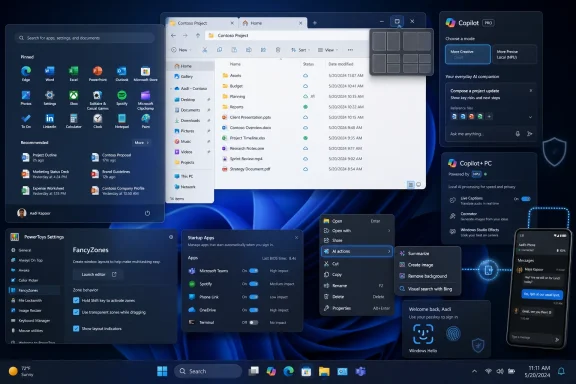
That matters because tools like FancyZones, PowerRename, Image Resizer, Always on Top, Mouse utilities, and cross-device keyboard-and-mouse control are exactly the kind of capabilities that make Windows feel powerful. They are not gimmicks. They are the difference between a desktop that merely runs apps and one that bends to a workflow.
For IT pros, PowerToys also represents a safer middle ground between unsupported third-party utilities and waiting years for Microsoft to elevate a feature into Windows proper. But its optional status keeps it in a weird cultural category: indispensable to power users, invisible to everyone else.
The same dynamic appears in Quick Settings. Microsoft separated notifications from quick controls, then evolved the panel again in Windows 11 24H2 so users scroll through available toggles rather than freely removing items in the familiar way. That is not necessarily worse, but it is a reminder that Microsoft is still tuning the balance between simplicity and control.
Windows 11 is at its best when it lets users accept the new design without surrendering the old efficiency. Realigning Start, rearranging Quick Settings, adding folders back to Start, and customizing pinned apps are all small concessions to the reality that the Windows desktop is not a showroom. It is a workplace.
Windows 11 gives users more visibility here than older versions did. Settings and Task Manager can show what launches automatically, and Task Manager can provide useful context such as startup impact. That makes startup hygiene a real maintenance habit, not a registry archaeology project.
For administrators, this is also a security and manageability issue. Every background process is another update channel, another notification surface, and another potential source of user confusion. The best Windows install is often not the one with the most “optimization” tools installed, but the one with the fewest unnecessary things starting before the user does any work.
Microsoft has spent decades refining window management, and Windows 11’s snap model is one of the better outcomes. It does not require users to learn a full tiling window manager, but it borrows enough of that discipline to make multitasking less chaotic. Combined with virtual desktops, it gives ordinary users access to a more structured workspace without asking them to become productivity hobbyists.
The catch is discovery. Many users still drag windows manually or maximize everything because they never notice the hover menu. Windows 11 repeatedly has this problem: the best features are elegant once found, but poorly advertised at the moment they would matter.
The addition of support for formats such as 7z and TAR is especially practical. Windows users have relied on tools like 7-Zip and WinRAR for years, and many still will, especially for advanced archive handling. But bringing common compression and extraction tasks into File Explorer reduces friction for everyday users and makes fresh installs less dependent on a ritual set of utilities.
The more controversial change is AI Actions in context menus. Removing a background from an image or summarizing a document from File Explorer can be useful, but it also changes the mental model of the shell. The right-click menu is no longer merely a set of file operations; it is becoming a place where Microsoft inserts cloud services, app integrations, and AI workflows.
But Windows AI is no longer one thing. There is Copilot, which many Windows 11 users can access as a cloud-connected assistant, and there are Copilot+ PC features that require newer hardware with an NPU. Recall, Click to Do, improved local search, Studio Effects, and some image tools belong to that second category.
That distinction matters. A user may read about Windows 11 AI and assume their existing laptop will get everything eventually. In reality, Microsoft’s most ambitious AI features are also hardware segmentation features. They are designed to sell a new class of PC as much as they are designed to improve Windows.
Even so, the concept remains sensitive. A feature that periodically captures activity so users can rediscover things they saw earlier is obviously powerful. It is also obviously different from snapping windows or changing a theme.
For enthusiasts, Recall is fascinating because it hints at a future Windows that understands context rather than merely launching applications. For administrators, journalists, lawyers, developers, and anyone handling confidential material, it demands scrutiny. The question is not only whether Microsoft has secured the feature; it is whether organizations can clearly govern when such a feature should exist at all.
This is one of those areas where consumer convenience and enterprise security finally point in the same direction. Password reuse, phishing, weak credentials, and credential stuffing remain chronic problems. Passkeys do not solve every identity challenge, but they remove a large and abused class of secrets from daily use.
The practical advice is simple: when a major service offers passkeys, Windows 11 users should consider enabling them. IT departments should be testing the workflow now rather than treating passkeys as a future authentication trend. The future has already arrived; it is just unevenly distributed across websites, identity providers, and user habits.
For Android users in particular, Phone Link can be surprisingly useful. Texts, calls, notifications, photos, hotspot features, app streaming on select devices, and even using a phone as a webcam all chip away at the gap between PC and handset. Recent Settings integrations also make the feature feel less like a bolt-on and more like part of Windows.
The iPhone story is more constrained, and that is not entirely Microsoft’s fault. Still, Phone Link is a reminder that Windows’ openness remains one of its strengths. It may not deliver the most elegant ecosystem experience, but it often delivers the most flexible one.
This is where Microsoft’s incentives are under the microscope. A weather widget, calendar card, or recent document shortcut can be genuinely helpful. A software suggestion or feed item can feel like clutter, especially on a paid operating system used in professional environments.
The issue is not whether Windows should have glanceable information. It should. The issue is whether users and admins can trust Microsoft to keep those surfaces respectful, configurable, and quiet when necessary.
That is useful, but it complicates support. Two Windows 11 PCs on the same nominal version may not feel identical if Store apps, feature rollouts, regional availability, hardware requirements, and Microsoft account status differ. For consumers, that can be confusing. For IT teams, it can be maddening.
The benefit is speed. Microsoft can improve core experiences faster than it could in the old service-pack era. The cost is predictability. Windows has become a moving target not just at the OS level, but at the app layer too.
This is a recurring pattern in technology. Features framed as accessibility often become universal convenience features once people discover them. A pointer that remains visible on a complex display setup is not just helpful for low-vision users; it is helpful for anyone presenting, screen-sharing, gaming, or juggling multiple monitors.
Windows 11’s accessibility work is stronger than its marketing emphasis suggests. Microsoft should treat these features less like a Settings appendix and more like core reasons to upgrade.
Some of those choices are good. Some are merely fashionable. Some are shaped by Microsoft’s business priorities. The mature Windows user does not need to reject them all, but should not accept them blindly either.
This is especially true in mixed environments. A home user may love Widgets and Copilot. A sysadmin may want both limited. A developer may install PowerToys immediately. A compliance officer may care less about Snap Layouts than Recall governance. Windows 11 is not one experience anymore; it is a set of overlapping experiences shaped by account type, hardware, policy, geography, and update cadence.
Source: PCMag UK 32 Hidden Windows 11 Features You're Probably Not Using (But Should Be)
 Windows 11’s Best Features Are No Longer Where Users Expect Them
The old Windows bargain was simple: install a new version, learn the obvious interface changes, and gradually discover the extras. Windows 11 has broken that rhythm. Some of its most practical improvements are not presented as headline features at all; they live behind right-click menus, taskbar panels, optional downloads, or app updates from the Microsoft Store.That is why a list of “hidden features” lands so well. Moving the Start button back to the left, trimming startup apps, enabling title bar shake, or changing mouse pointer visibility are not obscure hacks. They are basic quality-of-life controls that many users never see because Windows 11’s defaults are designed more around Microsoft’s preferred experience than around user discovery.
The result is a strange split personality. Windows 11 can feel simplified on the surface, but underneath it has become more modular, more configurable, and more dependent on knowing where Microsoft buried the switches.
PowerToys Remains the Unofficial Control Panel for People Who Know Better
The most telling entry in the list is PowerToys, because it exposes a long-running truth about modern Windows: Microsoft often ships the enthusiast version of the operating system outside the operating system. PowerToys is free, Microsoft-built, and increasingly polished, yet it remains an optional download rather than a core part of the Windows setup experience.That matters because tools like FancyZones, PowerRename, Image Resizer, Always on Top, Mouse utilities, and cross-device keyboard-and-mouse control are exactly the kind of capabilities that make Windows feel powerful. They are not gimmicks. They are the difference between a desktop that merely runs apps and one that bends to a workflow.
For IT pros, PowerToys also represents a safer middle ground between unsupported third-party utilities and waiting years for Microsoft to elevate a feature into Windows proper. But its optional status keeps it in a weird cultural category: indispensable to power users, invisible to everyone else.
The Taskbar Is Still a Negotiation, Not a Finished Idea
Windows 11’s centered Start button was supposed to signal a cleaner, more modern interface. For many longtime Windows users, it mostly signaled that muscle memory had been taxed for cosmetic reasons. The ability to left-align the taskbar is therefore less a hidden feature than a small act of détente.The same dynamic appears in Quick Settings. Microsoft separated notifications from quick controls, then evolved the panel again in Windows 11 24H2 so users scroll through available toggles rather than freely removing items in the familiar way. That is not necessarily worse, but it is a reminder that Microsoft is still tuning the balance between simplicity and control.
Windows 11 is at its best when it lets users accept the new design without surrendering the old efficiency. Realigning Start, rearranging Quick Settings, adding folders back to Start, and customizing pinned apps are all small concessions to the reality that the Windows desktop is not a showroom. It is a workplace.
The Startup Folder Grew Up, and Users Should Treat It Like a Security Boundary
One of the least glamorous tips in the guide may be one of the most important: review startup apps. Windows machines often feel slow not because the OS is fundamentally bloated, but because every chat app, updater, launcher, peripheral suite, cloud sync tool, and vendor assistant wants to run at sign-in.Windows 11 gives users more visibility here than older versions did. Settings and Task Manager can show what launches automatically, and Task Manager can provide useful context such as startup impact. That makes startup hygiene a real maintenance habit, not a registry archaeology project.
For administrators, this is also a security and manageability issue. Every background process is another update channel, another notification surface, and another potential source of user confusion. The best Windows install is often not the one with the most “optimization” tools installed, but the one with the fewest unnecessary things starting before the user does any work.
Snap Layouts Are the Windows 11 Feature That Actually Deserved the Marketing
If there is one Windows 11 productivity feature that feels both modern and genuinely useful, it is Snap Layouts. Hovering over a maximize button to choose a layout sounds minor until you use a large monitor, an ultrawide display, or a laptop connected to external screens. Then it becomes one of those features that makes older desktops feel clumsy.Microsoft has spent decades refining window management, and Windows 11’s snap model is one of the better outcomes. It does not require users to learn a full tiling window manager, but it borrows enough of that discipline to make multitasking less chaotic. Combined with virtual desktops, it gives ordinary users access to a more structured workspace without asking them to become productivity hobbyists.
The catch is discovery. Many users still drag windows manually or maximize everything because they never notice the hover menu. Windows 11 repeatedly has this problem: the best features are elegant once found, but poorly advertised at the moment they would matter.
File Explorer Has Become the Quiet Center of Windows Modernization
File Explorer is no longer just a file browser. It is where Microsoft is trying to modernize the Windows experience without detonating decades of user expectations. Tabs, a simplified command bar, native archive support, better dark mode consistency, and contextual actions all point in the same direction.The addition of support for formats such as 7z and TAR is especially practical. Windows users have relied on tools like 7-Zip and WinRAR for years, and many still will, especially for advanced archive handling. But bringing common compression and extraction tasks into File Explorer reduces friction for everyday users and makes fresh installs less dependent on a ritual set of utilities.
The more controversial change is AI Actions in context menus. Removing a background from an image or summarizing a document from File Explorer can be useful, but it also changes the mental model of the shell. The right-click menu is no longer merely a set of file operations; it is becoming a place where Microsoft inserts cloud services, app integrations, and AI workflows.
Microsoft’s AI Pitch Is Now Split Between Copilot and Copilot+ PCs
The PCMag list treats Copilot as one of the big hidden features, and that is fair in the sense that Microsoft has kept changing how users invoke and experience it. Copilot has shifted from sidebar experiment to app-like assistant to voice-enabled companion, with features that may include writing help, image interpretation, document summarization, and conversational search.But Windows AI is no longer one thing. There is Copilot, which many Windows 11 users can access as a cloud-connected assistant, and there are Copilot+ PC features that require newer hardware with an NPU. Recall, Click to Do, improved local search, Studio Effects, and some image tools belong to that second category.
That distinction matters. A user may read about Windows 11 AI and assume their existing laptop will get everything eventually. In reality, Microsoft’s most ambitious AI features are also hardware segmentation features. They are designed to sell a new class of PC as much as they are designed to improve Windows.
Recall Makes “Hidden Feature” Feel Like the Wrong Category
Recall is not simply another productivity trick. It is a test of how much memory users want their operating system to have. Microsoft has redesigned and repositioned the feature after intense privacy and security criticism, and the current pitch emphasizes local processing, Windows Hello protection, and user control.Even so, the concept remains sensitive. A feature that periodically captures activity so users can rediscover things they saw earlier is obviously powerful. It is also obviously different from snapping windows or changing a theme.
For enthusiasts, Recall is fascinating because it hints at a future Windows that understands context rather than merely launching applications. For administrators, journalists, lawyers, developers, and anyone handling confidential material, it demands scrutiny. The question is not only whether Microsoft has secured the feature; it is whether organizations can clearly govern when such a feature should exist at all.
Passkeys Are the Security Feature Windows Users Should Actually Adopt
Compared with AI, passkeys are less flashy and more important. Windows 11’s native passkey support builds on Windows Hello, allowing users to authenticate with a face, fingerprint, PIN, security key, phone, or supported passkey provider rather than repeatedly typing passwords into websites and apps.This is one of those areas where consumer convenience and enterprise security finally point in the same direction. Password reuse, phishing, weak credentials, and credential stuffing remain chronic problems. Passkeys do not solve every identity challenge, but they remove a large and abused class of secrets from daily use.
The practical advice is simple: when a major service offers passkeys, Windows 11 users should consider enabling them. IT departments should be testing the workflow now rather than treating passkeys as a future authentication trend. The future has already arrived; it is just unevenly distributed across websites, identity providers, and user habits.
Phone Link Is Microsoft’s Best Argument Against Ecosystem Envy
Apple’s ecosystem remains the gold standard for seamless handoff between phone, tablet, and computer. Microsoft cannot fully replicate that because it does not control the dominant mobile platform. Phone Link is the company’s pragmatic answer: if Windows cannot own the phone, it can at least make the phone less separate.For Android users in particular, Phone Link can be surprisingly useful. Texts, calls, notifications, photos, hotspot features, app streaming on select devices, and even using a phone as a webcam all chip away at the gap between PC and handset. Recent Settings integrations also make the feature feel less like a bolt-on and more like part of Windows.
The iPhone story is more constrained, and that is not entirely Microsoft’s fault. Still, Phone Link is a reminder that Windows’ openness remains one of its strengths. It may not deliver the most elegant ecosystem experience, but it often delivers the most flexible one.
Widgets, Recommendations, and “Helpful” Surfaces Still Need Trust
Windows 11’s Widgets board, Start recommendations, lock screen widgets, and app suggestions all live in the ambiguous territory between utility and promotion. Microsoft says it wants to surface useful information, files, apps, and news. Users often worry, not unreasonably, that any recommendation surface can become an advertising surface.This is where Microsoft’s incentives are under the microscope. A weather widget, calendar card, or recent document shortcut can be genuinely helpful. A software suggestion or feed item can feel like clutter, especially on a paid operating system used in professional environments.
The issue is not whether Windows should have glanceable information. It should. The issue is whether users and admins can trust Microsoft to keep those surfaces respectful, configurable, and quiet when necessary.
The Inbox Apps Are Better, but They Also Blur the Definition of Windows
Windows 11’s updated Paint, Photos, Sound Recorder, Media Player, Designer, Clock, and Windows Backup apps show how much of the OS experience now changes through app updates rather than monolithic Windows releases. Paint can gain AI image features. Photos can add background or object tools. Backup can become more central to new-PC migration.That is useful, but it complicates support. Two Windows 11 PCs on the same nominal version may not feel identical if Store apps, feature rollouts, regional availability, hardware requirements, and Microsoft account status differ. For consumers, that can be confusing. For IT teams, it can be maddening.
The benefit is speed. Microsoft can improve core experiences faster than it could in the old service-pack era. The cost is predictability. Windows has become a moving target not just at the OS level, but at the app layer too.
Accessibility Features Deserve More Attention Than They Get
The guide’s final tip about making the mouse cursor easier to find sounds modest, but accessibility settings are often where Windows hides some of its most broadly useful design work. Larger pointers, inverse colors, mono audio, captions, visual alerts, touch gestures, and improved input controls help more than the users they were originally designed for.This is a recurring pattern in technology. Features framed as accessibility often become universal convenience features once people discover them. A pointer that remains visible on a complex display setup is not just helpful for low-vision users; it is helpful for anyone presenting, screen-sharing, gaming, or juggling multiple monitors.
Windows 11’s accessibility work is stronger than its marketing emphasis suggests. Microsoft should treat these features less like a Settings appendix and more like core reasons to upgrade.
The Real Windows 11 Skill Is Knowing Which Defaults to Distrust
The through-line across these 32 tips is not that Microsoft has hidden treasure everywhere. It is that Windows 11 rewards users who inspect the defaults. The default taskbar position, startup app behavior, Start menu layout, recommendation settings, widget surfaces, archive handling, backup flow, and AI integration are all choices Microsoft made on the user’s behalf.Some of those choices are good. Some are merely fashionable. Some are shaped by Microsoft’s business priorities. The mature Windows user does not need to reject them all, but should not accept them blindly either.
This is especially true in mixed environments. A home user may love Widgets and Copilot. A sysadmin may want both limited. A developer may install PowerToys immediately. A compliance officer may care less about Snap Layouts than Recall governance. Windows 11 is not one experience anymore; it is a set of overlapping experiences shaped by account type, hardware, policy, geography, and update cadence.
The 32-Feature List Is Really a Map of Microsoft’s New Desktop Strategy
The practical lesson is not to memorize every setting. It is to understand where Microsoft is putting its energy: AI, identity, shell modernization, cross-device continuity, and a more app-like Windows core.- Windows 11’s most useful improvements often sit behind Settings pages, right-click menus, optional apps, and staged rollouts rather than obvious first-run prompts.
- PowerToys remains the clearest signal that Microsoft knows power users need more than the default Windows interface provides.
- Passkeys are one of the rare security upgrades ordinary users can adopt without making daily computing harder.
- Copilot and Copilot+ PC features should be treated as separate categories because the most advanced local AI tools depend on newer hardware.
- File Explorer is becoming a launch point for compression, tabs, cloud actions, and AI workflows rather than just a traditional file manager.
- Administrators should review startup behavior, recommendation surfaces, Phone Link, Windows Backup, and AI features as policy areas, not personal preference trivia.
Source: PCMag UK 32 Hidden Windows 11 Features You're Probably Not Using (But Should Be)
