

Windows 11 includes dozens of easy-to-miss features for changing the Start menu, managing windows, tightening sign-in security, connecting phones, using AI tools, compressing archives, restoring PCs, and improving accessibility, many of them already built into Settings, File Explorer, or Microsoft’s optional PowerToys suite. The surprise is not that Windows has hidden corners; Windows has always been a city built on older cities. The surprise is how much of the modern Windows 11 experience now lives one layer below the surface, waiting for users to discover that the operating system is less a finished interface than a box of toggles, panels, and half-promoted experiments. PCMag’s roundup is useful as a tips list, but it also exposes Microsoft’s bigger problem: some of Windows 11’s best ideas are still marketed worse than they are engineered.
The most revealing thing about a “hidden Windows features” list is how little of it is truly obscure. Moving the Start button back to the left is not a secret hack. Disabling startup apps is not a registry spelunking exercise. File Explorer tabs, Snap Layouts, passkeys, Phone Link, virtual desktops, battery graphs, and Quick Settings are all mainstream features that Microsoft has shipped, revised, and in some cases loudly announced.
Yet many users still miss them because Windows 11 distributes power across too many surfaces. Some options live in Settings, some in legacy Control Panel-style dialogs, some behind right-click menus, some in taskbar flyouts, some in Store apps, and some in optional downloads. The operating system is no longer a single interface so much as an ecosystem of small control centers.
That is not entirely bad. Windows serves gamers, accountants, developers, students, photographers, help desk staff, and people who just want Chrome and a printer. The OS cannot be simple in the way iPadOS can be simple. But Microsoft’s challenge is that discoverability now matters as much as capability, and Windows 11 too often assumes that users will go looking for features they do not know exist.
The PCMag list works because it treats Windows like a machine you can tune. That is still the platform’s greatest strength. The problem is that Microsoft increasingly hides the tuning knobs inside a design language that wants to look calmer than Windows actually is.
For longtime Windows users, it often feels like someone moved the light switch. The fix is simple: right-click the taskbar, open Taskbar settings, expand taskbar behaviors, and set alignment to the left. That small toggle is one of the most important Windows 11 features because it acknowledges a truth Microsoft sometimes forgets: productivity is partly physical memory.
The same applies to Start menu customization. Windows 11 removed Live Tiles, simplified pinned apps, and pushed recommendations into the lower half of the menu. It also added ways to pin apps, create folders, adjust recommendation behavior, and restore quick links to Settings, File Explorer, Network, Documents, Pictures, and other familiar locations.
The lesson is not that the old Start menu was perfect. It was not. The lesson is that users should not have to adapt to Microsoft’s preferred layout when a machine is supposed to be their working environment. Windows 11 becomes easier to like the moment users learn that many of its controversial defaults are negotiable.
That separation has advantages. PowerToys can move faster than Windows, experiment more freely, and serve enthusiasts without overwhelming casual users. Tools like FancyZones, PowerRename, Image Resizer, Always on Top, Mouse utilities, keyboard remapping, and multi-PC input control are exactly the sort of features that make Windows feel like a workstation rather than an appliance.
But the line between “optional utility” and “missing feature” keeps getting blurrier. If Windows 11 has Snap Layouts, why does Microsoft still need FancyZones for serious layout control? If File Explorer supports basic batch operations, why is PowerRename such a revelation? If Windows is designed for multi-monitor productivity, why are some of the best monitor and window-management behaviors still delivered as add-ons?
PowerToys is a compliment to Windows engineering and an indictment of Windows product packaging. It shows that Microsoft understands how people actually work at a PC. It also shows that many of those insights still arrive as optional tools for users already savvy enough to know they exist.
The 24H2-era shift toward a scrolling Quick Settings panel is a small but telling design change. Instead of asking users to add and remove tiles in the old way, Windows increasingly presents a fixed control surface that users can rearrange. It is less customizable in one sense and more predictable in another.
That trade-off will irritate some power users, especially those who dislike losing any control. But for a general-purpose OS, predictability is not trivial. A consistent Quick Settings panel helps support teams, family troubleshooters, and users who need to find Bluetooth or projection settings quickly without remembering which tile they removed last year.
The taskbar also hides newer conveniences like Phone Link status, Copilot access on some systems, and Widgets. Microsoft’s challenge is restraint. The right side of the taskbar can be a useful cockpit, but it can also become a billboard if every service team at Microsoft sees it as premium real estate.
This is where Windows still outclasses many competitors. A desktop OS lives or dies by how well it handles multiple simultaneous tasks. Browser on the left, notes on the right, Teams tucked into a corner, Explorer open beside an editor — this is not exotic behavior for office workers or sysadmins. It is the ordinary texture of PC work.
Virtual desktops extend the same idea across contexts. One desktop for communication, one for a project, one for personal browsing, one for a remote session or lab environment. Different wallpapers per desktop sound cosmetic, but they provide a visual cue that reduces the cognitive load of switching spaces.
The irony is that Microsoft has spent years trying to make Windows friendlier and more phone-like, while some of Windows 11’s strongest features double down on the PC as a multitasking machine. Snap Layouts, virtual desktops, File Explorer tabs, and PowerToys FancyZones are not about simplicity. They are about controlled complexity.
Tabs are the headline improvement. They reduce window clutter, make file operations easier to stage, and bring Explorer closer to the mental model users already have from browsers and code editors. Dragging files between tabs is not glamorous, but it is exactly the sort of everyday friction reducer Windows needs.
The simplified command bar is more divisive. Microsoft stripped back the old ribbon and surfaced common actions like copy, paste, rename, share, delete, sort, and view. Some advanced users still miss the dense command surface of earlier Windows versions, but the cleaner design better reflects how most people use Explorer most of the time.
Native archive support is another overdue concession to reality. Windows 11 version 24H2 supports more archive formats, including 7z and TAR alongside ZIP and other formats, though encrypted archive handling and advanced compression workflows still leave room for dedicated tools. This is Microsoft closing a gap that should have been closed years ago: ordinary users should not need a separate utility just to open common archive types.
The new AI Actions in File Explorer are more complicated. Right-clicking an image to remove a background or a document to summarize it sounds useful, but it also turns Explorer into another front door for Microsoft’s AI ambitions. If the actions are fast, local where possible, and respectful of file privacy, users may embrace them. If they feel like cloud-service upsells stapled to right-click menus, admins will look for ways to turn them off.
Windows 11’s native passkey support matters because the operating system is where identity meets habit. If passkeys feel like an exotic browser feature, adoption will be slow. If they feel like a normal Windows Hello sign-in flow, they have a chance to become ordinary.
The practical benefit is straightforward. A passkey is resistant to phishing in ways a password is not, because the credential is bound to the legitimate service and private key material is not typed into a fake website. Windows Hello then becomes more than a convenient unlock method; it becomes part of the authentication fabric for websites and applications that support modern sign-in.
For enterprises, the story is broader. Passkeys intersect with Microsoft Entra ID, FIDO2 security keys, device compliance, conditional access, and passwordless strategy. For home users, the message should be simpler: if a major site offers a passkey, and Windows offers to save or use it securely, it is probably worth learning the flow.
Microsoft should be more aggressive here. The company has no trouble promoting Copilot prompts or OneDrive backup nudges. It should be just as persistent in teaching users how to stop relying on passwords.
The feature is strongest with Android, where Microsoft has more room to integrate. iPhone support exists but remains more limited because Apple’s ecosystem is designed to make the Mac the best companion to the iPhone. That is not surprising, but it is strategically important. Windows remains the world’s most important desktop platform, yet many Windows users carry iPhones.
Microsoft’s answer cannot simply be “buy Android.” It has to make the cross-device experience good enough that Windows does not feel like a second-class citizen in a phone-centered world. Phone Link, cross-device copy and paste, File Explorer phone integration, and Start menu phone panels are steps in that direction.
Still, PC-to-phone continuity remains one of the areas where Windows feels like it is assembling a bridge from mismatched parts. The pieces are useful. The whole is not yet as seamless as it should be.
The Windows Backup app can preserve files, settings, apps, credentials, Wi-Fi logins, and personalization details, with OneDrive doing much of the cloud work. For consumers moving to a new laptop, that can turn setup from a weekend project into a sign-in process. For small businesses without mature endpoint management, it can reduce the pain of replacing a failed machine.
There are caveats. Backup tied to OneDrive raises storage, privacy, and account-dependency questions. Users who prefer local-only computing will see the feature as another cloud tether. Administrators will want to understand exactly what is backed up, where it goes, and how it interacts with enterprise policies.
But the direction is sensible. Windows PCs fail, age out, get stolen, and get replaced. A modern operating system should make restoration boring. If Microsoft can make Windows Backup transparent without making it coercive, it may become one of Windows 11’s most consequential quiet features.
Some of this is genuinely useful. Asking an assistant to summarize a PDF, rewrite a paragraph, explain an image, or help locate a setting can save time. Copilot Vision-style guidance, where an assistant can interpret what is on screen and talk users through a task, hints at a future where help systems are interactive rather than static.
But Copilot also adds a new layer of confusion to Windows. Some features require a Copilot+ PC. Some depend on staged rollouts. Some are cloud-backed. Some are local. Some are previews. Some appear in one region, edition, or update channel before another. A user may reasonably ask why a “Windows 11 feature” is not on their Windows 11 PC.
Recall remains the most sensitive example. Microsoft’s idea — a searchable memory of what you have seen and done on the PC — is powerful. It is also inherently risky, because screenshots and activity history can contain private messages, documents, credentials, financial details, health information, legal material, and business secrets. Microsoft has responded with security changes, opt-in flows, Windows Hello protection, encryption, filtering, and enterprise controls, but the core tension remains.
The Copilot+ PC strategy is Microsoft’s attempt to make Windows hardware matter again. NPUs, local models, semantic search, image tools, live captions, and AI-assisted workflows give OEMs something new to sell beyond thinner bezels and better battery life. But for IT departments, every AI feature is also a governance question: where does the data go, what can be disabled, what is logged, and what happens when an employee leaves?
The best version of Copilot in Windows is not a chatbot bolted to the taskbar. It is a context-aware assistant that helps users complete local tasks, respects boundaries, explains what it is doing, and disappears when it is not needed. Microsoft is not there yet, but the direction is obvious.
These are not keynote features. They are daily quality-of-life features, and they matter because Windows is used in the mess of real life. People have too many apps installed, too many windows open, too many notifications arriving, too many browser tabs consuming memory, and too many devices competing for attention.
The startup apps panel is especially important. Software vendors have every incentive to make their apps launch automatically, remain resident, and compete for attention. Windows gives users a way to push back. Turning off unnecessary startup items is one of the simplest performance improvements available to nontechnical users.
Focus Sessions, buried in the Clock app, shows the other side of the same problem. Performance is not only CPU cycles and RAM pressure. It is attention. A PC that constantly interrupts you is slow in a different way, even if Task Manager looks fine.
The same is true of mono audio, captions, magnification, voice access, color filters, and input adjustments. Accessibility features often begin as accommodations for specific needs and end up improving computing for everyone. This is one of the quiet success stories of modern OS design.
Windows 11’s touch gestures also sit at the intersection of accessibility, mobility, and muscle memory. Four-finger task view, three-finger minimize, edge swipes, and tablet-friendly navigation are useful for convertibles and touch PCs, but they require learning. Microsoft has never been especially good at teaching gestures after setup, and that weakens the feature.
Keyboard shortcuts remain the more durable Windows language. Windows-Z for Snap Layouts, Windows-A for Quick Settings, Windows-W for Widgets, Windows-K for casting, Windows-V for clipboard history, and Windows-Shift-S for screenshots are small investments with large returns. The best Windows users are not necessarily the most technical; they are the ones who accumulate these tiny accelerators over years.
This is part of a larger pattern. Features built for one audience often become general-purpose Windows infrastructure. GPU scheduling, Auto HDR, low-latency input paths, screen capture improvements, and performance monitors may arrive under the gaming banner, but they affect the broader PC ecosystem.
Sound Recorder and Media Player tell a similar story at a smaller scale. Microsoft has replaced or modernized older inbox apps with cleaner versions that do fewer things than pro tools but enough for ordinary tasks. A basic waveform recorder with export formats is not Audacity, and the new Media Player is not a full media-management suite, but both reduce the need for third-party installs.
That matters for security as much as convenience. Every unnecessary utility downloaded from a random site is another supply-chain risk, another updater, another startup item, another support variable. A more capable Windows inbox experience can make the average PC both cleaner and safer.
The trouble is that Windows still carries old architecture under the floorboards. Some advanced settings remain in legacy dialogs. Some device properties open interfaces that look unchanged for a decade. Some troubleshooting paths bounce users between modern and classic surfaces. This is less jarring than it used to be, but it is still a reminder that Windows modernization is a renovation, not a rebuild.
Default apps remain a good example of Microsoft’s mixed instincts. Windows 11 gives users granular control by file type and protocol, which is powerful. But that granularity can feel hostile when a user simply wants to make a browser, media player, or image editor the default for everything it handles.
Microsoft has improved parts of this experience since Windows 11’s launch, but the philosophical tension remains. Granular control is good for administrators and power users. Simple intent is better for everyone else. Windows needs both, and it does not always know which one to show first.
The issue is trust. Microsoft Start content, recommendations, suggested apps, news feeds, and promotional surfaces can make users suspicious that helpful panels are really engagement funnels. Even when the content is benign, the memory of unwanted promotions in Windows is hard to erase.
The Start menu’s Recommended section faces the same problem. Recent files and frequently used apps are useful. Tips, shortcuts, and app suggestions may be useful. But the moment users perceive the area as advertising, they stop treating it as part of their workflow.
Microsoft’s path here is narrow. Recommendations should be explainable, controllable, and easy to disable. If the company wants Windows to feel premium, it must resist the temptation to monetize every idle pixel.
That is not new. Generations of Windows users learned the OS through magazines, help desk colleagues, school labs, and trial and error. But the stakes are higher now because Windows changes continuously. Features arrive through annual updates, “Moment”-style drops, Store app updates, driver packages, cloud flags, region-specific rollouts, and hardware-dependent experiences.
This makes Windows feel inconsistent. One person’s PC has Recall; another does not. One user sees AI actions; another waits for a staged rollout. One machine supports LE Audio hearing devices; another lacks the required hardware or driver support. One user can compress to 7z in Explorer; another is on an older build.
The answer is not to stop adding features. The answer is to communicate feature availability with more precision inside the OS itself. Windows should be able to tell users, plainly, “This feature requires version 24H2,” “This feature requires a Copilot+ PC,” “Your administrator has disabled this,” or “This is rolling out gradually.” Too often, Microsoft lets ambiguity masquerade as simplicity.
Source: PCMag 32 Hidden Windows 11 Features You're Probably Not Using (But Should Be)
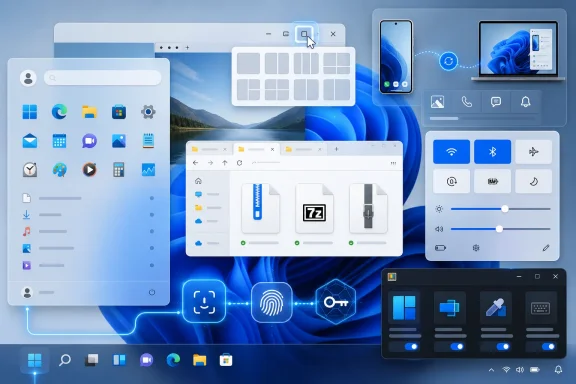 Windows 11’s Best Features Are Hiding in Plain Sight
The most revealing thing about a “hidden Windows features” list is how little of it is truly obscure. Moving the Start button back to the left is not a secret hack. Disabling startup apps is not a registry spelunking exercise. File Explorer tabs, Snap Layouts, passkeys, Phone Link, virtual desktops, battery graphs, and Quick Settings are all mainstream features that Microsoft has shipped, revised, and in some cases loudly announced.Yet many users still miss them because Windows 11 distributes power across too many surfaces. Some options live in Settings, some in legacy Control Panel-style dialogs, some behind right-click menus, some in taskbar flyouts, some in Store apps, and some in optional downloads. The operating system is no longer a single interface so much as an ecosystem of small control centers.
That is not entirely bad. Windows serves gamers, accountants, developers, students, photographers, help desk staff, and people who just want Chrome and a printer. The OS cannot be simple in the way iPadOS can be simple. But Microsoft’s challenge is that discoverability now matters as much as capability, and Windows 11 too often assumes that users will go looking for features they do not know exist.
The PCMag list works because it treats Windows like a machine you can tune. That is still the platform’s greatest strength. The problem is that Microsoft increasingly hides the tuning knobs inside a design language that wants to look calmer than Windows actually is.
The Start Menu Fight Was Really About Muscle Memory
Windows 11’s centered Start button was never just a cosmetic decision. It was Microsoft’s attempt to make Windows feel modern, symmetrical, and less anchored to three decades of bottom-left muscle memory. For new users, especially those arriving from phones and tablets, centering the taskbar makes a kind of visual sense.For longtime Windows users, it often feels like someone moved the light switch. The fix is simple: right-click the taskbar, open Taskbar settings, expand taskbar behaviors, and set alignment to the left. That small toggle is one of the most important Windows 11 features because it acknowledges a truth Microsoft sometimes forgets: productivity is partly physical memory.
The same applies to Start menu customization. Windows 11 removed Live Tiles, simplified pinned apps, and pushed recommendations into the lower half of the menu. It also added ways to pin apps, create folders, adjust recommendation behavior, and restore quick links to Settings, File Explorer, Network, Documents, Pictures, and other familiar locations.
The lesson is not that the old Start menu was perfect. It was not. The lesson is that users should not have to adapt to Microsoft’s preferred layout when a machine is supposed to be their working environment. Windows 11 becomes easier to like the moment users learn that many of its controversial defaults are negotiable.
PowerToys Is the Windows Features Team Microsoft Keeps Outside Windows
PowerToys remains the most interesting contradiction in Microsoft’s desktop strategy. It is an official Microsoft project, it solves real Windows annoyances, and it contains utilities that many power users install immediately on a new PC. Yet it remains separate from Windows itself, available through the Microsoft Store, GitHub, or package managers rather than as a standard part of the operating system.That separation has advantages. PowerToys can move faster than Windows, experiment more freely, and serve enthusiasts without overwhelming casual users. Tools like FancyZones, PowerRename, Image Resizer, Always on Top, Mouse utilities, keyboard remapping, and multi-PC input control are exactly the sort of features that make Windows feel like a workstation rather than an appliance.
But the line between “optional utility” and “missing feature” keeps getting blurrier. If Windows 11 has Snap Layouts, why does Microsoft still need FancyZones for serious layout control? If File Explorer supports basic batch operations, why is PowerRename such a revelation? If Windows is designed for multi-monitor productivity, why are some of the best monitor and window-management behaviors still delivered as add-ons?
PowerToys is a compliment to Windows engineering and an indictment of Windows product packaging. It shows that Microsoft understands how people actually work at a PC. It also shows that many of those insights still arrive as optional tools for users already savvy enough to know they exist.
The Taskbar and Quick Settings Are Becoming a Control Deck
Windows 11’s taskbar is less flexible than Windows 10’s in some ways, but its flyouts are more deliberate. Quick Settings separates Wi-Fi, Bluetooth, volume, brightness, projection, battery saver, accessibility, and other controls from the notification stream. That matters because notifications are noise, while quick controls are intent.The 24H2-era shift toward a scrolling Quick Settings panel is a small but telling design change. Instead of asking users to add and remove tiles in the old way, Windows increasingly presents a fixed control surface that users can rearrange. It is less customizable in one sense and more predictable in another.
That trade-off will irritate some power users, especially those who dislike losing any control. But for a general-purpose OS, predictability is not trivial. A consistent Quick Settings panel helps support teams, family troubleshooters, and users who need to find Bluetooth or projection settings quickly without remembering which tile they removed last year.
The taskbar also hides newer conveniences like Phone Link status, Copilot access on some systems, and Widgets. Microsoft’s challenge is restraint. The right side of the taskbar can be a useful cockpit, but it can also become a billboard if every service team at Microsoft sees it as premium real estate.
Snap Layouts Are the Feature That Best Explains Modern Windows
Snap Layouts may be the most Windows-like feature in Windows 11: practical, slightly under-advertised, and much more useful once it becomes habit. Hover over a window’s maximize button or use the keyboard shortcut, and Windows offers layouts that fit the screen. On larger monitors, ultrawides, and high-resolution laptop panels, this turns window management from a fiddly exercise into a repeatable workflow.This is where Windows still outclasses many competitors. A desktop OS lives or dies by how well it handles multiple simultaneous tasks. Browser on the left, notes on the right, Teams tucked into a corner, Explorer open beside an editor — this is not exotic behavior for office workers or sysadmins. It is the ordinary texture of PC work.
Virtual desktops extend the same idea across contexts. One desktop for communication, one for a project, one for personal browsing, one for a remote session or lab environment. Different wallpapers per desktop sound cosmetic, but they provide a visual cue that reduces the cognitive load of switching spaces.
The irony is that Microsoft has spent years trying to make Windows friendlier and more phone-like, while some of Windows 11’s strongest features double down on the PC as a multitasking machine. Snap Layouts, virtual desktops, File Explorer tabs, and PowerToys FancyZones are not about simplicity. They are about controlled complexity.
File Explorer Is Finally Learning From the Apps That Replaced It
For years, File Explorer has been both indispensable and strangely stagnant. Users lived in it, IT departments depended on it, and third-party file managers kept proving how much better it could be. Windows 11 has not transformed Explorer overnight, but the cumulative changes are meaningful.Tabs are the headline improvement. They reduce window clutter, make file operations easier to stage, and bring Explorer closer to the mental model users already have from browsers and code editors. Dragging files between tabs is not glamorous, but it is exactly the sort of everyday friction reducer Windows needs.
The simplified command bar is more divisive. Microsoft stripped back the old ribbon and surfaced common actions like copy, paste, rename, share, delete, sort, and view. Some advanced users still miss the dense command surface of earlier Windows versions, but the cleaner design better reflects how most people use Explorer most of the time.
Native archive support is another overdue concession to reality. Windows 11 version 24H2 supports more archive formats, including 7z and TAR alongside ZIP and other formats, though encrypted archive handling and advanced compression workflows still leave room for dedicated tools. This is Microsoft closing a gap that should have been closed years ago: ordinary users should not need a separate utility just to open common archive types.
The new AI Actions in File Explorer are more complicated. Right-clicking an image to remove a background or a document to summarize it sounds useful, but it also turns Explorer into another front door for Microsoft’s AI ambitions. If the actions are fast, local where possible, and respectful of file privacy, users may embrace them. If they feel like cloud-service upsells stapled to right-click menus, admins will look for ways to turn them off.
The Security Shift Is Quiet Because Passwords Are Embarrassing
Passkeys are one of the most important Windows 11 features that many users still do not understand. That is not their fault. The industry has spent decades training people to create, remember, reset, rotate, mistype, reuse, and leak passwords, and now it has to explain why the better answer is a cryptographic credential unlocked by your face, fingerprint, PIN, phone, or security key.Windows 11’s native passkey support matters because the operating system is where identity meets habit. If passkeys feel like an exotic browser feature, adoption will be slow. If they feel like a normal Windows Hello sign-in flow, they have a chance to become ordinary.
The practical benefit is straightforward. A passkey is resistant to phishing in ways a password is not, because the credential is bound to the legitimate service and private key material is not typed into a fake website. Windows Hello then becomes more than a convenient unlock method; it becomes part of the authentication fabric for websites and applications that support modern sign-in.
For enterprises, the story is broader. Passkeys intersect with Microsoft Entra ID, FIDO2 security keys, device compliance, conditional access, and passwordless strategy. For home users, the message should be simpler: if a major site offers a passkey, and Windows offers to save or use it securely, it is probably worth learning the flow.
Microsoft should be more aggressive here. The company has no trouble promoting Copilot prompts or OneDrive backup nudges. It should be just as persistent in teaching users how to stop relying on passwords.
Phone Link Is the Bridge Apple Built First and Microsoft Still Needs
Phone Link is one of those Windows features that sounds minor until it becomes part of your routine. Seeing phone notifications on a PC, replying to texts, taking calls, using a phone as a webcam, accessing photos, enabling hotspot features, and in some cases running Android apps on the desktop all reduce the device juggling that defines modern work.The feature is strongest with Android, where Microsoft has more room to integrate. iPhone support exists but remains more limited because Apple’s ecosystem is designed to make the Mac the best companion to the iPhone. That is not surprising, but it is strategically important. Windows remains the world’s most important desktop platform, yet many Windows users carry iPhones.
Microsoft’s answer cannot simply be “buy Android.” It has to make the cross-device experience good enough that Windows does not feel like a second-class citizen in a phone-centered world. Phone Link, cross-device copy and paste, File Explorer phone integration, and Start menu phone panels are steps in that direction.
Still, PC-to-phone continuity remains one of the areas where Windows feels like it is assembling a bridge from mismatched parts. The pieces are useful. The whole is not yet as seamless as it should be.
Windows Backup Is Really a New-PC Migration Tool
Windows Backup sounds dull, which is probably why many users ignore it. But it represents a critical shift in how Microsoft thinks about PC ownership. The PC is no longer treated as a standalone box with settings trapped inside it; it is increasingly treated as a replaceable endpoint attached to a Microsoft account and cloud storage.The Windows Backup app can preserve files, settings, apps, credentials, Wi-Fi logins, and personalization details, with OneDrive doing much of the cloud work. For consumers moving to a new laptop, that can turn setup from a weekend project into a sign-in process. For small businesses without mature endpoint management, it can reduce the pain of replacing a failed machine.
There are caveats. Backup tied to OneDrive raises storage, privacy, and account-dependency questions. Users who prefer local-only computing will see the feature as another cloud tether. Administrators will want to understand exactly what is backed up, where it goes, and how it interacts with enterprise policies.
But the direction is sensible. Windows PCs fail, age out, get stolen, and get replaced. A modern operating system should make restoration boring. If Microsoft can make Windows Backup transparent without making it coercive, it may become one of Windows 11’s most consequential quiet features.
Copilot Is Both a Feature and a Strategy Tax
No part of Windows 11 currently carries more strategic weight than Copilot. Microsoft has inserted AI into the taskbar, Edge, Office, Paint, Photos, Notepad, File Explorer, Settings, and the broader Copilot+ PC story. Depending on the hardware and build, users may see chat assistance, image generation, writing help, document summarization, file search, Click to Do, Recall, semantic search, and on-device AI features.Some of this is genuinely useful. Asking an assistant to summarize a PDF, rewrite a paragraph, explain an image, or help locate a setting can save time. Copilot Vision-style guidance, where an assistant can interpret what is on screen and talk users through a task, hints at a future where help systems are interactive rather than static.
But Copilot also adds a new layer of confusion to Windows. Some features require a Copilot+ PC. Some depend on staged rollouts. Some are cloud-backed. Some are local. Some are previews. Some appear in one region, edition, or update channel before another. A user may reasonably ask why a “Windows 11 feature” is not on their Windows 11 PC.
Recall remains the most sensitive example. Microsoft’s idea — a searchable memory of what you have seen and done on the PC — is powerful. It is also inherently risky, because screenshots and activity history can contain private messages, documents, credentials, financial details, health information, legal material, and business secrets. Microsoft has responded with security changes, opt-in flows, Windows Hello protection, encryption, filtering, and enterprise controls, but the core tension remains.
The Copilot+ PC strategy is Microsoft’s attempt to make Windows hardware matter again. NPUs, local models, semantic search, image tools, live captions, and AI-assisted workflows give OEMs something new to sell beyond thinner bezels and better battery life. But for IT departments, every AI feature is also a governance question: where does the data go, what can be disabled, what is logged, and what happens when an employee leaves?
The best version of Copilot in Windows is not a chatbot bolted to the taskbar. It is a context-aware assistant that helps users complete local tasks, respects boundaries, explains what it is doing, and disappears when it is not needed. Microsoft is not there yet, but the direction is obvious.
The Old Productivity Tricks Still Matter More Than the New AI Demos
It is tempting to treat Windows 11’s AI features as the main event, but PCMag’s list is a reminder that the most valuable features are often mundane. Startup app management can make a sluggish PC feel new. Battery usage graphs can reveal the one background app eating a laptop alive. Focus Sessions can carve out interruption-free work time. Title Bar Shake can clear desktop clutter in a second.These are not keynote features. They are daily quality-of-life features, and they matter because Windows is used in the mess of real life. People have too many apps installed, too many windows open, too many notifications arriving, too many browser tabs consuming memory, and too many devices competing for attention.
The startup apps panel is especially important. Software vendors have every incentive to make their apps launch automatically, remain resident, and compete for attention. Windows gives users a way to push back. Turning off unnecessary startup items is one of the simplest performance improvements available to nontechnical users.
Focus Sessions, buried in the Clock app, shows the other side of the same problem. Performance is not only CPU cycles and RAM pressure. It is attention. A PC that constantly interrupts you is slow in a different way, even if Task Manager looks fine.
Accessibility Features Are Power Features Wearing a Different Badge
The mouse pointer setting that makes the cursor larger, colored, or dynamically visible against different backgrounds is filed under Accessibility, but it is useful far beyond the audience implied by that label. Anyone who uses multiple monitors, high-DPI displays, remote desktops, projectors, or screen sharing knows the tiny humiliation of losing the pointer.The same is true of mono audio, captions, magnification, voice access, color filters, and input adjustments. Accessibility features often begin as accommodations for specific needs and end up improving computing for everyone. This is one of the quiet success stories of modern OS design.
Windows 11’s touch gestures also sit at the intersection of accessibility, mobility, and muscle memory. Four-finger task view, three-finger minimize, edge swipes, and tablet-friendly navigation are useful for convertibles and touch PCs, but they require learning. Microsoft has never been especially good at teaching gestures after setup, and that weakens the feature.
Keyboard shortcuts remain the more durable Windows language. Windows-Z for Snap Layouts, Windows-A for Quick Settings, Windows-W for Widgets, Windows-K for casting, Windows-V for clipboard history, and Windows-Shift-S for screenshots are small investments with large returns. The best Windows users are not necessarily the most technical; they are the ones who accumulate these tiny accelerators over years.
Gaming Features Have Escaped the Gaming Box
The Xbox Game Bar is marketed to gamers, but its utility is broader. Screen recording, audio routing, performance overlays, resource snapshots, and capture tools are useful to support technicians, educators, software testers, content creators, and anyone trying to document a bug before it disappears.This is part of a larger pattern. Features built for one audience often become general-purpose Windows infrastructure. GPU scheduling, Auto HDR, low-latency input paths, screen capture improvements, and performance monitors may arrive under the gaming banner, but they affect the broader PC ecosystem.
Sound Recorder and Media Player tell a similar story at a smaller scale. Microsoft has replaced or modernized older inbox apps with cleaner versions that do fewer things than pro tools but enough for ordinary tasks. A basic waveform recorder with export formats is not Audacity, and the new Media Player is not a full media-management suite, but both reduce the need for third-party installs.
That matters for security as much as convenience. Every unnecessary utility downloaded from a random site is another supply-chain risk, another updater, another startup item, another support variable. A more capable Windows inbox experience can make the average PC both cleaner and safer.
The Settings App Is Now the Real Control Panel, Except When It Isn’t
Windows 11 continues Microsoft’s long migration from Control Panel to Settings. The modern Settings app is where users now manage startup apps, battery, sound devices, personalization, default apps, passkeys, accessibility, multitasking, backup, Bluetooth, phones, and much more. For many users, it is the operating system’s real command center.The trouble is that Windows still carries old architecture under the floorboards. Some advanced settings remain in legacy dialogs. Some device properties open interfaces that look unchanged for a decade. Some troubleshooting paths bounce users between modern and classic surfaces. This is less jarring than it used to be, but it is still a reminder that Windows modernization is a renovation, not a rebuild.
Default apps remain a good example of Microsoft’s mixed instincts. Windows 11 gives users granular control by file type and protocol, which is powerful. But that granularity can feel hostile when a user simply wants to make a browser, media player, or image editor the default for everything it handles.
Microsoft has improved parts of this experience since Windows 11’s launch, but the philosophical tension remains. Granular control is good for administrators and power users. Simple intent is better for everyone else. Windows needs both, and it does not always know which one to show first.
Widgets and Recommendations Test the Boundary Between Help and Promotion
Widgets could be one of Windows 11’s friendliest features. Weather, calendar, to-do items, stocks, traffic, sports scores, and third-party widgets all make sense in a glanceable panel. A well-designed widget board gives users quick context without forcing them into separate apps or browser tabs.The issue is trust. Microsoft Start content, recommendations, suggested apps, news feeds, and promotional surfaces can make users suspicious that helpful panels are really engagement funnels. Even when the content is benign, the memory of unwanted promotions in Windows is hard to erase.
The Start menu’s Recommended section faces the same problem. Recent files and frequently used apps are useful. Tips, shortcuts, and app suggestions may be useful. But the moment users perceive the area as advertising, they stop treating it as part of their workflow.
Microsoft’s path here is narrow. Recommendations should be explainable, controllable, and easy to disable. If the company wants Windows to feel premium, it must resist the temptation to monetize every idle pixel.
The Hidden Feature Story Is Really a Documentation Failure
The reason articles like PCMag’s exist is that operating systems do not teach themselves well. Windows 11 has tooltips, first-run prompts, search, settings descriptions, and occasional tips, but it still relies heavily on outside publications, YouTube channels, forums, and workplace folklore to spread knowledge.That is not new. Generations of Windows users learned the OS through magazines, help desk colleagues, school labs, and trial and error. But the stakes are higher now because Windows changes continuously. Features arrive through annual updates, “Moment”-style drops, Store app updates, driver packages, cloud flags, region-specific rollouts, and hardware-dependent experiences.
This makes Windows feel inconsistent. One person’s PC has Recall; another does not. One user sees AI actions; another waits for a staged rollout. One machine supports LE Audio hearing devices; another lacks the required hardware or driver support. One user can compress to 7z in Explorer; another is on an older build.
The answer is not to stop adding features. The answer is to communicate feature availability with more precision inside the OS itself. Windows should be able to tell users, plainly, “This feature requires version 24H2,” “This feature requires a Copilot+ PC,” “Your administrator has disabled this,” or “This is rolling out gradually.” Too often, Microsoft lets ambiguity masquerade as simplicity.
The Features Worth Finding First on a Real Windows 11 PC
For all the complexity, the practical advice is simple: start with the features that reduce daily friction before chasing the flashier demos. A tuned Windows 11 PC is faster to start, easier to navigate, safer to sign into, less cluttered, and better connected to the devices around it.- Move the Start button left if centered alignment still slows you down after a fair trial.
- Disable unnecessary startup apps before blaming Windows 11 for sluggish boot and sign-in performance.
- Install PowerToys if you manage lots of windows, rename files in batches, resize images, or want deeper control than stock Windows provides.
- Learn Snap Layouts, clipboard history, and the screenshot shortcut because they repay the effort every day.
- Set up passkeys and Windows Hello wherever supported, since passwordless sign-in is one of the few security upgrades that can also feel more convenient.
- Treat Copilot, Recall, and other AI features as opt-in productivity tools, not mandatory parts of the Windows experience.
Source: PCMag 32 Hidden Windows 11 Features You're Probably Not Using (But Should Be)
