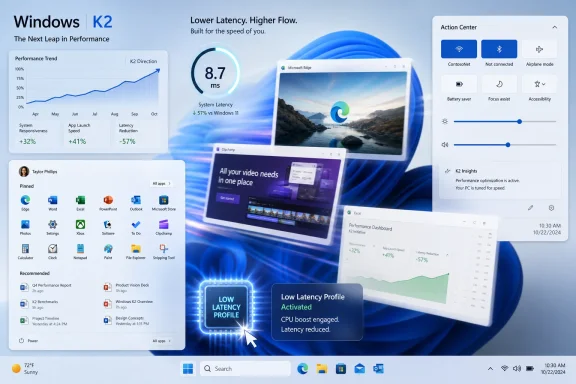
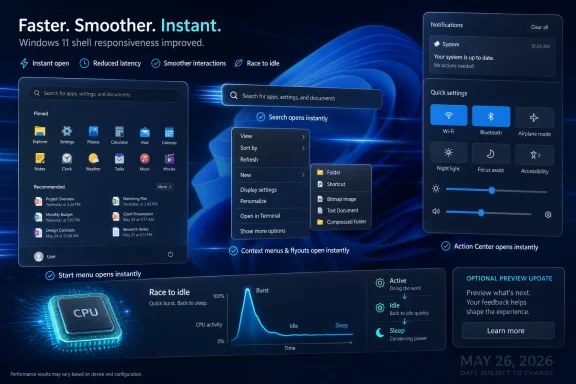
Microsoft released the optional Windows 11 KB5089573 preview update on May 26, 2026, for Windows 11 24H2 and 25H2 systems, bringing a phased performance change that accelerates app launch paths and shell surfaces such as Start, Search, Action Center, and related UI flyouts. The feature is not advertised in the update notes by its more interesting internal framing, but the behavior lines up with the “Low Latency Profile” work that has been circulating through Windows testing channels. That matters because Microsoft is no longer merely polishing icons or rearranging Settings pages; it is trying to make Windows 11 feel faster at the exact moments users judge whether a PC is responsive. The controversy is that the fix is both technically ordinary and culturally explosive: Windows is learning to sprint for a second, then go back to sleep.
The official wording is almost comically understated. Microsoft describes the update as a general performance improvement that accelerates app launch and core shell experiences, naming Start, Search, and Action Center as examples. For most users, that reads like the usual monthly servicing boilerplate — the kind of line that disappears between printer fixes, input bugs, and obscure enterprise reliability patches.
But this time the wording points to something more consequential. The update appears to contain the code path associated with Windows 11’s Low Latency Profile, a set of tuning changes designed to reduce the delay between a user action and the visible response on screen. That delay is often measured in fractions of a second, but it is also where operating systems win or lose their reputation.
Windows 11 has had a responsiveness problem from the beginning, and not always because it is objectively slow in benchmarks. The complaint has been more human than synthetic: menus hesitate, flyouts animate unevenly, context menus sometimes feel like they need permission to exist, and Search can appear with the weary confidence of an app that knows the user has no alternative. A fast CPU does not fully erase that impression if the interface regularly misses the beat.
That is why this update is more important than its optional-preview status suggests. Microsoft is not just chasing higher throughput; it is trying to cut perceived latency in places where the OS has trained users to expect friction. In consumer language, that means Windows should feel less sticky. In engineering language, it means the system needs to prioritize interactive work aggressively enough that the shell stops looking surprised when someone clicks on it.
That idea is often called race to sleep or race to idle. Instead of letting a task crawl along at a lower frequency and keeping the system awake longer, the machine spends a short burst of energy to finish the task quickly. In a well-tuned system, this can improve responsiveness without necessarily turning the PC into a space heater.
Microsoft’s Scott Hanselman has defended the approach in public, arguing that modern operating systems already use similar tactics. macOS, Linux, and smartphone platforms all lean on scheduling, frequency scaling, and foreground prioritization to make user-facing actions feel immediate. The scandal, if there is one, is not that Windows is doing something exotic. It is that Windows users are suspicious enough of the platform’s recent performance history to treat a standard latency technique as an admission of failure.
That suspicion did not emerge from nowhere. Windows 11 has layered new UI frameworks, web-backed components, modernized shells, and compatibility scaffolding on top of decades of Win32 expectations. Users see the result when a right-click menu opens slower than the old one it replaced, or when Start feels visually modern but mechanically less direct. A short CPU burst may be valid engineering, but it arrives in a trust environment where every performance claim is cross-examined.
Microsoft’s Controlled Feature Rollout system is the reason. CFR lets the company ship feature bits broadly while activating them gradually for subsets of devices. From Microsoft’s side, this is risk management: if a feature causes crashes, power regressions, app weirdness, or device-specific problems, the company can slow or stop the rollout without pulling the entire update.
From the user’s side, CFR often feels like lottery-based computing. Two machines can have the same Windows build, the same update installed, and different visible behavior. One user gets the faster shell; another gets the promise of it; a third reads about it online and assumes something is broken.
That tension is especially sharp with performance work. A new Settings page or Start menu layout can reasonably roll out in waves because Microsoft is measuring engagement and reliability. But a responsiveness fix lands differently. If the update makes Windows feel better, users understandably ask why it should be rationed at all.
This is where the ViveTool instructions circulating online enter the story. Enthusiasts can force-enable hidden Windows feature IDs, including the reported ID associated with this Low Latency Profile activation. The specific command being passed around is simple enough for power users: install the optional update, run an elevated Command Prompt from the ViveTool folder, enable the feature ID, and reboot.
That simplicity is both useful and dangerous. It gives impatient users a path to the improvement, but it also bypasses the very rollout controls Microsoft uses to detect problems. On a test box, that is fair game. On a work machine, shared family PC, or production endpoint, it is the kind of shortcut that can turn “optional preview” into “self-inflicted troubleshooting exercise.”
That distinction matters. A Settings toggle implies documentation, expected behavior, reversibility, and some level of customer support. A feature flag flipped by a third-party utility implies none of that. If the system behaves strangely afterward, the user owns the experiment.
The reported enablement command for this rollout targets feature ID 58989092. Users are also being told they can reverse the change by running the same command with disable instead of enable, at least while the feature remains behind a controllable flag. Once Microsoft decides the feature should be default for a device cohort, that local switch may no longer behave like an opt-out.
This is a familiar pattern for Windows watchers. The company often ships features in public builds long before it is ready to expose them. Enthusiasts discover the IDs, turn them on, and publish screenshots or benchmarks. Microsoft gets unofficial telemetry from a population of volunteers who may not think of themselves as testers.
The difference here is that the feature is not a redesigned dialog or a hidden Copilot entry point. It touches scheduling behavior and responsiveness. Even if the change is narrow and sensible, it lives closer to the performance core of the OS than most hidden UI experiments. That makes the enthusiast path more tempting and more worthy of restraint.
For WindowsForum readers, the practical advice is straightforward: if you are curious, use a spare machine or a system you can afford to roll back. If you administer fleets, wait for policy-visible behavior and Microsoft’s normal cumulative update cadence. If your only PC is currently stable, do not confuse “available” with “owed immediately.”
There is a kernel of truth in that complaint, but not enough to carry the whole argument. Interactive systems have always depended on prioritization. A modern OS does not treat a background sync job, a foreground click, a notification animation, and a compiler workload as morally equal events. It ranks them, schedules them, and often lets the foreground path win.
The better criticism is not that CPU boosting is “cheating.” The better criticism is that Windows 11 has needed this kind of polish too visibly and for too long. If a Start menu feels slow on modern hardware, users do not care whether the root cause is framework overhead, scheduling policy, animation timing, disk wake latency, security scanning, or a thread waiting in the wrong place. They experience it as Windows being Windows.
That is the trust gap Microsoft has to close. The same technique that feels elegant on a phone or Mac can feel suspicious on Windows because users have been conditioned to expect regressions hidden inside improvements. A brief CPU spike is technically defensible. It is also politically combustible when it arrives after years of complaints about Start, Search, Explorer, and the new context menu.
Microsoft’s challenge is to prove that Low Latency Profile is not a substitute for optimization. It must be one layer in a broader performance strategy. If the company merely raises the boost ceiling around sluggish code paths, the feature will be remembered as a bandage. If it pairs the tuning with native UI work, shell cleanup, and measurable reductions in overhead, it becomes part of a credible course correction.
Open Start. Type three letters. Right-click a file. Hit Win+A. Launch Settings. Expand a tray flyout. These actions do not need workstation-class horsepower, yet they are precisely where Windows 11 has often felt less assured than it should. Users interpret these micro-pauses as system age, software decay, or Microsoft indifference.
That is why Low Latency Profile is aimed at the correct layer. The Windows shell is the lobby of the operating system. If the lobby is laggy, users assume the building is badly managed even if the elevators are fast.
The reported hands-on impressions match that framing. The biggest changes are not necessarily in heavy application workloads but in shell fluidity: Start appears with less chop, Action Center animates more smoothly, right-click rendering feels less delayed, and everyday flyouts seem more eager to respond. That is not the same as making Photoshop render faster or a game gain frames. It is the more subtle job of making the OS stop tripping over its own front desk.
There is an important caveat, though. Microsoft’s changelog mentions app launch as well as shell experiences, while some early reporting suggests that the currently visible gains may be concentrated in OS flyouts and shell surfaces, with broader app launch improvements arriving separately or later. That distinction should be kept clear. Windows users have been burned before by performance claims that blur “the system feels smoother” into “everything is faster.”
A lightweight burst policy can help those systems punch above their weight. It cannot create RAM that is not there, eliminate slow storage, or fix a vendor image loaded with background agents. But it can reduce the perceptual penalty of waiting for the processor to climb from a conservative power state into useful work.
Premium PCs benefit differently. A high-end laptop or desktop may already open menus quickly enough that the improvement does not look dramatic in a screen recording. But premium feel is not just about maximum speed; it is about consistency. A device with a high-refresh display and a fast processor looks worse, not better, when the OS shell stutters because the user knows the hardware is not the bottleneck.
This is where Windows 11 has been vulnerable to comparison with phones and Macs. Users now expect interface animation to be smooth by default. A $1,500 Windows laptop that occasionally hesitates on a context menu feels more embarrassing than a cheap desktop doing the same thing, because the user has paid for the absence of excuses.
Low Latency Profile addresses the moment of interaction rather than the abstract capacity of the machine. That is exactly where Windows needs attention. Modern PCs are rarely short of theoretical performance; they are often short of well-timed performance.
That part matters because a scheduler can only prioritize the work it is given. If a shell surface is built on a stack that takes too long to initialize, renders inefficiently, or waits on too many layers, a CPU burst can improve the symptom but not fully cure the design. Native code is not automatically good, and web technology is not automatically bad, but Windows shell experiences have to meet a latency bar that general-purpose app frameworks often miss.
The Start menu is the symbolic case. It is not just an app launcher; it is the emotional center of Windows. Every time it opens slowly, shows a blank beat, or feels overbuilt for the task, it reinforces the idea that Microsoft has complicated the simplest part of the PC.
A serious Windows performance push therefore needs both policies and plumbing. The policies make foreground interactions more urgent. The plumbing reduces the amount of work needed to satisfy those interactions in the first place. One without the other risks disappointment.
If Microsoft gets this pairing right, Windows 11 could finally start to shed some of its early reputation for decorative sluggishness. If it gets it wrong, the Low Latency Profile will become another entry in the long catalog of Windows tweaks that enthusiasts enable while ordinary users wait for the operating system to become less theatrical.
Optional preview updates are already a controlled risk. They give organizations a chance to test non-security fixes before the next Patch Tuesday bundle, but they are not usually something administrators spray across production without a reason. A performance improvement does not change that calculus by itself.
The CFR layer adds another wrinkle. An admin can install the update and still not know whether the performance behavior is active across all machines. That complicates validation because the presence of a build number no longer guarantees the presence of the experience. For feature delivery, this is Microsoft’s chosen future. For enterprise repeatability, it is a nuisance.
There is also the measurement problem. Responsiveness improvements are notoriously hard to validate at fleet scale unless Microsoft exposes counters, policy controls, or clear documentation. A user saying “Start feels faster” is valuable feedback, but it is not a deployment metric. Admins need to know whether the change affects power draw, thermals, battery life, VDI behavior, latency-sensitive workloads, and help desk tickets.
The good news is that this class of change is less likely to break line-of-business apps than a shell redesign or security default. The bad news is that performance tuning can expose device-specific firmware, driver, and power-plan quirks. A burst policy that feels great on one laptop could be less impressive on another with aggressive thermal limits or vendor power management layered on top.
The enterprise posture should be patient curiosity. Test the optional update on representative hardware. Watch for shell reliability, battery complaints, fan behavior, and any weird interaction with endpoint management tools. Let Microsoft’s phased rollout do some of the risk filtering before deciding that every user needs the feature today.
Low Latency Profile is a perfect example. The update can be installed. The code can be present. The feature can still be inactive. A third-party utility can flip it on. A future cumulative update can make it default. Somewhere in that chain, the ordinary user’s mental model breaks.
Microsoft has reasons for this approach. Windows runs across a hardware ecosystem so broad that staged deployment is not optional if the company wants to avoid mass regressions. The old model of shipping everything to everyone at once was simpler to understand but harsher when something went wrong.
Still, opacity has a cost. Enthusiasts fill the gap with feature IDs and command-line recipes. News sites fill the gap with “how to enable it now” posts. Users fill the gap with suspicion. Each hidden switch becomes a small reminder that Windows is no longer a box of capabilities but a negotiation between local bits and Microsoft’s remote confidence score.
That may be acceptable for experimental features. It is more awkward for performance fixes. Nobody wants to feel like their PC is slower because they are in the wrong rollout bucket.
Modern processors are designed around this dance. They boost, throttle, park, migrate, and sleep constantly. Operating systems influence that behavior through schedulers, power profiles, foreground hints, and device policies. Low Latency Profile is newsworthy because it is being attached to Windows 11’s visible responsiveness problem, not because the underlying concept is radical.
The real risk is not the spike. The real risk is using the spike as permission to leave inefficient paths untouched. If Microsoft treats burst tuning as a replacement for leaner shell code, users will eventually notice the ceiling. A faster ramp can hide a delay, but it cannot make a bloated design elegant.
The other risk is communication. Calling the change “General Performance” avoids inflaming the debate, but it also undersells the engineering and leaves room for speculation. Microsoft does not need to publish every internal flag name, but it should be clearer when a Windows update changes foreground responsiveness policy in ways users may notice.
Transparency would also help with battery expectations. If the company believes race-to-sleep behavior can improve perceived speed without harming battery life, it should say so plainly and back it with data when the feature becomes broadly available. Windows users are not allergic to technical explanations. They are allergic to being managed with vague optimism.
The battlefield is not Geekbench. It is the half-second after a click. It is whether Search feels ready before the user finishes typing. It is whether a context menu appears as if it belongs to the current decade. It is whether a budget laptop feels dignified and a premium laptop feels premium.
That is why the Low Latency Profile debate has become louder than the feature’s technical footprint might justify. It sits at the intersection of Microsoft’s engineering reality and Windows users’ emotional memory. Users remember slow Start menus. They remember half-modernized shell surfaces. They remember being told things were better while their daily interactions said otherwise.
If the May optional update makes those interactions smoother, Microsoft deserves credit. If the feature is only partially active, only visible to some users, or dependent on hidden toggles, the company should expect confusion. A performance win that arrives through fog still feels like a Windows win, but it also feels like Windows being Windows.
 Microsoft Hides a Big Bet Inside a Small Changelog Line
The official wording is almost comically understated. Microsoft describes the update as a general performance improvement that accelerates app launch and core shell experiences, naming Start, Search, and Action Center as examples. For most users, that reads like the usual monthly servicing boilerplate — the kind of line that disappears between printer fixes, input bugs, and obscure enterprise reliability patches.But this time the wording points to something more consequential. The update appears to contain the code path associated with Windows 11’s Low Latency Profile, a set of tuning changes designed to reduce the delay between a user action and the visible response on screen. That delay is often measured in fractions of a second, but it is also where operating systems win or lose their reputation.
Windows 11 has had a responsiveness problem from the beginning, and not always because it is objectively slow in benchmarks. The complaint has been more human than synthetic: menus hesitate, flyouts animate unevenly, context menus sometimes feel like they need permission to exist, and Search can appear with the weary confidence of an app that knows the user has no alternative. A fast CPU does not fully erase that impression if the interface regularly misses the beat.
That is why this update is more important than its optional-preview status suggests. Microsoft is not just chasing higher throughput; it is trying to cut perceived latency in places where the OS has trained users to expect friction. In consumer language, that means Windows should feel less sticky. In engineering language, it means the system needs to prioritize interactive work aggressively enough that the shell stops looking surprised when someone clicks on it.
The CPU Boost Is Not Magic, and That Is the Point
The phrase “CPU boost” makes the feature sound like a gamer utility, a BIOS preset, or a hidden overclocking switch. It is none of those things. The core idea is that Windows can briefly allow the processor to ramp up more quickly during interactive events, complete the work sooner, and then return to a lower-power state.That idea is often called race to sleep or race to idle. Instead of letting a task crawl along at a lower frequency and keeping the system awake longer, the machine spends a short burst of energy to finish the task quickly. In a well-tuned system, this can improve responsiveness without necessarily turning the PC into a space heater.
Microsoft’s Scott Hanselman has defended the approach in public, arguing that modern operating systems already use similar tactics. macOS, Linux, and smartphone platforms all lean on scheduling, frequency scaling, and foreground prioritization to make user-facing actions feel immediate. The scandal, if there is one, is not that Windows is doing something exotic. It is that Windows users are suspicious enough of the platform’s recent performance history to treat a standard latency technique as an admission of failure.
That suspicion did not emerge from nowhere. Windows 11 has layered new UI frameworks, web-backed components, modernized shells, and compatibility scaffolding on top of decades of Win32 expectations. Users see the result when a right-click menu opens slower than the old one it replaced, or when Start feels visually modern but mechanically less direct. A short CPU burst may be valid engineering, but it arrives in a trust environment where every performance claim is cross-examined.
The Optional Update Gives Users the Code Before the Switch
KB5089573 is an optional preview update, which means it sits in the familiar Windows servicing gray zone. Enthusiasts can install it now, while more cautious users and many managed environments will wait for the next cumulative security update path. That is normal Windows hygiene, but it creates an awkward split for a performance feature: the code may be present before the experience is enabled.Microsoft’s Controlled Feature Rollout system is the reason. CFR lets the company ship feature bits broadly while activating them gradually for subsets of devices. From Microsoft’s side, this is risk management: if a feature causes crashes, power regressions, app weirdness, or device-specific problems, the company can slow or stop the rollout without pulling the entire update.
From the user’s side, CFR often feels like lottery-based computing. Two machines can have the same Windows build, the same update installed, and different visible behavior. One user gets the faster shell; another gets the promise of it; a third reads about it online and assumes something is broken.
That tension is especially sharp with performance work. A new Settings page or Start menu layout can reasonably roll out in waves because Microsoft is measuring engagement and reliability. But a responsiveness fix lands differently. If the update makes Windows feel better, users understandably ask why it should be rationed at all.
This is where the ViveTool instructions circulating online enter the story. Enthusiasts can force-enable hidden Windows feature IDs, including the reported ID associated with this Low Latency Profile activation. The specific command being passed around is simple enough for power users: install the optional update, run an elevated Command Prompt from the ViveTool folder, enable the feature ID, and reboot.
That simplicity is both useful and dangerous. It gives impatient users a path to the improvement, but it also bypasses the very rollout controls Microsoft uses to detect problems. On a test box, that is fair game. On a work machine, shared family PC, or production endpoint, it is the kind of shortcut that can turn “optional preview” into “self-inflicted troubleshooting exercise.”
ViveTool Is a Crowbar, Not a Settings Page
ViveTool has become part of the Windows enthusiast ecosystem because Microsoft ships so many dormant features behind internal flags. It is not malware, and it is not inherently reckless. But it is also not a supported Windows configuration surface.That distinction matters. A Settings toggle implies documentation, expected behavior, reversibility, and some level of customer support. A feature flag flipped by a third-party utility implies none of that. If the system behaves strangely afterward, the user owns the experiment.
The reported enablement command for this rollout targets feature ID 58989092. Users are also being told they can reverse the change by running the same command with disable instead of enable, at least while the feature remains behind a controllable flag. Once Microsoft decides the feature should be default for a device cohort, that local switch may no longer behave like an opt-out.
This is a familiar pattern for Windows watchers. The company often ships features in public builds long before it is ready to expose them. Enthusiasts discover the IDs, turn them on, and publish screenshots or benchmarks. Microsoft gets unofficial telemetry from a population of volunteers who may not think of themselves as testers.
The difference here is that the feature is not a redesigned dialog or a hidden Copilot entry point. It touches scheduling behavior and responsiveness. Even if the change is narrow and sensible, it lives closer to the performance core of the OS than most hidden UI experiments. That makes the enthusiast path more tempting and more worthy of restraint.
For WindowsForum readers, the practical advice is straightforward: if you are curious, use a spare machine or a system you can afford to roll back. If you administer fleets, wait for policy-visible behavior and Microsoft’s normal cumulative update cadence. If your only PC is currently stable, do not confuse “available” with “owed immediately.”
The Backlash Says More About Windows 11 Than About CPU Scheduling
The online criticism of Low Latency Profile has followed a predictable script. Microsoft, critics argue, is boosting the CPU to cover up inefficient code. Instead of making Windows leaner, it is throwing hardware at the problem. In the most cynical telling, the company is asking processors to compensate for years of UI bloat.There is a kernel of truth in that complaint, but not enough to carry the whole argument. Interactive systems have always depended on prioritization. A modern OS does not treat a background sync job, a foreground click, a notification animation, and a compiler workload as morally equal events. It ranks them, schedules them, and often lets the foreground path win.
The better criticism is not that CPU boosting is “cheating.” The better criticism is that Windows 11 has needed this kind of polish too visibly and for too long. If a Start menu feels slow on modern hardware, users do not care whether the root cause is framework overhead, scheduling policy, animation timing, disk wake latency, security scanning, or a thread waiting in the wrong place. They experience it as Windows being Windows.
That is the trust gap Microsoft has to close. The same technique that feels elegant on a phone or Mac can feel suspicious on Windows because users have been conditioned to expect regressions hidden inside improvements. A brief CPU spike is technically defensible. It is also politically combustible when it arrives after years of complaints about Start, Search, Explorer, and the new context menu.
Microsoft’s challenge is to prove that Low Latency Profile is not a substitute for optimization. It must be one layer in a broader performance strategy. If the company merely raises the boost ceiling around sluggish code paths, the feature will be remembered as a bandage. If it pairs the tuning with native UI work, shell cleanup, and measurable reductions in overhead, it becomes part of a credible course correction.
Responsiveness Is the Metric Microsoft Forgot Users Actually Feel
Benchmark culture tends to reward large numbers: frames per second, compile times, file copy throughput, browser scores, storage bandwidth. Those numbers matter, but they are not the whole experience of using a PC. The thing that makes a machine feel premium is often the absence of hesitation in mundane actions.Open Start. Type three letters. Right-click a file. Hit Win+A. Launch Settings. Expand a tray flyout. These actions do not need workstation-class horsepower, yet they are precisely where Windows 11 has often felt less assured than it should. Users interpret these micro-pauses as system age, software decay, or Microsoft indifference.
That is why Low Latency Profile is aimed at the correct layer. The Windows shell is the lobby of the operating system. If the lobby is laggy, users assume the building is badly managed even if the elevators are fast.
The reported hands-on impressions match that framing. The biggest changes are not necessarily in heavy application workloads but in shell fluidity: Start appears with less chop, Action Center animates more smoothly, right-click rendering feels less delayed, and everyday flyouts seem more eager to respond. That is not the same as making Photoshop render faster or a game gain frames. It is the more subtle job of making the OS stop tripping over its own front desk.
There is an important caveat, though. Microsoft’s changelog mentions app launch as well as shell experiences, while some early reporting suggests that the currently visible gains may be concentrated in OS flyouts and shell surfaces, with broader app launch improvements arriving separately or later. That distinction should be kept clear. Windows users have been burned before by performance claims that blur “the system feels smoother” into “everything is faster.”
Budget PCs Stand to Gain the Most, But Premium PCs Need This Too
The obvious winners are lower-end machines. On a dual-core system with limited memory, CPU ramp behavior and scheduling priority can be the difference between a menu that appears promptly and one that makes the user wonder whether the click registered. Windows 11’s hardware requirements already pushed older PCs out of the official tent, but plenty of supported machines still live near the low end of acceptable responsiveness.A lightweight burst policy can help those systems punch above their weight. It cannot create RAM that is not there, eliminate slow storage, or fix a vendor image loaded with background agents. But it can reduce the perceptual penalty of waiting for the processor to climb from a conservative power state into useful work.
Premium PCs benefit differently. A high-end laptop or desktop may already open menus quickly enough that the improvement does not look dramatic in a screen recording. But premium feel is not just about maximum speed; it is about consistency. A device with a high-refresh display and a fast processor looks worse, not better, when the OS shell stutters because the user knows the hardware is not the bottleneck.
This is where Windows 11 has been vulnerable to comparison with phones and Macs. Users now expect interface animation to be smooth by default. A $1,500 Windows laptop that occasionally hesitates on a context menu feels more embarrassing than a cheap desktop doing the same thing, because the user has paid for the absence of excuses.
Low Latency Profile addresses the moment of interaction rather than the abstract capacity of the machine. That is exactly where Windows needs attention. Modern PCs are rarely short of theoretical performance; they are often short of well-timed performance.
The Native UI Push Is the Other Half of the Story
The CPU boost narrative is easy to understand because it sounds mechanical: click, spike, respond, sleep. But Microsoft’s broader Windows 11 performance effort appears to involve more than scheduling policy. The company has also been talking about native UI work and reducing dependence on heavier web-backed components in key experiences.That part matters because a scheduler can only prioritize the work it is given. If a shell surface is built on a stack that takes too long to initialize, renders inefficiently, or waits on too many layers, a CPU burst can improve the symptom but not fully cure the design. Native code is not automatically good, and web technology is not automatically bad, but Windows shell experiences have to meet a latency bar that general-purpose app frameworks often miss.
The Start menu is the symbolic case. It is not just an app launcher; it is the emotional center of Windows. Every time it opens slowly, shows a blank beat, or feels overbuilt for the task, it reinforces the idea that Microsoft has complicated the simplest part of the PC.
A serious Windows performance push therefore needs both policies and plumbing. The policies make foreground interactions more urgent. The plumbing reduces the amount of work needed to satisfy those interactions in the first place. One without the other risks disappointment.
If Microsoft gets this pairing right, Windows 11 could finally start to shed some of its early reputation for decorative sluggishness. If it gets it wrong, the Low Latency Profile will become another entry in the long catalog of Windows tweaks that enthusiasts enable while ordinary users wait for the operating system to become less theatrical.
IT Admins Should Treat This as a Servicing Signal, Not a Weekend Project
For administrators, the temptation is to focus on the enablement trick. That is the wrong center of gravity. The more important issue is what KB5089573 says about Microsoft’s servicing model and the increasingly blurred line between update installation and feature activation.Optional preview updates are already a controlled risk. They give organizations a chance to test non-security fixes before the next Patch Tuesday bundle, but they are not usually something administrators spray across production without a reason. A performance improvement does not change that calculus by itself.
The CFR layer adds another wrinkle. An admin can install the update and still not know whether the performance behavior is active across all machines. That complicates validation because the presence of a build number no longer guarantees the presence of the experience. For feature delivery, this is Microsoft’s chosen future. For enterprise repeatability, it is a nuisance.
There is also the measurement problem. Responsiveness improvements are notoriously hard to validate at fleet scale unless Microsoft exposes counters, policy controls, or clear documentation. A user saying “Start feels faster” is valuable feedback, but it is not a deployment metric. Admins need to know whether the change affects power draw, thermals, battery life, VDI behavior, latency-sensitive workloads, and help desk tickets.
The good news is that this class of change is less likely to break line-of-business apps than a shell redesign or security default. The bad news is that performance tuning can expose device-specific firmware, driver, and power-plan quirks. A burst policy that feels great on one laptop could be less impressive on another with aggressive thermal limits or vendor power management layered on top.
The enterprise posture should be patient curiosity. Test the optional update on representative hardware. Watch for shell reliability, battery complaints, fan behavior, and any weird interaction with endpoint management tools. Let Microsoft’s phased rollout do some of the risk filtering before deciding that every user needs the feature today.
The Feature Flag Era Makes Windows Feel Less Like a Product
One of the under-discussed problems with modern Windows is that it increasingly behaves like a service without always giving users service-quality transparency. Features arrive in optional updates, cumulative updates, Experience Packs, Store app updates, server-side toggles, A/B tests, and rollout rings. The result is a platform where “I am fully updated” no longer means “I have the thing Microsoft announced.”Low Latency Profile is a perfect example. The update can be installed. The code can be present. The feature can still be inactive. A third-party utility can flip it on. A future cumulative update can make it default. Somewhere in that chain, the ordinary user’s mental model breaks.
Microsoft has reasons for this approach. Windows runs across a hardware ecosystem so broad that staged deployment is not optional if the company wants to avoid mass regressions. The old model of shipping everything to everyone at once was simpler to understand but harsher when something went wrong.
Still, opacity has a cost. Enthusiasts fill the gap with feature IDs and command-line recipes. News sites fill the gap with “how to enable it now” posts. Users fill the gap with suspicion. Each hidden switch becomes a small reminder that Windows is no longer a box of capabilities but a negotiation between local bits and Microsoft’s remote confidence score.
That may be acceptable for experimental features. It is more awkward for performance fixes. Nobody wants to feel like their PC is slower because they are in the wrong rollout bucket.
The Right Lesson Is Not to Fear CPU Spikes
A brief frequency boost is not inherently wasteful. In many cases, finishing work quickly and returning to idle is the efficient path. The naive view is that a CPU spike must be bad because high frequency consumes more power. The more useful view asks how long the work takes, what state the system returns to afterward, and whether the user-facing latency improves enough to justify the burst.Modern processors are designed around this dance. They boost, throttle, park, migrate, and sleep constantly. Operating systems influence that behavior through schedulers, power profiles, foreground hints, and device policies. Low Latency Profile is newsworthy because it is being attached to Windows 11’s visible responsiveness problem, not because the underlying concept is radical.
The real risk is not the spike. The real risk is using the spike as permission to leave inefficient paths untouched. If Microsoft treats burst tuning as a replacement for leaner shell code, users will eventually notice the ceiling. A faster ramp can hide a delay, but it cannot make a bloated design elegant.
The other risk is communication. Calling the change “General Performance” avoids inflaming the debate, but it also undersells the engineering and leaves room for speculation. Microsoft does not need to publish every internal flag name, but it should be clearer when a Windows update changes foreground responsiveness policy in ways users may notice.
Transparency would also help with battery expectations. If the company believes race-to-sleep behavior can improve perceived speed without harming battery life, it should say so plainly and back it with data when the feature becomes broadly available. Windows users are not allergic to technical explanations. They are allergic to being managed with vague optimism.
The May Preview Is a Test of Microsoft’s New Performance Credibility
The KB5089573 rollout lands at a moment when Microsoft is trying to convince users that Windows 11 performance is a priority rather than a complaint category. That effort includes scheduler work, shell responsiveness tuning, and signs of renewed attention to native UI implementation. None of that instantly erases years of frustration, but it does suggest the company understands the battlefield.The battlefield is not Geekbench. It is the half-second after a click. It is whether Search feels ready before the user finishes typing. It is whether a context menu appears as if it belongs to the current decade. It is whether a budget laptop feels dignified and a premium laptop feels premium.
That is why the Low Latency Profile debate has become louder than the feature’s technical footprint might justify. It sits at the intersection of Microsoft’s engineering reality and Windows users’ emotional memory. Users remember slow Start menus. They remember half-modernized shell surfaces. They remember being told things were better while their daily interactions said otherwise.
If the May optional update makes those interactions smoother, Microsoft deserves credit. If the feature is only partially active, only visible to some users, or dependent on hidden toggles, the company should expect confusion. A performance win that arrives through fog still feels like a Windows win, but it also feels like Windows being Windows.
The Sensible Path Through the Low-Latency Hype
The practical story is narrower than the argument around it, but still important. KB5089573 is worth watching because it appears to bring Microsoft’s responsiveness work into the optional update channel before broader deployment. Users who want the improvement immediately can experiment, but the safest route remains waiting for Microsoft’s normal rollout unless there is a specific reason to test now.- KB5089573 is an optional preview update, not a mandatory security update, so cautious users can wait for the broader cumulative release path.
- The performance improvement is rolling out gradually, which means installing the update may not immediately activate the faster shell behavior on every PC.
- ViveTool can reportedly force-enable the relevant feature flag, but that is an unsupported enthusiast method rather than a normal Windows setting.
- The most visible early gains appear to be in shell responsiveness, including Start, Search, Action Center, context menus, and related flyouts.
- The CPU boost controversy is mostly about trust, because brief foreground performance bursts are common across modern operating systems.
- Administrators should test the update on representative hardware instead of treating a hidden feature flag as a production deployment mechanism.
References
- Primary source: Windows Latest
Published: Wed, 27 May 2026 13:25:03 GMT
Microsoft's Windows 11 CPU boost is rolling out, and here's how to enable it right now
Windows 11’s hidden Low Latency Profile boosts CPU responsiveness for smoother UI and faster app launches. Here’s how to enable it now. www.windowslatest.com
- Official source: support.microsoft.com

May 26, 2026—KB5089573 (OS Builds 26200.8524 and 26100.8524) Preview - Microsoft Support
support.microsoft.com
- Related coverage: windowscentral.com
Microsoft rolls out Windows 11 KB5089573 update that makes your PC genuinely faster and more responsive | Windows Central
Windows 11 update KB5089573 is now generally available as Microsoft's non-security preview update for May, and is packing genuinely notable performance improvements.www.windowscentral.com - Related coverage: techtimes.com
Windows 11 KB5089573 Performance Update Makes PCs Faster With File Explorer Improvements
Windows 11 KB5089573 brings faster performance, responsiveness improvement, and File Explorer improvements with smoother navigation, reduced lag, and quicker app launches. www.techtimes.com
- Related coverage: tomshardware.com
Microsoft staunchly defends its new 'Low Latency Profile' for Windows 11 after community backlash — says every other OS already boosts CPU speeds for quicker load times | Tom's Hardware
The quest to fix Windows 11 is a bumpy one.www.tomshardware.com - Related coverage: techradar.com
'All modern operating systems do this, including macOS and Linux': Microsoft exec fires back at critics accusing it of 'cheating' with Windows 11 speed boost feature | TechRadar
'Welcome to modern computer science. Come on in!'www.techradar.com
- Related coverage: windowsforum.com
Windows 11 Low Latency Profile: CPU Boost, Trust, and Real Responsiveness | Windows Forum
Microsoft is testing a Windows 11 feature known as Low Latency Profile that briefly raises CPU frequency during interactive actions such as opening apps...windowsforum.com - Related coverage: windows101tricks.com

Windows 11 KB5089573 Update Finally Makes Windows 11 Feel Faster
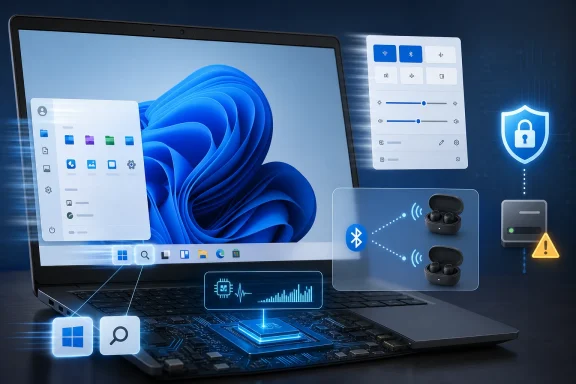
Windows 11 KB5089573 update improves performance, battery life, Windows Hello, Search, USB reliability, and adds Shared Audio support for two Bluetooth devices.
windows101tricks.com
- Related coverage: pcworld.com
Microsoft's new CPU trick might finally fix Windows 11's app stutters | PCWorld
Microsoft is testing a CPU trick in Windows 11 that cuts app launch times by up to 40% and speeds up the Start menu by up to 70%.www.pcworld.com - Related coverage: pcgamer.com
'Apple does this and y’all love it': Microsoft defends new Low Latency feature in Windows 11 | PC Gamer
The new mode is reportedly snappier.www.pcgamer.com - Related coverage: computerbase.de
Schnellere App-Starts in Windows 11: CPU-Boost laut Microsoft-Entwickler kein „Cheating“ - ComputerBase
Dass Microsoft die CPU kurzzeitig hochtaktet, um App-Starts zu beschleunigen, bezeichnen manche Nutzer als faule Optimierung.www.computerbase.de
- Related coverage: pcgameshardware.de
Windows 11: Microsoft weist Kritik am CPU-Boost energisch zurück
Windows 11 erhält einen CPU-Boost für schnelle Reaktionen. Microsoft weist Kritik daran zurück und verweist auf ähnliche Techniken bei Apple.www.pcgameshardware.de
- Related coverage: thewincentral.com
Windows 11 Low Latency Profile: Instant Speed Boost- WinCentral
Windows 11’s new Low Latency Profile boosts CPU speeds for 70% faster menus. Learn how to enable this performance hack today. - Read in Windows 11 News on WinCentral thewincentral.com
- Related coverage: pureinfotech.com
How to enable new CPU boost (Low Latency Profile) feature on Windows 11 - Pureinfotech
Low Latency Profile is available on Windows 11 after installing the June 2026 update, but you can also enable it with the ViveTool. Here's how. pureinfotech.com
- Related coverage: windowsnews.ai
Microsoft secretly tests CPU micro-boost for Start menu and app launches in Windows 11 Insider builds - Windows News
Windows 11 Insider builds reveal a new Low Latency Profile that temporarily boosts CPU clock speeds for Start, menus, and app launches, dramatically...windowsnews.ai