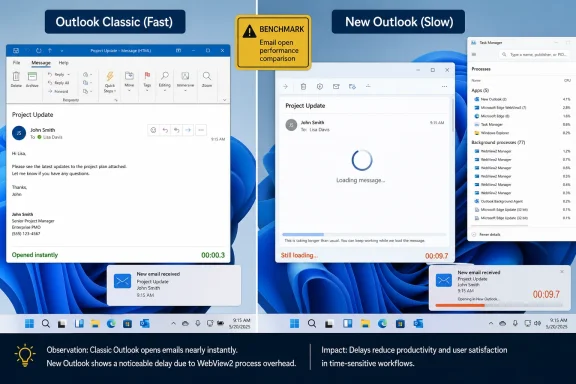
On June 15, 2026, Windows Latest reported that Microsoft’s new Outlook for Windows can take roughly 10 seconds to open the specific email behind a Windows 11 notification, while Outlook Classic opens the same message almost immediately. That is not a cosmetic delay; it is the kind of everyday friction that makes users distrust a replacement app. Microsoft wants the new Outlook to be the future of mail on Windows, but the notification lag shows why many administrators and power users still see the future arriving before the product is ready.
The new Outlook has always had a difficult sales pitch. Microsoft is asking users to leave behind the old Win32 Outlook, a dense and sometimes cranky application, for a cleaner web-based client built around Edge WebView2. In theory, that trade should produce faster iteration, a consistent cross-platform experience, and less legacy baggage.
The trouble is that email clients are not judged like websites. They are judged in the tiny moments between interruption and response: a meeting update, a customer escalation, a security alert, a password reset, a boss asking “quick question.” If the notification says there is a message and the click does not take you there promptly, the app has failed at one of its most basic jobs.
Windows Latest’ measurement is blunt because the scenario is so ordinary. A notification arrives in Windows 11. Click it in Outlook Classic, and the relevant email appears almost instantly. Click it in the new Outlook, and the app reportedly opens, loads the inbox, and then waits several more seconds before landing on the right message.
That is exactly the kind of defect that cuts through feature marketing. Users may forgive missing specialty functions if they understand the migration path. They are much less forgiving when the new client is slower at the first interaction they perform dozens of times a day.
A notification click in a native desktop app can be a fairly direct handoff. The app already owns its state, its local cache, and its message windowing model. Outlook Classic is old, sometimes too old for its own good, but it has decades of accumulated desktop behavior behind it.
In the new Outlook, the path is more elaborate. The app has to wake or initialize web components, resume browser-like processes, authenticate or refresh state, navigate to the right message, and render the result. Some of that can be optimized. Some of it can be masked. But the architectural shape is still there.
This is why the “it opens quickly now” defense only goes so far. Windows Latest gives Microsoft credit for improving cold launch time, and that matters. But a fast shell that then hesitates on a deep link from a notification is not the same thing as a fast app.
Desktop notifications carry an implicit promise. They are not just banners saying “something happened.” They are shortcuts into context. When that shortcut behaves worse than manually opening the app, finding the inbox, and clicking the message yourself, users learn to avoid the shortcut.
That matters because Microsoft has spent years trying to make Windows more notification-centric. Teams, Outlook, security prompts, calendar reminders, and web apps all compete for attention in the same lower-right corner of the desktop. The more those notifications feel unreliable, the more users train themselves to ignore them.
Classic Outlook wins here not because it is beautiful, modern, or beloved. It wins because it understands the desktop contract: click the thing, show the thing. In enterprise software, that kind of reliability often beats a long list of newly shipped features.
Those are not trivial additions. For many organizations, missing PST capabilities, shared calendars, mail merge, or delegated mailbox workflows are not edge cases. They are the reason migrations stall. Microsoft knows this, which is why the Outlook roadmap has become a public exercise in reassurance.
But this is also where the company’s messaging runs into a credibility problem. When Microsoft advertises features in the new Outlook that longtime Classic users already associate with “normal Outlook,” it can sound less like progress and more like backfilling. The product is improving, but it is improving from a deficit created by the migration strategy itself.
Performance sits in a different category from feature parity. A missing feature can be scheduled. A sluggish interaction rooted in the app model is harder to promise away. Users can see a roadmap item and understand when a button is coming; they cannot easily know when a web wrapper will feel native enough to stop irritating them.
Enterprises do not resist change simply because they are nostalgic. They resist when the replacement changes risk, support load, training requirements, data handling, automation, or user productivity. Outlook is not a lightweight personal app in many companies; it is a front end for compliance workflows, delegated access, archiving, calendar politics, and line-of-business process.
That is why a notification delay matters beyond annoyance. It becomes evidence in a broader case administrators are already building: the new Outlook may be good enough for some users, but it is not yet a drop-in replacement for every Outlook workload. Microsoft can argue that the gap is closing. IT departments will ask whether the remaining gap is where their business lives.
There is also a deployment optics problem. Microsoft retired the old Mail and Calendar apps and made the new Outlook the consumer-facing successor, which inflated adoption whether or not users preferred it. In enterprises, where Outlook Classic is deeply embedded, the company has had to move more slowly. The difference between those two transitions tells you where the real friction sits.
That framing may not be entirely fair to the ambitions behind new Outlook. Microsoft wants one Outlook experience, not a patchwork of clients with different capabilities and maintenance burdens. From an engineering and product-management perspective, consolidation has obvious appeal.
But users do not live inside Microsoft’s maintenance spreadsheet. They live inside latency, memory usage, and missing affordances. If the app that replaced Mail and Calendar uses more resources and feels slower in common interactions, the strategic logic does not soothe the irritation.
The notification issue reopens that wound. It suggests that even after months of iteration, the new client still carries the fundamental trade-off users feared from the beginning: less native feel in exchange for Microsoft’s platform consolidation.
Memory usage alone can be misleading. Modern operating systems cache aggressively, Chromium-based runtimes split processes for isolation, and unused RAM is not automatically wasted RAM. A multi-process app is not inherently bad engineering.
Still, users are not wrong to notice when an email client looks like a browser because, technically, it largely is one. The psychological effect is cumulative. If the app consumes more memory, spawns more processes, delays notification handling, and still lacks some legacy behaviors, users connect those dots even when each dot has an engineering explanation.
The issue is not that WebView2 is unusable. Many WebView2 applications are perfectly acceptable, and Microsoft has good reasons to invest in the runtime. The issue is that Outlook sits in a class of application where acceptable may not be enough. Email is infrastructure disguised as an app.
But Classic’s bloat is familiar bloat. Admins know where it breaks, how to reset profiles, how to deploy policies, how to manage add-ins, and how to explain its quirks. Users know how it feels, where the buttons are, and which delays are normal.
The new Outlook’s bloat, when it appears, feels different. It feels like web app bloat: rendering layers, service workers, sign-in state, cloud dependency, and periodic gaps between click and consequence. That is a harder sell on a desktop whose users still expect local software to behave locally.
This is the irony at the heart of the transition. Microsoft built the new Outlook partly to escape the old Outlook’s complexity. But if the result feels less immediate, users will not call it modern. They will call it slower.
That distinction matters for mobile workers, travelers, field staff, and anyone on unreliable networks. It also matters for perception. A desktop mail client that hesitates when connectivity is poor, or feels dependent on server round-trips for actions users expect to be local, reinforces the idea that the “app” is really a browser tab with a better icon.
Microsoft can improve this. Web apps can cache aggressively, prefetch intelligently, and use local storage more effectively. But again, the burden of proof is on the replacement. Outlook Classic already established the expectation.
The notification delay fits the same pattern. It is a deep-link problem, a state-resume problem, and a rendering problem all wrapped in one. Users experience it as one thing: the new Outlook does not go where I clicked.
Windows users have grudgingly accepted it because the convenience is real. But acceptance is not the same as enthusiasm. Every time a web-wrapped app uses more RAM than expected, delays on resume, or feels visually out of place, it reminds users of what was traded away.
Outlook is a particularly risky place to make that trade because it is both high-frequency and high-stakes. A chat app can get away with a little sluggishness if the network is obviously involved. An email client launched from a local Windows notification has less room for excuses.
The desktop also has a long memory. Windows users remember native clients that opened quickly, integrated tightly, and behaved predictably. They may not care whether the implementation is Win32, WinUI, WPF, Electron, or WebView2. They care whether the app respects the interaction.
That is why “it is a web app” is not a defense. It is an explanation. The user still has to live with the result.
But this is easier to suggest than to execute. Outlook is not a calculator app. It is a sprawling productivity platform tied into Exchange, Microsoft 365, identity, compliance, search, calendars, add-ins, files, and now Copilot. Rewriting or substantially re-architecting it around native Windows UI would be expensive, slow, and politically awkward after years of pushing the web-based client as the future.
A hybrid model may be more realistic. Microsoft could keep much of the shared web experience while making specific desktop interactions more native: notification routing, message previews, cached message opening, offline state, calendar flyouts, and shell integration. In other words, it could stop treating the Windows app as only a container and start treating it as a first-class Windows citizen.
That would not satisfy purists who want a fully native Outlook. But it might address the real issue: users do not need to admire the architecture. They need the architecture to disappear.
But AI features do not erase baseline performance problems. A mail app that can summarize a thread but hesitates to open the thread from a notification is asking users to accept intelligence layered over friction. That is a dangerous product posture.
The same is true of unified inbox, mail merge, PST expansion, and shared calendar improvements. They are valuable. They may even persuade some holdouts. But they do not change the emotional impact of a user clicking a notification and waiting long enough to regret the click.
Microsoft has learned this lesson elsewhere in Windows. Users do not separate grand strategy from small delays. The Start menu, File Explorer, Settings, Teams integration, OneDrive prompts, and Edge defaults all contribute to the same trust ledger. Outlook now sits squarely on that ledger.
For IT departments, the more important task is segmentation. Some users may be perfectly fine on the new Outlook, especially if they live mostly in cloud mailboxes, do not rely on complex local archives, and value the newer interface. Others will hit the rough edges immediately.
That makes forced enthusiasm risky. The new Outlook should be piloted by role, not merely by department. Executives, assistants, finance teams, legal staff, support desks, and administrators often use Outlook in very different ways from a typical knowledge worker. A delay that seems minor in a test mailbox may be intolerable in a real workflow.
The lesson is not to freeze forever on Classic Outlook. The lesson is to treat Microsoft’s migration messaging as a starting point, not a deployment plan. If your organization’s users live in notifications, delegated mailboxes, shared calendars, local archives, and offline work, the new Outlook still deserves close testing before it becomes the default.
But the boring tests are the ones that matter. Open a notification. Search a mailbox. Work on a train. Switch calendars. Open a PST. Handle a shared mailbox. Recover from sleep. Do the same thing 40 times in a workday without noticing the app.
That is where Outlook Classic, despite its age, still has leverage. It is not winning because it is the future. It is winning because it still performs some ordinary desktop duties with less drama.
Microsoft’s challenge is therefore not simply to add missing features. It must make the new Outlook feel like a Windows application at the exact moments when users stop thinking about roadmaps and start measuring time.
 Microsoft’s Outlook Transition Is Being Judged in Seconds, Not Roadmap Slides
The new Outlook has always had a difficult sales pitch. Microsoft is asking users to leave behind the old Win32 Outlook, a dense and sometimes cranky application, for a cleaner web-based client built around Edge WebView2. In theory, that trade should produce faster iteration, a consistent cross-platform experience, and less legacy baggage.The trouble is that email clients are not judged like websites. They are judged in the tiny moments between interruption and response: a meeting update, a customer escalation, a security alert, a password reset, a boss asking “quick question.” If the notification says there is a message and the click does not take you there promptly, the app has failed at one of its most basic jobs.
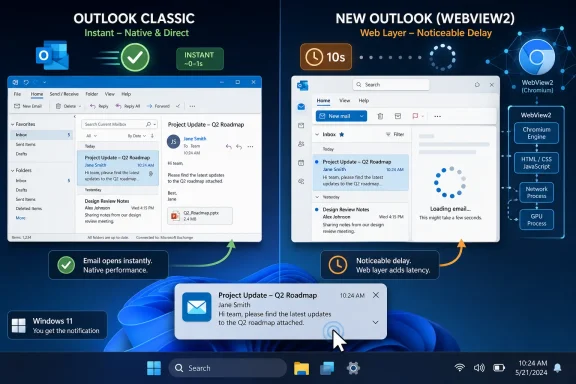
Windows Latest’ measurement is blunt because the scenario is so ordinary. A notification arrives in Windows 11. Click it in Outlook Classic, and the relevant email appears almost instantly. Click it in the new Outlook, and the app reportedly opens, loads the inbox, and then waits several more seconds before landing on the right message.
That is exactly the kind of defect that cuts through feature marketing. Users may forgive missing specialty functions if they understand the migration path. They are much less forgiving when the new client is slower at the first interaction they perform dozens of times a day.
The WebView2 Bet Looks Elegant Until the Desktop Starts Waiting
The new Outlook is not merely inspired by the web version of Outlook. It is a WebView2 application, meaning the Windows app is effectively built around Microsoft Edge’s Chromium-based rendering engine. That decision gives Microsoft a unified code path across Outlook on the web and Outlook for Windows, but it also imports the habits and costs of a browser into a category where native responsiveness has long mattered.A notification click in a native desktop app can be a fairly direct handoff. The app already owns its state, its local cache, and its message windowing model. Outlook Classic is old, sometimes too old for its own good, but it has decades of accumulated desktop behavior behind it.
In the new Outlook, the path is more elaborate. The app has to wake or initialize web components, resume browser-like processes, authenticate or refresh state, navigate to the right message, and render the result. Some of that can be optimized. Some of it can be masked. But the architectural shape is still there.
This is why the “it opens quickly now” defense only goes so far. Windows Latest gives Microsoft credit for improving cold launch time, and that matters. But a fast shell that then hesitates on a deep link from a notification is not the same thing as a fast app.
The Notification Bug Is Really a Trust Bug
For a casual user, 10 seconds is annoying. For a help desk analyst, executive assistant, incident responder, or sysadmin watching mailbox-driven alerts, 10 seconds is a broken workflow. The issue is not that every email must open with game-engine frame timing; it is that the user gave the system a precise instruction and the system took the scenic route.Desktop notifications carry an implicit promise. They are not just banners saying “something happened.” They are shortcuts into context. When that shortcut behaves worse than manually opening the app, finding the inbox, and clicking the message yourself, users learn to avoid the shortcut.
That matters because Microsoft has spent years trying to make Windows more notification-centric. Teams, Outlook, security prompts, calendar reminders, and web apps all compete for attention in the same lower-right corner of the desktop. The more those notifications feel unreliable, the more users train themselves to ignore them.
Classic Outlook wins here not because it is beautiful, modern, or beloved. It wins because it understands the desktop contract: click the thing, show the thing. In enterprise software, that kind of reliability often beats a long list of newly shipped features.
Microsoft Is Fixing Features While Users Are Complaining About Feel
To Microsoft’s credit, the new Outlook is not standing still. Recent updates have improved shared mailbox behavior, folder search, calendar handling, offline access, and PST support. Microsoft has also been promoting a broader set of productivity improvements, including Copilot integration and upcoming unified inbox work.Those are not trivial additions. For many organizations, missing PST capabilities, shared calendars, mail merge, or delegated mailbox workflows are not edge cases. They are the reason migrations stall. Microsoft knows this, which is why the Outlook roadmap has become a public exercise in reassurance.
But this is also where the company’s messaging runs into a credibility problem. When Microsoft advertises features in the new Outlook that longtime Classic users already associate with “normal Outlook,” it can sound less like progress and more like backfilling. The product is improving, but it is improving from a deficit created by the migration strategy itself.
Performance sits in a different category from feature parity. A missing feature can be scheduled. A sluggish interaction rooted in the app model is harder to promise away. Users can see a roadmap item and understand when a button is coming; they cannot easily know when a web wrapper will feel native enough to stop irritating them.
The Enterprise Delay Says the Quiet Part Out Loud
Microsoft’s decision to delay the enterprise opt-out transition from April 2026 to March 2027 was not just a scheduling tweak. It was an admission that the new Outlook still faces real-world resistance in managed environments. The company framed the delay as giving organizations more time to prepare, but preparation is only half the story.Enterprises do not resist change simply because they are nostalgic. They resist when the replacement changes risk, support load, training requirements, data handling, automation, or user productivity. Outlook is not a lightweight personal app in many companies; it is a front end for compliance workflows, delegated access, archiving, calendar politics, and line-of-business process.
That is why a notification delay matters beyond annoyance. It becomes evidence in a broader case administrators are already building: the new Outlook may be good enough for some users, but it is not yet a drop-in replacement for every Outlook workload. Microsoft can argue that the gap is closing. IT departments will ask whether the remaining gap is where their business lives.
There is also a deployment optics problem. Microsoft retired the old Mail and Calendar apps and made the new Outlook the consumer-facing successor, which inflated adoption whether or not users preferred it. In enterprises, where Outlook Classic is deeply embedded, the company has had to move more slowly. The difference between those two transitions tells you where the real friction sits.
Mail and Calendar Users Were the First Test Case
The new Outlook’s reception was shaped before many Classic users ever touched it. Windows users who liked the lightweight Mail and Calendar apps saw Microsoft replace them with a heavier web-based Outlook experience. That migration created a simple narrative: Microsoft removed a fast, focused app and substituted a web wrapper.That framing may not be entirely fair to the ambitions behind new Outlook. Microsoft wants one Outlook experience, not a patchwork of clients with different capabilities and maintenance burdens. From an engineering and product-management perspective, consolidation has obvious appeal.
But users do not live inside Microsoft’s maintenance spreadsheet. They live inside latency, memory usage, and missing affordances. If the app that replaced Mail and Calendar uses more resources and feels slower in common interactions, the strategic logic does not soothe the irritation.
The notification issue reopens that wound. It suggests that even after months of iteration, the new client still carries the fundamental trade-off users feared from the beginning: less native feel in exchange for Microsoft’s platform consolidation.
Memory Is Not the Whole Story, But It Is Part of the Mood
Windows Latest reports a large idle memory gap between the two clients in its own testing, with the new Outlook using several hundred megabytes while Outlook Classic used far less. Task Manager process counts tell a similar story: Classic Outlook appears compact by comparison, while the new Outlook shows the familiar constellation of WebView2 components.Memory usage alone can be misleading. Modern operating systems cache aggressively, Chromium-based runtimes split processes for isolation, and unused RAM is not automatically wasted RAM. A multi-process app is not inherently bad engineering.
Still, users are not wrong to notice when an email client looks like a browser because, technically, it largely is one. The psychological effect is cumulative. If the app consumes more memory, spawns more processes, delays notification handling, and still lacks some legacy behaviors, users connect those dots even when each dot has an engineering explanation.
The issue is not that WebView2 is unusable. Many WebView2 applications are perfectly acceptable, and Microsoft has good reasons to invest in the runtime. The issue is that Outlook sits in a class of application where acceptable may not be enough. Email is infrastructure disguised as an app.
Classic Outlook Is Bloated, But It Is Bloated in Familiar Ways
It would be too easy to romanticize Outlook Classic. The Win32 client has earned plenty of criticism over the years: profile corruption, add-in weirdness, OST bloat, search indexing oddities, and an interface that can feel like a museum of enterprise compromises. Many IT departments would happily retire parts of its legacy if the replacement preserved the behaviors users depend on.But Classic’s bloat is familiar bloat. Admins know where it breaks, how to reset profiles, how to deploy policies, how to manage add-ins, and how to explain its quirks. Users know how it feels, where the buttons are, and which delays are normal.
The new Outlook’s bloat, when it appears, feels different. It feels like web app bloat: rendering layers, service workers, sign-in state, cloud dependency, and periodic gaps between click and consequence. That is a harder sell on a desktop whose users still expect local software to behave locally.
This is the irony at the heart of the transition. Microsoft built the new Outlook partly to escape the old Outlook’s complexity. But if the result feels less immediate, users will not call it modern. They will call it slower.
Offline Support Exposes the Same Architectural Tension
Microsoft has worked to improve offline support in the new Outlook, and that work is important. But offline email is another area where the architectural difference is visible. Classic Outlook’s model was built around local caches and mailbox synchronization. New Outlook has had to add back offline capabilities into an app whose center of gravity is the cloud service.That distinction matters for mobile workers, travelers, field staff, and anyone on unreliable networks. It also matters for perception. A desktop mail client that hesitates when connectivity is poor, or feels dependent on server round-trips for actions users expect to be local, reinforces the idea that the “app” is really a browser tab with a better icon.
Microsoft can improve this. Web apps can cache aggressively, prefetch intelligently, and use local storage more effectively. But again, the burden of proof is on the replacement. Outlook Classic already established the expectation.
The notification delay fits the same pattern. It is a deep-link problem, a state-resume problem, and a rendering problem all wrapped in one. Users experience it as one thing: the new Outlook does not go where I clicked.
The Windows Desktop Still Punishes Apps That Feel Remote
For years, software vendors have treated web-based desktop apps as the obvious answer to cross-platform development. Build once, ship everywhere, iterate quickly, avoid duplicate native clients. Slack, Teams, WhatsApp, Discord, and countless enterprise tools have taken some version of this path.Windows users have grudgingly accepted it because the convenience is real. But acceptance is not the same as enthusiasm. Every time a web-wrapped app uses more RAM than expected, delays on resume, or feels visually out of place, it reminds users of what was traded away.
Outlook is a particularly risky place to make that trade because it is both high-frequency and high-stakes. A chat app can get away with a little sluggishness if the network is obviously involved. An email client launched from a local Windows notification has less room for excuses.
The desktop also has a long memory. Windows users remember native clients that opened quickly, integrated tightly, and behaved predictably. They may not care whether the implementation is Win32, WinUI, WPF, Electron, or WebView2. They care whether the app respects the interaction.
That is why “it is a web app” is not a defense. It is an explanation. The user still has to live with the result.
WinUI Is the Escape Hatch Everyone Keeps Pointing At
Windows Latest argues that the deeper fix would be a move toward a more native WinUI approach. That is plausible, and Microsoft has recently talked more forcefully about recommitting to native Windows app development. A truly native Outlook shell, or at least a more native front end for performance-critical interactions, could reduce the gap between notification and message.But this is easier to suggest than to execute. Outlook is not a calculator app. It is a sprawling productivity platform tied into Exchange, Microsoft 365, identity, compliance, search, calendars, add-ins, files, and now Copilot. Rewriting or substantially re-architecting it around native Windows UI would be expensive, slow, and politically awkward after years of pushing the web-based client as the future.
A hybrid model may be more realistic. Microsoft could keep much of the shared web experience while making specific desktop interactions more native: notification routing, message previews, cached message opening, offline state, calendar flyouts, and shell integration. In other words, it could stop treating the Windows app as only a container and start treating it as a first-class Windows citizen.
That would not satisfy purists who want a fully native Outlook. But it might address the real issue: users do not need to admire the architecture. They need the architecture to disappear.
Copilot Cannot Make a Slow Click Feel Fast
Microsoft’s broader Outlook pitch increasingly leans on Copilot and AI-assisted productivity. That is understandable. Outlook contains exactly the kind of personal and organizational data Microsoft wants Copilot to summarize, draft against, and turn into action. If the new Outlook is the modern client, it becomes a strategic surface for Microsoft 365 AI.But AI features do not erase baseline performance problems. A mail app that can summarize a thread but hesitates to open the thread from a notification is asking users to accept intelligence layered over friction. That is a dangerous product posture.
The same is true of unified inbox, mail merge, PST expansion, and shared calendar improvements. They are valuable. They may even persuade some holdouts. But they do not change the emotional impact of a user clicking a notification and waiting long enough to regret the click.
Microsoft has learned this lesson elsewhere in Windows. Users do not separate grand strategy from small delays. The Start menu, File Explorer, Settings, Teams integration, OneDrive prompts, and Edge defaults all contribute to the same trust ledger. Outlook now sits squarely on that ledger.
The Ten-Second Delay Is a Small Number With a Large Blast Radius
The practical advice for WindowsForum readers is straightforward: if notification-to-message speed matters to your work, Outlook Classic remains the safer choice today. Microsoft still supports it, and for many Microsoft 365 users it remains the better fit for heavy-duty desktop workflows. The new Outlook is improving, but improvement is not the same as equivalence.For IT departments, the more important task is segmentation. Some users may be perfectly fine on the new Outlook, especially if they live mostly in cloud mailboxes, do not rely on complex local archives, and value the newer interface. Others will hit the rough edges immediately.
That makes forced enthusiasm risky. The new Outlook should be piloted by role, not merely by department. Executives, assistants, finance teams, legal staff, support desks, and administrators often use Outlook in very different ways from a typical knowledge worker. A delay that seems minor in a test mailbox may be intolerable in a real workflow.
The lesson is not to freeze forever on Classic Outlook. The lesson is to treat Microsoft’s migration messaging as a starting point, not a deployment plan. If your organization’s users live in notifications, delegated mailboxes, shared calendars, local archives, and offline work, the new Outlook still deserves close testing before it becomes the default.
Microsoft’s Future Outlook Has to Win the Boring Tests
The new Outlook can still become the right client for most Windows users. Microsoft has the resources, telemetry, and incentive to keep closing gaps. The product has already improved, and the roadmap shows that the company understands at least many of the objections.But the boring tests are the ones that matter. Open a notification. Search a mailbox. Work on a train. Switch calendars. Open a PST. Handle a shared mailbox. Recover from sleep. Do the same thing 40 times in a workday without noticing the app.
That is where Outlook Classic, despite its age, still has leverage. It is not winning because it is the future. It is winning because it still performs some ordinary desktop duties with less drama.
Microsoft’s challenge is therefore not simply to add missing features. It must make the new Outlook feel like a Windows application at the exact moments when users stop thinking about roadmaps and start measuring time.
The Inbox Migration Now Comes Down to These Everyday Frictions
The new Outlook story is no longer just about whether Microsoft can reach feature parity with Classic. It is about whether the replacement can earn the muscle memory that Classic accumulated over decades. The notification delay is a useful stress test because it compresses the whole argument into one click.- The new Outlook may launch faster than it once did, but notification deep-linking still appears meaningfully slower than Outlook Classic in Windows Latest’ testing.
- WebView2 gives Microsoft a unified development platform, but it also makes the desktop app inherit browser-like process, memory, and resume behavior.
- Microsoft’s enterprise migration delay to March 2027 gives organizations more time to test whether the new client fits real workflows.
- Feature improvements such as PST expansion, shared calendar work, offline access, and unified inbox support are necessary, but they do not automatically solve responsiveness complaints.
- Outlook Classic remains the practical choice for users whose work depends on fast notification handling, mature offline behavior, and deeply familiar desktop workflows.
References
- Primary source: Windows Latest
Published: Mon, 15 Jun 2026 05:15:59 GMT
Microsoft's new Outlook takes 10 seconds to do what Outlook Classic does instantly on Windows
New Outlook takes 10 seconds to show an email after clicking a Windows 11 notification. Outlook Classic does it instantly. Here's why. www.windowslatest.com
- Official source: support.microsoft.com
Feature comparison between new Outlook and classic Outlook | Microsoft Support
Feature comparison between new Outlook and classic Outlooksupport.microsoft.com - Related coverage: techradar.com
Microsoft delays enterprise Outlook switchover to 2027, says move will 'ensure organizations have the time they need to prepare' | TechRadar
Microsoft pushes back new Outlook in Enterprisewww.techradar.com - Related coverage: fdaytalk.com
Outlook Unified Inbox Coming to Windows in August 2026
Microsoft is rolling out Outlook unified inbox for Windows in August 2026. The All Accounts view lets you manage emails from multiple accounts in one place.www.fdaytalk.com - Official source: microsoft.com
Microsoft 365 Roadmap | Microsoft 365
The Microsoft 365 Roadmap lists updates that are currently planned for applicable subscribers. Check here for more information on the status of new features and updates.www.microsoft.com
- Related coverage: windowscentral.com
Microsoft delays new Outlook opt-out deadline to 2027 | Windows Central
Organizations will have more time to prepare for Microsoft’s Outlook transition, as the company extends the deadline for the opt-out phase of the rollout.www.windowscentral.com
- Official source: learn.microsoft.com
New Outlook to replace Classic Outlook? - Microsoft Q&A
Will the New Outlook replace the Classic Outlook? I.e. will the Classic Outlook be discontinued?learn.microsoft.com - Official source: directionsonmicrosoft.com
Prepare to Opt Out of New Outlook Starting in April 2026 - Directions on Microsoft
Microsoft 365 enterprise customers have a slightly firmer date when the “classic” Outlook for Windows app will be ejected from their Office suites and replaced with “new Outlook.” On Dec. 6, Microsoft announced it will start the Opt-Out phase of new Outlook’s rollout in Apr. 2026. By then...www.directionsonmicrosoft.com