

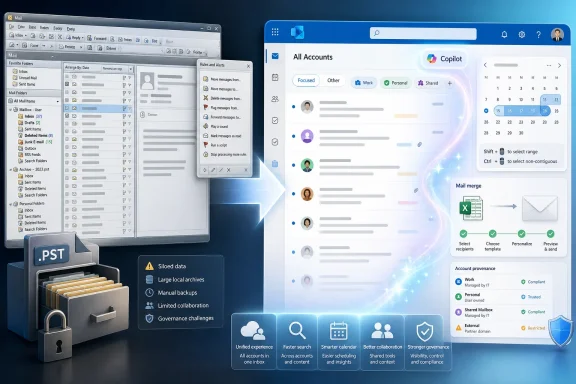
Microsoft has confirmed that the new Outlook for Windows and Outlook on the web are slated to gain a unified All Accounts inbox in August 2026, alongside advanced mail merge, broader .PST import support, favorite-folder improvements, conditional formatting, and calendar-selection refinements. That is not a small maintenance drop. It is Microsoft trying to close the credibility gap between a modern web-backed client and the Win32 Outlook that still anchors millions of daily workflows. The real question is not whether new Outlook is improving, but whether Microsoft can make it trustworthy before users are forced to treat it as inevitable.
The new Outlook has always suffered from a branding problem of Microsoft’s own making. Calling it “Outlook” invited users to compare it with classic Outlook, not with the retired Windows Mail and Calendar apps it more directly replaced. That comparison has rarely been flattering.
Classic Outlook is not beloved because it is beautiful. It is beloved because it is dense, scriptable, local, extensible, and battle-hardened in the unglamorous ways that matter to office workers and administrators. It handles edge cases accumulated over decades: .PST files, shared mailboxes, mail merge, offline work, complex profiles, odd accounts, archives, rules, delegates, add-ins, and muscle memory.
New Outlook arrived with a very different philosophy. It looked more like Outlook on the web, behaved more like a service endpoint, and treated many older desktop assumptions as baggage to be reimplemented later. That strategy made sense from Microsoft’s point of view, but for users it often felt like being asked to trade a toolbox for a polished front end.
The newly confirmed 2026 feature wave is important because it acknowledges, feature by feature, that the missing “old” things were not nostalgia. They were workflows. Microsoft is not merely adding conveniences; it is rebuilding the reasons people stayed in classic Outlook.
The absence of a unified inbox became one of new Outlook’s most visible embarrassments because it was not an advanced enterprise feature. Gmail users understand the concept. Phone mail apps understand the concept. Even Microsoft’s older Windows Mail app had trained mainstream Windows users to expect a combined view.
Microsoft’s implementation appears to be more than a passive aggregation layer. Users should be able to delete, archive, move, mark as read, and respond from the combined view without repeating actions in each account’s native inbox. That matters because a unified inbox that only displays messages is a dashboard; a unified inbox that supports normal actions is an actual workspace.
There are limits. Shared mailboxes are reportedly not part of the first version, and cross-account search support is expected later rather than immediately. Those omissions will matter in organizations where shared mailboxes are not edge cases but operational infrastructure: support queues, finance inboxes, HR addresses, facilities requests, and team aliases.
Still, the direction is right. New Outlook needs to stop behaving as if multiple accounts are an exception. For many users, multiple accounts are the default state of modern email.
For individual users, this could be genuinely useful. Asking Copilot to find the travel confirmation that might have landed in either a work mailbox or a personal account is exactly the kind of tedious retrieval problem AI can improve. A unified view gives the assistant a more realistic map of how people actually receive information.
For administrators, the same convenience raises governance questions. Which accounts are included? What happens when personal and corporate contexts sit beside one another? How clearly does Outlook label the source account in AI-assisted search results? The implementation details will matter because one inbox can easily become one compliance headache if boundaries are not visible.
Microsoft will likely argue that account permissions and tenant controls remain intact. That may be true, but user experience can blur conceptual lines even when technical controls remain separate. If new Outlook is going to become the default cockpit for mail, calendar, files, and AI assistance, Microsoft needs to make account provenance impossible to miss.
The new Outlook’s weakness here has been especially painful because mail merge is not an exotic Outlook-only trick. It sits at the intersection of Word, Excel, Outlook, contacts, and desktop automation — precisely the kind of Office workflow that made Microsoft Office sticky in the first place. When new Outlook breaks or weakens that chain, it is not just an email client regression. It is an Office regression.
This is also where Microsoft’s modernization strategy collides with its installed base. The company wants a cloud-connected, web-aligned Outlook that can move faster and behave consistently across Windows and the web. Users want the workflows that allowed them to send hundreds of individualized messages from a spreadsheet without learning a marketing platform.
Mail merge is not glamorous, but it is a trust feature. If a user toggles into new Outlook and discovers that a workflow they have used every quarter for ten years no longer works, they are not going to praise the cleaner interface. They are going to switch back and tell everyone else not to move.
Classic Outlook’s .PST support made it possible for users and organizations to keep local archives, move mail between machines, preserve historical data, and survive migrations that were never as clean as the project plan promised. New Outlook’s more limited .PST support has therefore been one of the biggest blockers for serious adoption.
Microsoft has been gradually expanding .PST capabilities in new Outlook, including viewing, searching, exporting, and other staged improvements. The newly discussed ability to import calendars and contacts from a .PST file into a mailbox is another step toward reducing classic Outlook’s role as the only practical bridge for legacy data.
But .PST support is not a single checkbox. Users who say they need .PST often mean different things: open an archive, search old mail, import contacts, export a mailbox, reply to archived messages, preserve folder structures, or keep data local for legal or personal reasons. Microsoft can truthfully say it supports .PST in one sense while still failing the workflow a particular user depends on.
That nuance matters. Administrators should not hear “.PST support” and assume parity with classic Outlook. They should test the exact .PST operations their users rely on before allowing new Outlook to become the only installed client.
The new vertical favorite-folder list sounds like Microsoft trying to restore that one-click rhythm. Counts appearing directly beside favorite folders give users a quick sense of where attention is needed. This is the kind of small affordance that makes a client feel usable across an entire workday.
Basic conditional formatting rules belong in the same category. Classic Outlook’s visual customization lets users create inbox triage systems that are invisible to product managers but essential to the people using them. A message from the CEO appears differently. A mail from a ticketing system gets a color. A subject pattern jumps out before the user has consciously read it.
New Outlook does not need to clone every classic Outlook option forever, but it does need to respect why those options existed. Productivity software is not only about feature count. It is about letting users build private systems of attention.
Calendar interactions are especially sensitive because they are muscle-memory heavy. A power user scheduling recurring meetings, comparing travel dates, or managing multiple calendars does not want the app to feel like a simplified web shell. They want precision, speed, and predictable shortcuts.
This is where Microsoft’s web-first approach still has work to do. Outlook on the web has matured substantially, but Windows users do not judge the desktop app by web-app standards. They judge it by whether it handles a busy Tuesday without friction.
The calendar and favorites improvements suggest Microsoft understands that new Outlook has to become more tactile. It needs to feel less like a page and more like an application.
That uncertainty is not unusual for Microsoft 365. Features often appear first for targeted release users, then roll gradually across production tenants, regions, account types, and license categories. A roadmap month can mean “some users begin seeing it,” not “everyone wakes up with it on the first day.”
For home users, that may be annoying. For enterprise IT, it is planning risk. Help desks cannot train users on features that half the organization has and half does not. Migration teams cannot retire classic Outlook because a roadmap item says a gap is “in development.”
Microsoft has tried to soften the transition by keeping classic Outlook available and supporting side-by-side use. That is the right posture, but it also proves the underlying point: new Outlook is still not a universal replacement. If Microsoft itself recommends side-by-side deployment for organizations that depend on features like full .PST support or mail merge, administrators should take that caveat seriously.
The bigger strategic tension is that Microsoft wants momentum without backlash. It wants users to accept new Outlook as the future while still relying on classic Outlook as the safety net. That works only as long as the safety net remains visible, supported, and easy to return to.
The 2026 Outlook updates should be understood in that context. They are not random quality-of-life additions. They are part of a long runway toward making new Outlook defensible as the default Windows mail client for Microsoft 365.
The problem is that classic Outlook users do not measure readiness by Microsoft’s architecture goals. They measure it by whether their day breaks. If new Outlook cannot handle shared mailboxes, offline work, local archives, mail merge, add-ins, delegation, rules, and search with the reliability users expect, then the “new” label remains a warning rather than an invitation.
Microsoft also faces a credibility gap created by previous transitions. Windows users remember deprecated apps, half-finished replacements, and settings that moved before they matured. Outlook is too important for that pattern. Email may be old technology, but it remains the nervous system of business operations.
The company’s safest path is not to rush users across the bridge. It is to make the new side obviously better before removing the old one.
A finance department with .PST archives and shared mailboxes has different risk than a frontline team using only Exchange Online mail and calendar. An executive assistant managing delegated calendars has different needs than a user who mostly reads email and joins Teams meetings. A marketing coordinator doing mail merge from Excel has different exposure than an engineer living in Teams notifications.
New Outlook’s improvement curve means pilot populations should be revisited. A client that was unacceptable in 2024 may be viable for some users in 2026. But “some users” is doing a lot of work there.
Organizations should also watch policy controls. The ability to hide toggles, control account additions, block personal accounts, and manage deployment will matter as the app gains more cross-account and AI-assisted behavior. Outlook is not just a user preference; it is a data-handling surface.
The best migration plans will be boring. They will keep classic Outlook installed where needed, pilot new Outlook with well-defined groups, validate .PST and shared-mailbox scenarios, and avoid making roadmap dates the basis for hard deadlines.
 Microsoft Is Finally Building the Outlook It Already Implied It Had
The new Outlook has always suffered from a branding problem of Microsoft’s own making. Calling it “Outlook” invited users to compare it with classic Outlook, not with the retired Windows Mail and Calendar apps it more directly replaced. That comparison has rarely been flattering.Classic Outlook is not beloved because it is beautiful. It is beloved because it is dense, scriptable, local, extensible, and battle-hardened in the unglamorous ways that matter to office workers and administrators. It handles edge cases accumulated over decades: .PST files, shared mailboxes, mail merge, offline work, complex profiles, odd accounts, archives, rules, delegates, add-ins, and muscle memory.
New Outlook arrived with a very different philosophy. It looked more like Outlook on the web, behaved more like a service endpoint, and treated many older desktop assumptions as baggage to be reimplemented later. That strategy made sense from Microsoft’s point of view, but for users it often felt like being asked to trade a toolbox for a polished front end.
The newly confirmed 2026 feature wave is important because it acknowledges, feature by feature, that the missing “old” things were not nostalgia. They were workflows. Microsoft is not merely adding conveniences; it is rebuilding the reasons people stayed in classic Outlook.
The Unified Inbox Is a Small Feature With Outsized Symbolism
The headline feature is the All Accounts view, also described as a Unified Inbox. When it arrives, users will be able to see mail from multiple configured accounts in one inbox-like view instead of hopping between separate account trees. For anyone juggling a Microsoft 365 work mailbox, a personal Outlook.com address, Gmail, and side-project accounts, this is basic sanity.The absence of a unified inbox became one of new Outlook’s most visible embarrassments because it was not an advanced enterprise feature. Gmail users understand the concept. Phone mail apps understand the concept. Even Microsoft’s older Windows Mail app had trained mainstream Windows users to expect a combined view.
Microsoft’s implementation appears to be more than a passive aggregation layer. Users should be able to delete, archive, move, mark as read, and respond from the combined view without repeating actions in each account’s native inbox. That matters because a unified inbox that only displays messages is a dashboard; a unified inbox that supports normal actions is an actual workspace.
There are limits. Shared mailboxes are reportedly not part of the first version, and cross-account search support is expected later rather than immediately. Those omissions will matter in organizations where shared mailboxes are not edge cases but operational infrastructure: support queues, finance inboxes, HR addresses, facilities requests, and team aliases.
Still, the direction is right. New Outlook needs to stop behaving as if multiple accounts are an exception. For many users, multiple accounts are the default state of modern email.
Copilot Turns the Combined Inbox Into a Data Boundary
The All Accounts view also reportedly ties into Copilot-powered search and summarization experiences. That is where the feature becomes more consequential than a layout change. A combined inbox is not just a convenience when an AI assistant can reason over it; it becomes the boundary of what the assistant can see and synthesize.For individual users, this could be genuinely useful. Asking Copilot to find the travel confirmation that might have landed in either a work mailbox or a personal account is exactly the kind of tedious retrieval problem AI can improve. A unified view gives the assistant a more realistic map of how people actually receive information.
For administrators, the same convenience raises governance questions. Which accounts are included? What happens when personal and corporate contexts sit beside one another? How clearly does Outlook label the source account in AI-assisted search results? The implementation details will matter because one inbox can easily become one compliance headache if boundaries are not visible.
Microsoft will likely argue that account permissions and tenant controls remain intact. That may be true, but user experience can blur conceptual lines even when technical controls remain separate. If new Outlook is going to become the default cockpit for mail, calendar, files, and AI assistance, Microsoft needs to make account provenance impossible to miss.
Mail Merge Is the Kind of Boring Feature That Keeps Businesses From Revolting
Advanced mail merge support is another telling addition. Microsoft says each recipient will receive an individual message with only their own address in the recipient field, and users will be able to personalize fields such as names. That sounds mundane until you remember how many schools, small businesses, nonprofits, sales teams, legal offices, and local governments still use mail merge as a practical bulk-communication tool.The new Outlook’s weakness here has been especially painful because mail merge is not an exotic Outlook-only trick. It sits at the intersection of Word, Excel, Outlook, contacts, and desktop automation — precisely the kind of Office workflow that made Microsoft Office sticky in the first place. When new Outlook breaks or weakens that chain, it is not just an email client regression. It is an Office regression.
This is also where Microsoft’s modernization strategy collides with its installed base. The company wants a cloud-connected, web-aligned Outlook that can move faster and behave consistently across Windows and the web. Users want the workflows that allowed them to send hundreds of individualized messages from a spreadsheet without learning a marketing platform.
Mail merge is not glamorous, but it is a trust feature. If a user toggles into new Outlook and discovers that a workflow they have used every quarter for ten years no longer works, they are not going to praise the cleaner interface. They are going to switch back and tell everyone else not to move.
.PST Support Remains the Migration Pressure Valve
The .PST story is even more central to Outlook’s identity. Outlook Data Files are messy, overused, frequently abused, and often hated by IT departments. They are also everywhere.Classic Outlook’s .PST support made it possible for users and organizations to keep local archives, move mail between machines, preserve historical data, and survive migrations that were never as clean as the project plan promised. New Outlook’s more limited .PST support has therefore been one of the biggest blockers for serious adoption.
Microsoft has been gradually expanding .PST capabilities in new Outlook, including viewing, searching, exporting, and other staged improvements. The newly discussed ability to import calendars and contacts from a .PST file into a mailbox is another step toward reducing classic Outlook’s role as the only practical bridge for legacy data.
But .PST support is not a single checkbox. Users who say they need .PST often mean different things: open an archive, search old mail, import contacts, export a mailbox, reply to archived messages, preserve folder structures, or keep data local for legal or personal reasons. Microsoft can truthfully say it supports .PST in one sense while still failing the workflow a particular user depends on.
That nuance matters. Administrators should not hear “.PST support” and assume parity with classic Outlook. They should test the exact .PST operations their users rely on before allowing new Outlook to become the only installed client.
Favorites and Conditional Formatting Show Microsoft Is Relearning Desktop Habits
The favorite-folder update looks minor next to .PST and unified inbox support, but it points to another area where new Outlook has struggled: information density. Classic Outlook users often live by folder counts, pinned views, unread badges, color rules, and fast navigation. They do not want a scenic tour of their mailbox. They want to get to the folder that is on fire.The new vertical favorite-folder list sounds like Microsoft trying to restore that one-click rhythm. Counts appearing directly beside favorite folders give users a quick sense of where attention is needed. This is the kind of small affordance that makes a client feel usable across an entire workday.
Basic conditional formatting rules belong in the same category. Classic Outlook’s visual customization lets users create inbox triage systems that are invisible to product managers but essential to the people using them. A message from the CEO appears differently. A mail from a ticketing system gets a color. A subject pattern jumps out before the user has consciously read it.
New Outlook does not need to clone every classic Outlook option forever, but it does need to respect why those options existed. Productivity software is not only about feature count. It is about letting users build private systems of attention.
Calendar Tweaks Matter Because Outlook Is Not Just Mail
The mini-month calendar change — selecting non-consecutive dates with Shift+Click or Ctrl+Click — is another reminder that Outlook is more than an inbox. In many organizations, Outlook is the daily schedule, meeting broker, room finder, reminder engine, contact book, and institutional memory. Weaknesses in calendar behavior can be just as disruptive as missing mail features.Calendar interactions are especially sensitive because they are muscle-memory heavy. A power user scheduling recurring meetings, comparing travel dates, or managing multiple calendars does not want the app to feel like a simplified web shell. They want precision, speed, and predictable shortcuts.
This is where Microsoft’s web-first approach still has work to do. Outlook on the web has matured substantially, but Windows users do not judge the desktop app by web-app standards. They judge it by whether it handles a busy Tuesday without friction.
The calendar and favorites improvements suggest Microsoft understands that new Outlook has to become more tactile. It needs to feel less like a page and more like an application.
Microsoft’s Timeline Buys Time, Not Trust
The dates matter. Mail merge and conditional formatting are expected around July 2026, while the All Accounts view is slated for August 2026. Microsoft roadmaps are not promises engraved in steel, and Outlook features have a habit of shifting as engineering, rollout rings, and tenant eligibility complicate the neat public calendar.That uncertainty is not unusual for Microsoft 365. Features often appear first for targeted release users, then roll gradually across production tenants, regions, account types, and license categories. A roadmap month can mean “some users begin seeing it,” not “everyone wakes up with it on the first day.”
For home users, that may be annoying. For enterprise IT, it is planning risk. Help desks cannot train users on features that half the organization has and half does not. Migration teams cannot retire classic Outlook because a roadmap item says a gap is “in development.”
Microsoft has tried to soften the transition by keeping classic Outlook available and supporting side-by-side use. That is the right posture, but it also proves the underlying point: new Outlook is still not a universal replacement. If Microsoft itself recommends side-by-side deployment for organizations that depend on features like full .PST support or mail merge, administrators should take that caveat seriously.
The bigger strategic tension is that Microsoft wants momentum without backlash. It wants users to accept new Outlook as the future while still relying on classic Outlook as the safety net. That works only as long as the safety net remains visible, supported, and easy to return to.
The Classic Outlook Deadline Still Looms Over Every Improvement
Microsoft has said classic Outlook will remain supported until at least 2029. That gives the company room to close feature gaps, but it also gives customers a deadline-shaped object to stare at. Every missing feature becomes not merely a current annoyance but a future migration blocker.The 2026 Outlook updates should be understood in that context. They are not random quality-of-life additions. They are part of a long runway toward making new Outlook defensible as the default Windows mail client for Microsoft 365.
The problem is that classic Outlook users do not measure readiness by Microsoft’s architecture goals. They measure it by whether their day breaks. If new Outlook cannot handle shared mailboxes, offline work, local archives, mail merge, add-ins, delegation, rules, and search with the reliability users expect, then the “new” label remains a warning rather than an invitation.
Microsoft also faces a credibility gap created by previous transitions. Windows users remember deprecated apps, half-finished replacements, and settings that moved before they matured. Outlook is too important for that pattern. Email may be old technology, but it remains the nervous system of business operations.
The company’s safest path is not to rush users across the bridge. It is to make the new side obviously better before removing the old one.
Admins Should Treat This as a Pilot Signal, Not a Cutover Trigger
For IT departments, the practical response is measured optimism. These features are worth tracking, testing, and documenting, but they should not trigger an immediate plan to abandon classic Outlook. The correct move is to map user groups against missing workflows.A finance department with .PST archives and shared mailboxes has different risk than a frontline team using only Exchange Online mail and calendar. An executive assistant managing delegated calendars has different needs than a user who mostly reads email and joins Teams meetings. A marketing coordinator doing mail merge from Excel has different exposure than an engineer living in Teams notifications.
New Outlook’s improvement curve means pilot populations should be revisited. A client that was unacceptable in 2024 may be viable for some users in 2026. But “some users” is doing a lot of work there.
Organizations should also watch policy controls. The ability to hide toggles, control account additions, block personal accounts, and manage deployment will matter as the app gains more cross-account and AI-assisted behavior. Outlook is not just a user preference; it is a data-handling surface.
The best migration plans will be boring. They will keep classic Outlook installed where needed, pilot new Outlook with well-defined groups, validate .PST and shared-mailbox scenarios, and avoid making roadmap dates the basis for hard deadlines.
The 2026 Outlook Bet Comes Down to Five Concrete Tests
Microsoft’s latest roadmap is the first in a while that feels aimed at the actual complaints users have, not just the company’s preferred architecture. The features are specific enough to matter, but they still need to survive rollout, tenant variation, and the stubborn complexity of real mailboxes.- The All Accounts view is expected to give new Outlook a true unified inbox for multiple accounts in August 2026, but shared mailbox and cross-account search limitations may remain at launch.
- Advanced mail merge support should reduce one of the most painful Office workflow gaps, especially for users who depend on personalized bulk email from familiar Microsoft tools.
- Expanded .PST import support is progress, but administrators should test exact archive, contact, calendar, export, and search workflows before assuming classic Outlook parity.
- Favorite-folder improvements and conditional formatting matter because they restore the visual triage habits that make Outlook productive for heavy users.
- Classic Outlook remains the fallback for many organizations, and the sensible migration strategy is side-by-side testing rather than a forced leap.
- Copilot integration makes account boundaries more important, not less, because unified views can blur personal, professional, and shared contexts if the interface is careless.
References
- Primary source: Windows Latest
Published: Sat, 13 Jun 2026 07:30:17 GMT
Ditch Outlook Classic? Microsoft confirms major New Outlook update with 5 features, all-accounts view, mail merge, .PST, and more
Outlook “New,” which is based on Outlook.com, is far from a decent email client. While it has come a long way, the new Outlook doesn’t feel as good as the Classic version, and it still lacks many features most users want. Microsoft now says it’s adding advanced support... www.windowslatest.com
- Related coverage: fdaytalk.com
Outlook Unified Inbox Coming to Windows in August 2026
Microsoft is rolling out Outlook unified inbox for Windows in August 2026. The All Accounts view lets you manage emails from multiple accounts in one place.www.fdaytalk.com - Official source: microsoft.com
Microsoft 365 Roadmap | Microsoft 365
The Microsoft 365 Roadmap lists updates that are currently planned for applicable subscribers. Check here for more information on the status of new features and updates.www.microsoft.com
- Official source: support.microsoft.com
What's new in new Outlook for Windows | Microsoft Support
What's new in new Outlook for Windowssupport.microsoft.com - Official source: learn.microsoft.com
Full support for pst's in New Outlook? - Microsoft Q&A
I found the roadmap, https://www.microsoft.com/en-us/microsoft-365/roadmap?filters=%5B%22Outlook%22%5D&searchterms=pst#Roadmap and there are a lot of entries for allowing import/export between Outlook and pst's. What I don't see is full integration,…learn.microsoft.com - Related coverage: windowsreport.com
Microsoft Is Finally Adding a Unified Inbox to Outlook for Windows
Microsoft is adding a unified inbox to Outlook for Windows, letting users manage multiple email accounts in one combined view. windowsreport.com
- Related coverage: m365visualroadmap.net
◉ M365 Visual Roadmap | M365 Visual Roadmap
This site provides a visual representation of the Microsoft 365 Roadmap.m365visualroadmap.net - Related coverage: clean.email
How To Get An Outlook Unified Inbox In 2026: 5 Easy Methods + Smarter Multi‑Account Tips
Outlook for Windows still lacks a unified inbox in 2026, but you can manage multiple accounts efficiently. Learn 5 proven ways to combine inboxes with Search Folders, Rules, Favorites, forwarding, and VBA macros, plus smart tips to organize, declutter, and automate multi‑account email with ease.clean.email - Related coverage: it-boltwise.de
Outlook für Windows bekommt ab August 2026 eine All-Accounts-Ansicht
Microsoft bringt ab August 2026 die All-Accounts-View in Outlook für Windows. Mehrere Postfächer in einer Ansicht, Copilot integriert – aber mit frühen Such- und Freigabe-Limits.www.it-boltwise.de
- Related coverage: nubis365.com
</rdf:Alt> </dc:title> <dc:description> <rdf:Alt> <rdf:li xml:lang="x-default"/> </rdf:Alt> </dc:description> <dc:creator> <rdf:Seq> <rdf:li>Mike Wi
</rdf:Alt> </dc:description> <dc:creator> <rdf:Seq> <rdf:li>Mike Windsornubis365.com
- Related coverage: tech-talk.com
- Official source: cdn-dynmedia-1.microsoft.com
- Related coverage: techriver.com
