
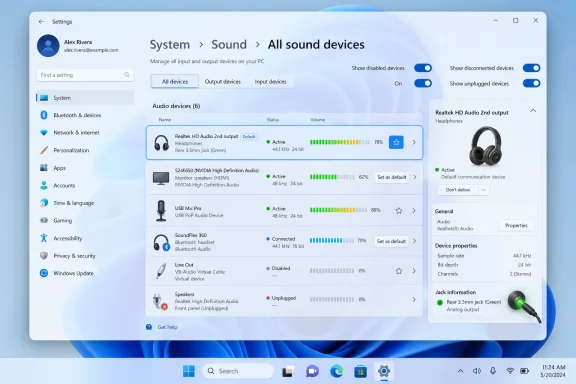
Microsoft’s June 19, 2026 Windows 11 Insider Experimental Preview Build 29613.1000 adds new controls to Settings > System > Sound, including default-device switching, live activity meters, input/output filtering, device visibility toggles, and jack information for supported audio hardware. That is a small changelog item with a large daily footprint. For years, Windows audio management has been a strange mix of modern Settings panels, legacy Control Panel escape hatches, driver utilities, and trial-and-error debugging. Microsoft is not reinventing the Windows audio stack here, but it is finally admitting that the front door to that stack has been too cluttered, too indirect, and too easy to misunderstand.
The important thing about this preview build is not that Microsoft has discovered audio devices. Windows has had an enormously capable audio system for decades, from per-app routing to communications defaults, spatial audio, Bluetooth profiles, USB interfaces, HDMI sinks, virtual devices, and low-latency professional workflows. The problem has been that the user interface often made those capabilities feel accidental.
Windows 11 has spent much of its life migrating old Control Panel territory into the Settings app. Sometimes that migration has been graceful. Sometimes it has felt like Microsoft moved the furniture but left half the keys in the old house. Audio has been one of the more obvious examples, because the difference between “the speakers are broken” and “Windows selected the wrong endpoint” is often one tiny setting hidden behind a misleading device name.
The new “All sound devices” changes are aimed at that friction. Being able to change default devices from the page where all devices are listed sounds obvious because it is obvious. The fact that it still counts as a meaningful improvement says more about the state of Windows settings design than it does about the novelty of the feature.
This is the kind of update that will not sell a single PC, but it may save millions of small moments of aggravation. Nobody remembers the day an operating system routes audio correctly. Everyone remembers the day it does not.
A laptop docked to a monitor may suddenly see HDMI audio as a plausible output. A Bluetooth headset may expose both a high-quality playback device and a lower-quality hands-free communications profile. A USB microphone may appear beside a webcam microphone, a monitor microphone that does not physically exist, and a virtual input created by streaming software. Windows can understand all of these devices at once; users are the ones left deciphering which one matters.
That is why changing the default device directly from “All sound devices” is more than a convenience tweak. It collapses a troubleshooting loop. Instead of opening Sound settings, clicking through a device, backing out, opening a different page, and wondering whether “default” means system default or communications default, the user can make the decision in the inventory view.
This matters especially because Windows audio defaults are not a single concept in practice. There is the default output, the default input, the default communications device, and then per-app preferences layered on top. Microsoft’s recent work to expose more of these choices in Settings suggests a belated recognition that audio configuration is not an edge case anymore. It is part of ordinary computing.
Video meetings, game chat, streaming, podcasting, remote desktops, virtual machines, and browser-based apps have made audio routing a mainstream administrative issue. The home user who just wants sound from headphones and the sysadmin supporting a fleet of hybrid-work laptops are now fighting the same class of problem.
If sound is playing but you cannot hear it, the first question is not “which driver is broken?” It is “where is the signal going?” A live meter answers that question quickly. If the HDMI monitor is bouncing while the headset is silent, the problem is not mysterious. If no output meter moves at all, the issue may be upstream in the app, the mixer, or the service.
This is the difference between a settings page and a troubleshooting tool. Windows has long had places where users could see some form of audio activity, but they were not always where a normal person would go first. Putting activity indicators in the all-devices list makes the page legible under pressure.
That pressure is real. Audio problems tend to appear at the worst possible time: two minutes before a Teams call, during a game lobby, while recording a take, or when a family member is asking why the TV connected to the PC has no sound. In those moments, a blinking meter is worth more than a paragraph of help text.
It also reduces the temptation to perform superstitious troubleshooting. Users reinstall drivers, reboot, unplug docks, remove Bluetooth devices, and reset app permissions because Windows does not clearly show the current route. A live meter does not fix every audio issue, but it tells the user whether the operating system is at least sending sound somewhere.
There may be speakers, headphones, headset microphones, webcam microphones, HDMI and DisplayPort outputs, Bluetooth endpoints, USB DACs, capture cards, virtual audio cables, remote desktop devices, phone-link devices, and leftover disconnected hardware. Some of those are useful. Some are ghosts. Some are legitimate devices with terrible names. Some are entries created by drivers that assume everyone wants a maze.
Filtering input and output devices is not glamorous, but it respects the task the user is actually performing. When someone is fixing a microphone, speaker outputs are noise. When someone is choosing headphones, webcam microphones are noise. The old habit of showing everything together made the operating system look powerful at the expense of being readable.
The new toggles for disabled, disconnected, and unplugged devices go in the same direction. Windows needs to remember hardware that is not currently attached, especially in a world of docks, Bluetooth, USB-C hubs, and rotating workspaces. But remembering a device is not the same as making it visually compete with the device the user is trying to use right now.
This is where Windows 11’s Settings app has sometimes struggled. It wants to be friendly, but it often inherits decades of platform complexity. These audio changes do not eliminate that complexity. They give it some hierarchy.
For those users, “Speakers” is not enough information. Is Windows talking about the rear green 3.5mm port? The front headphone jack? A line-out exposed by the audio codec? A monitor? A USB DAC? A driver control panel may know, but the Settings app has often been too vague.
Showing jack information where supported makes the Settings app more honest about physical reality. That matters for builders and repairers, but it also matters for ordinary users who are looking at the back of a PC and trying to match colored ports to a label on screen.
This is also a subtle blow against the dependency on OEM audio utilities. Realtek panels, motherboard utilities, and vendor-specific control apps have long filled gaps that Windows itself should have covered. Some of those tools are useful; many are overdesigned, inconsistently updated, and bundled with features the user never asked for. If Windows can expose basic physical-port identity directly, users have one less reason to spelunk through vendor software.
The larger pattern is that Settings is becoming less decorative and more operational. Microsoft is not merely copying old Control Panel pages into a new visual shell. At its best, it is rethinking what information belongs at the point of decision.
The classic Sound control panel exposes playback, recording, sounds, communications behavior, device properties, enhancements, levels, formats, and advanced options in a compact structure. It is not beautiful. It is not friendly. But it is predictable if you learned Windows audio in the Vista, 7, 8, or 10 eras.
Windows 11’s Settings app has had the opposite problem. It looks modern, but it has not always felt complete. When a modern page punts users back to an old dialog, the result is not just aesthetic inconsistency. It teaches people that Settings cannot be trusted for serious configuration.
That trust is hard to rebuild. Every time a user has to search for “mmsys.cpl” or open a legacy dialog to solve a problem, the modern settings project loses credibility. Every time Microsoft moves a real control into Settings without burying it, the project gains some of that credibility back.
The audio changes in this build are therefore less about killing Control Panel overnight and more about reducing the number of reasons people need it. That is the only realistic path. Windows is too old, too widely deployed, and too hardware-diverse for a clean break to be painless.
That distinction matters because Windows watchers have been burned before. Features appear in Insider builds, change shape, roll out to a subset of testers, disappear for a while, move channels, or arrive months later under a different name. The modern Windows development model is continuous, but it is also deliberately uneven.
The Controlled Feature Rollout mechanism adds another wrinkle. Even if a tester installs the correct build, the feature may not appear immediately. Microsoft can enable it for a subset of devices, watch telemetry and feedback, and expand availability over time. The “Get the latest updates as soon as they’re available” toggle may improve the odds, but it is not a magic wand.
For regular users, that means patience. For IT departments, it means caution. A useful Settings improvement in Experimental is not the same as a supportable change in a production baseline. Admins should watch the direction of travel, but they should not rewrite help-desk scripts until the feature reaches a stable release channel.
This is one of the more frustrating parts of modern Windows coverage. A change can be real, documented, and visible, yet still not be available in the way most people understand that word. Microsoft’s servicing model has made the boundary between “announced,” “testing,” “rolling out,” and “shipped” blurrier than it used to be.
Windows has had to absorb a massive shift in how people use PCs. The operating system is no longer just managing local speakers and a line-in jack. It is mediating between conferencing apps, browsers, games, communications platforms, Bluetooth accessories, docks, virtual devices, and privacy controls.
That is why the settings surface matters. The operating system can have a technically sophisticated audio architecture and still fail users if it cannot explain what is happening. The best troubleshooting interface is one that lets people form the right mental model quickly.
Microsoft appears to be moving toward that model one piece at a time. Recent audio settings work has already brought more communications behavior into Settings. This build extends the same logic to device inventory and properties. The direction is unmistakable: fewer legacy detours, more visibility, and more action where the user already is.
The risk is that Microsoft stops halfway. A cleaner “All sound devices” page is valuable, but Windows audio still has confusing edges. Per-app routing, communications defaults, Bluetooth profile behavior, enhancements, spatial audio, exclusive mode, and driver-level effects can still interact in ways that are hard to explain. The new page helps with the first mile of troubleshooting. It does not solve the whole map.
That matters in hybrid work environments where users are constantly moving between desks, conference rooms, home offices, USB-C docks, Bluetooth headsets, and built-in laptop hardware. Audio problems are often low severity but high volume. They waste time precisely because they are usually fixable, but not always obvious.
A support technician who can say “open Settings, go to System, Sound, All sound devices, and look for the moving meter” has a much better script than one involving multiple legacy panels and device-manager checks. The moving meter becomes shared evidence. Both the user and technician can see whether sound is going to the wrong endpoint.
Device visibility toggles also help in managed environments. Disconnected and disabled devices can clutter instructions and screenshots. If users can hide irrelevant hardware without deleting it, support conversations become less chaotic.
There is still a policy and management angle Microsoft has not fully addressed in the consumer-facing changelog. Enterprises will want predictable behavior, documentation, and perhaps management controls around defaults and communications devices. But even without new policy knobs, a clearer local UI reduces needless escalation.
A basic laptop user might have two endpoints. An enthusiast might have a USB DAC, studio monitors, a headset, a webcam mic, a capture card, a Bluetooth speaker, an HDMI receiver, virtual audio routing software, and a controller with a headphone jack. Windows sees all of it. The user has to make sense of it.
For those users, the new filters and visibility toggles are not hand-holding. They are table stakes. The more hardware someone owns, the more the interface needs to let them reduce the view to the current task.
Live meters are especially useful for streamers and creators. If an application is sending audio to the wrong place, seeing activity at the device level can quickly separate app configuration problems from system routing problems. That does not replace dedicated tools for professional audio workflows, but it reduces the number of basic Windows mysteries that interrupt them.
The jack information change also speaks directly to PC builders. Analog audio may be unfashionable in some corners of the industry, but it remains common, cheap, and good enough for many setups. The Settings app should not behave as if physical ports are an embarrassing legacy detail.
The audio work is encouraging because it focuses on workflow rather than decoration. Microsoft is not merely adding rounded corners to a legacy concept. It is asking what users are trying to determine when they open the page: which devices exist, which ones are active, which ones are relevant, which one is default, and which physical port is involved.
That is good product thinking. It starts with the user’s diagnostic question instead of the operating system’s internal taxonomy. The old Windows habit was to expose everything and let the user infer meaning. The better Windows 11 habit is to expose enough context that the correct action becomes obvious.
But the company should resist declaring victory too soon. The Settings app still needs to better explain communications devices, Bluetooth quality modes, app-specific routing, enhancement chains, and privacy interactions. It should be possible to understand why a headset microphone sounds bad without learning the history of Bluetooth profiles. It should be possible to see which app owns or recently used an input. It should be possible to reset audio routing sanely without bulldozing every device preference.
The promising part is that these new changes are pointed in the right direction. They treat audio as a live system, not a list of nouns. That is the conceptual shift Windows audio settings have needed.
 Microsoft Finally Fixes the Room Everyone Actually Uses
The important thing about this preview build is not that Microsoft has discovered audio devices. Windows has had an enormously capable audio system for decades, from per-app routing to communications defaults, spatial audio, Bluetooth profiles, USB interfaces, HDMI sinks, virtual devices, and low-latency professional workflows. The problem has been that the user interface often made those capabilities feel accidental.Windows 11 has spent much of its life migrating old Control Panel territory into the Settings app. Sometimes that migration has been graceful. Sometimes it has felt like Microsoft moved the furniture but left half the keys in the old house. Audio has been one of the more obvious examples, because the difference between “the speakers are broken” and “Windows selected the wrong endpoint” is often one tiny setting hidden behind a misleading device name.
The new “All sound devices” changes are aimed at that friction. Being able to change default devices from the page where all devices are listed sounds obvious because it is obvious. The fact that it still counts as a meaningful improvement says more about the state of Windows settings design than it does about the novelty of the feature.
This is the kind of update that will not sell a single PC, but it may save millions of small moments of aggravation. Nobody remembers the day an operating system routes audio correctly. Everyone remembers the day it does not.
The Default Device Was Always a UX Problem Disguised as a Driver Problem
Windows audio failures are often blamed on drivers, and sometimes that blame is earned. But many everyday complaints are not truly driver failures. They are routing failures, naming failures, visibility failures, and state failures.A laptop docked to a monitor may suddenly see HDMI audio as a plausible output. A Bluetooth headset may expose both a high-quality playback device and a lower-quality hands-free communications profile. A USB microphone may appear beside a webcam microphone, a monitor microphone that does not physically exist, and a virtual input created by streaming software. Windows can understand all of these devices at once; users are the ones left deciphering which one matters.
That is why changing the default device directly from “All sound devices” is more than a convenience tweak. It collapses a troubleshooting loop. Instead of opening Sound settings, clicking through a device, backing out, opening a different page, and wondering whether “default” means system default or communications default, the user can make the decision in the inventory view.
This matters especially because Windows audio defaults are not a single concept in practice. There is the default output, the default input, the default communications device, and then per-app preferences layered on top. Microsoft’s recent work to expose more of these choices in Settings suggests a belated recognition that audio configuration is not an edge case anymore. It is part of ordinary computing.
Video meetings, game chat, streaming, podcasting, remote desktops, virtual machines, and browser-based apps have made audio routing a mainstream administrative issue. The home user who just wants sound from headphones and the sysadmin supporting a fleet of hybrid-work laptops are now fighting the same class of problem.
Live Meters Turn Guesswork Into Evidence
The most immediately useful addition may be the smallest one: a little volume meter beside each device. That meter changes the audio settings page from a static inventory into a diagnostic surface.If sound is playing but you cannot hear it, the first question is not “which driver is broken?” It is “where is the signal going?” A live meter answers that question quickly. If the HDMI monitor is bouncing while the headset is silent, the problem is not mysterious. If no output meter moves at all, the issue may be upstream in the app, the mixer, or the service.
This is the difference between a settings page and a troubleshooting tool. Windows has long had places where users could see some form of audio activity, but they were not always where a normal person would go first. Putting activity indicators in the all-devices list makes the page legible under pressure.
That pressure is real. Audio problems tend to appear at the worst possible time: two minutes before a Teams call, during a game lobby, while recording a take, or when a family member is asking why the TV connected to the PC has no sound. In those moments, a blinking meter is worth more than a paragraph of help text.
It also reduces the temptation to perform superstitious troubleshooting. Users reinstall drivers, reboot, unplug docks, remove Bluetooth devices, and reset app permissions because Windows does not clearly show the current route. A live meter does not fix every audio issue, but it tells the user whether the operating system is at least sending sound somewhere.
Filters Are an Admission That Modern PCs Have Too Many “Devices”
The input/output filter is another deceptively practical change. A clean Windows install on a simple laptop may not look crowded, but a real enthusiast or work machine can accumulate a ridiculous audio inventory.There may be speakers, headphones, headset microphones, webcam microphones, HDMI and DisplayPort outputs, Bluetooth endpoints, USB DACs, capture cards, virtual audio cables, remote desktop devices, phone-link devices, and leftover disconnected hardware. Some of those are useful. Some are ghosts. Some are legitimate devices with terrible names. Some are entries created by drivers that assume everyone wants a maze.
Filtering input and output devices is not glamorous, but it respects the task the user is actually performing. When someone is fixing a microphone, speaker outputs are noise. When someone is choosing headphones, webcam microphones are noise. The old habit of showing everything together made the operating system look powerful at the expense of being readable.
The new toggles for disabled, disconnected, and unplugged devices go in the same direction. Windows needs to remember hardware that is not currently attached, especially in a world of docks, Bluetooth, USB-C hubs, and rotating workspaces. But remembering a device is not the same as making it visually compete with the device the user is trying to use right now.
This is where Windows 11’s Settings app has sometimes struggled. It wants to be friendly, but it often inherits decades of platform complexity. These audio changes do not eliminate that complexity. They give it some hierarchy.
Jack Information Brings the PC Tower Back Into the Conversation
The addition of jack information on input and output properties pages is a reminder that not every Windows 11 device is a sealed ultrabook with two USB-C ports. Desktop PCs still exist. Front-panel audio still exists. Motherboard rear jacks still exist. Sound cards, external interfaces, and analog speakers still exist.For those users, “Speakers” is not enough information. Is Windows talking about the rear green 3.5mm port? The front headphone jack? A line-out exposed by the audio codec? A monitor? A USB DAC? A driver control panel may know, but the Settings app has often been too vague.
Showing jack information where supported makes the Settings app more honest about physical reality. That matters for builders and repairers, but it also matters for ordinary users who are looking at the back of a PC and trying to match colored ports to a label on screen.
This is also a subtle blow against the dependency on OEM audio utilities. Realtek panels, motherboard utilities, and vendor-specific control apps have long filled gaps that Windows itself should have covered. Some of those tools are useful; many are overdesigned, inconsistently updated, and bundled with features the user never asked for. If Windows can expose basic physical-port identity directly, users have one less reason to spelunk through vendor software.
The larger pattern is that Settings is becoming less decorative and more operational. Microsoft is not merely copying old Control Panel pages into a new visual shell. At its best, it is rethinking what information belongs at the point of decision.
The Control Panel Retreat Is Slow Because the Old System Still Works
It is tempting to frame every Settings improvement as another nail in the Control Panel coffin. That is partly true, but it misses why the transition has taken so long. The old Windows audio dialogs may look ancient, but they are dense, familiar to support professionals, and deeply wired into how many users troubleshoot.The classic Sound control panel exposes playback, recording, sounds, communications behavior, device properties, enhancements, levels, formats, and advanced options in a compact structure. It is not beautiful. It is not friendly. But it is predictable if you learned Windows audio in the Vista, 7, 8, or 10 eras.
Windows 11’s Settings app has had the opposite problem. It looks modern, but it has not always felt complete. When a modern page punts users back to an old dialog, the result is not just aesthetic inconsistency. It teaches people that Settings cannot be trusted for serious configuration.
That trust is hard to rebuild. Every time a user has to search for “mmsys.cpl” or open a legacy dialog to solve a problem, the modern settings project loses credibility. Every time Microsoft moves a real control into Settings without burying it, the project gains some of that credibility back.
The audio changes in this build are therefore less about killing Control Panel overnight and more about reducing the number of reasons people need it. That is the only realistic path. Windows is too old, too widely deployed, and too hardware-diverse for a clean break to be painless.
Canary and Experimental Mean “Promising,” Not “Guaranteed”
There is a catch, and it is an important one. These features are appearing in the Windows Insider Experimental build stream associated with the Canary 29600 series. Microsoft explicitly treats these builds as early platform work, not as a promise of what will ship to every Windows 11 user on a specific date.That distinction matters because Windows watchers have been burned before. Features appear in Insider builds, change shape, roll out to a subset of testers, disappear for a while, move channels, or arrive months later under a different name. The modern Windows development model is continuous, but it is also deliberately uneven.
The Controlled Feature Rollout mechanism adds another wrinkle. Even if a tester installs the correct build, the feature may not appear immediately. Microsoft can enable it for a subset of devices, watch telemetry and feedback, and expand availability over time. The “Get the latest updates as soon as they’re available” toggle may improve the odds, but it is not a magic wand.
For regular users, that means patience. For IT departments, it means caution. A useful Settings improvement in Experimental is not the same as a supportable change in a production baseline. Admins should watch the direction of travel, but they should not rewrite help-desk scripts until the feature reaches a stable release channel.
This is one of the more frustrating parts of modern Windows coverage. A change can be real, documented, and visible, yet still not be available in the way most people understand that word. Microsoft’s servicing model has made the boundary between “announced,” “testing,” “rolling out,” and “shipped” blurrier than it used to be.
Audio Is Now a Front-Line Productivity Feature
The reason this small Settings update deserves attention is that audio is no longer peripheral. It is now a front-line productivity feature. A broken microphone can derail a meeting. A misrouted speaker can break a classroom setup. A headset stuck in the wrong Bluetooth profile can make a premium device sound like a telephone from 1998.Windows has had to absorb a massive shift in how people use PCs. The operating system is no longer just managing local speakers and a line-in jack. It is mediating between conferencing apps, browsers, games, communications platforms, Bluetooth accessories, docks, virtual devices, and privacy controls.
That is why the settings surface matters. The operating system can have a technically sophisticated audio architecture and still fail users if it cannot explain what is happening. The best troubleshooting interface is one that lets people form the right mental model quickly.
Microsoft appears to be moving toward that model one piece at a time. Recent audio settings work has already brought more communications behavior into Settings. This build extends the same logic to device inventory and properties. The direction is unmistakable: fewer legacy detours, more visibility, and more action where the user already is.
The risk is that Microsoft stops halfway. A cleaner “All sound devices” page is valuable, but Windows audio still has confusing edges. Per-app routing, communications defaults, Bluetooth profile behavior, enhancements, spatial audio, exclusive mode, and driver-level effects can still interact in ways that are hard to explain. The new page helps with the first mile of troubleshooting. It does not solve the whole map.
The Enterprise Win Is Fewer Tickets, Not Happier Audiophiles
For enthusiasts, the headline feature may be jack information or faster default switching. For IT departments, the more important benefit is standardization. If the Settings app becomes the reliable place to diagnose common audio routing problems, support instructions get simpler.That matters in hybrid work environments where users are constantly moving between desks, conference rooms, home offices, USB-C docks, Bluetooth headsets, and built-in laptop hardware. Audio problems are often low severity but high volume. They waste time precisely because they are usually fixable, but not always obvious.
A support technician who can say “open Settings, go to System, Sound, All sound devices, and look for the moving meter” has a much better script than one involving multiple legacy panels and device-manager checks. The moving meter becomes shared evidence. Both the user and technician can see whether sound is going to the wrong endpoint.
Device visibility toggles also help in managed environments. Disconnected and disabled devices can clutter instructions and screenshots. If users can hide irrelevant hardware without deleting it, support conversations become less chaotic.
There is still a policy and management angle Microsoft has not fully addressed in the consumer-facing changelog. Enterprises will want predictable behavior, documentation, and perhaps management controls around defaults and communications devices. But even without new policy knobs, a clearer local UI reduces needless escalation.
The Enthusiast Win Is Less Time Fighting the OS
Windows enthusiasts tend to tolerate complexity, but that does not mean they enjoy bad organization. In fact, power users are often the most punished by messy audio settings because they have the most devices.A basic laptop user might have two endpoints. An enthusiast might have a USB DAC, studio monitors, a headset, a webcam mic, a capture card, a Bluetooth speaker, an HDMI receiver, virtual audio routing software, and a controller with a headphone jack. Windows sees all of it. The user has to make sense of it.
For those users, the new filters and visibility toggles are not hand-holding. They are table stakes. The more hardware someone owns, the more the interface needs to let them reduce the view to the current task.
Live meters are especially useful for streamers and creators. If an application is sending audio to the wrong place, seeing activity at the device level can quickly separate app configuration problems from system routing problems. That does not replace dedicated tools for professional audio workflows, but it reduces the number of basic Windows mysteries that interrupt them.
The jack information change also speaks directly to PC builders. Analog audio may be unfashionable in some corners of the industry, but it remains common, cheap, and good enough for many setups. The Settings app should not behave as if physical ports are an embarrassing legacy detail.
The Real Test Is Whether Microsoft Keeps Going
This update fits a broader Windows 11 pattern: Microsoft is slowly turning Settings into the true control surface for the operating system. The company has been at this for years, and the results remain uneven. Some pages are polished and coherent. Others feel like front ends to older machinery. A few still make expert users reach for Run commands out of muscle memory.The audio work is encouraging because it focuses on workflow rather than decoration. Microsoft is not merely adding rounded corners to a legacy concept. It is asking what users are trying to determine when they open the page: which devices exist, which ones are active, which ones are relevant, which one is default, and which physical port is involved.
That is good product thinking. It starts with the user’s diagnostic question instead of the operating system’s internal taxonomy. The old Windows habit was to expose everything and let the user infer meaning. The better Windows 11 habit is to expose enough context that the correct action becomes obvious.
But the company should resist declaring victory too soon. The Settings app still needs to better explain communications devices, Bluetooth quality modes, app-specific routing, enhancement chains, and privacy interactions. It should be possible to understand why a headset microphone sounds bad without learning the history of Bluetooth profiles. It should be possible to see which app owns or recently used an input. It should be possible to reset audio routing sanely without bulldozing every device preference.
The promising part is that these new changes are pointed in the right direction. They treat audio as a live system, not a list of nouns. That is the conceptual shift Windows audio settings have needed.
The Small Controls That Will Matter Most When This Ships
The practical story is simple: Microsoft is moving several high-friction audio decisions into the place where users already look first. The rollout is early, uneven, and not guaranteed for every retail PC on any announced schedule, but the design direction is useful.- Windows 11’s “All sound devices” page is gaining the ability to change default devices without jumping to a separate view.
- Each listed audio device can show a live volume meter, making it easier to identify where sound is actually being routed.
- The page can filter between input and output devices, reducing clutter on PCs with many microphones, speakers, headsets, docks, and virtual endpoints.
- Users can choose whether disabled, disconnected, and unplugged devices appear in the list, which should make troubleshooting less visually chaotic.
- Device properties can now show jack information for hardware that exposes it, a useful improvement for desktop PCs, sound cards, and analog audio setups.
- The feature is currently in an early Insider build with Controlled Feature Rollout, so availability will vary and retail users should wait for a stable release path.
References
- Primary source: thewincentral.com
Published: 2026-06-20T22:10:39.106923
Loading…
thewincentral.com - Official source: blogs.windows.com
Announcing Windows 11 Insider Preview Build 28020.1743 (Canary Channel)
Hello Windows Insiders, today we are releasing Windows 11 Insider Preview Build 28020.1743 to the Canary Channel. (KB 5081339) What’s new in Canary Build 28020.1743 Changes and Improvements g blogs.windows.com
- Official source: support.microsoft.com
Loading…
support.microsoft.com - Official source: learn.microsoft.com
Loading…
learn.microsoft.com - Related coverage: tomshardware.com
- Related coverage: windowscentral.com
Loading…
www.windowscentral.com
- Related coverage: makeuseof.com
Loading…
www.makeuseof.com - Related coverage: windowsreport.com
Loading…
windowsreport.com - Related coverage: allthings.how
Loading…
allthings.how - Related coverage: revsystems.com
www.revsystems.com - Windows 11 Sound Settings Explained
www.revsystems.com - Related coverage: auctions.revsystems.net
Loading…
auctions.revsystems.net
