
Microsoft is testing a Windows 11 Settings update in Build 29613.1000 that lets Insiders manage default audio devices, view per-device activity meters, filter inputs and outputs, and show or hide disabled or disconnected hardware from the “All sound devices” page. The change is small in the way plumbing is small: invisible when it works, maddening when it does not. For years, Windows audio management has lived in the awkward gap between legacy Control Panel muscle memory and a Settings app that too often made common tasks feel like a scavenger hunt. This preview build suggests Microsoft has finally understood that audio settings are not a niche preference pane; they are daily-use infrastructure.
The headline improvement is not that Windows 11 is getting another audio page. It is that an existing page is being made useful.
Today, the “All sound devices” page is largely a directory. It shows input and output devices, but the page mostly serves as a launchpad to other pages where the actual work happens. If you want to change a default device or inspect what is active, you are pushed deeper into the Settings hierarchy.
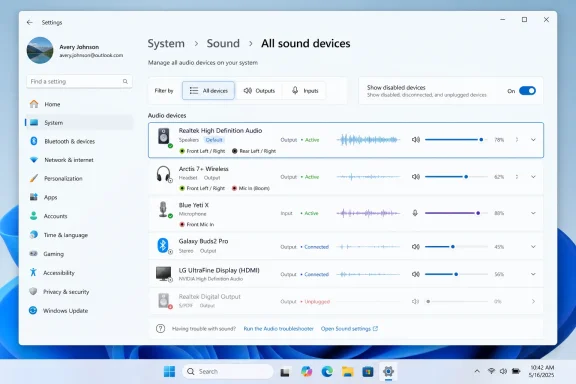
Build 29613.1000 changes that bargain. Microsoft says the page will let users change default devices directly, display a small volume meter next to each listed device, filter the view between input and output devices, and toggle whether disabled, disconnected, or unplugged devices appear. The input and output properties pages are also gaining jack information where applicable.
That sounds modest, because it is. But modest is not the same as trivial. Windows audio is one of those subsystems users touch only when something is already irritating them: a headset is not being used, a monitor grabbed default output over HDMI, a microphone is muted, a dock disappeared, or Teams is listening to the wrong device. In those moments, shaving clicks is not polish. It is damage control.
That describes a large and growing share of PCs. A single desk setup may include USB speakers, a webcam microphone, Bluetooth earbuds, a gaming headset, monitor speakers over HDMI or DisplayPort, a docking station, a capture card, and virtual devices installed by conferencing, streaming, or recording software. Windows sees all of them, but it has not always done a good job helping humans understand which one is doing what.
The “All sound devices” page should have been the place where that confusion resolved. Instead, it mostly showed inventory. Inventory has value, but only if the next step is obvious. When every meaningful action requires opening a separate device properties page, users lose context just as they are trying to diagnose a problem.
The new design turns that inventory into something closer to a control surface. Seeing a live meter beside a device can immediately answer the question that sends many people spelunking through menus: where is the audio actually going? Being able to set the default device from the same page removes another needless detour.
Microsoft has been moving audio controls out of Control Panel and into Settings for years, but the migration has often felt piecemeal. Some controls arrived in the modern interface before they were fully integrated into a coherent flow. Other controls remained accessible but oddly buried. The result was a system that looked modern from the surface and legacy underneath.
This latest Insider build is part of a broader cleanup. Recent previews have also brought additional audio behavior into Settings, including controls around communication sound levels and clearer default-device handling in properties. The trajectory is more important than any single toggle: Microsoft is trying to make Settings the actual home for audio configuration, not merely the prettier front door.
That work is overdue. Windows 11 has spent much of its life modernizing visible surfaces while leaving some everyday workflows feeling less direct than they should. Audio is a perfect example because the stakes are so mundane. Nobody buys an operating system because the sound device page is elegant. But everyone notices when the operating system makes it hard to join a meeting, switch to headphones, or figure out why a speaker is silent.
When users troubleshoot audio, they are usually trying to distinguish between three failures: the app is not producing sound, Windows is routing sound to the wrong place, or the chosen device is not outputting correctly. A per-device activity meter helps separate those cases at a glance. If a meter is moving next to the monitor but not the headset, the routing problem is obvious. If no meter moves anywhere, the issue may be upstream.
This is the kind of affordance that good operating systems should provide by default. It does not require the user to understand endpoint terminology, audio sessions, or communication defaults. It simply shows life where there is signal.
For IT administrators, that visual cue can reduce the friction of remote troubleshooting. Anyone who has talked a user through audio settings over a call knows the comedy of mismatched device names. “Speakers” may mean laptop speakers, monitor speakers, a USB DAC, or something installed by a display driver. A meter gives both parties a more concrete diagnostic clue.
It also helps in more advanced setups. Streamers, musicians, podcasters, trainers, and hybrid workers often run systems with virtual audio cables, external interfaces, and multiple microphones. Windows does not need to become a digital audio workstation, but it should not require specialist patience for basic routing visibility.
Audio settings benefit from consolidation because the tasks are connected. The user wants to know what devices exist, which are active, which are default, which are disconnected, and which can be ignored. Splitting those actions across multiple pages makes the interface calmer only in screenshots.
The redesigned “All sound devices” page recognizes that a settings page can be both readable and operational. Filtering inputs and outputs reduces clutter. Showing hidden device categories on demand helps users who need to clean up old hardware or diagnose a missing endpoint. Changing defaults in place preserves context.
This is not a rejection of Windows 11’s design language. It is a maturation of it. The operating system does not need to bring back every dense Control Panel dialog to be efficient. But it does need to stop pretending that every advanced action belongs one page deeper.
Audio devices come and go. Bluetooth earbuds pair and disappear. USB headsets move between ports. Monitors change. Docking stations introduce their own endpoints. GPU drivers expose HDMI audio devices that many users never intentionally use. Over time, the list becomes less a representation of the current system and more a diary of everything the PC has ever met.
Hiding that clutter is useful for normal users. Showing it is useful for troubleshooting. The important part is allowing both modes without forcing users to hunt through obscure dialogs or wonder whether Windows has forgotten about a device entirely.
There is also a psychological benefit. A page full of unplugged devices makes a system feel broken even when it is behaving normally. Conversely, hiding unavailable devices too aggressively can make troubleshooting feel impossible. A clear toggle is the right compromise: reduce noise until the user asks for it back.
Jack detection has long been one of those areas where Windows, drivers, and OEM utilities overlap uneasily. Users may see front-panel audio, rear-panel audio, line-in, microphone, headset combo ports, and vendor-specific enhancements described in inconsistent ways. Any extra clarity inside Settings helps move Windows away from depending on separate audio control panels from Realtek, OEMs, or motherboard vendors.
The practical impact will depend on hardware and driver support. Microsoft’s phrasing leaves room for that, noting jack information will appear for devices that need it. Still, the direction is sensible. If Settings is supposed to be the canonical place to manage sound, it should expose enough physical context to make the page trustworthy.
This matters in managed environments, too. A help desk technician does not want to tell a user to open three different audio utilities just to determine whether they plugged a headset into the correct port. The more Windows can surface that information directly, the less support depends on vendor-specific guesswork.
That distinction matters. Microsoft has repeatedly warned that features tested with Insiders may change, arrive later, roll out gradually, or never ship in exactly the same form. The new audio page is likely headed in a practical direction because it builds on existing Settings work rather than introducing a speculative subsystem. But timing remains uncertain.
The channel context also makes this update more interesting. Microsoft recently reworked the Windows Insider Program into a structure that is intended to feel more linear, with Experimental, Beta, Dev-style feature exposure, Release Preview, and related tracks becoming clearer about where builds sit in the development process. The company is still transitioning devices and labels, which means the naming may be tidier on paper than in every Insider’s Settings page today.
That transition is more than administrative. Windows enthusiasts have spent years decoding which channel actually represents the future of Windows and which one represents a near-term servicing train. By labeling this build as Experimental Future Platforms, Microsoft is signaling that the audio work is early enough to sit near platform changes, even if the feature itself is very user-facing.
That was frustrating for testers and confusing for anyone covering Windows. It also made it harder for IT pros to infer risk. A feature in a high-numbered build could be either a near-future preview or a long-range experiment, depending on which branch it came from and how Microsoft chose to stage it.
Microsoft’s newer channel framing attempts to reduce that ambiguity. Experimental Future Platforms builds are for deeper platform work and longer-range development. Experimental and Beta builds can carry more front-facing changes. Release Preview remains the closest thing to a waiting room for production servicing.
The audio settings update lands in the awkward but important middle. It is not a kernel scheduler rewrite or a new driver model. It is also not merely a toggle being turned on for production users. It is a visible user-experience correction traveling through an early channel, which means enthusiasts should pay attention without assuming a delivery date.
A/B testing makes sense for a company shipping to hundreds of millions of devices. It lets Microsoft evaluate behavior, reliability, engagement, and regressions before throwing a switch worldwide. But it has also made the Insider experience feel arbitrary. Two testers install the same build, compare notes, and discover that one has the new feature while the other has a ghost story.
For a change like the audio device page, feature availability matters. The whole point of Insider testing is feedback, and feedback becomes noisier when users cannot tell whether they lack a feature because of a bug, a region, a rollout hold, or a controlled experiment. A clearer opt-in path for channel-available features could make preview testing less theatrical.
There is still a tradeoff. Turning on every available experiment may put testers closer to the blast radius of bugs. But that is a bargain many Insiders knowingly accept. The key is transparency: if a feature is in the channel, testers should be able to test it without spelunking through unsupported feature flags.
Control Panel was never beautiful, but it was often dense, direct, and discoverable to experienced users. Windows Settings is more approachable, more touch-friendly, and more visually consistent, but it has sometimes hidden advanced controls behind too many layers. The result has been a weird inversion: novice users may find Settings friendlier, while power users still trust the old dialogs because they know the controls are there.
Audio is one of the places where that split has been most visible. The classic Sound dialog remains familiar to many administrators and longtime users because it exposes playback, recording, defaults, properties, levels, enhancements, and communications behavior in a compact environment. Windows 11’s modern pages have gradually absorbed pieces of that functionality, but not always with the same efficiency.
Build 29613.1000 does not close the Control Panel chapter. It does, however, make the modern Settings version feel less performative. When a Settings page lets you see activity, set defaults, filter device classes, and manage hidden hardware from one place, it begins to earn the authority Microsoft wants it to have.
Changing that habit requires more than removing Control Panel links. It requires making the replacement better. If Settings is slower, less complete, or less predictable, users will treat it as a decorative layer over the real system.
That is why this kind of incremental improvement matters. Microsoft does not need to win a design award for the “All sound devices” page. It needs users to stop assuming that the useful control is hidden somewhere else. The new page appears aimed squarely at that trust gap.
The same lesson applies across Windows. Power and battery settings, network adapters, printing, privacy permissions, app defaults, startup behavior, and device management have all gone through versions of this modernization problem. The best Windows 11 updates are often not the flashiest ones; they are the ones that make Settings feel like the first place to go rather than the place to pass through.
Audio issues are a constant background hum in support environments because they sit at the intersection of hardware, drivers, conferencing apps, docking stations, Bluetooth stacks, and user behavior. Hybrid work amplified that problem. A laptop that behaves perfectly at home may become confused at a hot desk with a USB-C dock, external monitor, conference-room display, and corporate headset.
A more informative “All sound devices” page gives support teams a better common language. Instead of walking users through multiple panes, technicians can ask what appears on the consolidated page, whether the meter is moving, and which device is marked default. That does not solve driver problems, but it shortens the path to identifying them.
There is also a training angle. Enterprises often document common workflows for users, especially around conferencing. Simpler Settings pages make those documents shorter and less brittle. Every extra click in a support script is another place for a user to land on the wrong screen after Microsoft tweaks navigation.
The risk for administrators is that Insider changes can create documentation churn before production rollout. IT shops should not rewrite internal guides around a preview build. But they should note the direction: Microsoft is consolidating common audio controls in Settings, and future training materials should likely assume that Control Panel workarounds will keep receding.
That mismatch does not mean Microsoft should stop building ambitious features. It means the everyday substrate must be good enough that ambitious features do not feel like a distraction. A user who cannot easily switch from monitor speakers to a headset is not in the mood to appreciate strategic platform narratives.
The audio page update is exactly the kind of fix that earns goodwill because it addresses an irritation users recognize. It does not ask them to change their workflow dramatically. It simply removes unnecessary friction from a task they already perform.
There is a lesson here for Windows 11’s broader evolution. The operating system is mature enough that many meaningful improvements will be unglamorous. Better settings density, clearer status indicators, fewer legacy detours, more predictable defaults, and transparent rollout controls may do more for user satisfaction than another headline feature.
Windows still has too many places where modern and legacy surfaces overlap without a clear division of responsibility. Some Settings pages are excellent. Others feel like table-of-contents entries for deeper tools. The inconsistency is what frustrates users: not that Windows has depth, but that it is unclear where that depth lives.
Audio also remains complicated beyond Microsoft’s UI choices. Bluetooth audio quality can depend on codec support, headset profiles, drivers, and application behavior. USB audio devices may bring custom control software. Conferencing apps often maintain their own device selections, which can override or appear to override system defaults. Games and creative apps may expose separate audio routing controls.
So the new page should not be oversold as a universal fix. It is not going to make every microphone behave, eliminate every Bluetooth oddity, or reconcile every per-app preference. What it can do is reduce the number of times Windows itself makes the situation harder to understand.
If Microsoft follows through, the “All sound devices” page could become a small example of how the Settings app should mature. Not by flattening every advanced option into one endless screen, and not by hiding complexity behind cheerful minimalism, but by matching page design to the task users are trying to complete.
The best version of Windows Settings would be calm when users are browsing and dense when users are fixing something. Audio management clearly belongs in the second category. The new page appears to understand that.
The more difficult test will be consistency. A single improved page is welcome. A design pattern is better. If Microsoft applies the same thinking across printers, displays, network adapters, power modes, input devices, and recovery features, Windows 11 will feel less like a modernization project and more like a finished operating system.
 Microsoft Finally Treats Audio Switching Like a First-Class Task
The headline improvement is not that Windows 11 is getting another audio page. It is that an existing page is being made useful.Today, the “All sound devices” page is largely a directory. It shows input and output devices, but the page mostly serves as a launchpad to other pages where the actual work happens. If you want to change a default device or inspect what is active, you are pushed deeper into the Settings hierarchy.
Build 29613.1000 changes that bargain. Microsoft says the page will let users change default devices directly, display a small volume meter next to each listed device, filter the view between input and output devices, and toggle whether disabled, disconnected, or unplugged devices appear. The input and output properties pages are also gaining jack information where applicable.
That sounds modest, because it is. But modest is not the same as trivial. Windows audio is one of those subsystems users touch only when something is already irritating them: a headset is not being used, a monitor grabbed default output over HDMI, a microphone is muted, a dock disappeared, or Teams is listening to the wrong device. In those moments, shaving clicks is not polish. It is damage control.
The Old Page Was a Map That Refused to Be a Dashboard
The current Windows 11 audio experience is not unusable, but it is oddly indirect. Quick Settings is fine for selecting a playback device in casual use, and the main Sound page exposes basic output and input controls. The problem begins when the system has more than one realistic audio path.That describes a large and growing share of PCs. A single desk setup may include USB speakers, a webcam microphone, Bluetooth earbuds, a gaming headset, monitor speakers over HDMI or DisplayPort, a docking station, a capture card, and virtual devices installed by conferencing, streaming, or recording software. Windows sees all of them, but it has not always done a good job helping humans understand which one is doing what.
The “All sound devices” page should have been the place where that confusion resolved. Instead, it mostly showed inventory. Inventory has value, but only if the next step is obvious. When every meaningful action requires opening a separate device properties page, users lose context just as they are trying to diagnose a problem.
The new design turns that inventory into something closer to a control surface. Seeing a live meter beside a device can immediately answer the question that sends many people spelunking through menus: where is the audio actually going? Being able to set the default device from the same page removes another needless detour.
Windows Audio Has Always Been a Little Too Haunted
Part of the reason this change matters is historical. Windows audio has accumulated layers over decades: classic Control Panel applets, modern Settings pages, per-app volume routing, communication-device defaults, driver utilities, vendor enhancements, Bluetooth profiles, and application-specific overrides. Each layer made sense at the time. Together, they can feel like a haunted house with excellent backward compatibility.Microsoft has been moving audio controls out of Control Panel and into Settings for years, but the migration has often felt piecemeal. Some controls arrived in the modern interface before they were fully integrated into a coherent flow. Other controls remained accessible but oddly buried. The result was a system that looked modern from the surface and legacy underneath.
This latest Insider build is part of a broader cleanup. Recent previews have also brought additional audio behavior into Settings, including controls around communication sound levels and clearer default-device handling in properties. The trajectory is more important than any single toggle: Microsoft is trying to make Settings the actual home for audio configuration, not merely the prettier front door.
That work is overdue. Windows 11 has spent much of its life modernizing visible surfaces while leaving some everyday workflows feeling less direct than they should. Audio is a perfect example because the stakes are so mundane. Nobody buys an operating system because the sound device page is elegant. But everyone notices when the operating system makes it hard to join a meeting, switch to headphones, or figure out why a speaker is silent.
The Volume Meter Is the Sleeper Feature
Among the announced changes, the little volume meter may be the most important. It is not glamorous, but it attacks uncertainty directly.When users troubleshoot audio, they are usually trying to distinguish between three failures: the app is not producing sound, Windows is routing sound to the wrong place, or the chosen device is not outputting correctly. A per-device activity meter helps separate those cases at a glance. If a meter is moving next to the monitor but not the headset, the routing problem is obvious. If no meter moves anywhere, the issue may be upstream.
This is the kind of affordance that good operating systems should provide by default. It does not require the user to understand endpoint terminology, audio sessions, or communication defaults. It simply shows life where there is signal.
For IT administrators, that visual cue can reduce the friction of remote troubleshooting. Anyone who has talked a user through audio settings over a call knows the comedy of mismatched device names. “Speakers” may mean laptop speakers, monitor speakers, a USB DAC, or something installed by a display driver. A meter gives both parties a more concrete diagnostic clue.
It also helps in more advanced setups. Streamers, musicians, podcasters, trainers, and hybrid workers often run systems with virtual audio cables, external interfaces, and multiple microphones. Windows does not need to become a digital audio workstation, but it should not require specialist patience for basic routing visibility.
Fewer Clicks Is a Design Philosophy, Not a Convenience
The Windows Central framing is right to focus on fewer clicks, but the deeper story is that Microsoft is inching toward density where density is justified. Modern Windows design has sometimes mistaken spaciousness for simplicity. Large pages, generous gaps, and isolated controls can look clean while making related tasks harder to complete.Audio settings benefit from consolidation because the tasks are connected. The user wants to know what devices exist, which are active, which are default, which are disconnected, and which can be ignored. Splitting those actions across multiple pages makes the interface calmer only in screenshots.
The redesigned “All sound devices” page recognizes that a settings page can be both readable and operational. Filtering inputs and outputs reduces clutter. Showing hidden device categories on demand helps users who need to clean up old hardware or diagnose a missing endpoint. Changing defaults in place preserves context.
This is not a rejection of Windows 11’s design language. It is a maturation of it. The operating system does not need to bring back every dense Control Panel dialog to be efficient. But it does need to stop pretending that every advanced action belongs one page deeper.
The Disabled Device Toggle Acknowledges a Real Windows Mess
The ability to show or hide disabled, disconnected, and unplugged devices may sound like housekeeping, but it addresses one of Windows audio’s recurring annoyances: stale device clutter.Audio devices come and go. Bluetooth earbuds pair and disappear. USB headsets move between ports. Monitors change. Docking stations introduce their own endpoints. GPU drivers expose HDMI audio devices that many users never intentionally use. Over time, the list becomes less a representation of the current system and more a diary of everything the PC has ever met.
Hiding that clutter is useful for normal users. Showing it is useful for troubleshooting. The important part is allowing both modes without forcing users to hunt through obscure dialogs or wonder whether Windows has forgotten about a device entirely.
There is also a psychological benefit. A page full of unplugged devices makes a system feel broken even when it is behaving normally. Conversely, hiding unavailable devices too aggressively can make troubleshooting feel impossible. A clear toggle is the right compromise: reduce noise until the user asks for it back.
The Jack Information Detail Shows Microsoft Is Thinking Beyond Bluetooth
The new jack information on device properties pages is a smaller note, but it deserves attention. Audio troubleshooting is not only about Bluetooth headsets and USB peripherals. Physical ports still matter, especially on desktops, workstations, education fleets, shared PCs, and older office hardware.Jack detection has long been one of those areas where Windows, drivers, and OEM utilities overlap uneasily. Users may see front-panel audio, rear-panel audio, line-in, microphone, headset combo ports, and vendor-specific enhancements described in inconsistent ways. Any extra clarity inside Settings helps move Windows away from depending on separate audio control panels from Realtek, OEMs, or motherboard vendors.
The practical impact will depend on hardware and driver support. Microsoft’s phrasing leaves room for that, noting jack information will appear for devices that need it. Still, the direction is sensible. If Settings is supposed to be the canonical place to manage sound, it should expose enough physical context to make the page trustworthy.
This matters in managed environments, too. A help desk technician does not want to tell a user to open three different audio utilities just to determine whether they plugged a headset into the correct port. The more Windows can surface that information directly, the less support depends on vendor-specific guesswork.
Insider Builds Are Not Product Promises
There is a catch, and it is the usual one: Build 29613.1000 is an Insider preview, not a guarantee of what every Windows 11 user will see next month. It shipped in the Experimental Future Platforms track, a channel specifically meant for early platform work rather than stable feature delivery.That distinction matters. Microsoft has repeatedly warned that features tested with Insiders may change, arrive later, roll out gradually, or never ship in exactly the same form. The new audio page is likely headed in a practical direction because it builds on existing Settings work rather than introducing a speculative subsystem. But timing remains uncertain.
The channel context also makes this update more interesting. Microsoft recently reworked the Windows Insider Program into a structure that is intended to feel more linear, with Experimental, Beta, Dev-style feature exposure, Release Preview, and related tracks becoming clearer about where builds sit in the development process. The company is still transitioning devices and labels, which means the naming may be tidier on paper than in every Insider’s Settings page today.
That transition is more than administrative. Windows enthusiasts have spent years decoding which channel actually represents the future of Windows and which one represents a near-term servicing train. By labeling this build as Experimental Future Platforms, Microsoft is signaling that the audio work is early enough to sit near platform changes, even if the feature itself is very user-facing.
The Insider Program Reset Is Part of the Story
The new Insider structure is Microsoft trying to solve an old communication problem. Canary builds, Dev builds, Beta builds, and Release Preview builds have often been interpreted as a ladder, but features have not always moved cleanly from one rung to the next. Some appeared in one channel and vanished. Others skipped around. A/B testing made two machines on the same build behave differently.That was frustrating for testers and confusing for anyone covering Windows. It also made it harder for IT pros to infer risk. A feature in a high-numbered build could be either a near-future preview or a long-range experiment, depending on which branch it came from and how Microsoft chose to stage it.
Microsoft’s newer channel framing attempts to reduce that ambiguity. Experimental Future Platforms builds are for deeper platform work and longer-range development. Experimental and Beta builds can carry more front-facing changes. Release Preview remains the closest thing to a waiting room for production servicing.
The audio settings update lands in the awkward but important middle. It is not a kernel scheduler rewrite or a new driver model. It is also not merely a toggle being turned on for production users. It is a visible user-experience correction traveling through an early channel, which means enthusiasts should pay attention without assuming a delivery date.
A/B Testing Relief Could Matter More Than This One Page
One underappreciated part of Microsoft’s Insider changes is the promise that users will be able to bypass some A/B testing and access the newest features available to their channel. For Windows watchers, that could be a bigger quality-of-life improvement than any single Settings page.A/B testing makes sense for a company shipping to hundreds of millions of devices. It lets Microsoft evaluate behavior, reliability, engagement, and regressions before throwing a switch worldwide. But it has also made the Insider experience feel arbitrary. Two testers install the same build, compare notes, and discover that one has the new feature while the other has a ghost story.
For a change like the audio device page, feature availability matters. The whole point of Insider testing is feedback, and feedback becomes noisier when users cannot tell whether they lack a feature because of a bug, a region, a rollout hold, or a controlled experiment. A clearer opt-in path for channel-available features could make preview testing less theatrical.
There is still a tradeoff. Turning on every available experiment may put testers closer to the blast radius of bugs. But that is a bargain many Insiders knowingly accept. The key is transparency: if a feature is in the channel, testers should be able to test it without spelunking through unsupported feature flags.
Settings Is Still Paying Off a Control Panel Debt
This audio change belongs to a much longer migration: the slow retirement of Control Panel as the place where serious Windows configuration happens. Microsoft has been walking that road for more than a decade. The problem is not only that the journey is long; it is that Windows users can still tell where the old city walls are buried.Control Panel was never beautiful, but it was often dense, direct, and discoverable to experienced users. Windows Settings is more approachable, more touch-friendly, and more visually consistent, but it has sometimes hidden advanced controls behind too many layers. The result has been a weird inversion: novice users may find Settings friendlier, while power users still trust the old dialogs because they know the controls are there.
Audio is one of the places where that split has been most visible. The classic Sound dialog remains familiar to many administrators and longtime users because it exposes playback, recording, defaults, properties, levels, enhancements, and communications behavior in a compact environment. Windows 11’s modern pages have gradually absorbed pieces of that functionality, but not always with the same efficiency.
Build 29613.1000 does not close the Control Panel chapter. It does, however, make the modern Settings version feel less performative. When a Settings page lets you see activity, set defaults, filter device classes, and manage hidden hardware from one place, it begins to earn the authority Microsoft wants it to have.
The Real Competition Is the User’s Memory
Microsoft is not only competing with macOS, ChromeOS, Linux desktops, or mobile operating systems here. It is competing with the habits of Windows users who learned long ago that the fastest path to solving audio problems was often a legacy dialog, a right-click menu, or a vendor utility.Changing that habit requires more than removing Control Panel links. It requires making the replacement better. If Settings is slower, less complete, or less predictable, users will treat it as a decorative layer over the real system.
That is why this kind of incremental improvement matters. Microsoft does not need to win a design award for the “All sound devices” page. It needs users to stop assuming that the useful control is hidden somewhere else. The new page appears aimed squarely at that trust gap.
The same lesson applies across Windows. Power and battery settings, network adapters, printing, privacy permissions, app defaults, startup behavior, and device management have all gone through versions of this modernization problem. The best Windows 11 updates are often not the flashiest ones; they are the ones that make Settings feel like the first place to go rather than the place to pass through.
Enterprise IT Will Care About the Boring Bits
For home users, fewer clicks means less annoyance. For enterprise IT, it can mean fewer tickets.Audio issues are a constant background hum in support environments because they sit at the intersection of hardware, drivers, conferencing apps, docking stations, Bluetooth stacks, and user behavior. Hybrid work amplified that problem. A laptop that behaves perfectly at home may become confused at a hot desk with a USB-C dock, external monitor, conference-room display, and corporate headset.
A more informative “All sound devices” page gives support teams a better common language. Instead of walking users through multiple panes, technicians can ask what appears on the consolidated page, whether the meter is moving, and which device is marked default. That does not solve driver problems, but it shortens the path to identifying them.
There is also a training angle. Enterprises often document common workflows for users, especially around conferencing. Simpler Settings pages make those documents shorter and less brittle. Every extra click in a support script is another place for a user to land on the wrong screen after Microsoft tweaks navigation.
The risk for administrators is that Insider changes can create documentation churn before production rollout. IT shops should not rewrite internal guides around a preview build. But they should note the direction: Microsoft is consolidating common audio controls in Settings, and future training materials should likely assume that Control Panel workarounds will keep receding.
This Is the Kind of Windows 11 Improvement People Actually Feel
Windows 11 has sometimes struggled with a perception problem. Microsoft talks about AI integration, Copilot experiences, modern app surfaces, silicon roadmaps, and cloud-connected workflows. Users, meanwhile, often judge the operating system by whether right-click menus are fast, printers behave, Bluetooth reconnects, and audio goes where it should.That mismatch does not mean Microsoft should stop building ambitious features. It means the everyday substrate must be good enough that ambitious features do not feel like a distraction. A user who cannot easily switch from monitor speakers to a headset is not in the mood to appreciate strategic platform narratives.
The audio page update is exactly the kind of fix that earns goodwill because it addresses an irritation users recognize. It does not ask them to change their workflow dramatically. It simply removes unnecessary friction from a task they already perform.
There is a lesson here for Windows 11’s broader evolution. The operating system is mature enough that many meaningful improvements will be unglamorous. Better settings density, clearer status indicators, fewer legacy detours, more predictable defaults, and transparent rollout controls may do more for user satisfaction than another headline feature.
The Small Fix Also Exposes the Scale of the Work Left
The flip side is that a useful audio settings page makes other weak spots stand out. Once users see that Microsoft can consolidate controls intelligently, they will expect similar treatment elsewhere.Windows still has too many places where modern and legacy surfaces overlap without a clear division of responsibility. Some Settings pages are excellent. Others feel like table-of-contents entries for deeper tools. The inconsistency is what frustrates users: not that Windows has depth, but that it is unclear where that depth lives.
Audio also remains complicated beyond Microsoft’s UI choices. Bluetooth audio quality can depend on codec support, headset profiles, drivers, and application behavior. USB audio devices may bring custom control software. Conferencing apps often maintain their own device selections, which can override or appear to override system defaults. Games and creative apps may expose separate audio routing controls.
So the new page should not be oversold as a universal fix. It is not going to make every microphone behave, eliminate every Bluetooth oddity, or reconcile every per-app preference. What it can do is reduce the number of times Windows itself makes the situation harder to understand.
The Audio Page Becomes a Test Case for Microsoft’s New Discipline
What makes Build 29613.1000 worth watching is not merely that it cleans up a clunky menu. It is that the change embodies a discipline Windows 11 needs more often: put related controls together, show live state, reduce navigation, and give users explicit control over clutter.If Microsoft follows through, the “All sound devices” page could become a small example of how the Settings app should mature. Not by flattening every advanced option into one endless screen, and not by hiding complexity behind cheerful minimalism, but by matching page design to the task users are trying to complete.
The best version of Windows Settings would be calm when users are browsing and dense when users are fixing something. Audio management clearly belongs in the second category. The new page appears to understand that.
The more difficult test will be consistency. A single improved page is welcome. A design pattern is better. If Microsoft applies the same thinking across printers, displays, network adapters, power modes, input devices, and recovery features, Windows 11 will feel less like a modernization project and more like a finished operating system.
The New Sound Page Says More Than Its Tiny Meters Suggest
This update is not a revolution, and that is precisely why it is revealing. Microsoft is sanding down a rough edge that many users hit in ordinary work, gaming, school, and support scenarios. The practical message is straightforward:- Windows 11 Build 29613.1000 is testing a redesigned “All sound devices” page in the Experimental Future Platforms Insider channel.
- The page will allow default audio devices to be changed without opening a separate device properties screen.
- Per-device volume activity meters should make it easier to see where sound is actually playing.
- Input and output filtering should make systems with many audio endpoints easier to navigate.
- Toggles for disabled, disconnected, and unplugged devices should help users balance a clean view with deeper troubleshooting.
- The change is still in preview, so production timing and final design remain subject to Microsoft’s rollout decisions.
References
- Primary source: Windows Central
Published: Mon, 22 Jun 2026 15:29:22 GMT
One of Windows 11's most useless menus is about to get fixed | Windows Central
An upcoming change to Windows 11 gathers several audio options into a single page.www.windowscentral.com - Official source: learn.microsoft.com
Windows 11 Insider Experimental (Future Platforms) Preview Build 29613.1000 - Windows Insider Program | Microsoft Learn
Release notes for Windows 11 Insider Experimental (Future Platforms) Preview Build 29613.1000learn.microsoft.com - Official source: blogs.windows.com
Announcing new builds for 12 June 2026
Hello Windows Insiders, We have a number of releases today with new builds across Beta, Experimental and Release Preview. Release notes for inbox Windows 11 apps Windows 11 inbox apps are now getting their own release notes sectioblogs.windows.com - Related coverage: technine.be
Windows 11 Insider Experimental (Future Platforms) Preview Build 29576.1000 – TechNine
Share this post:Share this post:technine.be - Related coverage: techradar.com
Microsoft hides cool experimental audio control tool in Windows 11 preview build | TechRadar
Volume Mixer can individually adjust the volume of each app – if you can activate it.www.techradar.com - Related coverage: windowsreport.com
New Windows 11 Canary Builds Out with Better Sound Settings, Taskbar, Storage & More
Microsoft rolls out Windows 11 Canary builds 29576.1000 and 28200.1873 with improved sound settings, taskbar tweaks, storage, and more. windowsreport.com
- Related coverage: howtogeek.com
How to Reset All Audio Settings in Windows 11
Fix issues and improve sound quality. www.howtogeek.com
- Related coverage: revsystems.com
- Related coverage: auctions.revsystems.net
- Related coverage: sightforsurrey.org.uk
