
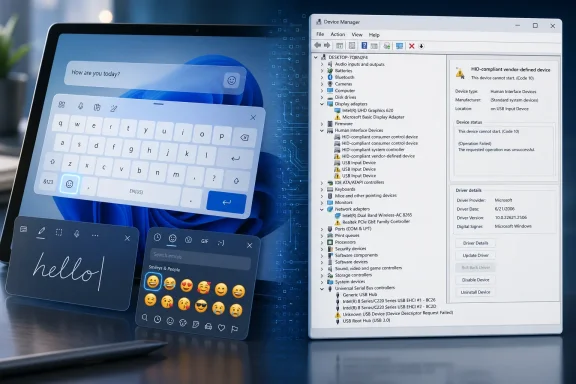
Paul Thurrott published two Windows 11 Field Guide attachment posts on June 22, 2026, highlighting the touch keyboard’s emoji interface and Device Manager inside the guide’s hardware and device-basics coverage. The posts are small artifacts, not splashy product announcements, but they point at something larger: Windows 11’s hardware story still lives in the uneasy space between polished consumer surfaces and old administrative plumbing. Microsoft has spent years modernizing Settings, touch input, emoji entry, and tablet behavior, yet the moment something breaks, users are still dragged back toward Device Manager. That tension is not a footnote in Windows 11; it is the operating system’s hardware personality.
Windows 11 wants to present hardware as something friendly, automatic, and ambient. Pair a mouse, flip open a 2-in-1, tap a text field, dock a keyboard, connect a monitor, and the operating system is supposed to negotiate the details without making the user think like a technician. The touch keyboard and emoji panel are part of that pitch: input is no longer just keys and clicks, but taps, handwriting, symbols, GIFs, clipboard history, and soft-keyboard layouts that shift depending on posture.
But Windows has never fully escaped its older identity as a machine room with a nice lobby. Behind the softened Settings pages and animated panels sits Device Manager, the familiar tree view where hardware becomes controllers, adapters, buses, ports, batteries, HID devices, and drivers. It remains one of the few places where Windows admits what it really thinks a PC is: a stack of enumerated components held together by drivers and policy.
That is why these two Thurrott Field Guide fragments sit together more naturally than they first appear. One image belongs to the Windows 11 Microsoft wants ordinary users to touch. The other belongs to the Windows that administrators, repair shops, and power users still need when automatic magic fails.
The interesting part is not that both interfaces exist. The interesting part is that Windows 11 still needs both to make sense.
That compromise is visible in the touch keyboard’s design. It can appear automatically when a user taps into a text field without a hardware keyboard attached, or it can be summoned from the taskbar when configured to show its icon. It supports multiple layouts, docking behavior, handwriting input, and a more expansive text-entry surface than the old utilitarian on-screen keyboard.
The emoji button is more than decorative. It represents the way modern input has changed around Windows: communication now includes emoji, kaomoji, symbols, GIFs, clipboard snippets, and multilingual text in ways that traditional keyboard layouts never anticipated. The touch keyboard’s emoji affordance is therefore a small but telling concession that text input in 2026 is not just character entry; it is expression management.
Still, the touch keyboard also exposes one of Windows 11’s oldest weaknesses: consistency. On a Surface or a well-supported 2-in-1, it can feel like part of the device. On a desktop with odd peripherals, a pen tablet, a flaky HID driver, or a misdetected touch digitizer, it can feel like an apparition. It appears when unwanted, refuses to appear when needed, or behaves differently depending on the app in focus.
That is the cost of making one operating system serve laptops, tablets, desktops, handhelds, kiosks, virtual machines, and hybrid devices. The same feature that feels natural on a detachable PC can become noise on a workstation.
The Windows key plus period shortcut is now one of those quiet productivity features that separates a fluent Windows user from someone still fighting the system. It opens a panel that is no longer just a smiley picker; it is a lightweight input hub. For touch users, the keyboard’s dedicated emoji access reduces the friction even further.
This matters because Windows 11 has steadily shifted small pieces of user interaction away from full applications and toward system panels. Quick Settings, notifications, clipboard history, widgets, snap layouts, and emoji all live in that middle layer between app and operating system. They are not the desktop, exactly, but they are not traditional programs either.
That middle layer is where Microsoft now tries to make Windows feel modern without breaking the underlying compatibility model. The emoji panel is a tiny example of a broader design strategy: add a contemporary surface on top of the old system, then hope the seam does not show too often.
The seam does show, though. Emoji and touch keyboard behavior can depend on language packs, services, shell components, app focus, and input method frameworks that most users never see. When something breaks, the friendly panel becomes a troubleshooting problem. At that point, Windows stops being charming and becomes Windows again.
And yet it remains indispensable.
The reason is simple: Settings can describe devices, but Device Manager can expose relationships. Settings can show a Bluetooth mouse, a display, a printer, or a touchpad as a friendly object. Device Manager can reveal the adapter behind it, the driver provider, the device instance path, the disabled state, the warning icon, the hidden ghost device, and the hierarchy of components that explain why a visible feature is failing.
For ordinary users, that level of detail is intimidating. For IT pros, it is oxygen.
Windows 11’s Settings app has improved substantially since launch, absorbing more Control Panel territory and making common hardware tasks easier. Bluetooth, display configuration, sound devices, printers, cameras, touchpad options, pen settings, and typing preferences are all more approachable than they were in older Windows eras. But Settings is still designed around the happy path.
Device Manager exists for the unhappy path. A driver did not install. A USB controller is behaving badly. A touch device is misidentified. A keyboard appears twice. A device is present but disabled. An OEM driver is newer than the one Windows Update prefers. A yellow warning icon tells the story Settings politely avoids.
That split is not accidental. It is the practical outcome of Windows’ obligation to support decades of hardware expectations while trying to look like a modern consumer OS.
That shared responsibility is why Windows hardware troubleshooting is still messy. Microsoft can improve the operating system’s driver servicing pipeline, but it cannot fully control the quality of every firmware package, input stack, audio enhancement, graphics utility, docking station driver, or vendor-specific management component that lands on a PC. Windows 11 can make the first-run experience smoother; it cannot make the PC ecosystem simple.
Device Manager persists because it is a diagnostic interface for that complexity. It lets users disable and re-enable devices, uninstall drivers, inspect properties, update drivers, roll back drivers in some cases, and verify whether Windows sees the hardware at all. Those are not glamorous powers, but they are the difference between a support call and a solved problem.
For administrators, this is also why hardware policy remains a Windows management issue rather than a purely local convenience. A consumer may see a broken touch keyboard. An IT department may see a class of devices with firmware drift, inconsistent driver baselines, or a Windows Update driver that behaves differently from an OEM-certified package. The same symptom can mean different things depending on scale.
That is where Windows 11’s friendly hardware UI runs out of road. At fleet scale, the question is not whether the touch keyboard looks nice. It is whether input devices enumerate consistently, whether driver updates are predictable, and whether help desk teams can diagnose failures without physically touching the machine.
That selective modernization frustrates critics because it makes Windows feel unfinished. A user can move from a rounded, themed, touch-friendly Settings page into a decades-old dialog in two clicks. The design language changes, the terminology changes, and the assumption about the user changes with it.
But selective modernization is also how Windows survives. Microsoft cannot rip out every legacy surface without breaking workflows that businesses depend on. Device Manager, Event Viewer, Disk Management, Registry Editor, Group Policy Editor, Computer Management, and old Control Panel applets are not merely historical clutter. They are operational tools embedded in scripts, documentation, support processes, and administrator muscle memory.
The result is a two-tier operating system. The upper tier is increasingly consumerized, cloud-connected, and adaptive. The lower tier is procedural, explicit, and sometimes brutally revealing. Windows 11 works best when users never need the lower tier, but it earns trust because the lower tier is still there.
That duality is not elegant. It is, however, one of Windows’ competitive advantages. macOS and ChromeOS offer cleaner conceptual models in part because they support narrower hardware and management assumptions. Windows’ mess is inseparable from its reach.
When those answers line up, the touch keyboard feels obvious. When they do not, it feels haunted.
This is particularly visible on hybrid PCs and edge cases. A detachable keyboard can fail to report its state correctly. A graphics tablet can make Windows think touch-like input is available. Remote sessions can complicate input assumptions. Kiosk-style deployments may want the keyboard available in some fields but not others. Accessibility needs may conflict with lockdown policies.
For a home user, the fix may be a Settings toggle or a reboot. For an administrator, the fix may require driver cleanup, device-class policies, provisioning changes, or a vendor-specific update. This is why the touch keyboard belongs in the same conversation as Device Manager: soft input is not purely software once hardware detection enters the picture.
It also explains why Windows users often learn the operating system backward. They discover a visible annoyance first, then trace it down through Settings, services, drivers, and devices. The friendly UI is the symptom layer. Device Manager is one of the places they go when they need the cause layer.
That distinction matters. Windows 11 is not experienced as a sequence of feature announcements. It is experienced as a thousand small interactions: the keyboard appearing, the emoji panel opening, a device pairing, a driver failing, a setting moving, an old dialog surviving, a support article sending the user somewhere unexpected.
The two attachment posts are minor in isolation, but they sit inside that practical tradition. The touch keyboard image says, “This is how modern Windows expects you to enter text without keys.” The Device Manager image says, “This is where you still go when the abstraction breaks.” Together, they sketch the operating system more honestly than a marketing page would.
This is also why Windows documentation remains unusually important. The OS is too broad to be self-evident. Even experienced users periodically need reminders of where Microsoft moved a setting, what a panel now includes, or which legacy tool still owns a particular troubleshooting path.
In that sense, guide imagery is not filler. It is part of the archaeology of Windows 11: a record of which surfaces Microsoft has modernized, which ones it still depends on, and which seams users are expected to cross.
The weakest Windows experiences tend to happen when Microsoft tries to flatten that variety too aggressively. A simplified Settings page can become a dead end if it hides the detail needed to solve the problem. An automatic driver flow can become a liability if it installs a merely adequate driver over a better OEM package. A posture-aware keyboard can become annoying if the posture detection is wrong.
This is the central design problem of Windows 11 hardware support. Microsoft needs to make the common case feel effortless without depriving advanced users of control. It needs to reduce legacy clutter without removing the tools that make the platform serviceable. It needs to modernize the experience without pretending every PC behaves like a first-party Surface.
The company has made progress on the first half of that equation. The second half remains stubbornly Windows-like, for better and worse.
For enthusiasts and IT pros, that stubbornness is often welcome. It means the OS still has places to look, switches to flip, logs to inspect, and drivers to interrogate. For ordinary users, it can feel like a trapdoor under the polished floor.
A Windows device is increasingly expected to be fluid: laptop in the morning, tablet on the couch, docked workstation in the afternoon, meeting device an hour later. Input has to follow that fluidity. So do diagnostics.
The bargain Microsoft offers is familiar. Users get broader hardware choice and deeper backward compatibility than cleaner platforms usually allow. In exchange, they inherit some of the complexity that makes that breadth possible.
For Windows enthusiasts, that bargain is often part of the appeal. For sysadmins, it is a management surface. For Microsoft, it is the constraint that shapes nearly every attempt to modernize the OS.
 Windows 11’s Hardware Story Still Has Two Faces
Windows 11 wants to present hardware as something friendly, automatic, and ambient. Pair a mouse, flip open a 2-in-1, tap a text field, dock a keyboard, connect a monitor, and the operating system is supposed to negotiate the details without making the user think like a technician. The touch keyboard and emoji panel are part of that pitch: input is no longer just keys and clicks, but taps, handwriting, symbols, GIFs, clipboard history, and soft-keyboard layouts that shift depending on posture.But Windows has never fully escaped its older identity as a machine room with a nice lobby. Behind the softened Settings pages and animated panels sits Device Manager, the familiar tree view where hardware becomes controllers, adapters, buses, ports, batteries, HID devices, and drivers. It remains one of the few places where Windows admits what it really thinks a PC is: a stack of enumerated components held together by drivers and policy.
That is why these two Thurrott Field Guide fragments sit together more naturally than they first appear. One image belongs to the Windows 11 Microsoft wants ordinary users to touch. The other belongs to the Windows that administrators, repair shops, and power users still need when automatic magic fails.
The interesting part is not that both interfaces exist. The interesting part is that Windows 11 still needs both to make sense.
The Touch Keyboard Is Microsoft’s Most Honest Tablet Compromise
The Windows 11 touch keyboard is not merely an accessibility fallback or a Surface flourish. It is Microsoft’s long-running answer to a problem the PC industry never fully solved: how to make a desktop operating system tolerable when the keyboard disappears. Windows 8 tried to make touch the center of the experience and paid for it with a decade of backlash. Windows 11 takes the less ideological route, letting touch appear when the device posture demands it rather than rebuilding the whole OS around fingers.That compromise is visible in the touch keyboard’s design. It can appear automatically when a user taps into a text field without a hardware keyboard attached, or it can be summoned from the taskbar when configured to show its icon. It supports multiple layouts, docking behavior, handwriting input, and a more expansive text-entry surface than the old utilitarian on-screen keyboard.
The emoji button is more than decorative. It represents the way modern input has changed around Windows: communication now includes emoji, kaomoji, symbols, GIFs, clipboard snippets, and multilingual text in ways that traditional keyboard layouts never anticipated. The touch keyboard’s emoji affordance is therefore a small but telling concession that text input in 2026 is not just character entry; it is expression management.
Still, the touch keyboard also exposes one of Windows 11’s oldest weaknesses: consistency. On a Surface or a well-supported 2-in-1, it can feel like part of the device. On a desktop with odd peripherals, a pen tablet, a flaky HID driver, or a misdetected touch digitizer, it can feel like an apparition. It appears when unwanted, refuses to appear when needed, or behaves differently depending on the app in focus.
That is the cost of making one operating system serve laptops, tablets, desktops, handhelds, kiosks, virtual machines, and hybrid devices. The same feature that feels natural on a detachable PC can become noise on a workstation.
Emoji Became Infrastructure Before Windows Fully Admitted It
It is easy to treat the emoji panel as frivolous because emoji itself still carries the cultural baggage of messaging apps and reaction culture. But Windows’ emoji interface has become practical infrastructure. It is how many users insert symbols, currency marks, mathematical characters, accented text, and clipboard history without memorizing obscure key combinations or searching the web for a character to copy.The Windows key plus period shortcut is now one of those quiet productivity features that separates a fluent Windows user from someone still fighting the system. It opens a panel that is no longer just a smiley picker; it is a lightweight input hub. For touch users, the keyboard’s dedicated emoji access reduces the friction even further.
This matters because Windows 11 has steadily shifted small pieces of user interaction away from full applications and toward system panels. Quick Settings, notifications, clipboard history, widgets, snap layouts, and emoji all live in that middle layer between app and operating system. They are not the desktop, exactly, but they are not traditional programs either.
That middle layer is where Microsoft now tries to make Windows feel modern without breaking the underlying compatibility model. The emoji panel is a tiny example of a broader design strategy: add a contemporary surface on top of the old system, then hope the seam does not show too often.
The seam does show, though. Emoji and touch keyboard behavior can depend on language packs, services, shell components, app focus, and input method frameworks that most users never see. When something breaks, the friendly panel becomes a troubleshooting problem. At that point, Windows stops being charming and becomes Windows again.
Device Manager Survives Because Settings Still Cannot Tell the Whole Truth
Device Manager should have been replaced by now if Microsoft’s modernization story had unfolded cleanly. It is visually old, dense, and indifferent to the design language of Windows 11. It speaks in hardware categories and driver states rather than user outcomes. It is not where Microsoft wants newcomers to spend time.And yet it remains indispensable.
The reason is simple: Settings can describe devices, but Device Manager can expose relationships. Settings can show a Bluetooth mouse, a display, a printer, or a touchpad as a friendly object. Device Manager can reveal the adapter behind it, the driver provider, the device instance path, the disabled state, the warning icon, the hidden ghost device, and the hierarchy of components that explain why a visible feature is failing.
For ordinary users, that level of detail is intimidating. For IT pros, it is oxygen.
Windows 11’s Settings app has improved substantially since launch, absorbing more Control Panel territory and making common hardware tasks easier. Bluetooth, display configuration, sound devices, printers, cameras, touchpad options, pen settings, and typing preferences are all more approachable than they were in older Windows eras. But Settings is still designed around the happy path.
Device Manager exists for the unhappy path. A driver did not install. A USB controller is behaving badly. A touch device is misidentified. A keyboard appears twice. A device is present but disabled. An OEM driver is newer than the one Windows Update prefers. A yellow warning icon tells the story Settings politely avoids.
That split is not accidental. It is the practical outcome of Windows’ obligation to support decades of hardware expectations while trying to look like a modern consumer OS.
The Driver Model Is Where the Consumer PC Becomes an Enterprise Problem
Drivers are the place where Microsoft’s promises meet the vendor ecosystem. Windows Update can supply many drivers automatically, and for most users that is a miracle compared with the old hunt through OEM support pages and driver CDs. But drivers remain a shared responsibility among Microsoft, silicon vendors, OEMs, peripheral makers, and sometimes corporate IT departments.That shared responsibility is why Windows hardware troubleshooting is still messy. Microsoft can improve the operating system’s driver servicing pipeline, but it cannot fully control the quality of every firmware package, input stack, audio enhancement, graphics utility, docking station driver, or vendor-specific management component that lands on a PC. Windows 11 can make the first-run experience smoother; it cannot make the PC ecosystem simple.
Device Manager persists because it is a diagnostic interface for that complexity. It lets users disable and re-enable devices, uninstall drivers, inspect properties, update drivers, roll back drivers in some cases, and verify whether Windows sees the hardware at all. Those are not glamorous powers, but they are the difference between a support call and a solved problem.
For administrators, this is also why hardware policy remains a Windows management issue rather than a purely local convenience. A consumer may see a broken touch keyboard. An IT department may see a class of devices with firmware drift, inconsistent driver baselines, or a Windows Update driver that behaves differently from an OEM-certified package. The same symptom can mean different things depending on scale.
That is where Windows 11’s friendly hardware UI runs out of road. At fleet scale, the question is not whether the touch keyboard looks nice. It is whether input devices enumerate consistently, whether driver updates are predictable, and whether help desk teams can diagnose failures without physically touching the machine.
Microsoft Modernizes the Front Door and Leaves the Basement Open
Windows 11’s modernization project has always been selective. The Start menu, taskbar, Settings app, context menus, window management, and system panels received visible attention. Older components remain beneath them, sometimes linked directly, sometimes buried, sometimes appearing only when the user follows a troubleshooting trail.That selective modernization frustrates critics because it makes Windows feel unfinished. A user can move from a rounded, themed, touch-friendly Settings page into a decades-old dialog in two clicks. The design language changes, the terminology changes, and the assumption about the user changes with it.
But selective modernization is also how Windows survives. Microsoft cannot rip out every legacy surface without breaking workflows that businesses depend on. Device Manager, Event Viewer, Disk Management, Registry Editor, Group Policy Editor, Computer Management, and old Control Panel applets are not merely historical clutter. They are operational tools embedded in scripts, documentation, support processes, and administrator muscle memory.
The result is a two-tier operating system. The upper tier is increasingly consumerized, cloud-connected, and adaptive. The lower tier is procedural, explicit, and sometimes brutally revealing. Windows 11 works best when users never need the lower tier, but it earns trust because the lower tier is still there.
That duality is not elegant. It is, however, one of Windows’ competitive advantages. macOS and ChromeOS offer cleaner conceptual models in part because they support narrower hardware and management assumptions. Windows’ mess is inseparable from its reach.
Touch Is a Feature Until Detection Gets It Wrong
The touch keyboard’s usefulness depends heavily on Windows correctly understanding context. Is there a physical keyboard attached? Is the device in a tablet-like posture? Is the focused field accepting text? Is the current app compatible with the expected text input behavior? Is the system configured to show the touch keyboard icon? Are the relevant text input services healthy?When those answers line up, the touch keyboard feels obvious. When they do not, it feels haunted.
This is particularly visible on hybrid PCs and edge cases. A detachable keyboard can fail to report its state correctly. A graphics tablet can make Windows think touch-like input is available. Remote sessions can complicate input assumptions. Kiosk-style deployments may want the keyboard available in some fields but not others. Accessibility needs may conflict with lockdown policies.
For a home user, the fix may be a Settings toggle or a reboot. For an administrator, the fix may require driver cleanup, device-class policies, provisioning changes, or a vendor-specific update. This is why the touch keyboard belongs in the same conversation as Device Manager: soft input is not purely software once hardware detection enters the picture.
It also explains why Windows users often learn the operating system backward. They discover a visible annoyance first, then trace it down through Settings, services, drivers, and devices. The friendly UI is the symptom layer. Device Manager is one of the places they go when they need the cause layer.
The Field Guide Format Captures the Windows Reality Better Than Launch Events Do
Thurrott’s Windows 11 Field Guide has always been more useful as a map than as a monument. Launch coverage explains what Microsoft wants to emphasize in a given release. A field guide explains how the operating system is actually lived in after the keynote ends.That distinction matters. Windows 11 is not experienced as a sequence of feature announcements. It is experienced as a thousand small interactions: the keyboard appearing, the emoji panel opening, a device pairing, a driver failing, a setting moving, an old dialog surviving, a support article sending the user somewhere unexpected.
The two attachment posts are minor in isolation, but they sit inside that practical tradition. The touch keyboard image says, “This is how modern Windows expects you to enter text without keys.” The Device Manager image says, “This is where you still go when the abstraction breaks.” Together, they sketch the operating system more honestly than a marketing page would.
This is also why Windows documentation remains unusually important. The OS is too broad to be self-evident. Even experienced users periodically need reminders of where Microsoft moved a setting, what a panel now includes, or which legacy tool still owns a particular troubleshooting path.
In that sense, guide imagery is not filler. It is part of the archaeology of Windows 11: a record of which surfaces Microsoft has modernized, which ones it still depends on, and which seams users are expected to cross.
The Best Windows Interfaces Are the Ones That Admit the PC Is Not One Thing
Windows 11’s strongest hardware features are the ones that accept variety rather than pretending it away. The touch keyboard accepts that some PCs are tablets some of the time. The emoji panel accepts that text input now extends beyond letters. Device Manager accepts that hardware is a layered system whose failures cannot always be summarized in plain language.The weakest Windows experiences tend to happen when Microsoft tries to flatten that variety too aggressively. A simplified Settings page can become a dead end if it hides the detail needed to solve the problem. An automatic driver flow can become a liability if it installs a merely adequate driver over a better OEM package. A posture-aware keyboard can become annoying if the posture detection is wrong.
This is the central design problem of Windows 11 hardware support. Microsoft needs to make the common case feel effortless without depriving advanced users of control. It needs to reduce legacy clutter without removing the tools that make the platform serviceable. It needs to modernize the experience without pretending every PC behaves like a first-party Surface.
The company has made progress on the first half of that equation. The second half remains stubbornly Windows-like, for better and worse.
For enthusiasts and IT pros, that stubbornness is often welcome. It means the OS still has places to look, switches to flip, logs to inspect, and drivers to interrogate. For ordinary users, it can feel like a trapdoor under the polished floor.
The Tiny Emoji Button Points to the Bigger Hardware Bargain
The practical lesson from these Field Guide fragments is that Windows 11 hardware support should be judged less by how modern any single screen looks and more by how cleanly the system moves between convenience and control. The touch keyboard and Device Manager are not opposites. They are endpoints on the same support spectrum.A Windows device is increasingly expected to be fluid: laptop in the morning, tablet on the couch, docked workstation in the afternoon, meeting device an hour later. Input has to follow that fluidity. So do diagnostics.
The bargain Microsoft offers is familiar. Users get broader hardware choice and deeper backward compatibility than cleaner platforms usually allow. In exchange, they inherit some of the complexity that makes that breadth possible.
For Windows enthusiasts, that bargain is often part of the appeal. For sysadmins, it is a management surface. For Microsoft, it is the constraint that shapes nearly every attempt to modernize the OS.
The Practical Map for Anyone Who Has to Support This Stuff
The important points are not hidden in the novelty of the emoji panel or the age of Device Manager. They are in the relationship between them: Windows 11 is friendlier at the edge, but still technical at the core.- Windows 11’s touch keyboard is best understood as an adaptive input layer for hybrid hardware, not merely as a fallback for missing physical keys.
- The emoji panel has become a general-purpose text-entry tool because it also exposes symbols, GIFs, kaomoji, and clipboard-related workflows.
- Device Manager remains essential because Settings still abstracts hardware too aggressively for many troubleshooting scenarios.
- Driver quality and device detection remain shared responsibilities across Microsoft, OEMs, silicon vendors, peripheral makers, and IT administrators.
- The gap between modern Settings surfaces and legacy management tools is not just cosmetic; it reflects Windows’ unresolved balance between simplicity and control.
- The most reliable Windows 11 support habits still combine the new Settings experience with old diagnostic tools rather than pretending one has replaced the other.
References
- Primary source: thurrott.com
Published: 2026-06-22T23:07:42.291254
Loading…
www.thurrott.com - Official source: support.microsoft.com
Loading…
support.microsoft.com - Related coverage: windowscentral.com
Loading…
www.windowscentral.com - Related coverage: techrepublic.com
Loading…
www.techrepublic.com - Official source: microsoft.com
Loading…
www.microsoft.com - Official source: learn.microsoft.com
Loading…
learn.microsoft.com
