

Microsoft appears to be quietly reshaping one of Windows 11’s most overlooked control surfaces: the touchpad. Reports from recent Dev and Beta builds suggest that new, undocumented touchpad settings are surfacing inside Settings > Bluetooth & devices > Touchpad, including finer controls for scrolling, zooming, and gesture behavior. If these options are real and not just early experimentation, they mark a meaningful step toward making Windows laptops feel more deliberate and less driver-dependent than they have for much of the past decade.
The broader significance is not just that Windows is adding knobs. It is that Microsoft is starting to treat the touchpad as a first-class, user-tunable input device rather than a mostly static hardware feature governed by OEM software. That shift matters for consumers, but it matters even more for enterprise fleets, where consistent input behavior across laptop models is often a hidden productivity issue. The signs also line up with Microsoft’s recent work on touchpad tuning in Windows 11, including support for dynamically queried settings and user-configurable click-force options in newer builds.
Windows has always had a complicated relationship with laptop touchpads. On paper, Precision Touchpad support was supposed to solve the fragmentation problem by moving the experience closer to a common Windows baseline. In practice, the real-world experience still varies a lot by vendor, panel quality, driver stack, and whether the OEM ships its own configuration utility. Microsoft’s latest touchpad changes suggest the company is not done trying to make that experience more coherent.
Historically, Windows touchpad controls have focused on a relatively narrow set of options: two-finger scroll, pinch-to-zoom, gesture mappings, cursor speed, sensitivity, and left/right click behavior. Microsoft’s own documentation still reflects that baseline. It explains the standard gestures, points users to Settings > Bluetooth & devices > Touchpad, and notes that only some gestures are available on precision hardware. That baseline is important because the newly spotted settings appear to go beyond it.
The clue that makes this story interesting is the combination of undocumented UI elements and Microsoft’s recent work behind the scenes. Microsoft Learn now says that as of Windows 11 build 26027, touchpad settings can be queried and modified dynamically via
At the same time, Microsoft’s Insider program routinely ships features in a staged and sometimes invisible way. The company’s own Insider blog repeatedly notes that Dev and Beta channels can diverge, that features may roll out gradually, and that some features may appear in one channel before another. In other words, an undocumented settings panel in an Insider build is not unusual; what matters is whether it points to a pattern. In this case, it very much does.
The single-finger scrolling option is especially intriguing because it hints at alternative interaction models, accessibility scenarios, or device-specific behavior. Microsoft’s existing public documentation emphasizes two-finger scrolling as the standard touchpad model, so adding a single-finger mode would be a notable change rather than a minor tweak. If that option is genuinely present, it may be aimed at accessibility, stylus-adjacent workflows, or OEMs experimenting with different hardware behaviors.
The automatic scrolling at edge wording is also worth watching. It suggests a model where content movement can be triggered or continued when a finger reaches the edge of the surface, which would be closer to some legacy pointing devices or to specific OEM gesture systems. If Microsoft is standardizing that behavior in Windows settings, it could be trying to unify touchpad behavior across hardware vendors that have historically handled scrolling in very different ways.
That also explains why the old model feels increasingly outdated. The official hardware guidance still says there is currently no way to modify scrolling or zooming speed of a touchpad, which is a remarkably blunt statement by modern software standards. If these new Insider options are accurate, they may represent Microsoft closing a long-standing gap between what users want and what the system previously exposed.
The pattern fits Microsoft’s broader Windows 11 strategy: bring more traditionally hidden hardware behaviors into the Settings app, surface them in a friendlier UI, and gradually reduce the need for vendor-specific control panels. That has advantages for standardization, but it also creates tension with OEM differentiation. Laptop makers often want their own touchpad software to remain the primary place for tuning, especially on premium hardware.
There is also a strategic accessibility angle. Microsoft has invested heavily in accessibility across Windows 11, and input customization is part of that story. Options like single-finger scrolling or more precise gesture control can make laptops easier to use for people with different motor preferences or needs. Even if the feature is not explicitly branded as accessibility, the effect is the same: more ways to control the machine without forcing a single interaction model.
Then there is the competitive angle. Windows laptops still cover a much broader hardware range than Macs, which makes consistency hard. The only way for Microsoft to improve the category broadly is to keep pushing the OS to absorb more input logic that once lived in OEM add-ons. That does not just improve the Windows 11 experience; it also makes the platform more defensible against complaints that touchpads are “better on Mac.”
That said, Microsoft’s own Insider messaging is a reminder not to overread every preview change. The company often rolls things out through controlled flights, feature flags, and staged exposure. A setting can appear for one tester, vanish for another, and return in a different form later. If the reported touchpad options are real, they may be in that exact state now: real enough to matter, not stable enough to promise. That is the nature of Windows Insider development.
This is also why the documentation gap is important. Microsoft Learn and Microsoft Support already document the touchpad controls that are publicly supported. The appearance of a feature before that documentation updates is a classic sign of a staged rollout. It does not mean the feature is fake; it means Microsoft has not yet committed to the final user-facing story.
There is also a policy angle. Microsoft’s touchpad tuning guidance already shows that several settings live under
Consumers, meanwhile, are more likely to benefit immediately from the convenience of having everything in one place. Many laptop makers still ship separate touchpad apps or control panels, and those apps vary wildly in design quality. If Windows can handle more of the day-to-day tuning natively, users may spend less time hunting through OEM software that looks like it was built for a different era.
There is also a design tension between OS-level uniformity and manufacturer customization. Some OEMs already expose touchpad-specific options in their own utilities, and Microsoft appears to be careful not to override those if they are already in use. Its recent touchpad work on right-click zone sizing explicitly notes that custom manufacturer values may be preserved. That is a clue that Microsoft wants to add native functionality without stepping on OEM toes.
If done well, this could improve the Windows laptop market as a whole. If done poorly, it could create another layer of duplicated controls, where the same gesture is governed by Windows, the OEM utility, and sometimes a driver panel all at once. The difference between those outcomes will come down to whether Microsoft keeps the settings clean, predictable, and consistent across devices.
The presence of features like click-force customization in newer builds is also a strong clue that Microsoft is expanding beyond simple gesture toggles. That suggests a broader philosophy: let users shape the physical feel of input, not just whether a gesture is recognized. If that philosophy keeps extending, the touchpad could become as tunable as display scaling or mouse pointer speed.
This matters because touchpads are fundamentally analog devices in a digital UI. Users do not experience them as binary on/off hardware; they experience them as motion, resistance, acceleration, and responsiveness. Microsoft’s latest work suggests it is finally treating them that way. That is a small but meaningful design correction.
The bigger question is whether Microsoft is merely adding convenience controls or building a new input philosophy for Windows laptops. If these touchpad features keep expanding, they could eventually lead to per-device profiles, richer accessibility tuning, or smarter defaults based on hardware capability. That would not just improve touchpads; it would make Windows feel more aware of how people actually use laptops in the real world.
Source: thewincentral.com Windows 11 Hidden Touchpad Features Leak in Dev/Beta Builds - WinCentral
The broader significance is not just that Windows is adding knobs. It is that Microsoft is starting to treat the touchpad as a first-class, user-tunable input device rather than a mostly static hardware feature governed by OEM software. That shift matters for consumers, but it matters even more for enterprise fleets, where consistent input behavior across laptop models is often a hidden productivity issue. The signs also line up with Microsoft’s recent work on touchpad tuning in Windows 11, including support for dynamically queried settings and user-configurable click-force options in newer builds.
 Overview
Windows has always had a complicated relationship with laptop touchpads. On paper, Precision Touchpad support was supposed to solve the fragmentation problem by moving the experience closer to a common Windows baseline. In practice, the real-world experience still varies a lot by vendor, panel quality, driver stack, and whether the OEM ships its own configuration utility. Microsoft’s latest touchpad changes suggest the company is not done trying to make that experience more coherent.Historically, Windows touchpad controls have focused on a relatively narrow set of options: two-finger scroll, pinch-to-zoom, gesture mappings, cursor speed, sensitivity, and left/right click behavior. Microsoft’s own documentation still reflects that baseline. It explains the standard gestures, points users to Settings > Bluetooth & devices > Touchpad, and notes that only some gestures are available on precision hardware. That baseline is important because the newly spotted settings appear to go beyond it.
The clue that makes this story interesting is the combination of undocumented UI elements and Microsoft’s recent work behind the scenes. Microsoft Learn now says that as of Windows 11 build 26027, touchpad settings can be queried and modified dynamically via
SystemParametersInfo, and that click-force customization has been added in newer builds. That is a strong signal that Windows 11 is developing a richer touchpad settings model at the OS level, not merely patching in a few cosmetic toggles.At the same time, Microsoft’s Insider program routinely ships features in a staged and sometimes invisible way. The company’s own Insider blog repeatedly notes that Dev and Beta channels can diverge, that features may roll out gradually, and that some features may appear in one channel before another. In other words, an undocumented settings panel in an Insider build is not unusual; what matters is whether it points to a pattern. In this case, it very much does.
What’s Actually Showing Up
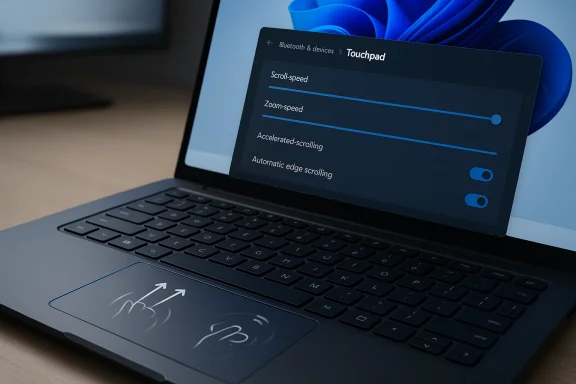
The reported additions are not flashy. They are the kind of small UI controls that most users ignore until they become indispensable. According to the leak, the Touchpad page in Windows 11 Dev and Beta builds now includes options such as automatic scrolling at edge, an accelerated scrolling toggle, a scroll speed slider, a zoom speed slider, and a single-finger scrolling option. That combination suggests Microsoft is trying to give users much finer control over input feel.Why these settings matter
On a practical level, these additions address the places where laptop touchpads tend to frustrate users the most. Scrolling is often too fast, too sluggish, or too inconsistent across apps. Zoom gestures can feel jumpy in some browsers and too sensitive in others. A speed slider for both scrolling and zooming implies that Microsoft is finally acknowledging that gesture recognition alone is not enough; the response curve matters too.The single-finger scrolling option is especially intriguing because it hints at alternative interaction models, accessibility scenarios, or device-specific behavior. Microsoft’s existing public documentation emphasizes two-finger scrolling as the standard touchpad model, so adding a single-finger mode would be a notable change rather than a minor tweak. If that option is genuinely present, it may be aimed at accessibility, stylus-adjacent workflows, or OEMs experimenting with different hardware behaviors.
The automatic scrolling at edge wording is also worth watching. It suggests a model where content movement can be triggered or continued when a finger reaches the edge of the surface, which would be closer to some legacy pointing devices or to specific OEM gesture systems. If Microsoft is standardizing that behavior in Windows settings, it could be trying to unify touchpad behavior across hardware vendors that have historically handled scrolling in very different ways.
- The new controls appear to focus on fine-tuning, not novelty.
- They may help users who already know how they want scrolling to feel.
- They could also reduce dependence on OEM utilities for simple touchpad adjustments.
- The presence of speed sliders is a sign of deeper OS-level input work.
- The settings may still be temporary, experimental, or selectively exposed.
How This Fits Microsoft’s Existing Touchpad Model
This is not the first time Microsoft has tried to make touchpads more configurable. The company’s support pages already cover the basics: turning the touchpad on or off, reversing scroll direction, adjusting cursor speed, enabling pinch-to-zoom, and customizing three-finger and four-finger gestures. In other words, Microsoft has been steadily expanding the control surface for years, but in relatively conservative steps.From static settings to dynamic behavior
The more important change is architectural. Microsoft Learn now says touchpad settings can be dynamically queried and modified in Windows 11 build 26027 and later. That is not just a UI story; it is an input-stack story. Once the OS can treat touchpad settings as live parameters, it becomes easier to imagine richer controls, per-device tuning, or future APIs that respond to context in real time.That also explains why the old model feels increasingly outdated. The official hardware guidance still says there is currently no way to modify scrolling or zooming speed of a touchpad, which is a remarkably blunt statement by modern software standards. If these new Insider options are accurate, they may represent Microsoft closing a long-standing gap between what users want and what the system previously exposed.
The pattern fits Microsoft’s broader Windows 11 strategy: bring more traditionally hidden hardware behaviors into the Settings app, surface them in a friendlier UI, and gradually reduce the need for vendor-specific control panels. That has advantages for standardization, but it also creates tension with OEM differentiation. Laptop makers often want their own touchpad software to remain the primary place for tuning, especially on premium hardware.
- Windows is moving from checkboxes to behavioral controls.
- Touchpad tuning is becoming more granular and more dynamic.
- OEM utilities may lose some influence if Windows exposes enough native options.
- Microsoft is likely trying to reduce fragmentation without breaking vendor customization.
- The OS-level model is more flexible for future accessibility features.
Why Microsoft Would Do This Now
One answer is simple: user complaints. Touchpad behavior remains one of the most common points of friction on Windows laptops, especially for people who bounce between brands or move from Windows to macOS and back again. Apple’s trackpad experience is often praised because it feels consistent and tightly integrated, while Windows still carries a reputation for unevenness. Microsoft knows that reputation is not trivial.The productivity case
For power users, touchpad tuning is not a luxury feature. It affects how fast you can browse documents, skim spreadsheets, zoom into design work, or move around long web pages. A scroll speed slider and zoom speed slider would let users reduce fatigue and improve precision in exactly those daily workflows. That may sound minor, but in enterprise settings, small interaction gains compound quickly.There is also a strategic accessibility angle. Microsoft has invested heavily in accessibility across Windows 11, and input customization is part of that story. Options like single-finger scrolling or more precise gesture control can make laptops easier to use for people with different motor preferences or needs. Even if the feature is not explicitly branded as accessibility, the effect is the same: more ways to control the machine without forcing a single interaction model.
Then there is the competitive angle. Windows laptops still cover a much broader hardware range than Macs, which makes consistency hard. The only way for Microsoft to improve the category broadly is to keep pushing the OS to absorb more input logic that once lived in OEM add-ons. That does not just improve the Windows 11 experience; it also makes the platform more defensible against complaints that touchpads are “better on Mac.”
- User pain points around scrolling and zooming are longstanding.
- Productivity workflows benefit from smaller, more accurate motion control.
- Accessibility improvements often emerge from mainstream tuning features.
- Standardization is a competitive weapon in the laptop market.
- Better native touchpad controls reduce reliance on vendor apps.
The Insider Build Context
Windows Insiders know that not every feature in Dev or Beta is destined for release. Microsoft has repeatedly said that Dev and Beta can diverge, that rollout can be gradual, and that features may show up in one channel before another. The touchpad leak should therefore be read as an early signal, not a promise. That distinction matters because the settings could still change, move, or disappear entirely.Why leaks in Settings are especially meaningful
Features surfacing inside the Settings app are often more mature than hidden code flags, but they are still not final. When Microsoft chooses to expose a control in a visible UI path like Bluetooth & devices > Touchpad, it usually means the underlying plumbing is far enough along to test with real users. That makes these additions more significant than a random registry key or a half-finished experimental toggle.That said, Microsoft’s own Insider messaging is a reminder not to overread every preview change. The company often rolls things out through controlled flights, feature flags, and staged exposure. A setting can appear for one tester, vanish for another, and return in a different form later. If the reported touchpad options are real, they may be in that exact state now: real enough to matter, not stable enough to promise. That is the nature of Windows Insider development.
This is also why the documentation gap is important. Microsoft Learn and Microsoft Support already document the touchpad controls that are publicly supported. The appearance of a feature before that documentation updates is a classic sign of a staged rollout. It does not mean the feature is fake; it means Microsoft has not yet committed to the final user-facing story.
- Insider builds often expose features before documentation catches up.
- Settings-app surfacing usually indicates a deeper level of maturity.
- Feature flags and staged rollout can make preview behavior inconsistent.
- Missing documentation does not mean the feature is imaginary.
- Early exposure lets Microsoft gather feedback before finalizing the UI.
Enterprise Impact vs Consumer Impact
For consumers, the value proposition is straightforward: better control over how the touchpad feels. Most laptop buyers never open advanced input settings unless something is wrong, but the people who do are often the ones most likely to notice and appreciate these changes. A better touchpad can make a device feel newer, more premium, and less irritating in everyday use.Why enterprises should care
Enterprises should care for a different reason. In managed fleets, input complaints are one of the quiet productivity killers because they are hard to standardize. If Windows can expose consistent scroll and zoom tuning across precision touchpads, IT admins may eventually have a cleaner path to normalize user experience across laptop models. That could reduce help-desk noise and improve satisfaction on mixed-device deployments.There is also a policy angle. Microsoft’s touchpad tuning guidance already shows that several settings live under
HKEY_CURRENT_USER\SOFTWARE\Microsoft\Windows\CurrentVersion\PrecisionTouchPad, and that some settings can be controlled dynamically. That opens the door for future management tools, provisioning strategies, or enterprise defaults that are easier to align than a patchwork of vendor utilities.Consumers, meanwhile, are more likely to benefit immediately from the convenience of having everything in one place. Many laptop makers still ship separate touchpad apps or control panels, and those apps vary wildly in design quality. If Windows can handle more of the day-to-day tuning natively, users may spend less time hunting through OEM software that looks like it was built for a different era.
- Consumers gain simpler, more discoverable customization.
- Enterprises gain the possibility of standardized behavior across hardware.
- IT teams could eventually manage touchpad behavior more predictably.
- OEM software dependence may decline for basic settings.
- Unified controls may improve onboarding on shared corporate laptops.
The Competitive and Design Implications
The obvious comparison is macOS. Apple’s trackpad reputation comes from tight integration, consistent gesture semantics, and a highly controlled hardware ecosystem. Windows has always had to solve the same problem across a much messier hardware landscape. That makes Microsoft’s incremental touchpad work strategically important, because every improvement chips away at one of Apple’s long-standing experiential advantages.More control does not always mean better design
Still, there is a risk in assuming that more options automatically produce better usability. Too many touchpad toggles can confuse users or create settings combinations that feel inconsistent across apps. If Microsoft adds speed sliders, acceleration toggles, and alternate scrolling modes, it will need to make sure the UI stays understandable, discoverable, and hard to break. Power is good only when it remains legible.There is also a design tension between OS-level uniformity and manufacturer customization. Some OEMs already expose touchpad-specific options in their own utilities, and Microsoft appears to be careful not to override those if they are already in use. Its recent touchpad work on right-click zone sizing explicitly notes that custom manufacturer values may be preserved. That is a clue that Microsoft wants to add native functionality without stepping on OEM toes.
If done well, this could improve the Windows laptop market as a whole. If done poorly, it could create another layer of duplicated controls, where the same gesture is governed by Windows, the OEM utility, and sometimes a driver panel all at once. The difference between those outcomes will come down to whether Microsoft keeps the settings clean, predictable, and consistent across devices.
- Apple still sets the standard for input consistency.
- Microsoft’s advantage is breadth, not ecosystem control.
- More controls can improve usability or overwhelm users.
- OEM coexistence is essential to avoid settings conflicts.
- The final design will matter as much as the feature list.
What the New Settings Might Mean Technically
The technical subtext here is important. Microsoft’s touchpad documentation now treats some settings as dynamic state, not just fixed configuration. That means the OS can, at least in principle, expose more responsive interfaces and more granular user intent. If touchpad scroll and zoom speed become first-class parameters, Microsoft may be building a foundation for broader adaptive input behavior.Possible implementation paths
One likely path is that Microsoft is adding new registry-backed settings that the Settings app reads and writes. That would be consistent with how Precision Touchpad options have historically been represented in Windows. Another possibility is that Windows is layering the new controls on top of existing gesture settings, using the newer API work to make the UI more flexible. Either way, the important point is that Microsoft now has a better system-level model for touchpad configuration than it did before.The presence of features like click-force customization in newer builds is also a strong clue that Microsoft is expanding beyond simple gesture toggles. That suggests a broader philosophy: let users shape the physical feel of input, not just whether a gesture is recognized. If that philosophy keeps extending, the touchpad could become as tunable as display scaling or mouse pointer speed.
This matters because touchpads are fundamentally analog devices in a digital UI. Users do not experience them as binary on/off hardware; they experience them as motion, resistance, acceleration, and responsiveness. Microsoft’s latest work suggests it is finally treating them that way. That is a small but meaningful design correction.
- The OS may be moving toward a richer touchpad configuration model.
- Registry-backed settings likely remain important under the hood.
- Dynamic APIs make it easier to build responsive UI controls.
- Physical “feel” is becoming part of Windows configuration philosophy.
- Touchpads may soon be tuned more like other core system inputs.
Strengths and Opportunities
Microsoft’s touchpad expansion has several clear strengths. It addresses a real usability gap, builds on existing Precision Touchpad infrastructure, and fits neatly into the Windows 11 push for more polished settings experiences. If Microsoft lands this well, it could quietly become one of those improvements that users remember only because they stop noticing their touchpad getting in the way.- Better fine-tuning for scroll and zoom behavior.
- Improved consistency across supported laptop hardware.
- Reduced reliance on OEM touchpad utilities for common tasks.
- Potential accessibility gains through alternate gesture modes.
- Stronger enterprise standardization across mixed device fleets.
- Closer alignment with user expectations set by competing platforms.
- A more modern input stack that can support future enhancements.
Risks and Concerns
The risks are just as real. New settings can confuse users, conflict with OEM drivers, or disappear if Microsoft decides the implementation is not ready. There is also the perennial danger that Windows could expose the controls without making them intuitive, leaving users with more sliders but not a better experience.- Feature inconsistency across Dev, Beta, and stable builds.
- Potential overlap with manufacturer touchpad apps.
- Settings overload if the UI becomes too dense or technical.
- Unclear availability on non-Precision or older hardware.
- Possible removal or redesign before public release.
- Fragmented behavior if apps respond differently to new scroll values.
- Accessibility ambiguity if options are not clearly explained.
Looking Ahead
The most likely near-term scenario is that Microsoft continues testing these touchpad controls in Insider builds before deciding what survives to broad release. That is how the company has often handled Windows 11 feature evolution: expose, observe, refine, and only then document. If that pattern holds, the next few Dev and Beta flights should reveal whether these settings are a small experiment or the beginning of a larger redesign.The bigger question is whether Microsoft is merely adding convenience controls or building a new input philosophy for Windows laptops. If these touchpad features keep expanding, they could eventually lead to per-device profiles, richer accessibility tuning, or smarter defaults based on hardware capability. That would not just improve touchpads; it would make Windows feel more aware of how people actually use laptops in the real world.
- Watch for official mention in the next Insider blog posts.
- Watch whether scroll and zoom sliders persist across builds.
- Watch for documentation updates in Microsoft Support and Microsoft Learn.
- Watch whether OEM utilities begin to defer more settings to Windows.
- Watch for enterprise management hooks or policy references.
Source: thewincentral.com Windows 11 Hidden Touchpad Features Leak in Dev/Beta Builds - WinCentral
