Windows 11 Touchpad Troubleshooting: Safe Step‑by‑Step Guide to Restore Cursor

  • Thread Author
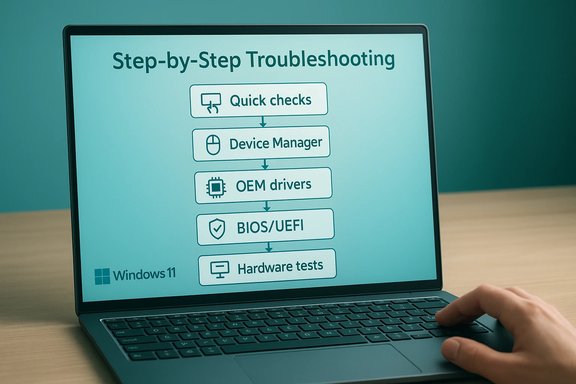
Laptop screen shows a step-by-step Windows 11 troubleshooting flowchart.
If your laptop touchpad suddenly stops responding in Windows 11, the immediate workaround—plugging in a USB or Bluetooth mouse—only masks the problem. The real solution is a methodical troubleshooting flow that separates quick fixes from deeper driver, firmware, and hardware interventions so you can restore reliable cursor control without unnecessary risk or costly repairs. This article packs a practical, step‑by‑step troubleshooting guide, explains why touchpads fail, highlights safer vs. higher‑risk fixes, and shows when to escalate to OEM support or repair.

Background: why a touchpad can stop working​

Touchpads are a small hardware subsystem that depend on firmware, OS drivers, device‑specific OEM stacks, and user settings. Failures tend to fall into four categories: simple settings toggles, driver or Windows update regressions, firmware/UEFI disables, and true hardware faults like disconnected ribbons or a failed sensor. Each category requires a different response: low‑risk settings checks first, followed by driver reinstalls and firmware checks, with hardware inspection only after software diagnostics fail. This practical diagnostic approach is widely recommended by troubleshooters and vendor guidance.
Common, easily fixed causes include:
  • The touchpad toggle in Settings is turned off or greyed out.
  • An Fn + function key (touchpad icon) was pressed accidentally.
  • Windows switched to a generic HID driver that lacks OEM gesture and palm‑rejection features.
  • The device was disabled in UEFI/BIOS or blocked at firmware level.
  • A recent Windows update or driver update introduced incompatibility or corruption.

Quick triage: 2–5 minute checks​

Start here before diving into Device Manager or firmware. These checks solve the majority of everyday touchpad problems.
  • Confirm the touchpad is enabled: open Settings → Bluetooth & devices → Touchpad and make sure the toggle is On. If the option is missing or greyed out, that usually signals a missing driver or firmware block.
  • Try the keyboard shortcut: press Fn + the touchpad function key (often F6/F8/F9 depending on model). Many accidental “disables” get fixed with a quick keypress.
  • Plug in an external USB/Bluetooth mouse so you can continue troubleshooting safely if the touchpad becomes unavailable.
  • Reboot once—transient driver/firmware states are often cleared by a full restart.
If the touchpad is still dead, continue with the device‑level diagnostics below.

Step‑by‑step: Device Manager and driver fixes (safe, reversible)​

Device Manager is the core Windows tool for driver troubleshooting. These steps mirror the simplest, most effective routines recommended by support guides.

1) Update drivers (Device Manager: Mice and other pointing devices)​

  1. Press Windows + X → Device Manager.
  2. Expand Mice and other pointing devices.
  3. Right‑click each listed device (HID‑compliant mouse, Synaptics, ELAN, etc. and choose Update driver → Search automatically for drivers. Try each relevant entry one at a time; Windows may locate a newer package.
Why this helps: Windows Update sometimes publishes driver updates or lets Device Manager find a newer Microsoft driver—enough to return the device to life in many cases.

2) Check Human Interface Devices (HID / I2C HID)​

  1. Still in Device Manager, expand Human Interface Devices.
  2. Look for entries labeled I2C HID, HID‑compliant touchpad, or vendor‑specific touchpad names.
  3. Right‑click the touchpad device entry and Update driver → Search automatically. If that yields nothing, choose Browse my computer → Let me pick from a list and try a different driver version from the list (useful if Windows installed a generic driver).

3) Reinstall the driver (if updating fails)​

  • Right‑click the touchpad entry under Human Interface Devices and choose Uninstall device. After uninstall, go to Device Manager’s Action menu and select Scan for hardware changes; Windows will attempt to reinstall a driver automatically. Reboot after the reinstall. Always keep an external mouse ready because uninstalling can remove input until the driver is restored.

4) OEM driver install (recommended when Windows generic drivers don’t restore full functionality)​

  • Identify your exact laptop model and download the manufacturer’s touchpad driver (Synaptics, ELAN, or Precision Touchpad package) from the OEM support site. Install the package and reboot—OEM drivers usually restore gesture options, palm rejection, and other hardware‑specific features missing from generic Microsoft drivers.
Caveat: always prefer the OEM site for laptop touchpad drivers; third‑party driver sites pose compatibility and security risks.

Firmware and BIOS checks (when the device disappears entirely)​

If the touchpad is absent from Device Manager or remains nonfunctional across driver reinstalls, the next step is firmware.
  • Enter BIOS/UEFI during boot (model‑specific key such as F1, F2, F12, Esc, or Del). Look for an Internal Pointing Device or Touchpad option and ensure it’s enabled. Save and exit, then test in Windows. Many laptops provide this option; if absent, use Windows Advanced Startup → UEFI Firmware Settings to access the menu.
Why this matters: If the touchpad is disabled at firmware level, Windows won’t see the device at all. Verifying device presence in UEFI helps separate software vs. hardware faults.

Safe Mode and clean‑boot diagnostics (isolating third‑party interference)​

If the touchpad works in BIOS but not in a normal Windows session, test in lower‑resource environments.
  • Boot to Safe Mode. If the touchpad functions there, a third‑party driver, utility, or service is likely interfering. Use a Clean Boot (msconfig → Services/Startup control or Task Manager Startup tab) to selectively disable non‑Microsoft services and apps, then restart normally to find the offender.
This approach helps identify conflicts from OEM utilities, antivirus overlays, or badly behaved driver installers.

Rollback or uninstall problematic Windows updates​

If the problem began immediately after a Windows cumulative update or driver update:
  • In Device Manager → touchpad device → Properties → Driver tab → Roll Back Driver if available.
  • Or go to Settings → Windows Update → Update history → Uninstall updates to remove a suspect Windows patch. Restoring a previous driver or update often resolves regressions.
Use System Restore points where available before performing driver or update rollbacks.

Advanced, high‑risk options (registry, driver cleanup, firmware update)​

These steps work but carry real risk; use them only after backups and a restore point.
  • Registry: some Precision Touchpad status flags live under HKEY_CURRENT_USER\SOFTWARE\Microsoft\Windows\CurrentVersion\PrecisionTouchpad\Status. Editing registry values can toggle device state—but incorrect edits may destabilize the OS. Export the registry branch and create a restore point first.
  • Clean driver removal: use pnputil or driver cleanup utilities in Safe Mode to remove old driver packages, then reinstall the OEM driver. Removing the wrong driver package can disable other devices; document existing drivers before starting.
  • Firmware/BIOS updates: vendors occasionally release UEFI updates that fix I2C HID initialization issues. Update firmware only using the OEM’s official updater and follow instructions precisely; misflashing the firmware can brick the device.
Flag for readers: these are advanced measures. If uncomfortable, contact OEM support or a certified repair shop.

When the problem is hardware (and how to confirm)​

Hardware faults are more likely when the touchpad is dead in pre‑boot environments (BIOS/UEFI) and after booting from external media (live Linux USB/test image).
  • If the touchpad is nonresponsive in BIOS or on the manufacturer’s diagnostic screen, suspect a physical failure: failed touchpad sensor, disconnected ribbon cable, or palm‑rest assembly damage.
  • For thin notebook models, reseating the ribbon cable or replacing the palm‑rest assembly often fixes intermittent failures—but this requires disassembly, anti‑static precautions, and usually voids warranty if not done by an authorized technician. Always check warranty status before opening the chassis.
When to call the vendor or schedule repair:
  • Touchpad dead in BIOS/UEFI or on external boot media.
  • Hardware damage or liquid exposure.
  • Device is under warranty—avoid opening the laptop yourself.

Fine tuning, gestures, and usability: restoring the experience​

Once the device is functional, use these recommended follow‑ups to restore usability and avoid regressions:
  • Open Settings → Bluetooth & devices → Touchpad to restore sensitivity, taps, and gesture mapping. Precision Touchpads expose robust three/four‑finger gestures; OEM drivers may add vendor controls such as PalmCheck and zone mapping.
  • Save the working OEM driver installer to local storage so you can reinstall it if Windows Update later pushes a problematic driver.
  • If accidental touches while typing remain a problem, reduce sensitivity or increase palm detection in the OEM control panel. These controls vary by vendor and driver version.

Practical troubleshooting checklist (condensed flow)​

  1. Quick checks: Settings toggle, Fn key, reboot, plug in external mouse.
  2. Device Manager: Update drivers in Mice and other pointing devices and Human Interface Devices.
  3. Reinstall: Uninstall touchpad device → Scan for hardware changes; reboot.
  4. OEM driver: Download and install from manufacturer; reboot.
  5. Safe Mode / Clean Boot: isolate third‑party conflicts.
  6. BIOS/UEFI: Ensure Internal Pointing Device is Enabled.
  7. Hardware check: test in BIOS/UEFI or external boot media; contact OEM if it fails.

Critical analysis: strengths and risks of the recommended routine​

What’s effective
  • The staged approach (Settings → Device Manager → OEM drivers → UEFI → hardware) is low‑risk and efficient; it resolves the majority of touchpad problems while minimizing downtime. Multiple vendor and community guides converge on this flow.
  • Using OEM drivers is vital on many laptops because Precision Touchpad support from Microsoft may not expose vendor features such as PalmCheck, zone mapping, or advanced gesture tuning—installing the vendor package often restores full functionality.
  • Boot‑time checks (BIOS/UEFI) quickly distinguish software/driver faults from hardware failures, cutting diagnostic time and avoiding unnecessary driver fiddling.
What can go wrong (risks)
  • Uninstalling drivers without an external mouse leaves users without input until drivers are reinstalled; always prepare a fallback.
  • Registry edits and improper BIOS changes can destabilize the OS or prevent boot. These options should be last resorts and reserved for experienced users or technicians.
  • Downloading drivers from unofficial sites or using generic driver‑updater utilities risks installing incompatible binaries or malware. Always use the laptop manufacturer’s official support site.
  • Opening the chassis to reseat cables or parts can void warranty and introduce ESD risk; use authorized service if the device is under warranty.

Frequently asked practical questions (brief answers)​

  • My touchpad option is missing in Settings—what now?
    Check Device Manager (Mice and other pointing devices; Human Interface Devices). If the device is absent, verify UEFI/BIOS that the touchpad isn’t disabled. If the device is visible but not working, try driver reinstall.
  • Should I install the latest Windows Optional driver updates?
    Optional updates sometimes include vetted drivers, but OEM packages are generally preferable for touchpads because they include vendor features. Keep a saved copy of the working OEM installer as a fallback.
  • Can a Windows reset fix the touchpad?
    A reset may resolve deep system corruption but should be a last resort after driver, Safe Mode, firmware, and hardware diagnostics. Back up data before any reset.
  • Touchpad works in Safe Mode—what does that mean?
    If it works in Safe Mode, the problem is likely a third‑party driver, utility, or service. Use a Clean Boot to isolate the conflicting component.

Preventive practices and final recommendations​

  • Keep a known‑good OEM touchpad driver installer saved offline after successful driver updates. This makes rollbacks simple if a Windows Update breaks functionality.
  • Create System Restore points before installing low‑level drivers or firmware updates.
  • Test in BIOS/UEFI and external boot media early if reinstalling drivers doesn’t help—this saves time by promptly exposing hardware faults.
  • Use gentle cleaning (soft lint‑free cloth and isopropyl alcohol) to remove oils and grime from the touchpad surface; contamination can change capacitive behaviour.

If your touchpad stops responding, start with the low‑risk checks and work up through drivers and firmware before assuming hardware failure. The staged approach described here restores service in most cases while protecting data and warranty status—when hardware is the culprit, the diagnostics will point you to the right next step: OEM support or authorized repair.

Source: PCWorld How to fix a touchpad that’s not working in Windows 11
 

Microsoft’s step‑by‑step guidance for resolving printer driver compatibility problems is a short, practical checklist—but applied in the real world those seven steps expose friction points that every Windows user and IT administrator should understand, from driver signing and Windows Update behavior to the real risks of installing legacy or unsigned drivers on machines that may already be past end‑of‑support.

A Windows laptop and printer sit beside a glowing digital checklist on a blue desk.Background​

Printer driver compatibility problems commonly appear after a Windows upgrade, a cumulative update, or when an older driver designed for a different Windows edition or architecture is used. Modern Windows (Windows 11 and up) enforces stricter driver signing, and the platform’s move away from legacy kernel‑mode drivers in many scenarios means a driver that “worked yesterday” can fail after an OS change. Microsoft’s published troubleshooting flow — check Windows version, try Windows’ driver update paths, fetch a manufacturer driver, remove/reinstall the device, roll back if possible, reboot printer and PC — reflects this reality. Two larger trends shape the stakes today. First, Windows 10 reached end of free mainstream support on October 14, 2025, which affects driver availability and vendor testing for older systems; vendors often stop certifying new drivers for legacy OS editions soon after. Second, many OEMs now publish “universal” or “PS/PCL” drivers intended to work across multiple models and OS versions; these reduce friction but can mask device‑specific features. Both trends mean a systematic, informed approach is needed when troubleshooting.

Overview of Microsoft’s recommended workflow​

Microsoft’s short remediation flow is intentionally linear and conservative:
  • Step 1: Confirm your Windows edition and system type (e.g., Windows 11, 64‑bit).
  • Step 2: Let Windows attempt to update the driver through Settings > Printers & scanners > Manage > Update driver.
  • Step 3: If Windows Update fails, download a driver that exactly matches your Windows version and system architecture from the printer manufacturer and install it.
  • Step 4 / Step 5: Remove and reinstall the printer from Settings to refresh configuration and force Windows to fetch a recommended driver.
  • Step 6: If a problem started after a driver update, attempt a roll‑back from Device Manager (Driver tab) if the option is present.
  • Step 7: Power‑cycle the printer and reboot the PC. A basic restart often clears transient spooler or communication issues.
Those steps are the right first‑line actions for most home and small‑business scenarios, but they are intentionally minimalist. The practical complexity comes from what to do when those steps fail, and from understanding why they sometimes fail.

Why these steps work — and where they don’t​

How Windows finds drivers (and why it can fail)​

Windows prefers to deliver drivers via Windows Update and the built‑in driver store because those sources provide signed, tested packages. If Windows Update contains a matched driver for the model and OS, the Settings > Printers & scanners flow can install a compatible driver automatically. That’s why Microsoft recommends starting there: it preserves driver signing and system integrity. Where this breaks down:
  • The manufacturer has not published a signed driver for the exact Windows build or the specific CPU architecture (ARM vs x64).
  • The device relies on a vendor‑specific feature set not exposed by the generic driver included in Windows Update.
  • The device’s older kernel‑mode driver is blocked by policy or architecture changes. In these cases you often must fetch a vendor driver or an alternate driver that uses a supported emulation (e.g., PostScript or PCL).

Rollback: useful — but inconsistent​

Microsoft’s Troubleshooter lists Device Manager’s “Roll Back Driver” as an option if you recently updated and the update caused problems. That is accurate: if Windows recorded an earlier driver version, rollback will reinstall it. However, practical experience and several technical guides note the rollback option is not always available for printer drivers — Windows may not save a previous driver package or the driver type may not support the rollback path. That inconsistency explains why many users see the button grayed out even when a rollback would theoretically fix the issue. Treat rollbacks as possible but not guaranteed.

The Print Spooler and transient state​

Many printing failures are not driver failures at all but spooler problems. The Print Spooler manages the Windows print queue, and a stuck job, corrupt spool file, or service crash will produce symptoms identical to a driver error. Restarting the spooler (Services snap‑in or “net stop spooler” / “net start spooler”) and clearing C:\Windows\System32\spool\PRINTERS are low‑risk steps that often restore service. Microsoft’s admin guidance and multiple OEM knowledge bases recommend this before aggressive driver removal.

Detailed, actionable troubleshooting — beyond the basic steps​

The following sequence expands Microsoft’s checklist with practical next steps for stubborn cases. Each step is short, targeted and ordered from least to most invasive.

1) Verify OS and architecture (quick)​

  • Open Start > Settings > System > About.
  • Note the Windows edition and the “System type” (x64, x86, or ARM).
  • Confirm whether the PC is still on a supported OS (Windows 11 vs Windows 10). Unsupported Windows 10 systems may face driver availability and security risks.

2) Try Windows’ built‑in installer (safe first attempt)​

  • Settings > Bluetooth & devices > Printers & scanners.
  • Select the printer > Manage > Update driver.
    This uses Windows Update and preserves signed drivers; it’s the safest method. If it succeeds, test printing.

3) If Windows can’t find a match, get the manufacturer driver​

  • Go to the vendor support site (HP, Canon, Brother, Epson, etc..
  • Search the exact model and download the driver that explicitly matches your Windows version and system type. Avoid using a driver labeled for older/unsupported OS editions unless you have no alternative.
  • Install the driver and reboot.
Tip: If the vendor offers a “universal PCL” or “Universal Print Driver (UPD)”, try that if a model‑specific package is unavailable—it often restores basic printing even if advanced features are lost.

4) Remove and reinstall the printer (resets configuration)​

  • Settings > Bluetooth & devices > Printers & scanners.
  • Select the printer > Remove device.
  • Restart the PC.
  • Back in Settings, Add a printer or scanner and let Windows detect and install the recommended driver.
    This sequence clears local configuration and forces a clean driver install.

5) Reset the Print Spooler and clear the queue (if jobs are stuck)​

  • Open Services (services.msc).
  • Right‑click Print Spooler > Restart.
    Alternatively run as admin:
  • net stop spooler
  • del /Q %systemroot%\System32\spool\PRINTERS*
  • net start spooler
    Restarting the spooler and clearing spool files removes corrupted jobs that can masquerade as driver faults.

6) Use Device Manager to roll back (when available)​

  • Win+X > Device Manager.
  • Expand Printers or Print queues, right‑click the device > Properties > Driver tab.
  • Click Roll Back Driver if enabled. If the button is disabled, Windows does not have a prior copy. In that case consider manually installing an older vendor driver. Note: rollback availability for printers can vary by driver type and by whether Windows stored a previous package.

7) Remove driver packages from the driver store (advanced)​

If a bad driver persists even after uninstall and reinstall, you may need to delete the driver package from the Windows driver store and then install a clean package.
  • Open an elevated Command Prompt.
  • List third‑party INFs: pnputil /enum-drivers.
  • Delete the offending INF: pnputil /delete-driver oemX.inf /uninstall (use /force only when necessary).
  • Reboot and install the new driver from the manufacturer.
    Use these commands carefully; deleting a driver package that is in use or that Windows expects can destabilize a device. pnputil is Microsoft’s supported tool for this purpose.

8) PowerShell and Print Management options (enterprise)​

  • PowerShell cmdlets: Remove-Printer, Remove-PrinterDriver, Add-PrinterDriver. These are useful for scripted, multi‑PC fixes.
  • On servers or print servers, the Print Management console and Group Policy may be controlling driver distribution; check those layers before force‑removing drivers. Microsoft documents best practices for driver package removal and automated management.

9) Last resort: registry and manual cleanup (dangerous; back up first)​

If drivers are stubbornly persistent, some technicians clear registry keys under HKLM\SYSTEM\CurrentControlSet\Control\Print and remove driver files under the driver store. This is destructive and should only be done with a full system backup or imaging in place and typically as a final step under vendor guidance. Several community guides document the process, but it is inherently riskier than the earlier options.

Security, compatibility, and governance considerations​

  • Driver signing and WHQL: Prefer WHQL‑signed drivers from Windows Update or the vendor. Unsigned or self‑signed packages can be a vector for malware and are more likely to cause kernel stability problems. Microsoft and enterprise security policies often prohibit unsigned drivers.
  • Windows 10 EoL: Devices still running Windows 10 stopped receiving mainstream, free security updates after October 14, 2025. Printer manufacturers may cease releasing or certifying drivers for that OS, increasing compatibility problems and security exposure for those machines. Plan upgrades or ESU enrollment for affected fleets.
  • Unsigned / legacy drivers: Using a legacy driver that bypasses modern driver model protections to regain functionality can restore printing but may expose the PC to instability or security risk. Treat these as temporary stopgaps and prefer upgrading hardware or moving to supported drivers.
  • Group Policy and enterprise print servers: In managed environments, Group Policy or print server policies may block installation of certain driver classes (e.g., kernel‑mode); check with the domain admin before changing drivers on domain‑joined computers. Microsoft documents scenarios where policy prevents kernel‑mode drivers from installing.

Practical examples and common scenarios​

Scenario A — After upgrading to Windows 11: printer stops responding​

  • Confirm OS build and architecture.
  • Use Settings > Printers & scanners > Update driver. If that fails, fetch the Windows 11 driver from the OEM site and install.
  • If printing still fails, restart the spooler and re‑add the printer.

Scenario B — Printer prints blanks after a vendor driver update​

  • Try Device Manager > Roll Back Driver. If the rollback option is disabled, uninstall the existing driver, delete the package from the driver store with pnputil, and install the prior INF obtained from the vendor.

Scenario C — Shared/network printer works for some users but not others​

  • Check the driver type on the server (x86 vs x64 vs v4). Mismatches and policy restrictions for kernel drivers are typical culprits. Where possible, use vendor‑recommended v4 or universal drivers.

Notable strengths and limitations of Microsoft’s page​

Strengths:
  • The Microsoft support page provides a clear, simple, correct first‑line workflow tailored to most consumer and small‑business problems: check OS, try Windows Update, get vendor drivers, remove/reinstall, rollback, reboot. It’s an effective troubleshooting triage that protects system integrity by recommending Windows Update first.
  • The document is concise and safe: it favors conservative actions that preserve driver signing and stability, reducing the chance of making a bad situation worse.
Limitations / risks:
  • The guidance is intentionally high level and omits advanced removal methods (pnputil, PowerShell, driver store cleanup) that technicians commonly need for stubborn cases. The omission keeps the article accessible but forces readers to seek supplemental technical documentation when the simple steps fail.
  • The “Roll Back Driver” step appears to be definitive but in practice the feature is inconsistently available for printer drivers; many community guides and troubleshooting articles warn the option may not be present. Microsoft’s page does caveat the “if available” condition, but real users often hit this limitation and need explicit alternative guidance (manual INF installs, pnputil removals). Flag this as a common point of confusion.
  • The page does not explicitly call out the increased risk coming from Windows 10’s end of free support (though it does display a banner). Organizations still on Windows 10 must treat driver fixes as part of a larger migration and security plan.

Recommended checklist for technicians and power users​

  • Confirm OS version and system type (x86/x64/ARM).
  • Use Windows Settings to update the driver (safe, recommended).
  • If needed, download the exact vendor driver and install it. Avoid drivers labeled only for older OSes if a current driver exists.
  • Restart the Print Spooler and clear spool files before complex removals.
  • Remove and re‑add the printer via Settings to force a fresh install.
  • If a driver update broke printing and Device Manager rollback is available, use it — if not, prepare to uninstall and use pnputil to remove the offending INF then install a good package. Always run pnputil as an administrator and list drivers first.
  • For enterprise fleets, check print server and Group Policy settings; don’t override server policy without change control.

Final analysis and practical takeaways​

Microsoft’s official how‑to is an excellent, safe starting point: it minimizes risk and follows the hierarchy that preserves driver signing and platform stability. For the vast majority of consumer scenarios, following those steps will restore printing. However, real‑world environments frequently require escalation beyond the guidance: spooler resets, driver package removal with pnputil, PowerShell automation for mass remediation, and careful rollback strategies. IT departments should document vendor driver policies, retain copies of known‑good INF packages, and plan Windows upgrades (or ESU/refresh strategies) to avoid repeated driver conflicts—particularly now that Windows 10’s free support has ended and vendor testing targets newer platforms more aggressively. Caution: the Device Manager “Roll Back Driver” option is only useful when Windows has a prior driver package available; it is not a guaranteed escape hatch for printer driver problems. If that option is absent, proceed to manual driver uninstallation and driver‑store cleanup with pnputil or the vendor’s removal tool. Taken together, Microsoft’s checklist plus the advanced commands and governance steps above give a balanced, defensible path for resolving printer driver compatibility issues without sacrificing security or stability. For administrators, the final rule is simple: standardize drivers, keep a library of vendor‑approved packages, and treat printer driver fixes as part of the platform lifecycle rather than one‑off troubleshooting.
Conclusion
Printer driver compatibility problems are frequently solvable with the conservative, linear steps Microsoft prescribes: verify Windows version, let Windows Update or Settings install a driver, fetch a verified vendor package, remove and reinstall the device, and use rollback where available. When these steps fail, the right escalation path is to diagnose the Print Spooler, remove problematic packages from the driver store with pnputil or PowerShell, and reinstate a known‑good driver—always prioritizing signed, vendor‑supported drivers and factoring in Windows lifecycle constraints such as Windows 10’s end of free support on October 14, 2025.
Source: Microsoft Support Fix printer driver compatibility issues in Windows - Microsoft Support
 

Back
Top