

I learned the hard way that a Windows update can make a healthy PC feel sluggish — but the fix was almost never a new machine. Within hours of applying a cumulative update, my laptop experienced slow app launches, high disk and CPU activity, and a noticeably sluggish UI. The culprit wasn’t one mysterious bug; it was a predictable mix of background maintenance, driver mismatches, and reset settings that together create a temporary performance tax — and an ordered set of checks and fixes returned the machine to normal without a reinstall. This piece distills that experience into a practical, step‑by‑step guide for diagnosing and fixing a PC that’s slow after a Windows update, explains why the slowdown happens, and highlights the safest, most effective actions you can take right now.
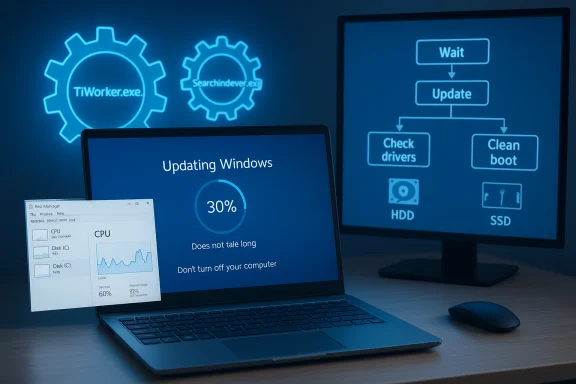
Windows updates are vital: they deliver security patches, stability improvements, and feature changes. But after major installs, many systems show transient or persistent slowdowns caused by several predictable mechanisms. The most common causes are Windows Module Installer activity (TiWorker), a full Search Indexer rebuild, newly reintroduced apps/startup entries (bloatware), and mismatched or generic drivers that shipped with the update rather than vendor-optimized drivers. Community troubleshooting and technical write-ups converge on the same list of root causes and a sensible remediation order: wait, measure, then apply targeted fixes.
Source: Pocket-lint This is how I fixed my PC after a Windows update made it slow
 Background / Overview
Windows updates are vital: they deliver security patches, stability improvements, and feature changes. But after major installs, many systems show transient or persistent slowdowns caused by several predictable mechanisms. The most common causes are Windows Module Installer activity (TiWorker), a full Search Indexer rebuild, newly reintroduced apps/startup entries (bloatware), and mismatched or generic drivers that shipped with the update rather than vendor-optimized drivers. Community troubleshooting and technical write-ups converge on the same list of root causes and a sensible remediation order: wait, measure, then apply targeted fixes.What actually slows a PC after an update
1. Windows Module Installer (TiWorker.exe) and post‑update maintenance
The Windows Modules Installer finishes patching work after updates. It prunes superseded components, updates component stores, and optimizes binaries — activities that can produce sustained CPU and disk I/O for minutes to hours. On older machines or systems with HDDs and 8GB of RAM or less, this background workload is very noticeable. For that reason, patience is often the best first move: let the installer finish while the system is idle.2. Search indexing and SearchIndexer.exe
Major system changes or reconfigured folders trigger Windows Search to rebuild its index. Indexing walks files and metadata and writes database entries; rebuilding a large index can take hours or days on slower hardware. The expected symptom is high disk I/O and SearchIndexer.exe or SearchHost.exe showing up as heavy consumers in Task Manager. Reducing the index scope or switching to the Classic indexing mode often stops the worst of it.3. Drivers: generic vs vendor‑optimized packages
Windows Update sometimes supplies generic drivers. After a system update, vendor drivers that previously delivered optimal performance can be replaced, rolled back, or left in a mismatched state. GPU, chipset, storage, and network drivers are the usual suspects — they’re often the underlying cause of lingering slowness, stutters, or poor gaming frame rates. Use vendor tools (NVIDIA GeForce Experience, AMD Adrenalin, Intel Driver & Support Assistant) or OEM packages for the best results, and be prepared to roll back or perform a clean driver install (with DDU for stubborn GPU issues).4. Reintroduced settings and bloatware
Major upgrades can restore default settings or reinstall OEM trialware and utilities, which increases background processes and startup load. Visual effects may be re-enabled and previously disabled startup items may reappear. Auditing Startup, Performance Options, and Installed apps usually uncovers these regressions.5. Cloud sync and third‑party background work
OneDrive, Dropbox, and similar agents can resume full sync after an update, scanning and uploading files and generating heavy disk and network activity. Pausing sync temporarily is a safe quick test if disk I/O spikes during the slowdown window.A practical, safety‑first troubleshooting sequence
Follow these steps in order. They move from low‑risk and reversible to more invasive interventions only if needed.Step 0 — Baseline and measure
- Reboot and time a cold boot (or use Event Viewer boot diagnostics).
- Open Task Manager and sort by CPU, Disk, and Memory to identify top consumers.
- Note whether slowness appears only immediately after sign‑in or at any time.
Step 1 — Wait and observe (the patient fix)
If TiWorker.exe or Windows Update services are busy, give the system a few hours while idle to complete background tasks. Many systems recover on their own once indexing and Module Installer work finish. If the activity never subsides after several hours, proceed to Step 2.Step 2 — Check for pending updates and reboot
- Settings → Windows Update → Check for updates.
- Install any remaining updates and reboot.
A pending follow‑up package can contain a fix that collapses all background activity.
Step 3 — Inspect Task Manager and run safe diagnostic tools
- Task Manager: identify high-impact processes.
- Run the Windows Update troubleshooter: Settings → System → Troubleshoot → Other troubleshooters → Windows Update.
- Run sfc /scannow and DISM /Online /Cleanup-Image /RestoreHealth from an elevated prompt to repair component store corruption. These are safe, built‑in checks.
Step 4 — Trim startup items and do a clean boot
- Task Manager → Startup: disable nonessential items (leave antivirus, disk encryption, and backup agents enabled).
- If the system still lags, perform a Clean Boot (msconfig → Hide Microsoft services → Disable all → disable non‑Microsoft startup items in Task Manager → reboot) to isolate third‑party services. Re-enable items in small groups to find the offender.
Step 5 — Limit indexing scope or rebuild selectively
- Settings → Privacy & security → Searching Windows → Find my files → choose Classic instead of Enhanced to restrict indexing to Documents, Pictures, Music, and Desktop.
- Or, rebuild the index (Advanced indexing options → Rebuild) if the index is corrupt — expect it to take time on large drives. Exclude large folders (video libraries, VM images) from the index to reduce work.
Step 6 — Pause cloud sync and background updaters
Pause OneDrive/Dropbox syncing while you test performance. These agents often resume full activity after updates and can saturate disk I/O.Step 7 — Update or roll back drivers
- Check Settings → Windows Update → Optional updates → Driver updates.
- Use vendor installers (NVIDIA, AMD, Intel) for GPU and chipset drivers. If a recent driver caused regression, use Device Manager → the driver tab → Roll Back Driver. For stubborn GPU issues, consider a clean uninstall using DDU in Safe Mode, then reinstall the vendor driver.
Step 8 — Clean up disk space and perform maintenance
- Disk Cleanup → Clean up system files.
- Storage Sense to automate housekeeping.
- For HDDs, run Optimize Drives; for SSDs rely on TRIM. Keep at least 10–20% free space on the OS drive to avoid paging pressure.
Step 9 — Power plan and visual effects
- Settings → System → Power & battery → Power mode: choose Best performance while plugged in.
- Accessibility → Visual effects: turn off Transparency and Animation effects. For deeper cuts, System Properties → Advanced → Performance Settings → Adjust for best performance. These move perceived responsiveness without risky changes.
Step 10 — Consider rollback only if the update is clearly the cause
If the slowdown began immediately after a specific KB and community reporting or Microsoft’s release health dashboard indicates regressions, uninstall the offending update: Settings → Windows Update → Update history → Uninstall updates. Use this only after careful testing and when other steps fail, because uninstalling removes security fixes.Step 11 — Last resorts: Reset this PC or clean install
If nothing else helps and you’ve ruled out hardware, consider Reset this PC (Settings → System → Recovery → Reset PC → Keep my files) or a clean install. These are disruptive and should follow a full backup and a careful checklist. Community reports show clean installs often cure obscure regressions, but they are the nuclear option.Quick checklist you can run in 10–30 minutes
- Reboot, then open Task Manager and identify top resource consumers.
- Disable obvious nonessential startup items in Task Manager → Startup.
- Pause OneDrive/Dropbox syncing.
- Run Disk Cleanup → Clean up system files.
- Run DISM /Online /Cleanup-Image /RestoreHealth then sfc /scannow.
- If boot is still slow, perform a Clean Boot and re-measure.
When to suspect hardware limits (and what to upgrade)
- If Task Manager shows constant memory pressure or heavy paging, add RAM. For typical productivity workflows, 8GB is the minimum, 16GB is recommended for heavier multitasking.
- If your system uses a spinning HDD, upgrading to an SSD is the single most effective performance improvement for boot times and app launches. NVMe SSDs give the largest boost, but even SATA SSDs are night‑and‑day compared with HDDs.
Critical analysis: strengths and limitations of these fixes
Strengths
- The recommended approach is low‑risk and reversible: start with waiting and measurement, then apply safe changes like disabling startup apps and running built‑in repair tools. These yield frequent, immediate gains.
- The strategy isolates software causes before suggesting hardware upgrades, which is cost‑efficient for most users. Community and vendor documentation support this layered approach.
- Many issues resolve after driver refreshes or narrowing indexing scope, both of which are targeted fixes that protect system integrity.
Limitations and potential risks
- Waiting is sometimes insufficient: if an update introduced a regression, patience won’t help and rollback may be necessary — but uninstalling updates removes security fixes and should be done cautiously.
- Driver rollbacks and clean installs (DDU) carry risk; always have a restore point and backup before you modify drivers or flash firmware. OEM systems can require manufacturer‑specific drivers.
- Disabling services or startup items blindly can break backups, sync, or device functionality; the clean‑boot diagnostic should be used only as a test and items re‑enabled selectively once identified.
- Some claimed “10‑second boot” promises are anecdotal and depend on CPU, firmware, drive type, and installed startup items. Realistic gains vary by hardware. This is an unverifiable universal claim and should be treated skeptically.
Practical examples — troubleshooting scenarios and fixes
Scenario A: Slow immediately after sign‑in, high disk use
Likely causes: TiWorker.exe, SearchIndexer.exe, or cloud sync catching up. Action: wait a few hours if TiWorker is active; pause OneDrive; set Search to Classic or exclude large folders; check for pending updates; run Disk Cleanup.Scenario B: Sluggish UI and stuttering in games after update
Likely cause: GPU driver mismatch. Action: check Device Manager → Display adapters → Roll Back Driver if available; download the latest vendor driver from NVIDIA/AMD; consider DDU + clean install if problems persist.Scenario C: Startup time doubled, many apps launch slowly after update
Likely cause: reintroduced startup apps or a “startup delay” registry behavior. Action: Task Manager → Startup → disable nonessential items; try the registry Serialize tweak (advanced users only) or perform a Clean Boot to isolate the offender. Reapply previous performance settings (visual effects, power mode).Recommendations for administrators and power users
- Staged rollouts: test major updates on non‑critical machines before wide deployment. Check Microsoft’s release health dashboard for known issues tied to KB numbers.
- Backup and rollback plans: maintain system images or recovery points and validate rollback procedures (uninstalling LCUs, using System Restore, or rolling back feature upgrades within allowed time windows).
- Driver management: prefer vendor‑signed packages for performance‑sensitive components; keep a small library of tested driver versions for quick rollbacks.
Final takeaways: how to fix a PC that’s slow after a Windows update
- Start with patience — many post‑update slowdowns are temporary and resolve when Windows finishes indexing and maintenance tasks.
- Measure, then act — use Task Manager, Disk Cleanup, and built‑in troubleshooters before making major changes.
- Target drivers, indexing scope, and startup apps next; these are the highest‑impact, lowest‑risk fixes for lingering sluggishness.
- Reserve rollback, reset, or clean installs for confirmed regressions or irreparable corruption, and always back up first.
Source: Pocket-lint This is how I fixed my PC after a Windows update made it slow
