Microsoft confirmed on June 23, 2026, that Windows 11 version 26H2 will ship as an enablement-package update for eligible PCs already on versions 24H2 or 25H2, while June’s optional KB5095093 preview update begins delivering several user-facing changes ahead of July’s broader rollout. That pairing tells the real story: Windows 11’s annual “feature update” is becoming less of a dramatic platform event and more of a servicing checkpoint. For IT departments, that is mostly good news. For users still expecting the fall Windows release to be the place where everything changes, it is another reminder that Microsoft has moved the action elsewhere.
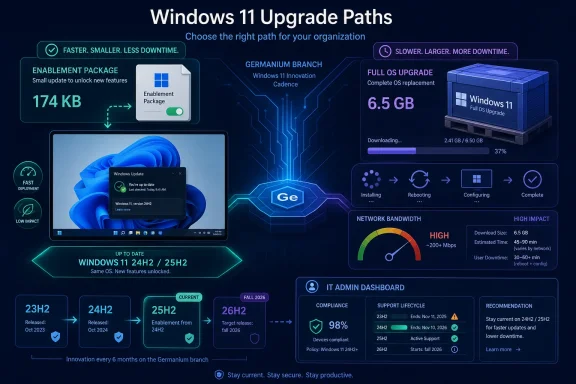
Windows 11 26H2 is not being positioned as a major rebuild of the operating system. Microsoft’s own Insider messaging says the release shares a servicing branch with Windows 11 25H2, and reporting around the announcement indicates that supported 24H2 and 25H2 machines will receive 26H2 through a small enablement package rather than a full in-place upgrade.
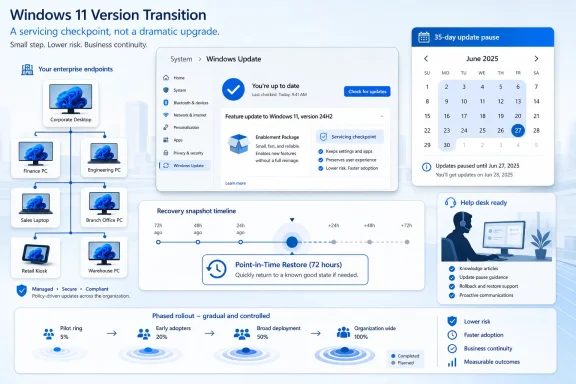
That matters because an enablement package is closer to flipping a version flag than replacing the foundations of the OS. The underlying code has already been arriving through monthly cumulative updates; the annual release package activates the new version identity and resets the support clock. In practical terms, the upgrade should be faster, less disruptive, and easier to schedule across large fleets.
This is Microsoft learning from the less glamorous side of Windows administration. Feature updates used to be mini-migrations, with all the testing baggage that implies: driver compatibility, application regressions, VPN clients that suddenly behave badly, and deployment rings that stretch across quarters. A small enablement package does not eliminate risk, but it changes the shape of the risk.
The company’s bet is that Windows can keep evolving continuously while the annual release becomes a predictable governance event. That is a very different product rhythm from the old Windows 10 era, when feature updates often looked like semiannual construction work on the same road everyone was still driving on.
The shared-servicing model means many features land first through cumulative updates, controlled feature rollouts, app updates, Store-delivered components, or cloud-connected experiences. By the time 26H2 arrives for most users, much of what they think of as “new Windows” may already be present on machines running 24H2 or 25H2. The version number becomes less a package of features and more a support boundary.
That is cleaner for Microsoft’s engineering organization. It also helps explain why Windows 11 can feel simultaneously fast-moving and strangely static. The Start menu, Widgets, Copilot-adjacent experiences, accessibility tools, and recovery features can change under the same version label, while the formal annual release adds little visible drama.
There is a trade-off here. A calmer upgrade model reduces deployment friction, but it also makes Windows change feel less legible. Users used to know when a “new version” arrived. Now they may receive meaningful behavioral changes in an optional preview update, a Patch Tuesday release, a Store app update, or a gradual rollout that appears on one machine weeks before another.
For machines already on Windows 11 24H2 or 25H2, 26H2 should be the easy path: a compact enablement package, a restart, and a new version state. That is the same broad idea Microsoft used for earlier paired releases, where one underlying platform base supported multiple named Windows versions. When it works, the annual upgrade becomes closer to a monthly cumulative update in operational weight.
The catch is that older systems do not get the same shortcut. Devices still on Windows 11 23H2 or earlier are expected to need a fuller upgrade path. That distinction will matter in organizations that stretched 23H2 longer than planned or that have mixed hardware readiness across departments.
There is also a lifecycle nudge embedded in the plan. Windows 11 24H2 Home and Pro editions are approaching end of updates in October 2026, while Enterprise and Education editions have a longer runway. A quick 26H2 move gives Microsoft a cleaner way to pull the installed base forward without asking every eligible device to endure a heavyweight upgrade.
This is the new Windows cadence in miniature. The annual update is the label; the cumulative update is where the operating system actually changes. Optional previews let Microsoft stage production-quality improvements before the following month’s mandatory security update, giving willing users and IT testers a preview of what the broader fleet may soon receive.
That model is efficient, but it also blurs consent. A user who skips the optional June update may still receive many of the same changes in July through the normal security-update channel. Microsoft can say the preview is optional, but the feature pipeline behind it is not necessarily optional forever.
For administrators, KB5095093 is therefore more than a patch note. It is a preview of July’s help-desk tickets, policy questions, and training updates. The smartest organizations will treat these late-month previews as early-warning systems, not as casual updates for test laptops only.
That is more ambitious than the classic “undo a bad driver” mental model many users associate with Windows recovery. If Point-in-Time Restore works as advertised, it becomes a short-window safety net for bad updates, broken applications, botched configuration changes, and ordinary user mistakes. The 72-hour retention window is short, but that is also what makes the feature operationally plausible on consumer storage footprints.
The feature’s value will depend on trust. Recovery tools are only useful if users believe they will not make a bad situation worse. Windows has accumulated years of overlapping repair mechanisms — System Restore, Reset this PC, recovery environments, backup prompts, OneDrive file recovery, and OEM recovery partitions — and ordinary users often do not know which one applies.
Point-in-Time Restore could simplify that story if Microsoft presents it clearly and keeps the behavior predictable. The danger is that it becomes one more recovery icon in a crowded drawer. For IT departments, the questions will be even more pointed: how snapshots interact with encryption, managed storage, compliance retention, endpoint protection, and incident response procedures.
A calendar picker is a more honest interface. Users do not think in abstract pause intervals; they think in travel weeks, exam periods, client presentations, payroll windows, and “not before I finish this project.” Letting someone pick a date makes update deferral feel like scheduling instead of bargaining with the machine.
The 35-day ceiling preserves Microsoft’s security posture. Windows is not becoming a patching free-for-all, and unmanaged Home and Pro machines are still expected to stay reasonably current. But the interface shift suggests Microsoft understands that update control is partly psychological. People are less hostile to maintenance when the system acknowledges their calendar.
For managed environments, the local UI is only part of the picture. Policy, Intune, Windows Update for Business, Autopatch, and deferral rings will continue to define the real update posture in enterprise deployments. Still, the consumer-facing change matters because it sets expectations. Workers who see better update controls at home will expect the same clarity from corporate devices.
This is the kind of feature that would once have lived in third-party utilities, monitor software, or obscure GPU control panels. Its arrival in Windows proper reflects a broader trend: Microsoft is slowly folding comfort, accessibility, and cognitive-load features into the OS instead of treating them as niche add-ons. That is the right direction, especially as PCs are used across longer working days and more varied environments.
The distinction between accessibility and preference is also narrowing. A tint overlay may be essential for one user, merely comfortable for another, and irrelevant to a third. Windows does not need to decide which category matters most; it needs to make the control discoverable and dependable.
That same principle applies to the redesigned Widgets behavior, which reportedly stops the board from expanding immediately on cursor hover. This is a small annoyance fix, but small interface annoyances accumulate. Windows 11 has often been criticized less for lacking features than for feeling too eager to interrupt users with panels, feeds, flyouts, nudges, and cloud-connected prompts.
Bluetooth remains one of the PC’s most persistent sources of low-grade frustration. Headsets fail to reconnect, audio profiles switch unexpectedly, latency varies, and meeting software sometimes exposes every weak link in the chain. In hybrid work, that is not a peripheral problem. It is the difference between a machine that feels professional and one that makes the user apologize before every call.
Microsoft’s challenge is that Bluetooth reliability is a stack problem. Windows, drivers, firmware, headsets, radios, USB controllers, and conferencing apps all share the blame when something goes wrong. The OS can improve the baseline, but it cannot fully control the ecosystem.
Still, cumulative reliability work is exactly what the Windows servicing model should be good at. Not every update needs a new app or a new panel. Sometimes the most important improvement is that a headset reconnects the first time and nobody thinks about it.
The difficulty is that Insider channels no longer map neatly to simple future states. Experimental, Dev, Beta, and Release Preview builds can test different slices of the product, and features may appear, disappear, or roll out only to subsets of participants. That is useful for engineering, but it complicates interpretation.
For enthusiasts, this has created a familiar ritual: a build appears, feature flags are discovered, screenshots circulate, and everyone argues about whether the change is “coming to Windows.” Sometimes it is. Sometimes it is a test. Sometimes it is a staged rollout that will arrive for some users months before others.
For IT pros, the lesson is to treat Insider signals as early intelligence, not as a deployment plan. 26H2’s enablement-package shape is the dependable part. Individual features, defaults, and management controls still need validation against official release notes and test rings when the update approaches general availability.
Home and Pro editions typically have shorter support windows than Enterprise and Education editions, and Microsoft’s documentation around Windows 11 24H2 highlights the familiar split. The practical result is that consumers and small businesses face a more urgent push to stay on the latest annual release, while larger organizations can use longer support timelines to sequence migrations more deliberately.
An enablement package makes that bargain easier to accept. If Microsoft wants users to move annually, the move must not feel like an annual reinstall. The lighter the version transition, the less resistance Microsoft will encounter when support deadlines approach.
There is a subtle power shift in that arrangement. Microsoft gets a more current installed base, which simplifies servicing and security. Customers get less disruptive upgrades. But customers also become more dependent on Microsoft’s monthly delivery discipline, because the annual version is no longer the main moment when change can be evaluated as a bundle.
That makes 26H2 look even more conservative by comparison. Rather than forcing the broader PC base onto a new platform branch midyear, Microsoft appears to be preserving a stable shared-servicing path for 24H2 and 25H2 devices while allowing specialized hardware to ship on a different track.
This is a sensible compromise, but it exposes how fragmented “Windows 11” has become under the surface. Two machines can both be modern Windows PCs and still sit on different servicing assumptions, hardware enablement paths, and feature availability timelines. Copilot+ PC features already made that reality visible; the 26H1 and 26H2 split makes it structural.
For buyers, the message is simple but uncomfortable: version numbers alone do not tell the whole story. Hardware class, processor generation, AI component support, and servicing branch now matter almost as much as the Windows edition printed in Settings.
Gradual rollout is defensible engineering. It lets Microsoft detect problems before every eligible device receives a change. The alternative — pushing every feature to every PC simultaneously — is the kind of bravado that modern Windows can no longer afford.
But gradual rollout can also be maddening. A user reads that Screen Tint, Point-in-Time Restore, or a Widgets change is “available,” then cannot find it. An administrator tests a feature on one device and assumes it is absent elsewhere by policy, when the actual reason is staged availability. A help-desk script written too early becomes inaccurate by the time it reaches the floor.
This is where Microsoft’s servicing model still needs better communication. If Windows is going to change continuously, the operating system needs clearer local explanations of what has changed, what is rolling out, and what is controlled by policy. Release notes are necessary, but they are not enough for a billion-device platform.
The obvious test is whether the enablement package installs cleanly across standard hardware profiles. But the deeper work is validating the cumulative-update features that arrive before and around it. Recovery snapshots, update pause behavior, Widgets changes, accessibility settings, Bluetooth fixes, and Start menu policy controls can all generate user impact without looking like a traditional feature upgrade.
Point-in-Time Restore deserves special attention. Organizations will need to understand whether it is enabled by default, how it is governed, what data it affects, and whether it creates support or compliance complications. A recovery feature that helps a home user undo a bad install may raise different questions on a regulated endpoint.
The update pause redesign also deserves policy review. If local users can see controls that are overridden by management settings, the UI must communicate that clearly. Nothing creates support friction faster than a button that appears to promise control but does not actually control the managed device.
The enablement package says the annual upgrade should be quick and predictable. Point-in-Time Restore says mistakes should be easier to undo. The calendar pause says users should be able to schedule maintenance around life rather than translate their life into Microsoft’s pause intervals. Even the Widgets hover change says the OS should interrupt less eagerly.
That is the charitable reading. The less charitable reading is that Microsoft is still centralizing control, merely with better shock absorbers. Features arrive through cumulative updates, rollouts are staged by Microsoft’s telemetry-driven systems, and users often discover changes after the fact.
Both readings can be true. Windows is becoming more resilient and more centrally orchestrated at the same time. The experience will depend on whether Microsoft uses that control to reduce disruption or to push more engagement surfaces into the OS.
 Microsoft Turns the Annual Upgrade Into a Servicing Receipt
Windows 11 26H2 is not being positioned as a major rebuild of the operating system. Microsoft’s own Insider messaging says the release shares a servicing branch with Windows 11 25H2, and reporting around the announcement indicates that supported 24H2 and 25H2 machines will receive 26H2 through a small enablement package rather than a full in-place upgrade.That matters because an enablement package is closer to flipping a version flag than replacing the foundations of the OS. The underlying code has already been arriving through monthly cumulative updates; the annual release package activates the new version identity and resets the support clock. In practical terms, the upgrade should be faster, less disruptive, and easier to schedule across large fleets.
This is Microsoft learning from the less glamorous side of Windows administration. Feature updates used to be mini-migrations, with all the testing baggage that implies: driver compatibility, application regressions, VPN clients that suddenly behave badly, and deployment rings that stretch across quarters. A small enablement package does not eliminate risk, but it changes the shape of the risk.
The company’s bet is that Windows can keep evolving continuously while the annual release becomes a predictable governance event. That is a very different product rhythm from the old Windows 10 era, when feature updates often looked like semiannual construction work on the same road everyone was still driving on.
The Boring Update Is the Point
Calling 26H2 “minor” misses the strategic shift. Microsoft is not failing to deliver a big Windows release; it is choosing not to make the annual release the main delivery vehicle for new Windows behavior. That choice is good for IT departments, even if it makes the branding feel anticlimactic.The shared-servicing model means many features land first through cumulative updates, controlled feature rollouts, app updates, Store-delivered components, or cloud-connected experiences. By the time 26H2 arrives for most users, much of what they think of as “new Windows” may already be present on machines running 24H2 or 25H2. The version number becomes less a package of features and more a support boundary.
That is cleaner for Microsoft’s engineering organization. It also helps explain why Windows 11 can feel simultaneously fast-moving and strangely static. The Start menu, Widgets, Copilot-adjacent experiences, accessibility tools, and recovery features can change under the same version label, while the formal annual release adds little visible drama.
There is a trade-off here. A calmer upgrade model reduces deployment friction, but it also makes Windows change feel less legible. Users used to know when a “new version” arrived. Now they may receive meaningful behavioral changes in an optional preview update, a Patch Tuesday release, a Store app update, or a gradual rollout that appears on one machine weeks before another.
24H2 and 25H2 Machines Get the Fast Lane
The immediate audience for the 26H2 plan is not the enthusiast pressing “Check for updates” on day one. It is the administrator with thousands of endpoints, compliance timelines, and a help desk that remembers every rough Windows feature update of the last decade.For machines already on Windows 11 24H2 or 25H2, 26H2 should be the easy path: a compact enablement package, a restart, and a new version state. That is the same broad idea Microsoft used for earlier paired releases, where one underlying platform base supported multiple named Windows versions. When it works, the annual upgrade becomes closer to a monthly cumulative update in operational weight.
The catch is that older systems do not get the same shortcut. Devices still on Windows 11 23H2 or earlier are expected to need a fuller upgrade path. That distinction will matter in organizations that stretched 23H2 longer than planned or that have mixed hardware readiness across departments.
There is also a lifecycle nudge embedded in the plan. Windows 11 24H2 Home and Pro editions are approaching end of updates in October 2026, while Enterprise and Education editions have a longer runway. A quick 26H2 move gives Microsoft a cleaner way to pull the installed base forward without asking every eligible device to endure a heavyweight upgrade.
KB5095093 Shows Where the Real Feature Work Has Gone
The more interesting news for everyday users is not 26H2 itself, but June’s optional KB5095093 preview update for Windows 11 24H2 and 25H2. Released on June 23, 2026, it raises the OS builds to 26100.8737 and 26200.8737 and includes the kind of user-facing changes people once expected from annual Windows releases.This is the new Windows cadence in miniature. The annual update is the label; the cumulative update is where the operating system actually changes. Optional previews let Microsoft stage production-quality improvements before the following month’s mandatory security update, giving willing users and IT testers a preview of what the broader fleet may soon receive.
That model is efficient, but it also blurs consent. A user who skips the optional June update may still receive many of the same changes in July through the normal security-update channel. Microsoft can say the preview is optional, but the feature pipeline behind it is not necessarily optional forever.
For administrators, KB5095093 is therefore more than a patch note. It is a preview of July’s help-desk tickets, policy questions, and training updates. The smartest organizations will treat these late-month previews as early-warning systems, not as casual updates for test laptops only.
Point-in-Time Restore Is a Safety Net With Teeth
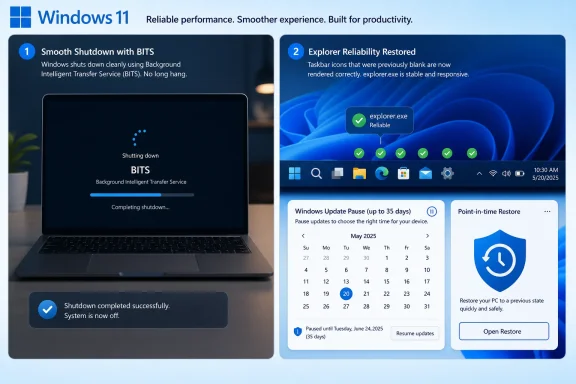
The headline addition in KB5095093 is Point-in-Time Restore, a recovery feature designed to roll back a PC to a recent system snapshot. Microsoft describes it as a way to reverse recent system changes, applications, and local personal files using recovery points retained for up to 72 hours.That is more ambitious than the classic “undo a bad driver” mental model many users associate with Windows recovery. If Point-in-Time Restore works as advertised, it becomes a short-window safety net for bad updates, broken applications, botched configuration changes, and ordinary user mistakes. The 72-hour retention window is short, but that is also what makes the feature operationally plausible on consumer storage footprints.
The feature’s value will depend on trust. Recovery tools are only useful if users believe they will not make a bad situation worse. Windows has accumulated years of overlapping repair mechanisms — System Restore, Reset this PC, recovery environments, backup prompts, OneDrive file recovery, and OEM recovery partitions — and ordinary users often do not know which one applies.
Point-in-Time Restore could simplify that story if Microsoft presents it clearly and keeps the behavior predictable. The danger is that it becomes one more recovery icon in a crowded drawer. For IT departments, the questions will be even more pointed: how snapshots interact with encryption, managed storage, compliance retention, endpoint protection, and incident response procedures.
The 35-Day Pause Becomes a Calendar, Not a Guessing Game
KB5095093 also changes the Windows Update pause experience by replacing the standard pause mechanism with a calendar-style selector that lets users halt updates for up to 35 days. That sounds minor until you remember how much Windows Update resentment comes from timing rather than from patching itself.A calendar picker is a more honest interface. Users do not think in abstract pause intervals; they think in travel weeks, exam periods, client presentations, payroll windows, and “not before I finish this project.” Letting someone pick a date makes update deferral feel like scheduling instead of bargaining with the machine.
The 35-day ceiling preserves Microsoft’s security posture. Windows is not becoming a patching free-for-all, and unmanaged Home and Pro machines are still expected to stay reasonably current. But the interface shift suggests Microsoft understands that update control is partly psychological. People are less hostile to maintenance when the system acknowledges their calendar.
For managed environments, the local UI is only part of the picture. Policy, Intune, Windows Update for Business, Autopatch, and deferral rings will continue to define the real update posture in enterprise deployments. Still, the consumer-facing change matters because it sets expectations. Workers who see better update controls at home will expect the same clarity from corporate devices.
Accessibility and Comfort Features Keep Moving Into the Core OS
Screen Tint is another notable addition in the June preview. It applies full-screen color overlays intended to reduce eye strain, with adjustable intensity and presets available through accessibility settings.This is the kind of feature that would once have lived in third-party utilities, monitor software, or obscure GPU control panels. Its arrival in Windows proper reflects a broader trend: Microsoft is slowly folding comfort, accessibility, and cognitive-load features into the OS instead of treating them as niche add-ons. That is the right direction, especially as PCs are used across longer working days and more varied environments.
The distinction between accessibility and preference is also narrowing. A tint overlay may be essential for one user, merely comfortable for another, and irrelevant to a third. Windows does not need to decide which category matters most; it needs to make the control discoverable and dependable.
That same principle applies to the redesigned Widgets behavior, which reportedly stops the board from expanding immediately on cursor hover. This is a small annoyance fix, but small interface annoyances accumulate. Windows 11 has often been criticized less for lacking features than for feeling too eager to interrupt users with panels, feeds, flyouts, nudges, and cloud-connected prompts.
Bluetooth Reliability Is Not Glamorous Until It Fails
The June update also includes Bluetooth audio improvements, with reports pointing to better streaming reliability. This will not dominate Microsoft’s marketing, but it may matter more to daily satisfaction than another visual refresh.Bluetooth remains one of the PC’s most persistent sources of low-grade frustration. Headsets fail to reconnect, audio profiles switch unexpectedly, latency varies, and meeting software sometimes exposes every weak link in the chain. In hybrid work, that is not a peripheral problem. It is the difference between a machine that feels professional and one that makes the user apologize before every call.
Microsoft’s challenge is that Bluetooth reliability is a stack problem. Windows, drivers, firmware, headsets, radios, USB controllers, and conferencing apps all share the blame when something goes wrong. The OS can improve the baseline, but it cannot fully control the ecosystem.
Still, cumulative reliability work is exactly what the Windows servicing model should be good at. Not every update needs a new app or a new panel. Sometimes the most important improvement is that a headset reconnects the first time and nobody thinks about it.
Insiders Get the Future, But Not Always the Same Future
Windows 11 26H2 is currently available to testers through the Windows Insider Program, including channels where Microsoft can trial platform and feature changes before broader release. That makes the Insider Program part proving ground, part messaging apparatus, and part pressure valve for a company trying to evolve Windows continuously without surprising everyone at once.The difficulty is that Insider channels no longer map neatly to simple future states. Experimental, Dev, Beta, and Release Preview builds can test different slices of the product, and features may appear, disappear, or roll out only to subsets of participants. That is useful for engineering, but it complicates interpretation.
For enthusiasts, this has created a familiar ritual: a build appears, feature flags are discovered, screenshots circulate, and everyone argues about whether the change is “coming to Windows.” Sometimes it is. Sometimes it is a test. Sometimes it is a staged rollout that will arrive for some users months before others.
For IT pros, the lesson is to treat Insider signals as early intelligence, not as a deployment plan. 26H2’s enablement-package shape is the dependable part. Individual features, defaults, and management controls still need validation against official release notes and test rings when the update approaches general availability.
The Support Clock Is the Real Feature
For many organizations, the most important thing 26H2 does is reset support. That may sound bureaucratic, but Windows lifecycle dates drive real budgets, project plans, compliance attestations, and risk decisions.Home and Pro editions typically have shorter support windows than Enterprise and Education editions, and Microsoft’s documentation around Windows 11 24H2 highlights the familiar split. The practical result is that consumers and small businesses face a more urgent push to stay on the latest annual release, while larger organizations can use longer support timelines to sequence migrations more deliberately.
An enablement package makes that bargain easier to accept. If Microsoft wants users to move annually, the move must not feel like an annual reinstall. The lighter the version transition, the less resistance Microsoft will encounter when support deadlines approach.
There is a subtle power shift in that arrangement. Microsoft gets a more current installed base, which simplifies servicing and security. Customers get less disruptive upgrades. But customers also become more dependent on Microsoft’s monthly delivery discipline, because the annual version is no longer the main moment when change can be evaluated as a bundle.
The 26H1 Detour Makes 26H2 Look More Conservative
The 2026 Windows story has an unusual wrinkle: Windows 11 version 26H1 exists, but it is not the mainstream upgrade path for ordinary existing PCs. Microsoft has described 26H1 as a targeted release for new devices with select next-generation processors, notably in the Arm ecosystem.That makes 26H2 look even more conservative by comparison. Rather than forcing the broader PC base onto a new platform branch midyear, Microsoft appears to be preserving a stable shared-servicing path for 24H2 and 25H2 devices while allowing specialized hardware to ship on a different track.
This is a sensible compromise, but it exposes how fragmented “Windows 11” has become under the surface. Two machines can both be modern Windows PCs and still sit on different servicing assumptions, hardware enablement paths, and feature availability timelines. Copilot+ PC features already made that reality visible; the 26H1 and 26H2 split makes it structural.
For buyers, the message is simple but uncomfortable: version numbers alone do not tell the whole story. Hardware class, processor generation, AI component support, and servicing branch now matter almost as much as the Windows edition printed in Settings.
Microsoft’s Rollout Language Still Demands Skepticism
Microsoft’s release notes increasingly distinguish between gradual rollout and broad availability. That is a necessary disclosure, but it also means two users reading the same KB article may not see the same machine behavior on the same day.Gradual rollout is defensible engineering. It lets Microsoft detect problems before every eligible device receives a change. The alternative — pushing every feature to every PC simultaneously — is the kind of bravado that modern Windows can no longer afford.
But gradual rollout can also be maddening. A user reads that Screen Tint, Point-in-Time Restore, or a Widgets change is “available,” then cannot find it. An administrator tests a feature on one device and assumes it is absent elsewhere by policy, when the actual reason is staged availability. A help-desk script written too early becomes inaccurate by the time it reaches the floor.
This is where Microsoft’s servicing model still needs better communication. If Windows is going to change continuously, the operating system needs clearer local explanations of what has changed, what is rolling out, and what is controlled by policy. Release notes are necessary, but they are not enough for a billion-device platform.
Where IT Should Spend Its Testing Time
The 26H2 enablement package should not tempt administrators into complacency. Smaller does not mean risk-free; it means the risk has moved.The obvious test is whether the enablement package installs cleanly across standard hardware profiles. But the deeper work is validating the cumulative-update features that arrive before and around it. Recovery snapshots, update pause behavior, Widgets changes, accessibility settings, Bluetooth fixes, and Start menu policy controls can all generate user impact without looking like a traditional feature upgrade.
Point-in-Time Restore deserves special attention. Organizations will need to understand whether it is enabled by default, how it is governed, what data it affects, and whether it creates support or compliance complications. A recovery feature that helps a home user undo a bad install may raise different questions on a regulated endpoint.
The update pause redesign also deserves policy review. If local users can see controls that are overridden by management settings, the UI must communicate that clearly. Nothing creates support friction faster than a button that appears to promise control but does not actually control the managed device.
The Windows Update Social Contract Is Being Rewritten
Windows users have never objected to security updates in the abstract. They object to surprise, interruption, regressions, and the feeling that the PC belongs to someone else at the worst possible moment. Microsoft’s 26H2 and KB5095093 news should be read as an attempt to rebalance that contract.The enablement package says the annual upgrade should be quick and predictable. Point-in-Time Restore says mistakes should be easier to undo. The calendar pause says users should be able to schedule maintenance around life rather than translate their life into Microsoft’s pause intervals. Even the Widgets hover change says the OS should interrupt less eagerly.
That is the charitable reading. The less charitable reading is that Microsoft is still centralizing control, merely with better shock absorbers. Features arrive through cumulative updates, rollouts are staged by Microsoft’s telemetry-driven systems, and users often discover changes after the fact.
Both readings can be true. Windows is becoming more resilient and more centrally orchestrated at the same time. The experience will depend on whether Microsoft uses that control to reduce disruption or to push more engagement surfaces into the OS.
The Practical Shape of This Release Is Now Clear
For all the moving pieces, the 2026 Windows plan is becoming easier to describe than it first appears. The annual version is light, the monthly updates are heavy with features, and the support lifecycle remains the lever that moves the installed base.- Windows 11 26H2 is expected to be a fast enablement-package upgrade for eligible PCs already running Windows 11 24H2 or 25H2.
- Devices on Windows 11 23H2 or older should be treated as fuller migration candidates rather than assumed beneficiaries of the same quick path.
- KB5095093 is the more immediate operational event because it previews features and fixes expected to matter before 26H2 reaches general availability.
- Point-in-Time Restore could become one of Windows 11’s most useful safety features, but administrators should test its storage, policy, and compliance implications before trusting it broadly.
- The new calendar-based update pause is a small interface change with large symbolic value because it frames update control around real dates rather than vague deferral blocks.
- Microsoft’s gradual rollout model means “included in the update” does not always mean “visible on every PC today.”
References
- Primary source: asatunews.co.id
Published: 2026-06-24T20:10:43.268193
Microsoft Details Windows 11 26H2 Update and Rollout Plan
Microsoft shares details on the upcoming Windows 11 version 26H2 update and rolls out new system features in the June 2026 optional package.www.asatunews.co.id - Related coverage: techradar.com
Microsoft confirms Windows 11 26H2 is another boring update that does nothing — but here's why I'm happy about that | TechRadar
It's all about avoiding a repeat of the bug-fest that was 24H2www.techradar.com - Related coverage: techrepublic.com
Windows 11 26H2 Is Coming: Microsoft Shares New Details
Microsoft confirmed Windows 11 26H2 will use an enablement package, giving IT teams a faster upgrade path and support reset for supported PCs.www.techrepublic.com
- Official source: learn.microsoft.com
Windows 11 - release information | Microsoft Learn
Learn release information for Windows 11 releaseslearn.microsoft.com - Official source: blogs.windows.com
Announcing new builds for 19 June 2026, version 26H2 for Experimental
Hello Windows Insiders, We have new releases today with builds across Beta and Experimental, including Windows 11, version 26H2 for Experimental. Windows 11, version 26H2 Windows 11, version 26H2 represents our yearly second halfblogs.windows.com - Related coverage: allthings.how
Windows 11 KB5095093 preview brings Point-in-time Restore (build 26200.8728)
The July 2026 preview update adds system recovery snapshots, calendar-based update pausing, and quieter Widgets across 25H2 and 24H2.allthings.how
- Related coverage: pcworld.com
Windows 11 26H2 is coming: Meet all the new features | PCWorld
Windows 11 26H2 is the next major free update for all Windows users. Among other things, it brings improvements to Explorer, camera control, and AI. Here's an overview.www.pcworld.com - Related coverage: blog.thomasmarcussen.com
Windows 11 26H2: Upgrade Paths, Autopatch & Pilot to ProductionThomas Marcussen
How to plan Windows 11 26H2: enablement package upgrade paths, driving the rollout with Windows Autopatch and Intune, and tracking from pilot to production.blog.thomasmarcussen.com - Related coverage: enjoypclife.net
Windows 11 オプションパッチ「KB5095093」公開:ポイントインタイムリストアなど多数の新機能を追加
Microsoftは2026年6月23日、Windows 11(バージョン24H2・25H2)向けの累積更新プログラム/オプションパッチ「KB5095093」(プレビュー)をリリースしました。Patch Tuesdayとは別に毎月末に配信さ... enjoypclife.net
- Related coverage: windowscentral.com
Windows 11 version 26H2: Everything we know so far about Microsoft's next OS update coming this fall | Windows Central
Microsoft is now testing Windows 11 preview builds that are expected to make up the next version shipping this fall. Here's what we know.www.windowscentral.com - Related coverage: tomshardware.com
Windows 11 25H2 ISOs released after delays — upgrade switches on some features, now available for insiders | Tom's Hardware
Microsoft has released ISO install media for Windows 11 version 25H2, the next feature update in its annual release cycle.www.tomshardware.com - Related coverage: thurrott.com
Point-in-Time Restore for Windows 11 is Generally Available - Thurrott.com
Microsoft announced that Point-in-time restore is now generally available in Windows 11.www.thurrott.com - Related coverage: windowsforum.com
Windows 11 25H2 Enablement Package Rollout from 24H2: Single Restart Update | Windows Forum
Microsoft is now using its Windows Update machinery to push Windows 11, version 25H2, onto eligible devices still running 24H2, and the move is less...windowsforum.com - Related coverage: ad-hoc-news.de
Windows 11 26H2: Microsofts kleinste Update-Strategie im Herbst
Microsoft bestätigt Windows 11 26H2 als kleines Enablement-Paket. Der Code ist bereits in Vorgänger-Updates enthalten, die Aktivierung erfolgt per Schalter.www.ad-hoc-news.de - Official source: techcommunity.microsoft.com
- Official source: support.microsoft.com