
Deleting the only administrator account in Windows 11 does not truly “recover” that account; it forces the user to regain administrator access through another admin profile, the Microsoft account originally tied to the PC, Safe Mode’s built-in Administrator account, or a newly created local administrator. That distinction matters because Windows can restore control of the machine more easily than it can restore a vanished profile. The practical problem is not nostalgia for a missing username — it is the sudden loss of the keys needed to install software, approve UAC prompts, change security settings, or repair other accounts. For home users it is a panic moment; for IT pros it is a reminder that account recovery is really an identity, privilege, and data-continuity problem wearing a Windows Settings costume.
The most important thing to understand about a deleted administrator account is that Windows is not a time machine. If an account was merely changed from Administrator to Standard user, the fix is often straightforward: put the account back into the local Administrators group. If the account was actually removed, the operating system can give you a new administrator, but it cannot magically reconstitute every part of the old user profile.
That difference is where many quick-fix guides blur the truth. “Recover deleted admin account” sounds like a single operation, as if Windows has a recycle bin for identities. In reality, Windows treats local users, Microsoft-linked sign-ins, profile folders, group memberships, security identifiers, and personal files as related but distinct pieces of the system.
A deleted account may leave behind a profile folder under
This is why the safest recovery path starts with the least invasive option. If another administrator exists, use it. If the Microsoft account that set up the PC still signs in, use that. If neither is available, Safe Mode and the built-in Administrator account become the emergency exit — not because they are elegant, but because Windows needs some trusted local authority to break the deadlock.
The catch is that the Microsoft account is not the same thing as the local Windows profile on disk. Your online Microsoft identity can still exist even if a particular local user profile has been removed from a PC. Conversely, the PC may remain visible in your Microsoft account’s device list while the local Windows sign-in state is damaged or confused.
Still, checking the Microsoft account is the right first move because it is low risk. From another device, signing into the Microsoft account dashboard and reviewing the Devices section can tell you whether the PC is still associated with that identity. If it is, try signing into Windows with the same credentials, then open Settings and inspect the account list.
Once you have administrator access through that Microsoft-linked sign-in, the repair is ordinary Windows housekeeping. Go to Settings, open Accounts, and review Other users. If the old account is present but demoted, change its account type back to Administrator. If it is gone, create a replacement account and give it administrator rights.
The editorially unfashionable but technically important advice here is simple: do not start with command-line heroics if a normal sign-in still works. Windows account recovery should be boring whenever possible. The more dramatic the rescue method, the greater the chance that you will solve the privilege problem while making the data problem worse.
If another administrator account exists, sign into it and open Settings. Under Accounts and Other users, select the affected account and change its type to Administrator if it was merely demoted. The older
This is also the cleanest way to replace a genuinely deleted account. Create a new local or Microsoft-linked user, set it as Administrator, and then sign out and confirm that the new account can approve UAC prompts. Only after that should you begin copying personal files from any leftover profile folder.
For IT administrators, the lesson is broader than one broken home PC. Workstations should not depend on a single human identity as the only path to local administrative control. Domain-joined and Entra-managed environments have their own management layers, but standalone and small-business Windows machines still benefit from a deliberately maintained break-glass local administrator account.
That break-glass account should not be the daily driver. It should have a strong password, be documented securely, and be used rarely. The point is not convenience; the point is resilience when convenience has already failed.
Getting there requires entering the Windows Recovery Environment. From a working sign-in screen or desktop, hold Shift while clicking Restart. If Windows cannot be signed into normally, repeated failed boots can also trigger recovery. Once in the recovery menus, the path is Troubleshoot, Advanced options, Startup Settings, Restart, then pressing 4 or F4 for Safe Mode.
On the Safe Mode sign-in screen, an Administrator account may appear. If it has never been configured with a password, it may accept a blank password; if someone previously set a password, that password is required. This is not a vulnerability so much as a controlled recovery behavior, but it is also a reminder that the built-in Administrator account is powerful and should not be treated casually.
Once inside, the task is again not mystical. If your original account still exists, run
The standard command-line approach is direct. An elevated Command Prompt can create a local account with
There is one subtle trap in this territory. Running commands from the recovery environment itself is not always the same as modifying the installed Windows instance you intend to boot. If you are working from an offline recovery command prompt, drive letters and target installations can differ. Safe Mode inside the installed Windows environment is less glamorous, but for this particular job it is often less ambiguous.
A built-in Administrator session can bypass many ordinary guardrails. It is designed for repair and administration, not email, browsing, gaming, or routine work. Leaving it enabled with a weak or blank password after a recovery is the Windows equivalent of fixing a broken lock and then leaving the front door open.
After creating or restoring a normal administrator account, disable the built-in Administrator again unless you have a specific managed reason not to. In an elevated terminal,
This is where consumer advice and enterprise practice overlap. The average Windows 11 user wants the fastest route back into Settings. The sysadmin wants an auditable and secure end state. Both should want the same thing after the emergency: a machine with at least one known-good administrator, no unnecessary privileged accounts exposed, and no mystery passwords floating around.
The wrong recovery leaves you with an account named “Admin” and a password like
If the old profile folder remains, do not immediately take ownership of everything and start dragging files around indiscriminately. Copy user-created data first: Documents, Desktop, Downloads, Pictures, Videos, and any known project folders. Be more careful with
Encrypted File System is the nightmare case. If files were encrypted under the deleted account and the recovery certificate or key is unavailable, administrator access alone may not decrypt them. That is one reason “I got admin back” should never be confused with “I recovered everything.”
Microsoft account sync may soften the blow. OneDrive, Edge sync, Microsoft Store app associations, and cloud-backed settings can repopulate some parts of the user experience when the user signs back in. But cloud sync is uneven by design: it is not a full forensic backup of a Windows profile.
For important machines, the correct answer is backup, not optimism. File History, OneDrive Known Folder Move, third-party backup tools, system images, enterprise endpoint backup, and profile management all exist because Windows account repair is not a substitute for data protection. The time to discover that distinction is before deleting the only administrator account, not after.
This is not Windows being spiteful. It is Windows doing exactly what it was designed to do. Standard users should not be able to install arbitrary system software, change protected settings, disable security features, or alter other users. The problem is that the human owner of the PC has accidentally removed the identity Windows trusted to perform those tasks.
The
This also explains why random registry edits and offline hacks are risky. They may appear to bypass the stuck UAC prompt, but they can damage account state, weaken security, or trip BitLocker recovery. If BitLocker or device encryption is enabled, any recovery-path change should be approached with the recovery key available, especially on modern Windows 11 laptops where encryption is common.
The clean principle is this: use supported account paths first, recovery paths second, and destructive reset options last. The further you move down that ladder, the more you are trading certainty for force.
That complexity can help. A Microsoft-linked device may preserve recovery options, sync user data, and make BitLocker keys easier to retrieve from another device. It can also confuse the moment of failure, because the online account may be healthy while the local profile is missing or demoted.
For administrators, the enterprise analogue is familiar. Local admin rights are increasingly managed, rotated, restricted, or removed entirely. Microsoft’s Local Administrator Password Solution and modern endpoint management exist because permanent local admin access is both useful and dangerous. The home-user crisis of a deleted admin account is the consumer-scale version of the same tension.
Windows wants to be secure enough that ordinary accounts cannot wreck the system. Users want enough control to fix the system when they wreck the account structure. The built-in Administrator Safe Mode behavior is one of the compromises that keeps those goals from colliding too catastrophically.
The trade-off is that recovery is deliberately constrained. Windows gives you a path back, but it does not eliminate the need to prove control of the machine. That is inconvenient by design.
For the deleted-admin scenario, WinRE’s value is that it gives users a route to Safe Mode when the normal desktop is unreachable. Holding Shift while selecting Restart remains the friendliest path when you can still reach the sign-in screen. Repeated boot failures are the less friendly but still common path when the system is otherwise inaccessible.
This is also where advice must be precise. Safe Mode is not the same as a factory reset. Startup Repair is not the same as account repair. Command Prompt in WinRE is not automatically editing the live Windows environment in the way a normal elevated terminal does. Each tool has a role, and using the wrong one can turn a permissions problem into a reinstall.
If Safe Mode exposes the built-in Administrator, use that narrow opening to create or restore a normal administrator account. Then reboot normally and verify the fix. Do not wander through recovery options changing unrelated settings because the menu happens to be available.
The more powerful the recovery tool, the more disciplined the operator needs to be. That is true whether the operator is a sysadmin with a ticket queue or a parent trying to rescue a child’s school laptop at 11 p.m.
The better end state is restrained. One everyday account can be standard if the user is comfortable entering admin credentials for system changes. One separate administrator account can exist for maintenance. The built-in Administrator should be disabled unless there is a specific reason to keep it active. Passwords should be unique, strong, and stored in a password manager or an organizational vault.
On shared PCs, this distinction matters. Giving every family member or employee administrator rights because one account recovery was painful is an understandable overreaction. It also makes accidental software installs, browser hijackers, unwanted drivers, and malicious scripts more damaging.
The least-privilege principle is not just enterprise sermonizing. It is the reason a bad browser download should ruin a user profile rather than the whole machine. Administrator access should be available when needed, not sprayed across every identity because Windows once made you sweat.
Recovery should leave the system healthier than it was before the mistake. Otherwise, it was only a reset of the countdown clock.
If you can sign into a Microsoft account that still controls the PC, start there. If there is another administrator, use it. If there is no administrator path in normal Windows, boot into Safe Mode and look for the built-in Administrator account. If you get in, restore the old account’s group membership or create a new administrator. If none of those routes works, you are moving toward reset, restore, backup recovery, or professional data work.
The command line remains useful, but it should not be treated as a magic incantation.
This is also a moment to slow down on passwords. Tutorial placeholders are not real passwords. Any newly created administrator account should use a strong credential immediately, and the password should be recorded somewhere safer than a sticky note under the keyboard.
The best repair is the one you can explain afterward: which account was lost, which authority restored access, which new account now holds admin rights, and which emergency account was disabled again.
Account names also matter. The display name shown on the sign-in screen may not be the exact local account name needed for command-line tools. Running
Users should also avoid deleting old profile folders until the new administrator account is stable and data has been copied. Windows may not need the folder to authenticate the new account, but the human user may need what is inside it. Storage cleanup can wait.
If the machine is managed by an employer or school, stop before freelancing. Entra ID, domain policies, endpoint security tools, and local admin restrictions can change what is possible and what is allowed. A home recovery trick applied to a managed laptop can violate policy or make IT’s job harder.
Finally, if the deleted account was the only place important data lived and no backup exists, consider imaging the disk before attempting aggressive repairs. That sounds excessive until the first failed fix overwrites the artifact you needed.
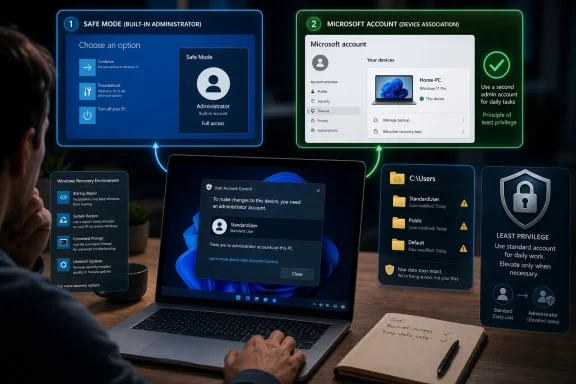 Windows Can Usually Restore Power, Not the Person Who Lost It
The most important thing to understand about a deleted administrator account is that Windows is not a time machine. If an account was merely changed from Administrator to Standard user, the fix is often straightforward: put the account back into the local Administrators group. If the account was actually removed, the operating system can give you a new administrator, but it cannot magically reconstitute every part of the old user profile.That difference is where many quick-fix guides blur the truth. “Recover deleted admin account” sounds like a single operation, as if Windows has a recycle bin for identities. In reality, Windows treats local users, Microsoft-linked sign-ins, profile folders, group memberships, security identifiers, and personal files as related but distinct pieces of the system.
A deleted account may leave behind a profile folder under
C:\Users, but that is not the same as having the account back. Permissions may no longer line up cleanly, app data may be orphaned, and encrypted files can be inaccessible if the necessary keys are gone. The immediate goal is therefore narrower and more urgent: regain administrator authority first, then worry about data recovery.This is why the safest recovery path starts with the least invasive option. If another administrator exists, use it. If the Microsoft account that set up the PC still signs in, use that. If neither is available, Safe Mode and the built-in Administrator account become the emergency exit — not because they are elegant, but because Windows needs some trusted local authority to break the deadlock.
The Microsoft Account Is Often the First Door Back In
Windows 11 has made the Microsoft account more central to the consumer setup experience, especially on Home editions and increasingly across Microsoft’s preferred configuration paths. That is inconvenient for users who want a purely local machine, but it can help when the account you think you deleted was actually a Microsoft-linked Windows profile. If the identity still exists and the PC is still associated with it, signing in with that Microsoft account may restore the practical access you need.The catch is that the Microsoft account is not the same thing as the local Windows profile on disk. Your online Microsoft identity can still exist even if a particular local user profile has been removed from a PC. Conversely, the PC may remain visible in your Microsoft account’s device list while the local Windows sign-in state is damaged or confused.
Still, checking the Microsoft account is the right first move because it is low risk. From another device, signing into the Microsoft account dashboard and reviewing the Devices section can tell you whether the PC is still associated with that identity. If it is, try signing into Windows with the same credentials, then open Settings and inspect the account list.
Once you have administrator access through that Microsoft-linked sign-in, the repair is ordinary Windows housekeeping. Go to Settings, open Accounts, and review Other users. If the old account is present but demoted, change its account type back to Administrator. If it is gone, create a replacement account and give it administrator rights.
The editorially unfashionable but technically important advice here is simple: do not start with command-line heroics if a normal sign-in still works. Windows account recovery should be boring whenever possible. The more dramatic the rescue method, the greater the chance that you will solve the privilege problem while making the data problem worse.
A Second Administrator Account Turns a Crisis Into Maintenance
The best recovery tool for a lost administrator is another administrator. That sounds obvious, but it is one of those obvious things many Windows users never set up until the day they need it. On a family PC, a small-office workstation, or a lab machine, a second admin account can turn a lockout into a five-minute Settings change.If another administrator account exists, sign into it and open Settings. Under Accounts and Other users, select the affected account and change its type to Administrator if it was merely demoted. The older
netplwiz interface can do the same job through the Run dialog, where the Group Membership tab exposes whether the account is a Standard user or Administrator.This is also the cleanest way to replace a genuinely deleted account. Create a new local or Microsoft-linked user, set it as Administrator, and then sign out and confirm that the new account can approve UAC prompts. Only after that should you begin copying personal files from any leftover profile folder.
For IT administrators, the lesson is broader than one broken home PC. Workstations should not depend on a single human identity as the only path to local administrative control. Domain-joined and Entra-managed environments have their own management layers, but standalone and small-business Windows machines still benefit from a deliberately maintained break-glass local administrator account.
That break-glass account should not be the daily driver. It should have a strong password, be documented securely, and be used rarely. The point is not convenience; the point is resilience when convenience has already failed.
Safe Mode Is the Escape Hatch Microsoft Still Keeps Around
Windows includes a built-in local Administrator account that is normally disabled and hidden. Microsoft’s own documentation describes a crucial behavior: if no other administrator account is available, Safe Mode can automatically enable the built-in Administrator account so the machine can be repaired. This is the obscure Windows survival mechanism behind many “lost admin account” recoveries.Getting there requires entering the Windows Recovery Environment. From a working sign-in screen or desktop, hold Shift while clicking Restart. If Windows cannot be signed into normally, repeated failed boots can also trigger recovery. Once in the recovery menus, the path is Troubleshoot, Advanced options, Startup Settings, Restart, then pressing 4 or F4 for Safe Mode.
On the Safe Mode sign-in screen, an Administrator account may appear. If it has never been configured with a password, it may accept a blank password; if someone previously set a password, that password is required. This is not a vulnerability so much as a controlled recovery behavior, but it is also a reminder that the built-in Administrator account is powerful and should not be treated casually.
Once inside, the task is again not mystical. If your original account still exists, run
netplwiz, select the account, open Properties, go to Group Membership, and make it an Administrator. If the account is gone, create a new one and add it to the Administrators group.The standard command-line approach is direct. An elevated Command Prompt can create a local account with
net user NewAdmin StrongPassword /add, followed by net localgroup administrators NewAdmin /add. The names should be changed, the password should be strong, and the account should be tested before you declare victory.There is one subtle trap in this territory. Running commands from the recovery environment itself is not always the same as modifying the installed Windows instance you intend to boot. If you are working from an offline recovery command prompt, drive letters and target installations can differ. Safe Mode inside the installed Windows environment is less glamorous, but for this particular job it is often less ambiguous.
The Built-In Administrator Is a Scalpel, Not a Lifestyle
The built-in Administrator account has a strange place in Windows culture. Power users know it exists, malware authors love excessive privilege, and security baselines generally prefer it disabled or tightly controlled. Its usefulness in account recovery does not make it a good everyday account.A built-in Administrator session can bypass many ordinary guardrails. It is designed for repair and administration, not email, browsing, gaming, or routine work. Leaving it enabled with a weak or blank password after a recovery is the Windows equivalent of fixing a broken lock and then leaving the front door open.
After creating or restoring a normal administrator account, disable the built-in Administrator again unless you have a specific managed reason not to. In an elevated terminal,
net user administrator /active:no returns it to its hidden state. If you choose to keep a break-glass local admin account, create a separate named account with a strong password rather than relying indefinitely on the built-in one.This is where consumer advice and enterprise practice overlap. The average Windows 11 user wants the fastest route back into Settings. The sysadmin wants an auditable and secure end state. Both should want the same thing after the emergency: a machine with at least one known-good administrator, no unnecessary privileged accounts exposed, and no mystery passwords floating around.
The wrong recovery leaves you with an account named “Admin” and a password like
password123. That may get you through the afternoon. It also creates the next incident.Deleted Profiles Are a Data Problem Masquerading as an Account Problem
Regaining admin rights is only half the story if the old account was truly deleted. The other half lives underC:\Users, inside application data folders, browser profiles, documents, desktop files, game saves, local mail archives, and whatever else the user assumed was “on the computer.” Whether those files survive depends on how the account was removed and what cleanup Windows performed.If the old profile folder remains, do not immediately take ownership of everything and start dragging files around indiscriminately. Copy user-created data first: Documents, Desktop, Downloads, Pictures, Videos, and any known project folders. Be more careful with
AppData, where application state, credentials, caches, and configuration files can be version-sensitive or tied to the old security identifier.Encrypted File System is the nightmare case. If files were encrypted under the deleted account and the recovery certificate or key is unavailable, administrator access alone may not decrypt them. That is one reason “I got admin back” should never be confused with “I recovered everything.”
Microsoft account sync may soften the blow. OneDrive, Edge sync, Microsoft Store app associations, and cloud-backed settings can repopulate some parts of the user experience when the user signs back in. But cloud sync is uneven by design: it is not a full forensic backup of a Windows profile.
For important machines, the correct answer is backup, not optimism. File History, OneDrive Known Folder Move, third-party backup tools, system images, enterprise endpoint backup, and profile management all exist because Windows account repair is not a substitute for data protection. The time to discover that distinction is before deleting the only administrator account, not after.
The UAC Prompt Is Where the Failure Becomes Visible
Most users realize they have lost administrator access when User Account Control turns from an annoyance into a brick wall. The screen asks for administrator approval, but no administrator account is available to select. Sometimes the only visible button is No. That is the moment Windows’ security model becomes very literal: without an admin token, you do not get to make admin changes.This is not Windows being spiteful. It is Windows doing exactly what it was designed to do. Standard users should not be able to install arbitrary system software, change protected settings, disable security features, or alter other users. The problem is that the human owner of the PC has accidentally removed the identity Windows trusted to perform those tasks.
The
netplwiz and Settings paths work only when you already have administrative authority. That is why so many guides appear circular: “open an admin tool to restore admin rights.” The missing step is the source of privilege, whether that is another admin, the original Microsoft-linked sign-in, or the built-in Administrator in Safe Mode.This also explains why random registry edits and offline hacks are risky. They may appear to bypass the stuck UAC prompt, but they can damage account state, weaken security, or trip BitLocker recovery. If BitLocker or device encryption is enabled, any recovery-path change should be approached with the recovery key available, especially on modern Windows 11 laptops where encryption is common.
The clean principle is this: use supported account paths first, recovery paths second, and destructive reset options last. The further you move down that ladder, the more you are trading certainty for force.
Windows 11’s Account Model Has Outgrown the Old Local-Only Mental Map
Longtime Windows users often think about accounts in Windows 7 terms: a local username, a password, and a checkbox for Administrator. Windows 11 still supports that model, but it now sits inside a much larger identity system. Microsoft accounts, Windows Hello, device encryption, OneDrive, passkeys, Store licensing, and enterprise management all complicate what “my admin account” means.That complexity can help. A Microsoft-linked device may preserve recovery options, sync user data, and make BitLocker keys easier to retrieve from another device. It can also confuse the moment of failure, because the online account may be healthy while the local profile is missing or demoted.
For administrators, the enterprise analogue is familiar. Local admin rights are increasingly managed, rotated, restricted, or removed entirely. Microsoft’s Local Administrator Password Solution and modern endpoint management exist because permanent local admin access is both useful and dangerous. The home-user crisis of a deleted admin account is the consumer-scale version of the same tension.
Windows wants to be secure enough that ordinary accounts cannot wreck the system. Users want enough control to fix the system when they wreck the account structure. The built-in Administrator Safe Mode behavior is one of the compromises that keeps those goals from colliding too catastrophically.
The trade-off is that recovery is deliberately constrained. Windows gives you a path back, but it does not eliminate the need to prove control of the machine. That is inconvenient by design.
The Recovery Menu Is Becoming More Important, Not Less
The Windows Recovery Environment used to feel like a place users visited only after a blue screen or failed boot. In Windows 11, it has become a more central part of system maintenance. Safe Mode, Startup Repair, System Restore, reset options, firmware access, uninstalling updates, and command-line repair all live behind the same blue interface.For the deleted-admin scenario, WinRE’s value is that it gives users a route to Safe Mode when the normal desktop is unreachable. Holding Shift while selecting Restart remains the friendliest path when you can still reach the sign-in screen. Repeated boot failures are the less friendly but still common path when the system is otherwise inaccessible.
This is also where advice must be precise. Safe Mode is not the same as a factory reset. Startup Repair is not the same as account repair. Command Prompt in WinRE is not automatically editing the live Windows environment in the way a normal elevated terminal does. Each tool has a role, and using the wrong one can turn a permissions problem into a reinstall.
If Safe Mode exposes the built-in Administrator, use that narrow opening to create or restore a normal administrator account. Then reboot normally and verify the fix. Do not wander through recovery options changing unrelated settings because the menu happens to be available.
The more powerful the recovery tool, the more disciplined the operator needs to be. That is true whether the operator is a sysadmin with a ticket queue or a parent trying to rescue a child’s school laptop at 11 p.m.
A Clean Fix Ends With Fewer Privileges, Not More
The irony of recovering a deleted admin account is that the repair often creates too much privilege. A user panics, enables the built-in Administrator, creates a new local admin with a weak password, promotes the daily account, and leaves everything in place. The PC works again, but the blast radius is larger than before.The better end state is restrained. One everyday account can be standard if the user is comfortable entering admin credentials for system changes. One separate administrator account can exist for maintenance. The built-in Administrator should be disabled unless there is a specific reason to keep it active. Passwords should be unique, strong, and stored in a password manager or an organizational vault.
On shared PCs, this distinction matters. Giving every family member or employee administrator rights because one account recovery was painful is an understandable overreaction. It also makes accidental software installs, browser hijackers, unwanted drivers, and malicious scripts more damaging.
The least-privilege principle is not just enterprise sermonizing. It is the reason a bad browser download should ruin a user profile rather than the whole machine. Administrator access should be available when needed, not sprayed across every identity because Windows once made you sweat.
Recovery should leave the system healthier than it was before the mistake. Otherwise, it was only a reset of the countdown clock.
The Practical Repair Plan Windows Users Should Actually Follow
The workable answer is not one magic command; it is a decision tree. First, determine whether the account still exists and was demoted, or whether it was actually deleted. Then choose the least invasive administrator source available.If you can sign into a Microsoft account that still controls the PC, start there. If there is another administrator, use it. If there is no administrator path in normal Windows, boot into Safe Mode and look for the built-in Administrator account. If you get in, restore the old account’s group membership or create a new administrator. If none of those routes works, you are moving toward reset, restore, backup recovery, or professional data work.
The command line remains useful, but it should not be treated as a magic incantation.
net user creates or modifies users. net localgroup administrators changes membership in the local Administrators group. Those commands require the right context and sufficient privilege. Typed into the wrong environment or aimed at the wrong account name, they produce confusion instead of control.This is also a moment to slow down on passwords. Tutorial placeholders are not real passwords. Any newly created administrator account should use a strong credential immediately, and the password should be recorded somewhere safer than a sticky note under the keyboard.
The best repair is the one you can explain afterward: which account was lost, which authority restored access, which new account now holds admin rights, and which emergency account was disabled again.
The Small Details That Decide Whether Recovery Succeeds
Before entering recovery menus, check whether BitLocker or device encryption may ask for a recovery key. On many Windows 11 systems, especially laptops tied to Microsoft accounts or work accounts, encryption is not an exotic enterprise feature. It is part of the default security landscape. Having the recovery key available can be the difference between a routine Safe Mode boot and a second crisis.Account names also matter. The display name shown on the sign-in screen may not be the exact local account name needed for command-line tools. Running
net user from an elevated prompt can show local accounts, but again, that requires being in the installed Windows environment with the right privileges.Users should also avoid deleting old profile folders until the new administrator account is stable and data has been copied. Windows may not need the folder to authenticate the new account, but the human user may need what is inside it. Storage cleanup can wait.
If the machine is managed by an employer or school, stop before freelancing. Entra ID, domain policies, endpoint security tools, and local admin restrictions can change what is possible and what is allowed. A home recovery trick applied to a managed laptop can violate policy or make IT’s job harder.
Finally, if the deleted account was the only place important data lived and no backup exists, consider imaging the disk before attempting aggressive repairs. That sounds excessive until the first failed fix overwrites the artifact you needed.
The Lesson Hidden Inside the Lockout
A deleted Windows 11 administrator account feels like a personal mistake, but the recovery path exposes several design truths about modern Windows.- A demoted administrator account can usually be fixed by another administrator through Settings,
netplwiz, or local group membership changes. - A genuinely deleted account is not truly restored; Windows can create a replacement administrator while old profile data may need separate recovery.
- Safe Mode can expose the built-in Administrator account when no other administrator is available, making it the supported emergency path rather than a hack.
- The built-in Administrator account should be disabled again after recovery unless there is a managed, deliberate reason to keep it available.
- BitLocker or device encryption can complicate recovery, so the recovery key should be located before changing boot modes or entering repair workflows.
- A second, secured break-glass administrator account is the simplest way to prevent a small account mistake from becoming a full lockout.
References
- Primary source: Guiding Tech
Published: 2026-06-27T17:45:07.985175
How to Recover a Deleted Admin Account in Windows 11 - Guiding Tech
If you accidentally deleted Admin account, Windows 11 can upgrade another account to Admin fairly easily in Safe Mode or Account settings.www.guidingtech.com
- Official source: support.microsoft.com
Windows startup settings | Microsoft Support
Learn how to change Windows startup settings, including enabling Safe Mode.support.microsoft.com - Official source: learn.microsoft.com
Windows Recovery Environment (Windows RE) | Microsoft Learn
Windows Recovery Environment (Windows RE)learn.microsoft.com - Related coverage: windowscentral.com
How to change account type on Windows 11 | Windows Central
Here are four ways to change the account type for Windows 11 users.www.windowscentral.com - Related coverage: en.ittrip.xyz
Windows 11/10 Administrator Account Missing in Settings: Enable Built-in Admin and Restore Admin Rights | IT trip
If your Windows 11/10 administrator profile isn’t showing in Settings > Accounts > Other users (or you can’t acces en.ittrip.xyz
- Official source: answers.microsoft.com
Lost administrator access for Windows 11 - Microsoft Q&A
Solutions I tried -- many are blocked because my user account lost admin privileges. * Control Panel - User Accounts - Change your account type * netplwiz * Safe Mode * Create an Answer File * Even the hopeful suggestions from 2021 at this link required…answers.microsoft.com
- Related coverage: allthings.how
How to Change Administrator on Windows 11
Learn how to change a user account from standard to administrator in Windows 11 using different methods like Settings, Control Panel, User Accounts, PowerShell, and Command Prompt. Give your family members or friends full access to the system by following this step-by-step guide.allthings.how - Related coverage: geeksforgeeks.org
How to change a user account to Administrator on Windows 11 - GeeksforGeeks
Your All-in-One Learning Portal: GeeksforGeeks is a comprehensive educational platform that empowers learners across domains-spanning computer science and programming, school education, upskilling, commerce, software tools, competitive exams, and more. www.geeksforgeeks.org
- Related coverage: itpro.com
How to boot into Windows 11 Safe Mode | IT Pro
Long-time Windows users will already be familiar with Windows 11 Safe Mode, but what exactly is it for and how do you boot your system into it?www.itpro.com - Related coverage: 1cdn.com.au
