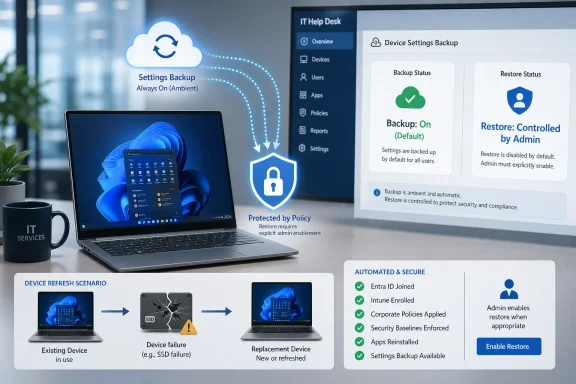
Microsoft is making Windows settings backup automatically enabled for eligible managed PCs starting with Windows 11, version 26H2, with the change available to Windows Insiders in July 2026 and broadly planned for the second half of the year outside excluded regions and cloud environments. The move, announced on Microsoft’s Windows IT Pro Blog, turns a once-explicit resilience feature into part of the default Windows posture. It does not, however, turn restore into an unmanaged free-for-all. The real story is Microsoft quietly redefining what a “ready to recover” Windows endpoint is supposed to look like.
For years, Windows recovery has lived in the awkward space between theory and practice. Every administrator knows that resets, replacements, hardware refreshes, and emergency reimages are inevitable, but the quality of the user’s return depends on whether the right pieces were configured before the bad day arrived.
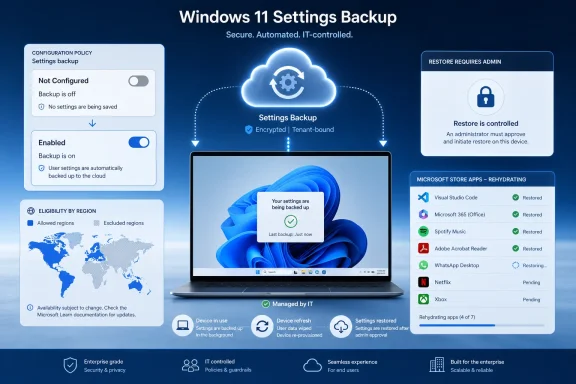
Microsoft’s new default-on behavior for Windows settings backup is an attempt to close that gap. The company says eligible devices with the backup policy left in a Not Configured state will automatically capture user settings and the list of Microsoft Store apps. The old name, Windows Backup for Organizations, is being folded into the more descriptive “Windows settings backup and restore,” which is a small branding change with a larger signal behind it.
That signal is that Microsoft wants backup to be treated less like a project and more like telemetry, encryption, or update compliance: part of the baseline posture of a managed Windows device. If restore is the dramatic moment users notice, backup is the boring prerequisite that determines whether the drama ends well.
The important distinction is that Microsoft is not enabling restore by default. The Windows IT Pro Blog is explicit that restore behavior remains unchanged and still requires administrator configuration. That separation matters, because it lets Microsoft widen backup coverage without automatically changing the enrollment or out-of-box experience for every organization.
Under the new model, an eligible Windows 11 26H2 device whose backup policy is Not Configured will behave as though backup should happen. If an administrator has explicitly enabled or disabled the policy, Microsoft says that choice wins. The default applies only where the organization has not stated a preference.
That is a clever compromise. Microsoft gets broader adoption without overriding customers that already made a deliberate policy call. Administrators get a nudge toward resilience, but not a silent reversal of an explicit disablement.
It also reflects a broader pattern in modern Windows management: Microsoft increasingly treats omission as a weak form of consent when the company believes the security or resilience benefit is strong enough. We have seen versions of this logic in default security baselines, cloud-attached management, and update orchestration. This time the object is not a firewall rule or exploit mitigation, but the user’s working environment.
According to Microsoft Learn’s current Windows Backup for Organizations documentation, restore can be surfaced during enrollment or first sign-in, and for Intune-managed environments the restore setting is handled separately from backup. Microsoft’s Intune documentation also describes restore as tenant-wide in the relevant enrollment flow, which explains why the company is being careful here. Turning on backup quietly is one thing; changing what users see during device setup is another.
That split lets IT departments decide when restored state is desirable and when a clean build is the point. In some organizations, restoring preferences and Microsoft Store app lists will reduce friction. In others, especially those using heavily standardized Autopilot deployments, regulated desktop images, or tightly controlled app estates, restore may be something to test carefully before exposing to users.
Microsoft’s framing is therefore less “Windows will restore everything automatically” than “Windows will stop arriving at the restore moment empty-handed.” That is a narrower claim, but it is also the one administrators should care about.
That does not mean Windows settings backup is a full enterprise backup product. It is not a substitute for OneDrive Known Folder Move, endpoint backup, configuration management, app deployment, or user state migration tools where those remain necessary. Microsoft’s scope is narrower: settings and a recoverable Microsoft Store app list, governed by organizational policy.
But narrow does not mean trivial. The friction after a reset is often not one big missing thing; it is dozens of small missing things. Display preferences, language settings, accessibility options, remembered app expectations, and Windows personalization details can turn a technically successful rebuild into a user experience that still feels broken.
Microsoft is betting that capturing these details by default will make resets and replacements less exceptional. That is good for users, but it also serves Microsoft’s management model. The more Windows can assume state is recoverable, the easier it becomes to push organizations toward reset-and-redeploy patterns instead of long-lived, hand-tuned machines.
Those exceptions are not incidental. They show where Microsoft sees the legal, regulatory, and sovereignty boundaries around cloud-backed Windows state. A backup baseline is easy to defend in a conventional commercial Microsoft 365 environment; it becomes more complicated where data residency, market regulation, or cloud isolation rules reshape the default assumptions.
The Digital Markets Act carve-out is especially telling. Microsoft has already had to treat Windows behavior differently in DMA-regulated regions, particularly where platform defaults, app integration, and user choice are scrutinized more aggressively. A feature that automatically captures settings and Store app lists is exactly the sort of thing that looks operationally sensible in Redmond and procedurally sensitive in Brussels.
Sovereign and restricted cloud environments are another obvious boundary. If an organization has selected a cloud environment precisely because ordinary commercial-cloud assumptions do not apply, Microsoft cannot casually extend a default that depends on cloud-backed state. The result is a feature that is global in ambition but fragmented by governance reality.
Feature updates are often judged by visible interface changes, hardware requirements, security defaults, and app compatibility. This one also deserves to be judged by what it changes about recovery posture. A fleet that moves to 26H2 with backup left Not Configured may silently become more recoverable than the same fleet on earlier supported Windows 11 versions.
Microsoft says devices running previous supported Windows 11 versions remain off by default, except for the 26H1 wrinkle. Devices originally running Windows 11, version 26H1 are slated to receive the same default-on treatment starting with the following feature update. That makes the transition path slightly more nuanced than a simple “26H2 and later” slogan.
For administrators, the timing matters because default changes are easiest to miss when they arrive as part of a normal feature update. A security team may be watching new protections. A desktop engineering team may be watching driver compatibility. But a backup default buried in the resilience story can still alter compliance expectations, privacy reviews, and user communications.
For organizations that use Store-distributed apps, the list can help users feel that a replacement PC remembers what they had before. It fits Microsoft’s broader push to make Windows setup less like receiving a blank machine and more like resuming an account-linked workspace. On consumer Windows, that idea has been familiar for years; in managed Windows, it has moved more slowly because policy, identity, licensing, and compliance complicate everything.
The boundary is just as important. A list of Microsoft Store apps is not the same as restoring every Win32 application, every line-of-business dependency, every plug-in, every VPN client, or every per-user database. Most enterprise application reality still lives outside the Store, even after years of Microsoft encouraging modern packaging and Store distribution.
That means the feature is best understood as additive, not transformative by itself. It reduces some of the “my PC doesn’t feel like mine” pain after a rebuild, but it does not eliminate the need for disciplined app deployment through Intune, Configuration Manager, winget, packaging systems, or third-party endpoint tools. The backup baseline helps most when the rest of the management stack is already healthy.
The rename is not merely cosmetic. It lowers the conceptual altitude of the feature. Instead of asking administrators to think about a branded service, Microsoft is asking them to think about a Windows capability: settings are backed up, restore is separately controlled, and policy determines the edges.
That matters because administrators are more likely to trust features that behave like infrastructure. A named product can feel optional, licensed, and politically vulnerable. A Windows baseline capability feels like something that will be maintained, documented, and gradually woven into adjacent tools.
Still, the transition will create some short-term mess. Documentation, Intune settings, Group Policy names, CSP references, and community guidance may use both names for a while. IT teams writing internal standards should probably include both terms until Microsoft’s surfaces settle.
Microsoft is an unusually Microsoft-native enterprise. Its identity, management, application, support, and cloud assumptions are aligned with the product strategy in a way few other organizations can replicate perfectly. If Windows settings backup works well inside Microsoft, that proves the feature can scale; it does not prove every enterprise will see the same reduction in friction.
The more valuable lesson from Microsoft’s internal deployment is cultural. The company made backups automatic for employees because backup is most valuable before anyone remembers to ask for it. That logic applies almost everywhere.
The implementation details, however, will vary sharply. A school district, a bank, a defense contractor, a hospital network, and a software company may all run Windows 11, but they do not share the same appetite for cloud state, restore prompts, user choice, or app rehydration. The baseline is common; the governance is not.
That is a healthier burden. Explicit disablement forces a conversation. Is the concern regulatory? Is it data residency? Is it user confusion? Is it overlap with another backup tool? Or is it simply institutional habit?
The change also gives IT departments a cleaner way to write policy. Organizations that want backup can leave the default alone, but Microsoft recommends explicitly enabling it where admins want an unambiguous, audit-friendly signal. That is good advice. Defaults are convenient, but explicit configuration is easier to explain to auditors, security teams, and future administrators trying to reconstruct intent.
The worst outcome would be treating the new default as a reason not to document anything. If backup is part of the resilience baseline, it belongs in endpoint standards, onboarding runbooks, privacy documentation, and help desk scripts. A silent default is still an operational dependency.
This is not a consumer-style free choice bolted onto enterprise Windows. It is user agency inside a managed boundary. Administrators can allow flexibility, constrain categories, or disable the feature outright depending on organizational requirements.
That model is consistent with modern Windows management: give users enough control to reduce friction, but keep policy authoritative. For accessibility settings, personalization, and preference categories, user choice can be valuable. For organizations with strict standardization requirements, too much restored state can be a liability.
The question for IT is not whether users should have preferences. They already do. The question is whether those preferences should survive routine device churn in a governed way, or be recreated manually every time a machine is reset.
Microsoft’s regional exclusions acknowledge this. Devices in privacy-sensitive countries or regions remain off by default, according to the announcement. That is a reminder that “settings” is not a magic word that removes governance obligations.
Enterprises should ask the same questions they ask of other cloud-backed user state. What exactly is captured? Which users and devices are in scope? Which tenant and cloud environment receives the data? How is deletion handled if backup is disabled? What policies prevent categories from being included?
Microsoft Learn’s Windows Backup documentation already describes user controls and administrative policy settings, including the ability to disable Windows Backup and delete user data. That documentation will become more important as the default flips from off to on for eligible 26H2 devices.
Modern endpoint management has been moving away from that model for years. Autopilot, cloud identity, OneDrive, Edge sync, Enterprise State Roaming, and now Windows settings backup all point toward a different ideal: the PC is replaceable, but the user’s working context should be durable.
That shift is not sentimental. It is economic. Hardware fails, laptops are lost, refresh cycles continue, and security incidents sometimes require decisive resets. If every rebuild creates hours of user friction and help desk labor, organizations become reluctant to use the very recovery tools they need.
Backup-by-default lowers the psychological cost of reset. A device wipe feels less punitive if the user’s familiar environment can return. That could make IT more willing to reset compromised or unhealthy devices rather than nurse them indefinitely.
There is a security angle here too. Resilience is not only about surviving ransomware or hardware loss. It is about making the safe action operationally cheap enough that people actually take it. If Windows recovery becomes less painful, administrators gain room to be more aggressive when a device should be rebuilt.
Enterprise State Roaming has long occupied a niche but important role for organizations that wanted settings to follow users across devices tied to Microsoft Entra ID. Folding that management story into Windows Backup for Organizations — now Windows settings backup and restore — simplifies the product map, at least in theory.
In practice, transitions like this create work. Admins who historically managed roaming through the Microsoft Entra portal need to understand the new policy path. Teams that separated “roaming settings” from “backup and restore” as concepts may need to update internal language.
The upside is a more coherent resilience model. Settings can roam, settings can be backed up, and restore can be exposed during device setup under administrator control. The downside is that Microsoft is again moving a familiar enterprise knob into a newer management surface, and every such move has a tail of documentation, training, and exception handling.
That is why Microsoft’s resilience framing should be read as a floor, not a ceiling. The feature belongs alongside a broader recovery architecture: cloud identity, device compliance, app deployment automation, OneDrive or equivalent file protection, BitLocker recovery processes, and tested enrollment flows.
The best-case version is compelling. A user loses a laptop, receives a replacement, signs in, restores settings where allowed, gets apps redeployed automatically, and returns to work without a bespoke desk-side rebuild. The worst-case version is cosmetic: wallpaper and preferences return while critical business apps and data still require manual intervention.
Administrators should resist both hype and dismissal. This is not “real backup” in the server-admin sense, and Microsoft is not claiming it is. But it is real reduction of endpoint recovery friction, and that matters at scale.
The first test should be simple: identify devices where the backup policy is Not Configured and determine whether that is intentional. Then model what happens when those devices become eligible under 26H2. If the answer is “backup turns on and we are fine with that,” document it. If the answer is “backup must not turn on,” explicitly disable it before the feature update reaches production.
The second test is restore governance. Since restore remains off by default, organizations that want the full recovery experience need to configure it separately and validate the user journey. That includes enrollment timing, tenant-wide implications in Intune scenarios, help desk training, and user communications.
The third test is regional and cloud scoping. Multinational organizations should not assume uniform behavior. DMA-regulated regions, privacy-sensitive countries, sovereign clouds, and restricted environments may behave differently, and those differences need to be reflected in policy design rather than discovered during a refresh project.
That is a reasonable direction, but it raises the standard for endpoint governance. Administrators should know whether backup is on, why it is on, which settings are included, whether restore is enabled, and what users will see during replacement or reimage flows. The new default helps only if organizations treat it as a policy moment rather than a background convenience.
Here is the short version for teams planning their 26H2 endpoint standards:
 Microsoft Moves Backup From Policy Hygiene to Platform Assumption
For years, Windows recovery has lived in the awkward space between theory and practice. Every administrator knows that resets, replacements, hardware refreshes, and emergency reimages are inevitable, but the quality of the user’s return depends on whether the right pieces were configured before the bad day arrived.Microsoft’s new default-on behavior for Windows settings backup is an attempt to close that gap. The company says eligible devices with the backup policy left in a Not Configured state will automatically capture user settings and the list of Microsoft Store apps. The old name, Windows Backup for Organizations, is being folded into the more descriptive “Windows settings backup and restore,” which is a small branding change with a larger signal behind it.
That signal is that Microsoft wants backup to be treated less like a project and more like telemetry, encryption, or update compliance: part of the baseline posture of a managed Windows device. If restore is the dramatic moment users notice, backup is the boring prerequisite that determines whether the drama ends well.
The important distinction is that Microsoft is not enabling restore by default. The Windows IT Pro Blog is explicit that restore behavior remains unchanged and still requires administrator configuration. That separation matters, because it lets Microsoft widen backup coverage without automatically changing the enrollment or out-of-box experience for every organization.
The Quiet Power of “Not Configured”
The phrase Not Configured has always carried more operational weight than it appears to. In Group Policy, Intune, and MDM culture, it often means “we have not made a decision,” but in practice it can become a decision by neglect. Microsoft’s change weaponizes that ambiguity in favor of resilience.Under the new model, an eligible Windows 11 26H2 device whose backup policy is Not Configured will behave as though backup should happen. If an administrator has explicitly enabled or disabled the policy, Microsoft says that choice wins. The default applies only where the organization has not stated a preference.
That is a clever compromise. Microsoft gets broader adoption without overriding customers that already made a deliberate policy call. Administrators get a nudge toward resilience, but not a silent reversal of an explicit disablement.
It also reflects a broader pattern in modern Windows management: Microsoft increasingly treats omission as a weak form of consent when the company believes the security or resilience benefit is strong enough. We have seen versions of this logic in default security baselines, cloud-attached management, and update orchestration. This time the object is not a firewall rule or exploit mitigation, but the user’s working environment.
Restore Remains the Administrative Checkpoint
The most important sentence in Microsoft’s announcement is not the one about backup being on by default. It is the note that restore is not. That line is the difference between a defensible resilience baseline and a support-ticket bonfire.According to Microsoft Learn’s current Windows Backup for Organizations documentation, restore can be surfaced during enrollment or first sign-in, and for Intune-managed environments the restore setting is handled separately from backup. Microsoft’s Intune documentation also describes restore as tenant-wide in the relevant enrollment flow, which explains why the company is being careful here. Turning on backup quietly is one thing; changing what users see during device setup is another.
That split lets IT departments decide when restored state is desirable and when a clean build is the point. In some organizations, restoring preferences and Microsoft Store app lists will reduce friction. In others, especially those using heavily standardized Autopilot deployments, regulated desktop images, or tightly controlled app estates, restore may be something to test carefully before exposing to users.
Microsoft’s framing is therefore less “Windows will restore everything automatically” than “Windows will stop arriving at the restore moment empty-handed.” That is a narrower claim, but it is also the one administrators should care about.
The Cloud Copy Becomes Part of the Endpoint
There is an architectural shift hiding underneath the user-experience language. A managed Windows endpoint is no longer only the physical device, its installed apps, and its MDM-assigned configuration. Increasingly, it is also a cloud-resident shadow of the user’s preferences, settings, and app expectations.That does not mean Windows settings backup is a full enterprise backup product. It is not a substitute for OneDrive Known Folder Move, endpoint backup, configuration management, app deployment, or user state migration tools where those remain necessary. Microsoft’s scope is narrower: settings and a recoverable Microsoft Store app list, governed by organizational policy.
But narrow does not mean trivial. The friction after a reset is often not one big missing thing; it is dozens of small missing things. Display preferences, language settings, accessibility options, remembered app expectations, and Windows personalization details can turn a technically successful rebuild into a user experience that still feels broken.
Microsoft is betting that capturing these details by default will make resets and replacements less exceptional. That is good for users, but it also serves Microsoft’s management model. The more Windows can assume state is recoverable, the easier it becomes to push organizations toward reset-and-redeploy patterns instead of long-lived, hand-tuned machines.
The Eligibility Carve-Outs Tell the Real Story
The default-on behavior is not universal. Microsoft says it applies to Windows 11, version 26H2 or later, in countries and regions not regulated by the European Union’s Digital Markets Act, outside sovereign or restricted cloud environments, and only when the backup policy is Not Configured. Devices outside that scope keep their existing behavior.Those exceptions are not incidental. They show where Microsoft sees the legal, regulatory, and sovereignty boundaries around cloud-backed Windows state. A backup baseline is easy to defend in a conventional commercial Microsoft 365 environment; it becomes more complicated where data residency, market regulation, or cloud isolation rules reshape the default assumptions.
The Digital Markets Act carve-out is especially telling. Microsoft has already had to treat Windows behavior differently in DMA-regulated regions, particularly where platform defaults, app integration, and user choice are scrutinized more aggressively. A feature that automatically captures settings and Store app lists is exactly the sort of thing that looks operationally sensible in Redmond and procedurally sensitive in Brussels.
Sovereign and restricted cloud environments are another obvious boundary. If an organization has selected a cloud environment precisely because ordinary commercial-cloud assumptions do not apply, Microsoft cannot casually extend a default that depends on cloud-backed state. The result is a feature that is global in ambition but fragmented by governance reality.
Windows 11 26H2 Becomes a Resilience Release, Not Just a Feature Update
Microsoft describes Windows 11, version 26H2 as the annual feature update for Windows 11 versions 25H2 and 24H2, with release planned for the second half of 2026. That phrasing suggests continuity rather than upheaval. But the backup change gives 26H2 a more concrete operational identity for IT departments.Feature updates are often judged by visible interface changes, hardware requirements, security defaults, and app compatibility. This one also deserves to be judged by what it changes about recovery posture. A fleet that moves to 26H2 with backup left Not Configured may silently become more recoverable than the same fleet on earlier supported Windows 11 versions.
Microsoft says devices running previous supported Windows 11 versions remain off by default, except for the 26H1 wrinkle. Devices originally running Windows 11, version 26H1 are slated to receive the same default-on treatment starting with the following feature update. That makes the transition path slightly more nuanced than a simple “26H2 and later” slogan.
For administrators, the timing matters because default changes are easiest to miss when they arrive as part of a normal feature update. A security team may be watching new protections. A desktop engineering team may be watching driver compatibility. But a backup default buried in the resilience story can still alter compliance expectations, privacy reviews, and user communications.
The Microsoft Store App List Is Useful — and Also a Boundary
Microsoft’s announcement emphasizes that the backup captures user settings and the Microsoft Store app list. That second piece is both helpful and limited.For organizations that use Store-distributed apps, the list can help users feel that a replacement PC remembers what they had before. It fits Microsoft’s broader push to make Windows setup less like receiving a blank machine and more like resuming an account-linked workspace. On consumer Windows, that idea has been familiar for years; in managed Windows, it has moved more slowly because policy, identity, licensing, and compliance complicate everything.
The boundary is just as important. A list of Microsoft Store apps is not the same as restoring every Win32 application, every line-of-business dependency, every plug-in, every VPN client, or every per-user database. Most enterprise application reality still lives outside the Store, even after years of Microsoft encouraging modern packaging and Store distribution.
That means the feature is best understood as additive, not transformative by itself. It reduces some of the “my PC doesn’t feel like mine” pain after a rebuild, but it does not eliminate the need for disciplined app deployment through Intune, Configuration Manager, winget, packaging systems, or third-party endpoint tools. The backup baseline helps most when the rest of the management stack is already healthy.
The Naming Change Signals a Product Maturing Into Infrastructure
“Windows Backup for Organizations” sounded like a discrete feature. “Windows settings backup and restore” sounds more like plumbing. Microsoft’s note that the old name will appear alongside the new one while documentation and policy surfaces are updated is a reminder that management products rarely change all at once.The rename is not merely cosmetic. It lowers the conceptual altitude of the feature. Instead of asking administrators to think about a branded service, Microsoft is asking them to think about a Windows capability: settings are backed up, restore is separately controlled, and policy determines the edges.
That matters because administrators are more likely to trust features that behave like infrastructure. A named product can feel optional, licensed, and politically vulnerable. A Windows baseline capability feels like something that will be maintained, documented, and gradually woven into adjacent tools.
Still, the transition will create some short-term mess. Documentation, Intune settings, Group Policy names, CSP references, and community guidance may use both names for a while. IT teams writing internal standards should probably include both terms until Microsoft’s surfaces settle.
Microsoft’s Internal Dogfood Is Persuasive, but Not Proof
Microsoft quotes Brian Fielder, Vice President of Microsoft Digital, saying the feature was pressure-tested inside Microsoft at global scale and reduced the heavy lifting of device reimaging. That is useful evidence, but it should be read in context.Microsoft is an unusually Microsoft-native enterprise. Its identity, management, application, support, and cloud assumptions are aligned with the product strategy in a way few other organizations can replicate perfectly. If Windows settings backup works well inside Microsoft, that proves the feature can scale; it does not prove every enterprise will see the same reduction in friction.
The more valuable lesson from Microsoft’s internal deployment is cultural. The company made backups automatic for employees because backup is most valuable before anyone remembers to ask for it. That logic applies almost everywhere.
The implementation details, however, will vary sharply. A school district, a bank, a defense contractor, a hospital network, and a software company may all run Windows 11, but they do not share the same appetite for cloud state, restore prompts, user choice, or app rehydration. The baseline is common; the governance is not.
IT Gets Less Excuse to Leave Recovery to Chance
There is a slightly uncomfortable implication for administrators: once Microsoft makes backup the default for eligible devices, “we forgot to turn it on” becomes a weaker excuse. The operational burden shifts from enabling backup everywhere to deciding where it should be disabled, audited, or paired with restore.That is a healthier burden. Explicit disablement forces a conversation. Is the concern regulatory? Is it data residency? Is it user confusion? Is it overlap with another backup tool? Or is it simply institutional habit?
The change also gives IT departments a cleaner way to write policy. Organizations that want backup can leave the default alone, but Microsoft recommends explicitly enabling it where admins want an unambiguous, audit-friendly signal. That is good advice. Defaults are convenient, but explicit configuration is easier to explain to auditors, security teams, and future administrators trying to reconstruct intent.
The worst outcome would be treating the new default as a reason not to document anything. If backup is part of the resilience baseline, it belongs in endpoint standards, onboarding runbooks, privacy documentation, and help desk scripts. A silent default is still an operational dependency.
User Choice Survives, Within the Admin Envelope
Microsoft says users can run a backup manually from the Windows Backup app and choose which settings are included from Windows Settings, subject to admin policy. That last clause is doing important work.This is not a consumer-style free choice bolted onto enterprise Windows. It is user agency inside a managed boundary. Administrators can allow flexibility, constrain categories, or disable the feature outright depending on organizational requirements.
That model is consistent with modern Windows management: give users enough control to reduce friction, but keep policy authoritative. For accessibility settings, personalization, and preference categories, user choice can be valuable. For organizations with strict standardization requirements, too much restored state can be a liability.
The question for IT is not whether users should have preferences. They already do. The question is whether those preferences should survive routine device churn in a governed way, or be recreated manually every time a machine is reset.
Privacy Reviews Now Need to Understand Windows State
Any automatic backup feature deserves scrutiny, even when the payload sounds mundane. Settings and app lists can reveal information about a user’s role, habits, accessibility needs, language preferences, and work patterns. That does not make the feature inappropriate, but it does make it part of the privacy surface.Microsoft’s regional exclusions acknowledge this. Devices in privacy-sensitive countries or regions remain off by default, according to the announcement. That is a reminder that “settings” is not a magic word that removes governance obligations.
Enterprises should ask the same questions they ask of other cloud-backed user state. What exactly is captured? Which users and devices are in scope? Which tenant and cloud environment receives the data? How is deletion handled if backup is disabled? What policies prevent categories from being included?
Microsoft Learn’s Windows Backup documentation already describes user controls and administrative policy settings, including the ability to disable Windows Backup and delete user data. That documentation will become more important as the default flips from off to on for eligible 26H2 devices.
Autopilot, Reimaging, and the End of the “Blank PC” Ideal
The old enterprise ideal was the perfectly standardized PC. A user received a machine, policy applied, apps installed, and the desktop became a managed endpoint. Personalization was tolerated, but often treated as noise.Modern endpoint management has been moving away from that model for years. Autopilot, cloud identity, OneDrive, Edge sync, Enterprise State Roaming, and now Windows settings backup all point toward a different ideal: the PC is replaceable, but the user’s working context should be durable.
That shift is not sentimental. It is economic. Hardware fails, laptops are lost, refresh cycles continue, and security incidents sometimes require decisive resets. If every rebuild creates hours of user friction and help desk labor, organizations become reluctant to use the very recovery tools they need.
Backup-by-default lowers the psychological cost of reset. A device wipe feels less punitive if the user’s familiar environment can return. That could make IT more willing to reset compromised or unhealthy devices rather than nurse them indefinitely.
There is a security angle here too. Resilience is not only about surviving ransomware or hardware loss. It is about making the safe action operationally cheap enough that people actually take it. If Windows recovery becomes less painful, administrators gain room to be more aggressive when a device should be rebuilt.
The Enterprise State Roaming Connection Matters
Microsoft Learn notes that Enterprise State Roaming management is moving into Windows Backup for Organizations, with policy-based management becoming the supported direction after a transition period ending in June 2026. That context makes the 26H2 default feel less like an isolated feature tweak and more like a consolidation of Windows user-state strategy.Enterprise State Roaming has long occupied a niche but important role for organizations that wanted settings to follow users across devices tied to Microsoft Entra ID. Folding that management story into Windows Backup for Organizations — now Windows settings backup and restore — simplifies the product map, at least in theory.
In practice, transitions like this create work. Admins who historically managed roaming through the Microsoft Entra portal need to understand the new policy path. Teams that separated “roaming settings” from “backup and restore” as concepts may need to update internal language.
The upside is a more coherent resilience model. Settings can roam, settings can be backed up, and restore can be exposed during device setup under administrator control. The downside is that Microsoft is again moving a familiar enterprise knob into a newer management surface, and every such move has a tail of documentation, training, and exception handling.
The Default Is Helpful Only If the Rest of the Stack Is Honest
A recoverable settings baseline will not rescue a badly managed Windows fleet. If applications are manually installed, local data is scattered outside protected locations, policies conflict, and device enrollment is unreliable, Windows settings backup will make the rebuilt PC slightly more familiar but not truly ready.That is why Microsoft’s resilience framing should be read as a floor, not a ceiling. The feature belongs alongside a broader recovery architecture: cloud identity, device compliance, app deployment automation, OneDrive or equivalent file protection, BitLocker recovery processes, and tested enrollment flows.
The best-case version is compelling. A user loses a laptop, receives a replacement, signs in, restores settings where allowed, gets apps redeployed automatically, and returns to work without a bespoke desk-side rebuild. The worst-case version is cosmetic: wallpaper and preferences return while critical business apps and data still require manual intervention.
Administrators should resist both hype and dismissal. This is not “real backup” in the server-admin sense, and Microsoft is not claiming it is. But it is real reduction of endpoint recovery friction, and that matters at scale.
The 26H2 Planning Window Starts Now
Because the default-on behavior is already available to Windows Insiders in the Experimental channel starting July 2026, organizations have a rare chance to test the policy shift before broad availability. That is valuable because backup behavior is easy to overlook until a restore scenario fails or surprises someone.The first test should be simple: identify devices where the backup policy is Not Configured and determine whether that is intentional. Then model what happens when those devices become eligible under 26H2. If the answer is “backup turns on and we are fine with that,” document it. If the answer is “backup must not turn on,” explicitly disable it before the feature update reaches production.
The second test is restore governance. Since restore remains off by default, organizations that want the full recovery experience need to configure it separately and validate the user journey. That includes enrollment timing, tenant-wide implications in Intune scenarios, help desk training, and user communications.
The third test is regional and cloud scoping. Multinational organizations should not assume uniform behavior. DMA-regulated regions, privacy-sensitive countries, sovereign clouds, and restricted environments may behave differently, and those differences need to be reflected in policy design rather than discovered during a refresh project.
The New Baseline Rewards Explicit Decisions
The practical impact of Microsoft’s announcement is not that every Windows PC suddenly becomes easy to restore. It is that Windows 11 26H2 makes indecision less neutral. Leaving backup Not Configured now has a platform-defined consequence for eligible devices.That is a reasonable direction, but it raises the standard for endpoint governance. Administrators should know whether backup is on, why it is on, which settings are included, whether restore is enabled, and what users will see during replacement or reimage flows. The new default helps only if organizations treat it as a policy moment rather than a background convenience.
Here is the short version for teams planning their 26H2 endpoint standards:
- Eligible Windows 11 26H2 devices with backup policy left Not Configured will back up settings and Microsoft Store app lists automatically.
- Explicitly enabled or disabled backup policies continue to override Microsoft’s new default behavior.
- Restore remains off by default and still requires administrator configuration before users can restore during setup or sign-in flows.
- Devices in DMA-regulated regions, privacy-sensitive regions, sovereign clouds, restricted clouds, and older Windows 11 versions may keep different behavior.
- Organizations that want audit clarity should explicitly set backup policy rather than relying only on the new default.
- The feature reduces reset and replacement friction, but it does not replace app deployment, file backup, device enrollment, or broader recovery planning.
References
- Primary source: Windows IT Pro Blog
Published: Mon, 06 Jul 2026 21:05:00 GMT