

Use Copilot for Outlook automatic replies now if your mailbox has Microsoft 365 Copilot, you work in English, and you are comfortable reviewing an AI-drafted out-of-office message before confirming it across Outlook on the web, Windows, Mac, iOS, or Android. If any of those conditions fail, wait and keep using the standard Automatic replies settings path. The feature is useful, but it is not a magic switch that replaces judgment, policy, or the need to check what will be sent outside the organization.
Microsoft’s change is straightforward: instead of opening Outlook settings, finding Automatic replies, choosing a schedule, writing internal and external messages, and saving the result, you can ask Copilot to set up, update, turn off, or draft the reply. Microsoft’s support documentation says Copilot can use your prior out-of-office style, details you provide in chat, and Outlook context such as an opened vacation-approval email to draft the message.
The answer, then, is not simply “yes, use AI.” It is: use Copilot for the parts of automatic replies that are repetitive, time-sensitive, and easy to verify; do not use it as an unattended policy engine. For WindowsForum readers, that distinction matters because out-of-office messages sit at the intersection of user convenience, calendaring hygiene, external disclosure, spam exposure, and Microsoft’s accelerating push to put Copilot into every corner of Outlook.
The practical procedure is the first thing users came for. Microsoft says the Copilot workflow works from the Microsoft 365 Copilot app, either standalone or inside Outlook, and from the Outlook Copilot side pane where available. The user opens Copilot, types a prompt such as “Set up automatic replies for tomorrow,” reviews the draft Copilot prepares, and confirms it to set the automatic reply.
That review step is not ornamental. Microsoft’s own flow keeps the human in the loop: Copilot drafts, the user confirms. The system can also respond to prompts such as “Update my automatic reply” or “Turn off my automatic replies,” which makes the feature less about composing a clever message and more about reducing the number of Outlook surfaces a user must remember.
The older route still exists. In Outlook on the web or Outlook.com, Microsoft’s standard support path is Settings, then Account, then Automatic replies. From there, users turn on automatic replies, optionally set a start and end time, choose calendar-related options where available, type a message, decide whether to send replies outside the organization, and save.
Classic Outlook and new Outlook remain covered by Microsoft’s existing automatic-replies support, and Outlook for Mac has its own Automatic Replies command under the Tools menu for supported account types. The important point is that Copilot is not replacing the baseline feature today. It is a newer layer on top of a long-standing Exchange and Outlook mechanism.
That distinction should calm some administrators and disappoint some power users. Copilot is not a separate out-of-office engine with its own independent behavior. It is a natural-language front end that helps users operate an existing workflow faster.
Microsoft’s example is telling. If a vacation-approval email is open in Outlook’s side pane, Copilot can use details from that email, including dates, to help draft the automatic reply. That is a more meaningful change than asking AI to write “I am currently away from the office” in a slightly more corporate accent.
The old automatic-replies flow assumes the user knows every detail and is willing to transpose it correctly. The Copilot flow assumes the user may already have the relevant context in Outlook and would rather ask the assistant to do the first pass. For anyone who has set an out-of-office reply from a phone while standing in an airport security line, that is not trivial.
This is why “automatic replies are getting smarter” is both true and easy to overstate. The reply is not smarter because it understands your business obligations in some deep organizational sense. It is smarter because Outlook is beginning to treat absence as a workflow with inputs, dates, tone, delegates, and recipients, rather than as a blank text box buried behind settings.
For a single user, that saves minutes. Across a company, it reduces a familiar class of small errors: replies left on too long, replies that omit return dates, replies that forget backup contacts, and messages written from scratch every time someone travels.
That difference matters operationally. A suggested reply is usually a one-off action: tap or click a proposed response, edit it if necessary, and send it to one thread. An out-of-office reply is a persistent mailbox behavior that can affect every sender who contacts you during a defined period.
The risk profile is different, too. If a suggested reply is awkward, the blast radius is one conversation. If an external automatic reply is too revealing, too broad, or left active, the blast radius can include customers, vendors, recruiters, mailing lists, newsletters, and junk mail.
Microsoft’s own support material reinforces the point. Outlook’s external automatic replies can be sent outside the organization, and Microsoft warns in its documentation that external automatic replies may go to every message, including newsletters and junk. That old warning becomes more important, not less, when AI makes the feature easier to enable.
The right mental model is this: Suggested Replies help you answer a message; Copilot automatic replies help you configure a mailbox state. One is a convenience inside a conversation. The other is an administrative action on your inbox, calendar presence, and external posture.
That combination creates an odd rollout shape. The platform coverage sounds expansive because users are not limited to a single desktop client. But the eligibility gate is still significant because this is a Microsoft 365 Copilot feature, not a free upgrade to every Outlook mailbox.
For organizations already paying for Microsoft 365 Copilot, the feature is another small piece of cumulative value. It gives users a visible, understandable AI task that does not require a training session or a reworked business process. “Ask Copilot to set my out-of-office reply” is easier to explain than many enterprise AI scenarios.
For everyone else, the answer is more restrained. If you do not have Copilot, nothing in Microsoft’s current support material suggests that the traditional automatic-replies workflow is going away. You can still use Outlook’s standard settings to schedule replies, write separate messages, and control whether external senders receive them.
The English-only limitation is not a footnote. In multinational organizations, language support is often the difference between a nice demo and a deployable workflow. A company that conducts internal operations in German, French, Japanese, Spanish, or multiple languages may find that the Copilot layer helps one subset of users while leaving others on the manual path.
WindowsForum readers following Microsoft’s broader Outlook transition will recognize the pattern. Microsoft is layering AI into both new and existing productivity surfaces while simultaneously pushing users toward the new Outlook experience. That makes this feature relevant not because automatic replies are glamorous, but because they show how Microsoft wants routine Outlook tasks to be mediated by Copilot.
Copilot compresses that into a prompt and a review. A good prompt can include dates, return timing, a backup contact, and whether the message should be formal or brief. If Copilot can infer some of that from Outlook context, the time savings become more credible.
But speed is not the same as delegation. The review-before-confirm flow means the user remains responsible for the resulting message. That is exactly how it should work, because an out-of-office reply can reveal travel, medical leave, internal team structure, customer coverage arrangements, or the fact that an inbox is unattended.
For most users, the best practice is to treat Copilot’s draft as a first pass. Check the dates. Check the return day. Check the external wording. Check whether the reply names a colleague who is actually available. Check whether the message says more than a stranger should know.
That last point is where the AI layer can quietly create risk. A human writing from scratch may keep things terse because typing is annoying. Copilot may make it effortless to produce a more detailed message than necessary. Convenience can lead to oversharing unless the user has a clear norm for what an out-of-office reply should and should not say.
Microsoft’s documentation warns that external automatic replies can go broadly, including to newsletters and junk. That warning deserves more attention in the Copilot era because easier setup means more frequent setup. A user who previously skipped external replies because the settings were annoying may now enable them casually from a prompt.
There are sensible reasons to send an external reply. Customer-facing roles often need to tell people who is covering urgent matters. Consultants, sales teams, legal staff, support engineers, and project managers may create more confusion by staying silent than by sending a limited external message.
The mistake is letting the external message mirror the internal message. Internal replies can say who is covering a system, which team owns a queue, or when a manager is returning. External replies should usually be narrower: you are unavailable, messages may be delayed, and urgent matters should go through an approved contact or channel.
Copilot can help draft both, but it cannot know your organization’s disclosure tolerance unless users and administrators have made that tolerance explicit. That is why IT should think about this feature less as a writing tool and more as another place where policy needs to be legible to end users.
Still, administrators should not ignore it. Any feature that makes a behavior easier tends to increase the amount of that behavior. If Copilot makes out-of-office setup faster, more users may configure replies, update them more often, and use external messages more casually.
The admin response should be boring and practical. Review existing guidance for external automatic replies. Make sure users know whether external replies are allowed, discouraged, or limited to certain roles. Provide recommended internal and external templates that users can ask Copilot to follow.
This is also a good moment to revisit mailbox and client assumptions. The support scope spans web, Windows, Mac, iOS, and Android, which means the workflow is not confined to managed Windows desktops. If users can configure automatic replies from mobile Outlook through Copilot, policy has to be understandable outside the office network and outside a helpdesk walkthrough.
The feature also lands in the middle of Microsoft’s broader Outlook modernization push. WindowsForum has covered the migration pressure around new Outlook and the AI-enhanced Outlook experience before, and this is another small example of why that transition matters. Microsoft is not merely repainting the client; it is changing where common actions begin.
A useful prompt should include the absence window, the return date, the internal backup contact if appropriate, whether an external version is needed, and the desired tone. The user should also tell Copilot what not to include if the absence is sensitive. “Set up automatic replies from Monday through Wednesday, say I will respond after I return, and do not mention travel or vacation” is a better workplace prompt than “Write a friendly OOF.”
The strongest use case is updating. If plans change, asking Copilot to update an existing automatic reply may be faster than reopening settings and editing text manually. Turning replies off by prompt is similarly useful, especially if a user returns early or notices that an old message is still active.
There is one caveat: users should not assume Copilot has correctly distinguished internal and external audiences unless they verify the result. The old settings screens make the separation visible because there are distinct boxes and toggles. A chat interface can feel smoother while hiding the mental boundary that matters most.
That is the tradeoff at the center of the feature. Microsoft is removing friction from setup. Users must add a little friction back at the review stage.
The English-only limitation is another reason to hold off in multilingual environments. It may be acceptable for a pilot group. It is not sufficient for a global standard operating procedure unless English is already the organization’s working language.
Some administrators may also prefer to wait until internal guidance catches up. If users do not know what external replies may disclose, Copilot can produce polished messages that are still inappropriate. Better writing does not equal better policy.
For individual Copilot users, though, waiting may be unnecessary. The risk is manageable if you review the draft, keep external messages restrained, and understand that the traditional settings remain available. The feature is not asking users to trust AI with a high-stakes decision; it is asking whether AI can save a few minutes on a routine workflow.
That makes this a classic Microsoft 365 Copilot adoption test. The value is incremental, but the behavior change is real. Users who learn to ask Copilot for small administrative tasks may be more likely to use it for larger ones later.
For users without Copilot, the old path remains reliable. In Outlook on the web, go to Settings, Account, Automatic replies, turn the feature on, set the time period if needed, type the message, choose whether to send replies outside the organization, and save. In Outlook for Mac, use Tools and Automatic Replies for supported Exchange, Outlook.com, Hotmail, or Microsoft 365 accounts.
The biggest mistake is to compare Copilot automatic replies with no automatic replies at all. The real comparison is Copilot-assisted setup versus settings-based setup. The final mailbox behavior still needs to be checked by the person who owns the absence.
This is where Microsoft’s design choice is reassuring. The support flow says Copilot prepares a draft and the user confirms it. That keeps the feature on the right side of the line between assistance and automation.
That is the bigger story. AI in Outlook is not only about writing messages, summarizing threads, or producing executive-friendly prose. It is also about turning application controls into conversational workflows.
For enthusiasts, that shift is fascinating because it changes the feel of the client. For sysadmins, it is more complicated because the interface becomes less visible. A settings page exposes the choices. A prompt can collapse those choices into a sentence, which is faster but easier to misunderstand.
This is why the mundane out-of-office reply deserves scrutiny. It is a low-risk place to watch Microsoft’s AI design philosophy harden into everyday behavior. If Copilot can manage absence replies cleanly, users will expect it to manage other mailbox states, calendar rules, and account behaviors next.
Microsoft’s change is straightforward: instead of opening Outlook settings, finding Automatic replies, choosing a schedule, writing internal and external messages, and saving the result, you can ask Copilot to set up, update, turn off, or draft the reply. Microsoft’s support documentation says Copilot can use your prior out-of-office style, details you provide in chat, and Outlook context such as an opened vacation-approval email to draft the message.
The answer, then, is not simply “yes, use AI.” It is: use Copilot for the parts of automatic replies that are repetitive, time-sensitive, and easy to verify; do not use it as an unattended policy engine. For WindowsForum readers, that distinction matters because out-of-office messages sit at the intersection of user convenience, calendaring hygiene, external disclosure, spam exposure, and Microsoft’s accelerating push to put Copilot into every corner of Outlook.
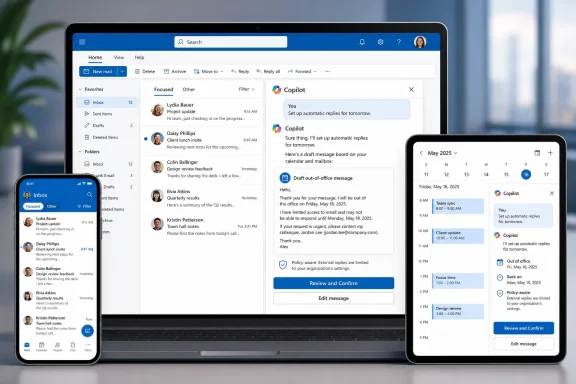 Copilot Turns Automatic Replies Into a Prompt, Not a Settings Hunt
The practical procedure is the first thing users came for. Microsoft says the Copilot workflow works from the Microsoft 365 Copilot app, either standalone or inside Outlook, and from the Outlook Copilot side pane where available. The user opens Copilot, types a prompt such as “Set up automatic replies for tomorrow,” reviews the draft Copilot prepares, and confirms it to set the automatic reply.That review step is not ornamental. Microsoft’s own flow keeps the human in the loop: Copilot drafts, the user confirms. The system can also respond to prompts such as “Update my automatic reply” or “Turn off my automatic replies,” which makes the feature less about composing a clever message and more about reducing the number of Outlook surfaces a user must remember.
The older route still exists. In Outlook on the web or Outlook.com, Microsoft’s standard support path is Settings, then Account, then Automatic replies. From there, users turn on automatic replies, optionally set a start and end time, choose calendar-related options where available, type a message, decide whether to send replies outside the organization, and save.
Classic Outlook and new Outlook remain covered by Microsoft’s existing automatic-replies support, and Outlook for Mac has its own Automatic Replies command under the Tools menu for supported account types. The important point is that Copilot is not replacing the baseline feature today. It is a newer layer on top of a long-standing Exchange and Outlook mechanism.
That distinction should calm some administrators and disappoint some power users. Copilot is not a separate out-of-office engine with its own independent behavior. It is a natural-language front end that helps users operate an existing workflow faster.
The Real Upgrade Is Context, Not Composition
Most coverage of AI in email gets dragged toward writing quality: Is the message polished, friendly, warm, concise, or vaguely synthetic? That misses what is actually interesting here. The better part of Microsoft’s update is that Copilot can use context to reduce the manual clerical work that surrounds an out-of-office reply.Microsoft’s example is telling. If a vacation-approval email is open in Outlook’s side pane, Copilot can use details from that email, including dates, to help draft the automatic reply. That is a more meaningful change than asking AI to write “I am currently away from the office” in a slightly more corporate accent.
The old automatic-replies flow assumes the user knows every detail and is willing to transpose it correctly. The Copilot flow assumes the user may already have the relevant context in Outlook and would rather ask the assistant to do the first pass. For anyone who has set an out-of-office reply from a phone while standing in an airport security line, that is not trivial.
This is why “automatic replies are getting smarter” is both true and easy to overstate. The reply is not smarter because it understands your business obligations in some deep organizational sense. It is smarter because Outlook is beginning to treat absence as a workflow with inputs, dates, tone, delegates, and recipients, rather than as a blank text box buried behind settings.
For a single user, that saves minutes. Across a company, it reduces a familiar class of small errors: replies left on too long, replies that omit return dates, replies that forget backup contacts, and messages written from scratch every time someone travels.
Suggested Replies and Out-of-Office Replies Are Not the Same AI Story
Microsoft already has Suggested Replies in Outlook, and users may reasonably wonder whether this is just another label for the same idea. It is not. Suggested Replies are short response options for individual emails, while Copilot-managed automatic replies configure a standing response for incoming messages during an absence.That difference matters operationally. A suggested reply is usually a one-off action: tap or click a proposed response, edit it if necessary, and send it to one thread. An out-of-office reply is a persistent mailbox behavior that can affect every sender who contacts you during a defined period.
The risk profile is different, too. If a suggested reply is awkward, the blast radius is one conversation. If an external automatic reply is too revealing, too broad, or left active, the blast radius can include customers, vendors, recruiters, mailing lists, newsletters, and junk mail.
Microsoft’s own support material reinforces the point. Outlook’s external automatic replies can be sent outside the organization, and Microsoft warns in its documentation that external automatic replies may go to every message, including newsletters and junk. That old warning becomes more important, not less, when AI makes the feature easier to enable.
The right mental model is this: Suggested Replies help you answer a message; Copilot automatic replies help you configure a mailbox state. One is a convenience inside a conversation. The other is an administrative action on your inbox, calendar presence, and external posture.
The Eligibility Line Is Bright: Copilot, English, and Supported Outlook Surfaces
Microsoft’s current scope is broad across devices but narrow across licensing and language. The feature is available on Outlook for the web, Windows, Mac, iOS, and Android, according to Microsoft’s support page. It is also currently English-only.That combination creates an odd rollout shape. The platform coverage sounds expansive because users are not limited to a single desktop client. But the eligibility gate is still significant because this is a Microsoft 365 Copilot feature, not a free upgrade to every Outlook mailbox.
For organizations already paying for Microsoft 365 Copilot, the feature is another small piece of cumulative value. It gives users a visible, understandable AI task that does not require a training session or a reworked business process. “Ask Copilot to set my out-of-office reply” is easier to explain than many enterprise AI scenarios.
For everyone else, the answer is more restrained. If you do not have Copilot, nothing in Microsoft’s current support material suggests that the traditional automatic-replies workflow is going away. You can still use Outlook’s standard settings to schedule replies, write separate messages, and control whether external senders receive them.
The English-only limitation is not a footnote. In multinational organizations, language support is often the difference between a nice demo and a deployable workflow. A company that conducts internal operations in German, French, Japanese, Spanish, or multiple languages may find that the Copilot layer helps one subset of users while leaving others on the manual path.
WindowsForum readers following Microsoft’s broader Outlook transition will recognize the pattern. Microsoft is layering AI into both new and existing productivity surfaces while simultaneously pushing users toward the new Outlook experience. That makes this feature relevant not because automatic replies are glamorous, but because they show how Microsoft wants routine Outlook tasks to be mediated by Copilot.
The Speed Boost Is Real, but So Is the Review Burden
The strongest case for using Copilot now is speed. Setting an out-of-office reply is not hard, but it is surprisingly fiddly. Users must remember the settings path, choose the right account, set dates correctly, decide whether external replies should be enabled, and write a message that is useful without oversharing.Copilot compresses that into a prompt and a review. A good prompt can include dates, return timing, a backup contact, and whether the message should be formal or brief. If Copilot can infer some of that from Outlook context, the time savings become more credible.
But speed is not the same as delegation. The review-before-confirm flow means the user remains responsible for the resulting message. That is exactly how it should work, because an out-of-office reply can reveal travel, medical leave, internal team structure, customer coverage arrangements, or the fact that an inbox is unattended.
For most users, the best practice is to treat Copilot’s draft as a first pass. Check the dates. Check the return day. Check the external wording. Check whether the reply names a colleague who is actually available. Check whether the message says more than a stranger should know.
That last point is where the AI layer can quietly create risk. A human writing from scratch may keep things terse because typing is annoying. Copilot may make it effortless to produce a more detailed message than necessary. Convenience can lead to oversharing unless the user has a clear norm for what an out-of-office reply should and should not say.
External Replies Remain the Trap Door Under the Feature
Out-of-office replies have always had one dangerous toggle: sending replies outside the organization. It is useful for customers and partners. It is also the setting most likely to turn a harmless absence note into unnecessary information leakage.Microsoft’s documentation warns that external automatic replies can go broadly, including to newsletters and junk. That warning deserves more attention in the Copilot era because easier setup means more frequent setup. A user who previously skipped external replies because the settings were annoying may now enable them casually from a prompt.
There are sensible reasons to send an external reply. Customer-facing roles often need to tell people who is covering urgent matters. Consultants, sales teams, legal staff, support engineers, and project managers may create more confusion by staying silent than by sending a limited external message.
The mistake is letting the external message mirror the internal message. Internal replies can say who is covering a system, which team owns a queue, or when a manager is returning. External replies should usually be narrower: you are unavailable, messages may be delayed, and urgent matters should go through an approved contact or channel.
Copilot can help draft both, but it cannot know your organization’s disclosure tolerance unless users and administrators have made that tolerance explicit. That is why IT should think about this feature less as a writing tool and more as another place where policy needs to be legible to end users.
Administrators Should Treat This as a Governance Nudge, Not a Fire Drill
There is no need to panic over Copilot-managed automatic replies. Microsoft’s support material describes a user-confirmed workflow on supported Outlook surfaces, not an autonomous agent sending absence messages without approval. The existing automatic-replies machinery remains familiar.Still, administrators should not ignore it. Any feature that makes a behavior easier tends to increase the amount of that behavior. If Copilot makes out-of-office setup faster, more users may configure replies, update them more often, and use external messages more casually.
The admin response should be boring and practical. Review existing guidance for external automatic replies. Make sure users know whether external replies are allowed, discouraged, or limited to certain roles. Provide recommended internal and external templates that users can ask Copilot to follow.
This is also a good moment to revisit mailbox and client assumptions. The support scope spans web, Windows, Mac, iOS, and Android, which means the workflow is not confined to managed Windows desktops. If users can configure automatic replies from mobile Outlook through Copilot, policy has to be understandable outside the office network and outside a helpdesk walkthrough.
The feature also lands in the middle of Microsoft’s broader Outlook modernization push. WindowsForum has covered the migration pressure around new Outlook and the AI-enhanced Outlook experience before, and this is another small example of why that transition matters. Microsoft is not merely repainting the client; it is changing where common actions begin.
The Best Prompts Are Boring, Specific, and Policy-Aware
Users do not need clever prompt engineering to benefit from this feature. In fact, cleverness is probably the wrong instinct. The safest prompts for automatic replies are specific, plain, and constrained.A useful prompt should include the absence window, the return date, the internal backup contact if appropriate, whether an external version is needed, and the desired tone. The user should also tell Copilot what not to include if the absence is sensitive. “Set up automatic replies from Monday through Wednesday, say I will respond after I return, and do not mention travel or vacation” is a better workplace prompt than “Write a friendly OOF.”
The strongest use case is updating. If plans change, asking Copilot to update an existing automatic reply may be faster than reopening settings and editing text manually. Turning replies off by prompt is similarly useful, especially if a user returns early or notices that an old message is still active.
There is one caveat: users should not assume Copilot has correctly distinguished internal and external audiences unless they verify the result. The old settings screens make the separation visible because there are distinct boxes and toggles. A chat interface can feel smoother while hiding the mental boundary that matters most.
That is the tradeoff at the center of the feature. Microsoft is removing friction from setup. Users must add a little friction back at the review stage.
The Current Limits Make Waiting Rational for Many Organizations
There is a perfectly good case for waiting. If your organization has not deployed Microsoft 365 Copilot, this feature alone is not a reason to rush. Automatic replies are useful, but they are not strategically important enough to justify an AI licensing decision by themselves.The English-only limitation is another reason to hold off in multilingual environments. It may be acceptable for a pilot group. It is not sufficient for a global standard operating procedure unless English is already the organization’s working language.
Some administrators may also prefer to wait until internal guidance catches up. If users do not know what external replies may disclose, Copilot can produce polished messages that are still inappropriate. Better writing does not equal better policy.
For individual Copilot users, though, waiting may be unnecessary. The risk is manageable if you review the draft, keep external messages restrained, and understand that the traditional settings remain available. The feature is not asking users to trust AI with a high-stakes decision; it is asking whether AI can save a few minutes on a routine workflow.
That makes this a classic Microsoft 365 Copilot adoption test. The value is incremental, but the behavior change is real. Users who learn to ask Copilot for small administrative tasks may be more likely to use it for larger ones later.
The WindowsForum Verdict: Use It for Drafting, Not for Deciding
The right recommendation depends on who is asking. For a power user with Copilot enabled, the feature is worth using now, especially for quick setup, updates, and turn-off commands. For an administrator, the feature is worth allowing only alongside clear guidance on external replies and review expectations.For users without Copilot, the old path remains reliable. In Outlook on the web, go to Settings, Account, Automatic replies, turn the feature on, set the time period if needed, type the message, choose whether to send replies outside the organization, and save. In Outlook for Mac, use Tools and Automatic Replies for supported Exchange, Outlook.com, Hotmail, or Microsoft 365 accounts.
The biggest mistake is to compare Copilot automatic replies with no automatic replies at all. The real comparison is Copilot-assisted setup versus settings-based setup. The final mailbox behavior still needs to be checked by the person who owns the absence.
This is where Microsoft’s design choice is reassuring. The support flow says Copilot prepares a draft and the user confirms it. That keeps the feature on the right side of the line between assistance and automation.
The OOF Button Is Becoming a Copilot Habit
This update is small enough to miss and large enough to matter. Automatic replies are one of those enterprise features that everyone uses, nobody loves, and IT rarely revisits unless something breaks. By putting Copilot in front of it, Microsoft is teaching users that Outlook settings are no longer necessarily something you navigate; they are something you ask for.That is the bigger story. AI in Outlook is not only about writing messages, summarizing threads, or producing executive-friendly prose. It is also about turning application controls into conversational workflows.
For enthusiasts, that shift is fascinating because it changes the feel of the client. For sysadmins, it is more complicated because the interface becomes less visible. A settings page exposes the choices. A prompt can collapse those choices into a sentence, which is faster but easier to misunderstand.
This is why the mundane out-of-office reply deserves scrutiny. It is a low-risk place to watch Microsoft’s AI design philosophy harden into everyday behavior. If Copilot can manage absence replies cleanly, users will expect it to manage other mailbox states, calendar rules, and account behaviors next.
The Practical Read Before You Let Copilot Speak for Your Inbox
The best near-term stance is neither hype nor resistance. Copilot automatic replies are worth trying where the prerequisites are already met, but they should be treated as assisted configuration rather than autonomous communication.- Use Copilot now if you already have Microsoft 365 Copilot, work in English, and want faster setup or updates across Outlook on web, Windows, Mac, iOS, or Android.
- Wait if your organization has not licensed Copilot, depends on non-English workflows, or lacks clear rules for external automatic replies.
- Review every Copilot draft before confirming it, especially dates, return timing, backup contacts, and whether the message discloses unnecessary personal or business information.
- Keep external replies shorter and less specific than internal replies because Microsoft’s own Outlook documentation warns they may be sent broadly, including to newsletters and junk.
- Remember that Suggested Replies and automatic replies solve different problems: one answers a message, while the other changes how your mailbox responds during an absence.
References
- Primary source: learn.microsoft.com
where to find Automatic replies in Outlook for out of office - Microsoft Q&A
per the help settings the Automatic replies is not showing in my outlook to be able to set out of office replieslearn.microsoft.com - Independent coverage: support.microsoft.com
Use suggested replies in Outlook | Microsoft Support
Use suggested replies in Outlooksupport.microsoft.com - Primary source: WindowsForum
Microsoft Office for Mac 16.94: AI-Powered Enhancements in Outlook | Windows Forum
Microsoft’s latest update to its Office suite for macOS—version 16.94—brings a refreshing mix of productivity enhancements, bug fixes, and AI-powered...windowsforum.com