

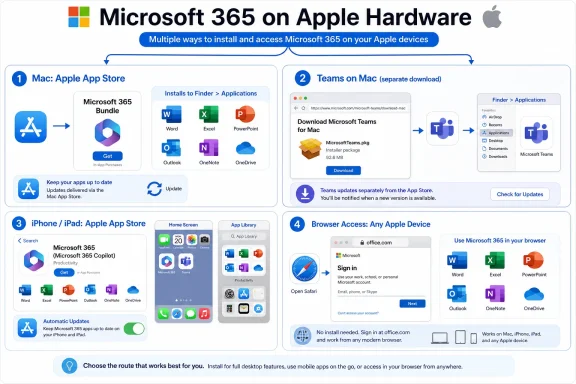
Microsoft 365 users on Apple hardware have three main install paths: on Mac, install Word, Excel, PowerPoint, Outlook, OneNote, and OneDrive through the Microsoft 365 Bundle in the Mac App Store, then install Teams separately with Microsoft’s MicrosoftTeams.pkg installer; on iPhone and iPad, install Microsoft’s mobile apps from the App Store; and on Mac, iPhone, or iPad, use office.com in Safari or another browser when web access is the better fit or a native app is unavailable. The key is to treat Mac App Store apps, Teams, mobile App Store apps, and browser access as separate supported routes rather than one single “Office install.”
The useful question for Apple users is not whether Microsoft 365 runs on Mac, iPhone, or iPad. The practical question is which installation route applies to which app.
On a Mac, the core Microsoft 365 apps are available together through Apple’s Mac App Store as the Microsoft 365 Bundle. That bundle covers Word, Excel, PowerPoint, Outlook, OneNote, and OneDrive. Those apps install like other Mac App Store apps and appear in Finder > Applications after installation.
Teams is the exception on macOS. It should not be treated as part of the Mac App Store bundle. Users who need Teams on a Mac should download the Mac installer from Microsoft, open the downloaded MicrosoftTeams.pkg file, and complete the installer. After installation, Teams appears with the rest of the installed Mac apps in Finder > Applications.
On iPhone and iPad, the route is simpler: use the App Store. Users can install Microsoft’s mobile apps from Apple’s App Store, then sign in with the appropriate Microsoft 365 account. For browser-based access on Apple devices, users can open office.com in Safari or another browser and sign in there.
That install map is straightforward, but it is easy to blur in support instructions. “Install Microsoft 365” is too vague. A better support note says exactly where each app comes from, where it appears after installation, how it updates, and which account the user should sign in with.
For a personal Mac, this is usually simple: sign in with the Microsoft account tied to the Microsoft 365 subscription. For a work or school Mac, the user should sign in with the organization-provided account, not a personal account that happens to be easier to remember.
Finder > Applications
That location is important for support instructions. If a user says the app installed but cannot find it, have them open Finder, choose Applications, and look for Word, Excel, PowerPoint, Outlook, OneNote, or OneDrive there.
To enable automatic App Store updates on macOS:
Finder > Applications
That means the final launch location looks similar to the Mac App Store apps, even though the acquisition path is different.
This part should be written plainly in support material: iPhone and iPad users install Microsoft apps from the App Store, not from a Mac installer and not from the Mac App Store.
To enable automatic app updates:
On Mac, iPhone, and iPad, users can open Safari or another browser, go to office.com, and sign in.
The trade-off is that browser access depends on browser behavior, network access, sign-in state, and the features available in the web version. For everyday editing and collaboration, it may be enough. For users who need deeper desktop integration, offline work, or platform-specific behavior, native apps may still be the better fit.
That point should be explicit in every install guide. Apple’s App Store can install the app. Microsoft’s sign-in determines what the user can access.
A user who installs Word on a Mac but signs in with the wrong personal Microsoft account may not see the expected OneDrive files. A user who installs Outlook on an iPhone but signs in with a personal account instead of a work account may not see the correct mailbox. A user who opens office.com in Safari but uses the wrong account may think Microsoft 365 is missing files that actually belong to a different account.
Mac App Store apps update through the Mac App Store. iPhone and iPad apps update through the App Store. Teams on Mac, installed with MicrosoftTeams.pkg, should be treated separately from the Mac App Store bundle. Browser-based Microsoft 365 is updated as a web service and does not require the user to install app updates in the same way.
This distinction is not just administrative trivia. If one user installed Word from the Mac App Store and another received Microsoft apps through a different organizational deployment method, support may need to confirm exactly which build, channel, and update mechanism applies. The cleanest support documents avoid mixing install sources unless there is a reason to do so.
Apple’s App Store can install Word, Excel, PowerPoint, Outlook, OneNote, OneDrive, and Microsoft’s mobile apps. The Mac installer can install Teams. Safari can open office.com. But the Microsoft account still determines what the user can do after the app opens.
That is why a good support document should not stop at “download the app.” It should specify:
Mac users who need Word, Excel, PowerPoint, Outlook, OneNote, and OneDrive should start with the Microsoft 365 Bundle in the Mac App Store. Those apps install through Apple’s store, appear in Finder > Applications, and update through the Mac App Store path.
Mac users who need Teams should install it separately from Microsoft using MicrosoftTeams.pkg. Teams also appears in Finder > Applications after installation, but it should not be grouped with the Mac App Store bundle in support instructions.
iPhone and iPad users should install Microsoft apps from the App Store. After installation, those apps appear on the Home Screen and in the App Library, and updates are handled through the App Store update path.
Users on Mac, iPhone, or iPad can also use browser-based Microsoft 365 by opening office.com in Safari or another browser and signing in. That route is especially useful when a native app is unnecessary, unavailable, not installed, or blocked by device policy.
The forward-looking lesson is simple: Microsoft 365 on Apple devices is not one installer. It is a set of supported routes. The experience is easiest when users and admins name those routes clearly: Mac App Store bundle for the core Mac apps, MicrosoftTeams.pkg for Teams on Mac, App Store for iPhone and iPad, and office.com in Safari or another browser for web access. Keep those paths separate in documentation, and most of the installation confusion disappears before it reaches the help desk.
 Microsoft 365 on Apple Hardware Is a Multi-Route Install
The useful question for Apple users is not whether Microsoft 365 runs on Mac, iPhone, or iPad. The practical question is which installation route applies to which app.On a Mac, the core Microsoft 365 apps are available together through Apple’s Mac App Store as the Microsoft 365 Bundle. That bundle covers Word, Excel, PowerPoint, Outlook, OneNote, and OneDrive. Those apps install like other Mac App Store apps and appear in Finder > Applications after installation.
Teams is the exception on macOS. It should not be treated as part of the Mac App Store bundle. Users who need Teams on a Mac should download the Mac installer from Microsoft, open the downloaded MicrosoftTeams.pkg file, and complete the installer. After installation, Teams appears with the rest of the installed Mac apps in Finder > Applications.
On iPhone and iPad, the route is simpler: use the App Store. Users can install Microsoft’s mobile apps from Apple’s App Store, then sign in with the appropriate Microsoft 365 account. For browser-based access on Apple devices, users can open office.com in Safari or another browser and sign in there.
That install map is straightforward, but it is easy to blur in support instructions. “Install Microsoft 365” is too vague. A better support note says exactly where each app comes from, where it appears after installation, how it updates, and which account the user should sign in with.
The Decision Table
| Need | Apple platform | Correct source | User action | Where it appears or runs | Update path |
|---|---|---|---|---|---|
| Word, Excel, PowerPoint, Outlook, OneNote, OneDrive | Mac | Microsoft 365 Bundle in the Mac App Store | Open the bundle listing, choose Get, then Install | Finder > Applications | Mac App Store updates |
| Microsoft Teams | Mac | Microsoft Teams desktop download from Microsoft | Download MicrosoftTeams.pkg, open it, and complete the installer | Finder > Applications | Microsoft’s Teams update path |
| Microsoft apps on mobile | iPhone, iPad | App Store | Open App Store, search for the app, tap Get, then install | Home Screen and App Library | App Store updates |
| Browser-based Microsoft 365 | Mac, iPhone, iPad | office.com in Safari or another browser | Open browser, go to office.com, sign in | Runs in the browser | Updated by Microsoft’s web service and browser session |
Mac: Install the Core Microsoft 365 Apps from the Mac App Store
For most Mac users, the starting point is the Microsoft 365 Bundle in the Mac App Store. This is the route for the core apps: Word, Excel, PowerPoint, Outlook, OneNote, and OneDrive.Steps for Mac App Store installation
- On the Mac, open the App Store app.
- Search for the Microsoft 365 Bundle.
- Open the bundle listing.
- Select Get.
- Select Install if prompted.
- Wait for the apps to download and install.
- Open Finder.
- Select Applications in the Finder sidebar.
- Open Word, Excel, PowerPoint, Outlook, OneNote, or OneDrive.
- Sign in with the Microsoft 365 account that should be used on that Mac.
For a personal Mac, this is usually simple: sign in with the Microsoft account tied to the Microsoft 365 subscription. For a work or school Mac, the user should sign in with the organization-provided account, not a personal account that happens to be easier to remember.
Where the apps are after installation
After installation from the Mac App Store, the core apps appear in:Finder > Applications
That location is important for support instructions. If a user says the app installed but cannot find it, have them open Finder, choose Applications, and look for Word, Excel, PowerPoint, Outlook, OneNote, or OneDrive there.
How Mac App Store apps update
For apps installed from the Mac App Store, updates are handled through the Mac App Store update mechanism.To enable automatic App Store updates on macOS:
- Open the App Store app on the Mac.
- In the menu bar, select App Store.
- Select Settings.
- Enable Automatic Updates if the organization or device owner wants App Store apps to update automatically.
Mac: Install Teams Separately with MicrosoftTeams.pkg
Teams is the Mac app that needs separate handling. Do not tell Mac users that the Mac App Store bundle installs everything they need if Teams is required. The core Office apps and OneDrive can come from the Mac App Store bundle; Teams comes from Microsoft’s installer.Steps for Teams installation on Mac
- Open Safari or another browser on the Mac.
- Go to Microsoft’s Teams desktop download page.
- Choose the download option for Microsoft Teams for Mac.
- Wait for the MicrosoftTeams.pkg file to download.
- Open the downloaded MicrosoftTeams.pkg file.
- Follow the installer prompts.
- When installation finishes, open Finder.
- Select Applications.
- Open Microsoft Teams.
- Sign in with the correct work, school, or Microsoft account.
Where Teams is after installation
After installation, Teams appears in:Finder > Applications
That means the final launch location looks similar to the Mac App Store apps, even though the acquisition path is different.
How Teams updates
Teams does not follow the Mac App Store update path when installed through Microsoft’s package installer. Treat it as a Microsoft-delivered desktop app with its own update behavior. In support documentation, list Teams separately so users and admins do not assume that App Store update settings cover it.iPhone and iPad: Install Microsoft Apps from the App Store
On iPhone and iPad, the install route is Apple’s App Store. Users can install Microsoft’s mobile apps there and then sign in with the Microsoft 365 account they intend to use.This part should be written plainly in support material: iPhone and iPad users install Microsoft apps from the App Store, not from a Mac installer and not from the Mac App Store.
Steps for iPhone installation
- Unlock the iPhone.
- Open the App Store.
- Tap Search.
- Search for the Microsoft app the user needs, such as Word, Excel, PowerPoint, Outlook, OneNote, OneDrive, Teams, or the Microsoft 365 mobile app.
- Open the app listing.
- Tap Get.
- Confirm with Face ID, Touch ID, or the Apple ID password if prompted.
- Wait for the app to install.
- Open the app from the Home Screen or App Library.
- Sign in with the correct Microsoft 365 account.
Steps for iPad installation
- Unlock the iPad.
- Open the App Store.
- Tap Search.
- Search for the Microsoft app the user needs, such as Word, Excel, PowerPoint, Outlook, OneNote, OneDrive, Teams, or the Microsoft 365 mobile app.
- Open the app listing.
- Tap Get.
- Confirm with Face ID, Touch ID, or the Apple ID password if prompted.
- Wait for the app to install.
- Open the app from the Home Screen or App Library.
- Sign in with the correct Microsoft 365 account.
Where the apps are after installation
On iPhone and iPad, installed apps appear on the Home Screen and in the App Library. If the app is not visible on the current Home Screen page, swipe through Home Screen pages or open the App Library and search for the app name.How iPhone and iPad apps update
For App Store apps on iPhone and iPad, updates are handled through the App Store.To enable automatic app updates:
- Open Settings.
- Scroll down and tap App Store.
- Under Automatic Downloads, enable App Updates.
Browser Access: Use office.com in Safari or Another Browser
Browser access is not just a last resort. It is a valid way to use Microsoft 365 on Apple devices when the user does not need a native app, cannot install one, is using a borrowed or managed device, or needs access to web-based Microsoft 365 services.On Mac, iPhone, and iPad, users can open Safari or another browser, go to office.com, and sign in.
Steps for browser access on Mac
- Open Safari or another browser.
- Go to office.com.
- Select Sign in.
- Enter the Microsoft account, work account, or school account.
- Complete any multifactor authentication prompt if required.
- Open the Microsoft 365 web app or file needed.
Steps for browser access on iPhone or iPad
- Open Safari or another browser.
- Go to office.com.
- Tap Sign in.
- Enter the Microsoft account, work account, or school account.
- Complete any multifactor authentication prompt if required.
- Open the Microsoft 365 web app or file needed.
The trade-off is that browser access depends on browser behavior, network access, sign-in state, and the features available in the web version. For everyday editing and collaboration, it may be enough. For users who need deeper desktop integration, offline work, or platform-specific behavior, native apps may still be the better fit.
Account Sign-In Is the Activation Moment
Across Mac, iPhone, iPad, and the browser, installation is only the first step. The user must sign in with the correct Microsoft 365 account to get the expected experience.That point should be explicit in every install guide. Apple’s App Store can install the app. Microsoft’s sign-in determines what the user can access.
A user who installs Word on a Mac but signs in with the wrong personal Microsoft account may not see the expected OneDrive files. A user who installs Outlook on an iPhone but signs in with a personal account instead of a work account may not see the correct mailbox. A user who opens office.com in Safari but uses the wrong account may think Microsoft 365 is missing files that actually belong to a different account.
Account sign-in checklist for users
- Before opening the app, confirm which account should be used.
- For personal Microsoft 365 subscriptions, use the Microsoft account tied to the subscription.
- For work or school Microsoft 365, use the organization-provided account.
- If files are stored in OneDrive, sign in with the account that owns or has access to those files.
- If Outlook is required, sign in with the account that owns the mailbox.
- If Teams is required, sign in with the account associated with the correct Teams organization.
- If prompted for multifactor authentication, complete the prompt using the organization’s approved method.
Updating: Match the Update Path to the Install Source
The update path depends on how the app was installed. That is the main operational detail users and admins need to remember.Mac App Store apps update through the Mac App Store. iPhone and iPad apps update through the App Store. Teams on Mac, installed with MicrosoftTeams.pkg, should be treated separately from the Mac App Store bundle. Browser-based Microsoft 365 is updated as a web service and does not require the user to install app updates in the same way.
This distinction is not just administrative trivia. If one user installed Word from the Mac App Store and another received Microsoft apps through a different organizational deployment method, support may need to confirm exactly which build, channel, and update mechanism applies. The cleanest support documents avoid mixing install sources unless there is a reason to do so.
Update checklist for users
- For Mac App Store Microsoft apps, open App Store > Settings and enable Automatic Updates if appropriate.
- For iPhone and iPad Microsoft apps, open Settings > App Store and enable App Updates under Automatic Downloads if appropriate.
- For Teams on Mac, remember that Teams was installed separately from Microsoft, not as part of the Mac App Store bundle.
- For browser access, keep Safari or the chosen browser current and sign in at office.com.
Update checklist for admins
- Decide whether Mac core apps will be installed through the Mac App Store bundle or another managed deployment path.
- Document Teams separately because it uses the MicrosoftTeams.pkg install route on Mac.
- Define whether users may install apps themselves or whether IT will deploy them.
- Define whether App Store updates are automatic, user-controlled, or managed.
- Keep iPhone and iPad instructions separate from Mac instructions.
- Include browser access through office.com as a supported route for web-based Microsoft 365 work.
The Support Boundary: Apple Installs the App, Microsoft Controls the Service
Most confusion happens at the boundary between Apple’s installation experience and Microsoft’s account-based service.Apple’s App Store can install Word, Excel, PowerPoint, Outlook, OneNote, OneDrive, and Microsoft’s mobile apps. The Mac installer can install Teams. Safari can open office.com. But the Microsoft account still determines what the user can do after the app opens.
That is why a good support document should not stop at “download the app.” It should specify:
- Which app to install.
- Which platform the instruction applies to.
- Where the app comes from.
- Where the user opens it after installation.
- How it updates.
- Which account the user should use.
- What browser path is available if the native app is not installed or not required.
Practical Install Flow That Avoids Most Mistakes
Use this as the short version for support pages, onboarding notes, or internal documentation.Mac core apps
- Open App Store on the Mac.
- Search for the Microsoft 365 Bundle.
- Select Get.
- Select Install.
- Open the apps from Finder > Applications.
- Sign in with the correct Microsoft 365 account.
Mac Teams
- Open Safari or another browser.
- Go to Microsoft’s Teams desktop download page.
- Download Microsoft Teams for Mac.
- Open MicrosoftTeams.pkg.
- Complete the installer.
- Open Teams from Finder > Applications.
- Sign in with the correct work, school, or Microsoft account.
iPhone
- Open App Store.
- Search for the Microsoft app needed.
- Tap Get.
- Confirm installation if prompted.
- Open the app from the Home Screen or App Library.
- Sign in with the correct Microsoft 365 account.
iPad
- Open App Store.
- Search for the Microsoft app needed.
- Tap Get.
- Confirm installation if prompted.
- Open the app from the Home Screen or App Library.
- Sign in with the correct Microsoft 365 account.
Browser
- Open Safari or another browser.
- Go to office.com.
- Sign in with the correct Microsoft account, work account, or school account.
- Open the needed Microsoft 365 web app or file.
Admin Checklist
- Document Mac core apps and Mac Teams as separate install routes.
- Use the Microsoft 365 Bundle in the Mac App Store for Mac installs of Word, Excel, PowerPoint, Outlook, OneNote, and OneDrive when that is the chosen deployment path.
- Use Microsoft’s MicrosoftTeams.pkg installer for Teams on Mac.
- Direct iPhone and iPad users to the App Store.
- Direct browser users to office.com in Safari or another supported browser.
- Tell users where apps appear after installation: Finder > Applications on Mac, and Home Screen or App Library on iPhone and iPad.
- Include sign-in instructions that distinguish personal Microsoft accounts from work or school accounts.
- Define update behavior for Mac App Store apps, iPhone and iPad App Store apps, Teams, and browser access.
- Avoid vague language such as “install Office” when the user needs a specific app and platform path.
- Keep browser access in the support document as a normal access route, not merely an emergency workaround.
The Apple Install Map Microsoft Users Actually Need
The concrete install picture is manageable when it is written as a map instead of a slogan.Mac users who need Word, Excel, PowerPoint, Outlook, OneNote, and OneDrive should start with the Microsoft 365 Bundle in the Mac App Store. Those apps install through Apple’s store, appear in Finder > Applications, and update through the Mac App Store path.
Mac users who need Teams should install it separately from Microsoft using MicrosoftTeams.pkg. Teams also appears in Finder > Applications after installation, but it should not be grouped with the Mac App Store bundle in support instructions.
iPhone and iPad users should install Microsoft apps from the App Store. After installation, those apps appear on the Home Screen and in the App Library, and updates are handled through the App Store update path.
Users on Mac, iPhone, or iPad can also use browser-based Microsoft 365 by opening office.com in Safari or another browser and signing in. That route is especially useful when a native app is unnecessary, unavailable, not installed, or blocked by device policy.
The forward-looking lesson is simple: Microsoft 365 on Apple devices is not one installer. It is a set of supported routes. The experience is easiest when users and admins name those routes clearly: Mac App Store bundle for the core Mac apps, MicrosoftTeams.pkg for Teams on Mac, App Store for iPhone and iPad, and office.com in Safari or another browser for web access. Keep those paths separate in documentation, and most of the installation confusion disappears before it reaches the help desk.
References
- Primary source: TechRepublic
Published: 2026-07-08T23:12:08.310169
How to Download and Install Microsoft 365 Apps on Mac, iPad or iPhone
Learn how to download and install Microsoft 365 apps on each of your Apple devices with our step-by-step guide.www.techrepublic.com
- Official source: support.microsoft.com
Install and set up the Microsoft 365 Copilot app on an iPhone or iPad | Microsoft Support
Learn how to install the Microsoft 365 Copilot mobile app on your iPhone or iPad and use the apps with Microsoft 365.support.microsoft.com - Official source: apps.apple.com
Microsoft 365 Copilot App - App Store
Download Microsoft 365 Copilot by Microsoft Corporation on the App Store. See screenshots, ratings and reviews, user tips, and more apps like Microsoft 365… apps.apple.com
- Official source: learn.microsoft.com
Deploy Office for Mac from the Mac App Store - Microsoft 365 Apps | Microsoft Learn
Provides information to admins on how to download and deploy Office for Mac from the Mac App Storelearn.microsoft.com - Official source: microsoft.com
Your request has been blocked. This could be due to several reasons.
www.microsoft.com
- Official source: download.microsoft.com
- Related coverage: abdn.ac.uk
- Related coverage: windowscentral.com
Microsoft 365 is paywalling most of Copilot in its Office apps | Windows Central
Commercial customers will soon need a Microsoft 365 Copilot license to use Copilot Chat in Word, Excel, PowerPoint, and OneNote.www.windowscentral.com - Related coverage: techradar.com
Best productivity app for iPad of 2025 | TechRadar
Improve business efficiency with iOSwww.techradar.com - Related coverage: time.com
Microsoft Office for iPad Review
The more versions of Office you use, the better this one looks. But where's printing?time.com - Related coverage: tomsguide.com
Get ready to 'vibe work' in Microsoft Office with new AI agents — here's how | Tom's Guide
Microsoft is adding new AI agents to Word and Excel that let you tell a chatbot what documents to generate or what edits to make, and it should just do it. Here's how it's meant to work.www.tomsguide.com - Related coverage: pcgamer.com
Microsoft announces it will automatically install the Copilot AI app alongside desktop versions of 365 products like Word, Excel and PowerPoint this October—and it seems like there's no way for personal users to opt out | PC Gamer
Don't want it? Time to switch office suite providers, then.www.pcgamer.com - Related coverage: macreset.com
Microsoft for Mac – Official Direct Downloads | macreset.com
Direct download links for the latest Microsoft Office, Teams, Intune, Defender, and related Mac installers — pulled straight from Microsoft's own CDN and refreshed automatically. No login, no wrappers, no repackaged junk.macreset.com
- Official source: answers.microsoft.com
MS teams download for MAC - Microsoft Q&A
Hello, How can I download desktop version of MS Teams for Mac? I found that all options available on MS website just for Window. Thank youanswers.microsoft.com - Related coverage: texashealth.org
- Related coverage: triosstore1.blob.core.windows.net
</rdf:Alt> </dc:title> <dc:description> <rdf:Alt> <rdf:li xml:lang="x-default"/> </rdf:Alt> </dc:description> <dc:creator> <rdf:Seq> <rdf:li>Tim Sco
</rdf:Alt> </dc:description> <dc:creator> <rdf:Seq> <rdf:li>Tim Scotttriosstore1.blob.core.windows.net