

Microsoft Edge WebView2 Runtime failures on Windows usually surface as missing-runtime warnings, blank sign-in windows, frozen embedded pages, or apps that refuse to open, and the safest fix is to repair the runtime before blaming Windows or ripping out Edge. The important shift is not technical glamour; it is discipline. WebView2 has become infrastructure for Windows apps, which means the old internet advice—delete folders, force-uninstall runtime components, flip experimental flags—can turn a small app failure into a managed-device incident. The right repair path starts with Microsoft’s supported installers and Windows repair surfaces, then narrows toward the host app, security controls, and enterprise policy.
The confusion around Microsoft Edge WebView2 Runtime starts with the name. To many users, “Edge” sounds like a browser, and “runtime” sounds like something they did not ask for. But Microsoft Edge WebView2 Runtime is the component that lets Windows apps show web content inside the app itself: sign-in pages, account dashboards, embedded help panes, checkout flows, admin portals, and other interface pieces that look like the web but live inside a desktop app.
That is why the failure mode feels so strange. Edge may open normally, Chrome may work, the network may be fine, and yet a Microsoft Store app, a vendor utility, a productivity client, or a line-of-business program may show a blank panel or fail at sign-in. The browser is not necessarily broken; the embedded browser surface inside the app is.
Technobezz’s repair guide frames the symptoms well: WebView2 trouble usually appears as a missing-runtime message, a blank sign-in window, a frozen embedded page, or an app that refuses to open. That list matters because it keeps the diagnosis grounded. A “WebView2 problem” is not one problem. It can be a missing runtime, a damaged runtime, a stale Edge update, a broken host app, a blocked security write, a network filter, or an enterprise policy doing exactly what it was configured to do.
Microsoft’s own WebView2 positioning explains the broader dependency. The company’s developer material describes WebView2 as the way native applications embed web content using Microsoft Edge WebView2, and its distribution guidance separates the automatically updated Evergreen Runtime from developer-controlled fixed packaging. In other words, WebView2 is not just another redistributable; it is the browser engine layer that many Windows applications expect to find.
That expectation is now baked into modern Windows. Microsoft says the Evergreen WebView2 Runtime is included with Windows 11 and was already installed on most eligible Windows 10 devices. That does not mean it cannot break, be blocked, fail to update, or be absent on a particular machine. It does mean the first instinct should be repair, not removal.
This is where users often get tripped up by Microsoft’s installer language. The Evergreen Bootstrapper is the online installer path: small download, internet required, runtime fetched during setup. The Evergreen Standalone Installer is the offline path: useful when the machine cannot complete the web download, when an admin needs to stage the installer, or when a support technician needs x86, x64, or ARM64 for a specific PC. Fixed Version is different; Microsoft’s developer documentation positions it for app vendors and developers packaging their own apps, not as the normal consumer repair tool.
That distinction is more than housekeeping. Using the wrong package can create false confidence. A user who grabs a developer-oriented package may think they have “fixed WebView2,” while the affected app still expects the Evergreen Runtime and still fails. Conversely, an enterprise admin who needs predictable deployment should not rely on each user individually clicking through a consumer download page.
The practical rule is simple: if this is your personal PC and an app says WebView2 is missing, use Microsoft’s consumer download path first. If the device is offline or the download repeatedly fails, use the Evergreen Standalone Installer and choose x86, x64, or ARM64 for the PC. If you are not packaging the app, do not reach for Fixed Version as a consumer repair.
This sequence is old-fashioned, but it is still useful because it preserves the component while asking Windows to repair the installation. It also avoids the common trap of treating WebView2 like unwanted bloatware. Many apps depend on it, and on some machines it may be a built-in or managed component rather than a normal removable program.
If repair is not available, a clean reinstall may be appropriate—but only when Windows exposes an uninstall option. On Windows 11, the supported user path is Start > Settings > Apps > Installed apps, finding Microsoft Edge WebView2 Runtime, selecting More, and choosing Uninstall. In Control Panel, the equivalent route is Programs and Features, then Uninstall or Uninstall/Change.
The caveat is important: some built-in Windows components and managed installations cannot be removed from the PC. That is not a bug in the repair guide; it is a sign that the machine’s WebView2 installation is being protected or controlled by Windows or by management policy. If uninstall is unavailable, forcing the issue with third-party commands is not a supported escalation. It is a gamble.
This is where much of the bad advice online becomes dangerous. Users find command strings that invoke setup executables directly, alter registry values, or remove WebView2 folders by hand. Those tricks sometimes appear to “work” because they make an entry disappear. But the next app that needs WebView2 may fail harder, and Windows or Microsoft Edge Update may reinstall or partially repair the component later, leaving the user with a new problem that is harder to explain.
The supported refresh path is to open Windows Update from Settings and check for updates, install what is available, update Microsoft Edge from its help/about screen, and then restart the PC from Start > Power > Restart. Do not skip the restart. WebView2 problems often persist until the host app closes, the runtime processes exit, and Windows finishes replacing files.
Microsoft’s WebView2 documentation describes Evergreen as the automatically updated runtime model, and the source guide notes that the Evergreen Runtime updates through Microsoft Edge Update. That matters because there is no ordinary consumer-facing “WebView2 settings” panel to open and manually tune. If a user is hunting for a WebView2 control center, they are looking for a thing Microsoft does not currently present as a supported consumer repair surface.
The repair implication is clear. Keep Windows current. Let Edge update. Restart after the update chain completes. Then reopen the affected application so it can create or attach to a fresh WebView2 instance.
If Microsoft Edge itself is damaged, reinstalling Edge from Microsoft and reopening the affected app is a reasonable step. But that still belongs after the basics: runtime install or repair, Windows Update, Edge update, and restart. WebView2 troubleshooting works best when each layer is tested in order rather than changed all at once.
On Windows, the repair path for the affected app is Start > Settings > Apps > Installed apps > More > Advanced options > Repair. If Repair is unavailable or does not solve the problem, Reset is the next supported option. The difference matters: repair tries to fix the app without wiping as much state, while reset can remove app data and return the app closer to a fresh install condition.
For Microsoft Store apps, the Store itself becomes part of the repair chain. On Windows 11, the supported path is Microsoft Store > Library > Get updates. On Windows 10, it is Microsoft Store > See more > Downloads and updates > Get updates. To reinstall, the Store path is Library, find the app, and Install; Microsoft’s Store troubleshooting flow also includes the deceptively simple step of closing the app and opening it again.
That close-and-open instruction sounds too basic for a serious failure, but it reflects how embedded web surfaces are created. An app may not use a newly repaired or newly updated WebView2 Runtime until it restarts or recreates WebView2. If the app is still holding a stale process, the repair has happened but the broken session remains visible.
This is especially relevant for sign-in failures. A blank authentication window may be caused by the runtime, but it may also be caused by corrupted app data, stale cookies inside the app’s WebView2 user data folder, network filtering, or a blocked security write. Deleting random Edge profile folders is not the answer. If an app maker gives the exact WebView2 user data folder location, closing the app and clearing that app-specific folder may be appropriate. Without that vendor-specific location, folder deletion is guesswork.
Its target is not mystical. It is meant for blocked installs, corrupted registry keys, and incomplete uninstall or update data. Those are exactly the kinds of problems that can leave WebView2 half-present: visible enough for Windows to think it exists, broken enough for an app to fail, and stubborn enough that reinstalling does not proceed cleanly.
Windows 11 leans more heavily on built-in recovery paths first: restart, repair or reset the app, uninstall from Settings, and automated recommendations when install or removal fails. For compatibility-related install or update trouble on Windows 11, the path is Start > Settings > System > Troubleshoot > Other troubleshooters > Program Compatibility Troubleshooter > Run. On Windows 10, it is Start > Settings > Update & Security > Troubleshoot > Additional troubleshooters > Program Compatibility Troubleshooter > Run the troubleshooter.
The key is to use troubleshooters for the problem they are designed to solve. They are appropriate when install, uninstall, or update plumbing is jammed. They are not a replacement for checking whether a firewall blocks the app, whether Controlled Folder Access denied a write, or whether an enterprise policy blocked WebView2 from updating.
A support technician should treat the troubleshooter as one branch of the decision tree, not the whole tree. If the runtime installs cleanly but the app still shows a blank panel, move to app repair and diagnostics. If the runtime cannot install or uninstall at all, use Microsoft’s install and compatibility recovery tools before attempting another reinstall.
Controlled Folder Access is a common example. If Windows blocks an affected app from writing where it needs to write, the embedded WebView2 surface may freeze, open blank, or fail in ways that look like a runtime bug. The supported route is Windows Security > Virus & threat protection > Manage ransomware protection > Allow an app through Controlled folder access. If Windows showed an “App is blocked” notification, the user can select the message, choose Add an allowed app, and browse for the affected program.
The firewall path is similarly specific: Windows Security > Firewall & network protection > Allow an app through firewall > Change settings. From there, check the affected app or choose Allow another app and enter the app path. This is not the same as turning off the firewall to “see what happens.” It is narrowing the exception to the app that needs it.
Network filters complicate the picture further. During a failed WebView2 or Edge download, temporarily disconnecting a VPN is a reasonable diagnostic step. So is checking whether a proxy, VPN, or endpoint filtering rule blocks required Microsoft services. In enterprise environments, that check belongs with network and endpoint management teams, not with a user clicking random exclusions.
The deeper point is that WebView2 is a bridge between desktop software and web infrastructure. If a security layer blocks either side of that bridge, the visible symptom may be an empty white rectangle. A blank window is not evidence that security should be disabled; it is evidence that the block should be found.
Task Manager is the first quick check. Look for Microsoft Edge WebView2 Runtime or msedgewebview2.exe under the host app. If the process appears and dies, that suggests a crash or policy intervention. If it never appears, the host app may not be reaching the initialization stage, or the runtime may not be found.
Event Viewer is the next stop. Check Windows Logs > Application and System for app or WebView2 initialization failures, WDAC blocks, AppLocker blocks, Controlled Folder Access denials, or DLP denials. Those categories are not interchangeable. A renderer crash points in one direction; an AppLocker block points in another; a ransomware-protection denial points toward a narrowly scoped allow rule.
Reliability Monitor is often friendlier than Event Viewer for repeated crashes. Look for renderer crashes, GPU crashes, or Crashpad crashes clustered around the time the affected app failed. A repeated GPU-related crash may explain frozen embedded pages. A Crashpad entry may show the embedded runtime failed even though the host app continued running.
On a work or school PC, the user should not try to outsmart management policy. The right escalation package is the app name, exact WebView2 error text, Windows version, and the crash or block details from Task Manager, Event Viewer, and Reliability Monitor. That gives IT something actionable and prevents the ticket from becoming “Edge thing broken,” which is rarely enough.
Managed devices can control WebView2 installation, WebView2 update, Microsoft 365 Apps behavior, WSUS approval, Configuration Manager deployment, and WebView2 policy controls. A home user cannot change those. An enterprise admin can—and may have done so deliberately.
The source guide explicitly leaves out force-uninstall commands and browser-flag workarounds in favor of Microsoft’s current Windows and WebView2 repair paths. That is the right editorial call. Standard uninstall from Settings or Control Panel, the Program Install and Uninstall troubleshooter, official reinstall, Windows Update, Edge update, and host-app repair are boring because they are supported.
Browser flags are a particularly tempting wrong turn. Microsoft documents WebView2 browser flags for developer diagnostics, but its guidance says production apps should not rely on them because flags can change, disappear, or lose long-term support. A flag that appears to fix a blank panel today can become a dead switch tomorrow, and a user who depends on it has not repaired the app; they have made the failure more fragile.
Force-removal advice is worse because it can damage the shared dependency rather than the broken app. If multiple apps rely on WebView2, deleting runtime components to fix one app may break others. On a managed machine, it may also put the device out of compliance with the organization’s deployment model, which means the component comes back later or fails to update under policy.
The sane rule is do not turn a runtime repair into an operating-system surgery. If Microsoft exposes Repair, use Repair. If Microsoft exposes Uninstall, use Uninstall and reinstall from Microsoft. If install or removal fails, use Microsoft’s troubleshooters. If a security control blocks the app, fix the block. If policy controls the runtime, escalate to IT.
That dependency crosses familiar enterprise boundaries. WebView2 installation and update may be controlled separately from Windows Update. Microsoft 365 Apps may rely on embedded web experiences. WSUS and Configuration Manager may influence when components appear. WebView2 policy controls may constrain behavior in ways that users cannot see.
This creates a support paradox. A user reports a blank sign-in window in one app. The help desk repairs the app. The app still fails. Someone reinstalls WebView2. It still fails. Only later does the team discover that a policy, endpoint filter, AppLocker rule, DLP product, or update approval gap blocked the runtime or the content it was trying to load.
The better approach is to treat WebView2 as part of the workstation baseline. Is the Evergreen Runtime present where it should be? Is Microsoft Edge Update allowed to do its job? Are required update and sign-in endpoints reachable through proxy and VPN rules? Are WDAC, AppLocker, Controlled Folder Access, and DLP policies logging denials against the host app or msedgewebview2.exe?
The answer does not have to be “make everything permissive.” Mature environments should be able to allow known apps and required runtime behavior without punching broad holes in security. But that requires recognizing WebView2 failures as policy-and-platform events, not just user-level app glitches.
That order matters because it avoids destructive assumptions. If the runtime is missing, installing it solves the problem. If the runtime is damaged, repair may solve it. If only one app is broken, app repair or reset may solve it. If a security tool blocked a write or network call, a targeted allow rule may solve it.
The sequence also prevents shotgun troubleshooting. Updating Windows, reinstalling Edge, resetting the app, disabling security tools, deleting folders, and running force-uninstall commands in one sitting may leave the machine changed in six ways with no clear cause. A sequential repair path lets the user know what fixed the problem—or at least what did not.
The most important consumer-facing correction is that WebView2 is not something to remove because it appears in Task Manager. Seeing msedgewebview2.exe under a host app is often evidence that the app is using the runtime as designed. The question is not whether the process exists. The question is whether it is crashing, being blocked, failing to initialize, or serving a host app whose own data is corrupt.
This is also why there is no useful hunt for a WebView2 settings screen. The supplied research did not identify a current Microsoft-supported consumer WebView2 settings screen. Evergreen WebView2 updates through Microsoft Edge Update, and apps use the new runtime after restart or WebView2 recreation. The repair surface is Windows, Edge, the app, and policy—not a hidden control panel.
If the app says the runtime is missing, start with the official WebView2 installer. If WebView2 appears installed but broken, repair it from Programs and Features or reinstall it through standard Windows uninstall paths when available. If one app fails while others work, repair or reset that app and update it through Microsoft Store where applicable.
If installation or removal fails, use Microsoft’s install and compatibility troubleshooting paths. If the app can render only when VPN or filtering is removed, investigate network policy. If Windows Security logs a Controlled Folder Access denial, allow the specific app rather than disabling ransomware protection wholesale.
For managed PCs, the message is sharper: do not let users improvise. Provide a supported WebView2 repair script or software-center deployment, document when to use the Evergreen Standalone Installer, and train support staff to capture Event Viewer and Reliability Monitor evidence. The fastest fix is often the one that preserves the most evidence.
Microsoft’s bet on WebView2 makes Windows apps more web-aware, more consistent, and easier for vendors to build, but it also means a small embedded window can expose problems across the whole PC management stack. The repair path that will age best is the least theatrical one: use Microsoft’s current installers and Windows repair tools, keep Edge and Windows updated, fix targeted blocks instead of lowering defenses, and escalate with evidence when policy is involved. As more Windows apps embed web experiences rather than launching a separate browser, WebView2 will feel less like a component users notice and more like plumbing they only see when it leaks; the winners will be the users and admins who learn to repair the pipe instead of tearing out the wall.
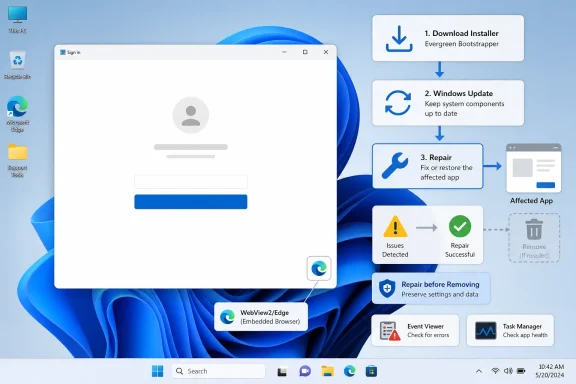 WebView2 Is No Longer an Optional Browser Add-On
The confusion around Microsoft Edge WebView2 Runtime starts with the name. To many users, “Edge” sounds like a browser, and “runtime” sounds like something they did not ask for. But Microsoft Edge WebView2 Runtime is the component that lets Windows apps show web content inside the app itself: sign-in pages, account dashboards, embedded help panes, checkout flows, admin portals, and other interface pieces that look like the web but live inside a desktop app.That is why the failure mode feels so strange. Edge may open normally, Chrome may work, the network may be fine, and yet a Microsoft Store app, a vendor utility, a productivity client, or a line-of-business program may show a blank panel or fail at sign-in. The browser is not necessarily broken; the embedded browser surface inside the app is.
Technobezz’s repair guide frames the symptoms well: WebView2 trouble usually appears as a missing-runtime message, a blank sign-in window, a frozen embedded page, or an app that refuses to open. That list matters because it keeps the diagnosis grounded. A “WebView2 problem” is not one problem. It can be a missing runtime, a damaged runtime, a stale Edge update, a broken host app, a blocked security write, a network filter, or an enterprise policy doing exactly what it was configured to do.
Microsoft’s own WebView2 positioning explains the broader dependency. The company’s developer material describes WebView2 as the way native applications embed web content using Microsoft Edge WebView2, and its distribution guidance separates the automatically updated Evergreen Runtime from developer-controlled fixed packaging. In other words, WebView2 is not just another redistributable; it is the browser engine layer that many Windows applications expect to find.
That expectation is now baked into modern Windows. Microsoft says the Evergreen WebView2 Runtime is included with Windows 11 and was already installed on most eligible Windows 10 devices. That does not mean it cannot break, be blocked, fail to update, or be absent on a particular machine. It does mean the first instinct should be repair, not removal.
The First Fix Is Boring Because It Is the Correct One
The best first move is to install Microsoft Edge WebView2 Runtime from Microsoft’s official WebView2 consumer download page, run the installer, close the affected app, and open the app again. That is not the most dramatic answer, but it is the one that matches how the component is meant to be distributed to end users. If the runtime is missing or damaged, a fresh official installer is the cleanest way to put Windows back into the state the app expects.This is where users often get tripped up by Microsoft’s installer language. The Evergreen Bootstrapper is the online installer path: small download, internet required, runtime fetched during setup. The Evergreen Standalone Installer is the offline path: useful when the machine cannot complete the web download, when an admin needs to stage the installer, or when a support technician needs x86, x64, or ARM64 for a specific PC. Fixed Version is different; Microsoft’s developer documentation positions it for app vendors and developers packaging their own apps, not as the normal consumer repair tool.
| Option | Best for | Requires internet during install | Architecture choice | Who should use it |
|---|---|---|---|---|
| Evergreen Bootstrapper | Normal online install | Yes | Matches device during setup | Home users and support desks |
| Evergreen Standalone Installer | Offline or staged install | No, after download | x86, x64, or ARM64 | Admins, technicians, offline PCs |
| Fixed Version | App-controlled packaging | No, when bundled | App/vendor managed | Developers and app vendors |
The practical rule is simple: if this is your personal PC and an app says WebView2 is missing, use Microsoft’s consumer download path first. If the device is offline or the download repeatedly fails, use the Evergreen Standalone Installer and choose x86, x64, or ARM64 for the PC. If you are not packaging the app, do not reach for Fixed Version as a consumer repair.
Repair Before You Remove
If Microsoft Edge WebView2 Runtime is already installed but apps still throw errors, the next step is repair. On classic Windows surfaces, that means Control Panel > Programs > Programs and Features, then right-clicking Microsoft Edge WebView2 Runtime and selecting Repair. If Repair is not shown, select Change and follow the on-screen directions.This sequence is old-fashioned, but it is still useful because it preserves the component while asking Windows to repair the installation. It also avoids the common trap of treating WebView2 like unwanted bloatware. Many apps depend on it, and on some machines it may be a built-in or managed component rather than a normal removable program.
If repair is not available, a clean reinstall may be appropriate—but only when Windows exposes an uninstall option. On Windows 11, the supported user path is Start > Settings > Apps > Installed apps, finding Microsoft Edge WebView2 Runtime, selecting More, and choosing Uninstall. In Control Panel, the equivalent route is Programs and Features, then Uninstall or Uninstall/Change.
The caveat is important: some built-in Windows components and managed installations cannot be removed from the PC. That is not a bug in the repair guide; it is a sign that the machine’s WebView2 installation is being protected or controlled by Windows or by management policy. If uninstall is unavailable, forcing the issue with third-party commands is not a supported escalation. It is a gamble.
This is where much of the bad advice online becomes dangerous. Users find command strings that invoke setup executables directly, alter registry values, or remove WebView2 folders by hand. Those tricks sometimes appear to “work” because they make an entry disappear. But the next app that needs WebView2 may fail harder, and Windows or Microsoft Edge Update may reinstall or partially repair the component later, leaving the user with a new problem that is harder to explain.
Windows Update and Edge Update Are Part of the Same Repair Story
A pending Windows update, Edge update, or restart can block WebView2 installation, updates, or app content. That sounds mundane until you remember what WebView2 is doing: it is an embedded Edge-based runtime that relies on Microsoft’s update machinery, Windows servicing state, and app restart behavior. A half-finished update chain can look like an app bug.The supported refresh path is to open Windows Update from Settings and check for updates, install what is available, update Microsoft Edge from its help/about screen, and then restart the PC from Start > Power > Restart. Do not skip the restart. WebView2 problems often persist until the host app closes, the runtime processes exit, and Windows finishes replacing files.
Microsoft’s WebView2 documentation describes Evergreen as the automatically updated runtime model, and the source guide notes that the Evergreen Runtime updates through Microsoft Edge Update. That matters because there is no ordinary consumer-facing “WebView2 settings” panel to open and manually tune. If a user is hunting for a WebView2 control center, they are looking for a thing Microsoft does not currently present as a supported consumer repair surface.
The repair implication is clear. Keep Windows current. Let Edge update. Restart after the update chain completes. Then reopen the affected application so it can create or attach to a fresh WebView2 instance.
If Microsoft Edge itself is damaged, reinstalling Edge from Microsoft and reopening the affected app is a reasonable step. But that still belongs after the basics: runtime install or repair, Windows Update, Edge update, and restart. WebView2 troubleshooting works best when each layer is tested in order rather than changed all at once.
One Broken App Is Not Proof the Runtime Is Broken
The most common diagnostic mistake is assuming that one blank panel means WebView2 is broken system-wide. It might be. But if every other app works and only one application shows a blank WebView2 window, looping sign-in page, or embedded page that never loads, the host app deserves suspicion.On Windows, the repair path for the affected app is Start > Settings > Apps > Installed apps > More > Advanced options > Repair. If Repair is unavailable or does not solve the problem, Reset is the next supported option. The difference matters: repair tries to fix the app without wiping as much state, while reset can remove app data and return the app closer to a fresh install condition.
For Microsoft Store apps, the Store itself becomes part of the repair chain. On Windows 11, the supported path is Microsoft Store > Library > Get updates. On Windows 10, it is Microsoft Store > See more > Downloads and updates > Get updates. To reinstall, the Store path is Library, find the app, and Install; Microsoft’s Store troubleshooting flow also includes the deceptively simple step of closing the app and opening it again.
That close-and-open instruction sounds too basic for a serious failure, but it reflects how embedded web surfaces are created. An app may not use a newly repaired or newly updated WebView2 Runtime until it restarts or recreates WebView2. If the app is still holding a stale process, the repair has happened but the broken session remains visible.
This is especially relevant for sign-in failures. A blank authentication window may be caused by the runtime, but it may also be caused by corrupted app data, stale cookies inside the app’s WebView2 user data folder, network filtering, or a blocked security write. Deleting random Edge profile folders is not the answer. If an app maker gives the exact WebView2 user data folder location, closing the app and clearing that app-specific folder may be appropriate. Without that vendor-specific location, folder deletion is guesswork.
Install Troubleshooters Still Have a Place, but They Are Not Magic
When WebView2 will not install, uninstall, or update, Microsoft’s install troubleshooting paths are the next escalation. The source guide points to Microsoft’s support page for programs that cannot be installed or removed, where users can choose Download troubleshooter and then Run or Open. On Windows 10, that downloadable tool is the Program Install and Uninstall troubleshooter.Its target is not mystical. It is meant for blocked installs, corrupted registry keys, and incomplete uninstall or update data. Those are exactly the kinds of problems that can leave WebView2 half-present: visible enough for Windows to think it exists, broken enough for an app to fail, and stubborn enough that reinstalling does not proceed cleanly.
Windows 11 leans more heavily on built-in recovery paths first: restart, repair or reset the app, uninstall from Settings, and automated recommendations when install or removal fails. For compatibility-related install or update trouble on Windows 11, the path is Start > Settings > System > Troubleshoot > Other troubleshooters > Program Compatibility Troubleshooter > Run. On Windows 10, it is Start > Settings > Update & Security > Troubleshoot > Additional troubleshooters > Program Compatibility Troubleshooter > Run the troubleshooter.
The key is to use troubleshooters for the problem they are designed to solve. They are appropriate when install, uninstall, or update plumbing is jammed. They are not a replacement for checking whether a firewall blocks the app, whether Controlled Folder Access denied a write, or whether an enterprise policy blocked WebView2 from updating.
A support technician should treat the troubleshooter as one branch of the decision tree, not the whole tree. If the runtime installs cleanly but the app still shows a blank panel, move to app repair and diagnostics. If the runtime cannot install or uninstall at all, use Microsoft’s install and compatibility recovery tools before attempting another reinstall.
Security Controls Can Break WebView2 While Protecting the PC
The most useful sentence in the source guidance may be this: fix the specific block instead of lowering all protection. WebView2 failures often intersect with security software because embedded web content needs to write app data, render pages, reach Microsoft services, and open sign-in flows inside another process. Those are normal behaviors—but they can look suspicious to ransomware protection, firewall rules, proxy filters, VPN clients, endpoint DLP tools, WDAC, or AppLocker.Controlled Folder Access is a common example. If Windows blocks an affected app from writing where it needs to write, the embedded WebView2 surface may freeze, open blank, or fail in ways that look like a runtime bug. The supported route is Windows Security > Virus & threat protection > Manage ransomware protection > Allow an app through Controlled folder access. If Windows showed an “App is blocked” notification, the user can select the message, choose Add an allowed app, and browse for the affected program.
The firewall path is similarly specific: Windows Security > Firewall & network protection > Allow an app through firewall > Change settings. From there, check the affected app or choose Allow another app and enter the app path. This is not the same as turning off the firewall to “see what happens.” It is narrowing the exception to the app that needs it.
Network filters complicate the picture further. During a failed WebView2 or Edge download, temporarily disconnecting a VPN is a reasonable diagnostic step. So is checking whether a proxy, VPN, or endpoint filtering rule blocks required Microsoft services. In enterprise environments, that check belongs with network and endpoint management teams, not with a user clicking random exclusions.
The deeper point is that WebView2 is a bridge between desktop software and web infrastructure. If a security layer blocks either side of that bridge, the visible symptom may be an empty white rectangle. A blank window is not evidence that security should be disabled; it is evidence that the block should be found.
Diagnostics Separate a Broken Runtime From a Blocked Runtime
When the WebView2 window stays white, freezes, crashes, or opens and closes immediately, collect evidence before reinstalling the same component repeatedly. Repetition is seductive because it feels like action. But after the second repair or reinstall, the more valuable work is figuring out what failed.Task Manager is the first quick check. Look for Microsoft Edge WebView2 Runtime or msedgewebview2.exe under the host app. If the process appears and dies, that suggests a crash or policy intervention. If it never appears, the host app may not be reaching the initialization stage, or the runtime may not be found.
Event Viewer is the next stop. Check Windows Logs > Application and System for app or WebView2 initialization failures, WDAC blocks, AppLocker blocks, Controlled Folder Access denials, or DLP denials. Those categories are not interchangeable. A renderer crash points in one direction; an AppLocker block points in another; a ransomware-protection denial points toward a narrowly scoped allow rule.
Reliability Monitor is often friendlier than Event Viewer for repeated crashes. Look for renderer crashes, GPU crashes, or Crashpad crashes clustered around the time the affected app failed. A repeated GPU-related crash may explain frozen embedded pages. A Crashpad entry may show the embedded runtime failed even though the host app continued running.
On a work or school PC, the user should not try to outsmart management policy. The right escalation package is the app name, exact WebView2 error text, Windows version, and the crash or block details from Task Manager, Event Viewer, and Reliability Monitor. That gives IT something actionable and prevents the ticket from becoming “Edge thing broken,” which is rarely enough.
Managed devices can control WebView2 installation, WebView2 update, Microsoft 365 Apps behavior, WSUS approval, Configuration Manager deployment, and WebView2 policy controls. A home user cannot change those. An enterprise admin can—and may have done so deliberately.
Action checklist for admins
- Confirm whether Microsoft Edge WebView2 Runtime is present, damaged, blocked, or managed before authorizing removal.
- Test the official Evergreen installer path first; use the Evergreen Standalone Installer for offline or staged repair.
- Check Windows Update, Microsoft Edge Update, and restart state before rebuilding the affected app.
- Review Event Viewer for WDAC, AppLocker, Controlled Folder Access, and DLP denials tied to the host app.
- Verify WSUS, Configuration Manager, Microsoft 365 Apps, and WebView2 policy controls are not preventing installation or update.
- Ask users for the app name, exact WebView2 error text, Windows version, and crash or block details instead of screenshots alone.
The Old Force Fixes Are the Trap
The internet has a long memory, and WebView2 repair advice is polluted by it. Old force-uninstall commands, third-party setup.exe WebView2 removal strings, registry edits, and browser-flag workarounds continue to circulate because they once helped someone in a specific context. That does not make them the right consumer repair path.The source guide explicitly leaves out force-uninstall commands and browser-flag workarounds in favor of Microsoft’s current Windows and WebView2 repair paths. That is the right editorial call. Standard uninstall from Settings or Control Panel, the Program Install and Uninstall troubleshooter, official reinstall, Windows Update, Edge update, and host-app repair are boring because they are supported.
Browser flags are a particularly tempting wrong turn. Microsoft documents WebView2 browser flags for developer diagnostics, but its guidance says production apps should not rely on them because flags can change, disappear, or lose long-term support. A flag that appears to fix a blank panel today can become a dead switch tomorrow, and a user who depends on it has not repaired the app; they have made the failure more fragile.
Force-removal advice is worse because it can damage the shared dependency rather than the broken app. If multiple apps rely on WebView2, deleting runtime components to fix one app may break others. On a managed machine, it may also put the device out of compliance with the organization’s deployment model, which means the component comes back later or fails to update under policy.
The sane rule is do not turn a runtime repair into an operating-system surgery. If Microsoft exposes Repair, use Repair. If Microsoft exposes Uninstall, use Uninstall and reinstall from Microsoft. If install or removal fails, use Microsoft’s troubleshooters. If a security control blocks the app, fix the block. If policy controls the runtime, escalate to IT.
The Hidden Enterprise Story Is Update Governance
For home users, WebView2 is mostly a troubleshooting nuisance. For IT departments, it is a governance problem disguised as an app-support ticket. The same runtime that makes modern apps easier to build also creates a shared dependency that must be present, current, and permitted to run across a fleet.That dependency crosses familiar enterprise boundaries. WebView2 installation and update may be controlled separately from Windows Update. Microsoft 365 Apps may rely on embedded web experiences. WSUS and Configuration Manager may influence when components appear. WebView2 policy controls may constrain behavior in ways that users cannot see.
This creates a support paradox. A user reports a blank sign-in window in one app. The help desk repairs the app. The app still fails. Someone reinstalls WebView2. It still fails. Only later does the team discover that a policy, endpoint filter, AppLocker rule, DLP product, or update approval gap blocked the runtime or the content it was trying to load.
The better approach is to treat WebView2 as part of the workstation baseline. Is the Evergreen Runtime present where it should be? Is Microsoft Edge Update allowed to do its job? Are required update and sign-in endpoints reachable through proxy and VPN rules? Are WDAC, AppLocker, Controlled Folder Access, and DLP policies logging denials against the host app or msedgewebview2.exe?
The answer does not have to be “make everything permissive.” Mature environments should be able to allow known apps and required runtime behavior without punching broad holes in security. But that requires recognizing WebView2 failures as policy-and-platform events, not just user-level app glitches.
The Consumer Repair Flow Should Be Narrow and Sequential
For ordinary Windows users, the best repair strategy is not to understand every internal detail. It is to follow the sequence that minimizes damage. Start with the runtime. Then refresh Windows and Edge. Then repair the affected app. Then check security and network blocks. Then collect crash evidence.That order matters because it avoids destructive assumptions. If the runtime is missing, installing it solves the problem. If the runtime is damaged, repair may solve it. If only one app is broken, app repair or reset may solve it. If a security tool blocked a write or network call, a targeted allow rule may solve it.
The sequence also prevents shotgun troubleshooting. Updating Windows, reinstalling Edge, resetting the app, disabling security tools, deleting folders, and running force-uninstall commands in one sitting may leave the machine changed in six ways with no clear cause. A sequential repair path lets the user know what fixed the problem—or at least what did not.
The most important consumer-facing correction is that WebView2 is not something to remove because it appears in Task Manager. Seeing msedgewebview2.exe under a host app is often evidence that the app is using the runtime as designed. The question is not whether the process exists. The question is whether it is crashing, being blocked, failing to initialize, or serving a host app whose own data is corrupt.
This is also why there is no useful hunt for a WebView2 settings screen. The supplied research did not identify a current Microsoft-supported consumer WebView2 settings screen. Evergreen WebView2 updates through Microsoft Edge Update, and apps use the new runtime after restart or WebView2 recreation. The repair surface is Windows, Edge, the app, and policy—not a hidden control panel.
What the Blank Window Is Really Telling You
A blank WebView2 panel is one of the least informative failure screens in Windows, but it is not meaningless. It tells you an app expected to render web content inside itself and did not. The missing detail is where the chain broke.If the app says the runtime is missing, start with the official WebView2 installer. If WebView2 appears installed but broken, repair it from Programs and Features or reinstall it through standard Windows uninstall paths when available. If one app fails while others work, repair or reset that app and update it through Microsoft Store where applicable.
If installation or removal fails, use Microsoft’s install and compatibility troubleshooting paths. If the app can render only when VPN or filtering is removed, investigate network policy. If Windows Security logs a Controlled Folder Access denial, allow the specific app rather than disabling ransomware protection wholesale.
For managed PCs, the message is sharper: do not let users improvise. Provide a supported WebView2 repair script or software-center deployment, document when to use the Evergreen Standalone Installer, and train support staff to capture Event Viewer and Reliability Monitor evidence. The fastest fix is often the one that preserves the most evidence.
The Repair Map Windows Users Actually Need
The practical map is short, but it cuts against years of folk troubleshooting. WebView2 is shared infrastructure, so repair it like shared infrastructure. Do not treat it like an unwanted browser toolbar.- Missing-runtime messages usually call for Microsoft’s official WebView2 installer first.
- Installed-but-broken runtimes should be repaired from Control Panel before being removed.
- Blank sign-in windows and frozen embedded pages may be host-app, Store, network, or security-control problems.
- Evergreen Bootstrapper is the normal online install; Evergreen Standalone Installer is the offline or staged option for x86, x64, or ARM64.
- Fixed Version belongs to developers and app vendors packaging their own apps, not ordinary consumer repair.
- Force-uninstall commands and browser-flag workarounds are not the supported path for production Windows users.
Microsoft’s bet on WebView2 makes Windows apps more web-aware, more consistent, and easier for vendors to build, but it also means a small embedded window can expose problems across the whole PC management stack. The repair path that will age best is the least theatrical one: use Microsoft’s current installers and Windows repair tools, keep Edge and Windows updated, fix targeted blocks instead of lowering defenses, and escalate with evidence when policy is involved. As more Windows apps embed web experiences rather than launching a separate browser, WebView2 will feel less like a component users notice and more like plumbing they only see when it leaks; the winners will be the users and admins who learn to repair the pipe instead of tearing out the wall.
References
- Primary source: Technobezz
Published: 2026-07-08T17:20:08.948200
Loading…
www.technobezz.com - Official source: learn.microsoft.com
Loading…
learn.microsoft.com - Official source: developer.microsoft.com
Loading…
developer.microsoft.com - Official source: blogs.windows.com
Loading…
blogs.windows.com - Related coverage: superuser.com
Loading…
superuser.com - Related coverage: umatechnology.org
Loading…
umatechnology.org