

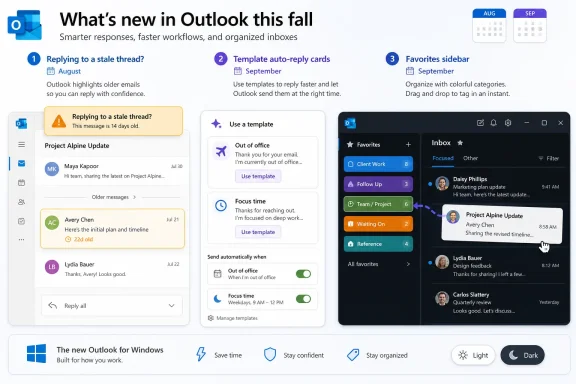
Microsoft is adding three inbox-management features to the new Outlook app for Windows 10 and Windows 11 this fall: an August rollout for stale-thread reply warnings, and September rollouts for automatic-reply templates and drag-and-drop category assignment through Favorites for mail. The features are not a grand redesign. They are practical repairs to common Outlook pain points: replying in the wrong place, repeating the same response, and organizing mail with too many clicks.
That matters because the new Outlook is still being judged as a replacement, not merely as another mail app. Windows users who depend on Outlook every day are not looking for novelty first. They want fewer mistakes, faster triage, and workflows that feel predictable. These three additions are small, but they land in exactly those areas.
The direct summary is simple: Outlook is getting better at stopping one common mistake, automating one repetitive task, and restoring one familiar organizational gesture. As reported by PCWorld and earlier spotted by Windows Latest in the Microsoft 365 Roadmap, these are not flashy features. They are the kinds of details that determine whether a mail client feels ready for daily work.
This is the kind of feature that sounds minor until it saves someone from an embarrassing or costly reply. Modern email threads are messy. A single conversation can include approvals, corrections, revised attachments, side comments, and late-breaking instructions. A user who opens a message from search, a reminder, a notification, or a pinned follow-up may think they are replying to the active conversation when they are actually answering an older version of it.
The warning does not need to be dramatic to be useful. It simply interrupts the send flow at the moment when Outlook detects that the conversation has moved on. That is a better approach than blocking the reply entirely, because there are legitimate reasons to answer a specific earlier message. A user might need to respond to an attachment, answer an older direct question, or preserve context around a particular decision.
The key will be how Microsoft presents the warning. If it is clear, concise, and helps users jump to the newest message, it will feel like a useful guardrail. If it appears too often or does not explain the risk, users may dismiss it reflexively. The difference between a helpful warning and an annoying dialog is whether it gives the user a safer next step.
For ordinary users, the value is simple: fewer wrong-thread replies. For support desks, legal teams, sales teams, HR inboxes, and project-heavy organizations, the benefit is broader. A stale reply can revive outdated information, contradict a newer decision, or confuse a client. This feature will not solve every thread-management problem, but it addresses a common failure point directly.
This goes beyond the traditional out-of-office message. A standard out-of-office reply is usually one message sent broadly during a time window. Template-based automatic replies are more useful for recurring inbox patterns. A user or team can respond consistently to predictable kinds of messages without typing the same answer over and over.
The obvious examples are support acknowledgments, intake confirmations, billing responses, application receipts, sales follow-ups, HR mailbox replies, and project-status acknowledgments. A small business owner could confirm that a pricing request was received. A recruiter could acknowledge applications. A support mailbox could send a standard first response while a human review is pending. A volunteer coordinator or teacher could stop rewriting the same message late at night.
The main value is consistency. Repeated email language tends to drift. One person says a response will arrive “soon,” another says “within two business days,” and another promises something more specific. Over time, that creates confusion. Templates help keep repeated replies aligned with the wording a user or team actually wants to use.
For organizations, the feature deserves a closer look before broad use. An automatic reply is not just a convenience when it represents a department or company. If a template promises a service level, mentions a policy, collects information, or describes a process, the wording matters. A bad manual reply reaches one person. A bad automatic reply can reach every sender who meets the condition.
Microsoft’s public roadmap coverage leaves practical questions for admins to test. How will these templates behave in shared mailboxes? Can teams standardize wording? How do template replies interact with existing rules? Can conditions be specific enough for support or intake workflows? Those details will determine whether this becomes a lightweight productivity tool or something organizations can rely on more formally.
Even with those questions, the direction is useful. The new Outlook needs more features that reduce routine effort without requiring users to adopt a completely new working style. Template-based automatic replies fit that need.
This is the smallest change on paper, but it may matter a lot to people who live in Outlook all day. Email organization is not just a command sequence. It is muscle memory. People drag, drop, flag, categorize, archive, pin, and sort messages quickly, often while scanning the next item. When a mail client forces extra clicks for a familiar action, it feels slower even if the technical delay is small.
Categories serve a different purpose from folders. Folders answer where a message lives. Categories answer what a message means. A message can stay in a shared inbox while being marked as urgent, legal, finance, waiting, customer follow-up, or done. That distinction is important in team mailboxes, where moving a message into a folder can hide it from people who still need to see it.
By allowing users to drag messages onto a Favorite category, Microsoft is making category assignment feel more like folder filing. That is a sensible design choice. The left navigation area becomes an action surface, not just a list of places. Users who think visually can organize mail without hunting through menus.
The Favorites requirement may also help keep category use focused. Users with long category lists may need to decide which ones matter enough to keep visible. In a shared mailbox, that can be useful. A small number of well-understood categories is easier for a team to follow than a sprawling list nobody applies consistently.
Microsoft should still avoid treating drag-and-drop as the whole solution. Power users will care about keyboard shortcuts, bulk actions, search behavior, rules integration, delegated access, and shared mailbox consistency. Drag-and-drop is a good front door for category assignment. It should complement, not replace, faster workflows for high-volume users.
First, pay attention to thread position before replying. The August warning should help, but users can build the habit now: before answering a busy conversation, check whether there are newer messages below or above the one currently open. If the thread involves approvals, deadlines, attachments, or client commitments, reply from the newest relevant message unless there is a specific reason not to.
Second, start identifying repeated replies. If you answer the same question often, save the wording somewhere clean and reusable. That could be a draft, a note, or an existing template if your current Outlook setup supports it. When template-based automatic replies arrive, users who already know their common response patterns will benefit faster.
Third, clean up categories before adding them to Favorites. If your category list has duplicates, old project names, or labels you no longer use, simplify it. Drag-and-drop assignment will work best when the visible categories are the ones you actually apply every day.
Fourth, do not assume automation is always safe. If an automatic reply includes promises, policy language, pricing details, legal wording, or support expectations, review it before turning it loose. A template should reduce typing, not spread stale or inaccurate information.
Finally, if you use Outlook for critical work, watch for the features but do not reorganize your entire workflow around them on day one. Test them with normal messages first. Make sure the behavior matches how you expect to reply, categorize, and automate.
That is why the update matters more than its size suggests. The new Outlook for Windows has often been criticized not because it cannot send email, but because Outlook is more than email for many users. It is a workflow surface. It handles shared mailboxes, delegation, rules, categories, meetings, records, attachments, and daily coordination. Small interruptions in those workflows add up quickly.
PCWorld frames the changes as fixes for annoying inbox quirks, which is fair. But in busy environments, annoying quirks are rarely just annoyances. A confusing reply flow can create a support ticket. A vague repeated response can frustrate a customer. A clumsy category workflow can cause a shared mailbox to fall out of order.
The Microsoft 365 Roadmap is important here because it shows where Microsoft is investing in the new Outlook. These features suggest a practical near-term focus: reduce obvious mistakes, make repeated communication easier, and improve organization. That is a better path than simply making the app look more modern.
That is why user frustration can sound disproportionate to outsiders. A missing option is not just an option when someone has built years of muscle memory around it. A changed category workflow is not cosmetic if a team uses categories to track ownership. A slower path to a repeated reply is not minor if someone sends that reply dozens of times a week.
These fall features help because they acknowledge existing behavior. People already reply to busy threads. People already send repeated answers. People already drag messages around to organize their day. Microsoft is not asking users to think differently in these cases. It is trying to make the new Outlook better match how they already work.
That is the right direction. The question is pace and completeness. Each useful feature improves the new Outlook, but each missing workflow still shapes the migration conversation. Users are not comparing the new Outlook with an abstract mail client. They are comparing it with the Outlook habits they already have.
That makes restraint important. The best version of the feature would tell the user that newer replies exist, show enough context to explain the risk, and offer a quick way to move to the latest message. The worst version would be a vague confirmation box that users dismiss without reading.
The feature also needs to respect legitimate older-message replies. Sometimes the older message is exactly the one that matters. A user might be responding to a specific attachment, correcting a detail, or answering a question that was skipped. A warning should not imply that replying is always wrong. It should simply make the user aware that the thread has continued.
If Microsoft gets the balance right, this could become one of those features people barely notice until it prevents a mistake. That is a good outcome. Some of the best email improvements are not exciting. They simply stop users from doing the wrong thing at the worst possible moment.
For individual users, the benefit is straightforward. Templates can reduce repetitive typing and help people respond faster. A consultant can acknowledge receipt of documents. A club organizer can answer membership questions. A recruiter can confirm that an application arrived. A salesperson can respond to a common inquiry with consistent next steps.
For teams, the feature is more sensitive. A shared mailbox often speaks with the voice of a department. If the automatic reply says the team will respond within a certain time, gives instructions, requests documents, or describes a process, that wording should be accurate and approved by the people responsible for the workflow.
This is not a reason to avoid the feature. It is a reason to manage it thoughtfully. The more predictable a mailbox is, the more useful templates become. The more policy-heavy or customer-facing the mailbox is, the more carefully the templates should be reviewed.
Admins and team leads should also watch for stale templates. An automatic reply that was correct during one project, incident, hiring cycle, or policy period can become wrong later. The convenience of automation should come with a habit of review.
Drag-and-drop categorization through Favorites matters because classification has to be fast. If applying a category takes too many steps, users postpone it. Postponed categorization becomes search pain, unclear ownership, and overloaded inboxes.
This is especially true in shared mailboxes. A team may rely on categories to show which messages need review, which are waiting on a customer, which involve billing, and which are done. If those categories are hard to apply, the system breaks down. If they are visible and easy to use, people are more likely to keep the mailbox clean.
The feature also preserves the difference between moving and labeling. Moving a message into a folder changes where it lives. Categorizing it adds meaning while keeping it available in the current view. Many teams need that second behavior more than the first.
For users who already have a disciplined category system, drag-and-drop through Favorites should feel like a natural improvement. For users with cluttered categories, it is a good opportunity to simplify.
September — New Outlook users begin receiving automatic replies with templates, allowing condition-based replies that use templates the user creates.
September — New Outlook users begin receiving drag-and-drop categorization through Favorites, allowing a dragged email to inherit the category it is dropped onto.
Executive assistants, dispatchers, support leads, legal operations staff, HR intake owners, sales coordinators, and finance mailbox users will find the edge cases quickly. If these features work for them, they are more likely to work for lighter users.
The testing should be tied to actual feature behavior:
Classic Outlook’s greatest strength is depth. It can be cluttered and inconsistent, but users often forgive that because the command they need exists somewhere. The new Outlook’s promise is different: a cleaner, more modern, service-connected client that can improve more quickly. That promise only works if practical gaps continue to close.
This fall’s trio matters because these are not speculative features. They map to obvious behavior. People reply to busy threads. People send repeated answers. People categorize mail by dragging things around. The fact that these features are noteworthy shows both that the new Outlook is improving and that Microsoft still has rebuilding work to do.
For light users, the new Outlook may already be good enough. For organizations with complex add-ins, shared mailboxes, retention practices, delegation, category systems, and trained staff, the bar is higher. These features improve the case for the new Outlook, but they do not remove the need for testing.
The August stale-reply warning is the most protective of the three because it intervenes before a message is sent from the wrong context. September’s template-based automatic replies could become a meaningful productivity improvement, especially for predictable inbox patterns, but users and teams should review wording carefully. Drag-and-drop category assignment through Favorites is a small workflow restoration that may matter disproportionately to people who triage mail all day.
The larger lesson is that Outlook productivity is measured in small moments. Did the user avoid a bad reply? Did they answer a common request without rewriting the same paragraph? Did they classify a message quickly enough that the system stayed organized? Those moments are not glamorous, but they are the difference between a mail client people tolerate and one they trust.
Microsoft does not need the new Outlook to win a beauty contest. It needs the app to feel dependable enough that switching no longer feels like losing a tool. The August and September rollouts will not settle that debate, but they are the right kind of evidence: practical, specific, and tied to real inbox behavior. If Microsoft keeps shipping improvements at that level, the new Outlook’s migration argument gets stronger one ordinary workflow at a time.
That matters because the new Outlook is still being judged as a replacement, not merely as another mail app. Windows users who depend on Outlook every day are not looking for novelty first. They want fewer mistakes, faster triage, and workflows that feel predictable. These three additions are small, but they land in exactly those areas.
 What Is Changing
| Feature | What changes | Rollout timing | Practical value |
|---|---|---|---|
| Stale-thread reply warning | Outlook warns when a user replies to an older email in a conversation that already has newer replies | August | Helps prevent wrong-context replies |
| Automatic replies with templates | Users can create template-based automatic replies triggered by certain email conditions | September | Makes repeated responses more consistent |
| Drag-and-drop category assignment | If a category is added to Favorites, users can drag messages onto it to apply that category | September | Speeds up visual inbox triage |
Microsoft Is Fixing the Wrong-Reply Problem
The most immediately useful change is the stale-thread reply warning. When a user tries to reply to an older email in a conversation that already has newer replies, Outlook will warn them before they send from the wrong point in the thread. Microsoft’s roadmap description frames the feature as a way to help users feel more confident that they are responding to the right message in a conversation. The rollout begins in August.This is the kind of feature that sounds minor until it saves someone from an embarrassing or costly reply. Modern email threads are messy. A single conversation can include approvals, corrections, revised attachments, side comments, and late-breaking instructions. A user who opens a message from search, a reminder, a notification, or a pinned follow-up may think they are replying to the active conversation when they are actually answering an older version of it.
The warning does not need to be dramatic to be useful. It simply interrupts the send flow at the moment when Outlook detects that the conversation has moved on. That is a better approach than blocking the reply entirely, because there are legitimate reasons to answer a specific earlier message. A user might need to respond to an attachment, answer an older direct question, or preserve context around a particular decision.
The key will be how Microsoft presents the warning. If it is clear, concise, and helps users jump to the newest message, it will feel like a useful guardrail. If it appears too often or does not explain the risk, users may dismiss it reflexively. The difference between a helpful warning and an annoying dialog is whether it gives the user a safer next step.
For ordinary users, the value is simple: fewer wrong-thread replies. For support desks, legal teams, sales teams, HR inboxes, and project-heavy organizations, the benefit is broader. A stale reply can revive outdated information, contradict a newer decision, or confuse a client. This feature will not solve every thread-management problem, but it addresses a common failure point directly.
September’s Template Auto-Replies Reduce Repetition
The second feature is automatic replies with templates. Users will be able to create templates and use them in automatic replies that are triggered by certain email conditions. The rollout begins in September.This goes beyond the traditional out-of-office message. A standard out-of-office reply is usually one message sent broadly during a time window. Template-based automatic replies are more useful for recurring inbox patterns. A user or team can respond consistently to predictable kinds of messages without typing the same answer over and over.
The obvious examples are support acknowledgments, intake confirmations, billing responses, application receipts, sales follow-ups, HR mailbox replies, and project-status acknowledgments. A small business owner could confirm that a pricing request was received. A recruiter could acknowledge applications. A support mailbox could send a standard first response while a human review is pending. A volunteer coordinator or teacher could stop rewriting the same message late at night.
The main value is consistency. Repeated email language tends to drift. One person says a response will arrive “soon,” another says “within two business days,” and another promises something more specific. Over time, that creates confusion. Templates help keep repeated replies aligned with the wording a user or team actually wants to use.
For organizations, the feature deserves a closer look before broad use. An automatic reply is not just a convenience when it represents a department or company. If a template promises a service level, mentions a policy, collects information, or describes a process, the wording matters. A bad manual reply reaches one person. A bad automatic reply can reach every sender who meets the condition.
Microsoft’s public roadmap coverage leaves practical questions for admins to test. How will these templates behave in shared mailboxes? Can teams standardize wording? How do template replies interact with existing rules? Can conditions be specific enough for support or intake workflows? Those details will determine whether this becomes a lightweight productivity tool or something organizations can rely on more formally.
Even with those questions, the direction is useful. The new Outlook needs more features that reduce routine effort without requiring users to adopt a completely new working style. Template-based automatic replies fit that need.
Drag-and-Drop Categories Restore Mail Triage Muscle Memory
The third feature is drag-and-drop category assignment through Favorites. If a category is added to Favorites, users will be able to drag an email onto that category to apply it. This feature also starts rolling out in September.This is the smallest change on paper, but it may matter a lot to people who live in Outlook all day. Email organization is not just a command sequence. It is muscle memory. People drag, drop, flag, categorize, archive, pin, and sort messages quickly, often while scanning the next item. When a mail client forces extra clicks for a familiar action, it feels slower even if the technical delay is small.
Categories serve a different purpose from folders. Folders answer where a message lives. Categories answer what a message means. A message can stay in a shared inbox while being marked as urgent, legal, finance, waiting, customer follow-up, or done. That distinction is important in team mailboxes, where moving a message into a folder can hide it from people who still need to see it.
By allowing users to drag messages onto a Favorite category, Microsoft is making category assignment feel more like folder filing. That is a sensible design choice. The left navigation area becomes an action surface, not just a list of places. Users who think visually can organize mail without hunting through menus.
The Favorites requirement may also help keep category use focused. Users with long category lists may need to decide which ones matter enough to keep visible. In a shared mailbox, that can be useful. A small number of well-understood categories is easier for a team to follow than a sprawling list nobody applies consistently.
Microsoft should still avoid treating drag-and-drop as the whole solution. Power users will care about keyboard shortcuts, bulk actions, search behavior, rules integration, delegated access, and shared mailbox consistency. Drag-and-drop is a good front door for category assignment. It should complement, not replace, faster workflows for high-volume users.
What Users Should Do Now
For ordinary Outlook users, the practical question is not whether these features sound interesting. It is what to do before they appear.First, pay attention to thread position before replying. The August warning should help, but users can build the habit now: before answering a busy conversation, check whether there are newer messages below or above the one currently open. If the thread involves approvals, deadlines, attachments, or client commitments, reply from the newest relevant message unless there is a specific reason not to.
Second, start identifying repeated replies. If you answer the same question often, save the wording somewhere clean and reusable. That could be a draft, a note, or an existing template if your current Outlook setup supports it. When template-based automatic replies arrive, users who already know their common response patterns will benefit faster.
Third, clean up categories before adding them to Favorites. If your category list has duplicates, old project names, or labels you no longer use, simplify it. Drag-and-drop assignment will work best when the visible categories are the ones you actually apply every day.
Fourth, do not assume automation is always safe. If an automatic reply includes promises, policy language, pricing details, legal wording, or support expectations, review it before turning it loose. A template should reduce typing, not spread stale or inaccurate information.
Finally, if you use Outlook for critical work, watch for the features but do not reorganize your entire workflow around them on day one. Test them with normal messages first. Make sure the behavior matches how you expect to reply, categorize, and automate.
Three Small Features, One Bigger Migration Argument
The three features belong together because they target three different moments in the email workday. The stale-reply warning protects the outgoing message. Template auto-replies standardize repeated messages. Drag-and-drop categories speed up incoming-message organization.That is why the update matters more than its size suggests. The new Outlook for Windows has often been criticized not because it cannot send email, but because Outlook is more than email for many users. It is a workflow surface. It handles shared mailboxes, delegation, rules, categories, meetings, records, attachments, and daily coordination. Small interruptions in those workflows add up quickly.
PCWorld frames the changes as fixes for annoying inbox quirks, which is fair. But in busy environments, annoying quirks are rarely just annoyances. A confusing reply flow can create a support ticket. A vague repeated response can frustrate a customer. A clumsy category workflow can cause a shared mailbox to fall out of order.
The Microsoft 365 Roadmap is important here because it shows where Microsoft is investing in the new Outlook. These features suggest a practical near-term focus: reduce obvious mistakes, make repeated communication easier, and improve organization. That is a better path than simply making the app look more modern.
New Outlook’s Real Problem Has Never Been Basic Mail
The new Outlook’s challenge is not basic sending and receiving. It can do that. The challenge is that Outlook is deeply embedded in work habits. For many people, Outlook is a records interface, a meeting console, a task surface, a triage system, a shared-mailbox tool, and a communication archive.That is why user frustration can sound disproportionate to outsiders. A missing option is not just an option when someone has built years of muscle memory around it. A changed category workflow is not cosmetic if a team uses categories to track ownership. A slower path to a repeated reply is not minor if someone sends that reply dozens of times a week.
These fall features help because they acknowledge existing behavior. People already reply to busy threads. People already send repeated answers. People already drag messages around to organize their day. Microsoft is not asking users to think differently in these cases. It is trying to make the new Outlook better match how they already work.
That is the right direction. The question is pace and completeness. Each useful feature improves the new Outlook, but each missing workflow still shapes the migration conversation. Users are not comparing the new Outlook with an abstract mail client. They are comparing it with the Outlook habits they already have.
The Warning Box Needs to Be Useful, Not Just Cautious
The stale-reply warning deserves extra attention because it is a user-interface safeguard rather than a new destination or command. Outlook cannot know the user’s intent perfectly. It can only detect that the message being answered is not the latest one in the conversation.That makes restraint important. The best version of the feature would tell the user that newer replies exist, show enough context to explain the risk, and offer a quick way to move to the latest message. The worst version would be a vague confirmation box that users dismiss without reading.
The feature also needs to respect legitimate older-message replies. Sometimes the older message is exactly the one that matters. A user might be responding to a specific attachment, correcting a detail, or answering a question that was skipped. A warning should not imply that replying is always wrong. It should simply make the user aware that the thread has continued.
If Microsoft gets the balance right, this could become one of those features people barely notice until it prevents a mistake. That is a good outcome. Some of the best email improvements are not exciting. They simply stop users from doing the wrong thing at the worst possible moment.
Templates Are Useful, but Wording Matters
Template-based automatic replies will likely split into two different use cases: personal productivity and shared communication.For individual users, the benefit is straightforward. Templates can reduce repetitive typing and help people respond faster. A consultant can acknowledge receipt of documents. A club organizer can answer membership questions. A recruiter can confirm that an application arrived. A salesperson can respond to a common inquiry with consistent next steps.
For teams, the feature is more sensitive. A shared mailbox often speaks with the voice of a department. If the automatic reply says the team will respond within a certain time, gives instructions, requests documents, or describes a process, that wording should be accurate and approved by the people responsible for the workflow.
This is not a reason to avoid the feature. It is a reason to manage it thoughtfully. The more predictable a mailbox is, the more useful templates become. The more policy-heavy or customer-facing the mailbox is, the more carefully the templates should be reviewed.
Admins and team leads should also watch for stale templates. An automatic reply that was correct during one project, incident, hiring cycle, or policy period can become wrong later. The convenience of automation should come with a habit of review.
Categorization Is Boring Because It Is Foundational
Email categories are boring in the same way file names and folder structures are boring: nobody talks about them until they fail. Then everyone discovers how much work depended on small classification habits.Drag-and-drop categorization through Favorites matters because classification has to be fast. If applying a category takes too many steps, users postpone it. Postponed categorization becomes search pain, unclear ownership, and overloaded inboxes.
This is especially true in shared mailboxes. A team may rely on categories to show which messages need review, which are waiting on a customer, which involve billing, and which are done. If those categories are hard to apply, the system breaks down. If they are visible and easy to use, people are more likely to keep the mailbox clean.
The feature also preserves the difference between moving and labeling. Moving a message into a folder changes where it lives. Categorizing it adds meaning while keeping it available in the current view. Many teams need that second behavior more than the first.
For users who already have a disciplined category system, drag-and-drop through Favorites should feel like a natural improvement. For users with cluttered categories, it is a good opportunity to simplify.
Timeline
August — New Outlook users begin receiving a warning when they try to reply to an older email in a conversation that already has newer replies.September — New Outlook users begin receiving automatic replies with templates, allowing condition-based replies that use templates the user creates.
September — New Outlook users begin receiving drag-and-drop categorization through Favorites, allowing a dragged email to inherit the category it is dropped onto.
Admins Should Treat This as Targeted Readiness Work
For IT teams, these features are not just items to announce. They are specific behaviors to test. The right pilot group is not only the average user. It is the person who spends all day in Outlook and can explain exactly what feels slower, missing, or risky.Executive assistants, dispatchers, support leads, legal operations staff, HR intake owners, sales coordinators, and finance mailbox users will find the edge cases quickly. If these features work for them, they are more likely to work for lighter users.
The testing should be tied to actual feature behavior:
- Test stale-thread warnings with real conversation patterns, especially messages opened from search, reminders, pinned follow-ups, and long-running client or project threads.
- Confirm whether the stale-thread warning helps users move to the newest relevant message rather than merely interrupting them.
- Review template auto-reply wording for mailboxes that handle customers, applicants, employees, vendors, billing, legal requests, or support issues.
- Test automatic-reply conditions with common mailbox scenarios so replies are not triggered too broadly or sent to the wrong audience.
- Check how template replies behave in shared and delegated mailboxes before encouraging teams to rely on them.
- Validate drag-and-drop category assignment through Favorites in individual mailboxes, shared mailboxes, delegated mailboxes, and high-volume triage workflows.
- Simplify category lists before asking users to place categories in Favorites, so the visible options match real work.
- Update internal Outlook guidance to explain what each feature does: stale-reply warnings reduce wrong-context replies, templates reduce repeated typing, and Favorite-category drag-and-drop speeds up triage.
The Classic Outlook Comparison Still Haunts Every Improvement
Microsoft’s challenge is that every new Outlook improvement arrives under the shadow of classic Outlook. That is unfair in one sense: classic Outlook has had many years to accumulate features, preferences, add-ins, and habits. It is also unavoidable. Microsoft has positioned the new Outlook as the strategic direction for Windows users, so every addition is judged against the desktop client many people already know.Classic Outlook’s greatest strength is depth. It can be cluttered and inconsistent, but users often forgive that because the command they need exists somewhere. The new Outlook’s promise is different: a cleaner, more modern, service-connected client that can improve more quickly. That promise only works if practical gaps continue to close.
This fall’s trio matters because these are not speculative features. They map to obvious behavior. People reply to busy threads. People send repeated answers. People categorize mail by dragging things around. The fact that these features are noteworthy shows both that the new Outlook is improving and that Microsoft still has rebuilding work to do.
For light users, the new Outlook may already be good enough. For organizations with complex add-ins, shared mailboxes, retention practices, delegation, category systems, and trained staff, the bar is higher. These features improve the case for the new Outlook, but they do not remove the need for testing.
The Fall Fixes Show Where Outlook Is Headed
These updates are modest, but they reveal Microsoft’s near-term approach to the new Outlook: prevent avoidable mistakes, reduce repeated typing, and make organization feel more direct. That is more useful than another cosmetic refresh.The August stale-reply warning is the most protective of the three because it intervenes before a message is sent from the wrong context. September’s template-based automatic replies could become a meaningful productivity improvement, especially for predictable inbox patterns, but users and teams should review wording carefully. Drag-and-drop category assignment through Favorites is a small workflow restoration that may matter disproportionately to people who triage mail all day.
The larger lesson is that Outlook productivity is measured in small moments. Did the user avoid a bad reply? Did they answer a common request without rewriting the same paragraph? Did they classify a message quickly enough that the system stayed organized? Those moments are not glamorous, but they are the difference between a mail client people tolerate and one they trust.
Microsoft does not need the new Outlook to win a beauty contest. It needs the app to feel dependable enough that switching no longer feels like losing a tool. The August and September rollouts will not settle that debate, but they are the right kind of evidence: practical, specific, and tied to real inbox behavior. If Microsoft keeps shipping improvements at that level, the new Outlook’s migration argument gets stronger one ordinary workflow at a time.
References
- Primary source: PCWorld
Published: 2026-07-09T15:20:12.361999
Loading…
www.pcworld.com - Official source: support.microsoft.com
Loading…
support.microsoft.com - Official source: learn.microsoft.com
Loading…
learn.microsoft.com - Related coverage: arcourts.gov
Loading…
www.arcourts.gov - Related coverage: choc.org
Loading…
choc.org - Related coverage: windowscentral.com
Microsoft confirms an Outlook bug could wreck your replies by dropping the original message | Windows Central
A bizarre bug in the legacy version of Outlook for Mac strips out the original message text when replying or forwarding emails.www.windowscentral.com
- Related coverage: techradar.com
Microsoft delays enterprise Outlook switchover to 2027, says move will 'ensure organizations have the time they need to prepare' | TechRadar
Microsoft pushes back new Outlook in Enterprisewww.techradar.com - Related coverage: windowslatest.com
Loading…
www.windowslatest.com - Related coverage: windowsforum.com
Loading…
windowsforum.com - Official source: download.microsoft.com
Loading…
download.microsoft.com