

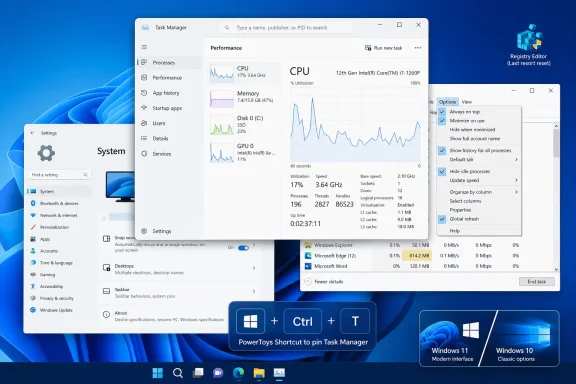
Windows 10 and Windows 11 can keep Task Manager above other windows through the app’s built-in Always on top control, while Microsoft PowerToys offers a system-wide Windows + Ctrl + T toggle and a registry reset can recover the setting when Task Manager’s interface stops cooperating. The built-in switch is the best answer for most users because it is persistent, requires no additional software, and is designed specifically for Task Manager. PowerToys is the more flexible option when other applications also need pinning, while deleting Task Manager’s registry key should remain a last-resort reset rather than the first step in a routine configuration change.
The feature sounds like a minor desktop preference until Windows starts misbehaving. A frozen game, an application monopolizing the screen, or an unexplained CPU spike can turn Task Manager into the most important window on the desktop—and the least useful one if the offending program keeps covering it.
Task Manager occupies an unusual position in Windows. It is both an everyday system monitor and an emergency control panel, used to inspect CPU, GPU, memory, disk, and process activity or terminate software that has stopped responding.
That role creates an obvious interface problem. Task Manager may open successfully while the malfunctioning application remains in front of it, leaving the diagnostic tool technically available but practically inaccessible. The user can attempt to switch windows, minimize the application, or move Task Manager to another display, but each extra step adds friction at exactly the moment Windows is already failing to behave predictably.
The Always on top setting changes the window order so Task Manager remains visible when another application becomes active. Once enabled through Task Manager’s own interface, the setting continues to apply when Task Manager is opened again. Disabling it is equally straightforward: return to the same control and clear the option.
This is not merely a convenience for people who like watching performance graphs. It is a form of troubleshooting readiness. Enabling the feature before a full-screen application freezes is more useful than trying to configure it after the desktop has become difficult to control.
The setting is also valuable during less dramatic investigations. A user can keep the Processes or Performance view visible while reproducing a slowdown, launching a demanding program, copying files, or checking whether an unexpected process is consuming resources. Instead of repeatedly switching back to Task Manager and changing the workload being observed, the user can watch the system respond in real time.
Microsoft’s support material describes Task Manager as both a system monitor and a startup manager, capable of showing resource consumption and managing running applications. That broad remit explains why keeping the window visible matters: Task Manager is often most useful while another program is actively doing something.
The path is simple once known, but the redesign makes older instructions misleading. A Windows 11 user following a Windows 10 guide may look for an Options menu that is not present in the same form. Conversely, a Windows 10 user will not find the lower-left settings gear described in newer Windows 11 instructions.
That difference is the central reason many guides make an easy feature appear more complicated than it is. The underlying capability exists in both operating systems; only the route through the interface has changed.
On Windows 11, the complete procedure takes three actions after the keyboard shortcut. Open Task Manager, click the Settings icon in the lower-left corner, and select Always on top in the Window management section. Task Manager should then remain above ordinary application windows whenever it is running.
The important detail is that this is an application setting, not a general Windows personalization control. Searching the main Windows Settings app for an always-on-top option is therefore unlikely to lead users to the right place. The gear belongs to Task Manager itself.
This distinction matters for managed environments as well. A help-desk instruction that merely says “open Settings” is ambiguous on Windows 11 because the operating system has a central Settings application while many modern applications also contain their own settings pages. Administrators writing internal documentation should explicitly say “Task Manager Settings” and identify the lower-left gear.
The More details step is conditional but important. Windows 10 can open Task Manager in a reduced interface that shows running applications without exposing the full menu bar. Users who see only a small list of applications may reasonably conclude that their copy of Task Manager lacks the feature, when the real issue is that the expanded interface has not been opened.
After More details reveals the complete window, the Options menu provides the Always on top command. Selecting it enables the persistent behavior; selecting it again turns the behavior off.
Windows 10 also provides another route through the Task Manager icon in the system tray notification area. Right-clicking that icon exposes the Always on top control, allowing the setting to be changed without returning to the main menu.
That tray route can be especially useful when the Task Manager window is open but difficult to reach. It is not a separate pinning technology or a temporary override; it controls the same Task Manager behavior through a different part of the interface.
The contrast between the two Windows versions illustrates a recurring support problem. Microsoft may preserve a capability while moving its control, leaving users to interpret the changed interface as a removed feature. In this case, Windows 11 did not eliminate Always on top—it reorganized Task Manager around a settings page and navigation rail.
It is also persistent. According to the supplied instructions, enabling the setting keeps Task Manager above other windows every time it is subsequently opened. That makes it suitable for PCs used for gaming, performance testing, software support, or any workflow in which Task Manager must be immediately accessible.
The same persistence can surprise users who enable the feature temporarily and forget about it. Task Manager may later appear to ignore normal window behavior, covering browsers, documents, or application dialogs even when the user no longer needs constant visibility. That is not necessarily a fault: the option remains active until it is cleared.
The first diagnostic step for an unexpectedly dominant Task Manager window should therefore be to inspect its own Always on top control. On Windows 11, return to Settings and Window management. On Windows 10, reopen Options or use the system tray notification-area icon.
This native setting is also more semantically precise than a general-purpose pinning utility. It tells Task Manager to operate in its intended topmost mode rather than asking an external utility to apply a generic topmost property to whichever window happens to be active.
Microsoft engineer Raymond Chen has explained through The Old New Thing that Task Manager’s implementation does more than apply the ordinary topmost window flag. Windows introduced interface surfaces that do not exist in the same conventional desktop window layer, so Task Manager performs additional work when entering or leaving its Always on top mode.
That implementation detail explains a behavior users may otherwise interpret as a bug: Task Manager can briefly disappear when the setting is toggled. According to Chen, Task Manager switches instances when moving into or out of this special mode, producing a momentary gap between the old instance exiting and the replacement appearing.
The practical lesson is not that users need to understand Windows window classes or desktop layers. It is that a short flicker or disappearance while toggling the option may be part of Task Manager’s design rather than evidence that the application crashed.
A completely stalled graphics stack may prevent the desktop from drawing any useful window. An application may trap input, occupy a separate display context, or leave Windows responding only partially. In those cases, the Task Manager shortcut can still be the correct first move, but the Always on top setting cannot repair the underlying failure by itself.
The feature is most effective when Windows remains responsive enough to create and render Task Manager while the problem application is merely covering other desktop windows. This includes many frozen or badly behaving applications, but it should not be confused with a universal escape mechanism.
The distinction is particularly relevant to games. “Full screen” can describe several different presentation behaviors, and a frozen title may fail in ways that affect window switching, display output, or keyboard input. Enabling Always on top in advance improves the odds that Task Manager will be visible, but administrators and gamers should avoid promising that it will defeat every failed full-screen process.
Even with that limitation, the switch remains worth enabling on troubleshooting systems. Reliability tools do not need to solve every failure to be useful; they need to remove avoidable obstacles in the common cases. A visible Task Manager can be the difference between ending one unresponsive process and restarting the entire PC.
The feature also makes monitoring more honest. Repeatedly switching to Task Manager can alter how an application behaves or obscure short-lived resource spikes. Keeping the monitor visible beside the workload reduces that interruption and makes it easier to correlate an action with its effect on CPU, memory, disk, or GPU activity.
Microsoft’s documentation describes the utility as a system-wide tool rather than a Task Manager-specific feature. That distinction is the reason to install it: the shortcut can be used with Task Manager, but it can also be applied to another active application that lacks its own native topmost control.
For a user who only wants Task Manager to stay visible permanently, PowerToys is arguably unnecessary. It introduces another application and another configuration surface to accomplish something Task Manager already knows how to do. The built-in switch is simpler and less dependent on background software.
PowerToys becomes compelling when the requirement is broader. An administrator might want to pin a monitoring console while working in another application, a developer might keep a log viewer visible during testing, or a user might place a reference window over a larger workspace. In those cases, a universal keyboard toggle is more efficient than searching each application for an equivalent setting.
The PowerToys workflow is intentionally immediate. Make Task Manager—or another desired application—the active window and press Windows + Ctrl + T. The active window is pinned; press the shortcut again while that window is active to unpin it.
That active-window model is both the utility’s strength and its main usability hazard. The shortcut applies to the window currently in focus, not necessarily the window the user intended to pin. A hurried user can therefore toggle the wrong application and later wonder why an unrelated window keeps covering everything else.
The native Task Manager option and the PowerToys option should consequently be treated as complementary rather than interchangeable. Task Manager’s control expresses a durable preference for one diagnostic application. PowerToys provides an on-demand command for many applications.
The distinction also affects troubleshooting. If Task Manager refuses to stay on top despite its own option being disabled, check whether PowerToys has pinned it. If an unrelated program unexpectedly remains above everything else, Task Manager’s setting is irrelevant; the PowerToys shortcut may have been triggered while that program was active.
For support teams, this creates a useful decision rule. Use the built-in feature when the requirement is “Task Manager should always remain visible.” Use PowerToys when the requirement is “I need to choose different windows and pin or unpin them as my work changes.”
Instead, the procedure clears Task Manager’s stored configuration so the application can recreate its default settings. Its purpose is recovery: if Task Manager’s menu bar is hidden, the Windows 11 settings gear is unresponsive, or a configuration problem prevents the normal option from being used, resetting Task Manager may restore access to the control.
Open the Run dialog with Windows key + R, enter
The supplied procedure then calls for deleting the
This should be understood as a broad reset. The
That is why the registry route belongs at the end of the escalation path. If the checkbox is accessible, use the checkbox. If a temporary or desktop-wide pin is needed, use PowerToys. Delete the Task Manager key only when the application’s own configuration interface is broken or its saved state appears to be preventing normal operation.
Registry changes also demand exact navigation. The target is under
A registry backup is prudent before deletion, particularly on shared or managed systems where Task Manager may have been configured deliberately. The supplied method is straightforward, but Registry Editor does not prevent a user from deleting the wrong key if the wrong location is selected.
The most important editorial correction to many quick tips is therefore conceptual: the registry procedure repairs the setting; it is not the setting. After the reset, the durable configuration should still be made through Task Manager’s own Always on top control.
Persistent pinning is best for machines where Task Manager is routinely part of the workflow. Gaming systems, test benches, support PCs, and machines used to reproduce performance problems all benefit from having the diagnostic window predictably appear above ordinary applications.
Temporary pinning is better when permanent topmost behavior would become irritating. A user may want Task Manager visible for five minutes while observing a workload and then return it to normal window ordering. PowerToys provides a keyboard-driven way to make that transition without opening Task Manager’s settings.
There is no operational prize for using the most complicated method. Registry editing can feel more authoritative because it exposes internal configuration, but it creates more risk while providing less direct control. A good Windows procedure chooses the least invasive mechanism that meets the requirement.
This principle matters in enterprise support, where every additional dependency or manual registry action increases variability. A help-desk technician should not direct users into Registry Editor when the same result is available through a visible checkbox. Likewise, an organization should not deploy PowerToys solely to replicate a native Task Manager preference unless the wider pinning capability is also useful.
The methods can coexist, but coexistence can also complicate diagnosis. Task Manager may be configured natively to remain on top, pinned temporarily by PowerToys, or restored to defaults through the registry. Support documentation should identify which mechanism is being used rather than telling users simply to “turn on always on top.”
Internal instructions should separate Windows 10 and Windows 11 rather than mixing their interface labels. CTRL + SHIFT + ESC is common to both, but the subsequent route diverges: Windows 11 uses the lower-left Settings gear and Window management, while Windows 10 uses More details and the Options menu.
PowerToys should be documented as a separate system-wide capability. If an organization already provides PowerToys, Windows + Ctrl + T can be a valuable tool for pinning consoles, dashboards, notes, or diagnostic windows. If PowerToys is not already approved, the Task Manager feature does not by itself justify bypassing normal software-deployment policies.
The registry reset should be reserved for cases in which Task Manager’s interface or stored settings are malfunctioning. Because it removes the current user’s Task Manager configuration, it should be recorded as a reset operation and not described as a harmless alternate checkbox.
The feature should therefore support investigation rather than replace it. Keep Task Manager visible, reproduce the issue, and observe which resource changes. A CPU spike, sustained disk activity, rapidly growing memory use, or unusual GPU load provides a starting point, not a complete diagnosis.
The same caution applies when ending processes. Task Manager makes termination easy, but a visible End task control does not mean every process is safe to stop. Users should distinguish ordinary applications from Windows components and avoid terminating unfamiliar processes merely because they consume resources at one moment.
For suspected malware, Always on top can help users observe unusual activity, but Task Manager alone is not a security verdict. Malicious software can disguise itself, use legitimate processes, or remain quiet while Task Manager is open. The feature makes the instrument easier to see; it does not make the instrument omniscient.
Its greatest value is procedural. When an incident occurs, the user can maintain access to the one built-in application that shows what Windows is running and provides a chance to regain control without immediately restarting the machine.
The feature sounds like a minor desktop preference until Windows starts misbehaving. A frozen game, an application monopolizing the screen, or an unexplained CPU spike can turn Task Manager into the most important window on the desktop—and the least useful one if the offending program keeps covering it.
 A Small Checkbox Solves a Large Troubleshooting Problem
Task Manager occupies an unusual position in Windows. It is both an everyday system monitor and an emergency control panel, used to inspect CPU, GPU, memory, disk, and process activity or terminate software that has stopped responding.That role creates an obvious interface problem. Task Manager may open successfully while the malfunctioning application remains in front of it, leaving the diagnostic tool technically available but practically inaccessible. The user can attempt to switch windows, minimize the application, or move Task Manager to another display, but each extra step adds friction at exactly the moment Windows is already failing to behave predictably.
The Always on top setting changes the window order so Task Manager remains visible when another application becomes active. Once enabled through Task Manager’s own interface, the setting continues to apply when Task Manager is opened again. Disabling it is equally straightforward: return to the same control and clear the option.
This is not merely a convenience for people who like watching performance graphs. It is a form of troubleshooting readiness. Enabling the feature before a full-screen application freezes is more useful than trying to configure it after the desktop has become difficult to control.
The setting is also valuable during less dramatic investigations. A user can keep the Processes or Performance view visible while reproducing a slowdown, launching a demanding program, copying files, or checking whether an unexpected process is consuming resources. Instead of repeatedly switching back to Task Manager and changing the workload being observed, the user can watch the system respond in real time.
Microsoft’s support material describes Task Manager as both a system monitor and a startup manager, capable of showing resource consumption and managing running applications. That broad remit explains why keeping the window visible matters: Task Manager is often most useful while another program is actively doing something.
Windows 11 Moves the Control Without Changing Its Purpose
Windows 11’s redesigned Task Manager places the relevant switch inside the application’s settings rather than the traditional menu structure familiar to Windows 10 users. Open Task Manager with CTRL + SHIFT + ESC, select the Settings gear in the lower-left corner, and find Always on top under Window management.The path is simple once known, but the redesign makes older instructions misleading. A Windows 11 user following a Windows 10 guide may look for an Options menu that is not present in the same form. Conversely, a Windows 10 user will not find the lower-left settings gear described in newer Windows 11 instructions.
That difference is the central reason many guides make an easy feature appear more complicated than it is. The underlying capability exists in both operating systems; only the route through the interface has changed.
| Windows version | Open Task Manager | Find the control | Enable the setting | Alternative built-in route |
|---|---|---|---|---|
| Windows 11 | CTRL + SHIFT + ESC | Settings gear in the lower-left corner | Window management > Always on top | Not specified |
| Windows 10 | CTRL + SHIFT + ESC | More details, if needed, then Options | Options > Always on top | Task Manager icon in the system tray notification area |
The important detail is that this is an application setting, not a general Windows personalization control. Searching the main Windows Settings app for an always-on-top option is therefore unlikely to lead users to the right place. The gear belongs to Task Manager itself.
This distinction matters for managed environments as well. A help-desk instruction that merely says “open Settings” is ambiguous on Windows 11 because the operating system has a central Settings application while many modern applications also contain their own settings pages. Administrators writing internal documentation should explicitly say “Task Manager Settings” and identify the lower-left gear.
Windows 10 Keeps the Setting in the Classic Menu
Windows 10 presents the same capability through the older Task Manager interface. Press CTRL + SHIFT + ESC, expand Task Manager with More details if the compact view is displayed, open Options, and select Always on top.The More details step is conditional but important. Windows 10 can open Task Manager in a reduced interface that shows running applications without exposing the full menu bar. Users who see only a small list of applications may reasonably conclude that their copy of Task Manager lacks the feature, when the real issue is that the expanded interface has not been opened.
After More details reveals the complete window, the Options menu provides the Always on top command. Selecting it enables the persistent behavior; selecting it again turns the behavior off.
Windows 10 also provides another route through the Task Manager icon in the system tray notification area. Right-clicking that icon exposes the Always on top control, allowing the setting to be changed without returning to the main menu.
That tray route can be especially useful when the Task Manager window is open but difficult to reach. It is not a separate pinning technology or a temporary override; it controls the same Task Manager behavior through a different part of the interface.
The contrast between the two Windows versions illustrates a recurring support problem. Microsoft may preserve a capability while moving its control, leaving users to interpret the changed interface as a removed feature. In this case, Windows 11 did not eliminate Always on top—it reorganized Task Manager around a settings page and navigation rail.
Task Manager’s Native Switch Is the Right Default
For the narrow goal of keeping Task Manager visible, its built-in option is preferable to installing a utility or editing the registry. It has the smallest operational footprint, does not depend on another program running, and communicates the user’s intent directly to Task Manager.It is also persistent. According to the supplied instructions, enabling the setting keeps Task Manager above other windows every time it is subsequently opened. That makes it suitable for PCs used for gaming, performance testing, software support, or any workflow in which Task Manager must be immediately accessible.
The same persistence can surprise users who enable the feature temporarily and forget about it. Task Manager may later appear to ignore normal window behavior, covering browsers, documents, or application dialogs even when the user no longer needs constant visibility. That is not necessarily a fault: the option remains active until it is cleared.
The first diagnostic step for an unexpectedly dominant Task Manager window should therefore be to inspect its own Always on top control. On Windows 11, return to Settings and Window management. On Windows 10, reopen Options or use the system tray notification-area icon.
This native setting is also more semantically precise than a general-purpose pinning utility. It tells Task Manager to operate in its intended topmost mode rather than asking an external utility to apply a generic topmost property to whichever window happens to be active.
Microsoft engineer Raymond Chen has explained through The Old New Thing that Task Manager’s implementation does more than apply the ordinary topmost window flag. Windows introduced interface surfaces that do not exist in the same conventional desktop window layer, so Task Manager performs additional work when entering or leaving its Always on top mode.
That implementation detail explains a behavior users may otherwise interpret as a bug: Task Manager can briefly disappear when the setting is toggled. According to Chen, Task Manager switches instances when moving into or out of this special mode, producing a momentary gap between the old instance exiting and the replacement appearing.
The practical lesson is not that users need to understand Windows window classes or desktop layers. It is that a short flicker or disappearance while toggling the option may be part of Task Manager’s design rather than evidence that the application crashed.
Always on Top Improves Access but Does Not Make Windows Invincible
The phrase “always on top” invites an absolute interpretation that the desktop cannot always honor. Keeping Task Manager topmost improves its position relative to other windows, but it does not guarantee recovery from every display, driver, application, or full-screen failure.A completely stalled graphics stack may prevent the desktop from drawing any useful window. An application may trap input, occupy a separate display context, or leave Windows responding only partially. In those cases, the Task Manager shortcut can still be the correct first move, but the Always on top setting cannot repair the underlying failure by itself.
The feature is most effective when Windows remains responsive enough to create and render Task Manager while the problem application is merely covering other desktop windows. This includes many frozen or badly behaving applications, but it should not be confused with a universal escape mechanism.
The distinction is particularly relevant to games. “Full screen” can describe several different presentation behaviors, and a frozen title may fail in ways that affect window switching, display output, or keyboard input. Enabling Always on top in advance improves the odds that Task Manager will be visible, but administrators and gamers should avoid promising that it will defeat every failed full-screen process.
Even with that limitation, the switch remains worth enabling on troubleshooting systems. Reliability tools do not need to solve every failure to be useful; they need to remove avoidable obstacles in the common cases. A visible Task Manager can be the difference between ending one unresponsive process and restarting the entire PC.
The feature also makes monitoring more honest. Repeatedly switching to Task Manager can alter how an application behaves or obscure short-lived resource spikes. Keeping the monitor visible beside the workload reduces that interruption and makes it easier to correlate an action with its effect on CPU, memory, disk, or GPU activity.
PowerToys Turns a Task Manager Trick Into a Desktop-Wide Command
Microsoft PowerToys provides the more versatile alternative. Its Always On Top utility can pin the active window above other windows with Windows + Ctrl + T, and pressing the same shortcut again removes the pin.Microsoft’s documentation describes the utility as a system-wide tool rather than a Task Manager-specific feature. That distinction is the reason to install it: the shortcut can be used with Task Manager, but it can also be applied to another active application that lacks its own native topmost control.
For a user who only wants Task Manager to stay visible permanently, PowerToys is arguably unnecessary. It introduces another application and another configuration surface to accomplish something Task Manager already knows how to do. The built-in switch is simpler and less dependent on background software.
PowerToys becomes compelling when the requirement is broader. An administrator might want to pin a monitoring console while working in another application, a developer might keep a log viewer visible during testing, or a user might place a reference window over a larger workspace. In those cases, a universal keyboard toggle is more efficient than searching each application for an equivalent setting.
The PowerToys workflow is intentionally immediate. Make Task Manager—or another desired application—the active window and press Windows + Ctrl + T. The active window is pinned; press the shortcut again while that window is active to unpin it.
That active-window model is both the utility’s strength and its main usability hazard. The shortcut applies to the window currently in focus, not necessarily the window the user intended to pin. A hurried user can therefore toggle the wrong application and later wonder why an unrelated window keeps covering everything else.
The native Task Manager option and the PowerToys option should consequently be treated as complementary rather than interchangeable. Task Manager’s control expresses a durable preference for one diagnostic application. PowerToys provides an on-demand command for many applications.
The distinction also affects troubleshooting. If Task Manager refuses to stay on top despite its own option being disabled, check whether PowerToys has pinned it. If an unrelated program unexpectedly remains above everything else, Task Manager’s setting is irrelevant; the PowerToys shortcut may have been triggered while that program was active.
For support teams, this creates a useful decision rule. Use the built-in feature when the requirement is “Task Manager should always remain visible.” Use PowerToys when the requirement is “I need to choose different windows and pin or unpin them as my work changes.”
The Registry Method Is a Reset, Not a Secret Power Feature
The supplied registry procedure is often presented as a third way to keep Task Manager on top, but that description needs qualification. Deleting the TaskManager registry key does not directly enable a topmost window property in the manner of the checkbox or PowerToys shortcut.Instead, the procedure clears Task Manager’s stored configuration so the application can recreate its default settings. Its purpose is recovery: if Task Manager’s menu bar is hidden, the Windows 11 settings gear is unresponsive, or a configuration problem prevents the normal option from being used, resetting Task Manager may restore access to the control.
Open the Run dialog with Windows key + R, enter
regedit, and navigate to:HKEY_CURRENT_USER\Software\Microsoft\Windows\CurrentVersion\TaskManagerThe supplied procedure then calls for deleting the
TaskManager key, confirming the deletion, closing Registry Editor, and restarting Task Manager. When Task Manager opens again, it recreates its default settings, after which the Always on top option should be available through the normal interface.This should be understood as a broad reset. The
TaskManager key stores Task Manager configuration, so removing it is less precise than checking one visible option. Users should expect preferences associated with Task Manager to return to defaults rather than assuming the deletion affects only window pinning.That is why the registry route belongs at the end of the escalation path. If the checkbox is accessible, use the checkbox. If a temporary or desktop-wide pin is needed, use PowerToys. Delete the Task Manager key only when the application’s own configuration interface is broken or its saved state appears to be preventing normal operation.
Registry changes also demand exact navigation. The target is under
HKEY_CURRENT_USER, meaning the reset applies to the current user’s Task Manager configuration. Users should verify the full path before deleting anything and avoid treating similarly named keys elsewhere in the registry as substitutes.A registry backup is prudent before deletion, particularly on shared or managed systems where Task Manager may have been configured deliberately. The supplied method is straightforward, but Registry Editor does not prevent a user from deleting the wrong key if the wrong location is selected.
The most important editorial correction to many quick tips is therefore conceptual: the registry procedure repairs the setting; it is not the setting. After the reset, the durable configuration should still be made through Task Manager’s own Always on top control.
Persistent Pinning and Temporary Pinning Serve Different Workflows
Choosing among the three methods becomes easier once the requirement is divided into persistent and temporary behavior. Task Manager’s built-in option is persistent by design, while PowerToys offers a fast toggle for the active window. The registry method repairs Task Manager’s stored state when the persistent control cannot be reached or used normally.Persistent pinning is best for machines where Task Manager is routinely part of the workflow. Gaming systems, test benches, support PCs, and machines used to reproduce performance problems all benefit from having the diagnostic window predictably appear above ordinary applications.
Temporary pinning is better when permanent topmost behavior would become irritating. A user may want Task Manager visible for five minutes while observing a workload and then return it to normal window ordering. PowerToys provides a keyboard-driven way to make that transition without opening Task Manager’s settings.
There is no operational prize for using the most complicated method. Registry editing can feel more authoritative because it exposes internal configuration, but it creates more risk while providing less direct control. A good Windows procedure chooses the least invasive mechanism that meets the requirement.
This principle matters in enterprise support, where every additional dependency or manual registry action increases variability. A help-desk technician should not direct users into Registry Editor when the same result is available through a visible checkbox. Likewise, an organization should not deploy PowerToys solely to replicate a native Task Manager preference unless the wider pinning capability is also useful.
The methods can coexist, but coexistence can also complicate diagnosis. Task Manager may be configured natively to remain on top, pinned temporarily by PowerToys, or restored to defaults through the registry. Support documentation should identify which mechanism is being used rather than telling users simply to “turn on always on top.”
Administrators Should Standardize the Simple Path First
Task Manager’s Always on top option is primarily a user-interface preference, yet it has practical value in support and operations. Standardizing the native procedure can reduce confusion during remote troubleshooting, especially when technicians and users are looking at different Windows versions.Internal instructions should separate Windows 10 and Windows 11 rather than mixing their interface labels. CTRL + SHIFT + ESC is common to both, but the subsequent route diverges: Windows 11 uses the lower-left Settings gear and Window management, while Windows 10 uses More details and the Options menu.
PowerToys should be documented as a separate system-wide capability. If an organization already provides PowerToys, Windows + Ctrl + T can be a valuable tool for pinning consoles, dashboards, notes, or diagnostic windows. If PowerToys is not already approved, the Task Manager feature does not by itself justify bypassing normal software-deployment policies.
The registry reset should be reserved for cases in which Task Manager’s interface or stored settings are malfunctioning. Because it removes the current user’s Task Manager configuration, it should be recorded as a reset operation and not described as a harmless alternate checkbox.
Action checklist for admins
- Confirm whether the device is running Windows 10 or Windows 11 before giving interface-specific directions.
- Open Task Manager with CTRL + SHIFT + ESC and test the built-in Always on top option first.
- On Windows 11, use the lower-left Settings gear and check Always on top under Window management.
- On Windows 10, select More details if necessary, then use Options > Always on top or the notification-area icon.
- Use Microsoft PowerToys and Windows + Ctrl + T only when temporary or application-wide pinning is required.
- Reset
HKEY_CURRENT_USER\Software\Microsoft\Windows\CurrentVersion\TaskManageronly when Task Manager’s normal controls are unavailable or unresponsive.
A Visible Task Manager Is Not Proof of a Healthy PC
Always on top improves access to diagnostic information, but it does not determine why a system is slow or an application has frozen. High utilization can be legitimate, a stalled program may be waiting on storage or another process, and unfamiliar background activity is not automatically malicious.The feature should therefore support investigation rather than replace it. Keep Task Manager visible, reproduce the issue, and observe which resource changes. A CPU spike, sustained disk activity, rapidly growing memory use, or unusual GPU load provides a starting point, not a complete diagnosis.
The same caution applies when ending processes. Task Manager makes termination easy, but a visible End task control does not mean every process is safe to stop. Users should distinguish ordinary applications from Windows components and avoid terminating unfamiliar processes merely because they consume resources at one moment.
For suspected malware, Always on top can help users observe unusual activity, but Task Manager alone is not a security verdict. Malicious software can disguise itself, use legitimate processes, or remain quiet while Task Manager is open. The feature makes the instrument easier to see; it does not make the instrument omniscient.
Its greatest value is procedural. When an incident occurs, the user can maintain access to the one built-in application that shows what Windows is running and provides a chance to regain control without immediately restarting the machine.
The Configuration Worth Making Before Windows Freezes
The most concrete lessons are uncomplicated, but they are easy to miss because Windows 10 and Windows 11 place the same feature in different interfaces. Configure the native setting before it is needed, reach for PowerToys when the requirement extends beyond Task Manager, and treat registry deletion as recovery rather than routine customization.- Windows 10 and Windows 11 both include a native Task Manager Always on top option.
- CTRL + SHIFT + ESC opens Task Manager directly on both versions.
- Windows 11 places the option under Settings > Window management.
- Windows 10 places it under Options after More details exposes the full interface.
- Microsoft PowerToys pins the active window with Windows + Ctrl + T.
- Deleting the current user’s
TaskManagerregistry key resets Task Manager when its normal controls fail.
References
- Primary source: Guiding Tech
Published: 2026-07-11T12:24:11.733631
Loading…
www.guidingtech.com - Official source: learn.microsoft.com
Loading…
learn.microsoft.com - Related coverage: blogs.goucher.edu
Loading…
blogs.goucher.edu - Related coverage: pcgamer.com
Loading…
www.pcgamer.com - Related coverage: computersluggish.com
Loading…
computersluggish.com - Related coverage: groovypost.com
Loading…
www.groovypost.com