

Microsoft is rolling out a new Microsoft Teams control that lets licensed meeting organizers and presenters disable Copilot, Facilitator, and AI-generated recap features while a meeting is already underway. The change, detailed in Microsoft 365 Message Center notice MC1319216 and reported by gHacks, is scheduled to reach Targeted Release tenants during July 2026 before expanding worldwide by the end of the month.
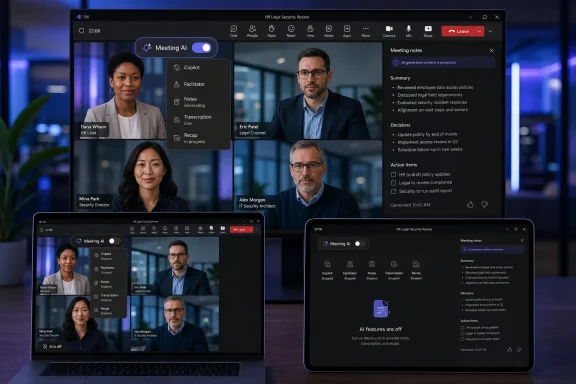
The in-meeting Meeting AI toggle gives hosts a practical way to use Teams’ AI tools for routine discussion, then stop them when the conversation moves into sensitive territory. An indicator visible to everyone in the meeting will show whether Meeting AI is active, but turning it off will not erase notes, responses, or other artifacts that were generated earlier.
The control will appear in the meeting toolbar for eligible organizers and presenters. It governs a collection of features rather than Copilot alone, including Facilitator responses, AI-generated notes, and the processing used to produce meeting recaps.
When Meeting AI is turned off, Teams stops generating new Copilot and Facilitator output. Existing material remains available and continues to be managed under the organization’s retention, compliance, and data-governance policies.
That distinction matters. The toggle is a cutoff switch, not a deletion command or privacy reset. If a confidential subject comes up after AI has already summarized part of the conversation, disabling the feature prevents further generation but does not retract what Teams previously created.
Microsoft is also adding an AI status indicator for participants. This should make it easier for attendees to recognize when the meeting’s audio is being processed for AI features instead of relying solely on the organizer to announce a configuration change.
The most obvious use cases include HR discussions, legal consultations, contract negotiations, security reviews, and meetings involving customer data. Organizers can collect notes and actions during an ordinary project update, for example, then disable AI before discussing employee performance or an undisclosed incident.
That coupling makes the new toggle more complicated than a simple Copilot on-off button. An organizer who turns off Meeting AI but subsequently allows someone to start transcription may not have created the AI-free environment participants expect.
For meetings in which AI processing must remain disabled, Microsoft’s guidance is effectively to keep both Meeting AI and transcription turned off. Organizations that want conventional transcription while excluding Copilot, Facilitator, and recap generation will need to examine the exact configuration available in their tenant rather than assuming the new control separates those functions.
Microsoft’s existing Teams administration documentation already describes several modes for Copilot. It can operate during and after a meeting using a retained transcript, or only during the meeting using temporary speech-to-text processing. Transcription policies and organizer-selected meeting options influence which mode is available.
The new control extends that model into the live meeting itself. It does not eliminate the policy relationships underneath it.
If AI is operating without a retained transcript and the organizer switches Meeting AI off, temporary speech-to-text processing stops and no recap is generated from that mode. If transcription and AI-generated artifacts have already been retained, however, the tenant’s established retention rules still apply.
This is likely to be the largest source of confusion for users. In everyday language, transcription and AI assistance sound like separate features. Inside Teams, they can be parts of the same processing chain.
Licensing also remains unchanged. Organizers and presenters need the appropriate access to Meeting AI or Microsoft 365 Copilot features, while intelligent recap availability can depend on Microsoft 365 Copilot or Teams Premium licensing and the tenant’s meeting policies.
Microsoft says the update will not alter recording behavior, sensitivity labels, retention requirements, or compliance controls. Nor does it replace the meeting options organizers configure before joining a call. It adds another layer of control within the meeting while leaving the organization’s wider governance framework intact.
That means administrators should not treat the arrival of the toggle as a substitute for policy design. A business that prohibits AI in certain classes of meetings still needs suitable Teams policies, meeting templates, sensitivity labels, and user guidance. Relying on an organizer to remember a toolbar switch is weaker than preventing the feature from being available where its use would be inappropriate.
The status indicator may improve transparency, but it does not resolve consent requirements by itself. Rules governing recording, transcription, and automated processing vary by jurisdiction and industry, and some organizations require explicit participant acknowledgement before these capabilities are used.
Administrators should review internal documentation with several practical details in mind:
Organizations should therefore expect uneven availability during the deployment window. Two users with apparently similar licensing may see different meeting controls if their tenants, regions, or release channels have not reached the same stage.
gHacks associates the change with Microsoft 365 Roadmap ID 558286. However, Microsoft’s public roadmap currently displays that identifier against an AI-generated meeting archive capability scheduled for August 2026 rather than the live Meeting AI toggle described in MC1319216. That discrepancy may reflect a changed, reused, or incorrectly reported roadmap reference, so administrators should treat the tenant-specific Message Center notice as the more relevant deployment record.
No administrative action is required to receive the update. The operational work lies in documenting how the switch interacts with transcription and ensuring that meeting owners do not mistake disabled now for nothing was previously captured.
For IT departments, the decisive milestone is not simply when the toolbar button appears. It is whether users understand that Teams’ transcription, recap, and AI features remain interconnected—and that a live toggle can stop future processing without undoing the past.
The in-meeting Meeting AI toggle gives hosts a practical way to use Teams’ AI tools for routine discussion, then stop them when the conversation moves into sensitive territory. An indicator visible to everyone in the meeting will show whether Meeting AI is active, but turning it off will not erase notes, responses, or other artifacts that were generated earlier.
 Teams Gets a Live AI Cutoff Switch
The control will appear in the meeting toolbar for eligible organizers and presenters. It governs a collection of features rather than Copilot alone, including Facilitator responses, AI-generated notes, and the processing used to produce meeting recaps.When Meeting AI is turned off, Teams stops generating new Copilot and Facilitator output. Existing material remains available and continues to be managed under the organization’s retention, compliance, and data-governance policies.
That distinction matters. The toggle is a cutoff switch, not a deletion command or privacy reset. If a confidential subject comes up after AI has already summarized part of the conversation, disabling the feature prevents further generation but does not retract what Teams previously created.
Microsoft is also adding an AI status indicator for participants. This should make it easier for attendees to recognize when the meeting’s audio is being processed for AI features instead of relying solely on the organizer to announce a configuration change.
The most obvious use cases include HR discussions, legal consultations, contract negotiations, security reviews, and meetings involving customer data. Organizers can collect notes and actions during an ordinary project update, for example, then disable AI before discussing employee performance or an undisclosed incident.
Transcription Can Turn the AI Back On
The less obvious part of the update is the relationship between Meeting AI and transcription. According to the behavior described in MC1319216, enabling Meeting AI can start transcription and lead to the creation of a recap. Starting transcription can likewise activate Meeting AI and generate a recap.That coupling makes the new toggle more complicated than a simple Copilot on-off button. An organizer who turns off Meeting AI but subsequently allows someone to start transcription may not have created the AI-free environment participants expect.
For meetings in which AI processing must remain disabled, Microsoft’s guidance is effectively to keep both Meeting AI and transcription turned off. Organizations that want conventional transcription while excluding Copilot, Facilitator, and recap generation will need to examine the exact configuration available in their tenant rather than assuming the new control separates those functions.
Microsoft’s existing Teams administration documentation already describes several modes for Copilot. It can operate during and after a meeting using a retained transcript, or only during the meeting using temporary speech-to-text processing. Transcription policies and organizer-selected meeting options influence which mode is available.
The new control extends that model into the live meeting itself. It does not eliminate the policy relationships underneath it.
If AI is operating without a retained transcript and the organizer switches Meeting AI off, temporary speech-to-text processing stops and no recap is generated from that mode. If transcription and AI-generated artifacts have already been retained, however, the tenant’s established retention rules still apply.
This is likely to be the largest source of confusion for users. In everyday language, transcription and AI assistance sound like separate features. Inside Teams, they can be parts of the same processing chain.
Tenant Policy Still Sets the Boundary
The toggle does not override administrative policy. If an organization has disabled Meeting AI, users will not see the control because there is nothing they are permitted to activate.Licensing also remains unchanged. Organizers and presenters need the appropriate access to Meeting AI or Microsoft 365 Copilot features, while intelligent recap availability can depend on Microsoft 365 Copilot or Teams Premium licensing and the tenant’s meeting policies.
Microsoft says the update will not alter recording behavior, sensitivity labels, retention requirements, or compliance controls. Nor does it replace the meeting options organizers configure before joining a call. It adds another layer of control within the meeting while leaving the organization’s wider governance framework intact.
That means administrators should not treat the arrival of the toggle as a substitute for policy design. A business that prohibits AI in certain classes of meetings still needs suitable Teams policies, meeting templates, sensitivity labels, and user guidance. Relying on an organizer to remember a toolbar switch is weaker than preventing the feature from being available where its use would be inappropriate.
The status indicator may improve transparency, but it does not resolve consent requirements by itself. Rules governing recording, transcription, and automated processing vary by jurisdiction and industry, and some organizations require explicit participant acknowledgement before these capabilities are used.
Administrators should review internal documentation with several practical details in mind:
- Users should understand that switching Meeting AI off does not delete material generated earlier in the meeting.
- Organizers should know that starting transcription can also activate Meeting AI and recap generation.
- Support teams should be able to explain why the toggle may be absent because of policy, licensing, or an incomplete rollout.
- Meeting procedures for legal, HR, security, and regulated workloads should specify whether both transcription and Meeting AI must remain disabled.
A July Rollout With One Roadmap Caveat
The rollout was reportedly moved from June to July 2026. Targeted Release deployment is expected to run from early through mid-July, followed by worldwide general availability from mid-July through the end of July.Organizations should therefore expect uneven availability during the deployment window. Two users with apparently similar licensing may see different meeting controls if their tenants, regions, or release channels have not reached the same stage.
gHacks associates the change with Microsoft 365 Roadmap ID 558286. However, Microsoft’s public roadmap currently displays that identifier against an AI-generated meeting archive capability scheduled for August 2026 rather than the live Meeting AI toggle described in MC1319216. That discrepancy may reflect a changed, reused, or incorrectly reported roadmap reference, so administrators should treat the tenant-specific Message Center notice as the more relevant deployment record.
No administrative action is required to receive the update. The operational work lies in documenting how the switch interacts with transcription and ensuring that meeting owners do not mistake disabled now for nothing was previously captured.
For IT departments, the decisive milestone is not simply when the toolbar button appears. It is whether users understand that Teams’ transcription, recap, and AI features remain interconnected—and that a live toggle can stop future processing without undoing the past.
References
- Primary source: gHacks
Published: 2026-07-13T07:52:33+00:00
Microsoft Teams Adds In-Meeting Toggle to Disable Copilot, Facilitator, and Recap AI - gHacks Tech News
Microsoft Teams is adding an in-meeting toggle for organizers and presenters to disable Meeting AI features including Copilot, Facilitator, and recap.www.ghacks.net - Official source: learn.microsoft.com
Manage Microsoft 365 Copilot in Teams meetings and events - Microsoft Teams | Microsoft Learn
Manage Microsoft 365 Copilot in Teams meetings and events using admin policies. Learn how to manage transcripts and transcription, configure Copilot settings, and apply policies.learn.microsoft.com - Official source: techcommunity.microsoft.com
- Official source: cdn-dynmedia-1.microsoft.com
