

The Plex Media Server message “Not available outside your network” means Plex cannot establish a direct inbound connection from the internet to your server. The fix is usually to restore automatic router mapping or create a TCP port-forward to the server’s local IP address. These instructions cover Plex Media Server on Windows 10, Windows 11, macOS, Linux, supported NAS devices, and NVIDIA SHIELD, with Windows-specific firewall steps included.
Before changing the network, note that since April 29, 2025, remote playback of personal video requires one of the following: the server administrator has Plex Pass, the viewer has Plex Pass, or the viewer has Remote Watch Pass. This subscription requirement is separate from the Remote Access connection status and does not apply to music in Plexamp or photos in Plex Photos.
Start with these checks before editing firewall or router settings:
Automatic mapping is convenient, but it is not required. If UPnP is disabled for security reasons, is unreliable, or is unavailable on the router, use a manual port-forward instead.
The preferred fix is a DHCP reservation in the router rather than a manually configured address in Windows.
Warning: Forward only the required TCP port to the Plex server. Do not place the server in the router’s DMZ, enable router administration from the internet, or expose Plex’s discovery and DLNA ports.
If you run multiple Plex servers behind the same router, each one requires a different external port:
If Plex Media Server is not listed:
To roll back the Windows exception, return to Allow an app through firewall, select Change settings, clear the Plex entry, and select OK.
To detect it:
Warning: Bridge mode can disable the ISP gateway’s Wi-Fi, routing, firewall, and connected-device functions. Record the current configuration first, and confirm that your personal router is ready to receive the internet connection.
Plex identifies the range
If CGNAT is present:
Also inspect:
If the status remains unavailable after a correct firewall rule, reserved address, and port-forward, compare the router’s WAN address with the public IPv4 address again. A mismatch points to unresolved double NAT or CGNAT. If the addresses match, collect the router model, Plex Media Server version, external and internal port mapping, server local IP address, and Plex server logs before escalating to the router manufacturer, ISP, or Plex support forum.
Before changing the network, note that since April 29, 2025, remote playback of personal video requires one of the following: the server administrator has Plex Pass, the viewer has Plex Pass, or the viewer has Remote Watch Pass. This subscription requirement is separate from the Remote Access connection status and does not apply to music in Plexamp or photos in Plex Photos.
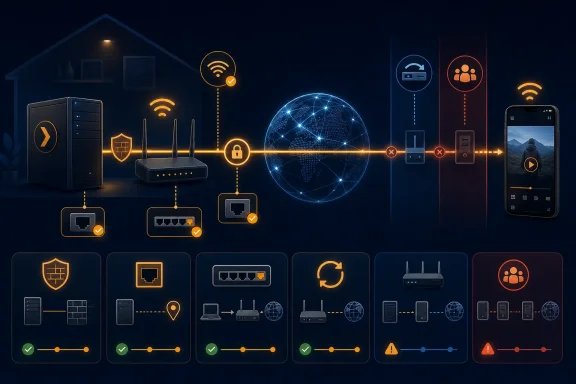 Confirm the server and account are ready
Start with these checks before editing firewall or router settings:- Plex Media Server is running and local playback works.
- The server is signed in to the correct Plex account.
- The computer or NAS is not asleep.
- The server and router both have working internet access.
- The server is not connected through a VPN that forces all traffic through the VPN tunnel.
- You have administrator access to the router.
- You know whether the internet connection uses one router, two routers, or an ISP gateway plus a personal router.
- Open Plex Web App from the server computer. On Windows, right-click the Plex Media Server icon in the notification area and select Open Plex.
- Select Settings.
- Choose the correct server in the left pane.
- Open General under the server name.
- Confirm that the server is signed in to your Plex account.
- Check the displayed server version. If Plex offers a public server update, install it and restart Plex Media Server when prompted.
- Open Remote Access under the server name.
Retry Plex automatic Remote Access
Plex first tries to configure the router automatically using UPnP or NAT-PMP. This is the simplest configuration when the router supports it correctly.- In Plex Web App, go to Settings > Server > Remote Access.
- If Remote Access is enabled, select Disable Remote Access.
- Wait approximately 10 seconds.
- Select Enable Remote Access.
- Allow Plex time to test the connection.
- Sign in to the router’s administration page or app.
- Locate its UPnP, NAT-PMP, or automatic port-mapping setting.
- Confirm that the feature is enabled.
- If it was already enabled, turn it off, save the setting, and then turn it back on.
- Restart the router if its documentation requires it.
- Restart Plex Media Server.
- Return to Settings > Server > Remote Access and select Retry.
Automatic mapping is convenient, but it is not required. If UPnP is disabled for security reasons, is unreliable, or is unavailable on the router, use a manual port-forward instead.
Give the Plex server a reserved local IP address
A manual port-forward must always point to the same device. If the router later assigns a different local IP address to the Plex server, the forwarding rule will stop working.The preferred fix is a DHCP reservation in the router rather than a manually configured address in Windows.
- Open the router’s administration page or app.
- Find the connected-device or DHCP client list.
- Locate the computer, NAS, or SHIELD running Plex Media Server.
- Record its current local IPv4 address, such as
192.168.1.50. - Select the option named Reserve IP, Address Reservation, Static Lease, DHCP Reservation, or similar.
- Reserve the current address for that device.
- Save the configuration.
- Restart the server device if the router requires it.
- Open Windows Terminal, PowerShell, or Command Prompt.
- Run:
ipconfig- Find the active Ethernet or Wi-Fi adapter.
- Record its IPv4 Address and Default Gateway.
192.168.0.1 or 192.168.1.1.Create the manual TCP port-forward
Plex Media Server listens internally on TCP port32400. The router’s external port can also be 32400, but Plex allows a different available external port, typically in the 20000 through 50000 range.Warning: Forward only the required TCP port to the Plex server. Do not place the server in the router’s DMZ, enable router administration from the internet, or expose Plex’s discovery and DLNA ports.
- Sign in to the router’s administration page or app.
- Open Port Forwarding, Virtual Server, NAT Rules, or the equivalent page.
- Create a new rule with these values:
- Name: Plex
- Protocol: TCP
- External/WAN port:
32400, or another available port such as32401 - Internal/LAN port:
32400 - Destination IP: The reserved local IPv4 address of the Plex server
- Enabled: Yes
- Save or apply the rule.
- Restart the router only if its interface or documentation requires it.
- Open Plex Web App.
- Go to Settings > Server > Remote Access.
- Select Show Advanced if the manual-port option is not visible.
- Select Manually specify public port.
- Enter the external port configured in the router. If the router maps external port
32401to internal port32400, enter32401in Plex. - Select Apply or Retry.
32400. Do not enter the custom external port as the internal port unless it also happens to be 32400.If you run multiple Plex servers behind the same router, each one requires a different external port:
- Server 1: external TCP
32401to internal TCP32400 - Server 2: external TCP
32402to internal TCP32400
Allow Plex through Windows Firewall
Microsoft recommends allowing the application through Windows Firewall rather than permanently opening a broad firewall port. An application exception is active only when the allowed program needs it.- Open Start and search for Windows Security.
- Select Firewall & network protection.
- Select Allow an app through firewall.
- Select Change settings and approve the administrator prompt.
- Find Plex Media Server in the list.
- Enable it for the network profile used by the server.
If Plex Media Server is not listed:
- Select Allow another app.
- Select Browse.
- Locate the installed Plex Media Server executable. The location can differ if Plex was installed to a custom folder.
- Add the application.
- Enable it for the appropriate network profile.
- Select OK.
- Open Windows Security > Firewall & network protection.
- Select the active network profile.
- Confirm that Blocks all incoming connections, including those in the list of allowed apps is not enabled.
32400 rule.To roll back the Windows exception, return to Allow an app through firewall, select Change settings, clear the Plex entry, and select OK.
Detect and fix double NAT
Double NAT occurs when two devices are performing routing and address translation. A common example is an ISP modem/router connected to a separate Wi-Fi or mesh router. A correct port-forward on the inner router may still be unreachable because the outer router blocks it.To detect it:
- Open the administration page for the router directly connected to the Plex server.
- Find its WAN, Internet, or External IPv4 address.
- Compare that address with the public IPv4 address reported by a reputable IP-checking service.
- If the addresses differ, another NAT layer probably exists.
10.x.x.x172.16.x.xthrough172.31.x.x192.168.x.x
Put the ISP gateway in bridge or passthrough mode
This is normally the cleanest fix when you want your personal router to manage the network.Warning: Bridge mode can disable the ISP gateway’s Wi-Fi, routing, firewall, and connected-device functions. Record the current configuration first, and confirm that your personal router is ready to receive the internet connection.
- Open the ISP gateway’s administration interface.
- Locate Bridge Mode, Modem Mode, or IP Passthrough.
- Enable the appropriate mode.
- Connect the personal router’s WAN port as directed by the ISP.
- Restart the gateway and personal router.
- Confirm that the personal router now receives the public IPv4 address.
- Retest Plex Remote Access.
Put the secondary router in access-point mode
Use this approach when you want the ISP gateway to remain the main router.- Open the secondary router or mesh system’s settings.
- Enable Access Point Mode, Bridge Mode, or its equivalent.
- Apply the change and allow the network to restart.
- Recreate the Plex port-forward on the ISP gateway, pointing to the Plex server’s new reserved address.
- Retest Remote Access.
Forward through both routers
This is a workaround when neither device can be placed in bridge or access-point mode.- On the outer router, forward the chosen external TCP port to the WAN address of the inner router.
- On the inner router, forward that same TCP port to internal port
32400on the Plex server. - Enter the external port in Plex under Manually specify public port.
- Retest the connection.
Check for carrier-grade NAT
Carrier-grade NAT, or CGNAT, means the ISP shares one public IPv4 address among multiple customers. You cannot fix CGNAT with a normal router port-forward because the ISP controls the outer NAT device.Plex identifies the range
100.64.0.0 through 100.127.255.255 as a common sign of CGNAT. A different router WAN address from the public address can also indicate CGNAT even when that specific range is not shown.If CGNAT is present:
- Contact the ISP.
- Ask whether the connection uses CGNAT.
- Request a public IPv4 address or a static IPv4 option.
- After the ISP changes the connection, restart the modem, router, and Plex server.
- verify the router now receives the public IPv4 address.
- Retest the manual port-forward.
Eliminate VPN, proxy, and security conflicts
A VPN running on the Plex server can send Plex’s outbound traffic through one address while the router accepts inbound connections on another. That breaks the expected connection path.- Temporarily disconnect the VPN on the Plex server.
- Restart Plex Media Server.
- Select Retry under Settings > Server > Remote Access.
- If Remote Access works, configure the VPN client’s split-tunneling feature to exclude Plex Media Server.
- Reconnect the VPN and test again.
Also inspect:
- Router security services that block unsolicited inbound connections
- ISP security products such as gateway-level threat protection
- Ad-blocking or DNS-filtering software on the server
- Proxy settings
- Container or virtual-machine networking that does not expose TCP
32400to the host network
Verify the fix from outside the home network
Do not test remote access while the player remains connected to home Wi-Fi; that only verifies local access.- Leave Plex Media Server running.
- On a phone, turn off Wi-Fi so it uses cellular data.
- Open the Plex app and sign in.
- Select the home server.
- Play a small media item.
- Return to Plex Web App on the server and open Settings > Server > Remote Access.
- Confirm that Plex reports the server as fully accessible outside the network.
If the status remains unavailable after a correct firewall rule, reserved address, and port-forward, compare the router’s WAN address with the public IPv4 address again. A mismatch points to unresolved double NAT or CGNAT. If the addresses match, collect the router model, Plex Media Server version, external and internal port mapping, server local IP address, and Plex server logs before escalating to the router manufacturer, ISP, or Plex support forum.
References
- Primary source: MSPoweruser
Published: 2026-07-14T19:56:14+00:00
How to Fix Plex "Not Available Outside Your Network" Error
There is nothing more frustrating than settling into a hotel room, opening your phone, and realizing your home media library is completely unreachable. The “Not Available Outside Your Network” error is one of the most common issues Plex Media Server users face. When your Plex server... mspoweruser.com
- Related coverage: support.plex.tv
What network ports do I need to allow through my firewall? | Plex Support
Note: This article is discussing ports in the local firewall of the computer running Plex Media Server. This is not...support.plex.tv
