

Windows 11 KB5101650 now includes Microsoft’s fix for a runaway
As first reported in detail by Windows Latest, affected systems failed to checkpoint a write-ahead log maintained by the Windows Capability Access Manager service. Microsoft describes the change rather cautiously in its release notes: “This update improves disk space usage for the CapabilityAccessManager.db-wal file.”
That wording matters. KB5101650 should prevent continued uncontrolled growth, but Microsoft has not promised that an existing 50GB, 200GB, or larger file will automatically shrink after installation. Users and administrators should therefore verify both the Windows build and the file size rather than assuming that a successful Windows Update has reclaimed the missing capacity.
Microsoft initially delivered the storage correction in the June 23 optional preview update, KB5095093, for Windows 11 24H2 and 25H2. The storage entry was not present when that update first shipped; Microsoft added it to the changelog on June 29.
KB5101650 carries those non-security fixes into the regular July cumulative update. Unlike features distributed through Microsoft’s gradual rollout mechanism, the Capability Access Manager correction is listed as part of the normal deployment, so an eligible PC does not need to wait for a server-side enablement switch.
To confirm that the July update is installed, open Settings > Windows Update > Update history and look for
A successful result confirms the cumulative update is present. It does not, by itself, prove that previously consumed storage has been released.
A WAL file growing temporarily is normal. The failure occurred when Windows did not perform the expected checkpoint and cleanup, allowing new records to accumulate indefinitely.
The fastest growth was associated with software making frequent location-related requests. Reports have implicated Rainmeter’s WiFiStatus plugin, Dell’s SmartByte components and GeoComply, but the evidence points to Windows rather than those applications as the underlying failure. The applications generated frequent legitimate writes;
IT administrator Max Allen documented the problem across roughly 10,000 endpoints on his Azure to the Max blog. In one week, 59 percent of that fleet reportedly had a WAL file larger than 1GB, hundreds of devices added more than 10GB, and the worst endpoint grew by 65GB. One observed file reached 332GB, while separate reports examined by Windows Latest reached approximately 500GB.
The distribution was uneven. Another scan covering about 8,000 systems reportedly found only one file above 500MB, suggesting that particular application workloads and location activity heavily influenced whether a machine encountered serious growth.
Allen traced affected devices to Windows builds installed from around February or March 2026 onward. According to his account, Microsoft privately acknowledged the issue in a support case on May 13, although the company did not add it to the public Windows release health dashboard.
An unexplained total in the tens or hundreds of gigabytes may indicate the Capability Access Manager problem, particularly when the page file and hibernation file do not account for it. Because the directory is protected by the SYSTEM account, storage-analysis utilities may display the capacity as inaccessible or unaccounted-for space.
An elevated Command Prompt can list the protected directory without copying anything:
The
A small file measured in kilobytes or a few megabytes is not cause for concern. A file measured in multiple gigabytes warrants attention, especially if repeating the command later shows that it is continuing to grow.
For managed estates, administrators should inventory the path remotely rather than relying solely on low-disk alerts. The bug can turn what appears to be ordinary storage pressure into an expanding fleet problem, and the Windows Storage interface does not name the responsible file.
Reports following the June preview update were mixed on automatic reclamation. Some users saw the file return to a normal size, while others found that the large existing WAL remained in place even though further runaway growth appeared to stop. Microsoft’s release note does not clarify whether KB5101650 actively truncates every oversized log created before the fix.
If the file remains enormous, avoid taking ownership of the entire Capability Access Manager folder or deleting the primary
Before the permanent fix, Microsoft support reportedly advised affected users to enter Safe Mode, stop
Those are recovery procedures, not routine maintenance. On business endpoints, administrators should preserve logs, verify backups and test the operation on representative hardware before applying scripted deletion across a fleet.
If permissions were altered during an earlier cleanup attempt, reports indicate that resetting the directory ACLs helped restore normal service behavior:
That command should not be run pre-emptively on healthy systems. It is a repair measure for machines where ownership or permissions were already changed.
KB5101650 closes the checkpoint failure for the supported Windows 11 24H2 and 25H2 builds, but the practical job is not finished until free space returns. Install the July update, confirm build 26100.8875 or 26200.8875, and measure
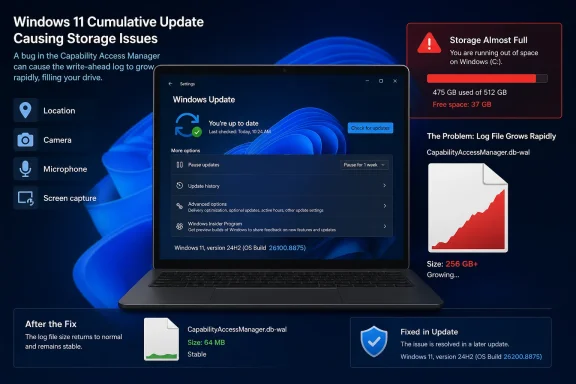
CapabilityAccessManager.db-wal file that has consumed tens or even hundreds of gigabytes on some PCs. The mandatory July 14, 2026 Patch Tuesday update moves Windows 11 25H2 to build 26200.8875 and Windows 11 24H2 to build 26100.8875, but installing it may not immediately return storage already swallowed by the bug.As first reported in detail by Windows Latest, affected systems failed to checkpoint a write-ahead log maintained by the Windows Capability Access Manager service. Microsoft describes the change rather cautiously in its release notes: “This update improves disk space usage for the CapabilityAccessManager.db-wal file.”
That wording matters. KB5101650 should prevent continued uncontrolled growth, but Microsoft has not promised that an existing 50GB, 200GB, or larger file will automatically shrink after installation. Users and administrators should therefore verify both the Windows build and the file size rather than assuming that a successful Windows Update has reclaimed the missing capacity.
 The July Update Moves the Fix Into Broad Deployment
Microsoft initially delivered the storage correction in the June 23 optional preview update, KB5095093, for Windows 11 24H2 and 25H2. The storage entry was not present when that update first shipped; Microsoft added it to the changelog on June 29.KB5101650 carries those non-security fixes into the regular July cumulative update. Unlike features distributed through Microsoft’s gradual rollout mechanism, the Capability Access Manager correction is listed as part of the normal deployment, so an eligible PC does not need to wait for a server-side enablement switch.
To confirm that the July update is installed, open Settings > Windows Update > Update history and look for
KB5101650. Running winver should report one of these builds:- Windows 11 25H2 should report OS build 26200.8875.
- Windows 11 24H2 should report OS build 26100.8875.
Get-HotFix -Id KB5101650A successful result confirms the cumulative update is present. It does not, by itself, prove that previously consumed storage has been released.
A Database Log Became a Bottomless Storage Sink
Capability Access Manager, exposed through thecamsvc service, handles and records app interactions with privacy-sensitive capabilities such as location, camera, microphone, and screen capture. Its data resides under:C:\ProgramData\Microsoft\Windows\CapabilityAccessManagerCapabilityAccessManager.db is the primary SQLite database. CapabilityAccessManager.db-wal is its write-ahead log, where transactions can be staged before being checkpointed into the main database.A WAL file growing temporarily is normal. The failure occurred when Windows did not perform the expected checkpoint and cleanup, allowing new records to accumulate indefinitely.
The fastest growth was associated with software making frequent location-related requests. Reports have implicated Rainmeter’s WiFiStatus plugin, Dell’s SmartByte components and GeoComply, but the evidence points to Windows rather than those applications as the underlying failure. The applications generated frequent legitimate writes;
camsvc failed to merge and compact them correctly.IT administrator Max Allen documented the problem across roughly 10,000 endpoints on his Azure to the Max blog. In one week, 59 percent of that fleet reportedly had a WAL file larger than 1GB, hundreds of devices added more than 10GB, and the worst endpoint grew by 65GB. One observed file reached 332GB, while separate reports examined by Windows Latest reached approximately 500GB.
The distribution was uneven. Another scan covering about 8,000 systems reportedly found only one file above 500MB, suggesting that particular application workloads and location activity heavily influenced whether a machine encountered serious growth.
Allen traced affected devices to Windows builds installed from around February or March 2026 onward. According to his account, Microsoft privately acknowledged the issue in a support case on May 13, although the company did not add it to the public Windows release health dashboard.
Check the File Instead of Trusting the Storage Graph
Windows Settings can reveal the symptom without identifying its source. Open Settings > System > Storage > Show more categories > System & reserved and inspect the System files figure.An unexplained total in the tens or hundreds of gigabytes may indicate the Capability Access Manager problem, particularly when the page file and hibernation file do not account for it. Because the directory is protected by the SYSTEM account, storage-analysis utilities may display the capacity as inaccessible or unaccounted-for space.
An elevated Command Prompt can list the protected directory without copying anything:
robocopy "C:\ProgramData\Microsoft\Windows\CapabilityAccessManager" "%TEMP%\CAMCheck" /L /B /R:0 /W:0 /BYTES /NPThe
/L switch performs a listing only, while /B uses backup mode to read protected metadata. Check the byte count beside CapabilityAccessManager.db-wal.A small file measured in kilobytes or a few megabytes is not cause for concern. A file measured in multiple gigabytes warrants attention, especially if repeating the command later shows that it is continuing to grow.
For managed estates, administrators should inventory the path remotely rather than relying solely on low-disk alerts. The bug can turn what appears to be ordinary storage pressure into an expanding fleet problem, and the Windows Storage interface does not name the responsible file.
Patch First, Then Decide Whether Cleanup Is Necessary
The safest sequence for a PC with adequate free space is to install KB5101650, restart Windows and inspect the WAL file again. Do not delete the file first unless insufficient disk space prevents Windows Update from installing.Reports following the June preview update were mixed on automatic reclamation. Some users saw the file return to a normal size, while others found that the large existing WAL remained in place even though further runaway growth appeared to stop. Microsoft’s release note does not clarify whether KB5101650 actively truncates every oversized log created before the fix.
If the file remains enormous, avoid taking ownership of the entire Capability Access Manager folder or deleting the primary
CapabilityAccessManager.db database. Users who manipulated the directory while camsvc was active reported broken Wi-Fi enumeration, lost network credentials, camera and microphone permission resets, Location settings failures and service error 1067.Before the permanent fix, Microsoft support reportedly advised affected users to enter Safe Mode, stop
camsvc and delete only CapabilityAccessManager.db-wal. Some users instead renamed the file from Windows Recovery Environment, restarted Windows to let it create a fresh log, and deleted the old copy after confirming normal operation.Those are recovery procedures, not routine maintenance. On business endpoints, administrators should preserve logs, verify backups and test the operation on representative hardware before applying scripted deletion across a fleet.
If permissions were altered during an earlier cleanup attempt, reports indicate that resetting the directory ACLs helped restore normal service behavior:
icacls "C:\ProgramData\Microsoft\Windows\CapabilityAccessManager" /reset /T /CThat command should not be run pre-emptively on healthy systems. It is a repair measure for machines where ownership or permissions were already changed.
KB5101650 closes the checkpoint failure for the supported Windows 11 24H2 and 25H2 builds, but the practical job is not finished until free space returns. Install the July update, confirm build 26100.8875 or 26200.8875, and measure
CapabilityAccessManager.db-wal; only systems where the oversized file persists should need manual recovery.References
- Primary source: Windows Latest
Published: 2026-07-15T03:02:47+00:00
Microsoft just fixed a bug using massive Windows 11 storage, verify if it's applied to your PC
Microsoft knew about the Windows 11 storage bug in May. The July 2026 security update finally fixes it but check your drive space first. www.windowslatest.com
- Official source: support.microsoft.com
June 23, 2026—KB5095093 (OS Builds 26200.8737 and 26100.8737) Preview | Microsoft Support
June 23, 2026—KB5095093 (OS Builds 26200.8737 and 26100.8737) Previewsupport.microsoft.com - Official source: techcommunity.microsoft.com
- Related coverage: bleepingcomputer.com
- Related coverage: windowscentral.com
Windows 11 is accidentally wasting up to 500GB of your PC's storage | Windows Central
A bloated file related to app permissions is gobbling up hard drive space, but Microsoft's latest update addresses the issue.www.windowscentral.com - Related coverage: techradar.com
Keep running low on storage and don't know why? Mysterious Windows 11 file that ate tons of drive space is fixed in latest update | TechRadar
Latest update finally fixes a 'notorious culprit for system bloat'www.techradar.com
