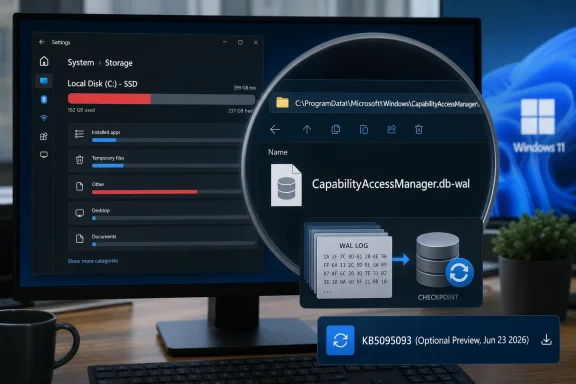
Microsoft’s June 23, 2026 optional Windows 11 preview update, KB5095093, includes a fix for runaway disk usage tied to
The offending file lives under Windows’ Capability Access Manager, the component that helps govern whether apps can reach sensitive capabilities such as the camera, microphone, location, contacts, and other privacy-scoped resources. In normal terms, this is not supposed to be a headline-making subsystem. It is one of the many services that make modern Windows feel less like a free-for-all and more like a permissions-mediated platform.
The file name gives away the mechanism.
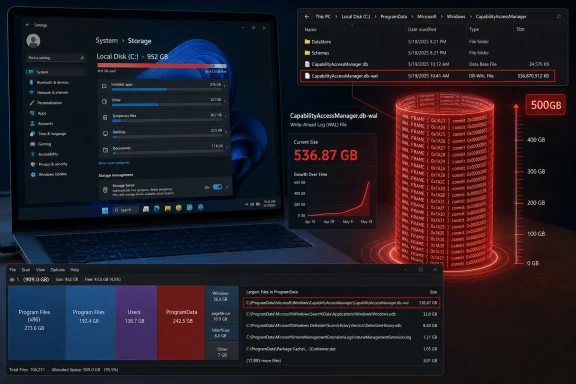
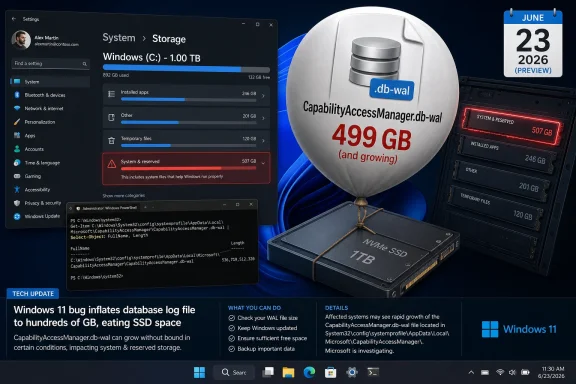
But mundane plumbing becomes news when it eats a boot drive. Reports from affected Windows 11 users describe the file swelling from annoying to absurd: 12GB, 25GB, 58GB, 100GB, 200GB, and in one particularly ugly report, far beyond that. The common symptom was not a crash or an obvious permissions failure. It was the creeping discovery that the C: drive was evaporating while Disk Cleanup, Storage Sense, and the usual “delete your downloads” rituals did nothing useful.
That matters because the modern Windows PC has less storage margin than the spec sheets pretend. Plenty of laptops still ship with 256GB SSDs, and cheaper or older machines can have less. A 60GB internal log file is not just untidy on those systems; it is the difference between a working PC and one that cannot update, sync files, install games, compile projects, or even keep breathing comfortably.
The nastiest thing about storage bugs is that they masquerade as user failure. Windows tells you the drive is full, but not necessarily why in a way most people can act on. “System files” grows. Temporary files do not explain it. Installed apps look normal. OneDrive, game launchers, browser caches, update leftovers, virtual machines, and restore points all become suspects before anyone thinks to inspect an internal database log buried inside ProgramData.
That dynamic changes the character of the bug. A blue screen is abrupt and unmistakable. A runaway write-ahead log is ambient. It lets the user blame themselves, uninstall software they need, move personal files they wanted local, or buy storage they should not have had to buy.
For administrators, the pain is different but no less real. A small fleet of affected machines can become a ticket storm: low disk alerts, failed updates, unexplained performance degradation, and user complaints that appear unrelated until someone correlates file paths. Worse, deleting the file was not necessarily a clean end to the problem. If the underlying condition still existed, users reported that the log could return, rebuild, or resist removal because the service was still involved.
That restraint may be defensible from a support perspective. Microsoft often avoids overcommitting when a bug is situational, telemetry-dependent, or still being watched through staged rollout. But from the user’s side, the gap is frustrating. If a Windows component can consume dozens or hundreds of gigabytes, “improves disk space usage” is less a disclosure than a hint.
The timeline makes the communication problem sharper. Public complaints appear to have circulated well before the late-June preview update. Some users described the file as a known culprit for system bloat, with the expectation that it should be periodically compacted or emptied but, on their machines, was not. By the time the fix appeared, the community had already reverse-engineered enough of the issue to identify the service, the file, the path, the workaround, and the risk that it would come back.
That is the part Microsoft should study. Windows users are not shocked that bugs exist. They are far less forgiving when the official record catches up only after affected customers have built the map themselves.
That servicing model is logical on paper. Users who need a fix urgently can install the preview. Enterprises and cautious consumers can wait until the changes roll into the next mandatory cumulative update, after more telemetry and a little more time in the wild. For this issue, that means the fix is available now for those willing to install the June preview, while most users should see it in the July cumulative update if Microsoft proceeds as expected.
But this model creates a practical dilemma when the bug is actively eating storage. If your PC has 100GB free and the file is stable, waiting for July is sensible. If your drive is filling by the day, the optional update stops looking optional. The preview channel becomes a public triage lane, and the user must decide which risk is worse: installing a not-yet-mandatory cumulative update, or leaving a known storage leak alone.
That is especially awkward because KB5095093 is not a single-issue hotfix. It also includes other Windows 11 changes, including File Explorer improvements, recovery-related additions, Bluetooth and input fixes, and the usual bundle of cumulative servicing changes. Installing it to fix one runaway file means accepting the whole package. That is how Windows servicing works now, but it still feels blunt when the problem is narrow and painful.
The storage fix is less glamorous but arguably more important. Performance bugs annoy; invisible disk consumption destabilizes. A PC with a full system drive becomes brittle in ways that cascade through the entire operating system. Windows Update may fail. Apps may crash or refuse to save state. Search indexing, browser profiles, crash dumps, sync clients, and developer tools all start behaving badly.
This is why “just delete the file” was never a satisfying answer. Even when community workarounds succeeded, they required a level of confidence most users should not need for routine system hygiene. Stopping services, booting into Safe Mode, renaming database logs, and hoping Windows rebuilds state correctly is not normal maintenance. It is surgery being performed because the patient ran out of oxygen.
Microsoft’s fix suggests the company found a way to change how the log grows, checkpoints, compacts, or gets cleaned up. That is good. But the episode reveals how little visibility Windows gives users when internal operating-system state goes feral. Storage Settings can show categories, but it still often fails to make the causal chain obvious: this service, this file, this growth rate, this remediation.
That privacy ledger has value. In enterprise environments, it also intersects with compliance, auditability, and user consent. The operating system needs a durable record of capability access decisions, and it needs to survive restarts and app churn. A database with a write-ahead log is a perfectly reasonable implementation.
The bug, then, is not that Windows keeps records. The bug is that the record-keeping mechanism appears to have lost its boundary. Logs are supposed to rotate, checkpoint, compact, or age out. They are not supposed to become geological formations on the boot volume.
The broader design lesson is that every privacy and security feature has an operational cost. Telemetry, audit trails, access ledgers, antimalware histories, update caches, restore snapshots, and rollback states all consume disk. Each one is defensible in isolation. Together, without strong quotas and intelligible reporting, they can make the user feel as if Windows is occupying the machine rather than running on it.
That is why a runaway 25GB file is not a rounding error. On a budget laptop used for school or office work, it can be a material chunk of available space. On a developer machine with WSL images, containers, SDKs, and build artifacts, it can be the thing that tips the system into failure. On a family PC with photos synced locally, it can create the impression that personal files are the problem.
The low-end Windows ecosystem magnifies bugs like this. Premium laptops with 1TB or 2TB drives can absorb waste long enough for a patch to arrive. Cheaper machines cannot. The people most likely to be hurt by runaway system storage are often the least likely to know where to look or to be comfortable deleting internal database files.
This is one of the recurring inequities of Windows maintenance. Power users find the file with WizTree or TreeSize, identify the service, search Reddit, and apply a workaround. Everyone else sees a red storage bar and starts sacrificing downloads, photos, and apps while the real culprit sits untouched.
But the operational lesson is broader. IT teams should treat this as another reminder that Windows health monitoring needs file-level escape hatches. Aggregate free-space alerts are necessary, but they are not enough. When a system directory grows abnormally, administrators need tooling that can identify the culprit without manual archaeology.
The issue also illustrates why optional previews remain politically complicated inside enterprises. Microsoft wants feedback and early validation. Administrators want predictability. A preview update that fixes a painful bug may also introduce changes the organization has not tested, which means the fix arrives wrapped in uncertainty.
That tradeoff is not going away. Windows is now a continuously serviced platform, and cumulative updates are the delivery vehicle. The best enterprises can do is build rings, test quickly, and monitor the specific failure modes that matter to their users. In this case, that means watching both the file path and the post-update behavior closely enough to confirm that the log stops growing after deployment.
That variability is exactly why Microsoft should be more explicit when internal system files become known storage hazards. A support note does not need to publish every engineering detail. It should, however, answer the practical questions users and admins actually have: how to identify the issue, whether deleting the file is supported, whether permissions history is lost, whether the file will rebuild safely, and whether the fixed update cleans up existing bloat or merely prevents future growth.
The current phrasing leaves too much to inference. “Improves disk space usage” could mean the update prevents future expansion. It could mean it compacts existing logs. It could mean it changes checkpoint behavior under certain conditions. Those distinctions matter to a user who has already lost 100GB and wants to know whether installing KB5095093 will give it back.
If the answer is “install the update, reboot, and the file should shrink over time,” Microsoft should say that. If the answer is “the update prevents recurrence, but manual cleanup may be required,” it should say that too. Silence forces users back into forums, which is useful for discovery but a poor substitute for vendor guidance.
That is an old Windows fear in modern clothing. For decades, users have worried that the operating system accumulates debris: registry cruft, update leftovers, driver packages, installer caches, orphaned profiles, shadow copies, and logs. Microsoft has improved much of this, but the cultural memory remains. A 200GB internal log file confirms every suspicion people already had.
The company’s challenge is therefore not merely to patch the code. It is to show that Windows can account for itself. If system components reserve space, say so. If logs grow, cap them. If recovery features consume tens of gigabytes, expose that clearly. If a bug causes abnormal growth, publish a supportable cleanup path.
Windows 11 is increasingly full of features that depend on background state: recall-like histories in some markets and configurations, AI indexing, app permission tracking, recovery snapshots, cloud sync metadata, update orchestration, and security telemetry. Each feature may be defensible. The aggregate requires a stronger contract with the user: the system may use your disk, but it must not make the usage mysterious.
That does not mean everyone should rush. Optional previews are useful when they address a problem you actually have, but they are not mandatory hygiene. If your storage is stable and you do not need the other fixes in KB5095093, waiting for the July update is the conservative move.
If your C: drive is actively filling up and the file path matches the reports, the calculation changes. At that point, the preview update may be the least risky option, especially compared with repeated manual deletion of a live system database log. Even then, users should back up important data before applying updates or attempting cleanup, because storage-pressure troubleshooting has a way of turning one problem into several.
The bigger unknown is cleanup behavior. Users who already have a massive WAL file need to know whether Windows will shrink it after the patch or whether they must reclaim the space manually. Until that becomes clearer across more machines, the best advice is to verify rather than assume: check the file size before updating, reboot after updating, and check again after the system has had time to settle.
The report also sharpens the likely failure mode: the
For users and admins, the practical advice is unchanged but now more urgent: if “System files” or “System and reserved” storage is abnormally large, check the Capability Access Manager WAL file directly before deleting personal data or rebuilding the machine. After installing the July cumulative update or KB5095093, restart and monitor the file size to confirm that it returns to normal behavior.
Microsoft still has not publicly explained why some systems allowed the log to balloon so dramatically in the first place, nor whether affected machines always reclaim already-lost space automatically.
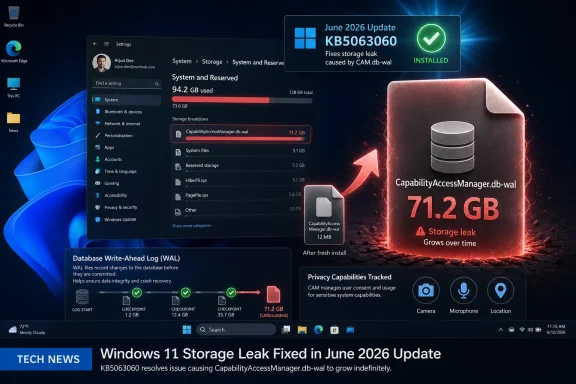
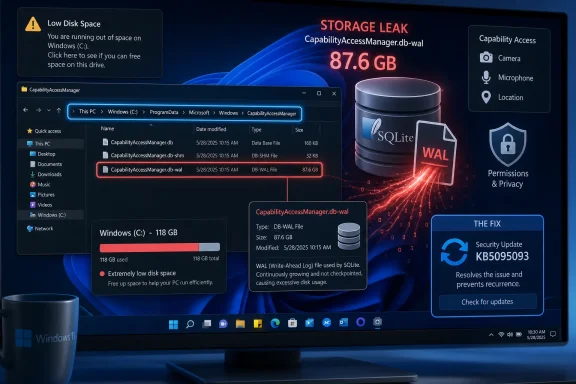
CapabilityAccessManager.db-wal, a background database log used by the Capability Access Manager service to track app access to privacy-sensitive hardware and permissions. That dry changelog line lands after months of user reports describing tens, hundreds, and in one case reportedly more than 500 gigabytes of space consumed by a file most people had never heard of. The bug is not spectacular in the blue-screen sense, but it is exactly the kind of Windows failure that corrodes trust: invisible, persistent, hard to diagnose, and strangely under-explained. Microsoft has apparently fixed the leak; the larger story is how long users were left to discover the plumbing for themselves.
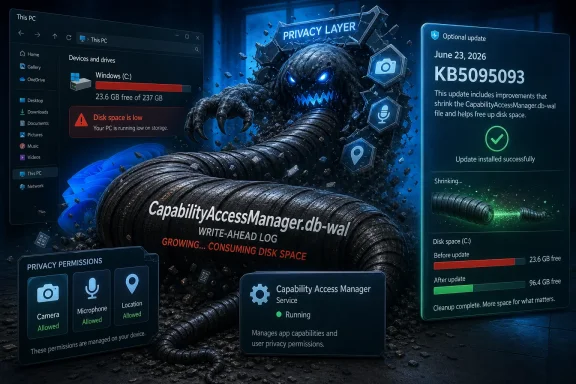 Windows 11’s Storage Monster Was Hiding in the Privacy Stack
The offending file lives under Windows’ Capability Access Manager, the component that helps govern whether apps can reach sensitive capabilities such as the camera, microphone, location, contacts, and other privacy-scoped resources. In normal terms, this is not supposed to be a headline-making subsystem. It is one of the many services that make modern Windows feel less like a free-for-all and more like a permissions-mediated platform.The file name gives away the mechanism.
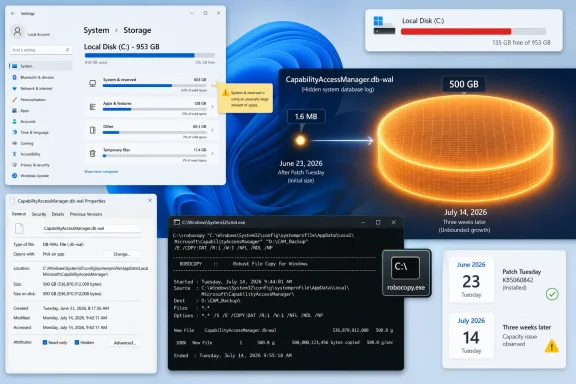
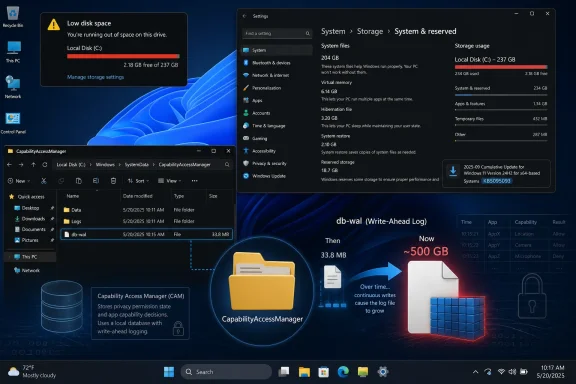
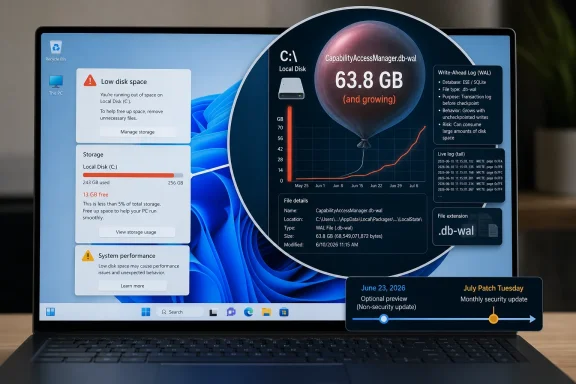
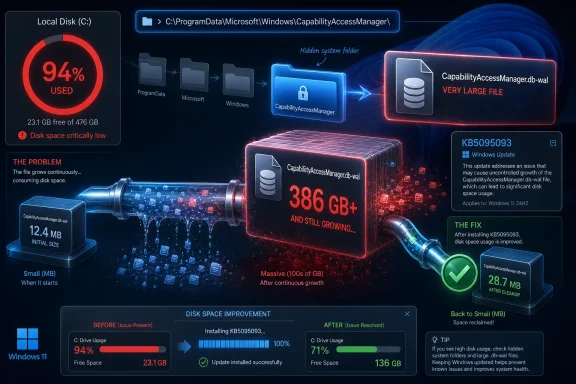
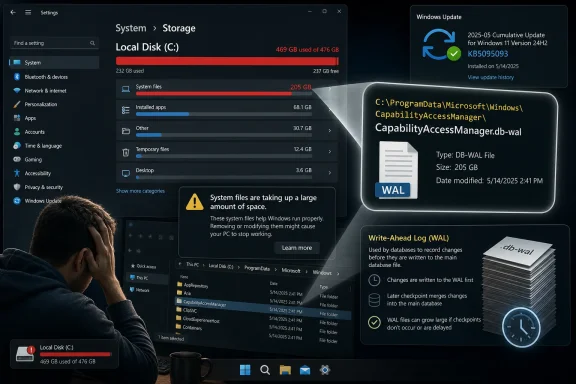
CapabilityAccessManager.db-wal is a write-ahead log, a companion file used by database systems to record changes before they are committed back into the main database. Write-ahead logging is not exotic, not suspicious, and not inherently wasteful. It is the sort of mundane resilience feature that keeps small pieces of state coherent when apps come and go, services restart, and the operating system records who asked for what.But mundane plumbing becomes news when it eats a boot drive. Reports from affected Windows 11 users describe the file swelling from annoying to absurd: 12GB, 25GB, 58GB, 100GB, 200GB, and in one particularly ugly report, far beyond that. The common symptom was not a crash or an obvious permissions failure. It was the creeping discovery that the C: drive was evaporating while Disk Cleanup, Storage Sense, and the usual “delete your downloads” rituals did nothing useful.
That matters because the modern Windows PC has less storage margin than the spec sheets pretend. Plenty of laptops still ship with 256GB SSDs, and cheaper or older machines can have less. A 60GB internal log file is not just untidy on those systems; it is the difference between a working PC and one that cannot update, sync files, install games, compile projects, or even keep breathing comfortably.
The Bug Was Obscure, but the Pain Was Ordinary
There is a temptation to treat this as an enthusiast curiosity: a weird file, a few Reddit detectives, a funny horror-movie quote, and then a patch. That undersells the problem. The affected users were not debugging a beta kernel extension or poking unsupported registry keys; they were running Windows 11 and watching storage disappear.The nastiest thing about storage bugs is that they masquerade as user failure. Windows tells you the drive is full, but not necessarily why in a way most people can act on. “System files” grows. Temporary files do not explain it. Installed apps look normal. OneDrive, game launchers, browser caches, update leftovers, virtual machines, and restore points all become suspects before anyone thinks to inspect an internal database log buried inside ProgramData.
That dynamic changes the character of the bug. A blue screen is abrupt and unmistakable. A runaway write-ahead log is ambient. It lets the user blame themselves, uninstall software they need, move personal files they wanted local, or buy storage they should not have had to buy.
For administrators, the pain is different but no less real. A small fleet of affected machines can become a ticket storm: low disk alerts, failed updates, unexplained performance degradation, and user complaints that appear unrelated until someone correlates file paths. Worse, deleting the file was not necessarily a clean end to the problem. If the underlying condition still existed, users reported that the log could return, rebuild, or resist removal because the service was still involved.
Microsoft Fixed the File Before It Fully Explained the Failure
The official language in KB5095093 is notably narrow: the update “improves disk space usage” for theCapabilityAccessManager.db-wal file. That is classic Microsoft changelog phrasing — accurate enough to be useful, vague enough to avoid telling a story. It does not call the behavior a bug. It does not identify a trigger. It does not say whether the issue is limited to certain device vendors, Windows 11 versions, app behaviors, privacy settings, or upgrade paths.That restraint may be defensible from a support perspective. Microsoft often avoids overcommitting when a bug is situational, telemetry-dependent, or still being watched through staged rollout. But from the user’s side, the gap is frustrating. If a Windows component can consume dozens or hundreds of gigabytes, “improves disk space usage” is less a disclosure than a hint.
The timeline makes the communication problem sharper. Public complaints appear to have circulated well before the late-June preview update. Some users described the file as a known culprit for system bloat, with the expectation that it should be periodically compacted or emptied but, on their machines, was not. By the time the fix appeared, the community had already reverse-engineered enough of the issue to identify the service, the file, the path, the workaround, and the risk that it would come back.
That is the part Microsoft should study. Windows users are not shocked that bugs exist. They are far less forgiving when the official record catches up only after affected customers have built the map themselves.
Optional Preview Updates Are Becoming Windows’ Public Waiting Room
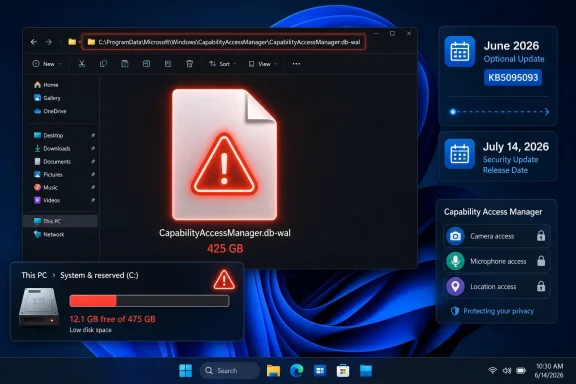
KB5095093 is an optional preview update, the kind often called a C-release in Windows servicing shorthand. It is not a monthly security update. It is a late-month package where Microsoft ships non-security fixes and feature changes ahead of broader inclusion in the next Patch Tuesday release.That servicing model is logical on paper. Users who need a fix urgently can install the preview. Enterprises and cautious consumers can wait until the changes roll into the next mandatory cumulative update, after more telemetry and a little more time in the wild. For this issue, that means the fix is available now for those willing to install the June preview, while most users should see it in the July cumulative update if Microsoft proceeds as expected.
But this model creates a practical dilemma when the bug is actively eating storage. If your PC has 100GB free and the file is stable, waiting for July is sensible. If your drive is filling by the day, the optional update stops looking optional. The preview channel becomes a public triage lane, and the user must decide which risk is worse: installing a not-yet-mandatory cumulative update, or leaving a known storage leak alone.
That is especially awkward because KB5095093 is not a single-issue hotfix. It also includes other Windows 11 changes, including File Explorer improvements, recovery-related additions, Bluetooth and input fixes, and the usual bundle of cumulative servicing changes. Installing it to fix one runaway file means accepting the whole package. That is how Windows servicing works now, but it still feels blunt when the problem is narrow and painful.
The File Explorer Fixes Got the Spotlight, but Storage Is the Trust Issue
Much of the coverage around KB5095093 has understandably focused on more visible improvements, particularly File Explorer responsiveness. File Explorer is the face of Windows in a way Capability Access Manager never will be. When Explorer gets faster, users notice immediately.The storage fix is less glamorous but arguably more important. Performance bugs annoy; invisible disk consumption destabilizes. A PC with a full system drive becomes brittle in ways that cascade through the entire operating system. Windows Update may fail. Apps may crash or refuse to save state. Search indexing, browser profiles, crash dumps, sync clients, and developer tools all start behaving badly.
This is why “just delete the file” was never a satisfying answer. Even when community workarounds succeeded, they required a level of confidence most users should not need for routine system hygiene. Stopping services, booting into Safe Mode, renaming database logs, and hoping Windows rebuilds state correctly is not normal maintenance. It is surgery being performed because the patient ran out of oxygen.
Microsoft’s fix suggests the company found a way to change how the log grows, checkpoints, compacts, or gets cleaned up. That is good. But the episode reveals how little visibility Windows gives users when internal operating-system state goes feral. Storage Settings can show categories, but it still often fails to make the causal chain obvious: this service, this file, this growth rate, this remediation.
The Privacy Permission Ledger Should Not Become a Landfill
There is an irony in the component involved. Capability Access Manager exists because Windows has moved, slowly and imperfectly, toward a permission model closer to the one users expect from mobile platforms. Apps should not be able to silently grab a microphone or camera without oversight. Windows has to remember permission decisions, access attempts, and related state.That privacy ledger has value. In enterprise environments, it also intersects with compliance, auditability, and user consent. The operating system needs a durable record of capability access decisions, and it needs to survive restarts and app churn. A database with a write-ahead log is a perfectly reasonable implementation.
The bug, then, is not that Windows keeps records. The bug is that the record-keeping mechanism appears to have lost its boundary. Logs are supposed to rotate, checkpoint, compact, or age out. They are not supposed to become geological formations on the boot volume.
The broader design lesson is that every privacy and security feature has an operational cost. Telemetry, audit trails, access ledgers, antimalware histories, update caches, restore snapshots, and rollback states all consume disk. Each one is defensible in isolation. Together, without strong quotas and intelligible reporting, they can make the user feel as if Windows is occupying the machine rather than running on it.
Small SSDs Expose the Myth of Infinite Windows Headroom
Windows 11’s baseline storage assumptions have drifted upward for years. The operating system itself is bigger, update staging needs space, recovery features reserve capacity, browsers cache aggressively, Teams and Office accumulate data, and games or creative apps can devour what remains. A 256GB SSD is still sold as normal, but it is no longer generous.That is why a runaway 25GB file is not a rounding error. On a budget laptop used for school or office work, it can be a material chunk of available space. On a developer machine with WSL images, containers, SDKs, and build artifacts, it can be the thing that tips the system into failure. On a family PC with photos synced locally, it can create the impression that personal files are the problem.
The low-end Windows ecosystem magnifies bugs like this. Premium laptops with 1TB or 2TB drives can absorb waste long enough for a patch to arrive. Cheaper machines cannot. The people most likely to be hurt by runaway system storage are often the least likely to know where to look or to be comfortable deleting internal database files.
This is one of the recurring inequities of Windows maintenance. Power users find the file with WizTree or TreeSize, identify the service, search Reddit, and apply a workaround. Everyone else sees a red storage bar and starts sacrificing downloads, photos, and apps while the real culprit sits untouched.
Enterprise IT Will See This as a Servicing Signal, Not a One-Off Oddity
For managed environments, the immediate question is simple: should KB5095093 be deployed early, or should organizations wait for the July security update? The answer depends on whether the issue is showing up in the fleet. If disk monitoring has flagged unusual growth in ProgramData under Capability Access Manager, the preview update becomes more attractive. If not, most administrators will prefer to wait.But the operational lesson is broader. IT teams should treat this as another reminder that Windows health monitoring needs file-level escape hatches. Aggregate free-space alerts are necessary, but they are not enough. When a system directory grows abnormally, administrators need tooling that can identify the culprit without manual archaeology.
The issue also illustrates why optional previews remain politically complicated inside enterprises. Microsoft wants feedback and early validation. Administrators want predictability. A preview update that fixes a painful bug may also introduce changes the organization has not tested, which means the fix arrives wrapped in uncertainty.
That tradeoff is not going away. Windows is now a continuously serviced platform, and cumulative updates are the delivery vehicle. The best enterprises can do is build rings, test quickly, and monitor the specific failure modes that matter to their users. In this case, that means watching both the file path and the post-update behavior closely enough to confirm that the log stops growing after deployment.
The Workarounds Were a Symptom of a Documentation Gap
Community workarounds for theCapabilityAccessManager.db-wal bloat generally revolved around removing or rebuilding the file after stopping the relevant service or booting into an environment where Windows would not keep it locked. Some users reported success. Others found the file stubborn, recurring, or confusingly renamed without immediately freeing space.That variability is exactly why Microsoft should be more explicit when internal system files become known storage hazards. A support note does not need to publish every engineering detail. It should, however, answer the practical questions users and admins actually have: how to identify the issue, whether deleting the file is supported, whether permissions history is lost, whether the file will rebuild safely, and whether the fixed update cleans up existing bloat or merely prevents future growth.
The current phrasing leaves too much to inference. “Improves disk space usage” could mean the update prevents future expansion. It could mean it compacts existing logs. It could mean it changes checkpoint behavior under certain conditions. Those distinctions matter to a user who has already lost 100GB and wants to know whether installing KB5095093 will give it back.
If the answer is “install the update, reboot, and the file should shrink over time,” Microsoft should say that. If the answer is “the update prevents recurrence, but manual cleanup may be required,” it should say that too. Silence forces users back into forums, which is useful for discovery but a poor substitute for vendor guidance.
A Horror-Movie File Became a Windows Servicing Case Study
The line that made the rounds — that the file was “like in a horror movie” and “just wouldn’t die” — works because it captures the emotional truth of the bug. The scary part was not the file name. It was the sense that Windows had created something the user could not control.That is an old Windows fear in modern clothing. For decades, users have worried that the operating system accumulates debris: registry cruft, update leftovers, driver packages, installer caches, orphaned profiles, shadow copies, and logs. Microsoft has improved much of this, but the cultural memory remains. A 200GB internal log file confirms every suspicion people already had.
The company’s challenge is therefore not merely to patch the code. It is to show that Windows can account for itself. If system components reserve space, say so. If logs grow, cap them. If recovery features consume tens of gigabytes, expose that clearly. If a bug causes abnormal growth, publish a supportable cleanup path.
Windows 11 is increasingly full of features that depend on background state: recall-like histories in some markets and configurations, AI indexing, app permission tracking, recovery snapshots, cloud sync metadata, update orchestration, and security telemetry. Each feature may be defensible. The aggregate requires a stronger contract with the user: the system may use your disk, but it must not make the usage mysterious.
The July Patch Will Matter More Than the June Preview
For most users, the practical milestone is not the June 23 preview release but the July cumulative update. Preview updates are opt-in. Patch Tuesday is where fixes become mainstream. If Microsoft carries this change forward as expected, theCapabilityAccessManager.db-wal fix should reach a much larger population through the normal servicing channel.That does not mean everyone should rush. Optional previews are useful when they address a problem you actually have, but they are not mandatory hygiene. If your storage is stable and you do not need the other fixes in KB5095093, waiting for the July update is the conservative move.
If your C: drive is actively filling up and the file path matches the reports, the calculation changes. At that point, the preview update may be the least risky option, especially compared with repeated manual deletion of a live system database log. Even then, users should back up important data before applying updates or attempting cleanup, because storage-pressure troubleshooting has a way of turning one problem into several.
The bigger unknown is cleanup behavior. Users who already have a massive WAL file need to know whether Windows will shrink it after the patch or whether they must reclaim the space manually. Until that becomes clearer across more machines, the best advice is to verify rather than assume: check the file size before updating, reboot after updating, and check again after the system has had time to settle.
The Concrete Lessons From a Runaway Permissions Log
The fix forCapabilityAccessManager.db-wal is narrow, but the lessons are not. This episode sits at the intersection of Windows servicing, privacy infrastructure, storage visibility, and user trust.- Windows 11 KB5095093 is the June 23, 2026 optional preview update for versions 24H2 and 25H2, and it includes Microsoft’s stated disk-usage improvement for
CapabilityAccessManager.db-wal. - The affected file is associated with Capability Access Manager, the Windows component that helps manage app access to privacy-sensitive capabilities such as camera and microphone permissions.
- User reports described the write-ahead log growing from merely large to system-threatening, with examples ranging from tens of gigabytes to hundreds of gigabytes.
- Users who are not currently losing storage can reasonably wait for the July cumulative update rather than installing the optional preview solely for this fix.
- Users and administrators seeing unexplained C: drive pressure should inspect the Capability Access Manager path before deleting personal files or rebuilding machines.
- Microsoft’s patch is welcome, but its public explanation remains thinner than the severity of the storage loss deserved.
CapabilityAccessManager.db-wal file will probably fade quickly once the July update reaches the broader Windows 11 population, but it should not be dismissed as a one-line storage bug. It is a warning about the invisible complexity now packed into the operating system: privacy ledgers, recovery systems, update machinery, and background databases all competing for space on machines that users still expect to feel personal and controllable. Microsoft has killed this particular monster; the next test is whether Windows gets better at telling users what is growing in the dark before they have to go hunting for it themselves.Update: July Patch Tuesday rollout brings the storage fix to standard Windows Update (July 8, 2026)
Ghacks reports that the KB5095093 fix is now expected to reach the wider Windows 11 population through the July 8, 2026 Patch Tuesday cumulative rollout, rather than remaining only an optional preview update. The relevant builds are 26100.8737 for Windows 11 24H2 and 26200.8737 for Windows 11 25H2.The report also sharpens the likely failure mode: the
CapabilityAccessManager.db-wal write-ahead log was continuing to grow on affected systems without being compacted back into normal database state. That aligns with the earlier user reports of tens or hundreds of gigabytes vanishing, including one verified case around 513GB.For users and admins, the practical advice is unchanged but now more urgent: if “System files” or “System and reserved” storage is abnormally large, check the Capability Access Manager WAL file directly before deleting personal data or rebuilding the machine. After installing the July cumulative update or KB5095093, restart and monitor the file size to confirm that it returns to normal behavior.
Microsoft still has not publicly explained why some systems allowed the log to balloon so dramatically in the first place, nor whether affected machines always reclaim already-lost space automatically.
References
- Primary source: TechRadar
Published: Thu, 02 Jul 2026 10:45:09 GMT
Keep running low on storage and don't know why? Mysterious Windows 11 file that ate tons of drive space is fixed in latest update | TechRadar
Latest update finally fixes a 'notorious culprit for system bloat'www.techradar.com - Related coverage: pcworld.com
Microsoft quietly sped up File Explorer in June's optional update | PCWorld
Microsoft's optional KB5095093 update speeds up File Explorer, fixes the address bar, and improves disk image performance.www.pcworld.com - Related coverage: windowslatest.com
Microsoft warns Windows 11 recovery feature uses up to 50GB of storage, but for a good cause
Windows 11 Point-in-time restore can use up to 50GB of storage, but the space isn't pre-reserved. Here's how it works and why it's worth it. www.windowslatest.com
- Related coverage: notebookcheck.org
La versión preliminar de Windows 11 KB5095093 incorpora la función de restauración a un punto concreto en el tiempo - NotebookCheck.org News
Microsoft lanza la actualización opcional de vista previa de Windows 11 KB5095093 para las versiones 24H2 y 25H2, que introduce la restauración a un punto concreto en el tiempo y un parche para la visualización de la Papelera de reciclaje. www.notebookcheck.org
- Related coverage: notebookcheck.net
Windows 11 KB5095093 Preview adds Point-in-time restore - Notebookcheck News
Microsoft launches Windows 11 optional preview update KB5095093 for versions 24H2 and 25H2, introducing Point-in-time restore and a Recycle Bin display patch. www.notebookcheck.net
- Related coverage: anavem.com
KB5095093: Windows 11 Preview Update – Builds 26200/26100 (2026)
KB5095093 is the June 23, 2026 Preview Cumulative Update for Windows 11 (Builds 26200.8737 & 26100.8737). Fixes taskbar, File Explorer, DirectX, Search, andwww.anavem.com
- Related coverage: pureinfotech.com
KB5095093 (build 26200.8737) for Windows 11 drops as part of the July 2026 update (preview) - Pureinfotech
KB5095093 for Windows 11 (build 26200.8737) introduces Point-in-time Restore, Widgets changes, and major improvements to File Explorer, Bluetooth, and the system. pureinfotech.com
- Related coverage: technobaboy.com
Microsoft rolls out Windows 11 KB5095093 with new features - Technobaboy
Windows 11 KB5095093 released with restore snapshots, widget updates, Bluetooth fixes, and Explorer improvements.www.technobaboy.com - Related coverage: windowsreport.com
Windows 11 KB5095093 Fixes Massive Disk Space Bug
Windows 11 KB5095093 now fixes a Capability Access Manager issue that caused the db-wal file to use unusually large disk space. windowsreport.com
- Related coverage: manuals.supernaeyeglass.com
Last edited: